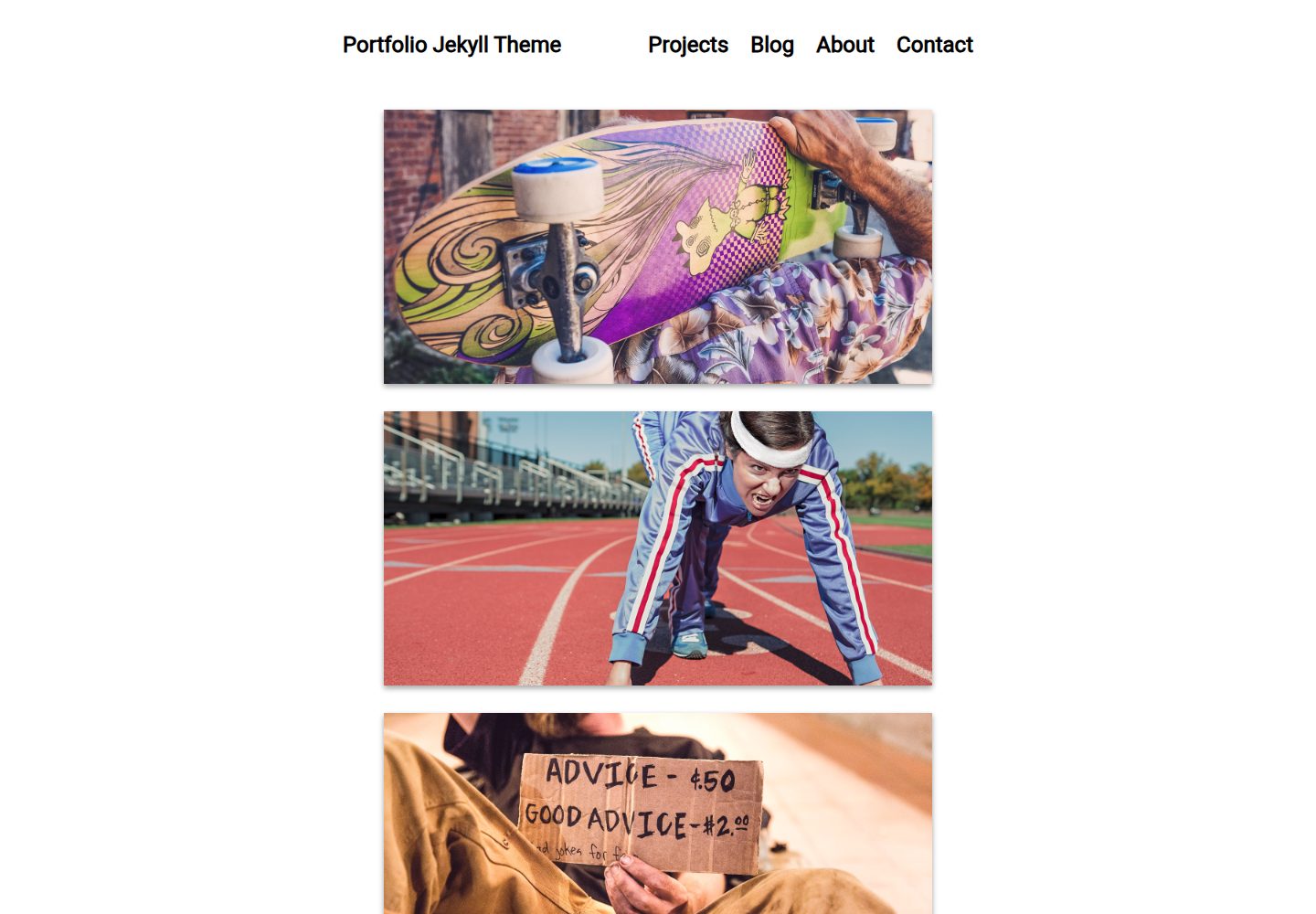
首页以项目展示为核心,项目页与缩略图有固定目录与命名约定
Jekyll作品集博客
portfolio-jekyll-theme — Jekyll 作品集模板
作者 LeNPaul
LeNPaul 的 Portfolio Jekyll Theme 是一个基于 Jekyll 的极简作品集主题,首页突出展示项目,同时带有博客、页面与项目页结构,兼容 GitHub Pages。
看看你的网站会是什么样
浏览真实页面截图,比较内容排版与手机效果。点击下方缩略图切换,放大查看整页细节。
全部页面与视图 3
截图用于了解视觉与布局,交互效果请以实际项目为准。
采集于 2026-09-30查看来源
值得关注的模板亮点
从已有项目资料中,快速了解它的特点。
兼容 GitHub Pages,可通过 fork 仓库并改名为 USERNAME.github.io 直接发布
提供 post 与 page 两种布局,另有首页自定义布局
使用 _data/settings.yml 集中管理菜单、社交信息、Disqus 与 Google Analytics 开关
支持 Jekyll 内置 Sass/SCSS 预处理与数据文件定制
内置 RSS 订阅、社交图标、MathJax 公式与语法高亮等博客相关支持
模板详细介绍
这是一个面向个人作品集的 Jekyll 静态站点主题,仓库位于 GitHub,采用 MIT 许可。主题以首页项目展示为核心,同时提供博客文章、菜单页面和项目页面三类内容结构,适合把作品与写作放在同一个站点里。
主题使用 Jekyll 的 Sass/SCSS 预处理与 _data 数据文件,站点标题、描述、作者、菜单、社交信息等集中在 _config.yml 与 _data/settings.yml 中配置。项目图片放在 assets/img/projects/proj-n 目录并按 thumb.jpg 命名,项目页与菜单页分别位于 projects 和 menu 目录。
功能方面,README 列出 GitHub Pages 兼容、Google Analytics、Disqus 评论、RSS 订阅、社交图标、MathJax 公式与语法高亮等支持;布局分为 post 与 page 两种,首页在 page 布局上叠加 Liquid 模板代码。主题定位为极简,链接主要靠彩色字体区分。
使用限制:主题依赖 Jekyll 构建,本地运行需要 Ruby 环境与 bundle install、jekyll serve;GitHub Pages 方式则通过 fork 仓库并改名为 USERNAME.github.io 部署。Disqus、Google Analytics 等外部服务需要自行注册并填写对应标识。演示图片、字体、图标等第三方素材的许可需单独核对,不能仅凭代码的 MIT 许可判断。
Jekyll作品集博客
适合你的项目吗?
适用场景
- 搭建以项目作品为主、附带博客的个人作品集站点
- 在 GitHub Pages 上零本地环境发布静态个人网站
- 把已有的 Jekyll 文章迁移到带项目展示的主题中
- 需要公式排版与代码高亮的个人技术写作站点
适合人群
- 希望用 Jekyll 与 GitHub Pages 维护个人作品集的开发者
- 需要项目展示与博客写作并存的个人站点作者
- 偏好极简排版、以内容为视觉重点的用户
- 能接受通过编辑 Markdown 与 YAML 文件来更新内容的人
上手与定制指南
结合仓库当前版本的说明,按下面的资料检查内容、配置与运行要求。
- 1
GitHub Pages 方式:fork 仓库后改名为 USERNAME.github.io,确保存在 gh-pages 分支,并编辑 _data/settings.yml
- 2
本地方式:下载仓库后执行 bundle install,再执行 jekyll serve,默认在 http://localhost:4000 预览
- 3
站点级设置改 _config.yml,菜单、社交、Disqus 与 Google Analytics 等改 _data/settings.yml
- 4
项目图片放在 assets/img/projects/proj-n 目录,文件名使用 thumb.jpg
- 5
启用 Disqus 需自行注册账号并填写 disqus_shortname;Google Analytics 同样需要自己的跟踪标识
授权与来源资料
使用条件与限制
免费使用 · 保留许可声明本次收录的是公开仓库中采用 MIT 许可的免费版本;免费范围为该版本代码,不代表外部服务或第三方素材免费。
使用时需要遵守
- 允许免费使用、修改、商用和分发该版本代码。
- 分发代码副本或实质性部分时,保留原作者版权声明和完整 MIT 许可声明。
- 代码按现状提供;担保与责任限制以原许可证及适用法律为准。
额外费用与待核对事项
- 启用 Disqus 评论需自行注册 Disqus 账号并为网站创建配置,获取 disqus_shortname 后填入设置文件,属于外部服务依赖。
- 使用 Google Analytics 统计需自行注册账号并填写站点跟踪 ID,属于外部服务依赖。
- 社交图标来自 Font Awesome 第三方素材,其许可需单独核对,不随主题代码的 MIT 许可一并授予。
- 演示图片来自 Death to Stock 等第三方来源,素材许可需单独确认,不能按代码的 MIT 许可使用。
- 演示图片、字体、图标及其他第三方素材需按各自许可核对,不能仅凭代码的 MIT 许可判断。
- 域名、托管、数据库、支付或 AI 等外部服务可能另外收费。
查看原文依据
Permission is hereby granted, free of charge
许可证原文
If you do not have a Disqus account already, you will have to set one up, and create a profile for your website.
README 原文
you will have to create an account for Google Analytics, and enter the correct Google ID for your site
README 原文
All social media icons are courtesy of [Font Awesome](http://fontawesome.io/).
README 原文
https://github.com/LeNPaul/portfolio-jekyll-theme/blob/gh-pages/LICENSE.mdhttps://github.com/LeNPaul/portfolio-jekyll-theme/blob/gh-pages/README.md### Icons + Demo Images * [Death to Stock](https://deathtothestockphoto.com/)
README 原文
DeepSeek 根据仓库许可证和 README 整理 ·2026-10-01。结果仅覆盖已读取资料,依赖、图片、字体及后续条款变更以各自原文为准。
项目核对记录与介绍依据
模板资料
- 来源平台
- GitHub
- 资料与维护参考分
- 资料较完整 · 81 / 100
- 技术栈
- Jekyll
- 网站类型
- 作品集 · 博客
这个分数如何计算
本站按许可资料(最高30分)、演示链接(12分)、预览图(10分)、Star数(15分)、记录的维护时间(15分)、描述完整度(8分)、功能记录(5分)和分类资料(5分)计算。它不是代码、安全或性能测试,也不是 Google 评分;有链接不代表已实测可用。
这个项目需要核对什么
- 记录的仓库更新时间
- 2024-05-13
- 截图检查日期
- 2026-10-01
已收录演示链接。请用你的内容与屏幕尺寸检查;有演示不代表表单、认证或支付已经可用。
目录记录的主要技术栈是 Jekyll。请通过依赖清单和锁文件核对实际版本与托管要求。这些说明基于收录资料,不代表代码审计或部署实测。
查看具体选型方法 →介绍的制作与核对状态
介绍由 AI 辅助整理目录与仓库资料。仓库作者不等于这篇介绍的审核者。
已完成服务器许可规则与 AI 来源核对;未经过人工编辑审核。
查看当时使用的来源资料
SHA-256: 0c67c943ec20fe88613d8a02e2bf7676c25df51499ff986b25c922f351907f77
2026-10-01T14:24:26.754Z
来源文件 / 仓库# Portfolio Jekyll Theme This is a Jekyll theme built using the [DevTips Starter Kit](http://devtipsstarterkit.com/) as a foundation for starting, and following closely the amazing tutorial by [Travis Neilson over at DevTips](https://www.youtube.com/watch?v=T6jKLsxbFg4&list=PL0CB3OvPhDA_STygmp3sDenx3UpdOMk7P). The purpose of this theme is to provide a clean and simple website for your portfolio. Emphasis is placed on your projects, which are shown front and center on the home page. Everything that you will ever need to know about this Jekyll theme is included in the README below, which you can also find in [the demo site](https://lenpaul.github.io/portfolio-jekyll-theme/). For a guide on how to deploy a Jekyll site using GitHub Pages, please check out [this article](https://paulle.ca/jekyll-tutorials/deploy-jekyll-site-github-pages). If you like my work then please consider supporting me with [Ko-fi](https://ko-fi.com/paulle).  ## Notable features * Compatible with GitHub Pages. * Support for Jekyll's built-in Sass/SCSS preprocessor and data files for making customizing easier. * [Google Analytics](https://www.google.com/analytics/) support. * Commenting support powered by [Disqus](https://disqus.com/). * Optimized for search engines. * LaTeX support through [MathJax](https://www.mathjax.org/). ## Table of Contents 1. [Introduction](#introduction) 1. [What is Jekyll](#what-is-jekyll) 2. [Never Used Jeykll Before?](#never-used-jekyll-before) 2. [Installation](#installation) 1. [GitHub Pages Installation](#github-pages-installation) 2. [Local Installation](#local-installation) 3. [Directory Structure](#directory-structure) 4. [Starting From Scratch](#starting-from-scratch) 3. [Configuration](#configuration) 1. [Sample Posts](#sample-posts) 2. [Site Variables](#site-variables) 3. [Adding Menu Pages](#adding-menu-pages) 4. [Posts](#posts) 5. [Layouts](#layouts) 6. [YAML Front Block Matter](#yaml-front-block-matter) 4. [Features](#features) 1. [Design Considerations](#design-considerations) 2. [Disqus](#disqus) 3. [Google Analytics](#google-analytics) 4. [RSS Feeds](#rss-feeds) 5. [Social Media Icons](#social-media-icons) 6. [MathJax](#mathjax) 7. [Syntax Highlighting](#syntax-highlighting) 8. [Markdown](#markdown) 5. [Everything Else](#everything-else) 6. [Contributing](#Contributing) 7. [Questions?](#questions) 8. [Credits](#credits) 9. [License](#license) ## Introduction Portfolio Jekyll Theme is a Jekyll theme that was built to be 100% compatible with [GitHub Pages](https://pages.github.com/). If you are unfamiliar with GitHub Pages, you can check out [their documentation](https://help.github.com/categories/github-pages-basics/) for more information. [Jonathan McGlone's guide](http://jmcglone.com/guides/github-pages/) on creating and hosting a personal site on GitHub is also a good resource. ### What is Jekyll? Jekyll is a simple, blog-aware, static site generator for personal, project, or organization sites. Basically, Jekyll takes your page content along with template files and produces a complete website. For more information, visit the [official Jekyll site](https://jekyllrb.com/docs/home/) for their documentation. ### Never Used Jekyll Before? The beauty of hosting your website on GitHub is that you don't have to actually have Jekyll installed on your computer. Everything can be done through the GitHub code editor, with minimal knowledge of how to use Jekyll or the command line. All you have to do is add your posts to the `_posts` directory and edit the `_config.yml` file to change the site settings. With some rudimentary knowledge of HTML and CSS, you can even modify the site to your liking. This can all be done through the GitHub code editor, which acts like a content management system (CMS). ## Installation ### GitHub Pages Installation To start using Portfolio Jekyll Theme right away with GitHub Pages, [fork the Portfolio Jekyll Theme repository on GitHub](https://github.com/LeNPaul/portfolio-jekyll-theme/fork). From there, you can rename your repository to 'USERNAME.github.io', where 'USERNAME' is your GitHub username, and edit the `settings.yml` file in the `_data` folder to your liking. Ensure that you have a branch named `gh-pages`. Your website should be ready immediately at 'http://USERNAME.github.io'. Note: if you are hosting several sites under the same GitHub username, then you will have to use [Project Pages instead of User Pages](https://help.github.com/articles/user-organization-and-project-pages/) - just change the repository name to something other than 'http://USERNAME.github.io'. Head over to the `_posts` directory to view all the posts that are currently on the website, and to see examples of what post files generally look like. You can simply just duplicate the template post and start adding your own content. ### Local Installation For a full local installation of Portfolio Jekyll Theme, [download your own copy of Portfolio Jekyll Theme](https://github.com/LeNPaul/portfolio-jekyll-theme/archive/gh-pages.zip) and unzip it into it's own directory. From there, open up your favorite command line tool, enter `bundle install`, and then enter `jekyll serve`. Your site should be up and running locally at [http://localhost:4000](http://localhost:4000). ### Directory Structure If you are familiar with Jekyll, then the Portfolio Jekyll Theme directory structure shouldn't be too difficult to navigate. The following some highlights of the differences you might notice between the default directory structure. More information on what these folders and files do can be found in the [Jekyll documentation site](https://jekyllrb.com/docs/structure/). ```bash Portfolio Jekyll Theme/ ├── _data # Data files | └── settings.yml # Theme settings and custom text ├── _includes # Theme includes ├── _layouts # Theme layouts (see below for details) ├── _posts # Where all your posts will go ├── assets # Style sheets and images are found here | ├── css # Style sheets go here | | └── all.sass # Main SASS file | └── img # Images go here ├── pages # Menu pages ├── projects # Project pages ├── _config.yml # Site build settings ├── Gemfile # Ruby Gemfile for managing Jekyll plugins └── index.md # Home page ``` ### Starting From Scratch To completely start from scratch, simply delete all the files in the `_posts`, `assets/img`, and `menu` folder, and add your own content. You may also replace the `README.md` file with your own README. Everything in the `_data` folder and `_config.yml` file can be edited to suit your needs. You may also change the `favicon.ico` file to your own favicon. ## Configuration ### Sample Posts Visit the [the demo site](https://lenpaul.github.io/portfolio-jekyll-theme/) to find sample posts that show what different types of text formatting look like. You can find these posts in the `_posts` folder, which show what the best practices for setting up your own site are. ### Site Variables To change site build settings, edit the `_config.yml` file found in the root of your repository, which you can tweak however you like. More information on configuration settings and plugins can be found on [the Jekyll documentation site](https://jekyllrb.com/docs/configuration/). This is also where you will be able to customize the title, description, and the author/owner of your site. If you are hosting your site on GitHub Pages, then committing a change to the `_config.yml` file will force a rebuild of your site with Jekyll. Any changes made should be viewable soon after. If you are hosting your site locally, then you must run `jekyll serve` again for the changes to take place. In the `settings.yml` file found in the `_data` folder, you will be able to customize your site settings, such as setting Disqus comments, Google Analytics, what shows up in your menu, and social media information. ### Adding Menu and Project Pages The menu pages are found in the `menu` folder in the root directory, and can be added to your menu in the `settings.yml` file. Similarly, the project pages are found in the `projects` folder in the root directory, and can be added to your site in the `settings.yml` file. The images for your portfolio projects are stored in the `assets/img/projects/proj-n` folder, and should be named `thumb.jpg`. ### Posts You will find example posts in your `_posts` directory. Go ahead and edit any post and re-build the site to see your changes. You can rebuild the site in many different ways, but the most common way is to run `jekyll serve`, which launches a web server and auto-regenerates your site when a file is updated. To add new posts, simply add a file in the `_posts` directory that follows the convention of `YYYY-MM-DD-name-of-post.md` and includes the necessary front matter. Take a look at any sample post to get an idea about how it works. If you already have a website built with Jekyll, simply copy over your posts to migrate to Portfolio Jekyll Theme. ### Layouts There are two main layout options that are included with Portfolio Jekyll Theme: post and page. Layouts are specified through the [YAML front block matter](https://jekyllrb.com/docs/frontmatter/). Any file that contains a YAML front block matter will be processed by Jekyll. For example: ``` --- layout: post title: "Example Post" --- ``` Examples of what posts looks like can be found in the `_posts` directory, which includes this post you are reading right now. Posts are the basic blog post layout, which includes a header image, post content, author name, date published, social media sharing links, and related posts. Pages are essentially the post layout without any of the extra features of the posts layout. An example of what pages look like can be found at the [About](https://lenpaul.github.io/portfolio-jekyll-theme/pages/about.html) and [Contacts](https://lenpaul.github.io/portfolio-jekyll-theme/pages/contact.html). In addition to the two main layout options above, there is also a custom layout that have been created for the [home page](https://lenpaul.github.io/portfolio-jekyll-theme/). These are simply just page layouts with some [Liquid template code](https://shopify.github.io/liquid/). Check out the `index.html` file in the root directory for what the code looks like. ### YAML Front Block Matter The recommended YAML front block is: ``` --- layout: title: --- ``` `layout` specifies which layout to use, and `title` is the page or post title. Have a look at some posts in the `_posts` directory to see how these variables are set. ## Features ### Design Considerations Portfolio Jekyll Theme was designed to be a minimalist theme in order for the focus to remain on your content. For example, links are signified mainly through coloured font, in order to maximize the perceived affordance of clickability (I originally just wanted to make the links a darker shade of grey). ### Disqus Portfolio Jekyll Theme supports comments at the end of posts through [Disqus](https://disqus.com/). In order to activate Disqus commenting, set `disqus.comments` to true in the `_data/settings.yml` file. If you do not have a Disqus account already, you will have to set one up, and create a profile for your website. You will be given a `disqus_shortname` that will be used to generate the appropriate comments sections for your site. More information on [how to set up Disqus](http://www.perfectlyrandom.org/2014/06/29/adding-disqus-to-your-jekyll-powered-github-pages/). ### Google Analytics It is possible to track your site statistics through [Google Analytics](https://www.google.com/analytics/). Similar to Disqus, you will have to create an account for Google Analytics, and enter the correct Google ID for your site under `google-ID` in the `settings.yml` file. More information on [how to set up Google Analytics](https://michaelsoolee.com/google-analytics-jekyll/). Note: If you are not using Google Analytics, please change `google-ID` to an empty string. ### RSS Feeds Atom is supported by default through [jekyll-feed](https://github.com/jekyll/jekyll-feed). With jekyll-feed, you can set configuration variables such as 'title', 'description', and 'author', in the `_config.yml` file. ### Social Media Icons All social media icons are courtesy of [Font Awesome](http://fontawesome.io/). You can change which icons appear, as well as the account that they link to, in the `settings.yml` file in the `_data` folder. ### MathJax Portfolio Jekyll Theme comes out of the box with [MathJax](https://www.mathjax.org/), which allows you to display mathematical equations in your posts through the use of [LaTeX](http://www.andy-roberts.net/writing/latex/mathematics_1). ### Syntax Highlighting Portfolio Jekyll Theme provides syntax highlighting through [fenced code blocks](https://help.github.com/articles/creating-and-highlighting-code-blocks/). Syntax highlighting allows you to display source code in different colors and fonts depending on what programming language is being displayed. You can find the full list of supported programming languages [here](https://github.com/jneen/rouge/wiki/List-of-supported-languages-and-lexers). Another option is to embed your code through [Gist](https://en.support.wordpress.com/gist/). ### Markdown As always, Jekyll offers support for GitHub Flavored Markdown, which allows you to format your posts using the [Markdown syntax](https://guides.github.com/features/mastering-markdown/). Examples of these text formatting features can be seen below. You can find this post in the `_posts` directory as well as the `README.md` file. ## Everything Else Check out the [Jekyll docs][jekyll-docs] for more info on how to get the most out of Jekyll. File all bugs/feature requests at [Jekyll's GitHub repo][jekyll-gh]. If you have questions, you can ask them on [Jekyll Talk][jekyll-talk]. [jekyll-docs]: http://jekyllrb.com/docs/home [jekyll-gh]: https://github.com/jekyll/jekyll [jekyll-talk]: https://talk.jekyllrb.com/ ## Contributing If you would like to make a feature request, or report a bug or typo in the documentation, then please [submit a GitHub issue](https://github.com/LeNPaul/portfolio-jekyll-theme/issues/new). If you would like to make a contribution, then feel free to [submit a pull request](https://help.github.com/articles/about-pull-requests/) - as a bonus, I will credit all contributors below! If this is your first pull request, it may be helpful to read up on the [GitHub Flow](https://guides.github.com/introduction/flow/) first. Portfolio Jekyll Theme has been designed as a base for users to customize and fit to their own unique needs. Please keep this in mind when requesting features and/or submitting pull requests. Some examples of changes that I would love to see are things that would make the site easier to use, or better ways of doing things. Please avoid changes that do not benefit the majority of users. ## Questions? This theme is completely free and open source software. You may use it however you want, as it is distributed under the [MIT License](http://choosealicense.com/licenses/mit/). If you are having any problems, any questions or suggestions, feel free to [tweet at me](https://twitter.com/intent/tweet?text=My%question%about%PJT%is:%&via=paululele), or [file a GitHub issue](https://github.com/lenpaul/portfolio-jekyll-theme/issues/new). ## Credits ### Creator #### Paul Le * [www.lenpaul.com](http://lenpaul.com) * [Twitter](https://twitter.com/paululele) * [GitHub](https://github.com/LeNPaul) ### Contributors * Be the first to contribute! ### Icons + Demo Images * [Death to Stock](https://deathtothestockphoto.com/) * [Font Awesome](http://fontawesome.io/) ### Other * [Jekyll](https://jekyllrb.com/) * [Free Code Camp](https://www.freecodecamp.org) * [Khan Academy](https://www.khanacademy.org/) ## License Open sourced under the [MIT license](https://github.com/LeNPaul/portfolio-jekyll-theme/blob/gh-pages/LICENSE.md).
看看同类模板
对比同技术栈与用途的模板,找到更适合的视觉与内容结构。
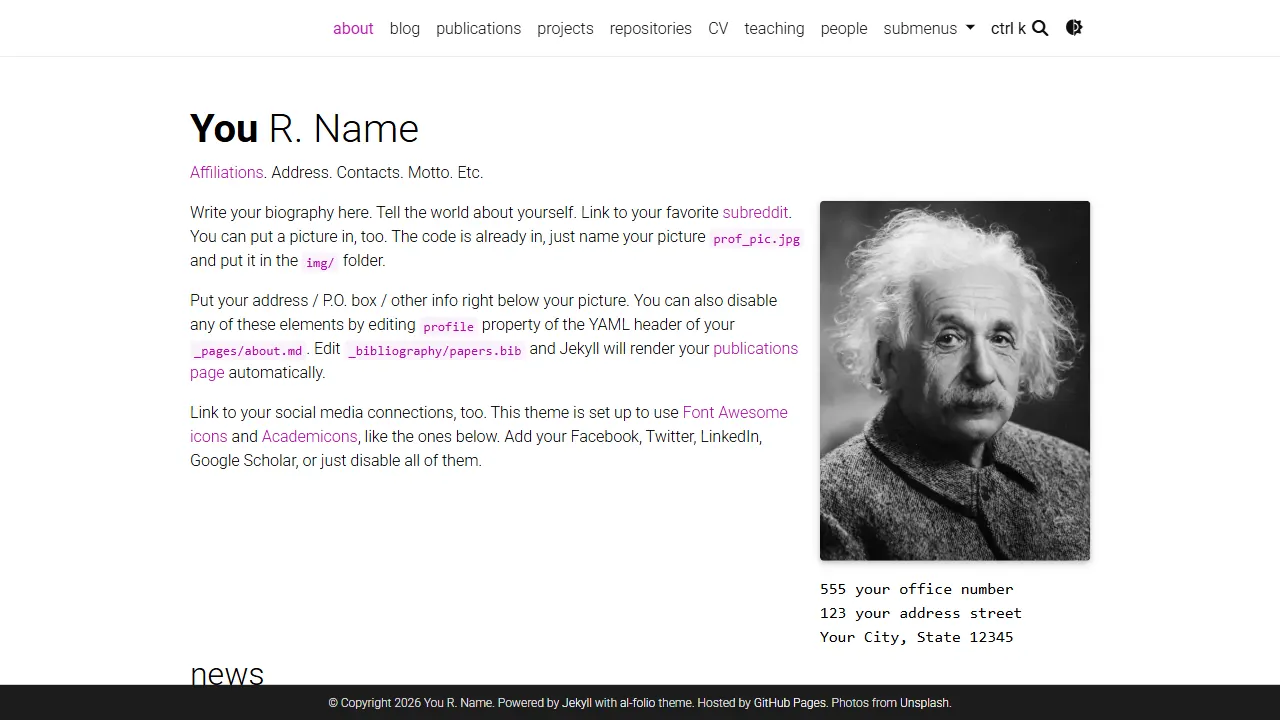
al-folio
al-folio 是一个面向学者与研究人员的 Jekyll 作品集主题,设计简洁、响应式,适合搭建个人学术主页。
Jekyll · 作品集
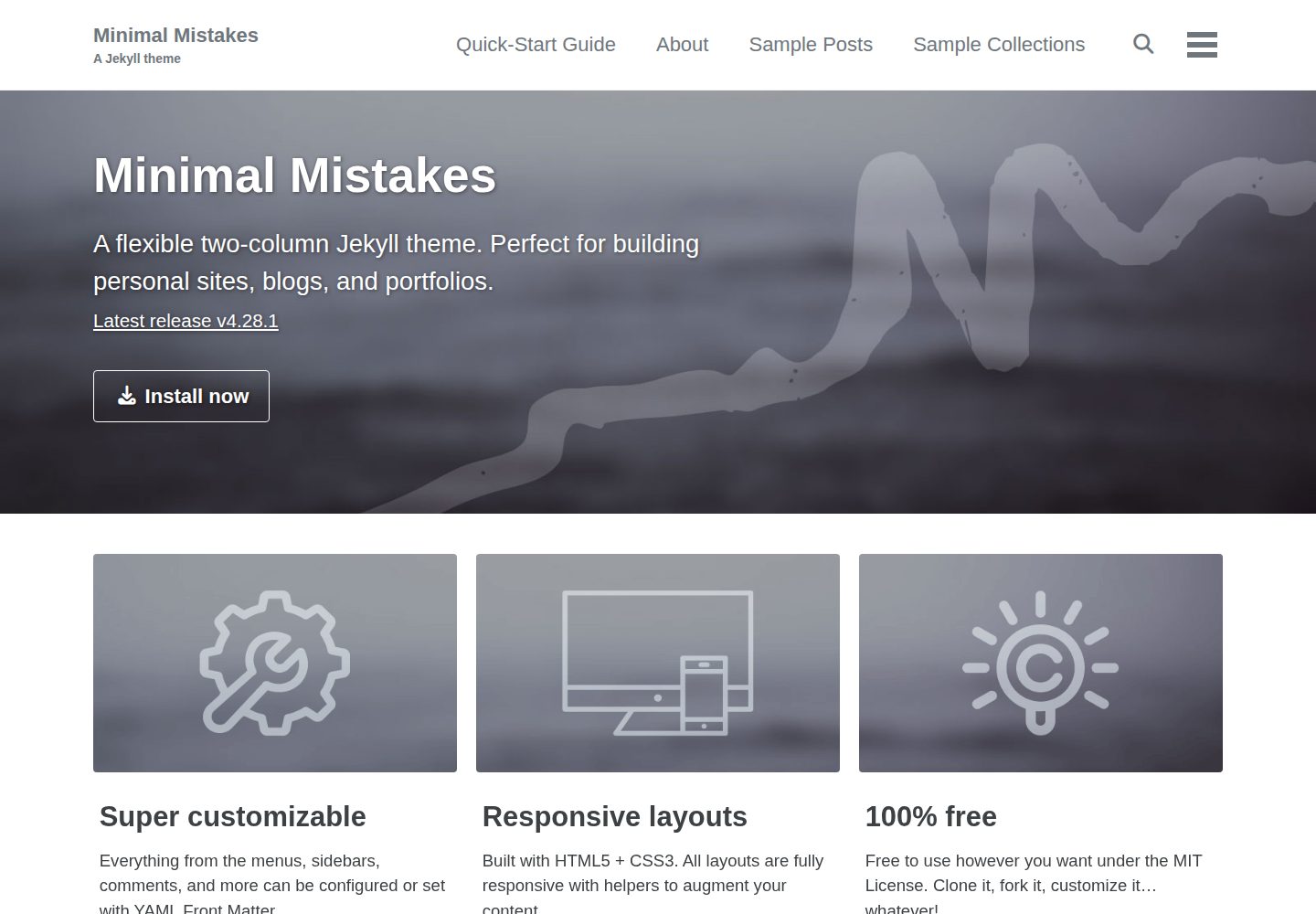
minimal-mistakes
:triangular_ruler: Jekyll theme for building a personal site, blog, project documentation, or portfolio.
Jekyll · 作品集
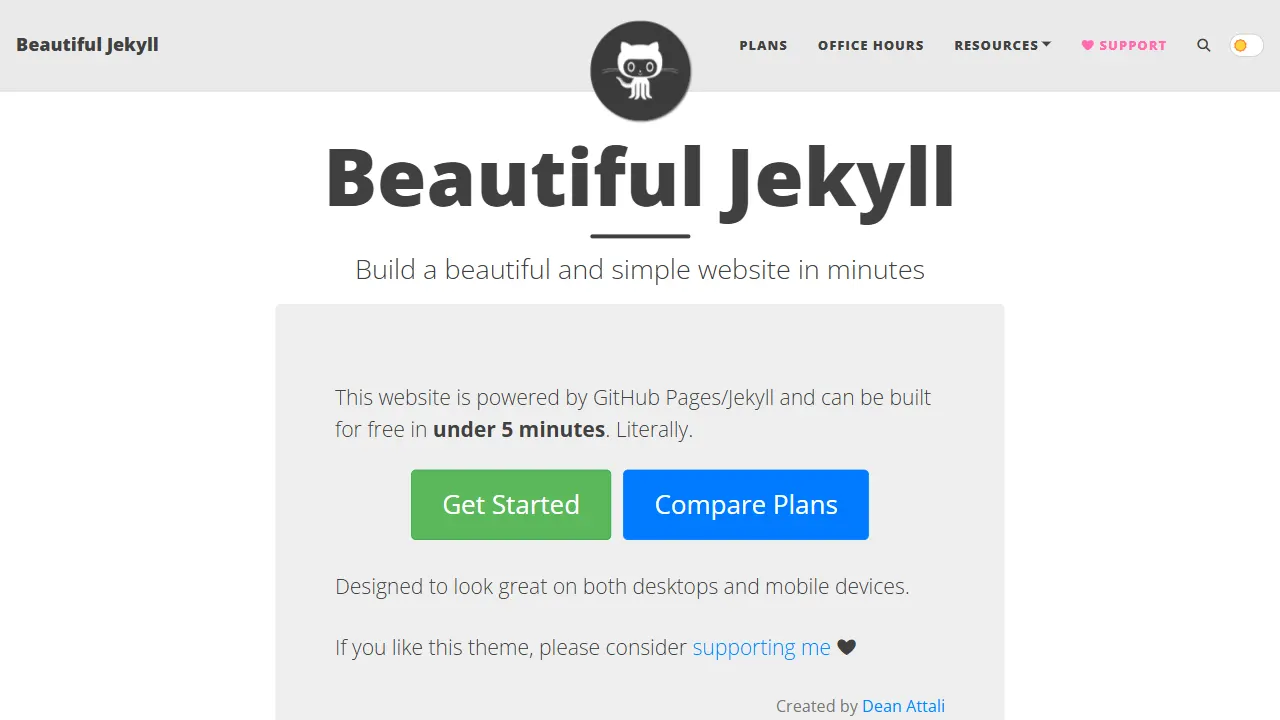
Beautiful Jekyll
Beautiful Jekyll 是一个在 Jekyll 生态中经过长期打磨的博客主题,由 Dean Attali 维护,自 2015 年起积累了超过 5 万用户。
Jekyll · 博客
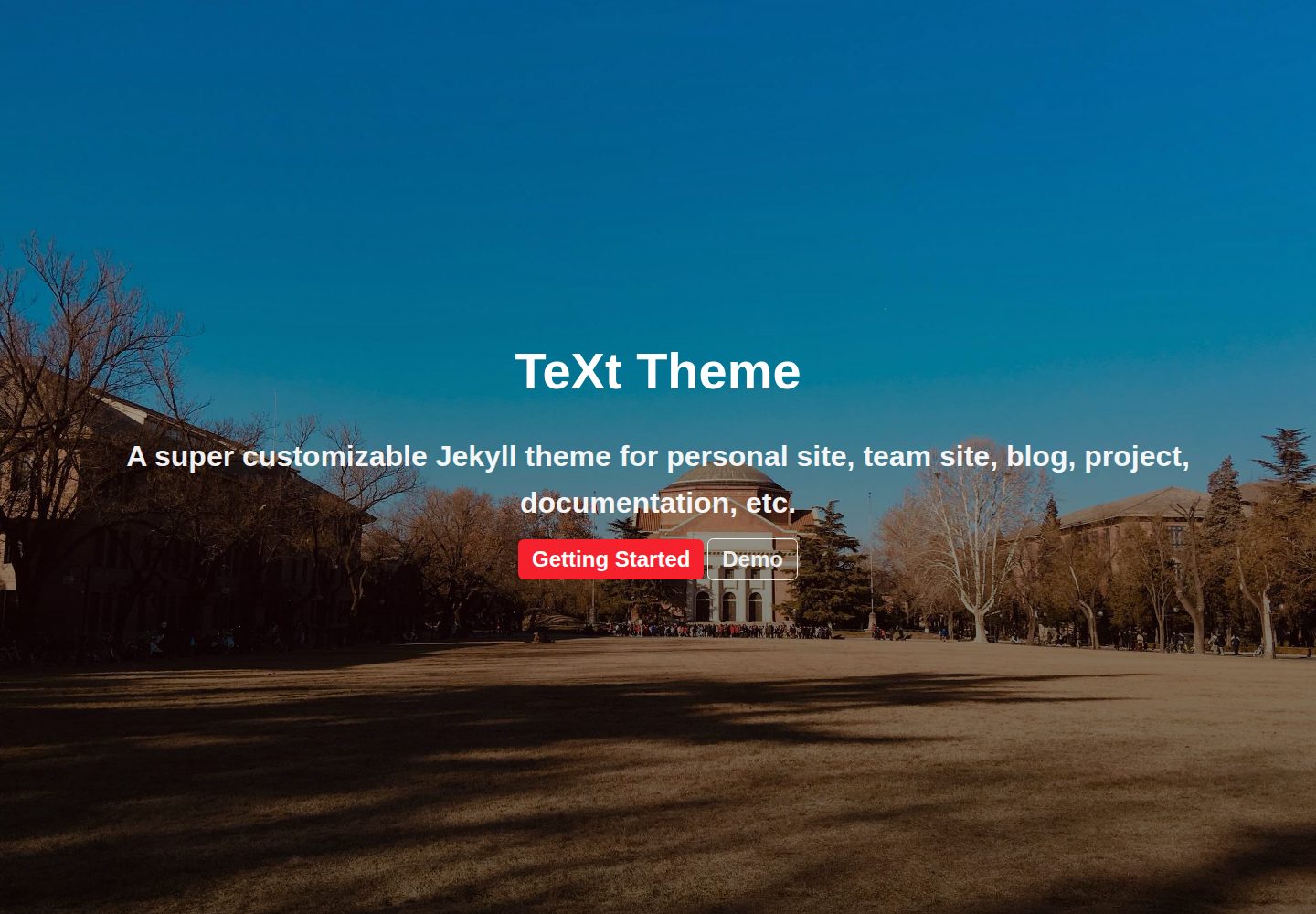
jekyll-TeXt-theme
💎 🐳 A super customizable Jekyll theme for personal site, team site, blog, project, documentation, etc.
Jekyll · 博客
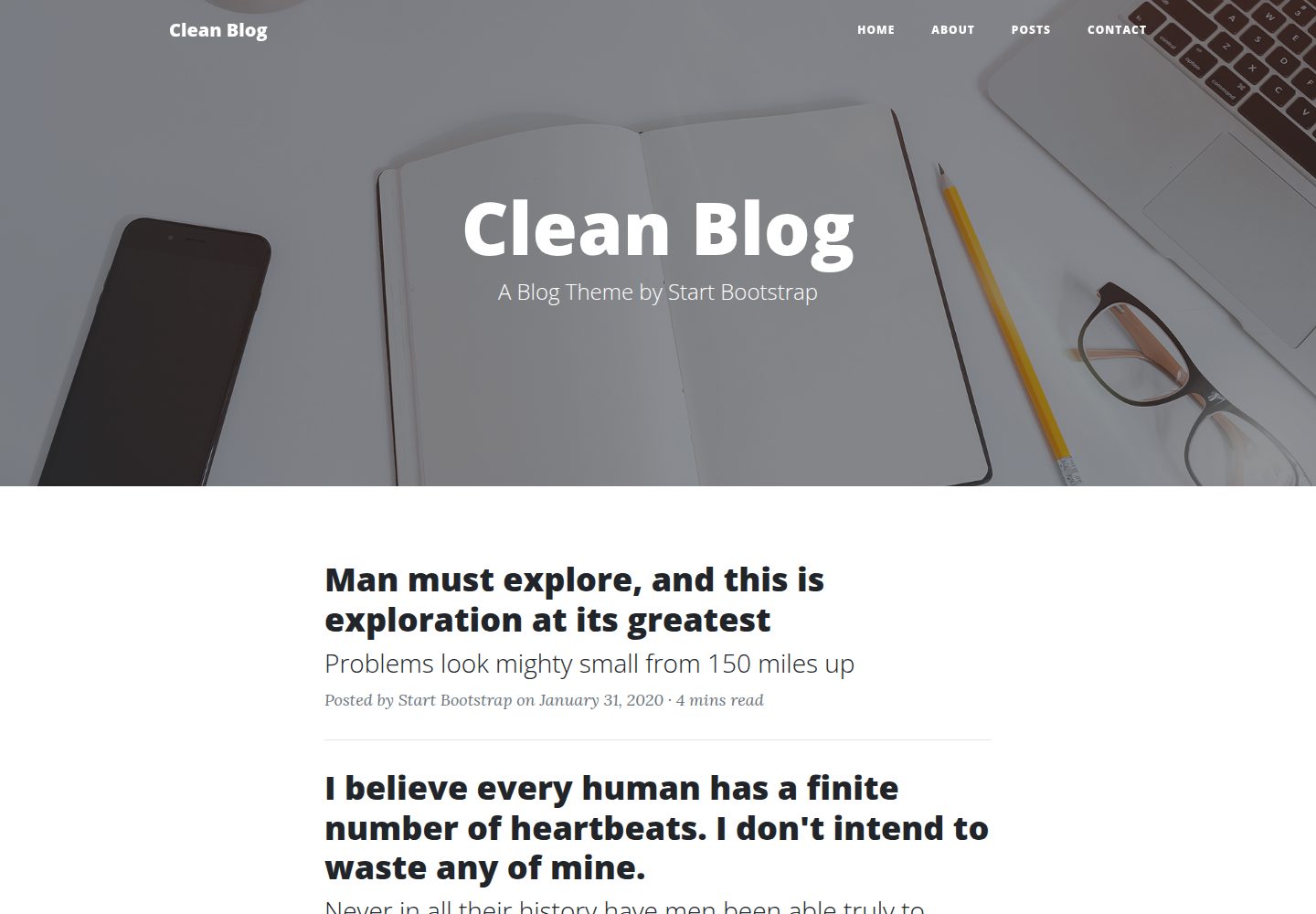
startbootstrap-clean-blog-jekyll
A Jekyll version of the Clean Blog theme by Start Bootstrap
Jekyll · 博客
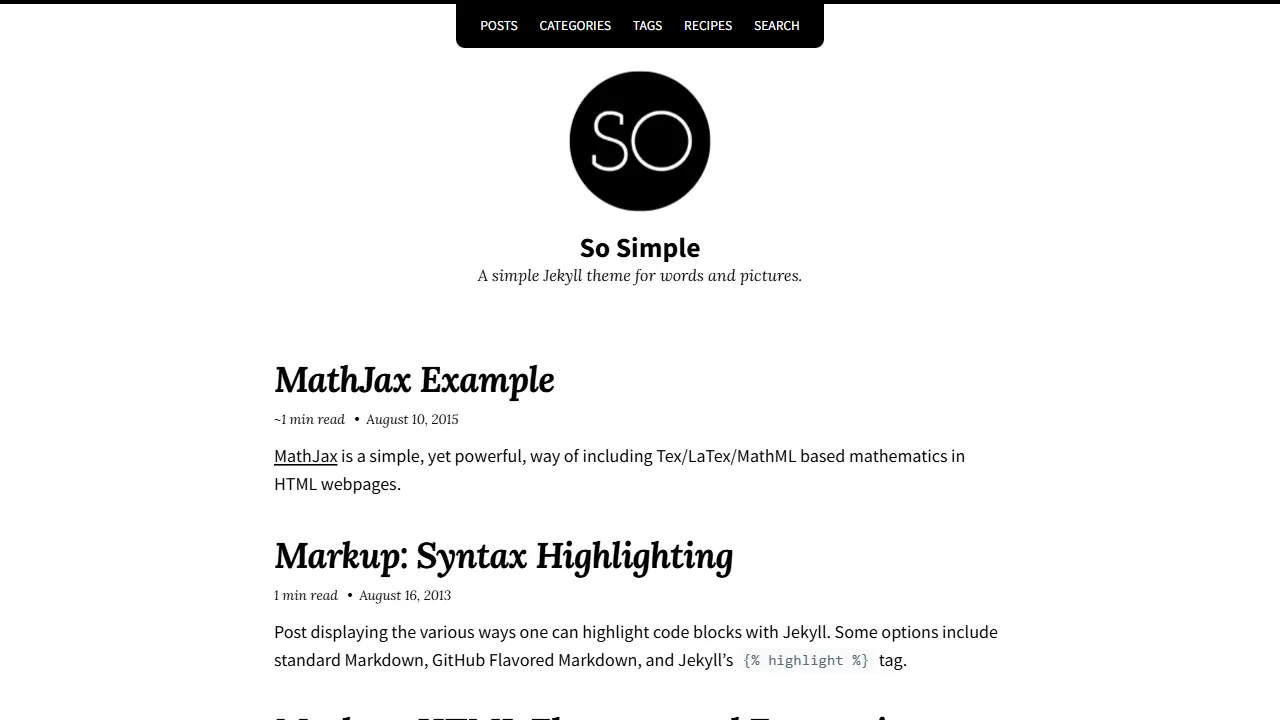
So Simple
So Simple 是 Michael Rose 开发的 Jekyll 主题,定位清晰:为文字和图片提供一个干净、可读性强的展示框架。
Jekyll · 博客