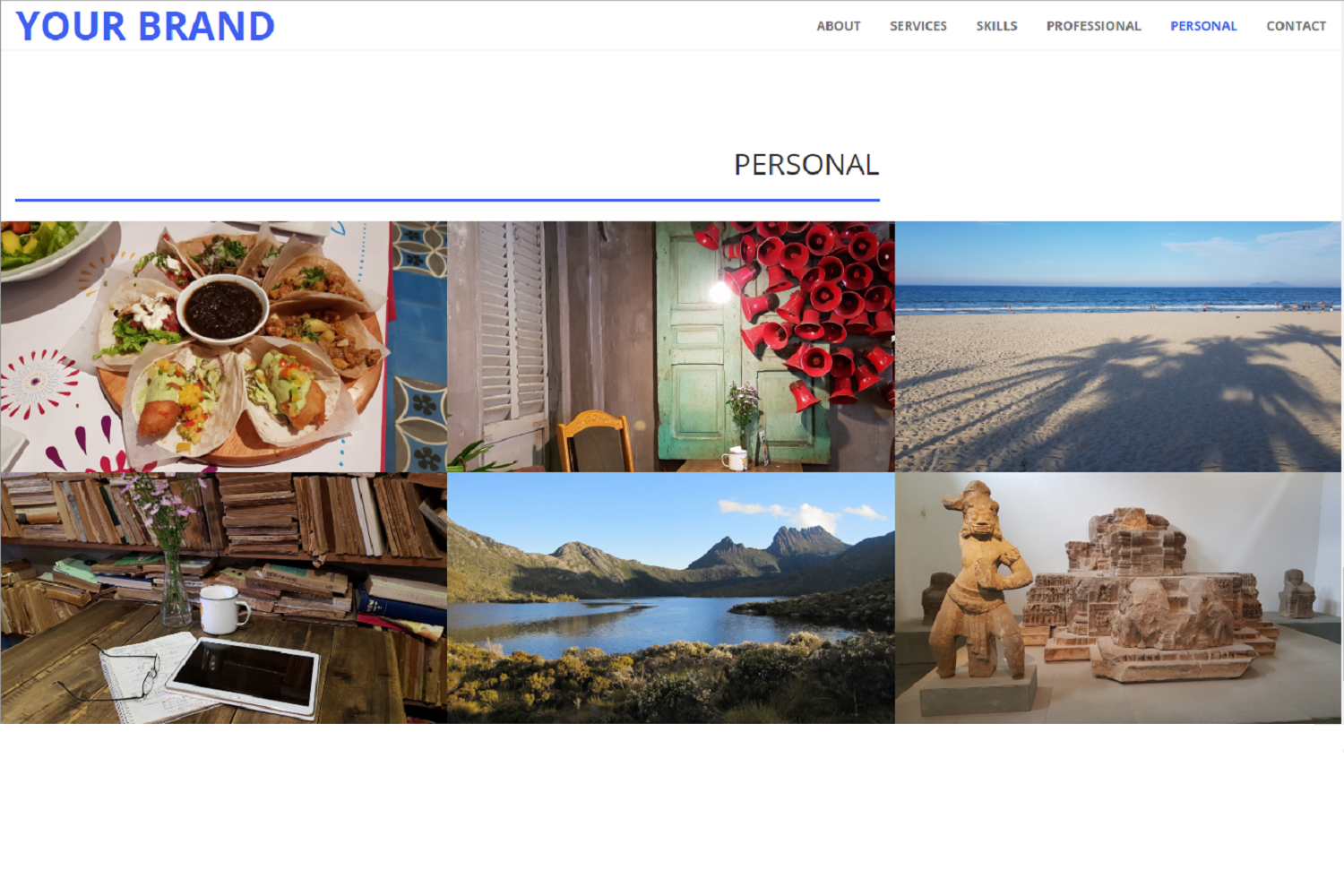
Supports any number of portfolio sections, which can be used to distinguish different categories of projects such as professional, personal, and academic
HugoPortfolioBlog
hugo-myportfolio-theme — Hugo Portfolio Template
By 2-REC
A portfolio theme adapted from the Hugo Creative theme, supporting multiple portfolio sections configured on the homepage, suitable for showcasing different types of projects such as technical and artistic work.
Explore the design
Compare the page layouts and mobile experience. Open any screenshot for a closer look.
Author preview
Author-provided previewTop of page
Preview provided in the project README.
One original preview is available. Open the full image to inspect the design.
Screenshots show visual appearance; interactive behavior may differ.
Recorded 2026-10-01View source
What stands out
A quick read of the recorded project description.
Homepage block order and content can be configured via config.toml and data files
Responsive portfolio grid with hover effects
Sidebar provides hierarchical navigation and tag, category navigation
Copyright notices can be set individually for each image, each gallery, or each project
Supports custom CSS to override default colors, fonts, etc.
Template Details
MyPortfolio Theme is a Hugo portfolio theme adapted from the HUGO Creative theme, with the core feature of supporting multiple portfolio sections. The homepage consists of configurable blocks, including HOME, ABOUT, SERVICES, SKILLS, PROJECTS, and CONTACT, where the PROJECTS block can be repeated to separately display different categories of projects such as "Professional" and "Personal". The theme uses YAML/JSON files in the data directory to provide content for each block, and controls block order, navigation links, and layout parameters in config.toml.
The theme includes an exampleSite, but the README explicitly states that due to the theme's special structure (articles can have multiple sections, and homepage block data is placed in the data directory rather than content), the exampleSite does not conform to the classic Hugo structure and cannot run correctly; the "Professional" and "Personal" links and blocks are unavailable. The author suggests referring to their personal portfolio website for a working example. The README has a TODO at the top, indicating that parameter documentation needs updating.
The theme is licensed under Apache-2.0 and can be used, modified, and distributed freely. The image gallery feature relies on the third-party hugo-easy-gallery integration.
HugoPortfolioBlog
Is it right for your project?
Use Cases
- Developers or creative professionals showcasing projects in multiple categories
- Companies separately displaying work from different business lines or of different natures
- Individuals maintaining both a professional portfolio and a personal interest portfolio
- Portfolio sites that need to organize project content by tags and categories
Suitable For
- Users familiar with Hugo and willing to organize data files and config.toml according to the theme's requirements
- Developers or creatives who need to present multiple independent portfolio sections within one site
- Users who can accept that the exampleSite cannot run directly and need to refer to the author's online site for configuration
Getting started & customization
Use these recorded setup notes alongside the repository instructions for your chosen version.
- 1
Install the theme by running git clone in the themes directory of the Hugo site
- 2
Copy config.toml from exampleSite to the site root and modify as needed
- 3
Prepare data files such as about.yaml, contact.yaml, home.yaml, services.yaml, skills.yaml in the data directory
- 4
Images, videos, and other resources referenced in data files must be placed in the site's static directory
- 5
The README has a TODO at the top; parameter descriptions may not be updated in time, so verify the actual parameters in exampleSite during configuration
License & source material
Usage conditions & limitations
Free to use · keep license noticeThis entry covers the free version under the Apache-2.0 license in the public repository; the free scope is limited to that version's code and does not imply that external services or third-party assets are free.
Must comply with when using
- Free use, modification, commercial use, and distribution are permitted; the Apache-2.0 license must be included when distributing.
- Modified files must prominently indicate changes, and relevant copyright, patent, trademark, and attribution notices must be retained.
- If the original project includes a NOTICE file, applicable attribution notices must be retained when distributing derivative works.
- The license includes an applicable contributor patent grant; initiating patent litigation as described in the license terminates that patent grant, and no trademark use rights are granted.
- The code is provided as-is; warranties and limitations of liability are governed by the original license and applicable law.
Additional costs & items to verify
- The exampleSite does not conform to the classic Hugo structure and cannot run correctly; the README explicitly states that the Professional and Personal links and blocks within it are unavailable, and configuration must refer to the author's online site.
- The README has a TODO at the top; parameter documentation may not be updated in time, so verify the actual parameters in exampleSite during configuration.
- The image gallery feature relies on the third-party hugo-easy-gallery integration; its documentation and license must be checked separately in the original project repository and are not covered by this theme's Apache-2.0 authorization.
- SVG icons must be downloaded separately from sources such as Font Awesome; the use of icon resources is subject to their respective licenses and must be verified independently.
- Demo images, fonts, icons, and other third-party assets must be checked against their respective licenses and cannot be judged solely based on the code's Apache-2.0 license.
- External services such as domain, hosting, database, payment, or AI may incur additional charges.
View Original Text Basis
no-charge, royalty-free, irrevocable copyright license
Original License Text
the "exampleSite" doesn't respect the classic Hugo structure, and is thus not working correctly.
Original README
**__TODO__**: Needs to be updated (check parameters)
Original README
Documentation and licence of the original project from [Li-Wen Yip](https://www.liwen.id.au/) can be found at the [repository page](https://github.com/liwenyip/hugo-easy-gallery/).
Original README
https://github.com/2-REC/hugo-myportfolio-theme/blob/master/LICENSEhttps://github.com/2-REC/hugo-myportfolio-theme/blob/master/README.mdFiles can be downloaded directly from Font Awesome for example.
Original README
Compiled by DeepSeek based on repository license and README ·2026-10-01. Results only cover the materials read; dependencies, images, fonts, and subsequent term changes are subject to their respective original texts.
Project checks & description sources
Template Information
- Source platforms
- GitHub
- Documentation and maintenance reference score
- Partly documented · 74 / 100
- Technologies
- Hugo
- Website type
- Portfolio · Blog
How this score is calculated
Our heuristic uses license records (up to 30), a demo link (12), a preview (10), stars (15), recorded maintenance (15), description completeness (8), feature records (5) and classification data (5). It is not a code, security or performance test, or a Google score. A link does not establish tested functionality.
What to verify for this project
- Repository update recorded
- 2025-06-11
- Screenshot last checked
- 2026-10-01
No demo link is recorded. Use the repository instructions to evaluate the project locally; the screenshot alone cannot establish interactive behavior.
The catalog identifies Hugo as the primary stack. Check the actual dependency manifest and lockfile for versions and hosting requirements. These notes use recorded metadata, not a code audit or a deployment test.
Use a selection guide →How this description was prepared
AI-assisted description based on catalog records and repository material. Repository authors are not automatically the reviewers of this description.
Automatically checked against source and license rules; no manual editorial review.
Inspect the recorded source material
SHA-256: 2a3f379a4abc375c632d45eca08a4155b9132ca36bb954ddc1676185b88da20b
2026-10-01T00:54:52.475Z
Source file / repository> **__TODO__**: Needs to be updated (check parameters)
# MyPortfolio Theme
> **__NOTE:__** Due to the theme specific structure (allowing more than 1 section for the posts, and the homepage sections defined in "data" directory instead of content), the "exampleSite" doesn't respect the classic Hugo structure, and is thus not working correctly.<br>
The "Professional" and "Personal" links and sections are not available and don't allow to see the demo site properly.<br>
To visualise a working example of the theme, you are invited to take a look at [my portfolio website](https://2-rec.github.io/it-portfolio).
<br>
"MyPortfolio Theme" is a portfolio for developers or creatives to showcase their projects.
It is based on the [HUGO "Creative" theme](//github.com/digitalcraftsman/hugo-creative-theme) by [digitalcraftsman](//github.com/digitalcraftsman), itself based on the [original Bootstrap theme](//github.com/IronSummitMedia/startbootstrap-creative) by [David Miller](//github.com/davidtmiller).
## Features
A key feature of this theme is its support for multiple portfolio sections.
This is especially useful for versatile individuals or companies looking to showcase different types of work.
For instance, you might create separate portfolios for "Technical" and "Artistic" projects.
Alternatively, you could organize your work into categories like "Professional", "Personal", and "Academic".
Noteworthy features of this Hugo theme are:
* Configurable home page (sections order and presence, and their content)
* Possibility to have arbitrary number of content/projects sections
* Responsive portfolio grids with hover effect
* Can be used as a professional showcase, a personal one, or both
* Image gallery with easy and intuitive navigation controls (*)
* Easy site navigation via header navigation bar
* Easy content navigation via sidebar: hierarchy (siblings and parents), and taxonomies (tags and categories)
* Possibility to display siblings, children posts and children lists independently for each page, with associated orders
* Customisable CSS to override default values (such as main theme colours, fonts, etc.)
* Easy copyright image labelling per image, per gallery or per project
* Use of SVG icons
* 404 page
(*) Thanks to [liwenyip](//github.com/liwenyip) for the [PhotoSwipe](https://photoswipe.com) gallery integration in Hugo: [hugo-easy-gallery](//github.com/liwenyip/hugo-easy-gallery)

## Theme structure and layout
As in the "Creative" theme, the theme's homepage holds the different sections. Its layout is a typical vertical single page, with a floating navigation bar on top.
Each section has a specific layout and contains specific data, some of which is customisable.
These custom values for layout and data are defined respectively in the common ["config"](#config-file) file, and in the section's corresponding ["data"](#data-files) file.
The different sections are described hereafter.
### HOME
The welcome section, at the top of the homepage.
### ABOUT
The introduction/presentation section.
It is based on the "Biography" section of the ["Academic" theme](//github.com/gcushen/hugo-academic).
### SERVICES
Section presenting the services that can be provided, listed in categories and sub-categories.
### SKILLS
Section typically providing a link to a downloadable resume, as well as listing the different tags and categories that are found in the projects sections.
### PROJECTS
Section serving as a portfolio, displaying a set of project categories (can be companies, technologies, etc.), each linking to their respective individual page containing projects listing.
It is based on the "Creative" theme "Portfolio" section, but with links to other pages instead of pop-up windows.
The section can be present more than once if several portfolio are to be showcased. It could for example be used to display a "professional" portfolio as well as a "personal" one.
### CONTACT
Section providing the contact information.
### Custom Sections
If desired, custom sections can be added to the homepage.
Steps to add a new custom section:
* HTML<br>
Create an HTML file in the site's "layouts/partials/sections" (NOT in the theme's directory under "themes").<br>
E.g.: `layouts/partials/sections/custom_section.html`<br>
The file must define a "`section`" element with the "`id`" matching the file name. The file can be based on an existing section file, or created from scratch.<br>
Parameters specific to the page can be defined in the ["config"](#config-file) file.
Data specific to the page can be defined in a ["data"](#data-files) file.
```
{{ $params := .Site.Params.custom_section }}
{{ $data := .Site.Data.custom_section }}
<section class="section" id="custom_section">
...
</section>
```
* DATA<br>
(_optional_) Create a YAML data file in the site's "data" directory (not in "themes"). <br>
E.g.: `data/custom_section.yaml`<br>
The content of the file can be accessed in the HTML file with:
```
{{ $data := .Site.Data.custom_section }}
```
* CONFIG<br>
In the site's config file ("config.toml"):
* Add an entry for the custom section in the sections list (it has to match the section's HTML file name).<br>
E.g.:
```
[params.homepage]
sections = [ "home", "about", "custom_section", "services", "skills", "projects", "contact" ]
```
* Add an entry in the navigation links.<br>
E.g.:
```
[params.navigation.links]
...
custom_section = "CUSTOM"
```
* (_optional_) Add an entry for the section parameters.<br>
E.g.:
```
[params.custom_section]
...
```
The paramaters defined in the entry can be accessed in the HTML file with:
```
{{ $params := .Site.Params.custom_section }}
```
* CSS<br>
Create a CSS file in the "static/css" directory of the site, and import it in the HTML file.<br>
E.g.:
```
<link rel="stylesheet" href="css/custom_section.css">
```
### Custom Homepage
Custom components can also be added to the homepage.
As an example, the following steps describe how to add a fixed overlay image covering the homepage (not scrolling).
* HTML
* Create a new HTML file "homepage-custom.html" in "layouts/partials".
* Content:
```
<div id="home_overlay"
style="--home-bkg-image: url('{{ "images/overlay_image.png" | absURL }}');"
>
<link rel="stylesheet" href="css/homepage-custom.css">
<script src="{{ "js/homepage-custom.js" | relURL }}"></script>
</div>
```
> **__NOTE:__** An image named "overlay_image.png" must be present in "static/images".
* CSS
* Create a new CSS file "homepage-custom.css" in "static/css".
* Content:
```
#home_overlay {
position: absolute;
top: 0;
padding: 0;
width: 100%;
background-image: var(--home-bkg-image,);
background-attachment: fixed;
background-position: center bottom;
background-size: 100% 100%;
}
```
* JS
* Create a new JS file "homepage-custom.js" in "static/js".
* Content:
```
var body = document.body;
var home_overlay = document.getElementById("home_overlay");
window.onload = function () {
var height = Math.max(body.scrollHeight, body.offsetHeight);
home_overlay.style.height = height + "px";
};
window.onresize = function () {
var height = Math.max(body.scrollHeight, body.offsetHeight);
home_overlay.style.height = height + "px";
};
```
## Installation
Inside the folder of your Hugo site run:
```
$ cd themes
$ git clone https://github.com/2-REC/hugo-myportfolio-theme
```
For more information read the official [setup guide](//gohugo.io/overview/installing/) of Hugo.
## Getting started
After installing the "MyPortfolio" Theme, a few more steps are required to get the site running.
### The config file {#config-file}
Settings about the different sections in the homepage as well as the navigation bar and menu are defined in the config file, named "config.toml".
Each section has a set of parameters that can be modified to customise the site. Most of these are related to the layout.
Details about each parameter and their role can be found in the file itself.
In the [`exampleSite`](//github.com/2-REC/hugo-myportfolio-theme/tree/master/exampleSite) folder of this theme there is an example [`config.toml`](
//github.com/2-REC/hugo-myportfolio-theme/blob/master/exampleSite/config.toml) file.
The file should be copied in the root folder of the site, and modified as desired.
### Data Files {#data-files}
Additionally to the configuration file, data files (located in the "data" folder) are required for the different sections of the homepage.
The required data files are the folowing:
* about.yaml
* contact.yaml
* home.yaml
* services.yaml
* skills.yaml
The files can also be in JSON format, but need to have the same names.
The "Projects" section(s) are optional, but it is advised to have at least one (it is a "Portfolio" theme after all :) ).
However, in case there are no projects sections, the "projects" entry of the "[params.navigation.links]" can be removed.
Resource files (images, videos, etc.) that are specified in the data files must be located in the "static" directory of the site.
The following paragraphs detail the required data for each of the sections.
### HOME - Set the homepage header
The content of the top section of the homepage is fetched from the "home" data file.
The different parameters that can be used are:
* `title_logo`: A small image displayed above the title.<br>
* `title`: The title for the website.<br>
Typically your name or company name.
* `subtitle`: A subtitle.<br>
Typically the role or types of provided services.
* `background`: The image used for the background.
* `background_opacity`: The opacity of the background, given in %.<br>
The background colour will appear through the image. This colour is defined by the "`--home-bkg-image-opacity`" CSS variable (see [custom CSS](#custom-css)).
* `background_hidden`: The image used for the second background, shown when scrolling down.
* `background_hidden_speed`: Speed at which the hidden background appears when scrolling.<br>
* `1`: after full screen scroll
* `2`: after 1/2 (50%) screen scroll
* etc.
* `background_video`: An MP4 video used for the background.<br>
This is ignored if a `background` is defined.
* `text`: A short phrase to catch the eye and invite visitors to explore further.
Additionally, the following parameters can be used to customize the scrolling button:
* `button_image`: The image used for the button.
* `button_text`: The text displayed on the button.
* `button_icon`: The icon used for the button.<br>
Additional subfields must be defined for the icon:<br>
* `icon`: The name of the icon SVG file (without extension)
E.g.:
```
button_icon:
icon: "arrow-alt-circle-down-solid"
```
> **__NOTE:__** The 3 button parameters are mutually exclusive, so only one can be used (the others will be ignored).
They are presented in their order of priority.
All the parameters in the home section are optional: if not defined, their corresponding element will not be added to the section.
### ABOUT - Introduce yourself
The content of the "ABOUT" section of the homepage is fetched from the "about" data file.
The different parameters that can be used are:
* `title`: The title of the section.<br>
Typically "ABOUT" would be used.
* `avatar`: The image used for the avatar.
* (_optional_) `avatar2`: Extra image displayed when hovering the profile image.
* `profile_text`: A short text briefly describing the company or person.
* `main_text`: A longer text providing more detailled information.<br>
Typically, the text will contain links to the other sections.
* `background_image`: Background image.
All the parameters are optional: if not defined, their corresponding element will not be added to the section.
### SERVICES - Add your services
The content of the "SERVICES" section of the homepage is fetched from the "services" data file.
The different parameters that can be used are:
* `title`: The title of the section.<br>
Typically "SERVICES" would be used.
* `background_image`: The image used for the background.
* `services`: The list of services. At least one must be provided.<br>
Each service has a set of subfields:
* `name`: The name of the service.
* `icon`: The icon used for the service (SVG filename, without extension).
* `text`: A short text describing the service.
* `list`: A list of sub-services displayed as bullet points.
`text` & `list` are optional.
E.g.:
```
services:
- name: "Service 1"
icon: "chalkboard-teacher-solid"
list: [ "One thing", "Another thing", "And some more ..." ]
- name: "Service 2"
icon: "window-restore-solid"
text: "I am also able to do this."
```
All the parameters except "services" are optional: if not defined, their corresponding element will not be added to the section.
The "services" list parameter must exist and contain at least one element.
### SKILLS - Show your skills
The content of the "SKILLS" section of the homepage is fetched from the "skills" data file.
The different parameters that can be used are:
* `title`: The title of the section.<br>
Typically "SKILLS" would be used.
* `background_image`: The image used for the background.
* `tags_label`: Label used for the tags found in the content sections.
* `categories_label`: Label used for the categories found in the content sections.
* `text`: Text describing the content of the page.
* `download`: Parameters about the (optional) download button.
* `button_text`: Text used for the button.
* `filename`: Name of the file to download. The file must be in "static/files".
* `icon`: The icon used for the button (SVG filename, without extension).
E.g.:
```
download:
button_text: "RESUME"
filename: "resume.pdf"
icon: "download-solid"
```
All the parameters except "text" are optional: if not defined, their corresponding element will not be added to the section.
### PROJECTS - Create a portfolio (or more)
This section serves as a showcase for a "Portfolio" of projects.
It is composed of a grid representing a set of subsections, each grouping "Projects" into "Categories".
> **__NOTE:__** It is based on the "Portfolio" section of the "Creative" theme, but with an additional level of categories above the projects level. Also, instead of opening a pop-up window when selecting an element in the grid, it opens a new page displaying the contained projects.
A portfolio section "Projects" is defined in the Homepage via the "config.toml" configuration file. Additionally to the entry specified in the file, a directory with the same name must exist at the top level of the website file structure, containing its associated "_index.md" file.
As an example, to have two sections for a professional portfolio and a personal portfolio, the following entry could be added to the "[params.projects]" group in the "config.toml" file:
```
categories = [ "pro", "perso" ]
```
It will create 2 projects sections identified by "pro" and "perso" respectively.
The values specified have to correspond to directories in the "content" directory of the website (respectively "content/pro" and "content/perso").
In order to have the two sections accessible via the main navigation bar (at the top of the screen), entries also need to be added to the "[params.navigation.links]" group in the "config.toml" file:
```
projects = [
{ section = "pro", label = "PROFESSIONAL" },
{ section = "perso", label = "PERSONAL" }
]
```
This will create 2 projects sections links labelled "PROFESSIONAL" and "PERSONAL", pointing to the "pro" and "perso" sections respectively (the values specified for the "section" keys need to correspond to the sections identification values).

A section is composed of "subsections" (typically categories, companies, technologies, etc.) grouping projects together. A subsection is defined by a subdirectory in a section directory also containing its associated "_index.md" file. Each subsection will be automatically added in the section menu.
Sections and subsections correspond to list pages in the Hugo jargon.

Subsections are in turn composed of "projects", each one defined by a post file or by a directory in case it is a bundle (containing more than 1 file), and generally images (the directory must contain a "index.md" file in order to be considered as a post entry).

For each post ("project"), "tags" and "categories" should be specified, in order to allow easy keywords filtering (the taxonomy pages resulting in the filtering results will automatically be generated by Hugo).
There can be more than one main projects sections. Different categories could for example be "Development", "Design", "Music", etc. Another set of categories could be "Professional", "Personal", "Freelance", etc.
### CONTACT - Add contact information
The content of the "CONTACT" section of the homepage is fetched from the "contact" data file.
The different parameters that can be used are:
* `title`: The title of the section.<br>
Typically "CONTACT" would be used.
* `background_image`: The image used for the background.
* `description`: A short text typically with a call to action.
* `email`: Email information.
* `address`: Email address.
* `link`: Whereas the address can be used as a link.
* `icon`: The icon used next to the address.
* `icon_pack`: The icon package/family (look at icons documentation).
* `social`: List of social network icons/links.
* `icon`: The icon used for the button (SVG filename, without extension).
* `link`: The link to the social network profile page.
E.g.:
```
email:
address: "[email protected]"
link: false
icon: "envelope-solid"
social:
- icon: "linkedin-brands-solid"
link: "//linkedin.com"
- icon: "github-brands-solid"
link: "//github.com"
```
All the parameters are optional: if not defined, their corresponding element will not be added to the section.
## Run the website
In order to see your site in action, run Hugo's built-in local server:
```
$ hugo server
```
In the browser, enter `localhost:1313` in the address bar.
To be able to view the website from other machines within the same local network (such as a mobile phone connected via Wi-Fi), the following command can be used:
```
$ hugo server --bind <IP> --baseURL http://<IP> -D --disableFastRender
```
where `<IP>` is the IP address of the machine running the server.
A message indicating the server's address will be displayed, for example:
```
Web Server is available at http://192.168.0.7:1313/ (bind address 192.168.0.7)
```
The address can be entered in browsers to reach the website.
## Going further
### Customise the appearance - CSS Override {#custom-css}
CSS rules are used to define the appearance of the website.
To make the website look more personal or to make it fit with the colour schemes of your company/brand, some CSS variables can be directly overridden using extra custom files (and thus not requiring to change anything in the code or main CSS file).
In order to use custom CSS files to override the variables, add the files in the "static/css" directory, and specify their name (with extension) in the "`custom_css_vars`" array variable of the "config.toml" file of the site.
The CSS variables that can be overridden are listed in the "default.css" file (in the theme's "static/css" directory). The file also defines for each variable its default value.
The provided "custom_vars.css" (in the theme's "static/css" directory) file can be used as template file, by uncommenting the desired variables and setting their new values (the file should ideally first be copied in the site's "static/css" directory).
In addition, if bigger changes are desired, CSS rules can be modified or added by using custom CSS files. These files need to be located in the site's "static/css" directory, and their names (with extension) need to be added in the "`custom_css`" array variable of the "config.toml" file.
> **__NOTE__**: Custom CSS rules should be defined in files specified in "`custom_css`", and Custom CSS variables should be defined in files specified in "`custom_css_vars`". Not respecting this might result in unexpected behaviour.
### Icons
Use of SVG icons.
SVG files must be located in "static/icons".
Files can be downloaded directly from Font Awesome for example.
### Galleries
Image galleries can be added to posts by using shortcodes, thanks to a modified version of "[hugo-easy-gallery](https://www.liwen.id.au/heg/)".
Documentation and licence of the original project from [Li-Wen Yip](https://www.liwen.id.au/) can be found at the [repository page](https://github.com/liwenyip/hugo-easy-gallery/).
#### Parameters
From:<br>
https://github.com/liwenyip/hugo-easy-gallery/?tab=readme-ov-file#-gallery--shortcode-usage
* `dir` (default: none)
* Directory containing images (all the images found in the directory will be part of the gallery).
* If not set, a list of "figure" shortcode(s) can be added inside the "gallery" shortcode.
* `thumb` (default: `-thumb`)
* Thumbnail suffix.
* "[image].jpg" is used for the hi-res image, and "[image]-thumb.jpg" is used for the thumbnails. If [image]-thumb.jpg doesn't exist, then [image].jpg will be used for both hi-res and thumbnail images.
Optional parameters:
* `caption-position`: Determines the captions' position over the image.
* `bottom` (default)
* `center`
* `none` (hides captions on the page: will only show in PhotoSwipe)
* `caption-effect`: Determines if/how captions appear upon hover.
* `slide` (default)
* `fade`
* `none` (captions always visible)
* `hover-effect`: Determines if/how images change upon hover.
* `zoom` (default)
* `grow`
* `shrink`
* `slideup`
* `slidedown`
* `none`
* `hover-transition`: Determines if/how images change upon hover.<br>
=> This parameter only works if `hover-effect` is set.
* not set: smooth transition (default)
* `none`: hard transition
#### New Parameters
Added optional parameters.
* `static` (default: `false`)
* Images are by default looked for in the directory inside the post's content: "content/posts/.../\<dir>".
* If specified, images are looked for in the site's "static" folder (as it was originally).
* `images_copyright`: String (copyright)<br>
=> General copyright for all images.
* `images`: Array (images parameters)
* `src`: String (filename) - MANDATORY<br>
=> Must correspond to an image in "dir" directory.
* `title`: String (legend)<br>
=> Legend of the image.
* `copyright`: String (copyright)<br>
=> Specific copyright for the image.
Additional parameters for the partial:
* `page` (automatic in shortcode)
## Contributing
If you have found a bug, or have an idea for a new feature, please feel free to use the [issue tracker](//github.com/2-REC/hugo-myportfolio-theme/issues) to let me know.
You can also make directly a [pull request](//github.com/2-REC/hugo-myportfolio-theme/pulls).
Please create a separate branch for your pull request.
## License
This theme is released under the Apache License 2.0 For more information read the [license](//github.com/2-REC/hugo-myportfolio-theme/blob/master/LICENSE).
## Acknowledgements
Thanks to:
* [digitalcraftsman](//github.com/digitalcraftsman) for creating the Creative theme
* [Steve Francia](//github.com/spf13) for creating Hugo and the awesome community around the project
* [David Miller](//github.com/davidtmiller) for creating the original theme
* [Li-Wen Yip](//github.com/liwenyip) for the PhotoSwipe gallery integration in Hugo
* [PhotoSwipe](https://photoswipe.com) for the gallery functionality
* [Font Awesome](https://fontawesome.com/) for the SVG icons
Explore similar templates
Compare previews and descriptions within the same stack and category.
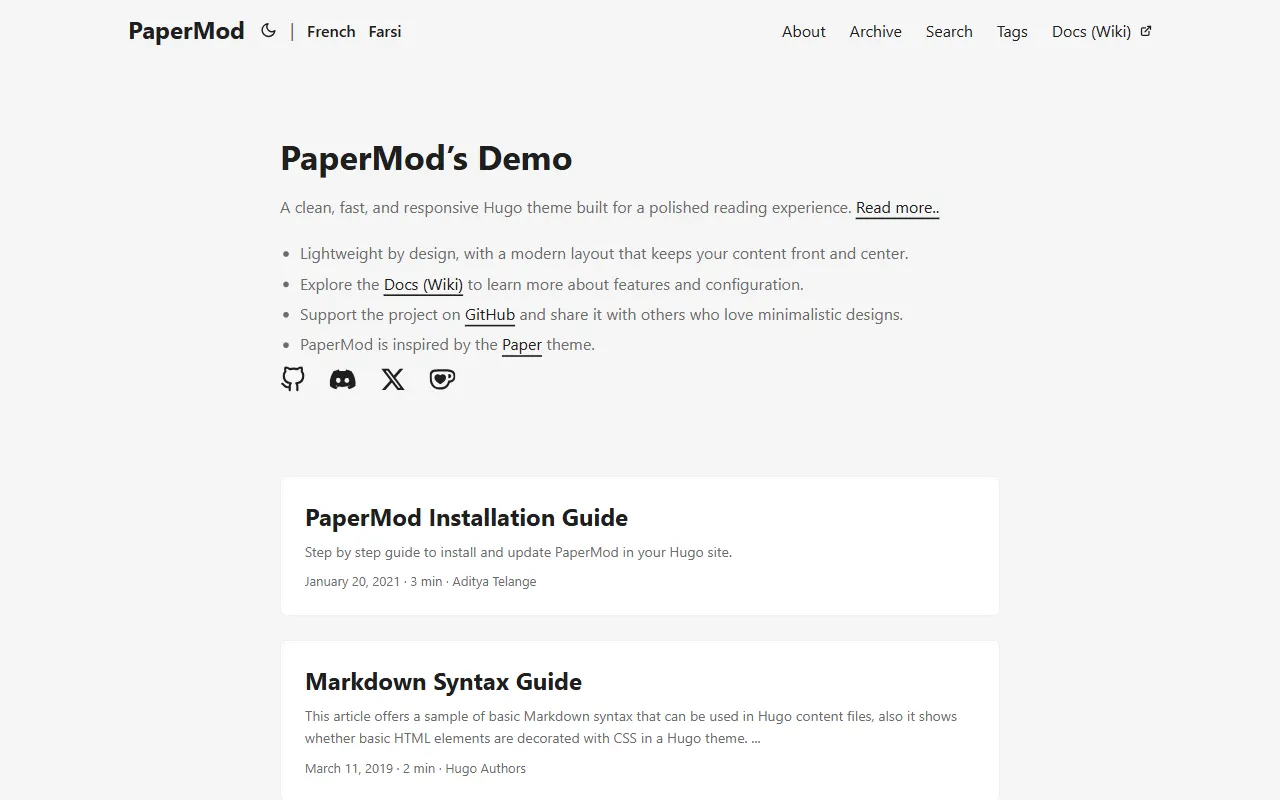
hugo-PaperMod
A fast, clean, responsive Hugo theme for blogs and lightweight portfolios, with three layout modes (Regular, Home-Info, Profile), automatic and manual light/dark themes, Fuse.js client-side search, multilingual support, and built-in Open Graph, Twitter Cards, and Schema.org data.
Hugo · Portfolio
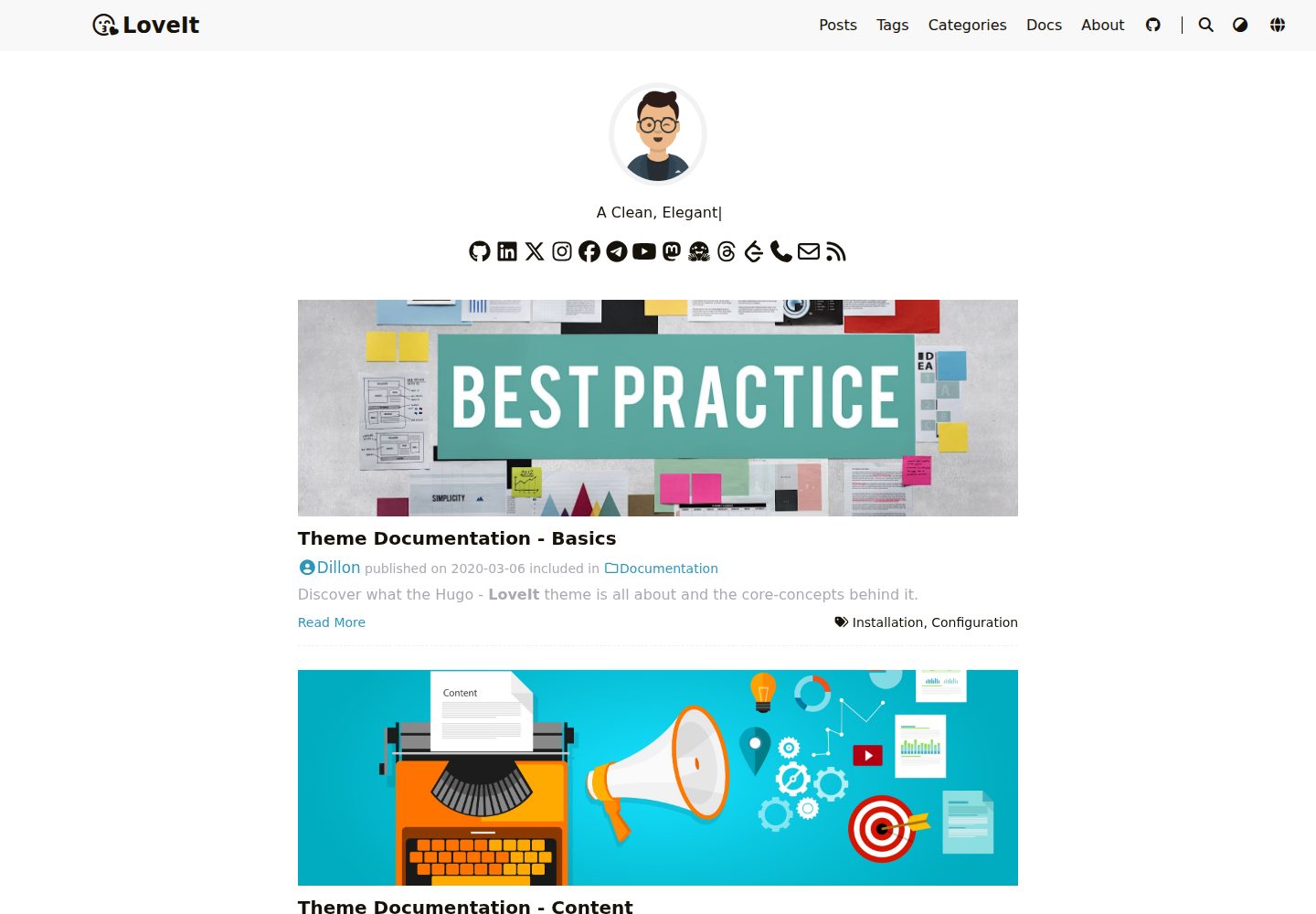
LoveIt
LoveIt is a clean, elegant, and feature-rich Hugo blog theme derived from LeaveIt and KeepIt, MIT-licensed. It offers light/dark modes, responsive layout, multilingual support, and search via Lunr.js or Algolia.
Hugo · Blog
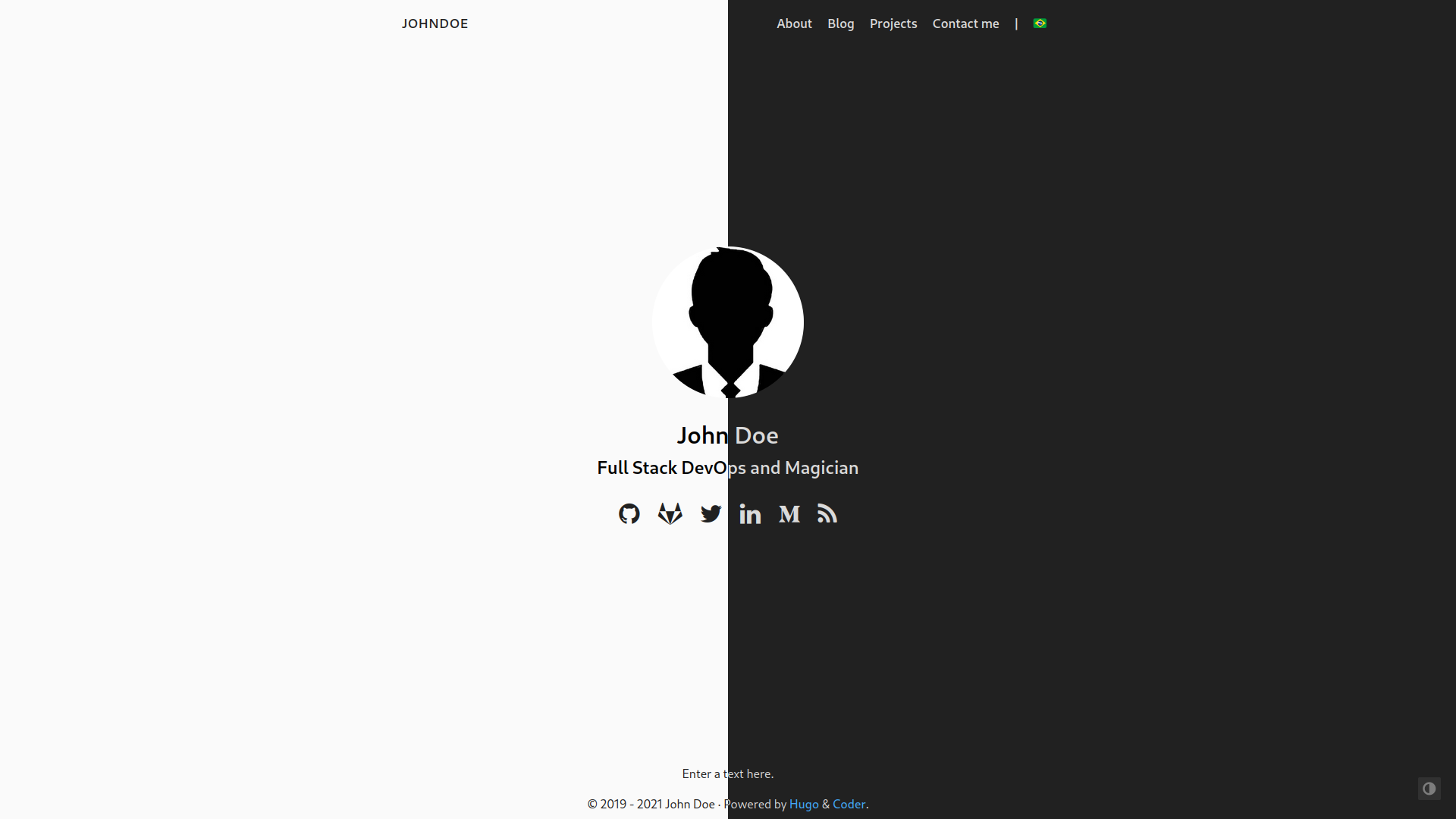
hugo-coder
hugo-coder is a minimalist Hugo blog theme maintained by luizdepra under the MIT license. It provides a clean, text-focused blog appearance, configuration documentation in the docs directory, and a complete exampleSite with hugo.toml.
Hugo · Blog
blowfish
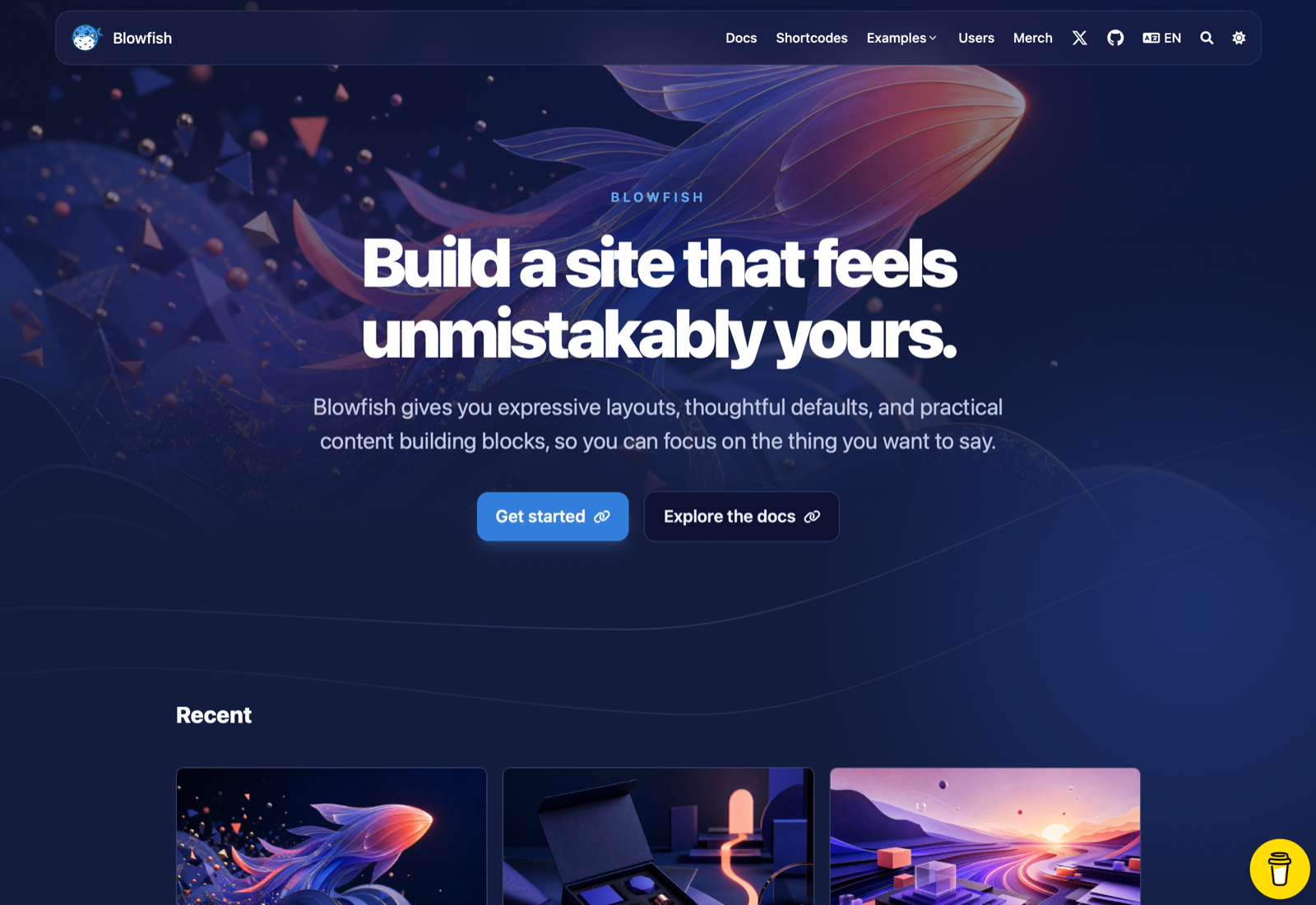
Blowfish is a Hugo personal website and blog theme built with Tailwind CSS 4, focused on lightness, simplicity, and content-first presentation.
Hugo · Blog
hugo-paper
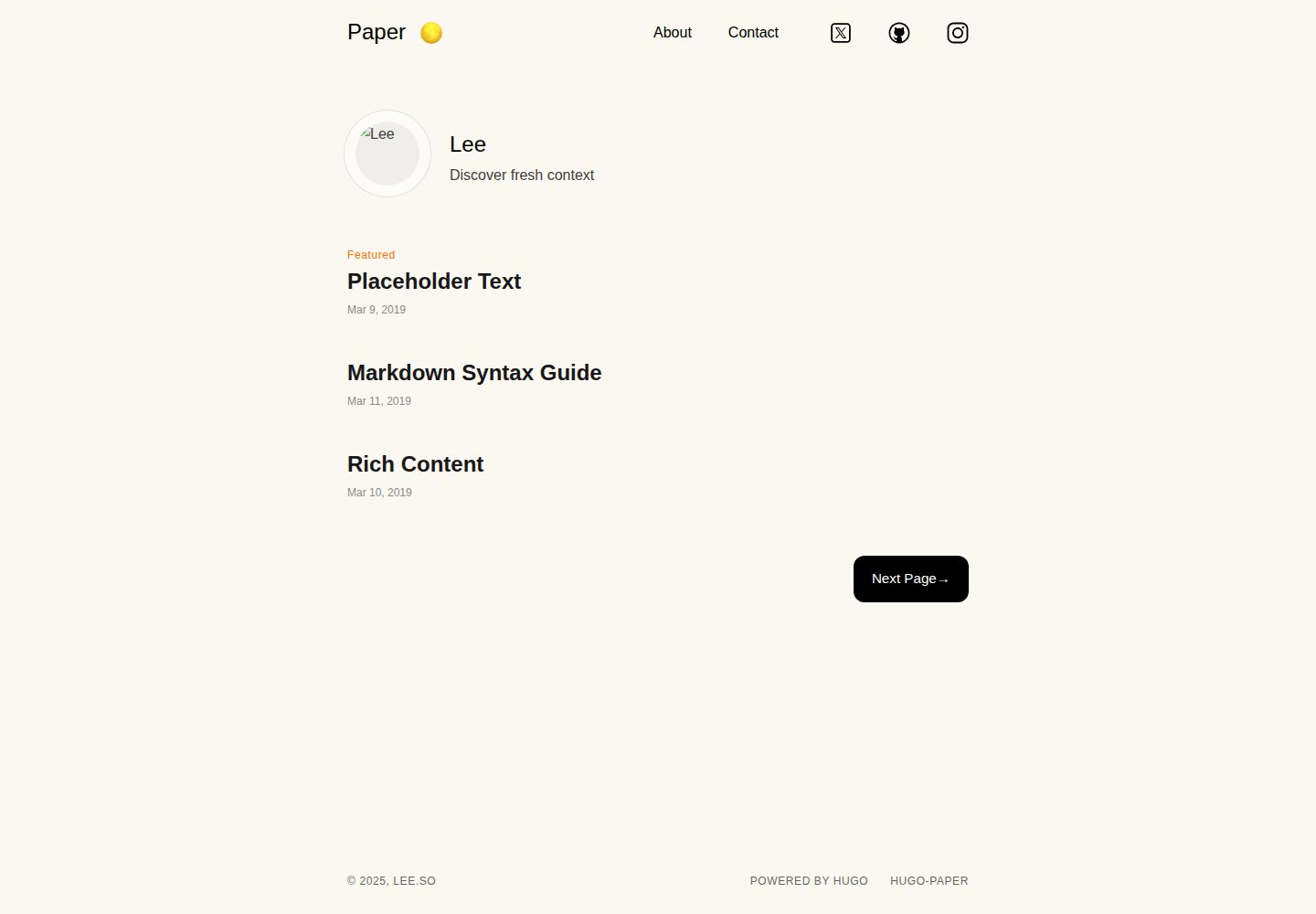
hugo-paper is a simple, clean, and customizable Hugo blog theme configured through config.toml or hugo.toml.
Hugo · Blog
hextra
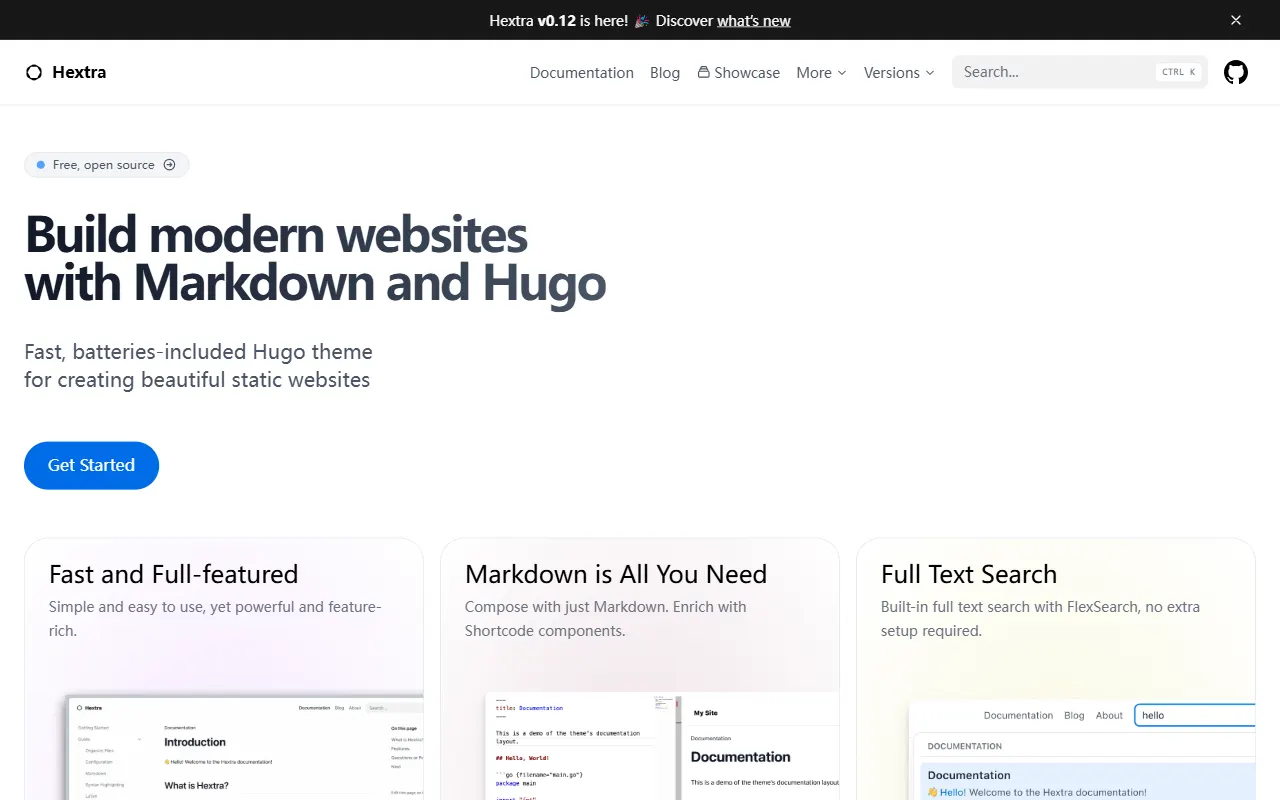
Hextra is a Hugo theme for documentation and blog sites, built on Hugo and Tailwind CSS with design referencing Nextra.
Hugo · Documentation