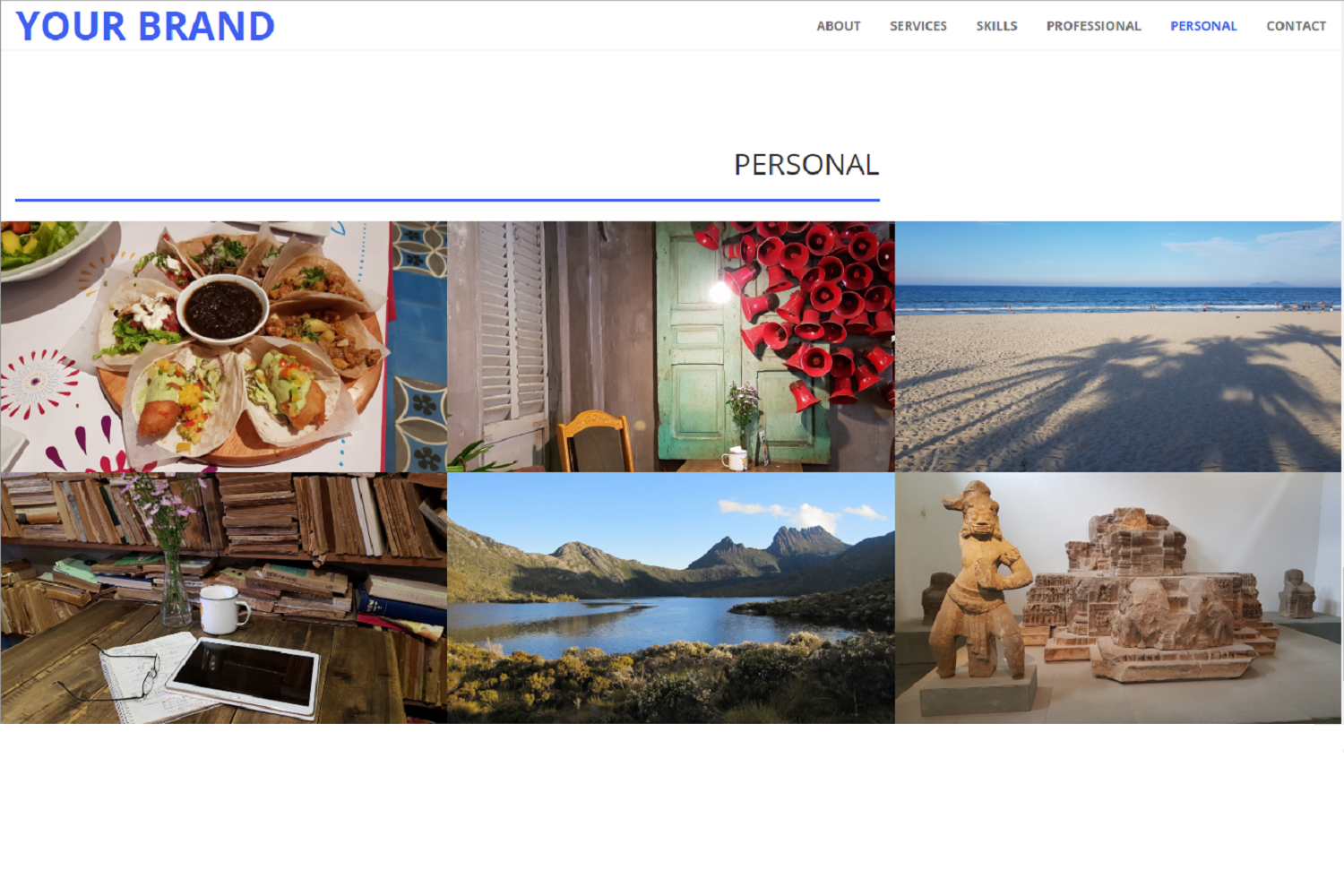
支持任意数量的作品集分区,可用于区分职业、个人、学术等不同类别项目
Hugo作品集博客
hugo-myportfolio-theme — Hugo 作品集模板
作者 2-REC
基于 Hugo Creative 主题改造的作品集主题,支持在首页配置多个作品集分区,适合展示技术、艺术等不同类型项目。
看看你的网站会是什么样
浏览真实页面截图,比较内容排版与手机效果。点击下方缩略图切换,放大查看整页细节。
目前有 1 张原始预览,可打开完整图片查看设计细节。
截图用于了解视觉与布局,交互效果请以实际项目为准。
采集于 2026-10-01查看来源
值得关注的模板亮点
从已有项目资料中,快速了解它的特点。
首页区块顺序和内容可通过 config.toml 与 data 文件配置
响应式作品集网格,带悬停效果
侧边栏提供层级导航和标签、分类导航
可为每张图片、每个画廊或每个项目单独设置版权标注
支持自定义 CSS 覆盖默认颜色、字体等
模板详细介绍
MyPortfolio Theme 是一个 Hugo 作品集主题,由 HUGO Creative 主题改编而来,核心特点是支持多个作品集分区。首页由可配置的区块组成,包括 HOME、ABOUT、SERVICES、SKILLS、PROJECTS、CONTACT,其中 PROJECTS 区块可重复出现,用于分别展示“职业”“个人”等不同类别的项目。主题使用 data 目录中的 YAML/JSON 文件提供各区块内容,并在 config.toml 中控制区块顺序、导航链接和布局参数。
主题附带 exampleSite,但 README 明确说明由于主题结构特殊(文章可有多个 section,首页区块数据放在 data 目录而非 content),exampleSite 不符合经典 Hugo 结构,无法正确运行,“Professional”和“Personal”链接与区块不可用。作者建议参考其个人作品集网站查看可用示例。README 顶部标注 TODO,提示参数文档需要更新。
主题采用 Apache-2.0 许可,可免费使用、修改和分发。图片画廊功能依赖第三方 hugo-easy-gallery 集成。
Hugo作品集博客
适合你的项目吗?
适用场景
- 开发者或创意工作者展示多个类别的项目作品
- 公司分别展示不同业务线或不同性质的工作成果
- 个人同时维护职业作品集与个人兴趣作品集
- 需要按标签和分类组织项目内容的作品集站点
适合人群
- 熟悉 Hugo 并愿意按主题要求组织 data 文件和 config.toml 的用户
- 需要在一个站点内呈现多个独立作品集分区的开发者或创意人士
- 能接受 exampleSite 无法直接运行、需参考作者线上站点进行配置的用户
上手与定制指南
结合仓库当前版本的说明,按下面的资料检查内容、配置与运行要求。
- 1
在 Hugo 站点的 themes 目录中执行 git clone 安装主题
- 2
将 exampleSite 中的 config.toml 复制到站点根目录并按需修改
- 3
在 data 目录中准备 about.yaml、contact.yaml、home.yaml、services.yaml、skills.yaml 等数据文件
- 4
数据文件中引用的图片、视频等资源需放在站点的 static 目录
- 5
README 顶部标注 TODO,参数说明可能未及时更新,配置时需核对 exampleSite 中的实际参数
授权与来源资料
使用条件与限制
免费使用 · 保留许可声明本次收录的是公开仓库中采用 Apache-2.0 许可的免费版本;免费范围为该版本代码,不代表外部服务或第三方素材免费。
使用时需要遵守
- 允许免费使用、修改、商用和分发;分发时需随附 Apache-2.0 许可证。
- 修改过的文件需显著标明改动,并保留相关版权、专利、商标及归属声明。
- 若原项目附有 NOTICE 文件,分发衍生作品时需保留其中适用的归属声明。
- 许可包含适用的贡献者专利授权;发起许可所述专利诉讼会终止该专利授权,且不授予商标使用权。
- 代码按现状提供;担保与责任限制以原许可证及适用法律为准。
额外费用与待核对事项
- exampleSite 不符合经典 Hugo 结构,无法正确运行;README 明确说明其中的 Professional 与 Personal 链接和区块不可用,需参考作者线上站点进行配置。
- README 顶部标注 TODO,参数文档可能未及时更新,配置时需核对 exampleSite 中的实际参数。
- 图片画廊功能依赖第三方 hugo-easy-gallery 集成,其文档与许可需另行查阅原项目仓库,不包含在本主题的 Apache-2.0 授权范围内。
- SVG 图标需自行从 Font Awesome 等来源下载,图标资源的使用受其各自许可约束,需单独核实。
- 演示图片、字体、图标及其他第三方素材需按各自许可核对,不能仅凭代码的 Apache-2.0 许可判断。
- 域名、托管、数据库、支付或 AI 等外部服务可能另外收费。
查看原文依据
no-charge, royalty-free, irrevocable copyright license
许可证原文
the "exampleSite" doesn't respect the classic Hugo structure, and is thus not working correctly.
README 原文
**__TODO__**: Needs to be updated (check parameters)
README 原文
Documentation and licence of the original project from [Li-Wen Yip](https://www.liwen.id.au/) can be found at the [repository page](https://github.com/liwenyip/hugo-easy-gallery/).
README 原文
https://github.com/2-REC/hugo-myportfolio-theme/blob/master/LICENSEhttps://github.com/2-REC/hugo-myportfolio-theme/blob/master/README.mdFiles can be downloaded directly from Font Awesome for example.
README 原文
DeepSeek 根据仓库许可证和 README 整理 ·2026-10-01。结果仅覆盖已读取资料,依赖、图片、字体及后续条款变更以各自原文为准。
项目核对记录与介绍依据
模板资料
- 来源平台
- GitHub
- 资料与维护参考分
- 资料一般 · 74 / 100
- 技术栈
- Hugo
- 网站类型
- 作品集 · 博客
这个分数如何计算
本站按许可资料(最高30分)、演示链接(12分)、预览图(10分)、Star数(15分)、记录的维护时间(15分)、描述完整度(8分)、功能记录(5分)和分类资料(5分)计算。它不是代码、安全或性能测试,也不是 Google 评分;有链接不代表已实测可用。
这个项目需要核对什么
- 记录的仓库更新时间
- 2025-06-11
- 截图检查日期
- 2026-10-01
目前没有记录演示链接。请依据仓库说明在本地评估;仅凭截图无法确认交互行为。
目录记录的主要技术栈是 Hugo。请通过依赖清单和锁文件核对实际版本与托管要求。这些说明基于收录资料,不代表代码审计或部署实测。
查看具体选型方法 →介绍的制作与核对状态
介绍由 AI 辅助整理目录与仓库资料。仓库作者不等于这篇介绍的审核者。
已完成服务器许可规则与 AI 来源核对;未经过人工编辑审核。
查看当时使用的来源资料
SHA-256: 2a3f379a4abc375c632d45eca08a4155b9132ca36bb954ddc1676185b88da20b
2026-10-01T00:54:52.475Z
来源文件 / 仓库> **__TODO__**: Needs to be updated (check parameters)
# MyPortfolio Theme
> **__NOTE:__** Due to the theme specific structure (allowing more than 1 section for the posts, and the homepage sections defined in "data" directory instead of content), the "exampleSite" doesn't respect the classic Hugo structure, and is thus not working correctly.<br>
The "Professional" and "Personal" links and sections are not available and don't allow to see the demo site properly.<br>
To visualise a working example of the theme, you are invited to take a look at [my portfolio website](https://2-rec.github.io/it-portfolio).
<br>
"MyPortfolio Theme" is a portfolio for developers or creatives to showcase their projects.
It is based on the [HUGO "Creative" theme](//github.com/digitalcraftsman/hugo-creative-theme) by [digitalcraftsman](//github.com/digitalcraftsman), itself based on the [original Bootstrap theme](//github.com/IronSummitMedia/startbootstrap-creative) by [David Miller](//github.com/davidtmiller).
## Features
A key feature of this theme is its support for multiple portfolio sections.
This is especially useful for versatile individuals or companies looking to showcase different types of work.
For instance, you might create separate portfolios for "Technical" and "Artistic" projects.
Alternatively, you could organize your work into categories like "Professional", "Personal", and "Academic".
Noteworthy features of this Hugo theme are:
* Configurable home page (sections order and presence, and their content)
* Possibility to have arbitrary number of content/projects sections
* Responsive portfolio grids with hover effect
* Can be used as a professional showcase, a personal one, or both
* Image gallery with easy and intuitive navigation controls (*)
* Easy site navigation via header navigation bar
* Easy content navigation via sidebar: hierarchy (siblings and parents), and taxonomies (tags and categories)
* Possibility to display siblings, children posts and children lists independently for each page, with associated orders
* Customisable CSS to override default values (such as main theme colours, fonts, etc.)
* Easy copyright image labelling per image, per gallery or per project
* Use of SVG icons
* 404 page
(*) Thanks to [liwenyip](//github.com/liwenyip) for the [PhotoSwipe](https://photoswipe.com) gallery integration in Hugo: [hugo-easy-gallery](//github.com/liwenyip/hugo-easy-gallery)

## Theme structure and layout
As in the "Creative" theme, the theme's homepage holds the different sections. Its layout is a typical vertical single page, with a floating navigation bar on top.
Each section has a specific layout and contains specific data, some of which is customisable.
These custom values for layout and data are defined respectively in the common ["config"](#config-file) file, and in the section's corresponding ["data"](#data-files) file.
The different sections are described hereafter.
### HOME
The welcome section, at the top of the homepage.
### ABOUT
The introduction/presentation section.
It is based on the "Biography" section of the ["Academic" theme](//github.com/gcushen/hugo-academic).
### SERVICES
Section presenting the services that can be provided, listed in categories and sub-categories.
### SKILLS
Section typically providing a link to a downloadable resume, as well as listing the different tags and categories that are found in the projects sections.
### PROJECTS
Section serving as a portfolio, displaying a set of project categories (can be companies, technologies, etc.), each linking to their respective individual page containing projects listing.
It is based on the "Creative" theme "Portfolio" section, but with links to other pages instead of pop-up windows.
The section can be present more than once if several portfolio are to be showcased. It could for example be used to display a "professional" portfolio as well as a "personal" one.
### CONTACT
Section providing the contact information.
### Custom Sections
If desired, custom sections can be added to the homepage.
Steps to add a new custom section:
* HTML<br>
Create an HTML file in the site's "layouts/partials/sections" (NOT in the theme's directory under "themes").<br>
E.g.: `layouts/partials/sections/custom_section.html`<br>
The file must define a "`section`" element with the "`id`" matching the file name. The file can be based on an existing section file, or created from scratch.<br>
Parameters specific to the page can be defined in the ["config"](#config-file) file.
Data specific to the page can be defined in a ["data"](#data-files) file.
```
{{ $params := .Site.Params.custom_section }}
{{ $data := .Site.Data.custom_section }}
<section class="section" id="custom_section">
...
</section>
```
* DATA<br>
(_optional_) Create a YAML data file in the site's "data" directory (not in "themes"). <br>
E.g.: `data/custom_section.yaml`<br>
The content of the file can be accessed in the HTML file with:
```
{{ $data := .Site.Data.custom_section }}
```
* CONFIG<br>
In the site's config file ("config.toml"):
* Add an entry for the custom section in the sections list (it has to match the section's HTML file name).<br>
E.g.:
```
[params.homepage]
sections = [ "home", "about", "custom_section", "services", "skills", "projects", "contact" ]
```
* Add an entry in the navigation links.<br>
E.g.:
```
[params.navigation.links]
...
custom_section = "CUSTOM"
```
* (_optional_) Add an entry for the section parameters.<br>
E.g.:
```
[params.custom_section]
...
```
The paramaters defined in the entry can be accessed in the HTML file with:
```
{{ $params := .Site.Params.custom_section }}
```
* CSS<br>
Create a CSS file in the "static/css" directory of the site, and import it in the HTML file.<br>
E.g.:
```
<link rel="stylesheet" href="css/custom_section.css">
```
### Custom Homepage
Custom components can also be added to the homepage.
As an example, the following steps describe how to add a fixed overlay image covering the homepage (not scrolling).
* HTML
* Create a new HTML file "homepage-custom.html" in "layouts/partials".
* Content:
```
<div id="home_overlay"
style="--home-bkg-image: url('{{ "images/overlay_image.png" | absURL }}');"
>
<link rel="stylesheet" href="css/homepage-custom.css">
<script src="{{ "js/homepage-custom.js" | relURL }}"></script>
</div>
```
> **__NOTE:__** An image named "overlay_image.png" must be present in "static/images".
* CSS
* Create a new CSS file "homepage-custom.css" in "static/css".
* Content:
```
#home_overlay {
position: absolute;
top: 0;
padding: 0;
width: 100%;
background-image: var(--home-bkg-image,);
background-attachment: fixed;
background-position: center bottom;
background-size: 100% 100%;
}
```
* JS
* Create a new JS file "homepage-custom.js" in "static/js".
* Content:
```
var body = document.body;
var home_overlay = document.getElementById("home_overlay");
window.onload = function () {
var height = Math.max(body.scrollHeight, body.offsetHeight);
home_overlay.style.height = height + "px";
};
window.onresize = function () {
var height = Math.max(body.scrollHeight, body.offsetHeight);
home_overlay.style.height = height + "px";
};
```
## Installation
Inside the folder of your Hugo site run:
```
$ cd themes
$ git clone https://github.com/2-REC/hugo-myportfolio-theme
```
For more information read the official [setup guide](//gohugo.io/overview/installing/) of Hugo.
## Getting started
After installing the "MyPortfolio" Theme, a few more steps are required to get the site running.
### The config file {#config-file}
Settings about the different sections in the homepage as well as the navigation bar and menu are defined in the config file, named "config.toml".
Each section has a set of parameters that can be modified to customise the site. Most of these are related to the layout.
Details about each parameter and their role can be found in the file itself.
In the [`exampleSite`](//github.com/2-REC/hugo-myportfolio-theme/tree/master/exampleSite) folder of this theme there is an example [`config.toml`](
//github.com/2-REC/hugo-myportfolio-theme/blob/master/exampleSite/config.toml) file.
The file should be copied in the root folder of the site, and modified as desired.
### Data Files {#data-files}
Additionally to the configuration file, data files (located in the "data" folder) are required for the different sections of the homepage.
The required data files are the folowing:
* about.yaml
* contact.yaml
* home.yaml
* services.yaml
* skills.yaml
The files can also be in JSON format, but need to have the same names.
The "Projects" section(s) are optional, but it is advised to have at least one (it is a "Portfolio" theme after all :) ).
However, in case there are no projects sections, the "projects" entry of the "[params.navigation.links]" can be removed.
Resource files (images, videos, etc.) that are specified in the data files must be located in the "static" directory of the site.
The following paragraphs detail the required data for each of the sections.
### HOME - Set the homepage header
The content of the top section of the homepage is fetched from the "home" data file.
The different parameters that can be used are:
* `title_logo`: A small image displayed above the title.<br>
* `title`: The title for the website.<br>
Typically your name or company name.
* `subtitle`: A subtitle.<br>
Typically the role or types of provided services.
* `background`: The image used for the background.
* `background_opacity`: The opacity of the background, given in %.<br>
The background colour will appear through the image. This colour is defined by the "`--home-bkg-image-opacity`" CSS variable (see [custom CSS](#custom-css)).
* `background_hidden`: The image used for the second background, shown when scrolling down.
* `background_hidden_speed`: Speed at which the hidden background appears when scrolling.<br>
* `1`: after full screen scroll
* `2`: after 1/2 (50%) screen scroll
* etc.
* `background_video`: An MP4 video used for the background.<br>
This is ignored if a `background` is defined.
* `text`: A short phrase to catch the eye and invite visitors to explore further.
Additionally, the following parameters can be used to customize the scrolling button:
* `button_image`: The image used for the button.
* `button_text`: The text displayed on the button.
* `button_icon`: The icon used for the button.<br>
Additional subfields must be defined for the icon:<br>
* `icon`: The name of the icon SVG file (without extension)
E.g.:
```
button_icon:
icon: "arrow-alt-circle-down-solid"
```
> **__NOTE:__** The 3 button parameters are mutually exclusive, so only one can be used (the others will be ignored).
They are presented in their order of priority.
All the parameters in the home section are optional: if not defined, their corresponding element will not be added to the section.
### ABOUT - Introduce yourself
The content of the "ABOUT" section of the homepage is fetched from the "about" data file.
The different parameters that can be used are:
* `title`: The title of the section.<br>
Typically "ABOUT" would be used.
* `avatar`: The image used for the avatar.
* (_optional_) `avatar2`: Extra image displayed when hovering the profile image.
* `profile_text`: A short text briefly describing the company or person.
* `main_text`: A longer text providing more detailled information.<br>
Typically, the text will contain links to the other sections.
* `background_image`: Background image.
All the parameters are optional: if not defined, their corresponding element will not be added to the section.
### SERVICES - Add your services
The content of the "SERVICES" section of the homepage is fetched from the "services" data file.
The different parameters that can be used are:
* `title`: The title of the section.<br>
Typically "SERVICES" would be used.
* `background_image`: The image used for the background.
* `services`: The list of services. At least one must be provided.<br>
Each service has a set of subfields:
* `name`: The name of the service.
* `icon`: The icon used for the service (SVG filename, without extension).
* `text`: A short text describing the service.
* `list`: A list of sub-services displayed as bullet points.
`text` & `list` are optional.
E.g.:
```
services:
- name: "Service 1"
icon: "chalkboard-teacher-solid"
list: [ "One thing", "Another thing", "And some more ..." ]
- name: "Service 2"
icon: "window-restore-solid"
text: "I am also able to do this."
```
All the parameters except "services" are optional: if not defined, their corresponding element will not be added to the section.
The "services" list parameter must exist and contain at least one element.
### SKILLS - Show your skills
The content of the "SKILLS" section of the homepage is fetched from the "skills" data file.
The different parameters that can be used are:
* `title`: The title of the section.<br>
Typically "SKILLS" would be used.
* `background_image`: The image used for the background.
* `tags_label`: Label used for the tags found in the content sections.
* `categories_label`: Label used for the categories found in the content sections.
* `text`: Text describing the content of the page.
* `download`: Parameters about the (optional) download button.
* `button_text`: Text used for the button.
* `filename`: Name of the file to download. The file must be in "static/files".
* `icon`: The icon used for the button (SVG filename, without extension).
E.g.:
```
download:
button_text: "RESUME"
filename: "resume.pdf"
icon: "download-solid"
```
All the parameters except "text" are optional: if not defined, their corresponding element will not be added to the section.
### PROJECTS - Create a portfolio (or more)
This section serves as a showcase for a "Portfolio" of projects.
It is composed of a grid representing a set of subsections, each grouping "Projects" into "Categories".
> **__NOTE:__** It is based on the "Portfolio" section of the "Creative" theme, but with an additional level of categories above the projects level. Also, instead of opening a pop-up window when selecting an element in the grid, it opens a new page displaying the contained projects.
A portfolio section "Projects" is defined in the Homepage via the "config.toml" configuration file. Additionally to the entry specified in the file, a directory with the same name must exist at the top level of the website file structure, containing its associated "_index.md" file.
As an example, to have two sections for a professional portfolio and a personal portfolio, the following entry could be added to the "[params.projects]" group in the "config.toml" file:
```
categories = [ "pro", "perso" ]
```
It will create 2 projects sections identified by "pro" and "perso" respectively.
The values specified have to correspond to directories in the "content" directory of the website (respectively "content/pro" and "content/perso").
In order to have the two sections accessible via the main navigation bar (at the top of the screen), entries also need to be added to the "[params.navigation.links]" group in the "config.toml" file:
```
projects = [
{ section = "pro", label = "PROFESSIONAL" },
{ section = "perso", label = "PERSONAL" }
]
```
This will create 2 projects sections links labelled "PROFESSIONAL" and "PERSONAL", pointing to the "pro" and "perso" sections respectively (the values specified for the "section" keys need to correspond to the sections identification values).

A section is composed of "subsections" (typically categories, companies, technologies, etc.) grouping projects together. A subsection is defined by a subdirectory in a section directory also containing its associated "_index.md" file. Each subsection will be automatically added in the section menu.
Sections and subsections correspond to list pages in the Hugo jargon.

Subsections are in turn composed of "projects", each one defined by a post file or by a directory in case it is a bundle (containing more than 1 file), and generally images (the directory must contain a "index.md" file in order to be considered as a post entry).

For each post ("project"), "tags" and "categories" should be specified, in order to allow easy keywords filtering (the taxonomy pages resulting in the filtering results will automatically be generated by Hugo).
There can be more than one main projects sections. Different categories could for example be "Development", "Design", "Music", etc. Another set of categories could be "Professional", "Personal", "Freelance", etc.
### CONTACT - Add contact information
The content of the "CONTACT" section of the homepage is fetched from the "contact" data file.
The different parameters that can be used are:
* `title`: The title of the section.<br>
Typically "CONTACT" would be used.
* `background_image`: The image used for the background.
* `description`: A short text typically with a call to action.
* `email`: Email information.
* `address`: Email address.
* `link`: Whereas the address can be used as a link.
* `icon`: The icon used next to the address.
* `icon_pack`: The icon package/family (look at icons documentation).
* `social`: List of social network icons/links.
* `icon`: The icon used for the button (SVG filename, without extension).
* `link`: The link to the social network profile page.
E.g.:
```
email:
address: "[email protected]"
link: false
icon: "envelope-solid"
social:
- icon: "linkedin-brands-solid"
link: "//linkedin.com"
- icon: "github-brands-solid"
link: "//github.com"
```
All the parameters are optional: if not defined, their corresponding element will not be added to the section.
## Run the website
In order to see your site in action, run Hugo's built-in local server:
```
$ hugo server
```
In the browser, enter `localhost:1313` in the address bar.
To be able to view the website from other machines within the same local network (such as a mobile phone connected via Wi-Fi), the following command can be used:
```
$ hugo server --bind <IP> --baseURL http://<IP> -D --disableFastRender
```
where `<IP>` is the IP address of the machine running the server.
A message indicating the server's address will be displayed, for example:
```
Web Server is available at http://192.168.0.7:1313/ (bind address 192.168.0.7)
```
The address can be entered in browsers to reach the website.
## Going further
### Customise the appearance - CSS Override {#custom-css}
CSS rules are used to define the appearance of the website.
To make the website look more personal or to make it fit with the colour schemes of your company/brand, some CSS variables can be directly overridden using extra custom files (and thus not requiring to change anything in the code or main CSS file).
In order to use custom CSS files to override the variables, add the files in the "static/css" directory, and specify their name (with extension) in the "`custom_css_vars`" array variable of the "config.toml" file of the site.
The CSS variables that can be overridden are listed in the "default.css" file (in the theme's "static/css" directory). The file also defines for each variable its default value.
The provided "custom_vars.css" (in the theme's "static/css" directory) file can be used as template file, by uncommenting the desired variables and setting their new values (the file should ideally first be copied in the site's "static/css" directory).
In addition, if bigger changes are desired, CSS rules can be modified or added by using custom CSS files. These files need to be located in the site's "static/css" directory, and their names (with extension) need to be added in the "`custom_css`" array variable of the "config.toml" file.
> **__NOTE__**: Custom CSS rules should be defined in files specified in "`custom_css`", and Custom CSS variables should be defined in files specified in "`custom_css_vars`". Not respecting this might result in unexpected behaviour.
### Icons
Use of SVG icons.
SVG files must be located in "static/icons".
Files can be downloaded directly from Font Awesome for example.
### Galleries
Image galleries can be added to posts by using shortcodes, thanks to a modified version of "[hugo-easy-gallery](https://www.liwen.id.au/heg/)".
Documentation and licence of the original project from [Li-Wen Yip](https://www.liwen.id.au/) can be found at the [repository page](https://github.com/liwenyip/hugo-easy-gallery/).
#### Parameters
From:<br>
https://github.com/liwenyip/hugo-easy-gallery/?tab=readme-ov-file#-gallery--shortcode-usage
* `dir` (default: none)
* Directory containing images (all the images found in the directory will be part of the gallery).
* If not set, a list of "figure" shortcode(s) can be added inside the "gallery" shortcode.
* `thumb` (default: `-thumb`)
* Thumbnail suffix.
* "[image].jpg" is used for the hi-res image, and "[image]-thumb.jpg" is used for the thumbnails. If [image]-thumb.jpg doesn't exist, then [image].jpg will be used for both hi-res and thumbnail images.
Optional parameters:
* `caption-position`: Determines the captions' position over the image.
* `bottom` (default)
* `center`
* `none` (hides captions on the page: will only show in PhotoSwipe)
* `caption-effect`: Determines if/how captions appear upon hover.
* `slide` (default)
* `fade`
* `none` (captions always visible)
* `hover-effect`: Determines if/how images change upon hover.
* `zoom` (default)
* `grow`
* `shrink`
* `slideup`
* `slidedown`
* `none`
* `hover-transition`: Determines if/how images change upon hover.<br>
=> This parameter only works if `hover-effect` is set.
* not set: smooth transition (default)
* `none`: hard transition
#### New Parameters
Added optional parameters.
* `static` (default: `false`)
* Images are by default looked for in the directory inside the post's content: "content/posts/.../\<dir>".
* If specified, images are looked for in the site's "static" folder (as it was originally).
* `images_copyright`: String (copyright)<br>
=> General copyright for all images.
* `images`: Array (images parameters)
* `src`: String (filename) - MANDATORY<br>
=> Must correspond to an image in "dir" directory.
* `title`: String (legend)<br>
=> Legend of the image.
* `copyright`: String (copyright)<br>
=> Specific copyright for the image.
Additional parameters for the partial:
* `page` (automatic in shortcode)
## Contributing
If you have found a bug, or have an idea for a new feature, please feel free to use the [issue tracker](//github.com/2-REC/hugo-myportfolio-theme/issues) to let me know.
You can also make directly a [pull request](//github.com/2-REC/hugo-myportfolio-theme/pulls).
Please create a separate branch for your pull request.
## License
This theme is released under the Apache License 2.0 For more information read the [license](//github.com/2-REC/hugo-myportfolio-theme/blob/master/LICENSE).
## Acknowledgements
Thanks to:
* [digitalcraftsman](//github.com/digitalcraftsman) for creating the Creative theme
* [Steve Francia](//github.com/spf13) for creating Hugo and the awesome community around the project
* [David Miller](//github.com/davidtmiller) for creating the original theme
* [Li-Wen Yip](//github.com/liwenyip) for the PhotoSwipe gallery integration in Hugo
* [PhotoSwipe](https://photoswipe.com) for the gallery functionality
* [Font Awesome](https://fontawesome.com/) for the SVG icons
看看同类模板
对比同技术栈与用途的模板,找到更适合的视觉与内容结构。
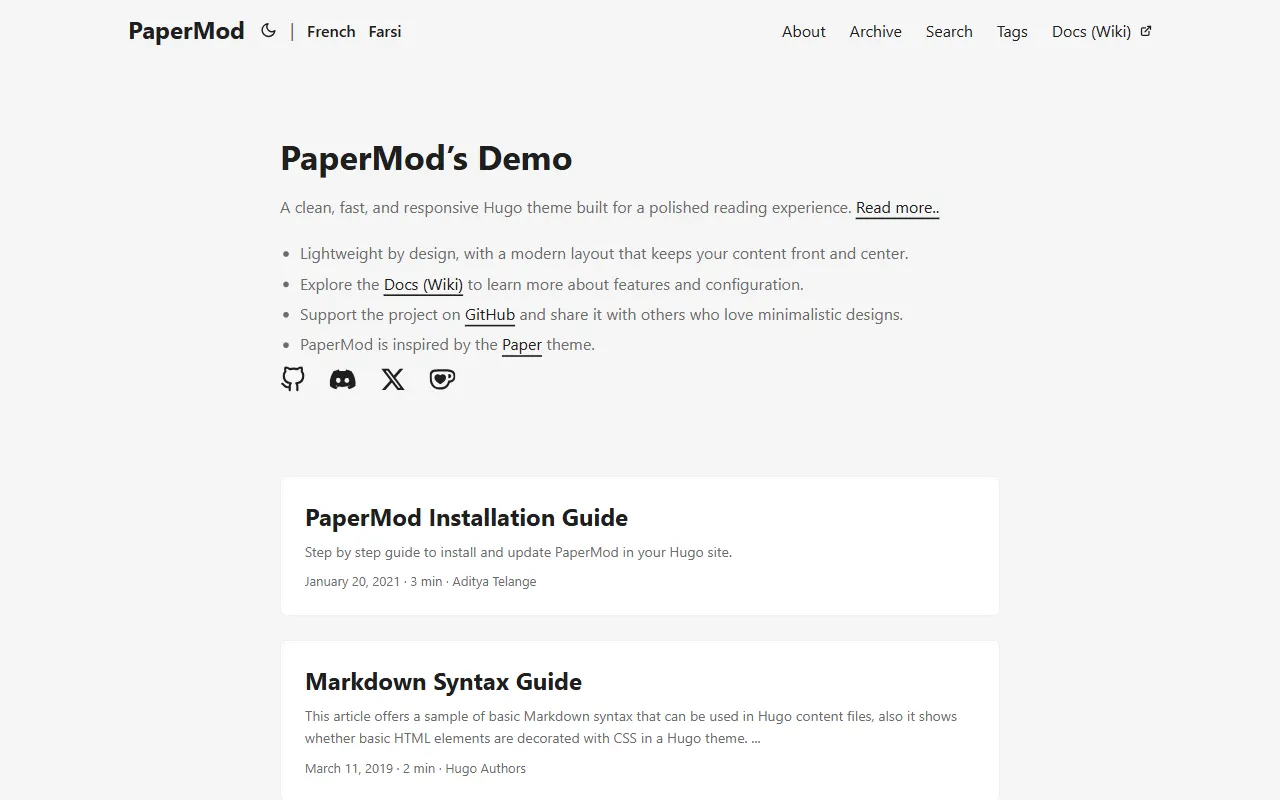
hugo-PaperMod
PaperMod 是 Hugo 生态里知名度较高的主题之一,定位很明确:给博客和轻量作品集站点提供一套干净、响应式的阅读界面。
Hugo · 作品集
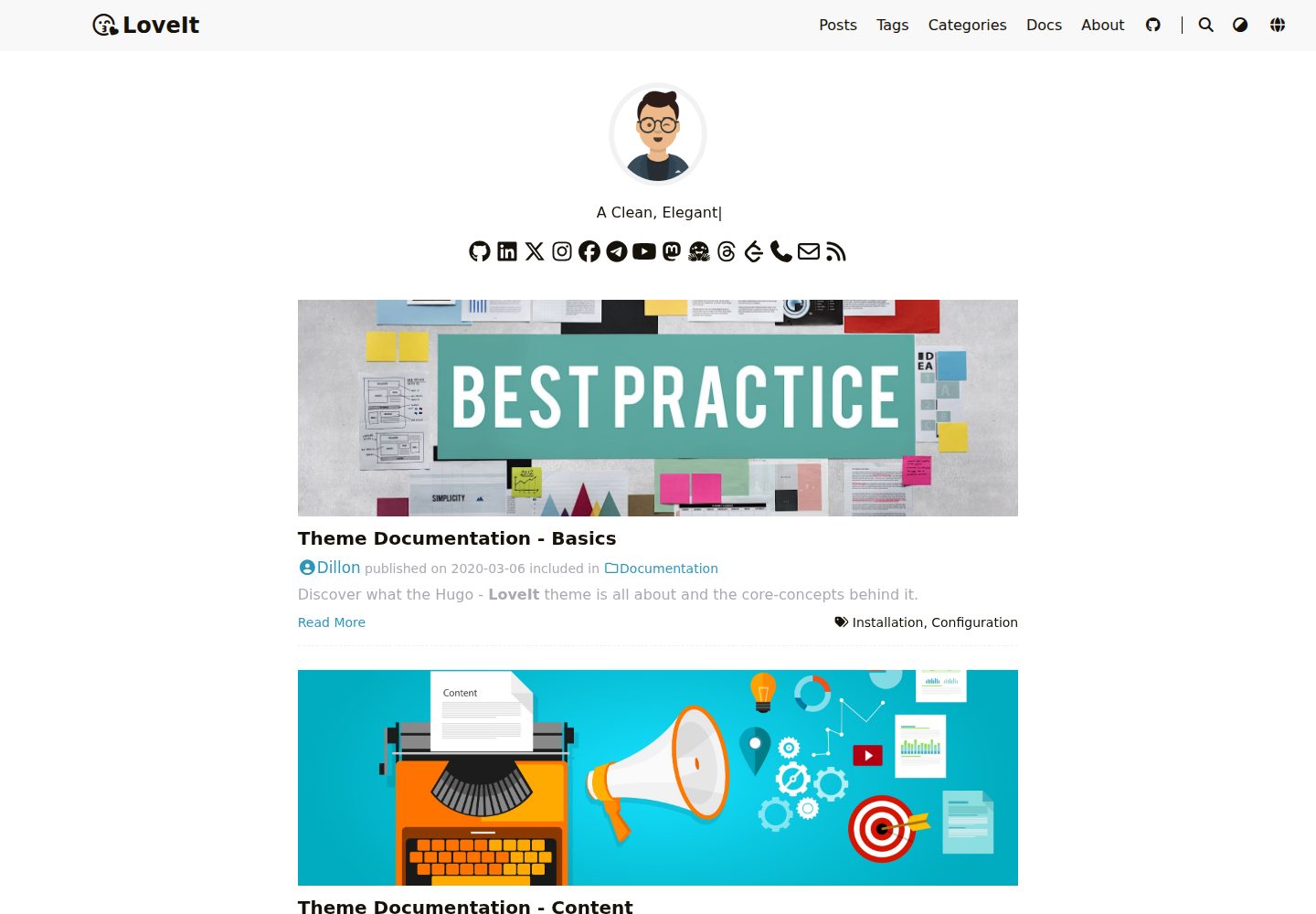
LoveIt
❤️A clean, elegant but advanced blog theme for Hugo 一个简洁、优雅且高效的 Hugo 主题
Hugo · 博客
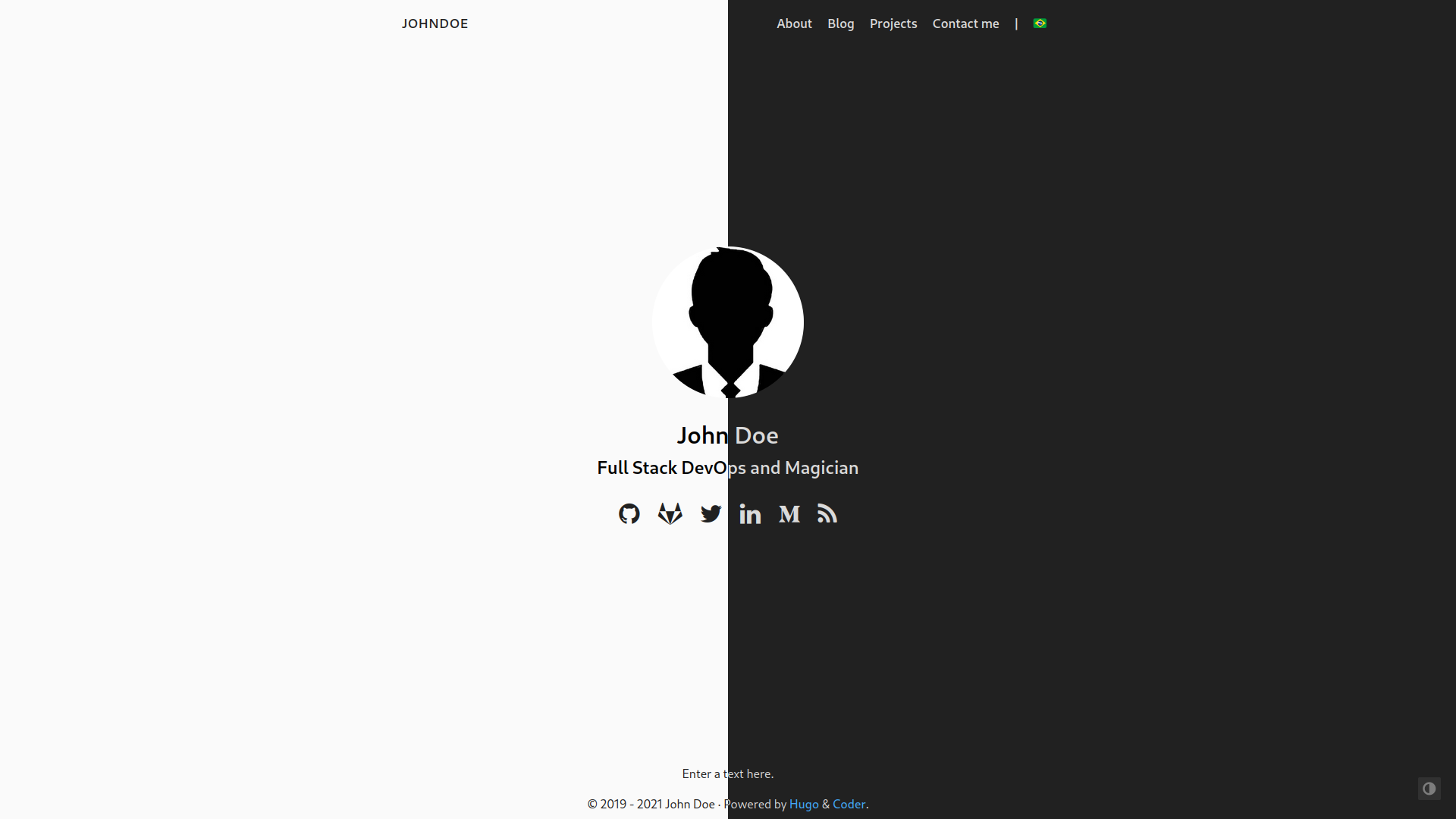
hugo-coder
A minimalist blog theme for hugo.
Hugo · 博客
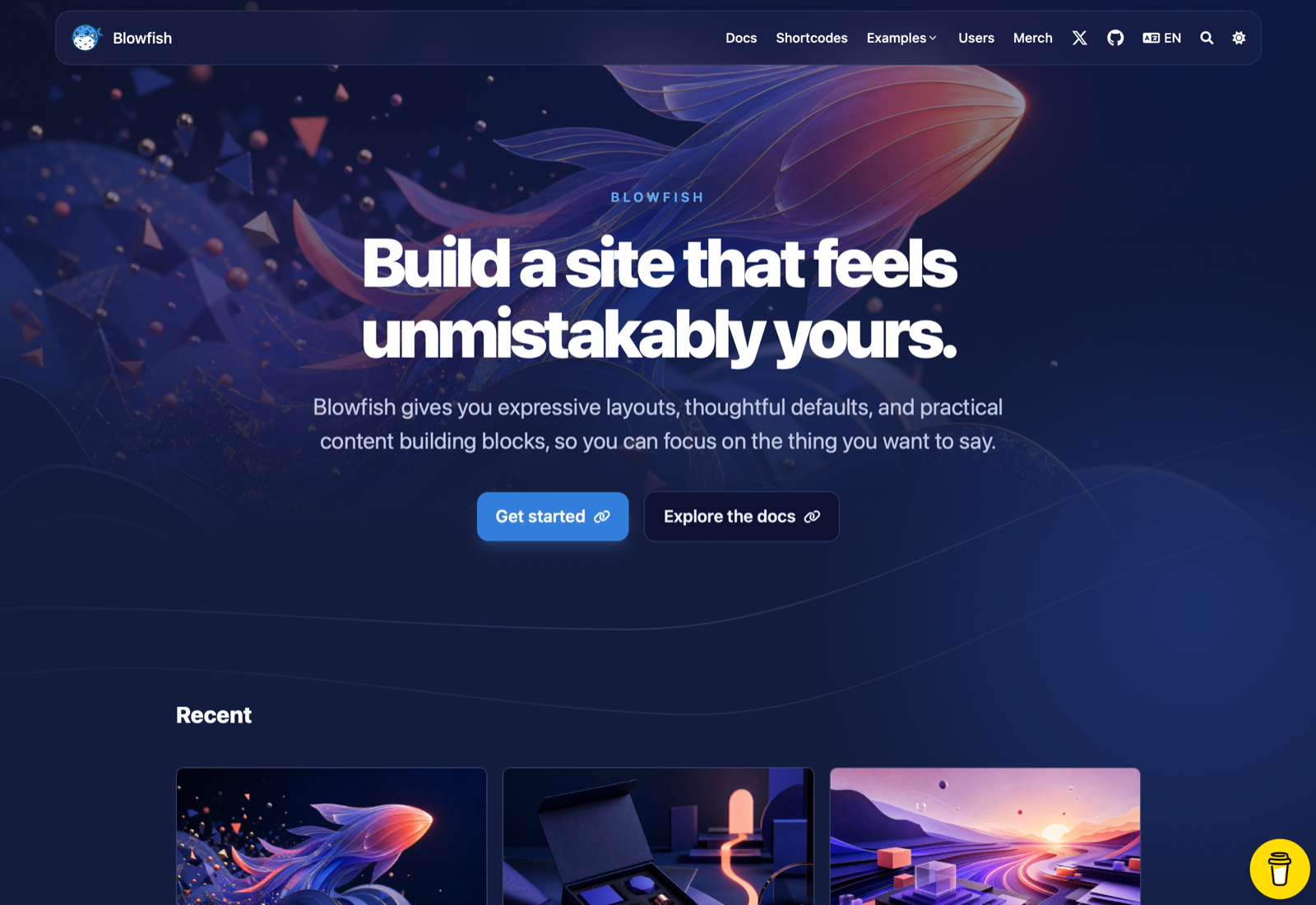
blowfish
Personal Website & Blog Theme for Hugo
Hugo · 博客
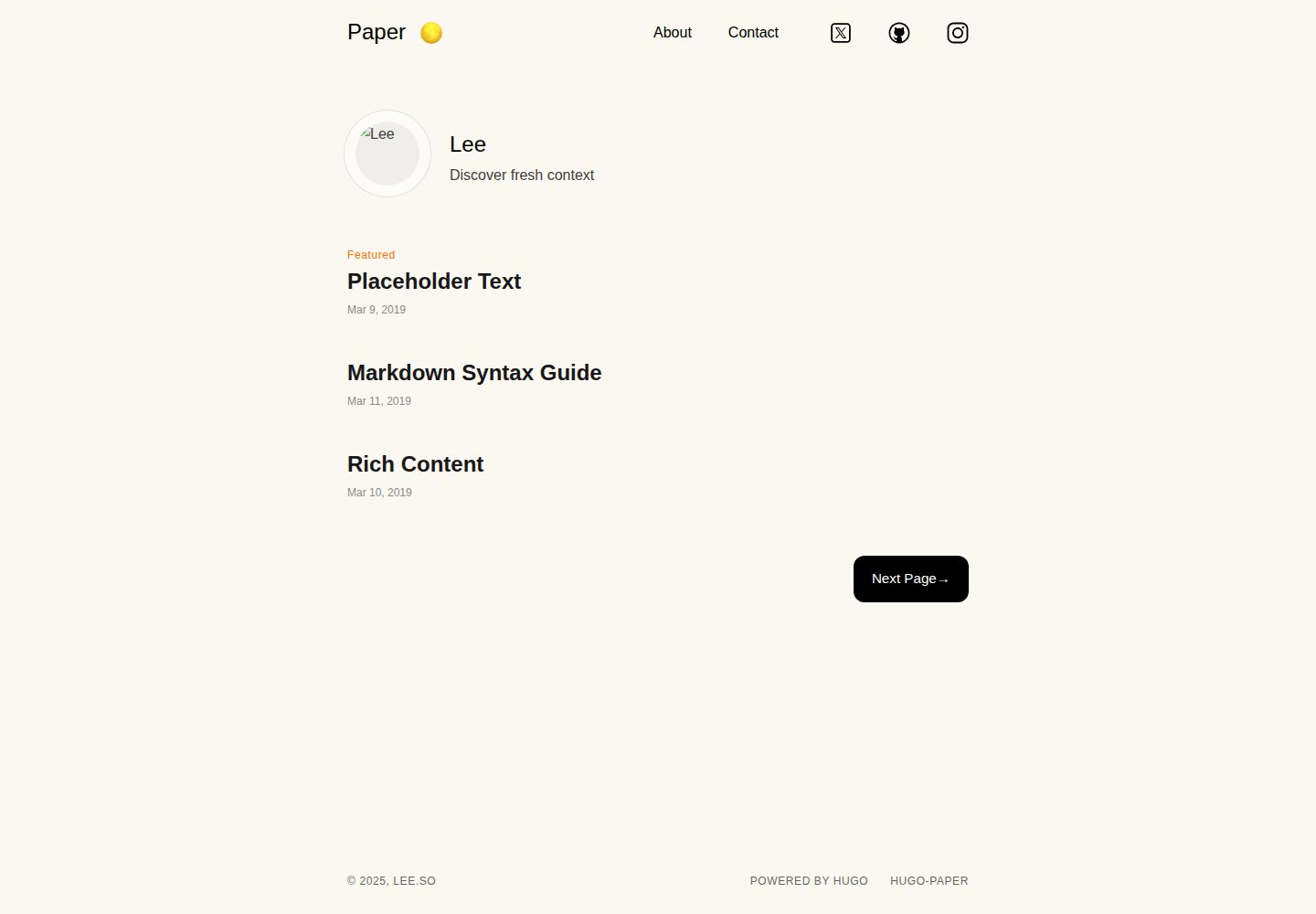
hugo-paper
🪺 A simple, clean, customizable Hugo theme
Hugo · 博客
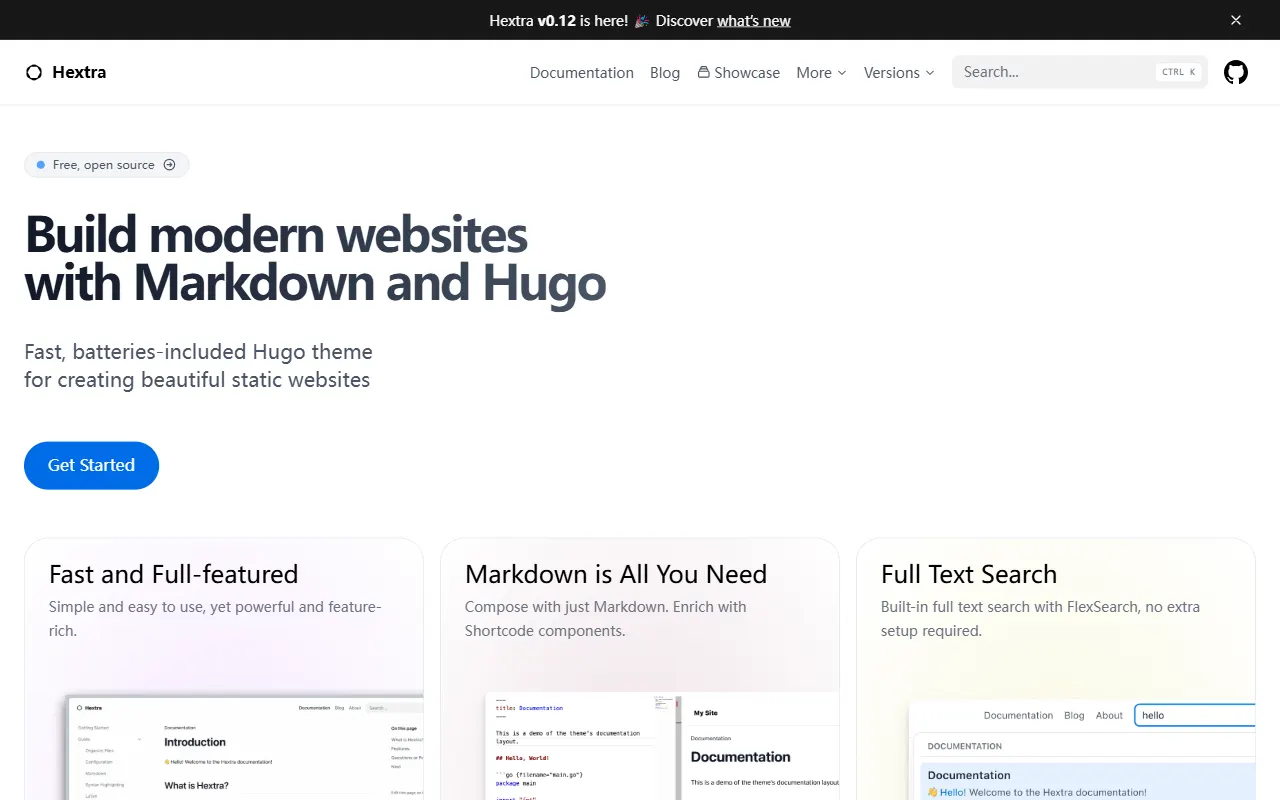
hextra
Hextra 是一个 Hugo 主题,定位在文档站与博客之间:既提供侧边栏导航、目录、面包屑、分页这类文档站结构,也能承载博客内容。
Hugo · 文档