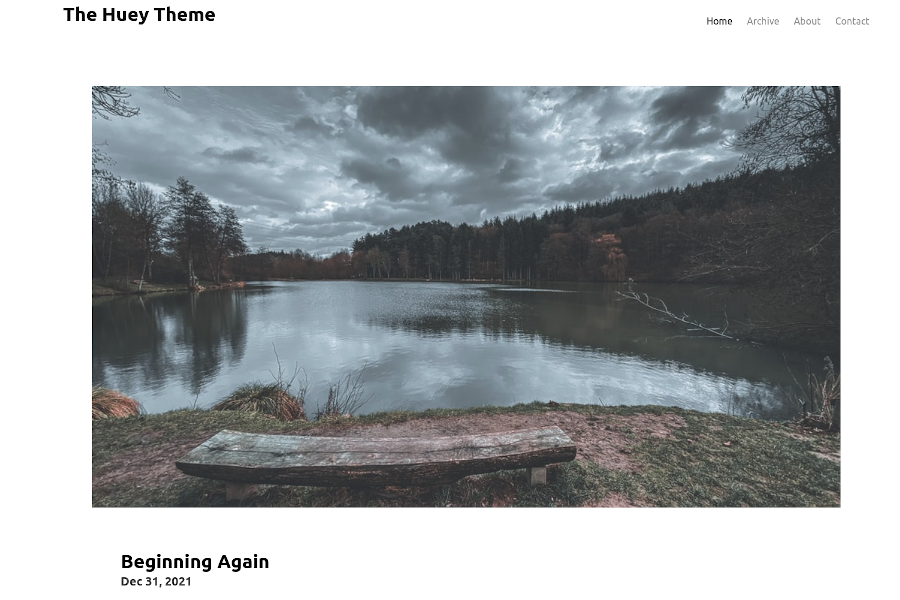
Built on Bulma CSS, a pure CSS framework, with no JavaScript included by default
HugoBlog
huey — Hugo Blog Template
By alloydwhitlock
Huey is a minimal Hugo blog theme based on Bulma CSS, suitable for personal blogs and small sites.
Explore the design
Compare the page layouts and mobile experience. Open any screenshot for a closer look.
Author preview
Author-provided previewTop of page
Preview provided in the project README.
One original preview is available. Open the full image to inspect the design.
Screenshots show visual appearance; interactive behavior may differ.
Recorded 2026-10-02View source
What stands out
A quick read of the recorded project description.
Minimal design that keeps only the features needed for blogs and small sites
Supports configuring footer social icons and links via [[menu.social]]
Provides security header configuration examples for Netlify, Cloudflare Pages, and Vercel
Uses different front matter types to distinguish pages from blog posts
Template Details
Huey is a Hugo theme built with Bulma CSS, positioned as minimal and aimed at blogs and small personal websites. The theme does not aim to cover all of Bulma's features, keeping only what is needed for a streamlined site.
There are two installation methods: clone the repository into the site's themes/huey directory, or add it as a Git submodule. When using a submodule, updates require running git submodule update --remote --merge. The theme requires the Hugo extended edition to support Sass/SCSS compilation.
Configuration is centralized in config.toml, where you can set site metadata, navigation menus, social links, and pagination. Social icons are configured via [[menu.social]]; the icons depend on Font Awesome, which requires registration and a token. If Font Awesome is not enabled, name text is displayed instead. Pages are divided into standalone pages and blog posts: standalone pages must specify type: pages and layout: page in front matter, and can add fa_icon; blog posts must specify type: blog to appear on the homepage. The theme uses archive as the post archive path by default, which can be adjusted.
The theme includes security header configuration examples for platforms such as Netlify, Cloudflare Pages, and Vercel; GitHub Pages itself does not support custom response headers. The default Content-Security-Policy is written according to standard theme settings; if external resources such as analytics or social embeds are introduced, the CSP must be updated accordingly.
The theme name comes from musician Baby Huey, and the default favicon.ico uses his album cover.
HugoBlog
Is it right for your project?
Use Cases
- Building a personal blog and publishing posts
- Creating a small personal website with standalone pages such as About and Contact
- Deploying a static site on Netlify, Cloudflare Pages, or Vercel and configuring security response headers
- Customizing theme styles with the Hugo extended edition and Sass
Suitable For
- Personal bloggers who want a minimal Hugo theme
- Developers who prefer Bulma CSS and do not need JavaScript dependencies
- Deployers who need to add basic security header configuration to a static site
Getting started & customization
Use these recorded setup notes alongside the repository instructions for your chosen version.
- 1
Requires Hugo 0.154.2 or later, and the extended edition must be used to support Sass/SCSS
- 2
Installation: clone the repository into themes/huey, or add it as a submodule with git submodule add
- 3
Using Font Awesome icons requires registration and a token, entered into fontawesomeToken under [params]
- 4
Standalone pages must set type: pages and layout: page in front matter; blog posts must set type: blog
- 5
The default CSP covers only standard theme resources; when adding external resources, the security header configuration must be updated accordingly
License & source material
Usage conditions & limitations
Free to use · keep license noticeThis entry covers the free version under the MIT license in the public repository; the free scope is the code of that version and does not mean that external services or third-party assets are free.
Must comply with when using
- The code of this version may be used, modified, used commercially, and distributed free of charge.
- When distributing copies or substantial portions of the code, retain the original author's copyright notice and the full MIT license notice.
- The code is provided as is; warranties and limitations of liability are governed by the original license and applicable law.
Additional costs & items to verify
- Using this theme requires Hugo 0.154.2 or later, and it must be the extended edition; otherwise Sass/SCSS styles cannot be compiled.
- To use Font Awesome icons in page titles or the footer, you must first register an account on the Font Awesome website and obtain a token, then enter it in the fontawesomeToken configuration field.
- Font Awesome is not bundled with the theme; using icons requires online access to the Font Awesome CDN. For offline use, you must store the icons in the static directory yourself and modify the theme.
- GitHub Pages does not natively support custom response headers; if security headers are needed, a proxy such as Cloudflare is required, while other platforms use the included configuration files.
- The default Content-Security-Policy covers only standard theme resources; if external resources such as analytics or social embeds are introduced, you must update the CSP configuration yourself.
- Demo images, fonts, icons, and other third-party assets must be checked against their respective licenses and cannot be judged solely by the code's MIT license.
- External services such as domains, hosting, databases, payments, or AI may incur separate charges.
View Original Text Basis
Permission is hereby granted, free of charge
Original License Text
Hugo version 0.154.2 or later (extended edition required for Sass/SCSS)
Original README
you will first need to [register with Font Awesome](https://fontawesome.com/start) and get a token
Original README
Font Awesome is not stored within the theme, so network access to the Font Awesome CDN is required.
Original README
GitHub Pages doesn't support custom headers natively
Original README
https://github.com/alloydwhitlock/huey/blob/main/LICENSEhttps://github.com/alloydwhitlock/huey/blob/main/README.mdIf you add additional external resources (analytics, social media embeds, etc.), you'll need to update the CSP accordingly.
Original README
Compiled by DeepSeek based on repository license and README ·2026-10-02. Results only cover the materials read; dependencies, images, fonts, and subsequent term changes are subject to their respective original texts.
Project checks & description sources
Template Information
- Source platforms
- GitHub
- Documentation and maintenance reference score
- More documented · 75 / 100
- Technologies
- Hugo
- Website type
- Blog
How this score is calculated
Our heuristic uses license records (up to 30), a demo link (12), a preview (10), stars (15), recorded maintenance (15), description completeness (8), feature records (5) and classification data (5). It is not a code, security or performance test, or a Google score. A link does not establish tested functionality.
What to verify for this project
- Repository update recorded
- 2026-06-22
- Screenshot last checked
- 2026-10-02
No demo link is recorded. Use the repository instructions to evaluate the project locally; the screenshot alone cannot establish interactive behavior.
The catalog identifies Hugo as the primary stack. Check the actual dependency manifest and lockfile for versions and hosting requirements. These notes use recorded metadata, not a code audit or a deployment test.
Use a selection guide →How this description was prepared
AI-assisted description based on catalog records and repository material. Repository authors are not automatically the reviewers of this description.
Automatically checked against source and license rules; no manual editorial review.
Inspect the recorded source material
SHA-256: ffb5fa9e4473be990a3644082d55f83f1331ca2ced891e32a67f744f666fdcdf
2026-10-02T10:14:37.346Z
Source file / repository
# Huey
A minimal Hugo blog template using Bulma CSS
## Questions
### Why is it Named Huey?
The name "Huey" was taken from the musician "Baby Huey". The record was on the mantle when the theme author was trying to come up with a name. The album cover for "The Baby Huey Story: The Living Legend" is used as the default `favicon.ico` for this theme.
### Why Use Bulma for CSS?
Bulma is a great framework for starting off sites. It's pure CSS, meaning you don't need to bring in Javascript (unless you want to). This was also meant as an exercise for the author to learn Bulma CSS and how Sass works.
### Why Doesn't Huey use "X" Bulma feature?
This is meant to be "minimal". Only add features needed for a slim site and when necessary. If you want a full-featured Bulma theme meant to provide everything Bulma offers, check out [hugo-bulma](https://github.com/wayn3h0/hugo-bulma).
### How Can I Contribute?
File a pull request in the Huey theme repository. Preferably create a Github Issue which addresses a problem that needs to be solved, then submit a PR fixing it.
## How Can I Get New Features?
If you need or want new functionality, please create a new issue on Github in the Huey project.
## Installation
### Prerequisites
- Hugo version 0.154.2 or later (extended edition required for Sass/SCSS)
- A Hugo site has been initialized or cloned. Example: `hugo new site <site name>`
- Git installed in development environment
- Github access available
**Note:** For information about recent Hugo version updates, see [HUGO_UPGRADE_NOTES.md](HUGO_UPGRADE_NOTES.md)
### Method 1: Clone in Themes Directory
The simplest method of installing Huey is cloning the Huey directly into the site `themes/huey` directory. Below is a command that can be copied & pasted into a terminal to clone the Huey theme.
```git clone https://github.com/alloydwhitlock/huey/ --depth=1```
If you use Huey cloned directly, you will need to run `git pull` within `themes/huey` for updating to the most recent version.
### Method 2: Use Git Submodule
Git Submodule allows you to have one git repository located within another. This lets you separate what your working site directory will be from the Huey theme, as an example. It's a great choice when you have an external component you don't fully control, since it locks the repository reference to the specific commit you used.
```git submodule add https://github.com/alloydwhitlock/huey/ themes/huey```
If you use Huey as a submodule, you will need to run `git submodule update --remote --merge` when updating the most more recent version.
## Security
### Security Headers
For production deployments, it's highly recommended to configure security headers to protect your site from common web vulnerabilities. Huey includes example configuration files for popular hosting platforms.
#### Supported Platforms
**Netlify**
- Use `netlify.toml` for comprehensive configuration including build settings and security headers
- Or copy `_headers` to your `static/` directory for a simpler headers-only configuration
**Cloudflare Pages**
- Copy `_headers` to your `static/` directory
**Vercel**
- Use `vercel.json` for configuration including build settings and security headers
**GitHub Pages**
- GitHub Pages doesn't support custom headers natively
- Consider using Cloudflare as a proxy to add security headers
#### Included Security Headers
The provided configurations include the following security headers:
- **Content-Security-Policy**: Controls which resources can be loaded and executed
- **X-Frame-Options**: Prevents clickjacking attacks
- **X-Content-Type-Options**: Prevents MIME type sniffing
- **X-XSS-Protection**: Enables browser XSS protection (for legacy browsers)
- **Referrer-Policy**: Controls referrer information sent with requests
- **Permissions-Policy**: Controls which browser features and APIs can be used
- **Strict-Transport-Security**: Forces HTTPS connections (commented out by default)
#### Customizing Security Headers
The default Content-Security-Policy is configured for the standard Huey theme setup:
- Font Awesome CDN (if enabled)
- Google Fonts (if used)
- Self-hosted content
If you add additional external resources (analytics, social media embeds, etc.), you'll need to update the CSP accordingly. Refer to the comments in the configuration files for guidance.
#### Testing Security Headers
After deployment, test your security headers using:
- [Mozilla Observatory](https://observatory.mozilla.org/)
- [Security Headers](https://securityheaders.com/)
- Browser developer tools (Network tab)
For more information, see [SECURITY.md](SECURITY.md) for vulnerability reporting and security best practices.
## Theme Configuration
Huey comes with a number of configuration options. Read through this section for more details, along with a boilerplate configuration that can be used to get started.
### Font Awesome
Font Awesome icons are included as part of the Bulma CSS framework, though their use is optional. Using the icons in Huey is also optional. If you want to have icons next to page titles or social media icons in your page footer it's necessary to enable Font Awesome. To use Font Awesome, you will first need to [register with Font Awesome](https://fontawesome.com/start) and get a token. Once you have a token, add it to the `[Params]` table as `fontawesomeToken`. Example configuration is provided below (with additional keys/values removed):
```
[params]
fontawesomeToken = "018de52a07"
```
### Subtitle
This theme doesn't use a subtitle. To add a subtitle, edit `layouts/partials/header.html` to include a {{ .Params.Subtitle }} along with adding `subtitle` to your `config.toml` `[params]` table.
### Social Media Icons and Links
If you want to use social media icons in your page footer, you can add them through the `[[menu.social]]` table array. The example below shows a full configuration, where three social media locations are set. Any link and icon can be used, though if you don't use Font Awesome it will show the name specified instead of an icon.
```
[[ menu.social]]
identifier = 'linkedin'
name = 'LinkedIn'
pre = "<i class='fab fa-linkedin fa-lg'></i>"
url = "https://linkedin.com/in/yourlinkedinprofile"
weight = 10
[[ menu.social]]
identifier = 'github'
name = 'Github'
pre = "<i class='fab fa-github fa-lg'></i>"
url = "https://github.com/yourgithubname"
weight = 20
[[ menu.social]]
identifier = 'twitter'
name = 'Twitter'
pre = "<i class='fab fa-twitter fa-lg'></i>"
url = "https://twitter.com/yourtwittername"
weight = 30
```
The `pre` key defines the Font Awesome icon code you would use. If you do a search on Font Awesome, you should be able to paste the icon code as the value. You can also use this to specify a location for an icon, if you don't want to use Font Awesome.
The `weight` key is used to determine the location of icons. Adjusting the weight from low-to-high will order left-to-right.
### Configuration Example
This is a configuration boilerplate you can use with minimal changes.
```
baseURL = "https://www.yourbaseurl.com"
languageCode = "en-us"
title = "Put a site title here"
theme = "huey"
canonifyurls = true
[params]
# General site metadata, used in header and other places
author = "Author's name goes here"
dateFormat = "January 2, 2006"
description = "This is a description of your site. This is also used in your site header metadata."
keywords = ""
email = "[email protected]"
# Use your Font Awesome token here. Example token is fake, so please get your own.
fontawesomeToken = "018de52a07"
# Use content from _index.md on homepage
# useIndexContent = true # default is false
# Navigation, use Bulma options here
# navbarStyle = "is-transparent" # Default is "is-transparent"
# navbarTitleStyle = "has-text-black" # Default is "has-text-black"
# # Override Bulma schemes with values
# schemeMain = "" # Change background color, default is white
# link = "#000" # Bulma default is blue, though theme is black
# linkHover = "#888" # Bulma default is grey-darker, though theme is #888
# footerBackgroundColor = "false" # Bulma default is #fafafa. You can use "false" or #hex
# navbarItemHoverColor = "#444" # Bulma default is blue, though theme is #444
# navbarItemColor = "#888" # Bulma default is grey-dark, though theme is #888
# Set static directory locations and favicon
favicon = "favicon.ico"
staticDir = ['static']
# Page Layout for Index
[pagination]
disableAliases = false
pagerSize = 3
path = 'page'
[menu]
# Top Navigation
[[menu.nav]]
identifier = 'home'
name = 'Home'
title = 'Home'
url = '/'
weight = 10
[[menu.nav]]
identifier = 'archive'
name = 'Archive'
title = "Archive"
url = '/archive/'
weight = 20
# Contacts
[[ menu.social]]
identifier = 'linkedin'
name = 'LinkedIn'
pre = "<i class='fab fa-linkedin fa-lg'></i>"
url = "https://linkedin.com/in/yourlinkedinprofile"
weight = 10
[[ menu.social]]
identifier = 'github'
name = 'Github'
pre = "<i class='fab fa-github fa-lg'></i>"
url = "https://github.com/yourgithubname"
weight = 20
[[ menu.social]]
identifier = 'twitter'
name = 'Twitter'
pre = "<i class='fab fa-twitter fa-lg'></i>"
url = "https://twitter.com/yourtwittername"
weight = 30
[outputs]
home = ['HTML', 'RSS']
pages = ['HTML']
```
## Page Configuration
### Layout for Individual Pages
Huey pages require that you specify a `type: pages` and `layout: page` for any page that's standalone (Examples: Contact, About Me). This will remove the "date" field from those pages, along with letting you specify an optional Font Awesome icon next to the page title. Unlike how Font Awesome icons are used in the configuration, you only need to put the short Font Awesome codes on your page front matter (the metadata at the top of a post).S
Specifying the `menu:nav` and `weight: weight-value`, as seen in the example, will ensure additional pages you create appear in navigation. If declared properly, the active page should be darker in the menu.
Example Layout for Individual Page
```
---
title: "About"
date: 2021-12-22T22:31:55-06:00
draft: false
url: /about/
type: pages
layout: page
fa_icon: "fas fa-user"
menu: nav
weight: 20
---
Content text goes here...
```
To add an icon next to a page title, use `fa_icon:` key where the value is the Font Awesome icon code. Example: `fa_icon: fas fa-user`
### Layout for Blog Posts
#### Post Front Matter
Blog posts only need the type `blog` specified in a page front matter, which allows new posts to appear on the main home page. If you don't want a post to appear on the home page, it's possible to hide them by ignoring the type or setting it to another (Example: post).
Use the `lastmod` key in your page front matter to specify the last modified date. This is useful if you make changes to a post and want to highlight something new is present.
`archive` is used throughout Huey as the blog post location, but you can specify your own. Rename `layouts/pages/archive.html` file accordingly.
Example Layout for Blog Posts:
```
---
title: "Example Post"
date: 2021-12-30
# lastmod: 2021-12-29
draft: false
url: /archive/examplepost
type: blog
description: "Every post should have a great description!"
---
Content text goes here...
```
There is not an option for Font Awesome codes with blog posts. If you need/want this functionality please create a new issue on Github in the Huey project.
#### Header Images & Content
When using Huey as a theme, it's suggested to use page bundles. These allow for a content author to include all relevant content within a folder. Pages can reference bundle content directly. Below is an example of a page bundle layout:
```
hugo-site
├── content/
│ ├── posts/
│ │ ├── new_post/
│ │ │ ├── header.png
│ │ │ ├── image1.png
│ │ │ └── index.md
│ │ ├── _index.md
...
```
Post bundles require an `index.md` for the bundle folder, which will contain the content of the post. See [Page Bundles](https://gohugo.io/content-management/page-bundles/) on Hugo for more information.
##### Header Image (Front Page & Posts Page)
Huey will use any picture named "header.jpg" or "header.png" that's included within a page bundle. This picture is used on the front home page and the posts (blog posts) page. If you do not include an image meeting the naming convention, then no image will be used for the header.
##### Images & Other Content
You can reference any content in the page bundle, such as additional images, in your markdown files using a relative path. Example:
```

```
##### Shortcodes
###### Centered Text
Example:
{{% center %}}Text to be centered{{% /center %}}
###### Centered Image
{{% center-image
src="x400_board.png"
alt="This is sample image" %}}
## Additional Scripts
Huey supports loading scripts after the footer loads (Example: Javascript for site analytics). Adding new code directly to Huey's existing `huey/layouts/partials/scripts.html` is the fastest method to get started. However, to maintain core site code separate from your theme create a `layouts/partials/scripts.html` file in the base site directory. When generating a new site, Hugo will load the base folder `scripts.html` accoording to the order of precedence.
Example Layout Showing New scripts.html:
```
hugo-site
├── layouts/
├── partials/
│└── scripts.html
... more files ...
├── themes/
│└── huey/
...
```
## Site Local Assets and Online Dependencies
Bulma CSS is stored as part of the project theme, in `assets/css/bulma`. This ensures you can move your site around without needing network access. If a newer version of Bulma is necessary, either replace the Bulma CSS directory completely or use a public Bulma CSS location. The location is specified in `layouts/partials/head.html`.
Font Awesome is not stored within the theme, so network access to the Font Awesome CDN is required. If you need local icons, store them in the `static` folder (Example: `static/icons`) and reference their location directly. This may require theme modification depending on where you are adding or needing icons.
## Theme Customization
If you want to change the colors that Huey uses, the best location is `assets/css/base/base.scss`. Huey uses Bulma, which itself uses Sass for generating CSS. This file will apply changes to Bulma CSS and generate what is ultimately created in your `public` folder. However, there are a number of Bulma variables already configurable in the `[Params]` table, which means you don't need to edit this file directly. Only edit it directly if you need to make changes.
If you want to add new CSS definitions that don't exist in Bulma, add them to `assets/css/extra/extra.css` or copy CSS files to the `assets/css/extra` folder. Huey will read any CSS files in that folder.
## TODO
This is the author's current TODO list for Huey. It won't impact your use of Huey. If you run into an issue and it's in the list, be assured it's being looked into.
- Children pages will show active for parent in menu
Explore similar templates
Compare previews and descriptions within the same stack and category.
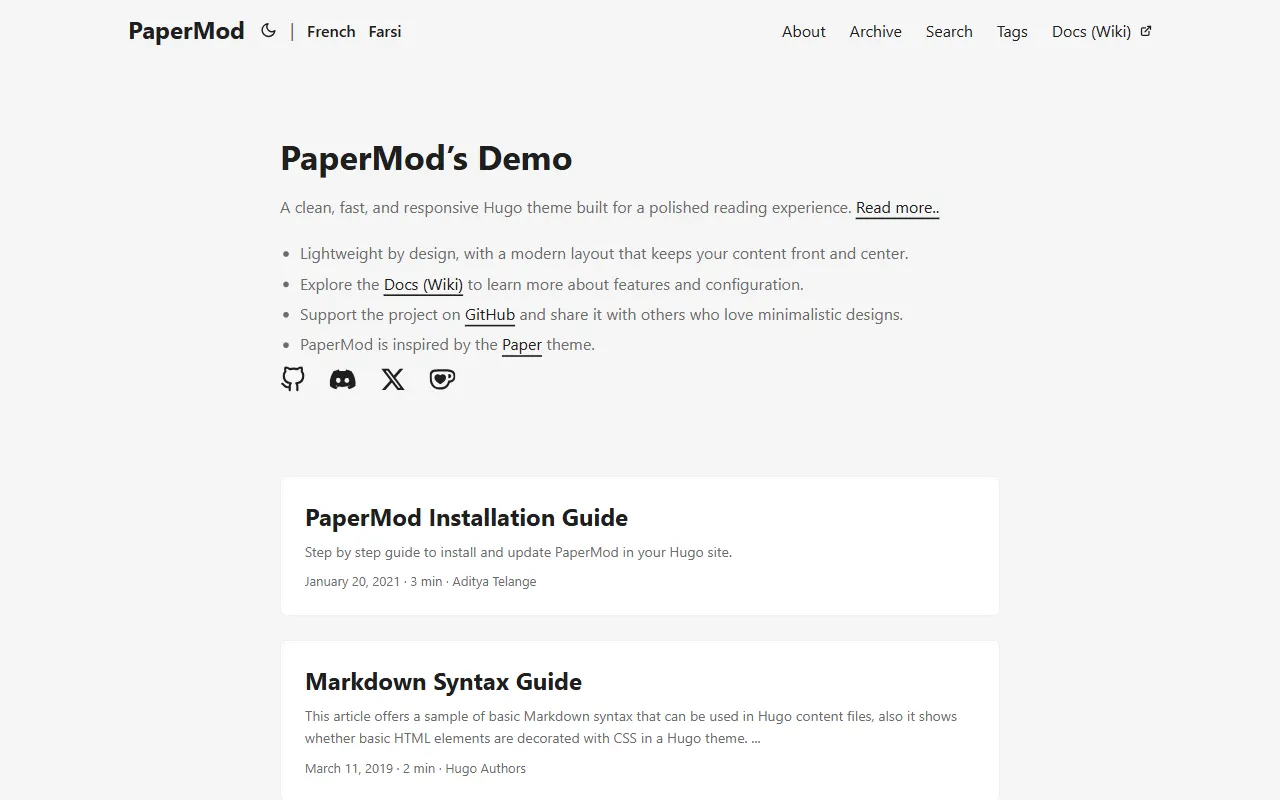
hugo-PaperMod
A fast, clean, responsive Hugo theme for blogs and lightweight portfolios, with three layout modes (Regular, Home-Info, Profile), automatic and manual light/dark themes, Fuse.js client-side search, multilingual support, and built-in Open Graph, Twitter Cards, and Schema.org data.
Hugo · Portfolio
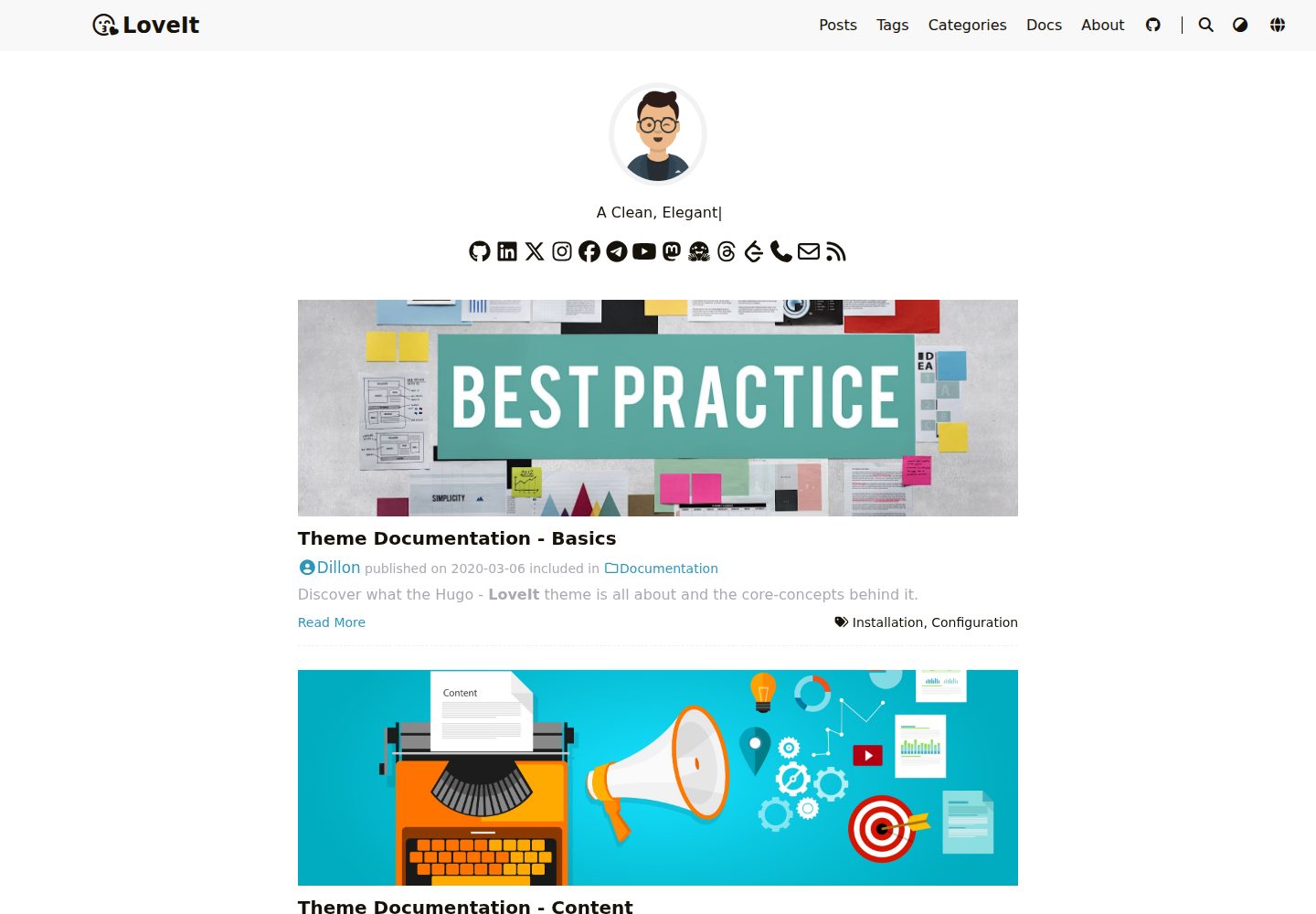
LoveIt
LoveIt is a clean, elegant, and feature-rich Hugo blog theme derived from LeaveIt and KeepIt, MIT-licensed. It offers light/dark modes, responsive layout, multilingual support, and search via Lunr.js or Algolia.
Hugo · Blog
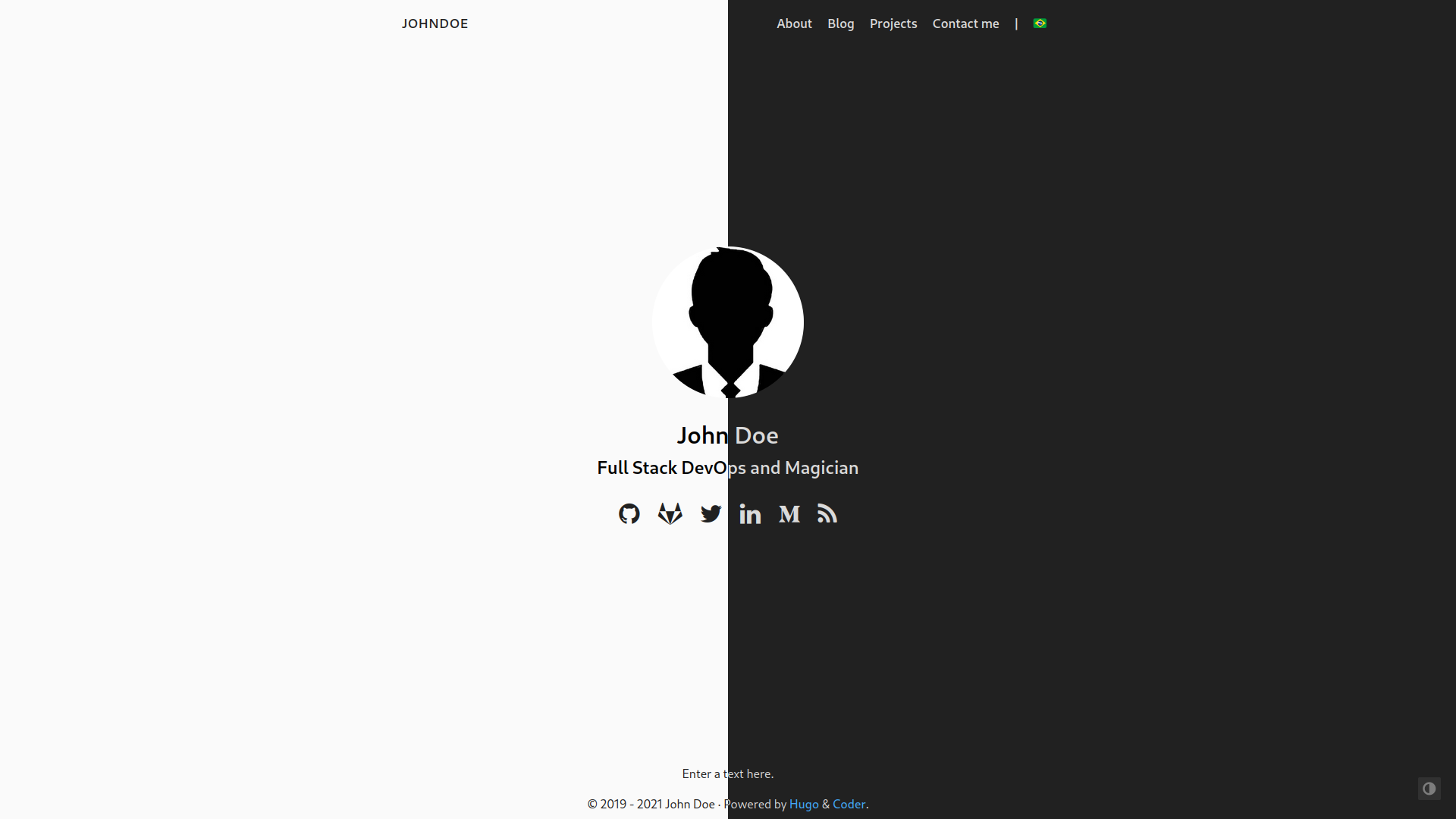
hugo-coder
hugo-coder is a minimalist Hugo blog theme maintained by luizdepra under the MIT license. It provides a clean, text-focused blog appearance, configuration documentation in the docs directory, and a complete exampleSite with hugo.toml.
Hugo · Blog
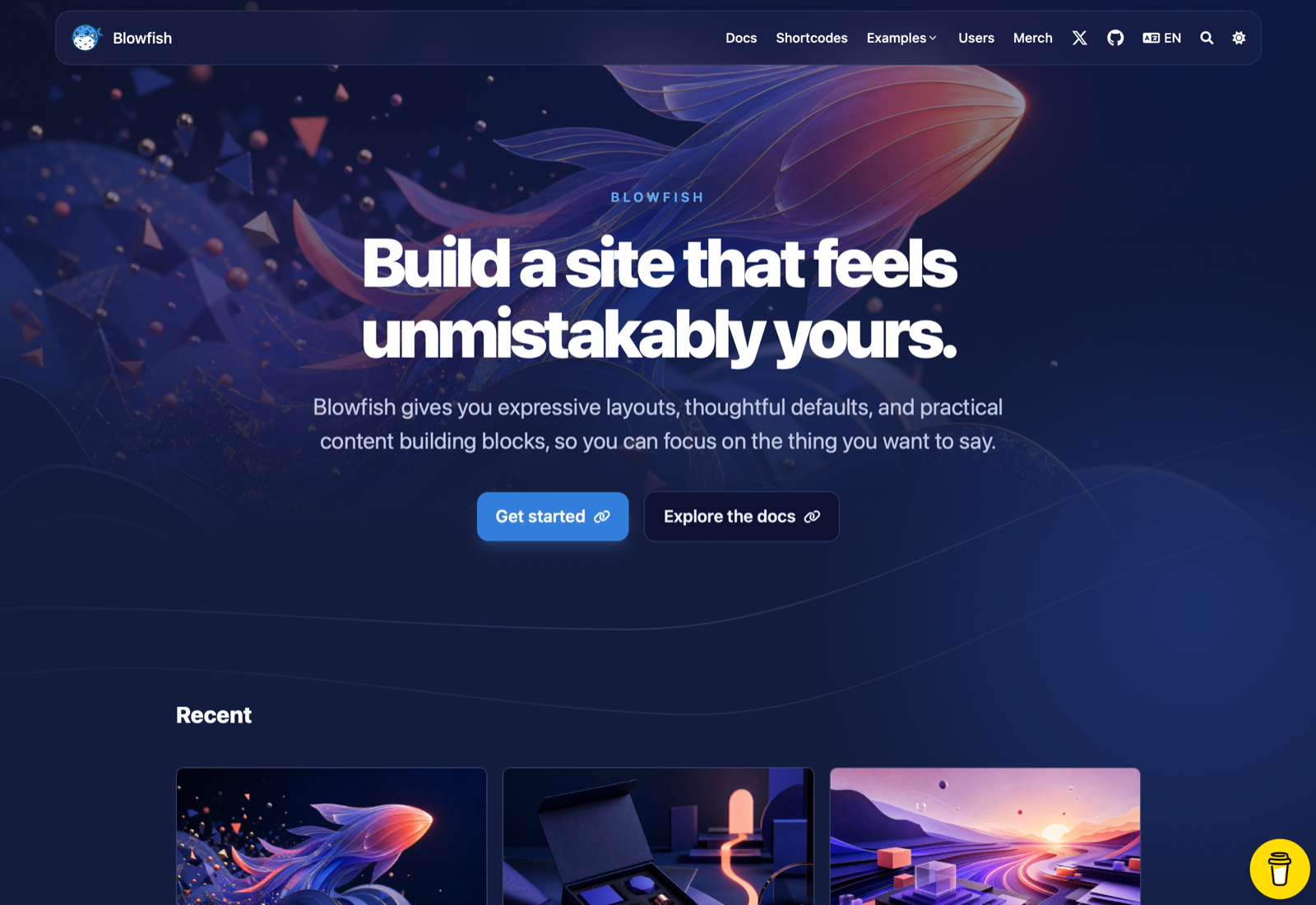
blowfish
Blowfish is a Hugo personal website and blog theme built with Tailwind CSS 4, focused on lightness, simplicity, and content-first presentation.
Hugo · Blog
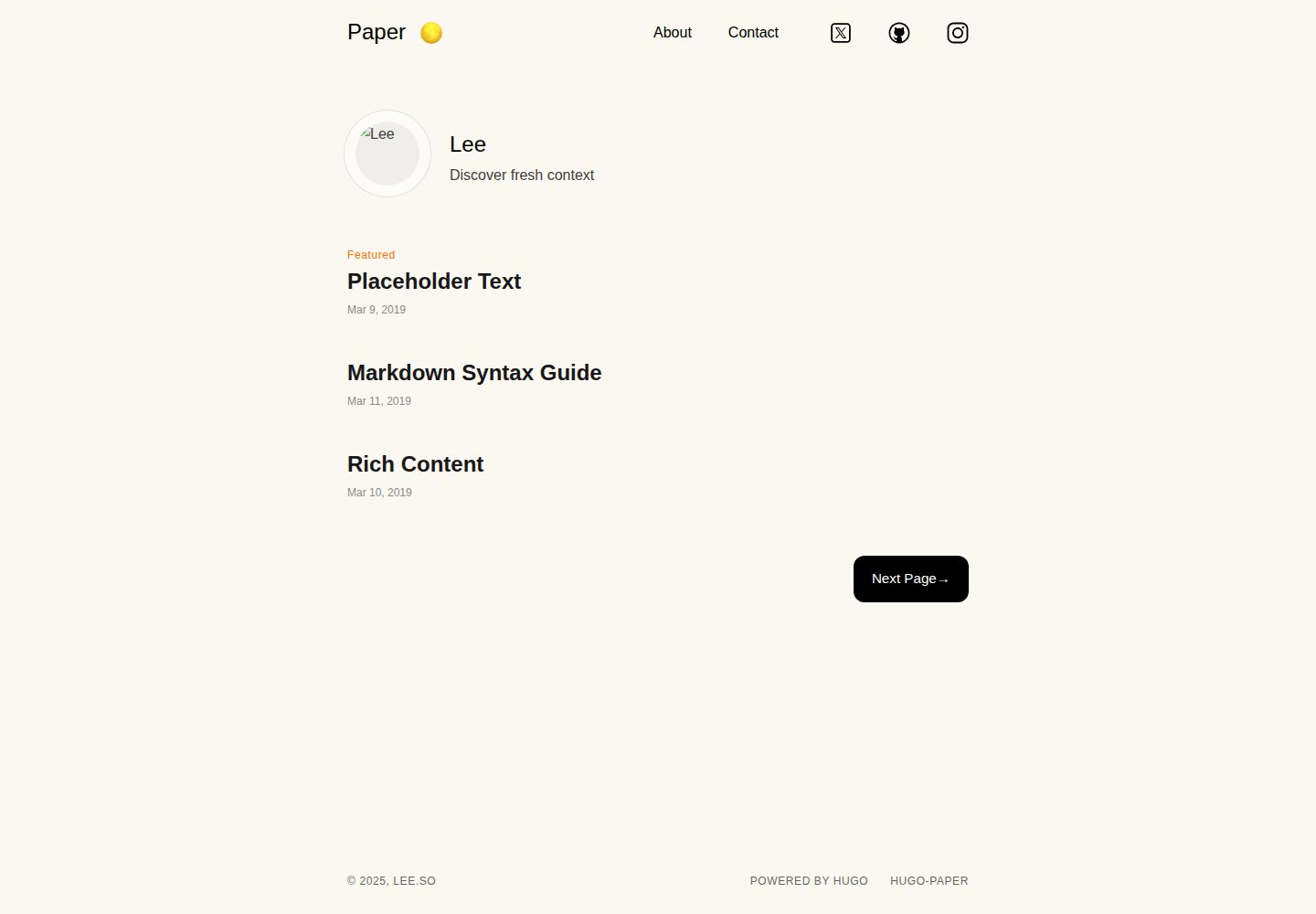
hugo-paper
hugo-paper is a simple, clean, and customizable Hugo blog theme configured through config.toml or hugo.toml.
Hugo · Blog
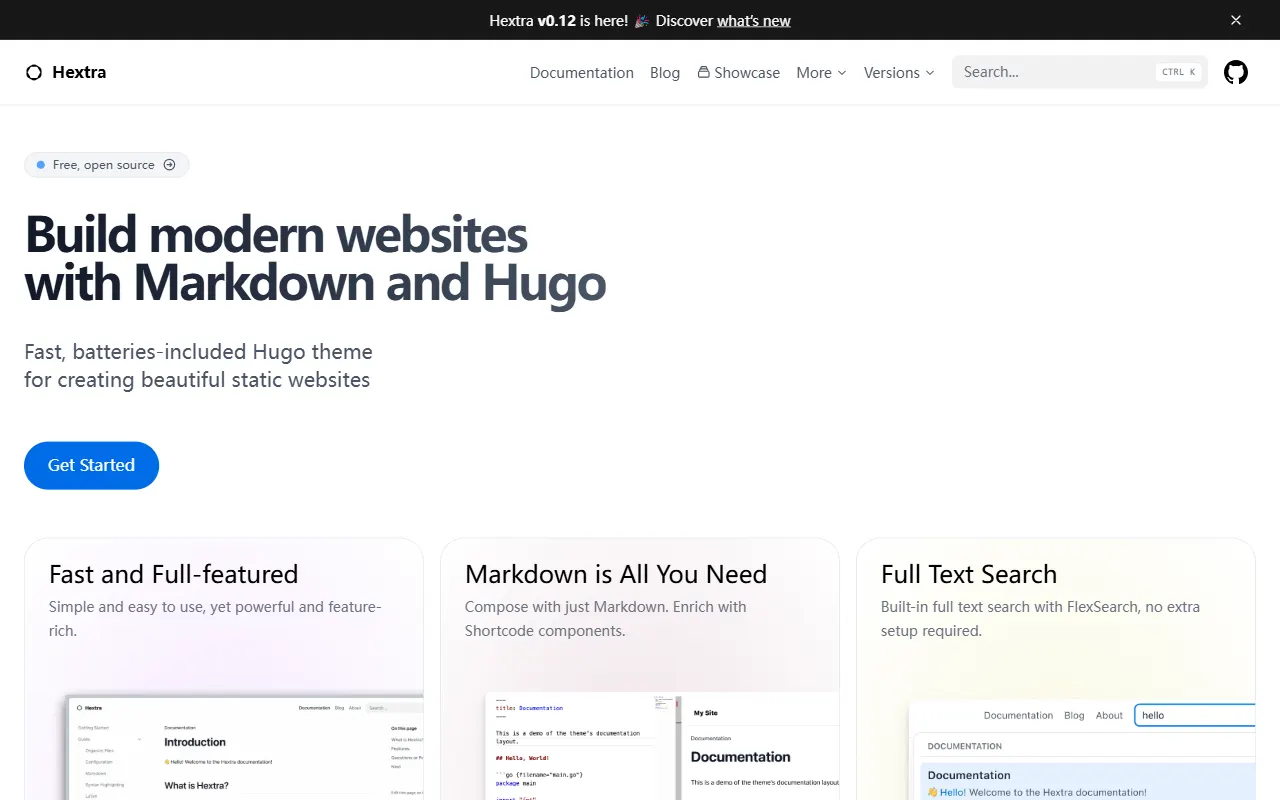
hextra
Hextra is a Hugo theme for documentation and blog sites, built on Hugo and Tailwind CSS with design referencing Nextra.
Hugo · Documentation