基于 Bulma CSS 构建,纯 CSS 框架,默认不引入 JavaScript
Hugo博客
huey — Hugo 博客模板
作者 alloydwhitlock
Huey 是一个基于 Bulma CSS 的极简 Hugo 博客主题,适合个人博客和小型站点。
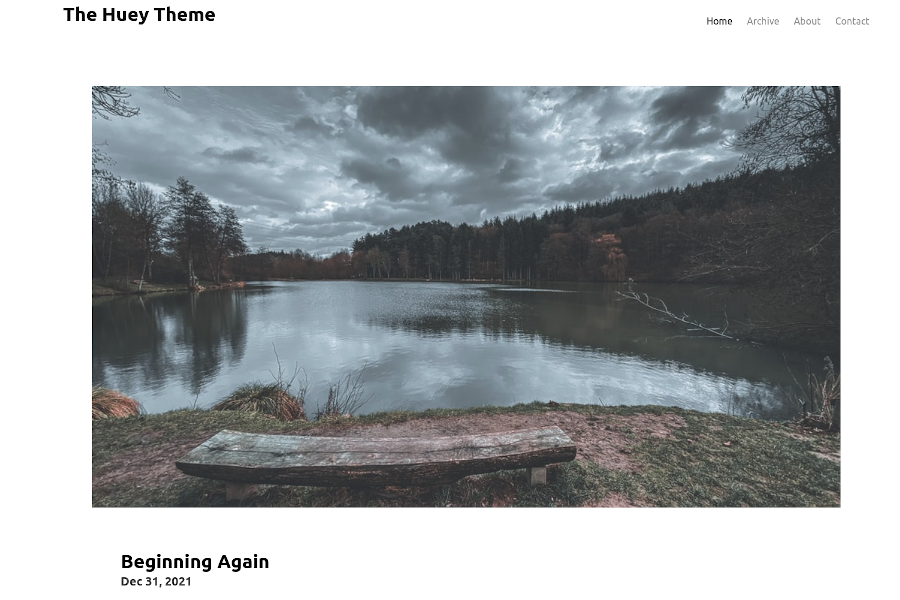
看看你的网站会是什么样
浏览真实页面截图,比较内容排版与手机效果。点击下方缩略图切换,放大查看整页细节。
目前有 1 张原始预览,可打开完整图片查看设计细节。
截图用于了解视觉与布局,交互效果请以实际项目为准。
采集于 2026-10-02查看来源
值得关注的模板亮点
从已有项目资料中,快速了解它的特点。
极简设计,仅保留博客和小型站点所需功能
支持通过 [[menu.social]] 配置页脚社交图标与链接
提供 Netlify、Cloudflare Pages、Vercel 的安全头配置示例
页面与博客文章使用不同的 front matter 类型区分
模板详细介绍
Huey 是一个使用 Bulma CSS 构建的 Hugo 主题,定位为极简风格,面向博客和小型个人网站。主题不追求覆盖 Bulma 的全部功能,只保留精简站点所需的部分。
安装方式有两种:将仓库克隆到站点的 themes/huey 目录,或作为 Git 子模块添加。使用子模块时,更新需运行 git submodule update --remote --merge。主题要求 Hugo 扩展版以支持 Sass/SCSS 编译。
配置集中在 config.toml 中,可设置站点元数据、导航菜单、社交链接和分页。社交图标通过 [[menu.social]] 配置,图标依赖 Font Awesome,需要注册并获取 token;若不启用 Font Awesome,则显示名称文本。页面分为独立页面和博客文章两类:独立页面需在 front matter 中指定 type: pages 和 layout: page,并可添加 fa_icon;博客文章需指定 type: blog 才会出现在首页。主题默认使用 archive 作为文章归档路径,可自行调整。
主题附带 Netlify、Cloudflare Pages、Vercel 等平台的安全头配置示例,GitHub Pages 本身不支持自定义响应头。默认 Content-Security-Policy 按标准主题设置编写,若引入分析、社交嵌入等外部资源,需要同步更新 CSP。
主题名称来自音乐人 Baby Huey,默认 favicon.ico 使用其专辑封面。
Hugo博客
适合你的项目吗?
适用场景
- 搭建个人博客并发布文章
- 创建包含关于、联系等独立页面的小型个人网站
- 在 Netlify、Cloudflare Pages 或 Vercel 上部署静态站点并配置安全响应头
- 使用 Hugo 扩展版和 Sass 自定义主题样式
适合人群
- 希望使用极简 Hugo 主题的个人博主
- 偏好 Bulma CSS 且不需要 JavaScript 依赖的开发者
- 需要为静态站点添加基础安全头配置的部署者
上手与定制指南
结合仓库当前版本的说明,按下面的资料检查内容、配置与运行要求。
- 1
需要 Hugo 0.154.2 或更高版本,且必须使用扩展版以支持 Sass/SCSS
- 2
安装方式:克隆仓库到 themes/huey,或使用 git submodule add 添加为子模块
- 3
使用 Font Awesome 图标需注册并获取 token,填入 [params] 的 fontawesomeToken
- 4
独立页面需在 front matter 中设置 type: pages 和 layout: page,博客文章需设置 type: blog
- 5
默认 CSP 仅覆盖标准主题资源,添加外部资源时需同步更新安全头配置
授权与来源资料
使用条件与限制
免费使用 · 保留许可声明本次收录的是公开仓库中采用 MIT 许可的免费版本;免费范围为该版本代码,不代表外部服务或第三方素材免费。
使用时需要遵守
- 允许免费使用、修改、商用和分发该版本代码。
- 分发代码副本或实质性部分时,保留原作者版权声明和完整 MIT 许可声明。
- 代码按现状提供;担保与责任限制以原许可证及适用法律为准。
额外费用与待核对事项
- 使用本主题需安装 Hugo 0.154.2 或更高版本,且必须为扩展版(extended edition),否则无法编译 Sass/SCSS 样式。
- 若要在页面标题或页脚使用 Font Awesome 图标,需先在 Font Awesome 官网注册账号并获取 token,填入配置的 fontawesomeToken 字段。
- Font Awesome 未内置于主题中,使用图标时需联网访问 Font Awesome CDN;如需离线使用,须自行将图标存入 static 目录并修改主题。
- GitHub Pages 原生不支持自定义响应头,若需安全头需借助 Cloudflare 等代理,其他平台则使用附带的配置文件。
- 默认 Content-Security-Policy 仅覆盖标准主题资源;若引入分析、社交嵌入等外部资源,必须自行同步更新 CSP 配置。
- 演示图片、字体、图标及其他第三方素材需按各自许可核对,不能仅凭代码的 MIT 许可判断。
- 域名、托管、数据库、支付或 AI 等外部服务可能另外收费。
查看原文依据
Permission is hereby granted, free of charge
许可证原文
Hugo version 0.154.2 or later (extended edition required for Sass/SCSS)
README 原文
you will first need to [register with Font Awesome](https://fontawesome.com/start) and get a token
README 原文
Font Awesome is not stored within the theme, so network access to the Font Awesome CDN is required.
README 原文
GitHub Pages doesn't support custom headers natively
README 原文
https://github.com/alloydwhitlock/huey/blob/main/LICENSEhttps://github.com/alloydwhitlock/huey/blob/main/README.mdIf you add additional external resources (analytics, social media embeds, etc.), you'll need to update the CSP accordingly.
README 原文
DeepSeek 根据仓库许可证和 README 整理 ·2026-10-02。结果仅覆盖已读取资料,依赖、图片、字体及后续条款变更以各自原文为准。
项目核对记录与介绍依据
模板资料
- 来源平台
- GitHub
- 资料与维护参考分
- 资料较完整 · 75 / 100
- 技术栈
- Hugo
- 网站类型
- 博客
这个分数如何计算
本站按许可资料(最高30分)、演示链接(12分)、预览图(10分)、Star数(15分)、记录的维护时间(15分)、描述完整度(8分)、功能记录(5分)和分类资料(5分)计算。它不是代码、安全或性能测试,也不是 Google 评分;有链接不代表已实测可用。
这个项目需要核对什么
- 记录的仓库更新时间
- 2026-06-22
- 截图检查日期
- 2026-10-02
目前没有记录演示链接。请依据仓库说明在本地评估;仅凭截图无法确认交互行为。
目录记录的主要技术栈是 Hugo。请通过依赖清单和锁文件核对实际版本与托管要求。这些说明基于收录资料,不代表代码审计或部署实测。
查看具体选型方法 →介绍的制作与核对状态
介绍由 AI 辅助整理目录与仓库资料。仓库作者不等于这篇介绍的审核者。
已完成服务器许可规则与 AI 来源核对;未经过人工编辑审核。
查看当时使用的来源资料
SHA-256: ffb5fa9e4473be990a3644082d55f83f1331ca2ced891e32a67f744f666fdcdf
2026-10-02T10:14:37.346Z
来源文件 / 仓库
# Huey
A minimal Hugo blog template using Bulma CSS
## Questions
### Why is it Named Huey?
The name "Huey" was taken from the musician "Baby Huey". The record was on the mantle when the theme author was trying to come up with a name. The album cover for "The Baby Huey Story: The Living Legend" is used as the default `favicon.ico` for this theme.
### Why Use Bulma for CSS?
Bulma is a great framework for starting off sites. It's pure CSS, meaning you don't need to bring in Javascript (unless you want to). This was also meant as an exercise for the author to learn Bulma CSS and how Sass works.
### Why Doesn't Huey use "X" Bulma feature?
This is meant to be "minimal". Only add features needed for a slim site and when necessary. If you want a full-featured Bulma theme meant to provide everything Bulma offers, check out [hugo-bulma](https://github.com/wayn3h0/hugo-bulma).
### How Can I Contribute?
File a pull request in the Huey theme repository. Preferably create a Github Issue which addresses a problem that needs to be solved, then submit a PR fixing it.
## How Can I Get New Features?
If you need or want new functionality, please create a new issue on Github in the Huey project.
## Installation
### Prerequisites
- Hugo version 0.154.2 or later (extended edition required for Sass/SCSS)
- A Hugo site has been initialized or cloned. Example: `hugo new site <site name>`
- Git installed in development environment
- Github access available
**Note:** For information about recent Hugo version updates, see [HUGO_UPGRADE_NOTES.md](HUGO_UPGRADE_NOTES.md)
### Method 1: Clone in Themes Directory
The simplest method of installing Huey is cloning the Huey directly into the site `themes/huey` directory. Below is a command that can be copied & pasted into a terminal to clone the Huey theme.
```git clone https://github.com/alloydwhitlock/huey/ --depth=1```
If you use Huey cloned directly, you will need to run `git pull` within `themes/huey` for updating to the most recent version.
### Method 2: Use Git Submodule
Git Submodule allows you to have one git repository located within another. This lets you separate what your working site directory will be from the Huey theme, as an example. It's a great choice when you have an external component you don't fully control, since it locks the repository reference to the specific commit you used.
```git submodule add https://github.com/alloydwhitlock/huey/ themes/huey```
If you use Huey as a submodule, you will need to run `git submodule update --remote --merge` when updating the most more recent version.
## Security
### Security Headers
For production deployments, it's highly recommended to configure security headers to protect your site from common web vulnerabilities. Huey includes example configuration files for popular hosting platforms.
#### Supported Platforms
**Netlify**
- Use `netlify.toml` for comprehensive configuration including build settings and security headers
- Or copy `_headers` to your `static/` directory for a simpler headers-only configuration
**Cloudflare Pages**
- Copy `_headers` to your `static/` directory
**Vercel**
- Use `vercel.json` for configuration including build settings and security headers
**GitHub Pages**
- GitHub Pages doesn't support custom headers natively
- Consider using Cloudflare as a proxy to add security headers
#### Included Security Headers
The provided configurations include the following security headers:
- **Content-Security-Policy**: Controls which resources can be loaded and executed
- **X-Frame-Options**: Prevents clickjacking attacks
- **X-Content-Type-Options**: Prevents MIME type sniffing
- **X-XSS-Protection**: Enables browser XSS protection (for legacy browsers)
- **Referrer-Policy**: Controls referrer information sent with requests
- **Permissions-Policy**: Controls which browser features and APIs can be used
- **Strict-Transport-Security**: Forces HTTPS connections (commented out by default)
#### Customizing Security Headers
The default Content-Security-Policy is configured for the standard Huey theme setup:
- Font Awesome CDN (if enabled)
- Google Fonts (if used)
- Self-hosted content
If you add additional external resources (analytics, social media embeds, etc.), you'll need to update the CSP accordingly. Refer to the comments in the configuration files for guidance.
#### Testing Security Headers
After deployment, test your security headers using:
- [Mozilla Observatory](https://observatory.mozilla.org/)
- [Security Headers](https://securityheaders.com/)
- Browser developer tools (Network tab)
For more information, see [SECURITY.md](SECURITY.md) for vulnerability reporting and security best practices.
## Theme Configuration
Huey comes with a number of configuration options. Read through this section for more details, along with a boilerplate configuration that can be used to get started.
### Font Awesome
Font Awesome icons are included as part of the Bulma CSS framework, though their use is optional. Using the icons in Huey is also optional. If you want to have icons next to page titles or social media icons in your page footer it's necessary to enable Font Awesome. To use Font Awesome, you will first need to [register with Font Awesome](https://fontawesome.com/start) and get a token. Once you have a token, add it to the `[Params]` table as `fontawesomeToken`. Example configuration is provided below (with additional keys/values removed):
```
[params]
fontawesomeToken = "018de52a07"
```
### Subtitle
This theme doesn't use a subtitle. To add a subtitle, edit `layouts/partials/header.html` to include a {{ .Params.Subtitle }} along with adding `subtitle` to your `config.toml` `[params]` table.
### Social Media Icons and Links
If you want to use social media icons in your page footer, you can add them through the `[[menu.social]]` table array. The example below shows a full configuration, where three social media locations are set. Any link and icon can be used, though if you don't use Font Awesome it will show the name specified instead of an icon.
```
[[ menu.social]]
identifier = 'linkedin'
name = 'LinkedIn'
pre = "<i class='fab fa-linkedin fa-lg'></i>"
url = "https://linkedin.com/in/yourlinkedinprofile"
weight = 10
[[ menu.social]]
identifier = 'github'
name = 'Github'
pre = "<i class='fab fa-github fa-lg'></i>"
url = "https://github.com/yourgithubname"
weight = 20
[[ menu.social]]
identifier = 'twitter'
name = 'Twitter'
pre = "<i class='fab fa-twitter fa-lg'></i>"
url = "https://twitter.com/yourtwittername"
weight = 30
```
The `pre` key defines the Font Awesome icon code you would use. If you do a search on Font Awesome, you should be able to paste the icon code as the value. You can also use this to specify a location for an icon, if you don't want to use Font Awesome.
The `weight` key is used to determine the location of icons. Adjusting the weight from low-to-high will order left-to-right.
### Configuration Example
This is a configuration boilerplate you can use with minimal changes.
```
baseURL = "https://www.yourbaseurl.com"
languageCode = "en-us"
title = "Put a site title here"
theme = "huey"
canonifyurls = true
[params]
# General site metadata, used in header and other places
author = "Author's name goes here"
dateFormat = "January 2, 2006"
description = "This is a description of your site. This is also used in your site header metadata."
keywords = ""
email = "[email protected]"
# Use your Font Awesome token here. Example token is fake, so please get your own.
fontawesomeToken = "018de52a07"
# Use content from _index.md on homepage
# useIndexContent = true # default is false
# Navigation, use Bulma options here
# navbarStyle = "is-transparent" # Default is "is-transparent"
# navbarTitleStyle = "has-text-black" # Default is "has-text-black"
# # Override Bulma schemes with values
# schemeMain = "" # Change background color, default is white
# link = "#000" # Bulma default is blue, though theme is black
# linkHover = "#888" # Bulma default is grey-darker, though theme is #888
# footerBackgroundColor = "false" # Bulma default is #fafafa. You can use "false" or #hex
# navbarItemHoverColor = "#444" # Bulma default is blue, though theme is #444
# navbarItemColor = "#888" # Bulma default is grey-dark, though theme is #888
# Set static directory locations and favicon
favicon = "favicon.ico"
staticDir = ['static']
# Page Layout for Index
[pagination]
disableAliases = false
pagerSize = 3
path = 'page'
[menu]
# Top Navigation
[[menu.nav]]
identifier = 'home'
name = 'Home'
title = 'Home'
url = '/'
weight = 10
[[menu.nav]]
identifier = 'archive'
name = 'Archive'
title = "Archive"
url = '/archive/'
weight = 20
# Contacts
[[ menu.social]]
identifier = 'linkedin'
name = 'LinkedIn'
pre = "<i class='fab fa-linkedin fa-lg'></i>"
url = "https://linkedin.com/in/yourlinkedinprofile"
weight = 10
[[ menu.social]]
identifier = 'github'
name = 'Github'
pre = "<i class='fab fa-github fa-lg'></i>"
url = "https://github.com/yourgithubname"
weight = 20
[[ menu.social]]
identifier = 'twitter'
name = 'Twitter'
pre = "<i class='fab fa-twitter fa-lg'></i>"
url = "https://twitter.com/yourtwittername"
weight = 30
[outputs]
home = ['HTML', 'RSS']
pages = ['HTML']
```
## Page Configuration
### Layout for Individual Pages
Huey pages require that you specify a `type: pages` and `layout: page` for any page that's standalone (Examples: Contact, About Me). This will remove the "date" field from those pages, along with letting you specify an optional Font Awesome icon next to the page title. Unlike how Font Awesome icons are used in the configuration, you only need to put the short Font Awesome codes on your page front matter (the metadata at the top of a post).S
Specifying the `menu:nav` and `weight: weight-value`, as seen in the example, will ensure additional pages you create appear in navigation. If declared properly, the active page should be darker in the menu.
Example Layout for Individual Page
```
---
title: "About"
date: 2021-12-22T22:31:55-06:00
draft: false
url: /about/
type: pages
layout: page
fa_icon: "fas fa-user"
menu: nav
weight: 20
---
Content text goes here...
```
To add an icon next to a page title, use `fa_icon:` key where the value is the Font Awesome icon code. Example: `fa_icon: fas fa-user`
### Layout for Blog Posts
#### Post Front Matter
Blog posts only need the type `blog` specified in a page front matter, which allows new posts to appear on the main home page. If you don't want a post to appear on the home page, it's possible to hide them by ignoring the type or setting it to another (Example: post).
Use the `lastmod` key in your page front matter to specify the last modified date. This is useful if you make changes to a post and want to highlight something new is present.
`archive` is used throughout Huey as the blog post location, but you can specify your own. Rename `layouts/pages/archive.html` file accordingly.
Example Layout for Blog Posts:
```
---
title: "Example Post"
date: 2021-12-30
# lastmod: 2021-12-29
draft: false
url: /archive/examplepost
type: blog
description: "Every post should have a great description!"
---
Content text goes here...
```
There is not an option for Font Awesome codes with blog posts. If you need/want this functionality please create a new issue on Github in the Huey project.
#### Header Images & Content
When using Huey as a theme, it's suggested to use page bundles. These allow for a content author to include all relevant content within a folder. Pages can reference bundle content directly. Below is an example of a page bundle layout:
```
hugo-site
├── content/
│ ├── posts/
│ │ ├── new_post/
│ │ │ ├── header.png
│ │ │ ├── image1.png
│ │ │ └── index.md
│ │ ├── _index.md
...
```
Post bundles require an `index.md` for the bundle folder, which will contain the content of the post. See [Page Bundles](https://gohugo.io/content-management/page-bundles/) on Hugo for more information.
##### Header Image (Front Page & Posts Page)
Huey will use any picture named "header.jpg" or "header.png" that's included within a page bundle. This picture is used on the front home page and the posts (blog posts) page. If you do not include an image meeting the naming convention, then no image will be used for the header.
##### Images & Other Content
You can reference any content in the page bundle, such as additional images, in your markdown files using a relative path. Example:
```

```
##### Shortcodes
###### Centered Text
Example:
{{% center %}}Text to be centered{{% /center %}}
###### Centered Image
{{% center-image
src="x400_board.png"
alt="This is sample image" %}}
## Additional Scripts
Huey supports loading scripts after the footer loads (Example: Javascript for site analytics). Adding new code directly to Huey's existing `huey/layouts/partials/scripts.html` is the fastest method to get started. However, to maintain core site code separate from your theme create a `layouts/partials/scripts.html` file in the base site directory. When generating a new site, Hugo will load the base folder `scripts.html` accoording to the order of precedence.
Example Layout Showing New scripts.html:
```
hugo-site
├── layouts/
├── partials/
│└── scripts.html
... more files ...
├── themes/
│└── huey/
...
```
## Site Local Assets and Online Dependencies
Bulma CSS is stored as part of the project theme, in `assets/css/bulma`. This ensures you can move your site around without needing network access. If a newer version of Bulma is necessary, either replace the Bulma CSS directory completely or use a public Bulma CSS location. The location is specified in `layouts/partials/head.html`.
Font Awesome is not stored within the theme, so network access to the Font Awesome CDN is required. If you need local icons, store them in the `static` folder (Example: `static/icons`) and reference their location directly. This may require theme modification depending on where you are adding or needing icons.
## Theme Customization
If you want to change the colors that Huey uses, the best location is `assets/css/base/base.scss`. Huey uses Bulma, which itself uses Sass for generating CSS. This file will apply changes to Bulma CSS and generate what is ultimately created in your `public` folder. However, there are a number of Bulma variables already configurable in the `[Params]` table, which means you don't need to edit this file directly. Only edit it directly if you need to make changes.
If you want to add new CSS definitions that don't exist in Bulma, add them to `assets/css/extra/extra.css` or copy CSS files to the `assets/css/extra` folder. Huey will read any CSS files in that folder.
## TODO
This is the author's current TODO list for Huey. It won't impact your use of Huey. If you run into an issue and it's in the list, be assured it's being looked into.
- Children pages will show active for parent in menu
看看同类模板
对比同技术栈与用途的模板,找到更适合的视觉与内容结构。
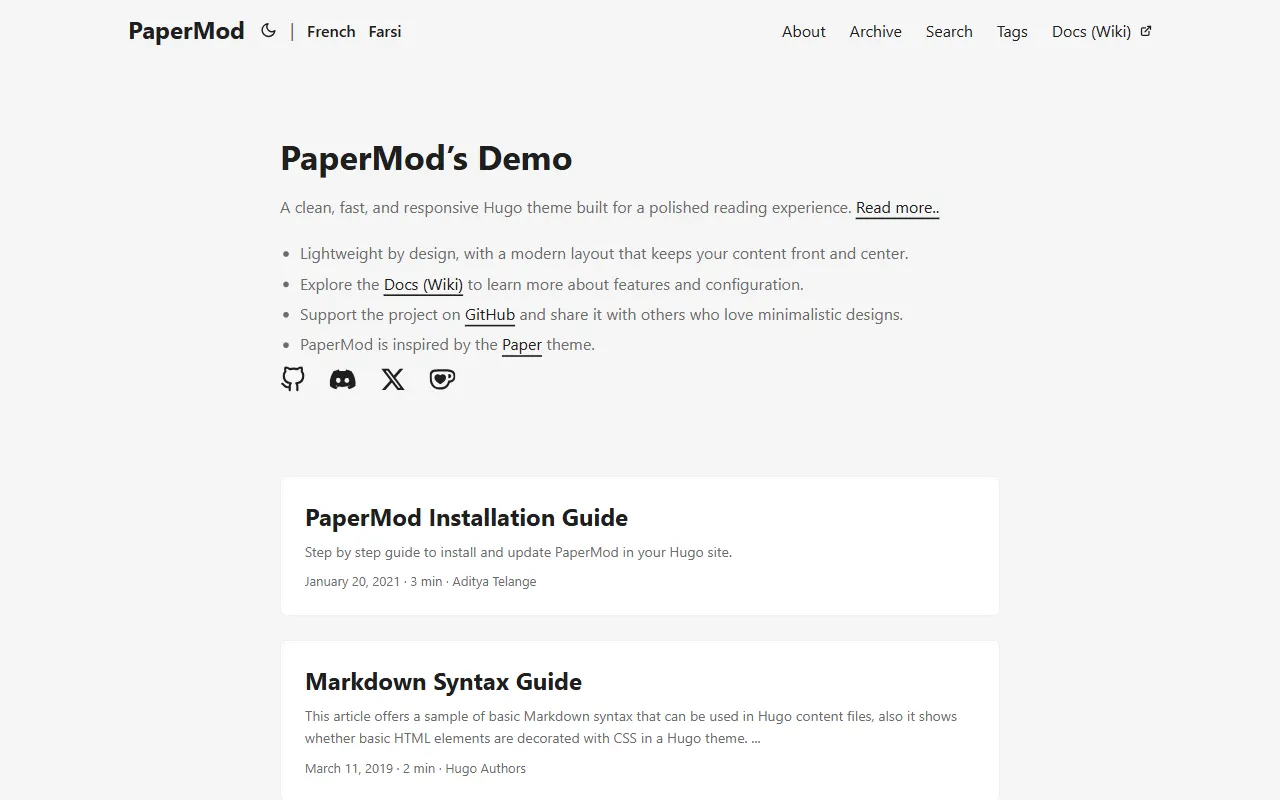
hugo-PaperMod
PaperMod 是 Hugo 生态里知名度较高的主题之一,定位很明确:给博客和轻量作品集站点提供一套干净、响应式的阅读界面。
Hugo · 作品集
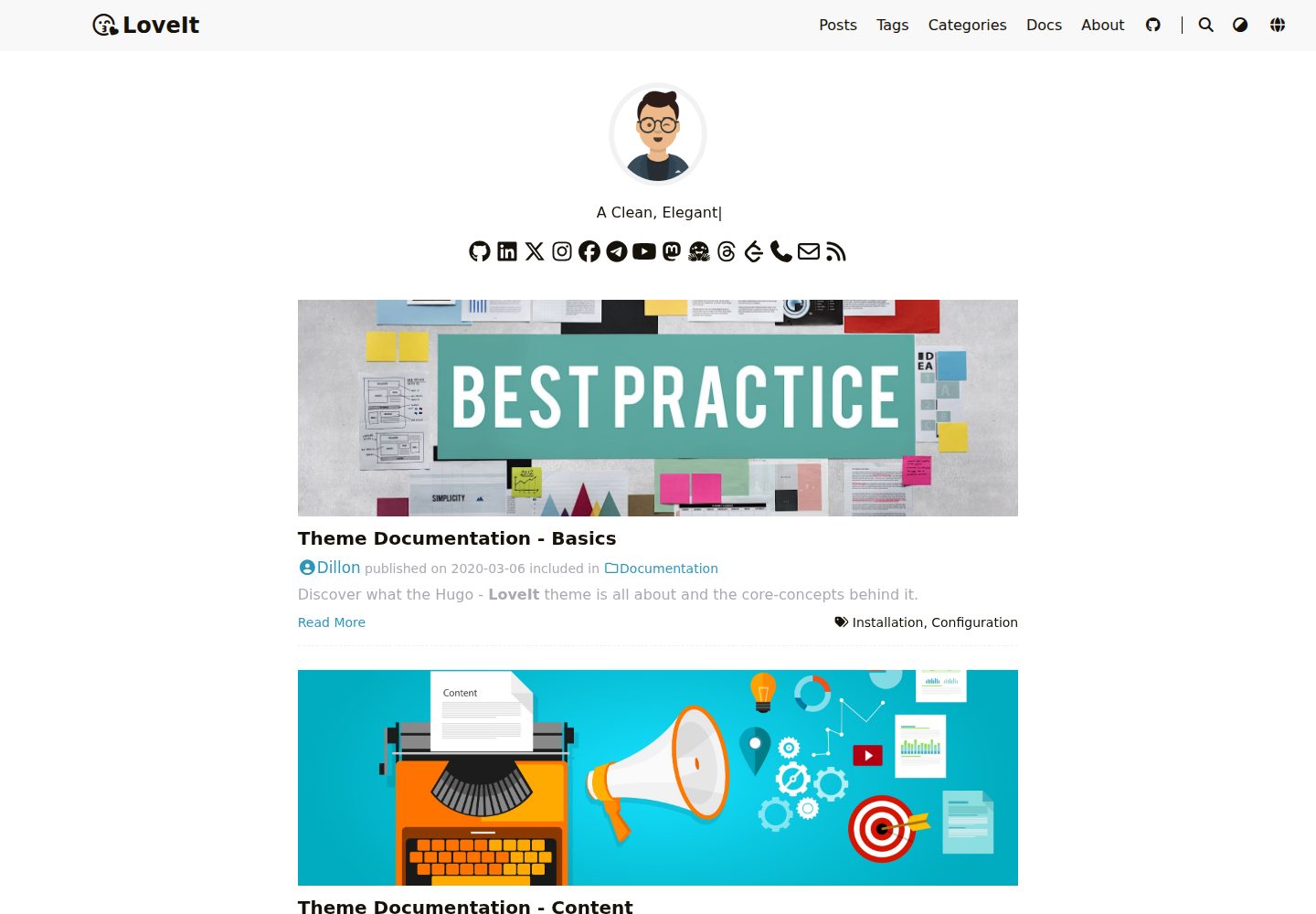
LoveIt
❤️A clean, elegant but advanced blog theme for Hugo 一个简洁、优雅且高效的 Hugo 主题
Hugo · 博客
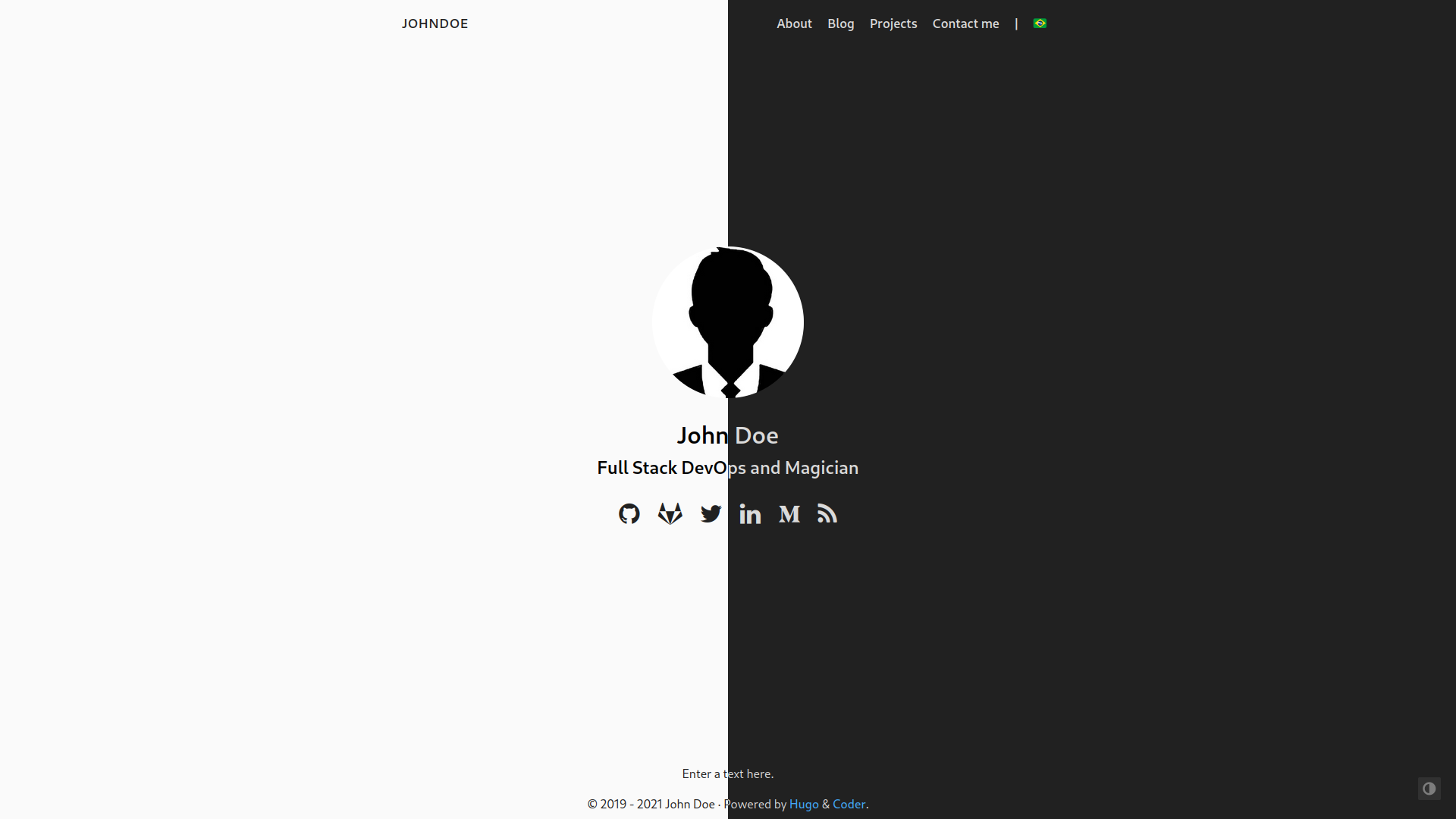
hugo-coder
A minimalist blog theme for hugo.
Hugo · 博客
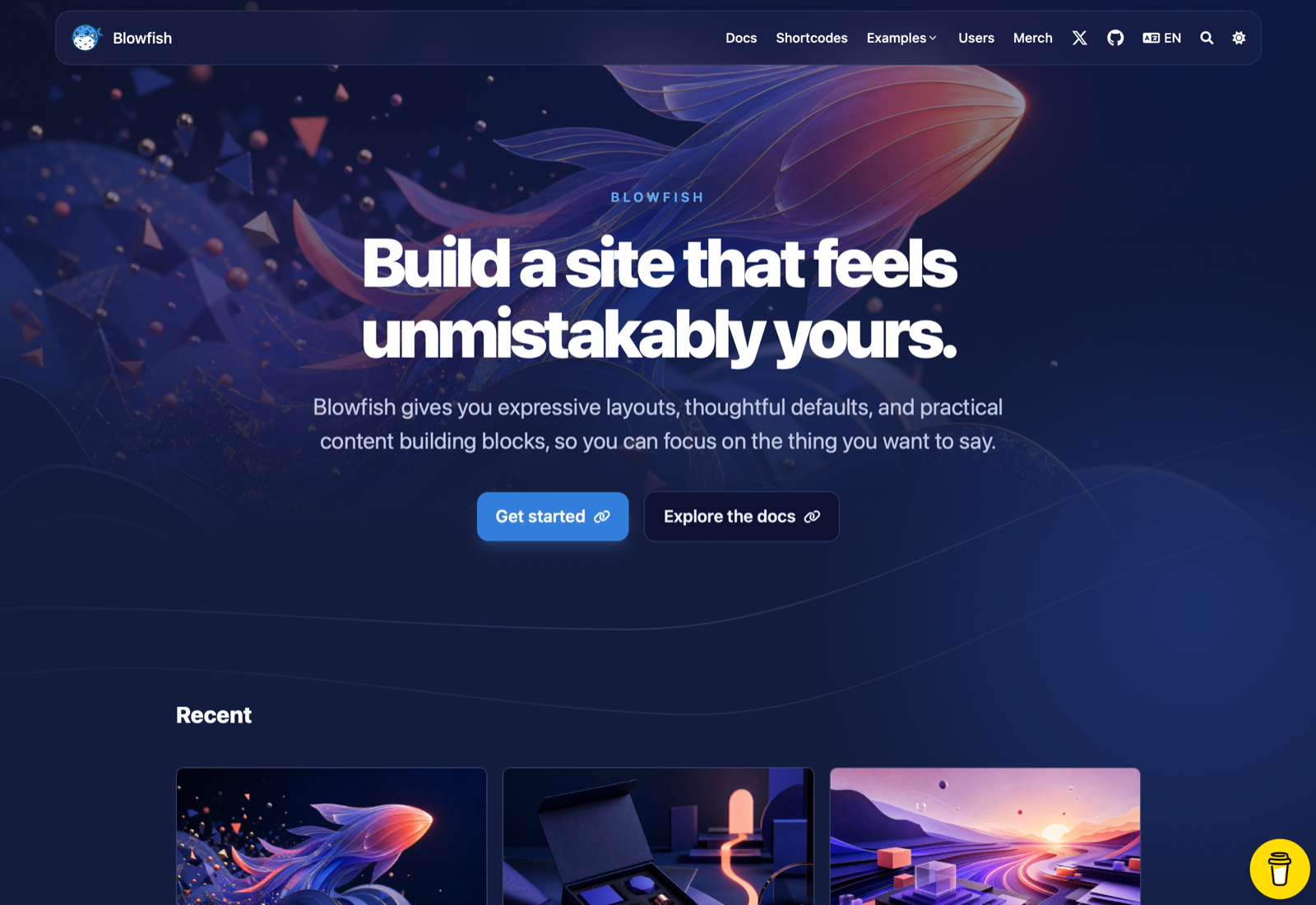
blowfish
Personal Website & Blog Theme for Hugo
Hugo · 博客
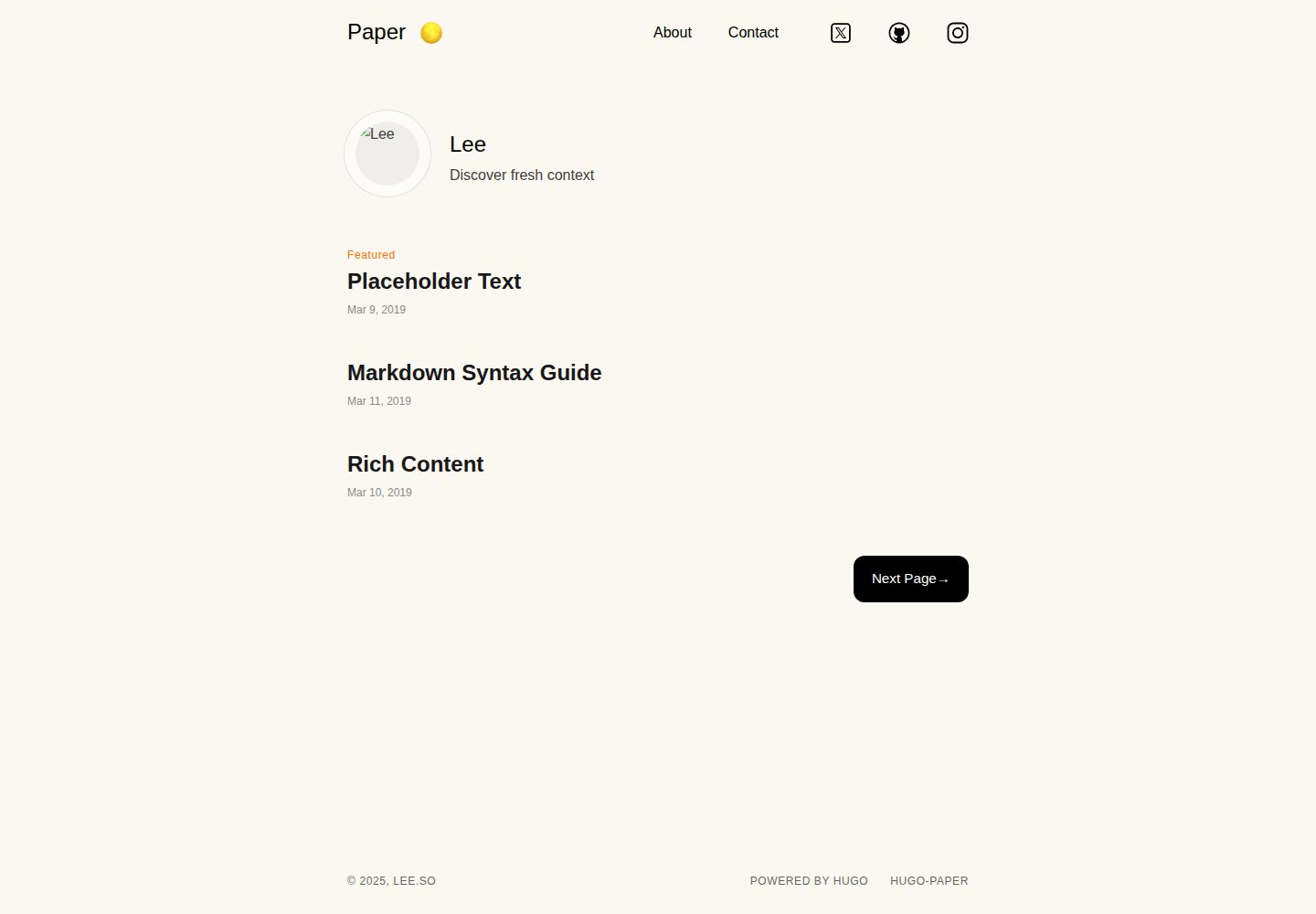
hugo-paper
🪺 A simple, clean, customizable Hugo theme
Hugo · 博客
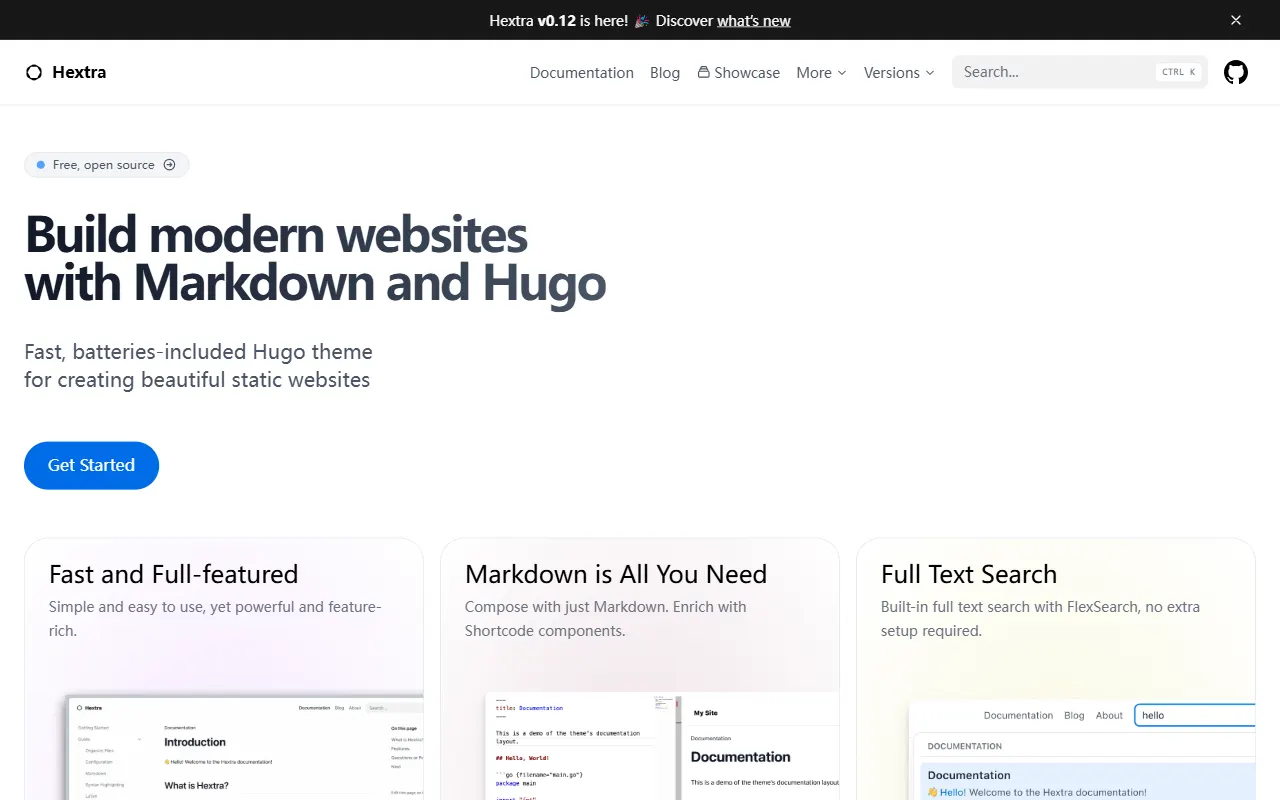
hextra
Hextra 是一个 Hugo 主题,定位在文档站与博客之间:既提供侧边栏导航、目录、面包屑、分页这类文档站结构,也能承载博客内容。
Hugo · 文档