Responsive design with a sidebar-free layout
HugoHTMLBlog
Goyat — Hugo Blog Template
By egeorjon
Goyat is a Hugo theme for personal websites and blogs, offering a responsive layout, a sidebar-free design, a widget-based page structure, and two shortcodes: attachment list and image gallery.
Explore the design
Compare the page layouts and mobile experience. Open any screenshot for a closer look.
Author preview
Author-provided preview
Preview provided in the project README.
One original preview is available. Open the full image to inspect the design.
Screenshots show visual appearance; interactive behavior may differ.
Recorded 2026-10-11View source
What stands out
A quick read of the recorded project description.
Widget-based customizable page structure
Built-in tags and series taxonomies
Provides attachments and imggallery shortcodes
Supports Netlify contact forms, Piwik Pro, and Google WebMaster integration
Link and image markup automatically enhance Markdown output
Template Details
Goyat is the author's second Hugo theme developed for a personal blog; the name means "huGO Yet Another Theme". The theme targets personal websites and blogs, uses a responsive design without a sidebar, and organizes page structure around widgets. The repository README explicitly states that this version is not yet finalized, and the author plans further improvements to stabilize the theme and lower the barrier to use.
In terms of features, the theme includes two taxonomies (tags and series), search functionality, SEO-related settings, and support for Netlify contact forms, Piwik Pro, and Google WebMaster tools integration. For content, it provides two shortcodes: attachments and imggallery, used to display a list of article attachments and an image gallery with thumbnails, respectively; both declare files and titles via resources in the page Front-Matter. The theme also includes link and image markup: link markup adds icons for external links, GitHub links, and Wikipedia links, while image markup converts Markdown image syntax into responsive images.
For configuration, the theme uses config.toml to set language, date format, pagination count, site branding (brandlogo and brandtitle), and more. It runs in test mode by default; set HUGO_ENV=production to switch to production mode, which enables Google verification code, INDEX/FOLLOW ROBOTS directives, and Piwik. You can also use params.debugMode to simulate production behavior in development mode. The theme includes an i18n directory, currently providing only English and French translations.
Regarding dependencies, the theme is built on BootStrap, BootStrap Icons, Simple Lightbox, and FuseJS; the README lists specific version numbers, but this introduction does not cover them. Installation supports three methods: git clone, git submodule (recommended by the author and officially supported by Netlify), and downloading a ZIP for manual extraction. The repository provides an examplesite directory; its contents can be copied as example content.
HugoHTMLBlog
Is it right for your project?
Use Cases
- Building a personal blog and publishing articles with images and text
- Providing downloadable documents as an attachment list within articles
- Displaying photo collections with thumbnails and captions using the image gallery shortcode
- Deploying via Netlify and enabling contact forms
- Organizing article content with tags and series taxonomies
Suitable For
- Developers building personal websites or blogs with Hugo
- Users who prefer a sidebar-free, widget-style layout
- Bloggers who need attachment downloads and image gallery features
- Users planning to deploy their site on Netlify
Getting started & customization
Use these recorded setup notes alongside the repository instructions for your chosen version.
- 1
Install Hugo and create a new site first, then place the theme in the themes/Goyat directory
- 2
Installing via git submodule is recommended, which is also the officially supported method by Netlify
- 3
After installation, set theme to "Goyat" in config.toml
- 4
Runs in test mode by default; set HUGO_ENV=production to switch to production mode
- 5
The repository provides an examplesite directory; its contents can be copied as example content
License & source material
Usage conditions & limitations
Free to use · keep license noticeThis entry covers the free version under the MIT license in the public repository; the free scope applies to that version's code and does not imply that external services or third-party assets are free.
Must comply with when using
- Free use, modification, commercial use, and distribution of this version's code are permitted.
- When distributing copies or substantial portions of the code, retain the original author's copyright notice and the full MIT license notice.
- The code is provided as-is; warranties and limitations of liability are governed by the original license and applicable law.
Additional costs & items to verify
- Demo images, fonts, icons, and other third-party assets must be checked against their respective licenses; they cannot be judged solely by the code's MIT license.
- External services such as domains, hosting, databases, payments, or AI may incur additional charges.
- The README explicitly states that this version is not yet finalized, and the author plans further improvements to stabilize the theme and lower the barrier to use; therefore, the current version may not be sufficiently stable and may have limited usability.
- The contact form feature depends on the Netlify platform; using this feature requires deploying the site on Netlify.
- Piwik Pro integration requires providing your own Piwik code and URL, which is an external analytics service dependency.
- Google WebMaster tools integration requires configuring a Google verification code, which is an external service dependency.
- The theme's built-in translations currently provide only English and French; other languages require adding i18n files yourself.
- The theme currently does not offer a convenient way to customize styles; modifying styles requires directly editing SCSS files.
View Original Text Basis
Permission is hereby granted, free of charge
Original License Text
This version is not yet finalized: Improvements are planned to stabilize it, and make it easier to use.
Original README
Contact form (by Netlify),
Original README
Piwik Pro integration,
Original README
Google WebMaster tool integration,
Original README
Today only english, and frenh are available.
Original README
https://github.com/egeorjon/Goyat/blob/main/LICENSEhttps://github.com/egeorjon/Goyat/blob/main/README.mdSo far, the theme doen't provide an easy way to customize styles.
Original README
Compiled by DeepSeek based on repository license and README ·2026-10-11. Results only cover the materials read; dependencies, images, fonts, and subsequent term changes are subject to their respective original texts.
Project checks & description sources
Template Information
- Source platforms
- GitHub
- Documentation and maintenance reference score
- Less documented · 50 / 100
- Technologies
- Hugo · HTML
- Website type
- Blog
How this score is calculated
Our heuristic uses license records (up to 30), a demo link (12), a preview (10), stars (15), recorded maintenance (15), description completeness (8), feature records (5) and classification data (5). It is not a code, security or performance test, or a Google score. A link does not establish tested functionality.
What to verify for this project
- Repository update recorded
- 2024-09-29
- Screenshot last checked
- 2026-10-11
No demo link is recorded. Use the repository instructions to evaluate the project locally; the screenshot alone cannot establish interactive behavior.
The catalog identifies Hugo as the primary stack. Check the actual dependency manifest and lockfile for versions and hosting requirements. These notes use recorded metadata, not a code audit or a deployment test.
Use a selection guide →How this description was prepared
AI-assisted description based on catalog records and repository material. Repository authors are not automatically the reviewers of this description.
Review declaration: [email protected] · 2026-10-13
Inspect the recorded source material
SHA-256: 978a2ac7a7fa64854ea3d0c99d6d24b2cc9fb3b3563ad5b0b5cd66f55c03e75f
2026-10-11T21:31:06.250Z
Source file / repository# GoYat
**Goyat** is a theme for the Hugo static site generator. This my second theme for this tool, built for my own blog.
Goyat is for huGO Yet Another Theme.
> This version is not yet finalized: Improvements are planned to stabilize it, and make it easier to use.
You can find a live demo of the theme [here](https://www.emmanuelgeorjon.com). This theme is intended for personal website and blog.
## Table of Contents
- [GoYat](#goyat)
- [Table of Contents](#table-of-contents)
- [Features](#features)
- [Tools and libraries](#tools-and-libraries)
- [Installation](#installation)
- [Option 1: Git clone](#option-1-git-clone)
- [Option 2: Git submodule (recommended)](#option-2-git-submodule-recommended)
- [Option 3: Download ZIP and manual install](#option-3-download-zip-and-manual-install)
- [Once the theme is deployed](#once-the-theme-is-deployed)
- [Usage](#usage)
- [Basic configuration](#basic-configuration)
- [Tests, production, and debug](#tests-production-and-debug)
- [Language](#language)
- [Date format](#date-format)
- [Pagination](#pagination)
- [Site title / brand](#site-title--brand)
- [Shortcodes and markups](#shortcodes-and-markups)
- [Attachments](#attachments)
- [imggallery](#imggallery)
- [Blockquotes](#blockquotes)
- [Markups](#markups)
- [URL configuration](#url-configuration)
- [Navigation](#navigation)
- [Search configuration](#search-configuration)
- [SEO](#seo)
- [RSS, Manifest and sitemap](#rss-manifest-and-sitemap)
- [RSS configuration](#rss-configuration)
- [File site.manifest](#file-sitemanifest)
- [Sitemap](#sitemap)
- [Favicons](#favicons)
- [Configuration of the social media](#configuration-of-the-social-media)
- [Follow links](#follow-links)
- [Share links](#share-links)
- [Content configuration](#content-configuration)
- [Taxonomies, and authors](#taxonomies-and-authors)
- [Widget areas](#widget-areas)
- [Widget « related posts »](#widget--related-posts-)
- [Posts lists layout](#posts-lists-layout)
- [Meta information](#meta-information)
- [Avanced configuration](#avanced-configuration)
- [Other styles](#other-styles)
## Features
* Responsive design,
* No sidebar,
* Customizable,
* Widget based,
* Taxonomies: Tags, and series,
* Search features,
* Contact form (by Netlify),
* Piwik Pro integration,
* Google WebMaster tool integration,
* SEO features
## Tools and libraries
The theme is based on
* [BootStrap 5.2.0](https://getbootstrap.com/docs/5.2/getting-started/introduction/)
* [BootStrap Icons 1.10.2](https://icons.getbootstrap.com/)
* [Simple Lightbox 2.11.0](https://simplelightbox.com/)
* [FuseJS 6.6.2](https://fusejs.io/)
## Installation
**Goyat** is a Hugo theme. So, before installing the theme, you need to
* Install [Hugo](https://gohugo.io),
* and create a new site ([procedure](https://gohugo.io/getting-started/quick-start/#step-2-create-a-new-site)).
Then **Goyat** can be deployed as many other themes, with 3 possible ways:
1. Git clone
2. Git submodule
3. Download ZIP and manual install
### Option 1: Git clone
From the root directory of your site,
```bash
git clone https://github.com/egeorjon/Goyat themes/Goyat
```
This method could generate some issues with some hosting platforms, like Netlify.
### Option 2: Git submodule (recommended)
From the root directory of your site,
```bash
git submodule add https://github.com/egeorjon/Goyat themes/Goyat
```
This is the method officially supported by Netlify.
### Option 3: Download ZIP and manual install
[Download the ZIP file](https://github.com/egeorjon/Goyat/archive/refs/heads/main.zip), and unpack it into the folder `themes/Goyat`.
### Once the theme is deployed
Edit the file `config.toml`, and update the first line
```toml
theme = "Goyat"
```
## Usage
If you have some content, just start Hugo built-in server to see your site!
```bash
hugo server -D
```
if not, you can get the content from `examplesite`
```bash
cd my-site
cp themes/Goyat/examplesite content
hugo server -D
```
Then, to see the result, use the following url [`localhost:1313`](http://localhost:1313) in your favorite browser,
## Basic configuration
```toml
theme = "Goyat"
title = "< Title of the blog >"
baseURL = "" # baseURL set during builds
DefaultContentLanguage = "fr" # Short language string fr, en,de,es
languageCode = "fr-FR" # Full language string fr-FR, en-US, de-DE, ...
Paginate = 8 # Number of posts per page in the lists of posts
timeout = 100000 # For the Hugo Engine
[params]
debugMode = true # default false. For development environment only. Allow the loading of scripts like Piwik, allow cache, and indexation.
formatdate = ":date_medium" # format of the date you want to use
brandlogo = "< path to an image >" # Logo of the site (root path)
brandtitle = "< title of the blog >" # Title of the site
[Permalinks]
posts = "/:section/:filename/"
```
### Tests, production, and debug
By default, the theme runs in test mode. For moving to the production mode, you have to set the environment variable `HUGO_ENV`
```bash
export HUGO_ENV=production
```
if you are not using bash (and/or if you are in a Microsoft Windows environment
```cmd
SET HUGO_ENV=production
```
In the Production environment,
* Google verification code is enabled,
* ROBOTS directive are set to INDEX, FOLLOW,
* Piwik is enabled (if the code and url are set, see below)
Even in development / test mode, you can "simulate" the production mode using the `debugMode` parameter.
```toml
[params]
debugMode = true
```
### Language
Available translations are in the `/i18n` directory of the theme. Today only english, and frenh are available.
You can configure the language modifying the following key, in the site configuration file (usually `config.toml`).
```toml
DefaultContentLanguage = "nn" # fr, en, de, ...
languageCode = "nn-NN" # fr-FR, en-US, de-DE, ...
```
### Date format
By default, the date format is `dd-mmm-yyyy` everywhere (like 17-Apr-2022). You can configure this format, by using the following in the configuration file:
```toml
[params]
formatdate = "<date layout>"
```
The `date layout` string can be either:
* Go’s Layout String: The full documentation for the date formats is [HERE](https://golang.org/pkg/time/#pkg-constants "Package time"), or [HERE](https://golang.org/src/time/format.go?h=date "Source file src/time/format.go")
* A custom Hugo layout identifier. See the [Hugo's documentation](https://gohugo.io/functions/dateformat/#datetime-formatting-layouts "Date/time formatting layouts") (requires the Hugo versions 0.87.0 and above)
Examples:
```toml
[params]
formatdate = "Jan 2, 2006"
formatdate = ":date_medium"
```
will display Apr 19, 2022.
### Pagination
You can define the number of posts listed in each page of the lists. In the configuration file `config.toml`
```toml
paginate = "<the number of posts>" # default 10
```
### Site title / brand
The navigation bar includes the main menu, and the title of the site/blog (the brand). You can fully customize the brand. In the configuration file of the site:
```toml
title = "title of the blog"
[params]
brandlogo = "the path of the image related to the /static folder"
brandtitle = "the title of the site"
```
Examples:
1. Example 1: Display both logo
```toml
[params]
brandlogo = "img/logo.png" # The file must be put in the folder /static/img.
```
2. Example 2: Display the blog's title
```toml
[params]
brandtitle = "John Doe"
```
3. Example 3: Nothing specify
```toml
theme = "Goyat"
title = "title of the blog"
[params]
# ...
# brandlogo is not specified, nor brandtitle
# ...
```
In this case, the theme will display the title of the blog as a brand title.
## Shortcodes and markups
The theme provides two shortcodes
| Shortcodes | Description |
|--------------|----------------|
| attachments | Display the list of documents attached to the current post |
| imggallery | Display a photo gallery |
### Attachments
This shortcode displays a list of documents **attached** to a post.
Parameters:
| Parameter | type | Purpose | Mandatory | Default | Possible values |
|-----------|--------|-----------|---------|---------|-----------------|
| files | string | **relative** path to the attachments | Yes | | |
| fields | string | list of fields to display | No | icon,title,size | icon,title,filename,size |
By default, the shortcode knows only the files' name. If you want to display the title of the files, you have to fill the title in the Front-Matter of the page, like in the following example:
```toml
[[resources]]
src = "attachments/matrice_eisenhower.xlsx"
title = "Matrice d'Eisenhower sous Excel"
[[resources]]
src = "attachments/archimate_poster.pdf"
title = "The Archimate elements"
```
With the Front Matter above, the syntax of the shortcode could be
```
{{< attachements file="attachements/*" >}}
```
and the result will be

### imggallery
This shortcode displays a list of images with thumbnails.
Parameters:
| Parameter | type | Purpose | Mandatory | Default | Possible values |
|-----------|---------|-----------|---------|---------|-----------------|
| files | string | **relative** path to the images | Yes | | |
| size | int | size of the thumbnails | No | 250 | Any numeric value |
| caption | boolean | Display the caption or not | No | true | 1, true: display the caption, 0,false: don't display |
| overlay | string | Position of the caption | No | bottom | top, bottom or center |
Similarly to the `attachments` shortcode, you can add a title (that will be the caption) to the thumbnails of the gallery. You can also specify if you want to display EXIF data.
The following example show the Front-Matter of a page, with 3 galleries, 2 photos in each, and the EXIF data enabled in the second one:
```toml
[[resources]]
title = "title 1"
src = "gallery1/photo1.jpg"
[[resources]]
title = "title 2"
src = "gallery1/photo2.jpg"
[[resources]]
title = "title 3"
src = "gallery2/photo4.jpg"
[[resources]]
title = "title 4"
src = "gallery2/photo5.jpg"
[[resources]]
title = "title 5"
src = "gallery3/photo7.jpg"
[[resources]]
title = "title 6"
src = "gallery3/photo8.jpg"
[[resources]]
title = "title 7"
src = "gallery3/photo9.jpg"
```
The following parameters
```
{{<imggallery files="gallery2" overlay="center" >}}
```
will give the following result:

### Blockquotes
There is no shortcode for `blockquotes`, but **Goyat** takes into account the styles you can provide below the blockquote:
```markdown
> Lorem ipsum dolor sit amet, consectetur adipiscing elit, sed do eiusmod tempor incididunt ut labore et dolore magna aliqua.
> Lorem ipsum dolor sit amet, consectetur adipiscing elit, sed do eiusmod tempor incididunt ut labore et dolore magna aliqua.
{.info | .warning | .error}
```
The result is

### Markups
The theme provides two markups
* The first one improves the links design: when you write a link with markdown in your post, like `[the link](the url's link)`, icons are added if the link is an external link, a link to GitHub, or a link to Wikipedia.
* The second markup manages the images: a markdown sentence like the following `` will generate a fuilly responsive image in HTML
If in a post you write,
```markdown
[Example of an external link](link url)
```
the markup **link** will generate the following code
```HTML
<!-- Code of an internal link -->
<a href="#" title="Title of the link">consectetur adipiscing elit</a>
<!-- Code for an external link -->
<a href="#" title="Title of the link" target="_blank" rel="noopener noreferrer">consectetur adipiscing elit <i class="bi-link-45deg"></i></a>
```
It will give the following result
[Example of link](images/markup_link.png)
About the **image** : if in a post, you write
```markdown

```
the markup will generate the following HTML code:
```HTML
<figure class="figure-img figure-center">
<a href="url to the image" title="description of the image">
<img
sizes="(min-width: 883px) 883px,97vw"
srcset="<path to 320px width image> 320w,
<path to 540px width image> 540w,
<path to 720px width image> 720w,
<path to the full size image> 883w"
class="img-fluid"
src="<path to the full size image>"
alt="description of the image"
>
</a>
<figcaption>Caption of the image</figcaption>
</figure>
```
This will be displayed as follow :

## URL configuration
This a standard parameter for an Hugo site. Please read [the documentation](https://gohugo.io/content-management/urls/#permalinks "URL Management - Permalink")
```toml
[Permalinks]
posts = "/:section/:filename/"
```
## Navigation
You have two ways for configuring the navigation menu (in the top bar).
You can start by
```toml
sectionPagesMenu = "main"
[params]
mainSections = [ "section 1", "section 2", ... , "section n" ]
```
The menu will list the sections, and the pages in `/content`.
You can also customize the menu
```toml
[menu]
[[menu.main]]
identifier = "id of the item 1"
name = "Item 1"
url = "/<url of the item 1>"
weight = 10
[[menu.main]]
identifier = "id of the item 2"
name = "Item 2"
url = "/<url of the item 2>"
weight = 20
# ...
```
The `weight` field define the order of the item in the list (smaller weights are displayed first).
Example:
```toml
[[menu.main]]
identifier = "photo"
name = "Photography"
url = "/photo/"
weight = 20
```
## Search configuration
**Goyat** can manage a search page. The search feature is based on [FuseJS](https://fusejs.io/).
For configuring the search, you have to
1. Allow the generation of JSON file
2. Configure the section in which you want to enable the search
Allow JSON file generation :
```toml
[outputs]
home = [ "HTML", ... , ... , "JSON" ]
```
For a more accurate search, you can specify the sections in which your posts are, using the `mainSection` parameter. For example :
```toml
[params]
mainSections = [ "section 1", "section 2", " ... ", "section n" ]
```
## SEO
**Goyat** proposes a complete list of tags in the head section of each page with metadata, links, and informations used by searchbot, and social medias.
The configuration parameters are the following:
```toml
[params]
Description = " a short description of the site " # Use to fill meta description. Use as default values, if there is no description in the Front-matter of posts
Keywords = " significant keywords of the site" # Use to fill meta tag. Use as default values, if there is no tag in the Front-matter of posts
opengraph = "internal" # Internal (default Hugo template), theme (the theme's template), or none
twitterCards = "theme" # Internal (default Hugo template), theme (the theme's template), or none
schema = "theme" # Internal (default Hugo template), theme (the theme's template), or none
[author]
name = " name of the site webmaster "
email = " email address "
```
About `opengraph`, `twitter` and `schema`:
* By default, Hugo provides internal templates.
* The theme **Goyat** provides its own template, in order to provide additional features.
* You can choose to use internal templates, **Goyat** template by setting `theme`, `internal` values.
The `author`field is used to set a meta tag into the `head`section.
## RSS, Manifest and sitemap
### RSS configuration
By default, Hugo provide an internal template for generating the RSS files.
The theme **Goyat** proposes an enhanced version of the RSS template, including images, link to the licence, etc ...
If you want to use
* The default Hugo RSS feeds, You have to delete the file `/themes/goyat/layout/_default/rss.xml`
* The **Goyat** RSS feeds, you have to configure the following parameters
```toml
title = " title of the blog "
LanguageCode = "fr-fr" # or en-US, ...
copyright = " copyright sentence "
[params]
mainSections = [ "section 1", "section 2", " ... ", "section n" ]
licenceURL = " url to the licence you are using " # Example: https://creativecommons.org/licenses/by-nc/4.0/
[config.services.rss]
Limit = 5 # max number of posts to be displayed
[author]
name = " name of the site webmaster "
email = " email adress "
```
Whatever your choice (internal template, or Goyat's template), you have to specify in the file `config.toml`, where you want to build the RSS feeds.
In the following example, the RSS files will be generate for the home page, and each of the sections:
```toml
[outputs]
home = [ "HTML", "RSS" ]
section = [ "HTML", "RSS" ]
```
### File site.manifest
**Goyat** can generate the manifest file of your site. In order to enable this feature, the `config.toml` file must contain the following parameters:
```toml
[mediaTypes]
[mediaTypes."application/manifest+json"]
suffixes = [ "webmanifest" ]
[outputFormats]
[outputFormats.webmanifest]
baseName = 'site'
isPlainText = true
mediaType = 'application/manifest+json'
rel = "manifest"
[outputs]
home = [ "HTML", ..., ... , "webmanifest" ]
```
With this configuration, Hugo will generate a file `site.webmanifest`, in the root of the site.
Then, the information that will be put into the file, can be tuned with the following parameters:
```toml
[params.manifest]
name = "" # Default: Site title
shortName = "" # no default
lang = "" # Default: languageCode
display = "" # Default: browser
start_url = "" # Default: .Site.BaseURL
theme_color = "" # Default: themecolor field in [Params] or #fff
backgroundColor = "" # Default: #fff
description = "" # Default: Description field in [Params]
orientation = "" # Default: Portrait
scope = "" # Default: Scope
favicons = "" # Default: /assets/favicons
```
### Sitemap
The theme generates the `sitemap.xml`.
It uses the standard Hugo's template. The configuration can be done with the parameters described in the [Hugo's documentation](https://gohugo.io/variables/sitemap/#readout)
Example:
```toml
[sitemap]
changefreq = "... ..." # Daily, weekly, ...
filename = "sitemap.xml"
priority = 0.5
```
## Favicons
**Goyat** geneates automaticaly the favicon files.
If you want to setup [favicons](https://en.wikipedia.org/wiki/Favicon "Favicons definition in Wikipedia"), you just need to put the file in the folder `/static` :
* Put the **icons** images into the folder `/static/favicons`, and put the file `favicons.ico`, into the folder `/static`.
* Add parameters in the file `config.toml` file of your site.
The name of the icons
* for IOS (apple), must start by `apple`,
* for androit must start by `android`,
* for the legacy browsers with `favicon.ico`,
* for the microsoft operating systems, must start with `ms-`,
You can configure also an SVG icon (any name with the `svg` extension).
Example of favicons files:
```
.
└── static
├── favicons.ico
└── favicons
├── android-chrome-192x192.png
├── android-chrome-256x256.png
├── apple-touch-icon.png
├── browserconfig.xml
├── favicon-16x16.png
├── favicon-32x32.png
├── mstile-150x150.png
└── safari-pinned-tab.svg
```
Parameters :
```toml
[params]
appName = "< a short name for your site >"
safaritabColor = "< Hex code of a color >"
mstileColor = "< Hex code of a color >"
themeColor = "< Hex code of a color >"
```
## Configuration of the social media
### Follow links
The links « follow-me » can be configured in `config.toml`, with the following syntax:
```toml
[[params.followlinks]]
id = "<social media id 1"
account = "<account id for this social media>"
weight = <order>
[[params.followlinks]]
id = "<social media id 2"
account = "<account id for this social media>"
weight = <order>
... ...
[[params.followlinks]]
id = "<social media id 1"
account = "<account id for this social media>"
weight = <order>
```
Example:
```toml
[[params.followlinks]]
id = "rss"
weight = 1
[[params.followlinks]]
id = "linkedin"
account = "johndoe"
weight = 2
[[params.followlinks]]
id = "twitter"
account = "johndoe"
weight = 3
[[params.followlinks]]
id = "github"
account = "jdoe"
weight = 4
[[params.followlinks]]
id = "facebook"
account = ""
weight = 5
[[params.followlinks]]
id = "pinterest"
account = "doejohn"
weight = 6
```
The list of supported media is
* Facebook,
* Ttwitter,
* Github,
* Instagram,
* Pinterest,
* LinkedIn.
### Share links
At the bottom of your posts, you can display a list of « share buttons », using the widget `share-links` (See section [Widget areas](#widget-areas))
The syntax to make the media appears is the following
```toml
[params.sharelinks]
[params.sharelinks.media 1]
id = "media 1"
account = "account for the media 1"
weight = 1
[params.sharelinks.media 2]
id = "media 2"
account = "account for the media 2"
weight = 2
[params.sharelinks.media 3]
id = "media 3"
account = "account for the media 3"
weight = 3
```
The `weight` field define the order of the item in the list (smaller weights are displayed first).
The list of supported media is
* email,
* Facebook,
* Ttwitter,
* Pinterest,
* LinkedIn,
* WhatsApp
## Content configuration
### Taxonomies, and authors
**Goyat** supports three taxonomies :
* **series** used to group together, posts speaking about a same topic,
* **authors** used to link posts, and authors.
* **tags**
You have to enable these taxonomies if you want to get all the features of **Goyat**.
```toml
[taxonomies]
serie = "series"
author = "authors"
tag = "tags"
```
### Widget areas
Three areas of the blog can be configured with widgets
* The homepage itself: the whole home page can be configured with widget
* The bottom area of the posts: all the blocks displayed at the bottom of the posts
* The footer: the whole footer can be configured with widget
Configure means choose what you want to display, by selecting widgets. The possible widgets are
| Widget | Description |
|-------------------|----------------------------------------------|
| authors | Display the list of the authors of the posts |
| follow-me | Display a list of "follow" links |
| gallery | Display the feature images of a list of posts |
| last-posts | Display the last posts of the blog |
| page | Display the content of a specific post |
| popular | Display a list of popular posts according aconfigurable list |
| related-posts | Give a list of posts related to the current post |
| sections-list | Give the list of sections |
| series-same | Display the list of posts belonging to the same serie than the current post |
| series-or-related | a combination of the two previous widgets |
| series-list | Display the list of series available in the blog |
| share-links | set of links to share the current post |
| tags-cloud | Display the cloud of the tags |
| tags-posts | List of the tags related to the current post |
The configuration of the widgets areas can be done through JSON configuration files:
| Area | Configuration file |
|------|--------------------|
| Homepage | /data/homepage.json |
| footer | /data/footer.json |
| bottom of pages | /data/single.json |
You can find, the examples for these files in the theme folders `themes/goyat/data/homepage.json (or single.json or footer.json)`.
### Widget « related posts »
The widget *related posts* is based of the [standard Hugo feature](https://gohugo.io/content-management/related/#list-related-content "Related content").
The parameters are the standard one:
```toml
[related]
includeNewer = true
threshold = 75
toLower = false
[[related.indices]]
name = "tags"
weight = 100
[[related.indices]]
name = "date"
weight = 10
```
### Posts lists layout
You can choose the format of the posts displayed in lists (sections, tags, categories, series, ...), and the number of columns.
```toml
[params.postsList]
"postFormat" = " post format"
[params.postsList.columns]
"xs" = number of column
"sm" = number of column
"md" = number of column
"lg" = number of column
"xl" = number of column
```
Four formats are available:
| Format | Result |
|------------|------------------------------------|
| meta-left |  |
| image-left |  |
| image-top |  |
| meta-right |  |
| no-image |  |
In parallel of the post format, you can choose the number of columns you want to use, according the screen sizes.
**Goyat** is based on the Bootstrap CSS framework. So, `xs, sm, md, lg, xl`are a list of screen sizes, defined in this framework.
```CSS
$grid-breakpoints: (
xs: 0,
sm: 576px,
md: 768px,
lg: 992px,
xl: 1200px,
xxl: 1400px
)
```
For example, the following configuration
```toml
[params.postsList]
"postFormat" = "image-top"
[params.postsList.columns]
"xs" = 1
"sm" = 1
"md" = 2
"lg" = 2
"xl" = 3
```
will display 3 columns, for a very large screen

will display two columns, for a medium screen (tablet)

will display 1 columns for a small screen (smartphone)

### Meta information
In the lists of posts, or i a single page, you can choose the meta data to be displayed. The available fields are
* section,
* date,
* fulldate,
* reading (the estimation duration of read),
* tags,
* post-tags,
* series,
* posts-series,
* sections,
* authors,
* category,
* linkedsection.
You can choose also where to display them: on top of the post, between the title, and the content of a post, or after the content.
The parameters are the following
```toml
[params.xxx.meta]
[params.xxx.meta.top]
"1" = "1st meta field"
"2" = "2nd meta field"
"3" = "3rd meta field"
"4" = "4th meta field"
[params.xxx.meta.middle]
"1" = "5th meta field"
"2" = "6th meta field"
"3" = "7th meta field"
"4" = "8th meta field"
[params.xxx.meta.bottom]
"1" = "9th meta field"
"2" = "10th meta field"
"3" = "11th meta field"
"4" = "12th meta field"
```
xxx = either `postsList`, either `Single`.
For example: the following configuration will display in all posts lists, the `section`, and `date`, on top of the posts, the field `reading` between the title, and the content, and the fields `tags`, and `series`, after the content of the posts.
```toml
[params.postsList]
[params.postsList.Meta]
[params.postsList.Meta.top]
"1" = "section"
"2" = "date"
[params.postsList.Meta.middle]
"1" = "reading"
[params.postsList.Meta.bottom]
"1" = "tags"
"2" = "series"
```
Another example, with the single post :
```toml
[params.Single]
[params.Single.meta]
[params.Single.meta.middle]
"1" = "fulldate"
"2" = "reading"
```
## Avanced configuration
The design of the site can be updated in several manners
* You can change the color scheme, by modifying the stylesheet,
* You can change the way the site manages device width,
* You can choose the posts format in the posts list (whatever the list)
**Change the color scheme**
For changing colors, you can edit the file `themes/Goyat/assets/styles.scss`, and change the following lines
```scss
$primary: "color 1";
$secondary: "color 2";
$light: "color 3";
$medium: "color 4";
$dark: "color 5";
```
### Other styles
So far, the theme doen't provide an easy way to customize styles. However, you can customize the theme with two files
* All default `Bootstrap` values used by the theme are in the file `themes/Goyat/assets/customization.scss`.
* The theme styles are in the file `themes/Goyat/assets/styles.scss`
The theme uses the icons from [Bootstrap Icons](https://icons.getbootstrap.com/). You can add icons if required, by editing the file `themes/Goyat/assets/bootstrap-icons-1.9.0`, and uncomment the line corresponding to the icon you want to display.
Explore similar templates
Compare previews and descriptions within the same stack and category.
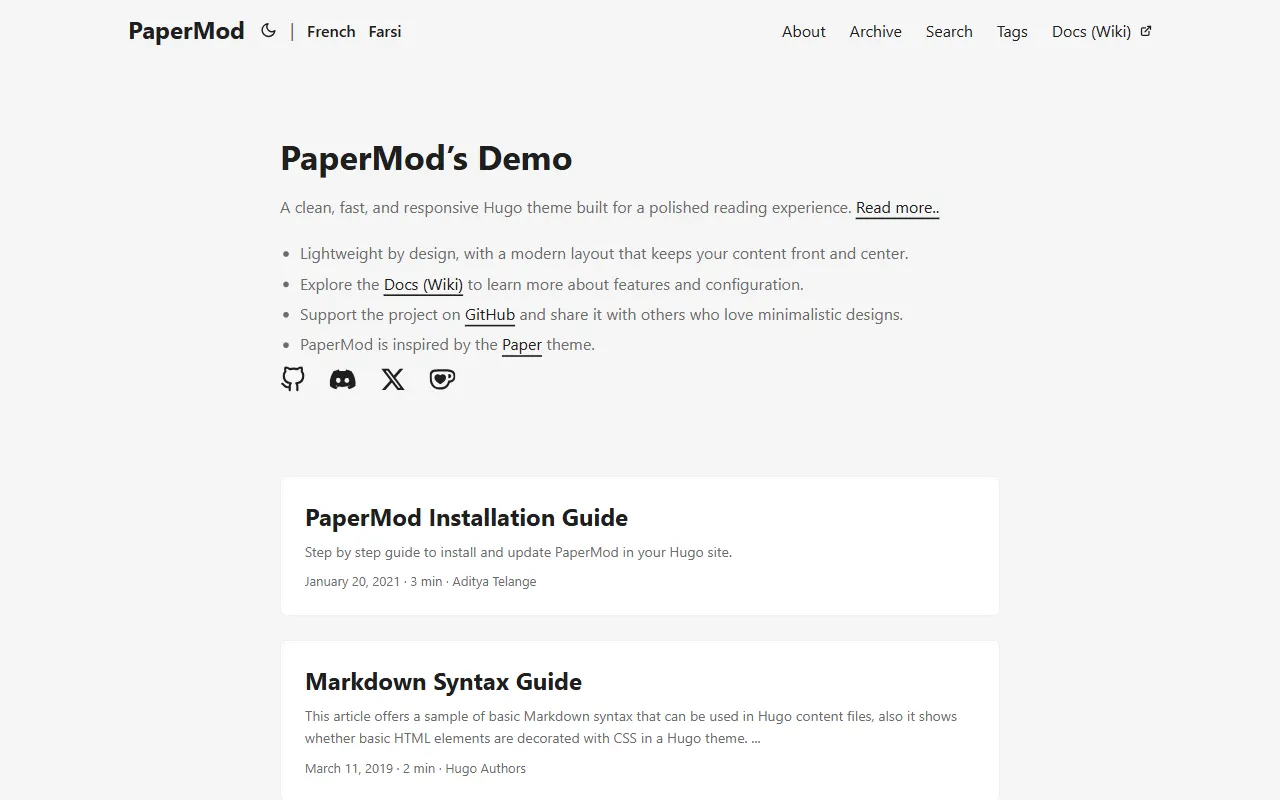
hugo-PaperMod
A fast, clean, responsive Hugo theme for blogs and lightweight portfolios, with three layout modes (Regular, Home-Info, Profile), automatic and manual light/dark themes, Fuse.js client-side search, multilingual support, and built-in Open Graph, Twitter Cards, and Schema.org data.
Hugo · Portfolio
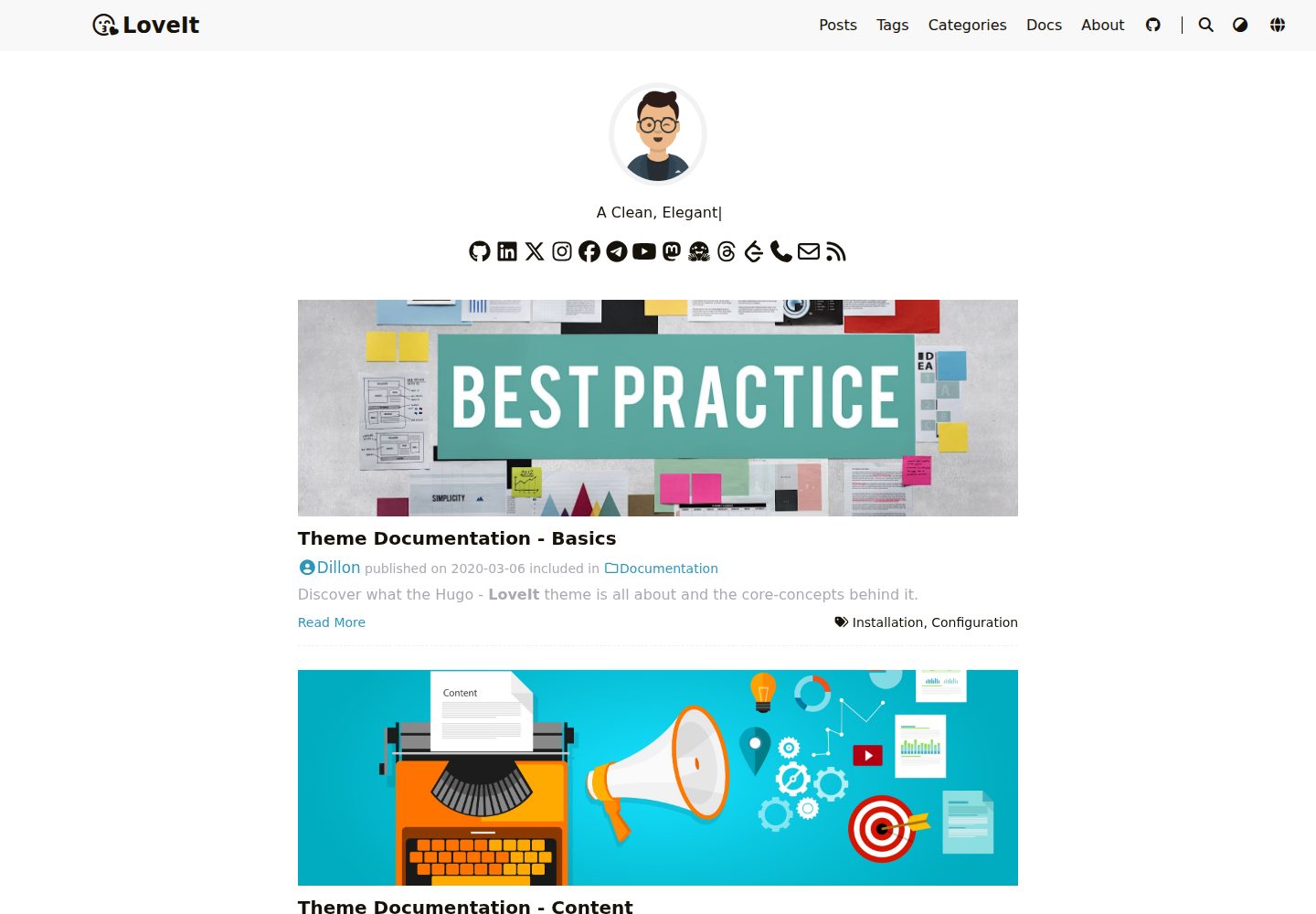
LoveIt
LoveIt is a clean, elegant, and feature-rich Hugo blog theme derived from LeaveIt and KeepIt, MIT-licensed. It offers light/dark modes, responsive layout, multilingual support, and search via Lunr.js or Algolia.
Hugo · Blog
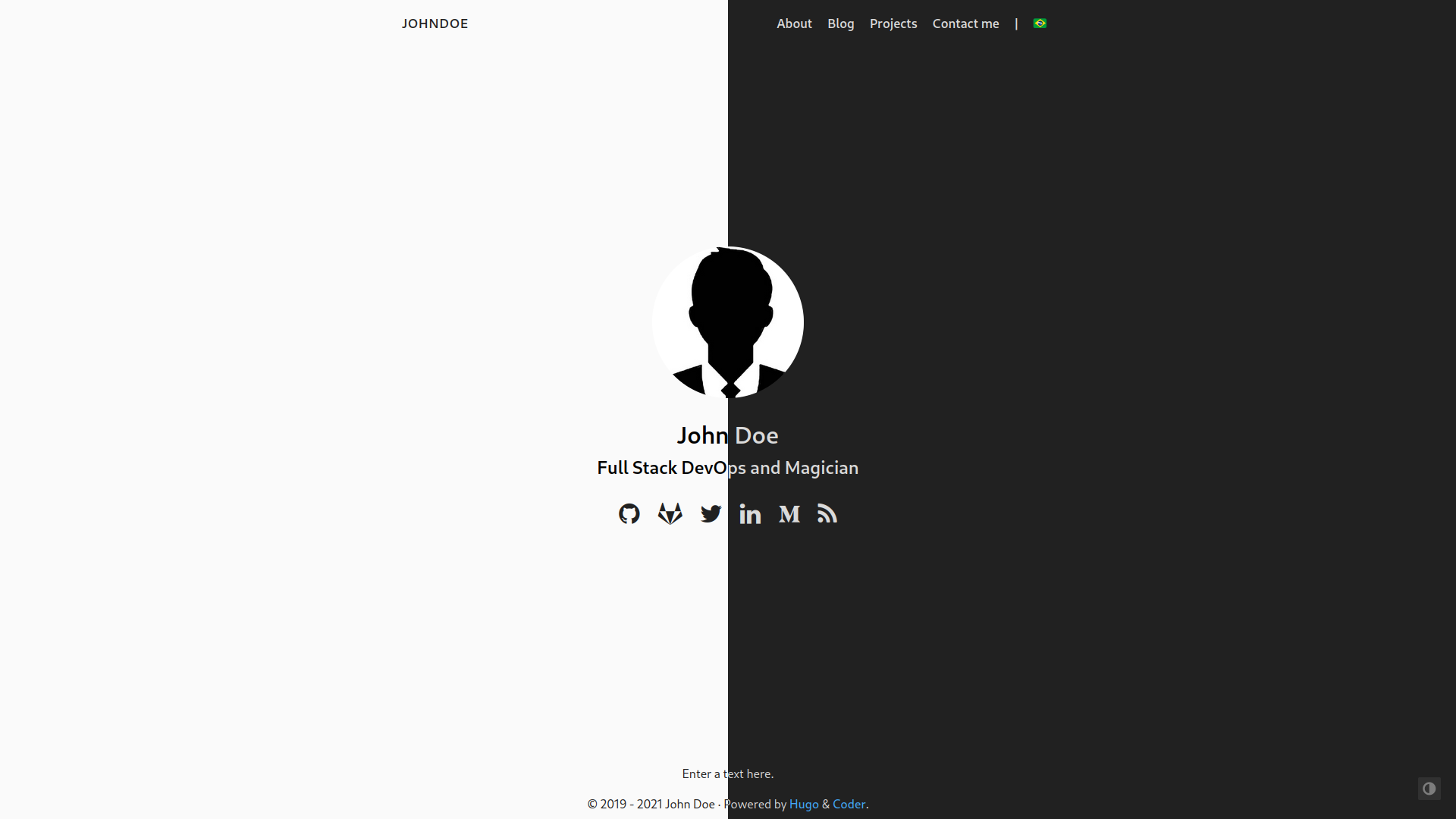
hugo-coder
hugo-coder is a minimalist Hugo blog theme maintained by luizdepra under the MIT license. It provides a clean, text-focused blog appearance, configuration documentation in the docs directory, and a complete exampleSite with hugo.toml.
Hugo · Blog
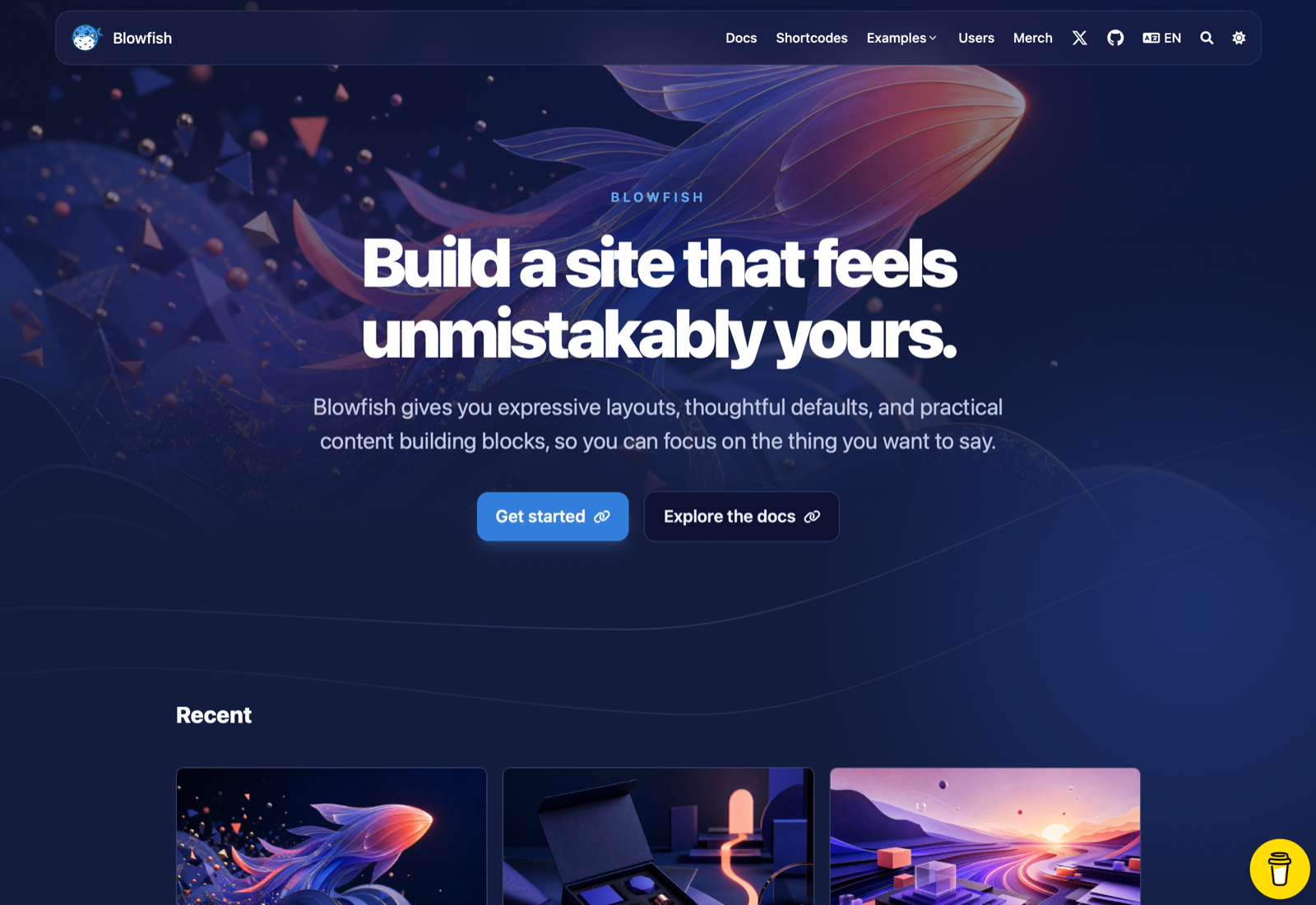
blowfish
Blowfish is a Hugo personal website and blog theme built with Tailwind CSS 4, focused on lightness, simplicity, and content-first presentation.
Hugo · Blog
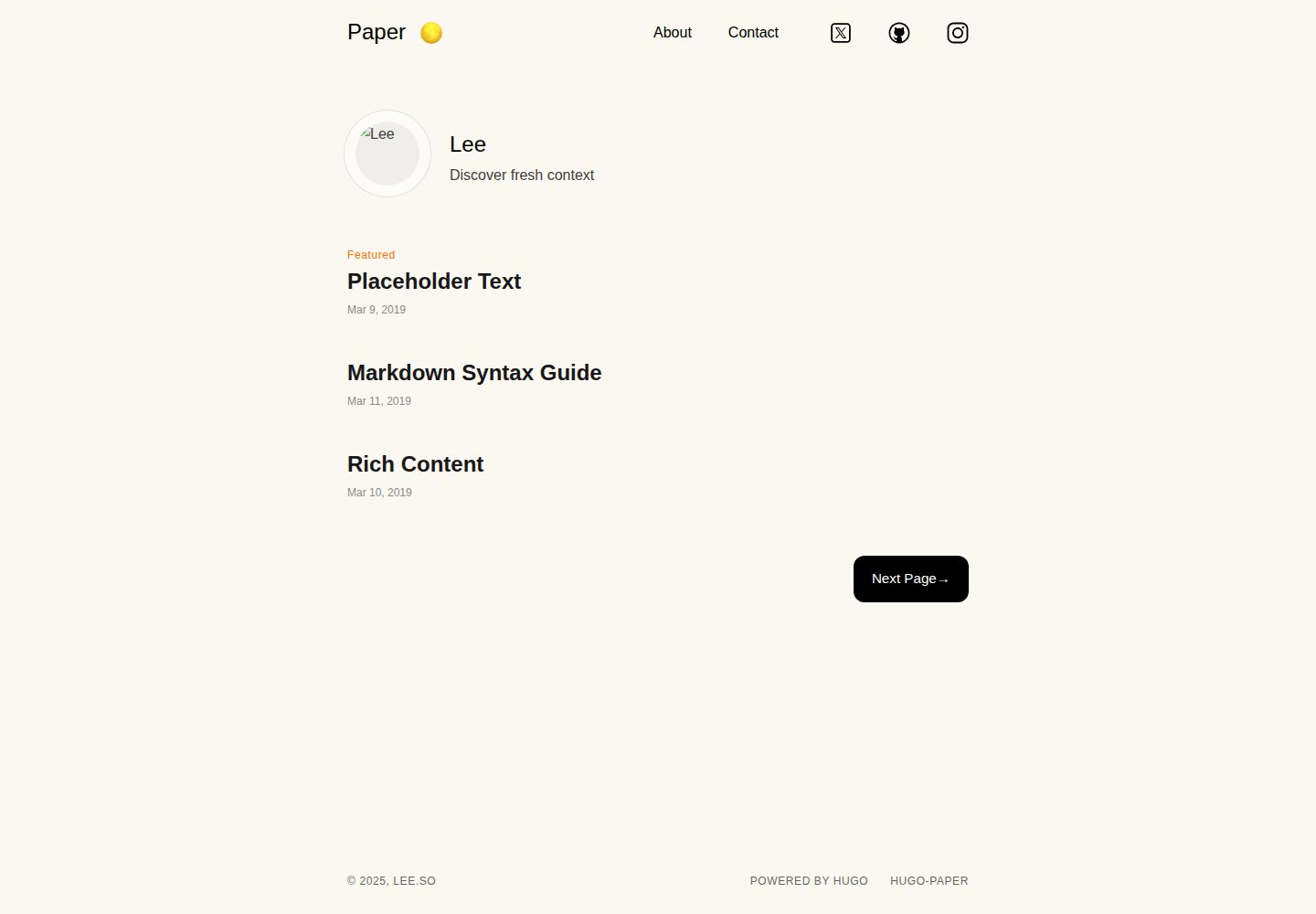
hugo-paper
hugo-paper is a simple, clean, and customizable Hugo blog theme configured through config.toml or hugo.toml.
Hugo · Blog
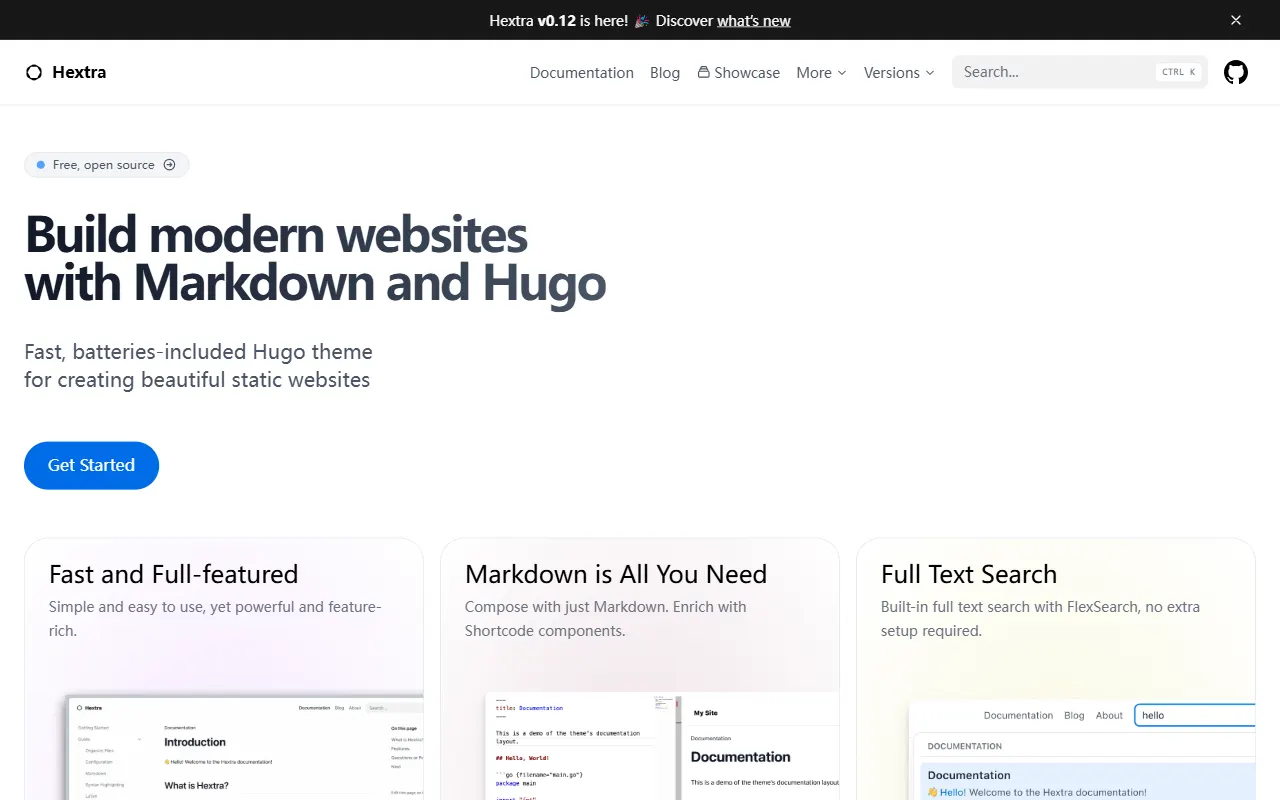
hextra
Hextra is a Hugo theme for documentation and blog sites, built on Hugo and Tailwind CSS with design referencing Nextra.
Hugo · Documentation