响应式设计,无侧边栏布局
HugoHTML博客
Goyat — Hugo 博客模板
作者 egeorjon
Goyat 是一个面向个人网站与博客的 Hugo 主题,提供响应式布局、无侧边栏设计、基于小部件的页面结构,以及附件列表与图片画廊两个短代码。
看看你的网站会是什么样
浏览真实页面截图,比较内容排版与手机效果。点击下方缩略图切换,放大查看整页细节。
目前有 1 张原始预览,可打开完整图片查看设计细节。
截图用于了解视觉与布局,交互效果请以实际项目为准。
采集于 2026-10-11查看来源
值得关注的模板亮点
从已有项目资料中,快速了解它的特点。
基于小部件的可定制页面结构
内置标签与系列两种分类法
提供 attachments 与 imggallery 两个短代码
支持 Netlify 联系表单、Piwik Pro 与 Google WebMaster 集成
链接与图片 markup 自动增强 Markdown 输出
模板详细介绍
Goyat 是作者为个人博客开发的第二个 Hugo 主题,名称意为「huGO Yet Another Theme」。主题面向个人网站和博客场景,采用响应式设计且不设侧边栏,页面结构基于小部件组织。仓库 README 明确说明该版本尚未最终定稿,作者计划后续改进以稳定主题并降低使用门槛。
功能方面,主题内置标签与系列两种分类法、搜索功能、SEO 相关设置,并支持 Netlify 联系表单、Piwik Pro 与 Google WebMaster 工具集成。内容层面提供 attachments 与 imggallery 两个短代码,分别用于展示文章附件列表和带缩略图的图片画廊,二者都通过页面 Front-Matter 中的 resources 声明文件与标题。主题还包含链接与图片两类 markup:链接 markup 会为外部链接、GitHub 链接和 Wikipedia 链接添加图标,图片 markup 会将 Markdown 图片语法转换为响应式图片。
配置上,主题通过 config.toml 设置语言、日期格式、分页数量、站点品牌(brandlogo 与 brandtitle)等。默认运行在测试模式,需设置 HUGO_ENV=production 切换到生产模式,届时启用 Google 验证码、INDEX/FOLLOW 的 ROBOTS 指令以及 Piwik;也可用 params.debugMode 在开发模式下模拟生产行为。主题自带 i18n 目录,目前仅提供英语和法语翻译。
依赖方面,主题基于 BootStrap、BootStrap Icons、Simple Lightbox 与 FuseJS 构建,README 中列出了具体版本号,但本介绍不展开。安装支持 git clone、git submodule(作者推荐,也是 Netlify 官方支持的方式)以及下载 ZIP 手动解压三种方式。仓库中提供 examplesite 目录,可复制其内容作为示例内容。
HugoHTML博客
适合你的项目吗?
适用场景
- 搭建个人博客并发布图文文章
- 在文章中以附件列表形式提供可下载文档
- 用图片画廊短代码展示带缩略图和说明文字的照片集
- 通过 Netlify 部署并启用联系表单
- 需要标签与系列分类来组织文章内容
适合人群
- 使用 Hugo 构建个人网站或博客的开发者
- 偏好无侧边栏、小部件式布局的用户
- 需要附件下载与图片画廊功能的博客作者
- 计划在 Netlify 上部署站点的用户
上手与定制指南
结合仓库当前版本的说明,按下面的资料检查内容、配置与运行要求。
- 1
需先安装 Hugo 并创建新站点,再将主题放入 themes/Goyat 目录
- 2
推荐使用 git submodule 方式安装,这也是 Netlify 官方支持的方式
- 3
安装后需在 config.toml 中将 theme 设置为 "Goyat"
- 4
默认运行在测试模式,设置 HUGO_ENV=production 可切换到生产模式
- 5
仓库提供 examplesite 目录,可复制其内容作为示例内容
授权与来源资料
使用条件与限制
免费使用 · 保留许可声明本次收录的是公开仓库中采用 MIT 许可的免费版本;免费范围为该版本代码,不代表外部服务或第三方素材免费。
使用时需要遵守
- 允许免费使用、修改、商用和分发该版本代码。
- 分发代码副本或实质性部分时,保留原作者版权声明和完整 MIT 许可声明。
- 代码按现状提供;担保与责任限制以原许可证及适用法律为准。
额外费用与待核对事项
- 演示图片、字体、图标及其他第三方素材需按各自许可核对,不能仅凭代码的 MIT 许可判断。
- 域名、托管、数据库、支付或 AI 等外部服务可能另外收费。
- README 明确说明该版本尚未最终定稿,作者计划后续改进以稳定主题并降低使用门槛,因此当前版本可能不够稳定、易用性有限。
- 联系表单功能依赖 Netlify 平台,使用该功能需要将站点部署在 Netlify 上。
- Piwik Pro 集成需要自行提供 Piwik 代码与 URL,属于外部分析服务依赖。
- Google WebMaster 工具集成需要配置 Google 验证码,属于外部服务依赖。
- 主题内置翻译目前仅提供英语和法语,其他语言需自行补充 i18n 文件。
- 主题目前未提供便捷的样式自定义方式,修改样式需直接编辑 SCSS 文件。
查看原文依据
Permission is hereby granted, free of charge
许可证原文
This version is not yet finalized: Improvements are planned to stabilize it, and make it easier to use.
README 原文
Contact form (by Netlify),
README 原文
Piwik Pro integration,
README 原文
Google WebMaster tool integration,
README 原文
Today only english, and frenh are available.
README 原文
https://github.com/egeorjon/Goyat/blob/main/LICENSEhttps://github.com/egeorjon/Goyat/blob/main/README.mdSo far, the theme doen't provide an easy way to customize styles.
README 原文
DeepSeek 根据仓库许可证和 README 整理 ·2026-10-11。结果仅覆盖已读取资料,依赖、图片、字体及后续条款变更以各自原文为准。
项目核对记录与介绍依据
模板资料
- 来源平台
- GitHub
- 资料与维护参考分
- 资料较少 · 50 / 100
- 技术栈
- Hugo · HTML
- 网站类型
- 博客
这个分数如何计算
本站按许可资料(最高30分)、演示链接(12分)、预览图(10分)、Star数(15分)、记录的维护时间(15分)、描述完整度(8分)、功能记录(5分)和分类资料(5分)计算。它不是代码、安全或性能测试,也不是 Google 评分;有链接不代表已实测可用。
这个项目需要核对什么
- 记录的仓库更新时间
- 2024-09-29
- 截图检查日期
- 2026-10-11
目前没有记录演示链接。请依据仓库说明在本地评估;仅凭截图无法确认交互行为。
目录记录的主要技术栈是 Hugo。请通过依赖清单和锁文件核对实际版本与托管要求。这些说明基于收录资料,不代表代码审计或部署实测。
查看具体选型方法 →介绍的制作与核对状态
介绍由 AI 辅助整理目录与仓库资料。仓库作者不等于这篇介绍的审核者。
审核声明: [email protected] · 2026-10-13
查看当时使用的来源资料
SHA-256: 978a2ac7a7fa64854ea3d0c99d6d24b2cc9fb3b3563ad5b0b5cd66f55c03e75f
2026-10-11T21:31:06.250Z
来源文件 / 仓库# GoYat
**Goyat** is a theme for the Hugo static site generator. This my second theme for this tool, built for my own blog.
Goyat is for huGO Yet Another Theme.
> This version is not yet finalized: Improvements are planned to stabilize it, and make it easier to use.
You can find a live demo of the theme [here](https://www.emmanuelgeorjon.com). This theme is intended for personal website and blog.
## Table of Contents
- [GoYat](#goyat)
- [Table of Contents](#table-of-contents)
- [Features](#features)
- [Tools and libraries](#tools-and-libraries)
- [Installation](#installation)
- [Option 1: Git clone](#option-1-git-clone)
- [Option 2: Git submodule (recommended)](#option-2-git-submodule-recommended)
- [Option 3: Download ZIP and manual install](#option-3-download-zip-and-manual-install)
- [Once the theme is deployed](#once-the-theme-is-deployed)
- [Usage](#usage)
- [Basic configuration](#basic-configuration)
- [Tests, production, and debug](#tests-production-and-debug)
- [Language](#language)
- [Date format](#date-format)
- [Pagination](#pagination)
- [Site title / brand](#site-title--brand)
- [Shortcodes and markups](#shortcodes-and-markups)
- [Attachments](#attachments)
- [imggallery](#imggallery)
- [Blockquotes](#blockquotes)
- [Markups](#markups)
- [URL configuration](#url-configuration)
- [Navigation](#navigation)
- [Search configuration](#search-configuration)
- [SEO](#seo)
- [RSS, Manifest and sitemap](#rss-manifest-and-sitemap)
- [RSS configuration](#rss-configuration)
- [File site.manifest](#file-sitemanifest)
- [Sitemap](#sitemap)
- [Favicons](#favicons)
- [Configuration of the social media](#configuration-of-the-social-media)
- [Follow links](#follow-links)
- [Share links](#share-links)
- [Content configuration](#content-configuration)
- [Taxonomies, and authors](#taxonomies-and-authors)
- [Widget areas](#widget-areas)
- [Widget « related posts »](#widget--related-posts-)
- [Posts lists layout](#posts-lists-layout)
- [Meta information](#meta-information)
- [Avanced configuration](#avanced-configuration)
- [Other styles](#other-styles)
## Features
* Responsive design,
* No sidebar,
* Customizable,
* Widget based,
* Taxonomies: Tags, and series,
* Search features,
* Contact form (by Netlify),
* Piwik Pro integration,
* Google WebMaster tool integration,
* SEO features
## Tools and libraries
The theme is based on
* [BootStrap 5.2.0](https://getbootstrap.com/docs/5.2/getting-started/introduction/)
* [BootStrap Icons 1.10.2](https://icons.getbootstrap.com/)
* [Simple Lightbox 2.11.0](https://simplelightbox.com/)
* [FuseJS 6.6.2](https://fusejs.io/)
## Installation
**Goyat** is a Hugo theme. So, before installing the theme, you need to
* Install [Hugo](https://gohugo.io),
* and create a new site ([procedure](https://gohugo.io/getting-started/quick-start/#step-2-create-a-new-site)).
Then **Goyat** can be deployed as many other themes, with 3 possible ways:
1. Git clone
2. Git submodule
3. Download ZIP and manual install
### Option 1: Git clone
From the root directory of your site,
```bash
git clone https://github.com/egeorjon/Goyat themes/Goyat
```
This method could generate some issues with some hosting platforms, like Netlify.
### Option 2: Git submodule (recommended)
From the root directory of your site,
```bash
git submodule add https://github.com/egeorjon/Goyat themes/Goyat
```
This is the method officially supported by Netlify.
### Option 3: Download ZIP and manual install
[Download the ZIP file](https://github.com/egeorjon/Goyat/archive/refs/heads/main.zip), and unpack it into the folder `themes/Goyat`.
### Once the theme is deployed
Edit the file `config.toml`, and update the first line
```toml
theme = "Goyat"
```
## Usage
If you have some content, just start Hugo built-in server to see your site!
```bash
hugo server -D
```
if not, you can get the content from `examplesite`
```bash
cd my-site
cp themes/Goyat/examplesite content
hugo server -D
```
Then, to see the result, use the following url [`localhost:1313`](http://localhost:1313) in your favorite browser,
## Basic configuration
```toml
theme = "Goyat"
title = "< Title of the blog >"
baseURL = "" # baseURL set during builds
DefaultContentLanguage = "fr" # Short language string fr, en,de,es
languageCode = "fr-FR" # Full language string fr-FR, en-US, de-DE, ...
Paginate = 8 # Number of posts per page in the lists of posts
timeout = 100000 # For the Hugo Engine
[params]
debugMode = true # default false. For development environment only. Allow the loading of scripts like Piwik, allow cache, and indexation.
formatdate = ":date_medium" # format of the date you want to use
brandlogo = "< path to an image >" # Logo of the site (root path)
brandtitle = "< title of the blog >" # Title of the site
[Permalinks]
posts = "/:section/:filename/"
```
### Tests, production, and debug
By default, the theme runs in test mode. For moving to the production mode, you have to set the environment variable `HUGO_ENV`
```bash
export HUGO_ENV=production
```
if you are not using bash (and/or if you are in a Microsoft Windows environment
```cmd
SET HUGO_ENV=production
```
In the Production environment,
* Google verification code is enabled,
* ROBOTS directive are set to INDEX, FOLLOW,
* Piwik is enabled (if the code and url are set, see below)
Even in development / test mode, you can "simulate" the production mode using the `debugMode` parameter.
```toml
[params]
debugMode = true
```
### Language
Available translations are in the `/i18n` directory of the theme. Today only english, and frenh are available.
You can configure the language modifying the following key, in the site configuration file (usually `config.toml`).
```toml
DefaultContentLanguage = "nn" # fr, en, de, ...
languageCode = "nn-NN" # fr-FR, en-US, de-DE, ...
```
### Date format
By default, the date format is `dd-mmm-yyyy` everywhere (like 17-Apr-2022). You can configure this format, by using the following in the configuration file:
```toml
[params]
formatdate = "<date layout>"
```
The `date layout` string can be either:
* Go’s Layout String: The full documentation for the date formats is [HERE](https://golang.org/pkg/time/#pkg-constants "Package time"), or [HERE](https://golang.org/src/time/format.go?h=date "Source file src/time/format.go")
* A custom Hugo layout identifier. See the [Hugo's documentation](https://gohugo.io/functions/dateformat/#datetime-formatting-layouts "Date/time formatting layouts") (requires the Hugo versions 0.87.0 and above)
Examples:
```toml
[params]
formatdate = "Jan 2, 2006"
formatdate = ":date_medium"
```
will display Apr 19, 2022.
### Pagination
You can define the number of posts listed in each page of the lists. In the configuration file `config.toml`
```toml
paginate = "<the number of posts>" # default 10
```
### Site title / brand
The navigation bar includes the main menu, and the title of the site/blog (the brand). You can fully customize the brand. In the configuration file of the site:
```toml
title = "title of the blog"
[params]
brandlogo = "the path of the image related to the /static folder"
brandtitle = "the title of the site"
```
Examples:
1. Example 1: Display both logo
```toml
[params]
brandlogo = "img/logo.png" # The file must be put in the folder /static/img.
```
2. Example 2: Display the blog's title
```toml
[params]
brandtitle = "John Doe"
```
3. Example 3: Nothing specify
```toml
theme = "Goyat"
title = "title of the blog"
[params]
# ...
# brandlogo is not specified, nor brandtitle
# ...
```
In this case, the theme will display the title of the blog as a brand title.
## Shortcodes and markups
The theme provides two shortcodes
| Shortcodes | Description |
|--------------|----------------|
| attachments | Display the list of documents attached to the current post |
| imggallery | Display a photo gallery |
### Attachments
This shortcode displays a list of documents **attached** to a post.
Parameters:
| Parameter | type | Purpose | Mandatory | Default | Possible values |
|-----------|--------|-----------|---------|---------|-----------------|
| files | string | **relative** path to the attachments | Yes | | |
| fields | string | list of fields to display | No | icon,title,size | icon,title,filename,size |
By default, the shortcode knows only the files' name. If you want to display the title of the files, you have to fill the title in the Front-Matter of the page, like in the following example:
```toml
[[resources]]
src = "attachments/matrice_eisenhower.xlsx"
title = "Matrice d'Eisenhower sous Excel"
[[resources]]
src = "attachments/archimate_poster.pdf"
title = "The Archimate elements"
```
With the Front Matter above, the syntax of the shortcode could be
```
{{< attachements file="attachements/*" >}}
```
and the result will be

### imggallery
This shortcode displays a list of images with thumbnails.
Parameters:
| Parameter | type | Purpose | Mandatory | Default | Possible values |
|-----------|---------|-----------|---------|---------|-----------------|
| files | string | **relative** path to the images | Yes | | |
| size | int | size of the thumbnails | No | 250 | Any numeric value |
| caption | boolean | Display the caption or not | No | true | 1, true: display the caption, 0,false: don't display |
| overlay | string | Position of the caption | No | bottom | top, bottom or center |
Similarly to the `attachments` shortcode, you can add a title (that will be the caption) to the thumbnails of the gallery. You can also specify if you want to display EXIF data.
The following example show the Front-Matter of a page, with 3 galleries, 2 photos in each, and the EXIF data enabled in the second one:
```toml
[[resources]]
title = "title 1"
src = "gallery1/photo1.jpg"
[[resources]]
title = "title 2"
src = "gallery1/photo2.jpg"
[[resources]]
title = "title 3"
src = "gallery2/photo4.jpg"
[[resources]]
title = "title 4"
src = "gallery2/photo5.jpg"
[[resources]]
title = "title 5"
src = "gallery3/photo7.jpg"
[[resources]]
title = "title 6"
src = "gallery3/photo8.jpg"
[[resources]]
title = "title 7"
src = "gallery3/photo9.jpg"
```
The following parameters
```
{{<imggallery files="gallery2" overlay="center" >}}
```
will give the following result:

### Blockquotes
There is no shortcode for `blockquotes`, but **Goyat** takes into account the styles you can provide below the blockquote:
```markdown
> Lorem ipsum dolor sit amet, consectetur adipiscing elit, sed do eiusmod tempor incididunt ut labore et dolore magna aliqua.
> Lorem ipsum dolor sit amet, consectetur adipiscing elit, sed do eiusmod tempor incididunt ut labore et dolore magna aliqua.
{.info | .warning | .error}
```
The result is

### Markups
The theme provides two markups
* The first one improves the links design: when you write a link with markdown in your post, like `[the link](the url's link)`, icons are added if the link is an external link, a link to GitHub, or a link to Wikipedia.
* The second markup manages the images: a markdown sentence like the following `` will generate a fuilly responsive image in HTML
If in a post you write,
```markdown
[Example of an external link](link url)
```
the markup **link** will generate the following code
```HTML
<!-- Code of an internal link -->
<a href="#" title="Title of the link">consectetur adipiscing elit</a>
<!-- Code for an external link -->
<a href="#" title="Title of the link" target="_blank" rel="noopener noreferrer">consectetur adipiscing elit <i class="bi-link-45deg"></i></a>
```
It will give the following result
[Example of link](images/markup_link.png)
About the **image** : if in a post, you write
```markdown

```
the markup will generate the following HTML code:
```HTML
<figure class="figure-img figure-center">
<a href="url to the image" title="description of the image">
<img
sizes="(min-width: 883px) 883px,97vw"
srcset="<path to 320px width image> 320w,
<path to 540px width image> 540w,
<path to 720px width image> 720w,
<path to the full size image> 883w"
class="img-fluid"
src="<path to the full size image>"
alt="description of the image"
>
</a>
<figcaption>Caption of the image</figcaption>
</figure>
```
This will be displayed as follow :

## URL configuration
This a standard parameter for an Hugo site. Please read [the documentation](https://gohugo.io/content-management/urls/#permalinks "URL Management - Permalink")
```toml
[Permalinks]
posts = "/:section/:filename/"
```
## Navigation
You have two ways for configuring the navigation menu (in the top bar).
You can start by
```toml
sectionPagesMenu = "main"
[params]
mainSections = [ "section 1", "section 2", ... , "section n" ]
```
The menu will list the sections, and the pages in `/content`.
You can also customize the menu
```toml
[menu]
[[menu.main]]
identifier = "id of the item 1"
name = "Item 1"
url = "/<url of the item 1>"
weight = 10
[[menu.main]]
identifier = "id of the item 2"
name = "Item 2"
url = "/<url of the item 2>"
weight = 20
# ...
```
The `weight` field define the order of the item in the list (smaller weights are displayed first).
Example:
```toml
[[menu.main]]
identifier = "photo"
name = "Photography"
url = "/photo/"
weight = 20
```
## Search configuration
**Goyat** can manage a search page. The search feature is based on [FuseJS](https://fusejs.io/).
For configuring the search, you have to
1. Allow the generation of JSON file
2. Configure the section in which you want to enable the search
Allow JSON file generation :
```toml
[outputs]
home = [ "HTML", ... , ... , "JSON" ]
```
For a more accurate search, you can specify the sections in which your posts are, using the `mainSection` parameter. For example :
```toml
[params]
mainSections = [ "section 1", "section 2", " ... ", "section n" ]
```
## SEO
**Goyat** proposes a complete list of tags in the head section of each page with metadata, links, and informations used by searchbot, and social medias.
The configuration parameters are the following:
```toml
[params]
Description = " a short description of the site " # Use to fill meta description. Use as default values, if there is no description in the Front-matter of posts
Keywords = " significant keywords of the site" # Use to fill meta tag. Use as default values, if there is no tag in the Front-matter of posts
opengraph = "internal" # Internal (default Hugo template), theme (the theme's template), or none
twitterCards = "theme" # Internal (default Hugo template), theme (the theme's template), or none
schema = "theme" # Internal (default Hugo template), theme (the theme's template), or none
[author]
name = " name of the site webmaster "
email = " email address "
```
About `opengraph`, `twitter` and `schema`:
* By default, Hugo provides internal templates.
* The theme **Goyat** provides its own template, in order to provide additional features.
* You can choose to use internal templates, **Goyat** template by setting `theme`, `internal` values.
The `author`field is used to set a meta tag into the `head`section.
## RSS, Manifest and sitemap
### RSS configuration
By default, Hugo provide an internal template for generating the RSS files.
The theme **Goyat** proposes an enhanced version of the RSS template, including images, link to the licence, etc ...
If you want to use
* The default Hugo RSS feeds, You have to delete the file `/themes/goyat/layout/_default/rss.xml`
* The **Goyat** RSS feeds, you have to configure the following parameters
```toml
title = " title of the blog "
LanguageCode = "fr-fr" # or en-US, ...
copyright = " copyright sentence "
[params]
mainSections = [ "section 1", "section 2", " ... ", "section n" ]
licenceURL = " url to the licence you are using " # Example: https://creativecommons.org/licenses/by-nc/4.0/
[config.services.rss]
Limit = 5 # max number of posts to be displayed
[author]
name = " name of the site webmaster "
email = " email adress "
```
Whatever your choice (internal template, or Goyat's template), you have to specify in the file `config.toml`, where you want to build the RSS feeds.
In the following example, the RSS files will be generate for the home page, and each of the sections:
```toml
[outputs]
home = [ "HTML", "RSS" ]
section = [ "HTML", "RSS" ]
```
### File site.manifest
**Goyat** can generate the manifest file of your site. In order to enable this feature, the `config.toml` file must contain the following parameters:
```toml
[mediaTypes]
[mediaTypes."application/manifest+json"]
suffixes = [ "webmanifest" ]
[outputFormats]
[outputFormats.webmanifest]
baseName = 'site'
isPlainText = true
mediaType = 'application/manifest+json'
rel = "manifest"
[outputs]
home = [ "HTML", ..., ... , "webmanifest" ]
```
With this configuration, Hugo will generate a file `site.webmanifest`, in the root of the site.
Then, the information that will be put into the file, can be tuned with the following parameters:
```toml
[params.manifest]
name = "" # Default: Site title
shortName = "" # no default
lang = "" # Default: languageCode
display = "" # Default: browser
start_url = "" # Default: .Site.BaseURL
theme_color = "" # Default: themecolor field in [Params] or #fff
backgroundColor = "" # Default: #fff
description = "" # Default: Description field in [Params]
orientation = "" # Default: Portrait
scope = "" # Default: Scope
favicons = "" # Default: /assets/favicons
```
### Sitemap
The theme generates the `sitemap.xml`.
It uses the standard Hugo's template. The configuration can be done with the parameters described in the [Hugo's documentation](https://gohugo.io/variables/sitemap/#readout)
Example:
```toml
[sitemap]
changefreq = "... ..." # Daily, weekly, ...
filename = "sitemap.xml"
priority = 0.5
```
## Favicons
**Goyat** geneates automaticaly the favicon files.
If you want to setup [favicons](https://en.wikipedia.org/wiki/Favicon "Favicons definition in Wikipedia"), you just need to put the file in the folder `/static` :
* Put the **icons** images into the folder `/static/favicons`, and put the file `favicons.ico`, into the folder `/static`.
* Add parameters in the file `config.toml` file of your site.
The name of the icons
* for IOS (apple), must start by `apple`,
* for androit must start by `android`,
* for the legacy browsers with `favicon.ico`,
* for the microsoft operating systems, must start with `ms-`,
You can configure also an SVG icon (any name with the `svg` extension).
Example of favicons files:
```
.
└── static
├── favicons.ico
└── favicons
├── android-chrome-192x192.png
├── android-chrome-256x256.png
├── apple-touch-icon.png
├── browserconfig.xml
├── favicon-16x16.png
├── favicon-32x32.png
├── mstile-150x150.png
└── safari-pinned-tab.svg
```
Parameters :
```toml
[params]
appName = "< a short name for your site >"
safaritabColor = "< Hex code of a color >"
mstileColor = "< Hex code of a color >"
themeColor = "< Hex code of a color >"
```
## Configuration of the social media
### Follow links
The links « follow-me » can be configured in `config.toml`, with the following syntax:
```toml
[[params.followlinks]]
id = "<social media id 1"
account = "<account id for this social media>"
weight = <order>
[[params.followlinks]]
id = "<social media id 2"
account = "<account id for this social media>"
weight = <order>
... ...
[[params.followlinks]]
id = "<social media id 1"
account = "<account id for this social media>"
weight = <order>
```
Example:
```toml
[[params.followlinks]]
id = "rss"
weight = 1
[[params.followlinks]]
id = "linkedin"
account = "johndoe"
weight = 2
[[params.followlinks]]
id = "twitter"
account = "johndoe"
weight = 3
[[params.followlinks]]
id = "github"
account = "jdoe"
weight = 4
[[params.followlinks]]
id = "facebook"
account = ""
weight = 5
[[params.followlinks]]
id = "pinterest"
account = "doejohn"
weight = 6
```
The list of supported media is
* Facebook,
* Ttwitter,
* Github,
* Instagram,
* Pinterest,
* LinkedIn.
### Share links
At the bottom of your posts, you can display a list of « share buttons », using the widget `share-links` (See section [Widget areas](#widget-areas))
The syntax to make the media appears is the following
```toml
[params.sharelinks]
[params.sharelinks.media 1]
id = "media 1"
account = "account for the media 1"
weight = 1
[params.sharelinks.media 2]
id = "media 2"
account = "account for the media 2"
weight = 2
[params.sharelinks.media 3]
id = "media 3"
account = "account for the media 3"
weight = 3
```
The `weight` field define the order of the item in the list (smaller weights are displayed first).
The list of supported media is
* email,
* Facebook,
* Ttwitter,
* Pinterest,
* LinkedIn,
* WhatsApp
## Content configuration
### Taxonomies, and authors
**Goyat** supports three taxonomies :
* **series** used to group together, posts speaking about a same topic,
* **authors** used to link posts, and authors.
* **tags**
You have to enable these taxonomies if you want to get all the features of **Goyat**.
```toml
[taxonomies]
serie = "series"
author = "authors"
tag = "tags"
```
### Widget areas
Three areas of the blog can be configured with widgets
* The homepage itself: the whole home page can be configured with widget
* The bottom area of the posts: all the blocks displayed at the bottom of the posts
* The footer: the whole footer can be configured with widget
Configure means choose what you want to display, by selecting widgets. The possible widgets are
| Widget | Description |
|-------------------|----------------------------------------------|
| authors | Display the list of the authors of the posts |
| follow-me | Display a list of "follow" links |
| gallery | Display the feature images of a list of posts |
| last-posts | Display the last posts of the blog |
| page | Display the content of a specific post |
| popular | Display a list of popular posts according aconfigurable list |
| related-posts | Give a list of posts related to the current post |
| sections-list | Give the list of sections |
| series-same | Display the list of posts belonging to the same serie than the current post |
| series-or-related | a combination of the two previous widgets |
| series-list | Display the list of series available in the blog |
| share-links | set of links to share the current post |
| tags-cloud | Display the cloud of the tags |
| tags-posts | List of the tags related to the current post |
The configuration of the widgets areas can be done through JSON configuration files:
| Area | Configuration file |
|------|--------------------|
| Homepage | /data/homepage.json |
| footer | /data/footer.json |
| bottom of pages | /data/single.json |
You can find, the examples for these files in the theme folders `themes/goyat/data/homepage.json (or single.json or footer.json)`.
### Widget « related posts »
The widget *related posts* is based of the [standard Hugo feature](https://gohugo.io/content-management/related/#list-related-content "Related content").
The parameters are the standard one:
```toml
[related]
includeNewer = true
threshold = 75
toLower = false
[[related.indices]]
name = "tags"
weight = 100
[[related.indices]]
name = "date"
weight = 10
```
### Posts lists layout
You can choose the format of the posts displayed in lists (sections, tags, categories, series, ...), and the number of columns.
```toml
[params.postsList]
"postFormat" = " post format"
[params.postsList.columns]
"xs" = number of column
"sm" = number of column
"md" = number of column
"lg" = number of column
"xl" = number of column
```
Four formats are available:
| Format | Result |
|------------|------------------------------------|
| meta-left |  |
| image-left |  |
| image-top |  |
| meta-right |  |
| no-image |  |
In parallel of the post format, you can choose the number of columns you want to use, according the screen sizes.
**Goyat** is based on the Bootstrap CSS framework. So, `xs, sm, md, lg, xl`are a list of screen sizes, defined in this framework.
```CSS
$grid-breakpoints: (
xs: 0,
sm: 576px,
md: 768px,
lg: 992px,
xl: 1200px,
xxl: 1400px
)
```
For example, the following configuration
```toml
[params.postsList]
"postFormat" = "image-top"
[params.postsList.columns]
"xs" = 1
"sm" = 1
"md" = 2
"lg" = 2
"xl" = 3
```
will display 3 columns, for a very large screen

will display two columns, for a medium screen (tablet)

will display 1 columns for a small screen (smartphone)

### Meta information
In the lists of posts, or i a single page, you can choose the meta data to be displayed. The available fields are
* section,
* date,
* fulldate,
* reading (the estimation duration of read),
* tags,
* post-tags,
* series,
* posts-series,
* sections,
* authors,
* category,
* linkedsection.
You can choose also where to display them: on top of the post, between the title, and the content of a post, or after the content.
The parameters are the following
```toml
[params.xxx.meta]
[params.xxx.meta.top]
"1" = "1st meta field"
"2" = "2nd meta field"
"3" = "3rd meta field"
"4" = "4th meta field"
[params.xxx.meta.middle]
"1" = "5th meta field"
"2" = "6th meta field"
"3" = "7th meta field"
"4" = "8th meta field"
[params.xxx.meta.bottom]
"1" = "9th meta field"
"2" = "10th meta field"
"3" = "11th meta field"
"4" = "12th meta field"
```
xxx = either `postsList`, either `Single`.
For example: the following configuration will display in all posts lists, the `section`, and `date`, on top of the posts, the field `reading` between the title, and the content, and the fields `tags`, and `series`, after the content of the posts.
```toml
[params.postsList]
[params.postsList.Meta]
[params.postsList.Meta.top]
"1" = "section"
"2" = "date"
[params.postsList.Meta.middle]
"1" = "reading"
[params.postsList.Meta.bottom]
"1" = "tags"
"2" = "series"
```
Another example, with the single post :
```toml
[params.Single]
[params.Single.meta]
[params.Single.meta.middle]
"1" = "fulldate"
"2" = "reading"
```
## Avanced configuration
The design of the site can be updated in several manners
* You can change the color scheme, by modifying the stylesheet,
* You can change the way the site manages device width,
* You can choose the posts format in the posts list (whatever the list)
**Change the color scheme**
For changing colors, you can edit the file `themes/Goyat/assets/styles.scss`, and change the following lines
```scss
$primary: "color 1";
$secondary: "color 2";
$light: "color 3";
$medium: "color 4";
$dark: "color 5";
```
### Other styles
So far, the theme doen't provide an easy way to customize styles. However, you can customize the theme with two files
* All default `Bootstrap` values used by the theme are in the file `themes/Goyat/assets/customization.scss`.
* The theme styles are in the file `themes/Goyat/assets/styles.scss`
The theme uses the icons from [Bootstrap Icons](https://icons.getbootstrap.com/). You can add icons if required, by editing the file `themes/Goyat/assets/bootstrap-icons-1.9.0`, and uncomment the line corresponding to the icon you want to display.
看看同类模板
对比同技术栈与用途的模板,找到更适合的视觉与内容结构。
hugo-PaperMod
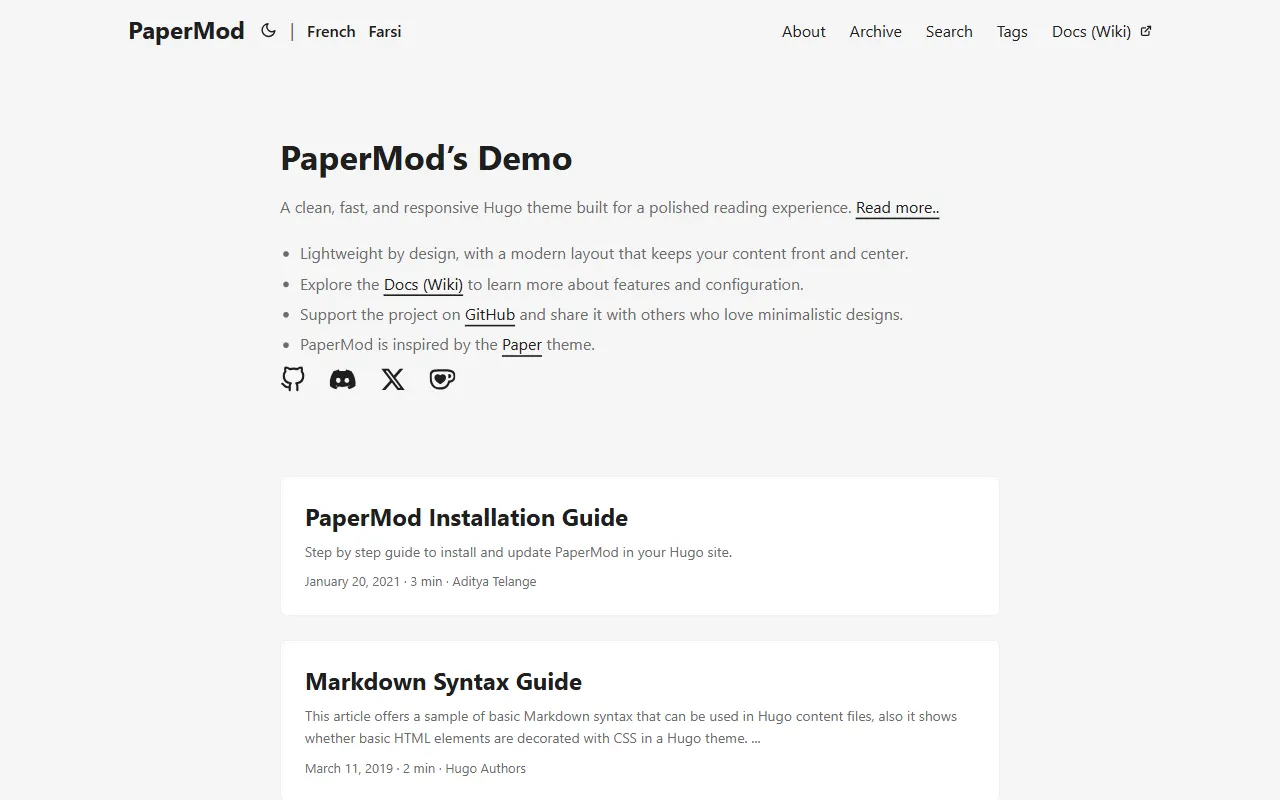
PaperMod 是 Hugo 生态里知名度较高的主题之一,定位很明确:给博客和轻量作品集站点提供一套干净、响应式的阅读界面。
Hugo · 作品集
LoveIt
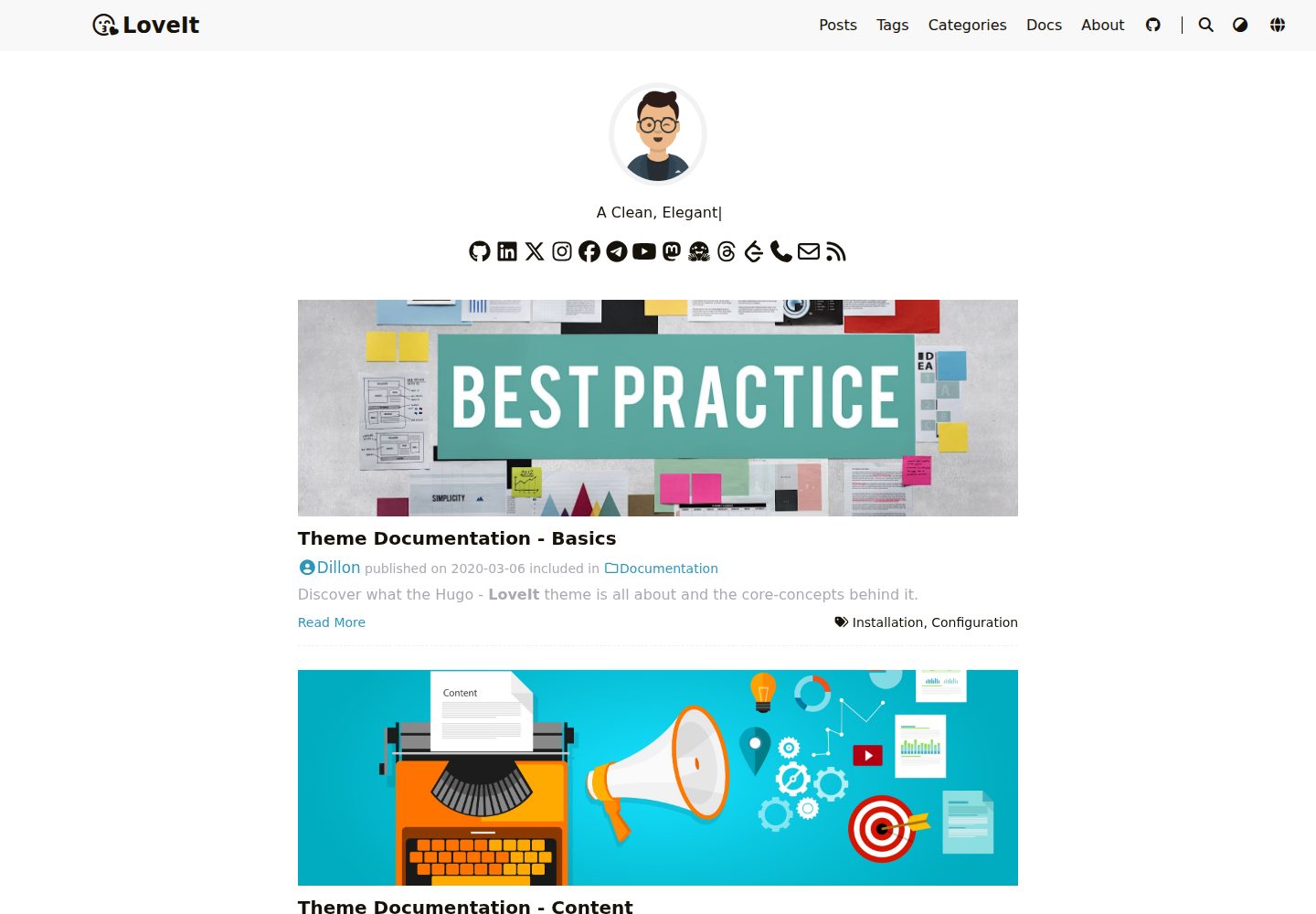
❤️A clean, elegant but advanced blog theme for Hugo 一个简洁、优雅且高效的 Hugo 主题
Hugo · 博客
hugo-coder
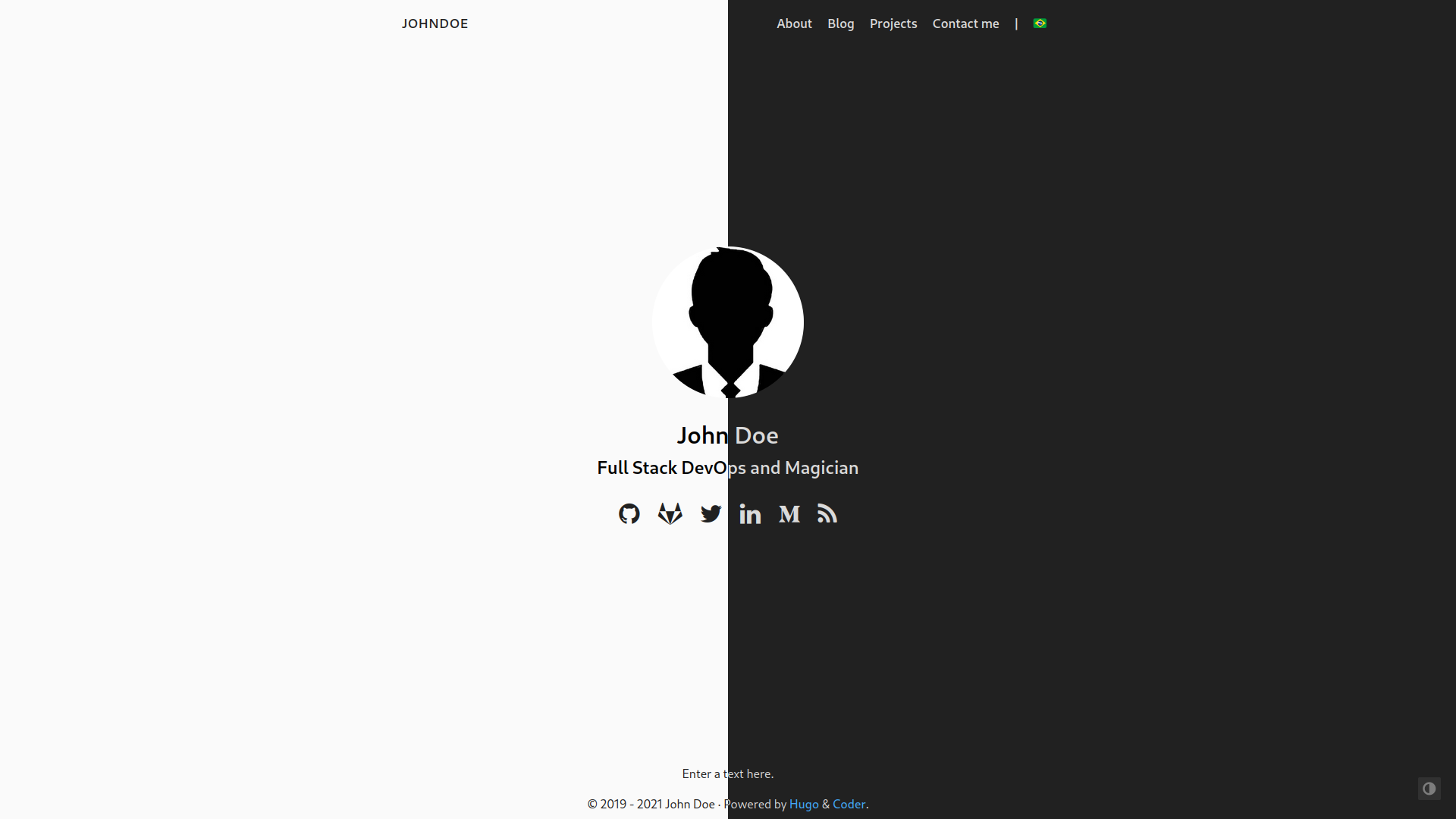
A minimalist blog theme for hugo.
Hugo · 博客
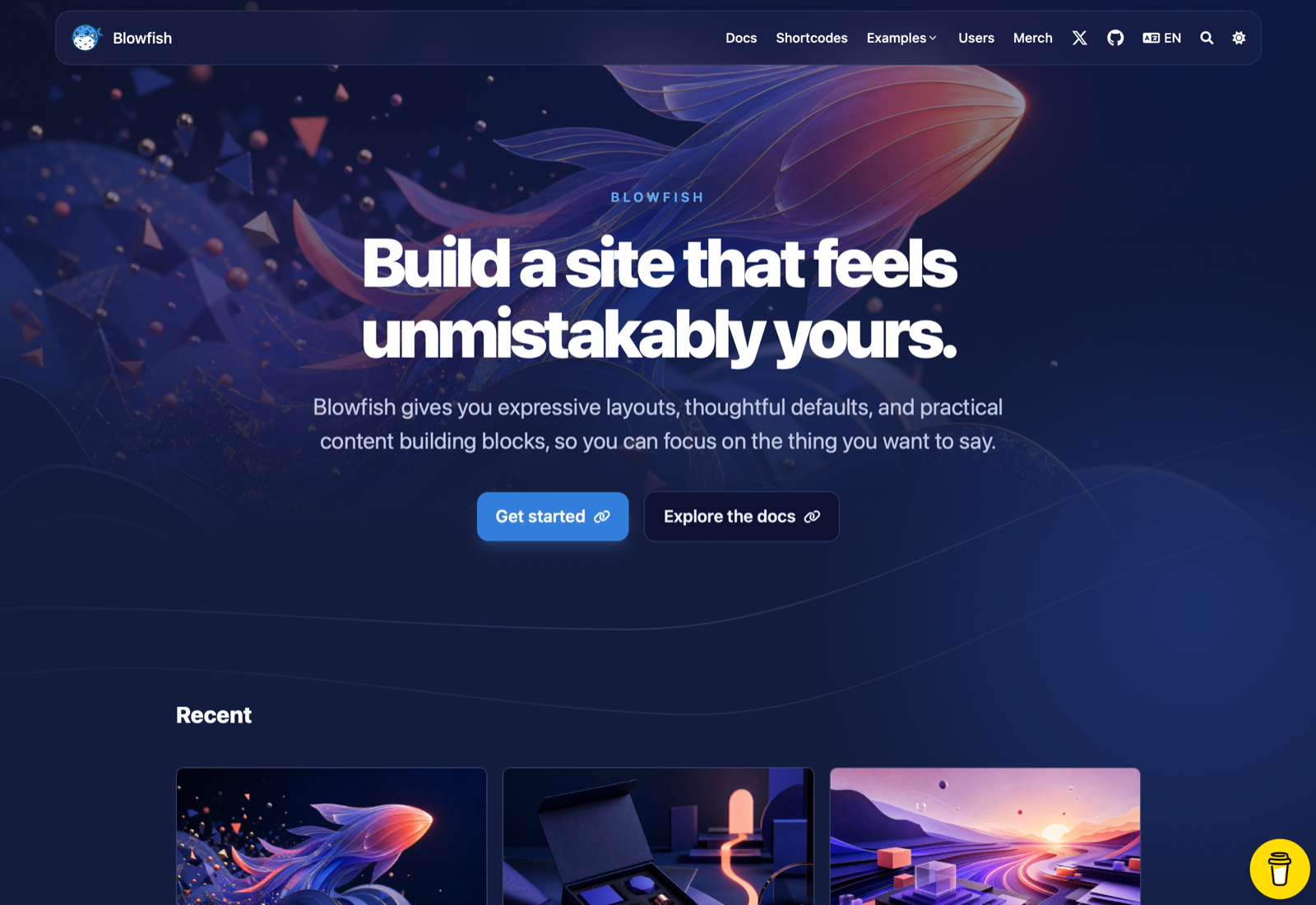
blowfish
Personal Website & Blog Theme for Hugo
Hugo · 博客
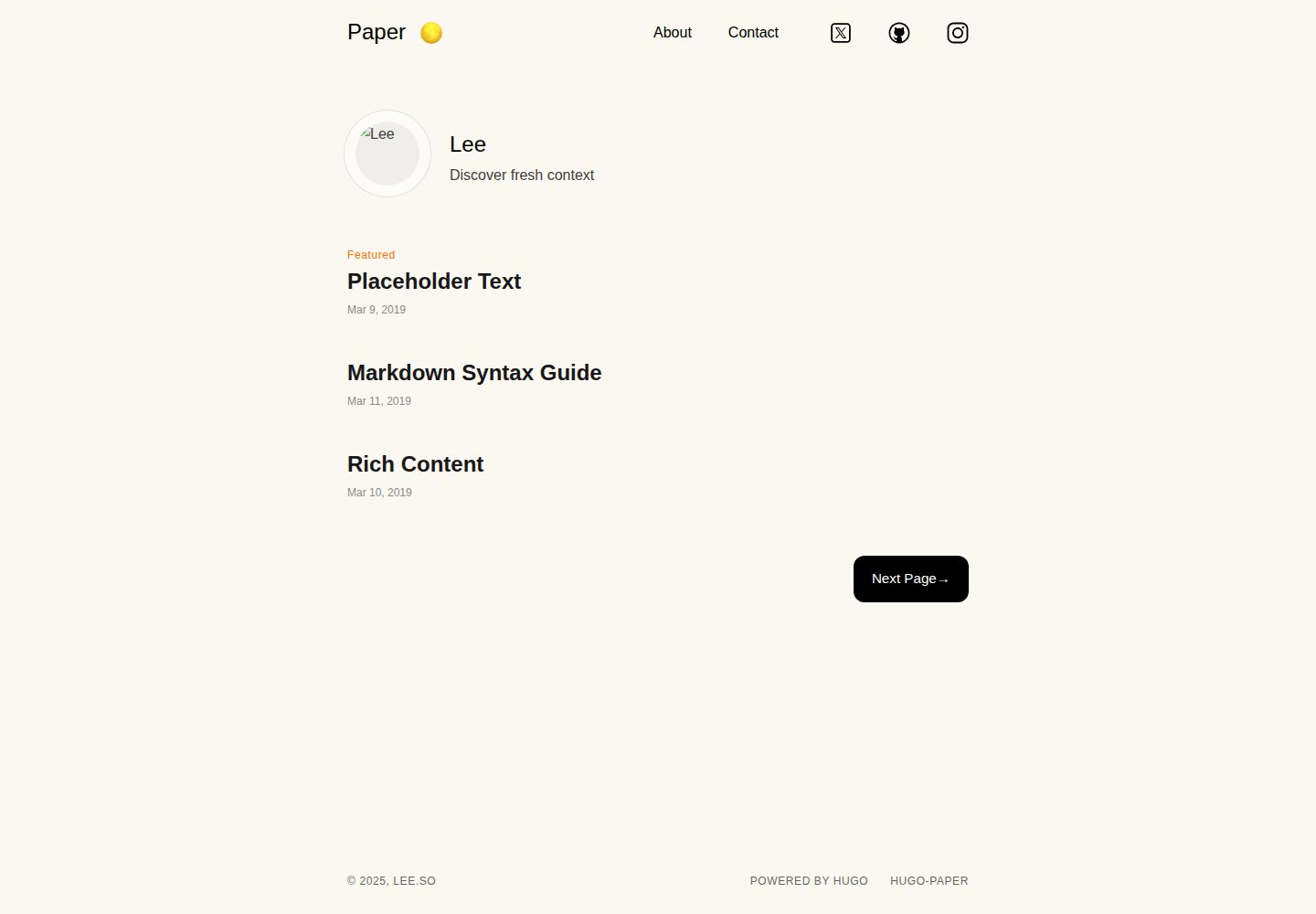
hugo-paper
🪺 A simple, clean, customizable Hugo theme
Hugo · 博客
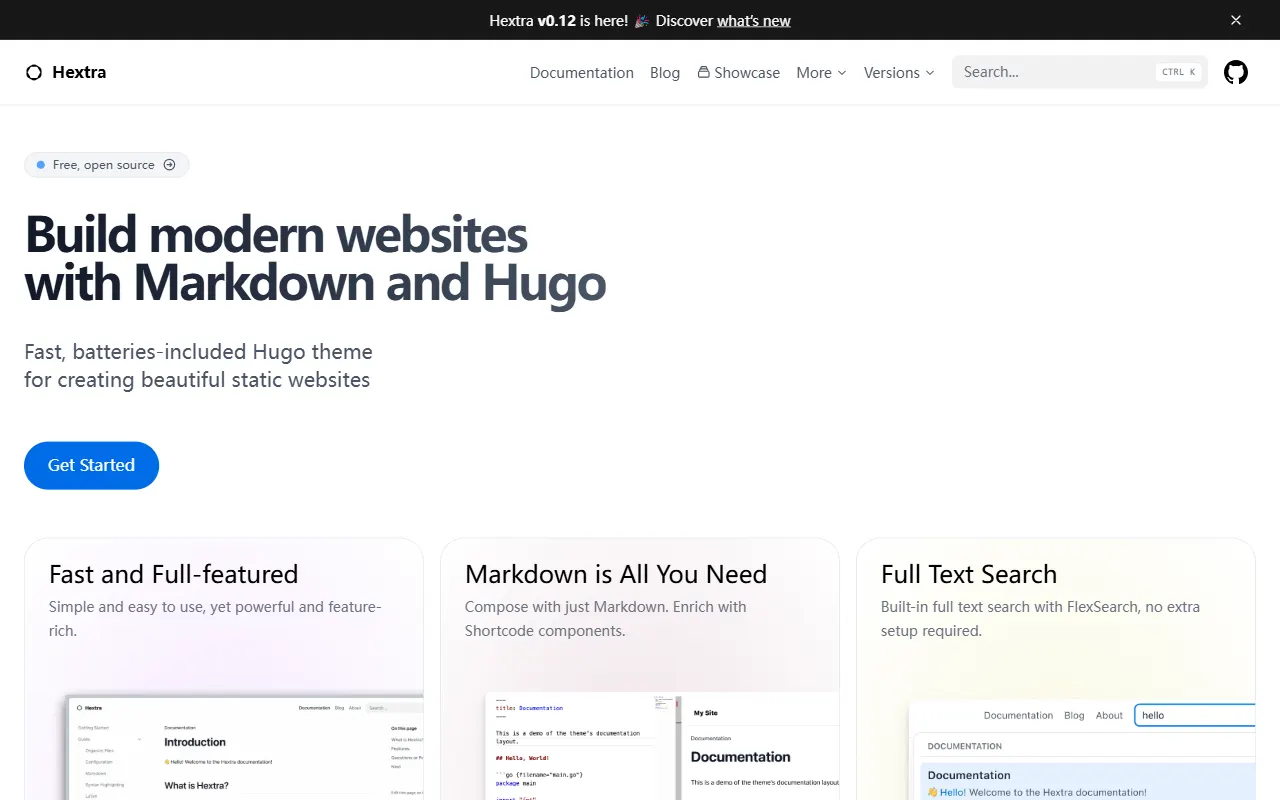
hextra
Hextra 是一个 Hugo 主题,定位在文档站与博客之间:既提供侧边栏导航、目录、面包屑、分页这类文档站结构,也能承载博客内容。
Hugo · 文档