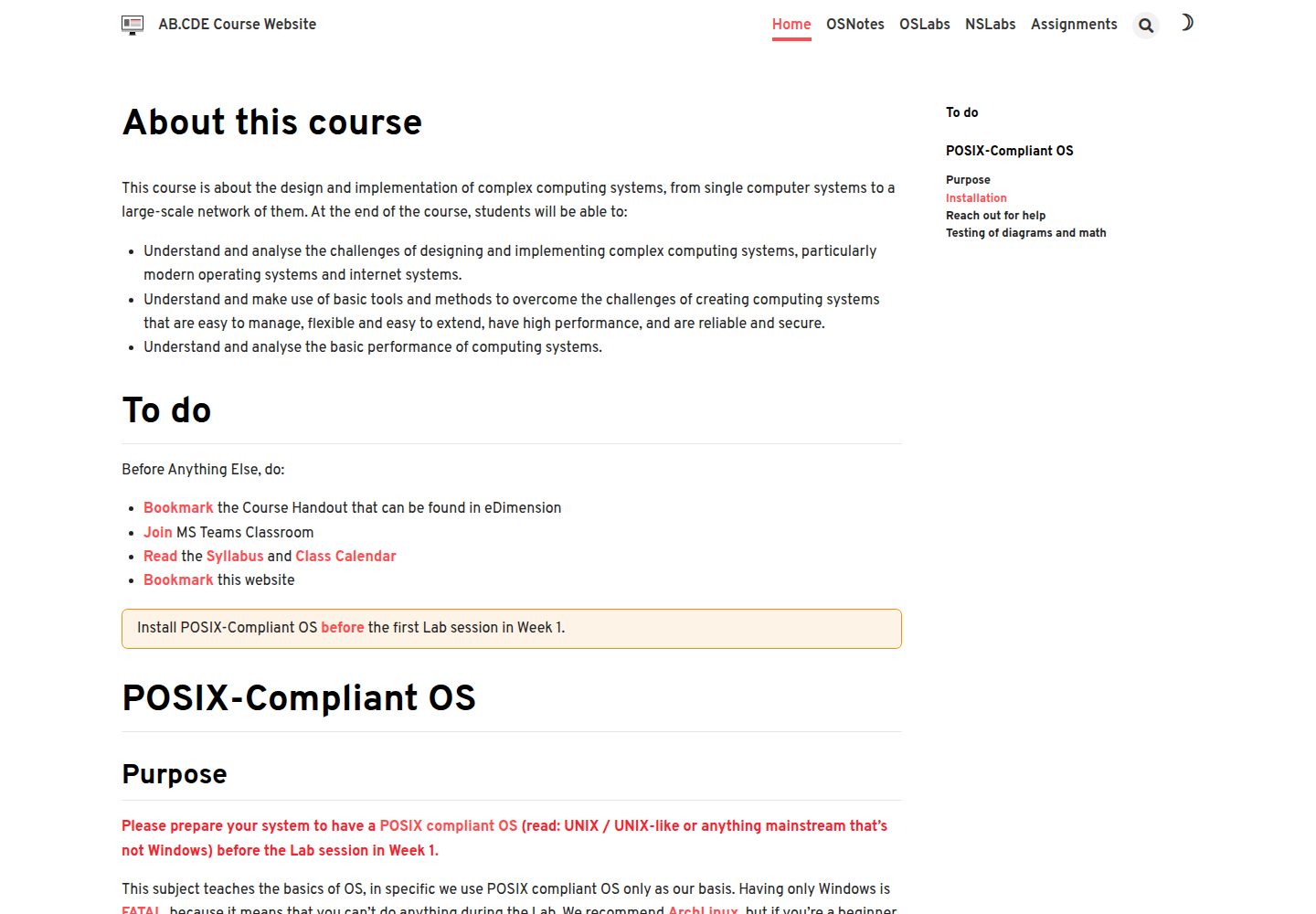
Built on Jekyll, with local preview via bundle exec jekyll serve
HTMLStarter
website_template_2022 — HTML Starter Template
By natalieagus
A Jekyll-based template for course notes and lecture handouts, currently populated with sample materials for CSE 50.005, offering Markdown content organization, sidebar navigation and custom style extensions.
Explore the design
Compare the page layouts and mobile experience. Open any screenshot for a closer look.
Desktop homepage1 / 2
Desktop captureTop of page
Actual screenshot captured by the server browser.
All pages & views 2
Screenshots show visual appearance; interactive behavior may differ.
Recorded 2026-10-17View source
What stands out
A quick read of the recorded project description.
Organizes course content with Markdown files and front matter, supporting the article layout and a right-hand table of contents
Configures left sidebar navigation through _data/navigation.yml, linked to page permalinks
Customizes appearance by replacing logo.svg, modifying custom.scss and favicon.ico
Provides entry points for custom HTML at the top and bottom of articles, already including a back-to-top button and a collapsible answer box
README includes examples for VSCode snippets, shortcut keys and Paste Image extension configuration
Template Details
This repository is a Jekyll website template for hosting course notes and lecture handouts; the README states that it is currently populated with CSE 50.005 materials as an example. The template configures the site URL, baseurl, title, description and collections directories through _config.yml; content is stored as Markdown files in collection directories whose names begin with an underscore, and front matter specifies options such as layout, sidebar navigation and the right-hand table of contents. The left navigation bar is defined in _data/navigation.yml and must match sidebar.nav and nav_key in the page front matter. For visuals, you can replace logo.svg, modify custom.scss, change the favicon, and insert custom HTML at the top or bottom of articles. The README also provides VSCode snippets and shortcut key configuration, along with an example setup for the Paste Image extension. The materials do not document the template's browser compatibility, performance or production readiness.
HTMLLauncher
Is it right for your project?
Use Cases
- Building a static website for a university course that includes handouts, notes, assignments and lab instructions
- Markdown documentation sites that need left navigation and a right-hand table of contents
- Quickly customizing the appearance and interactive elements of a course website based on Jekyll
- Writing Markdown in VSCode and using snippets to improve formatting efficiency
Suitable For
- Course instructors or teaching assistants publishing course notes and handouts
- Developers familiar with Markdown and basic Jekyll configuration
- Educational settings that need static site hosting for course materials
Getting started & customization
Use these recorded setup notes alongside the repository instructions for your chosen version.
- 1
Install Jekyll according to the official Jekyll installation guide, then run gem install jekyll bundler and bundle exec jekyll serve, and visit http://127.0.0.1:4000
- 2
Edit url, baseurl, title, description and the collections directory list in _config.yml
- 3
Create Markdown files in collection directories whose names begin with an underscore, and use the example front matter to specify fields such as layout, sidebar.nav and nav_key
- 4
Configure sidebar navigation in _data/navigation.yml, ensuring that url matches the page permalink and that sidebar-nav and nav-key names are consistent
- 5
Replace _includes/svg/logo.svg and assets/favicon.ico, and add custom styles in _sass/custom.scss
License & source material
Usage conditions & limitations
Free to use · keep license noticeThis entry covers the free version under the MIT license in the public repository; the free scope is the code of this version and does not mean that external services or third-party assets are free.
Must comply with when using
- Free use, modification, commercial use and distribution of this version's code are permitted.
- When distributing copies or substantial portions of the code, retain the original author's copyright notice and the complete MIT license notice.
- The code is provided as is; warranties and limitations of liability are governed by the original license and applicable law.
Additional costs & items to verify
- Demo images, fonts, icons and other third-party assets must be checked against their respective licenses; the code's MIT license alone cannot be used to judge them.
- External services such as domains, hosting, databases, payments or AI may incur separate charges.
View Original Text Basis
https://github.com/natalieagus/website_template_2022/blob/master/LICENSEhttps://github.com/natalieagus/website_template_2022/blob/master/README.mdPermission is hereby granted, free of charge
Original License Text
Compiled by DeepSeek based on repository license and README ·2026-10-17. Results only cover the materials read; dependencies, images, fonts, and subsequent term changes are subject to their respective original texts.
Project checks & description sources
Template Information
- Source platforms
- GitHub
- Documentation and maintenance reference score
- Partly documented · 57 / 100
- Technologies
- HTML
- Website type
- Starter
How this score is calculated
Our heuristic uses license records (up to 30), a demo link (12), a preview (10), stars (15), recorded maintenance (15), description completeness (8), feature records (5) and classification data (5). It is not a code, security or performance test, or a Google score. A link does not establish tested functionality.
What to verify for this project
- Repository update recorded
- 2023-09-21
- Screenshot last checked
- 2026-10-17
A demo link is listed. Check it with your own content and viewport sizes; its presence does not confirm that forms, authentication or payments work.
The catalog identifies HTML as the primary stack. Check the actual dependency manifest and lockfile for versions and hosting requirements. These notes use recorded metadata, not a code audit or a deployment test.
Use a selection guide →How this description was prepared
AI-assisted description based on catalog records and repository material. Repository authors are not automatically the reviewers of this description.
Review declaration: codex-user-requested-batch-review-20261018 · 2026-10-18
Inspect the recorded source material
SHA-256: 90390018f3dfd96509d54c66784953eb727d45e4cbbe00a157595337401e7b9f
2026-10-17T09:32:51.243Z
Source file / repository# Course Site Template 2022
This repository contains website template suitable to host course notes and handouts. Currently, it's populated with materials from CSE 50.005 as example.
## General setup
### Installation
This website is built using Jekyll. You can get it installed by [reading this guide](https://jekyllrb.com/docs/installation/). Afterwards, install the jekyll and bundler gems, and serve:
```
gem install jekyll bundler
bundle exec jekyll serve
```
You can then browse to localhost: http://127.0.0.1:4000
### `_config.yml`
Important parts to edit:
1. `url`: the site the website is hosted on
2. `baseurl`: the route to reach the `home` of the website, e.g: repo name if it's Github Pages
3. `title` and `description`
4. `collections`: directories containing markdown files that will be processed by `jekyll`. Omit the `_`.
### Creating Content
Jekyll will process any `.md` files inside any directories stated under `collections` in `_config.yml`. The name must start with an `_`. To **add** a new content, create **markdown** files in any of the folders named `_[collection_name]`.
For example we have:
- `_os_notes`
- `_ns_notes`
- `_assignments`
- `_ns_labs`
- `_os_labs`
Use the **front matter** template as given in the sample `*.md` files inside each of the directory. For instance. The layout is recommended to be `article`, and you can choose the title of the `sidebar nav` as what is stated in `_data/navigation.yml`. `Aside toc` is also recommended (right side table of content).
```
---
title: Introduction to OS
permalink: /os_notes/week1_intro
key: os-notes-week1_intro
layout: article
nav_key: os_notes
sidebar:
nav: os_notes
license: false
aside:
toc: true
show_edit_on_github: false
show_date: false
---
```
### Adding sidebar navigation (left navigation bar)
If your `.md` page uses `sidebar nav` option then edit `_data/navigation.yml`. You can set the sidebar nav to look like anything you want by matching its `url` key with each `.md` page's `permalink`.
Note that the **sidebar-nav** and **nav-key** in the front matter of the new `.md` file must match the name you declare in this navigation yaml file. For instance, `os_notes` sidenav will be shown when you're at the page `/os_notes/week1_intro` above.
```
os_notes:
- title: Basics of OS
children:
- title: Introduction to OS
url: /os_notes/week1_intro
- title: The Kernel
url: /os_notes/week1_kernel
- title: Resource Allocator and Coordinator
url: /os_notes/week1_resource
- title: Memory and Process Management
url: /os_notes/week1_mpm
```
## Aesthetics
Replace the .svg file inside `/_includes/svg/logo.svg` with the same name.
### Custom CSS
Add any custom sass styling in `/_sass/custom.scss`
### Changing Favicon
Replace `assets/favicon.ico` with your file named `favicon.ico` as well
### Custom html for articles
Add any additional elements in `/_includes/article/footer/custom.html`. You may also add it at `/_includes/article/top/custom.html` if you want it to execute first.
Current added features:
- Go to top button at `/_includes/article/top/custom.html`
- Collapsible answer box at `/_includes/article/footer/custom.html`
- All styling in `custom.scss`
## Useful Snippets and Shortcuts
### Markdown Snippets
It's useful to add HTML snippets if you're using VSCode, for instance:
````json
{
"Highlight code": {
"prefix": "highlight",
"body": [
"<span style=\"background-color:yellow; color: black\">$TM_SELECTED_TEXT${1:}</span>"
],
"description": "highlight selected text"
},
"Custom box": {
"prefix": "box",
"body": [
"<div class=\"$1\"><div class=\"custom_box\">$TM_SELECTED_TEXT$2 </div></div><br>"
],
"description": "custom box"
},
"Code block": {
"prefix": "codeblock",
"body": ["```java\n$TM_SELECTED_TEXT${1:}\n```"],
"description": "custom code block"
},
"Image block": {
"prefix": "imageblock",
"body": [
"<img src=\"{{ site.baseurl }}$1\" class=\"center_seventy$2\"/>$3"
],
"description": "custom image block"
},
"Image vanilla block": {
"prefix": "imageblock",
"body": ["<img src=\"$1\" />$2"],
"description": "custom image block"
},
"Red block": {
"prefix": "redwords",
"body": [
"<span style=\"color:#f7007f;\"><b>$TM_SELECTED_TEXT$1</b></span>"
],
"description": "custom redword block"
},
"Yellow block": {
"prefix": "yellowords",
"body": [
"<span style=\"color:#f77729;\"><b>$TM_SELECTED_TEXT$1</b></span>"
],
"description": "custom yellow block"
},
"Video block": {
"prefix": "videoblock",
"body": [
"<video width =\"100%\" height = \"100%\" controls=\"controls\" preload=\"metadata\" src=\"$1#t=0.5\"> Your browser does not support the HTML5 Video element.</video>$2"
],
"description": "custom video block"
},
"Task block": {
"prefix": "taskblock",
"body": ["### Task $1 $2`TASK $3:`{:.info} $4"],
"description": "custom task block"
},
"Break line": {
"prefix": "breakline",
"body": ["<br>"],
"description": "custom breakline"
}
}
````
### Shortcuts
...and then bind them with keyboard shortcuts:
```json
{
"key": "ctrl+alt+c",
"command": "editor.action.insertSnippet",
"args": { "name": "Highlight code" },
"when": "editorTextFocus && markdownShortcuts:enabled"
},
{
"key": "ctrl+alt+u",
"command": "editor.action.insertSnippet",
"args": { "name": "Custom box" },
"when": "editorTextFocus && markdownShortcuts:enabled"
},
{
"key": "ctrl+alt+n",
"command": "editor.action.insertSnippet",
"args": { "name": "Code block" },
"when": "editorTextFocus && markdownShortcuts:enabled"
},
{
"key": "ctrl+alt+m",
"command": "editor.action.insertSnippet",
"args": { "name": "Image block" },
"when": "editorTextFocus && markdownShortcuts:enabled"
},
{
"key": "ctrl+alt+,",
"command": "editor.action.insertSnippet",
"args": { "name": "Video block" },
"when": "editorTextFocus && markdownShortcuts:enabled"
},
{
"key": "ctrl+alt+.",
"command": "editor.action.insertSnippet",
"args": { "name": "Image vanilla block" },
"when": "editorTextFocus && markdownShortcuts:enabled"
},
{
"key": "ctrl+alt+r",
"command": "editor.action.insertSnippet",
"args": { "name": "Red block" },
"when": "editorTextFocus && markdownShortcuts:enabled"
},
{
"key": "ctrl+b",
"command": "editor.action.insertSnippet",
"args": { "name": "Yellow block" },
"when": "editorTextFocus && markdownShortcuts:enabled"
},
{
"key": "ctrl+alt+t",
"command": "editor.action.insertSnippet",
"args": { "name": "Task block" },
"when": "editorTextFocus && markdownShortcuts:enabled"
},
```
### Paste Image
To paste images conveniently, the extension [Paste Image](https://marketplace.visualstudio.com/items?itemName=mushan.vscode-paste-image) and [Markdown All in One](https://marketplace.visualstudio.com/items?itemName=yzhang.markdown-all-in-one) are particularly useful.
The settings that I use for Paste Image in my project is:
```
"pasteImage.path": "${projectRoot}/assets/images/${currentFileNameWithoutExt}",
"pasteImage.basePath": "${projectRoot}",
"pasteImage.forceUnixStyleSeparator": true,
"pasteImage.prefix": "/", // change this if we have projects that require baseURL
"pasteImage.insertPattern": "${imageFilePath}",
```
and it's bound to the shortcut:
```
{
"key": "ctrl+alt+v",
"command": "extension.pasteImage",
"when": "editorTextFocus"
},
```
Explore similar templates
Compare previews and descriptions within the same stack and category.
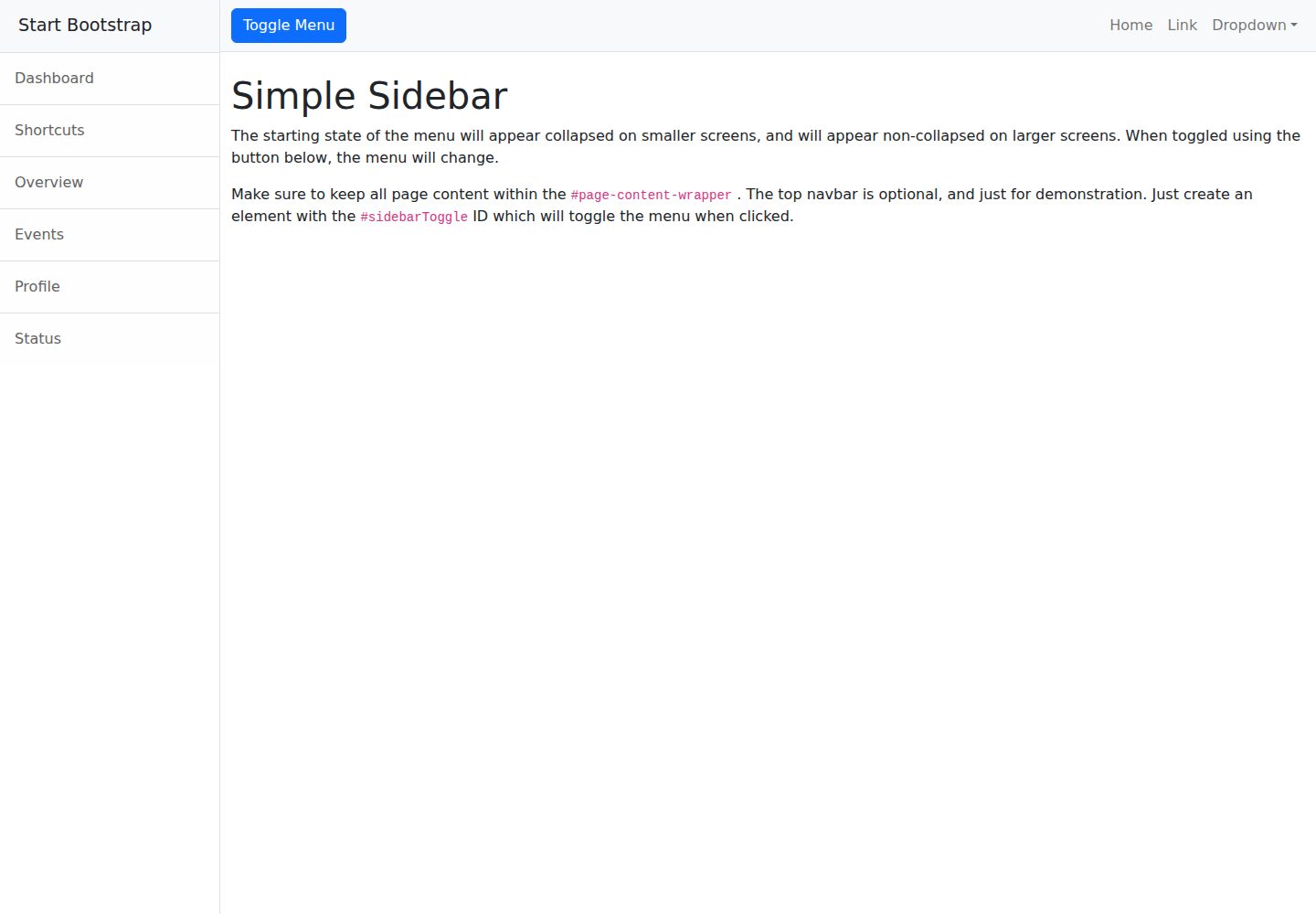
startbootstrap-simple-sidebar
A Bootstrap off-canvas sidebar navigation HTML starter template from Start Bootstrap. It provides directly editable HTML and CSS in the dist directory, while the source uses Pug, SCSS, and JavaScript with npm build scripts for live preview and compilation.
HTML · Starter
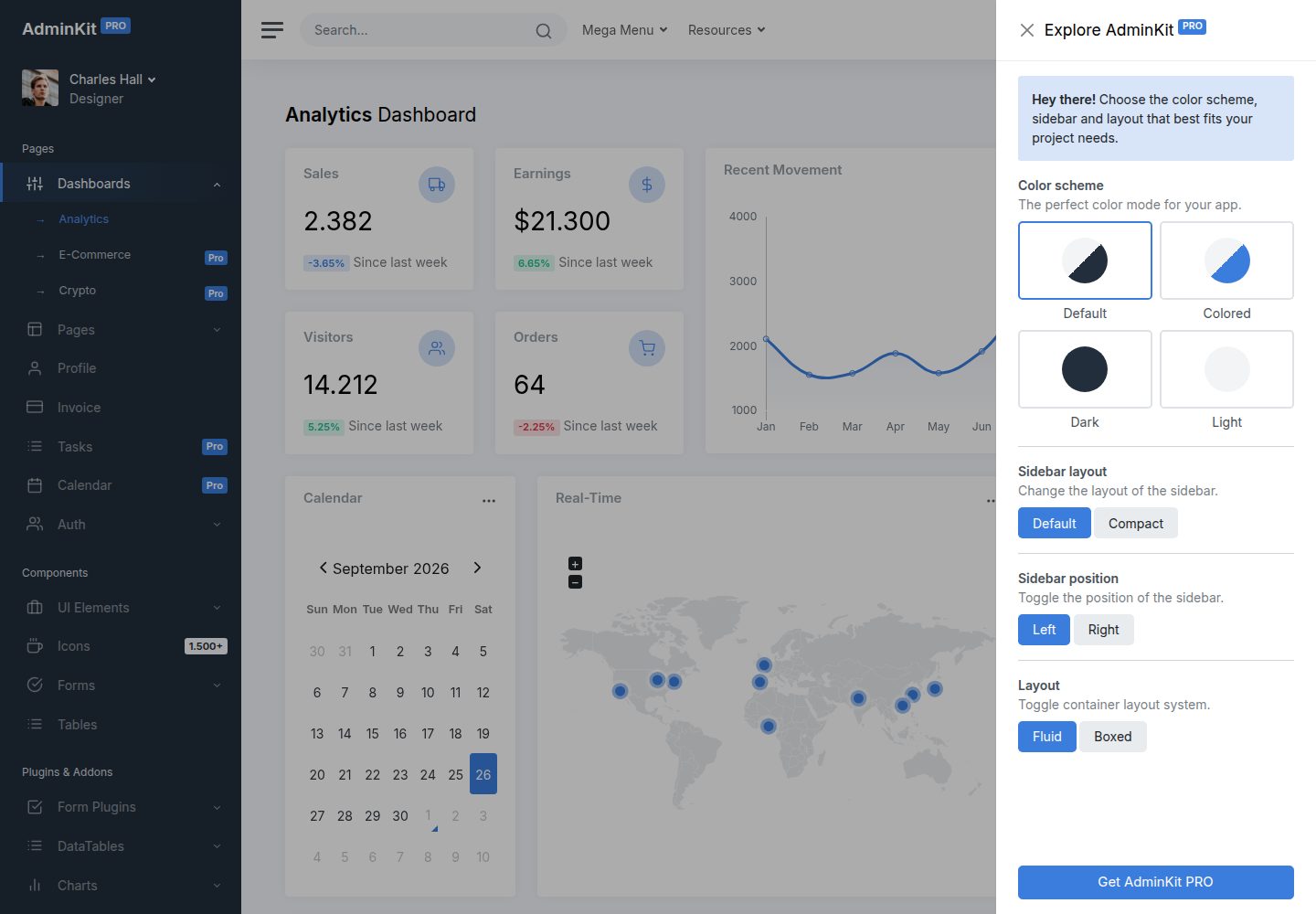
adminkit
AdminKit is a free, MIT-licensed HTML admin and dashboard template built on Bootstrap 5. The free version includes 15 demo pages, 1 plugin, and 1 color scheme, with hundreds of UI components, forms, tables, charts, and icons.
HTML · Admin dashboard
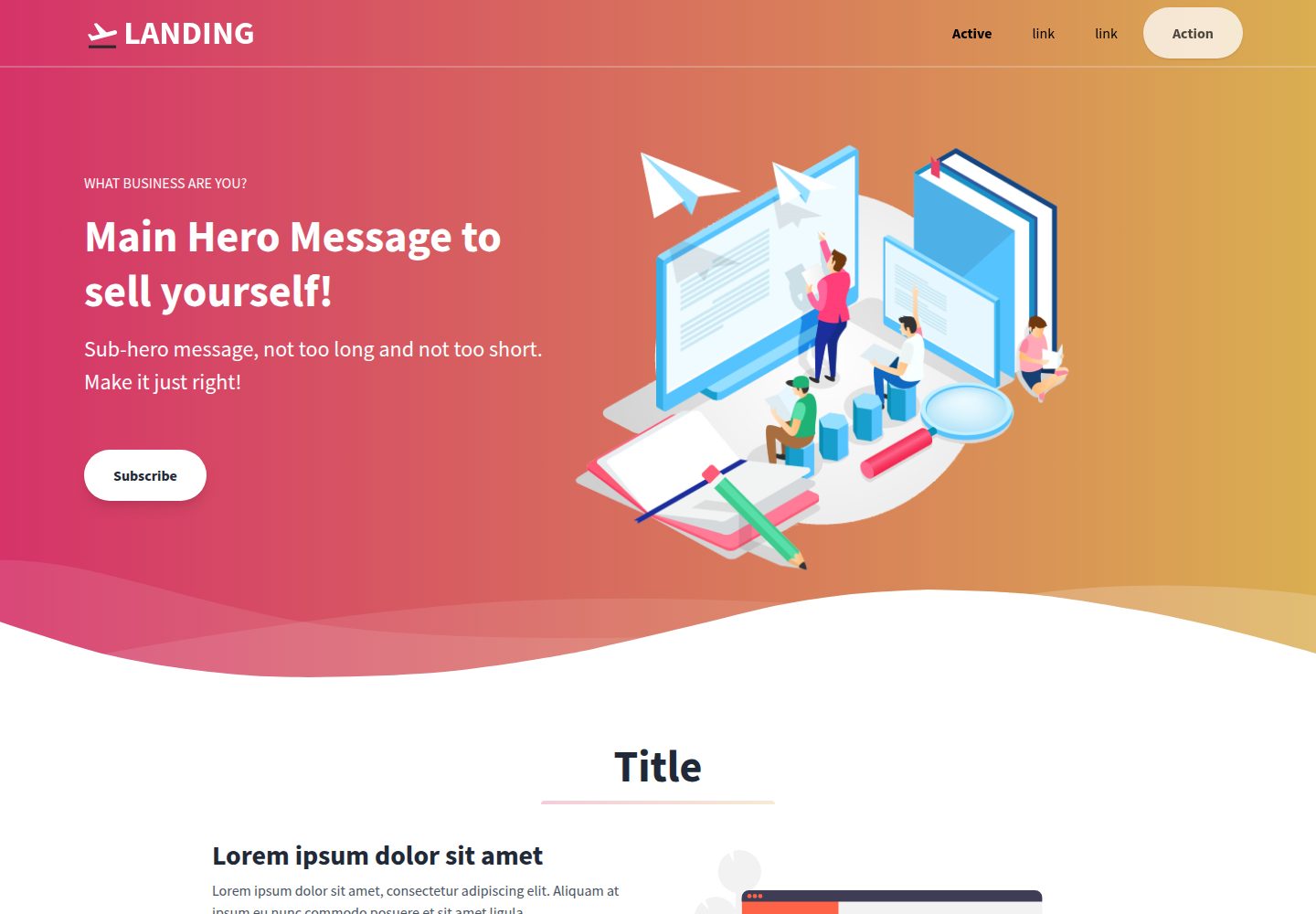
Landing-Page
A general-purpose landing page HTML template maintained by Tailwind Toolbox, written in pure HTML and loading the complete Tailwind CSS via CDN.
HTML · Corporate Website
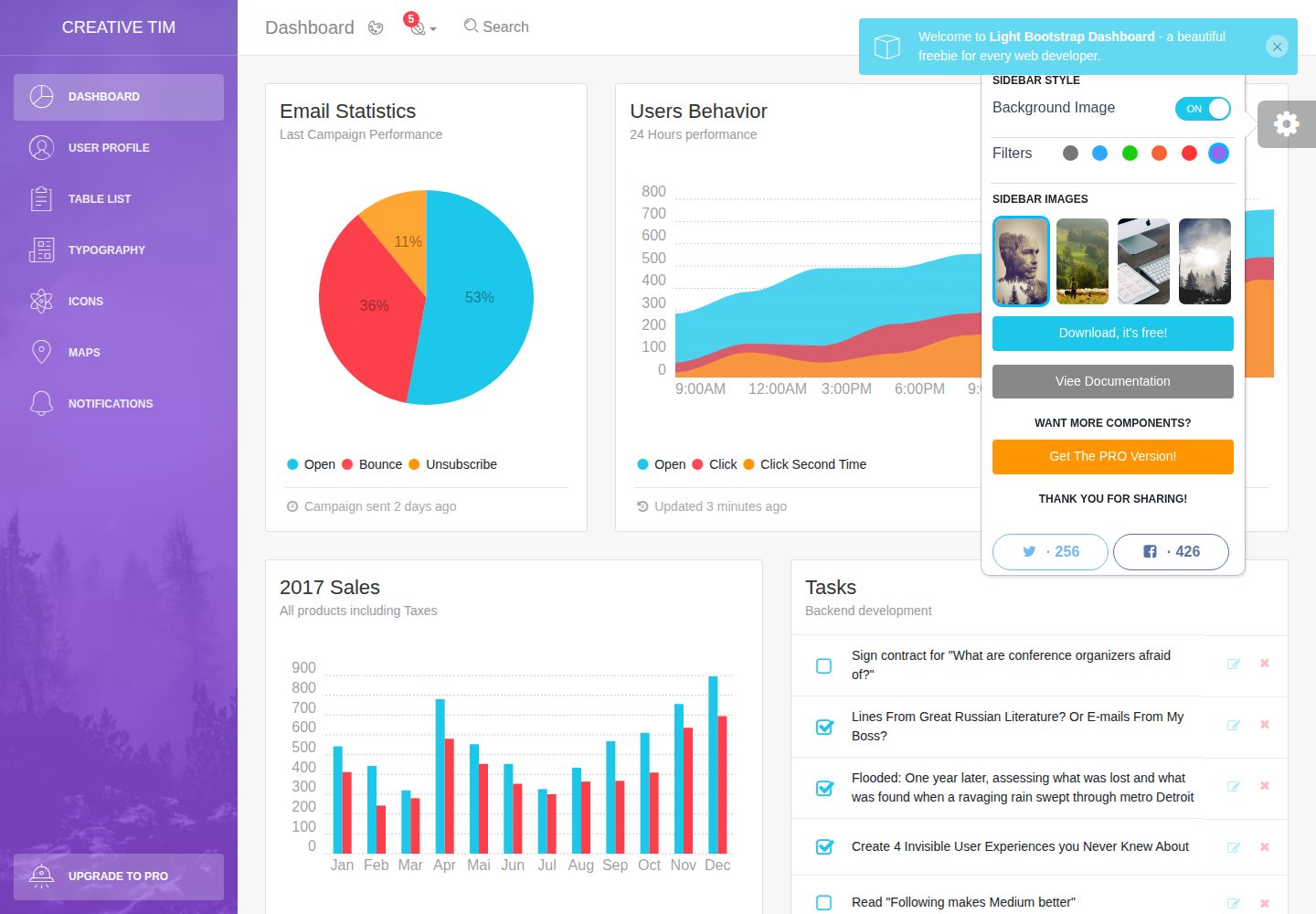
light-bootstrap-dashboard
Light Bootstrap Dashboard is a free, MIT-licensed admin dashboard template from Creative Tim, built on Bootstrap with a responsive static HTML structure.
HTML · Admin dashboard
sing-app
Sing App Lite is a free, open-source admin dashboard template from Flatlogic, built with Bootstrap 4.5 and SCSS. It provides a responsive layout, dashboard examples, typography, tables, notifications, basic charts, icons, maps, and a hover sidebar, along with styled Bootstrap components.
HTML · Admin dashboard
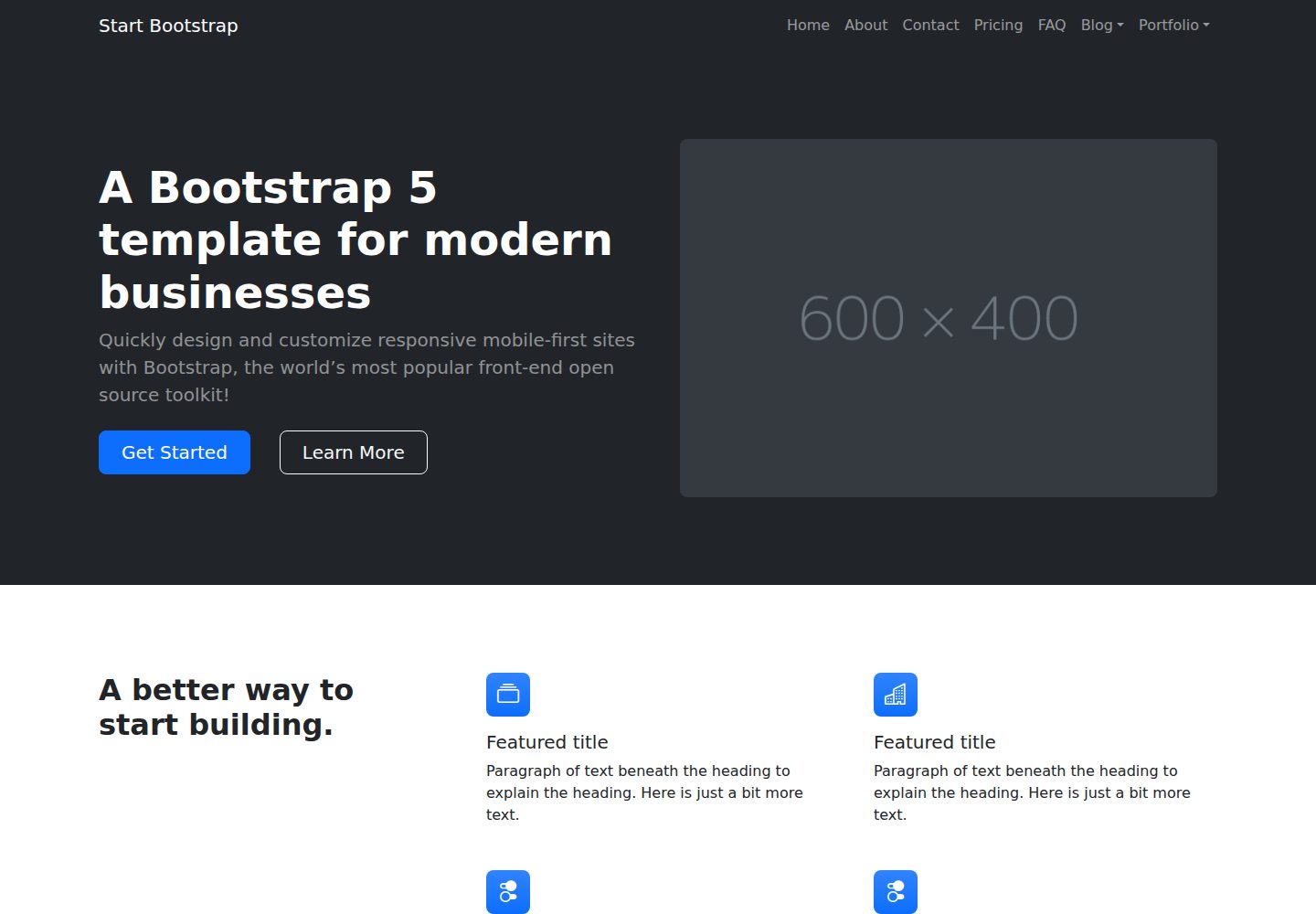
startbootstrap-modern-business
Modern Business is a multipurpose Bootstrap full-site HTML template from Start Bootstrap with 17 standalone pages covering home, about, services, portfolio, pricing, blog, FAQ, and contact.
HTML · Starter