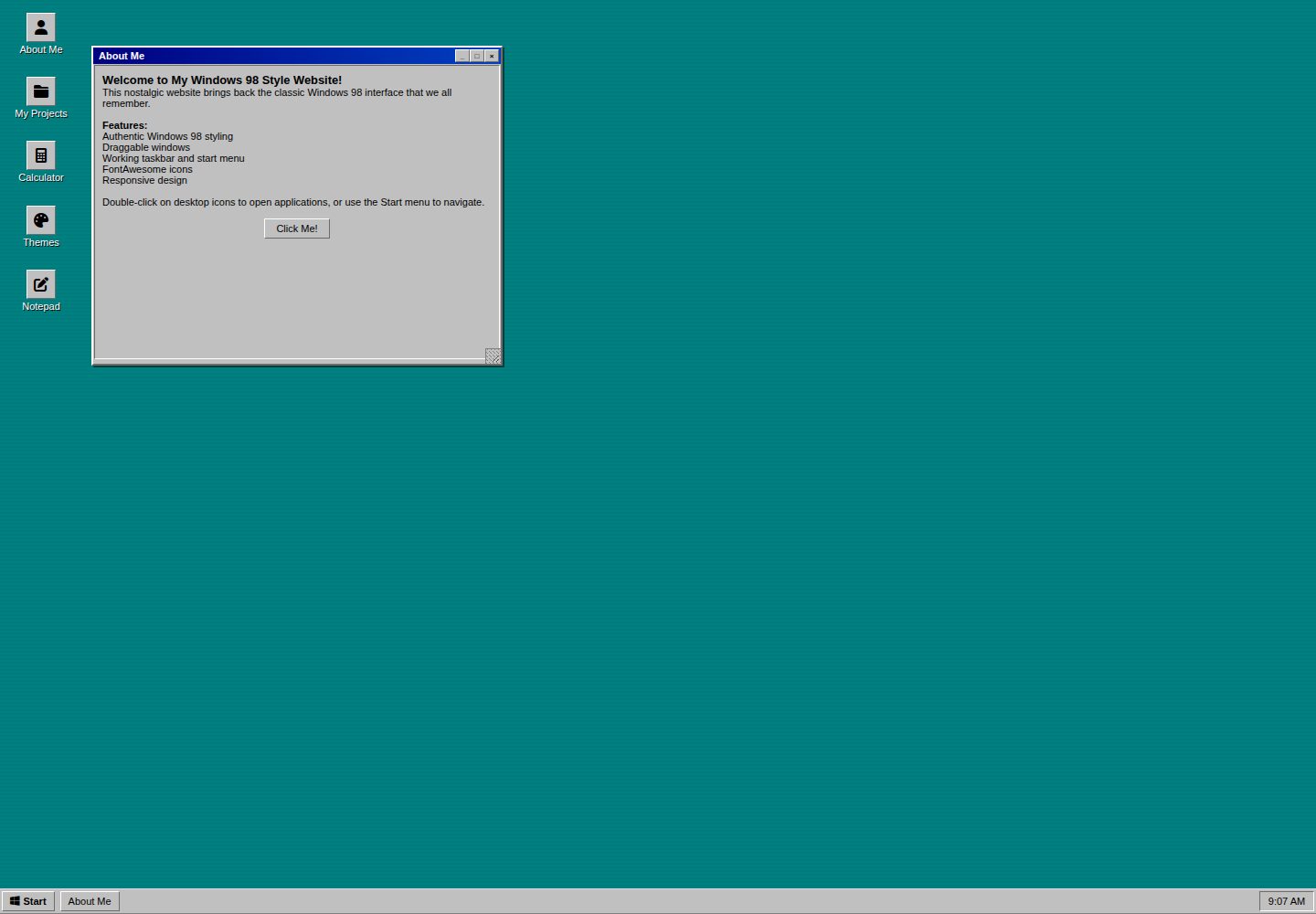
Recreates the Windows 98 desktop: teal background, draggable and resizable windows, taskbar, Start menu, and desktop icons
HTMLStarter
WIN98-template — HTML Starter Template
By pollygon-dev
A website template that recreates the Windows 98 desktop in the browser using HTML, CSS, and JavaScript, including draggable windows, a taskbar, a Start menu, and built-in mini apps.
Explore the design
Compare the page layouts and mobile experience. Open any screenshot for a closer look.
Desktop homepage1 / 2
Desktop captureTop of page
Actual screenshot captured by the server browser.
All pages & views 2
Screenshots show visual appearance; interactive behavior may differ.
Recorded 2026-10-02View source
What stands out
A quick read of the recorded project description.
Includes five built-in window apps: About Me, My Projects, Calculator, Themes, and Notepad
Five built-in themes (Windows Standard, Pastel Pink, Cyberpunk, Lilac, Forest Green) with live preview before applying
Themes are based on CSS custom properties; the README provides steps for adding a new theme, which requires modifying CSS, HTML, and JavaScript in three places
HTML, CSS, and JavaScript are separated into three files; the README includes complete examples for adding icons, windows, and Start menu items
Template Details
This is a pure HTML front-end template that turns a browser page into a Windows 98-style desktop: a teal desktop background, draggable and resizable windows, a taskbar with a Start button and system clock, a Start menu, and desktop icons with selected states. Built-in windows include About Me (personal introduction), My Projects (portfolio embedded via iframe), Calculator (a working calculator), Themes (display properties theme switching), and Notepad (text editing). The theme system offers five color schemes—Windows Standard, Pastel Pink, Cyberpunk, Lilac, and Forest Green—with live preview before applying; themes are defined via CSS custom properties. The code is split into three files: index.html, style.css, and script.js. The README provides step-by-step instructions for adding desktop icons, windows, Start menu items, and custom themes. Icons use FontAwesome, fonts come from Google Fonts, and the README notes that windows can be dragged and resized on desktop and tablet, while on mobile windows automatically fit the screen. The template is adapted from the original Windows template by HTML5-Templates.com and is released under the Unlicense.
HTMLStarter
Is it right for your project?
Use Cases
- Creating a 90s retro-style personal homepage or portfolio
- Pointing the iframe in the My Projects window to your own portfolio URL for display
- Using it as a front-end exercise to learn how window dragging, the taskbar, and theme switching are implemented
- Replacing the text content in windows such as About Me and Notepad with your own
Suitable For
- Developers who want a retro desktop look for a personal website
- Front-end learners who need a ready-made HTML/CSS/JS structure for further modification
- Users who accept embedding a portfolio page via iframe
Getting started & customization
Use these recorded setup notes alongside the repository instructions for your chosen version.
- 1
Place index.html, style.css, and script.js in the same folder and open index.html in a browser to view it
- 2
Adding a new window requires updating the window structure in index.html, the Start menu item, and the getWindowTitle function in script.js
- 3
Adding a new theme requires defining CSS variables in style.css, adding an option in the theme window in index.html, and registering it in the themes object in script.js
- 4
Icons use FontAwesome class names and fonts come from Google Fonts; ensure these external resources are accessible
- 5
The README recommends retaining attribution to the original template source HTML5-Templates.com
License & source material
Usage conditions & limitations
Free to use · keep license noticeThis entry covers the free version in a public repository under the Unlicense; the free scope is limited to that version's code and does not imply that external services or third-party assets are free.
Must comply with when using
- The code of this version may be freely copied, modified, published, used, compiled, sold, and distributed, including for commercial purposes.
- The author waives related copyright through a public domain dedication; the legal effect of this dedication depends on the applicable jurisdiction.
- The code is provided as is; warranties and limitations of liability are governed by the original license and applicable law.
Additional costs & items to verify
- The README requests retaining attribution to the original template source HTML5-Templates.com when using this template and provides sample attribution text; this is an attribution request for using the template.
- Icons depend on the external FontAwesome icon library, and fonts come from Google Fonts; before use, confirm these external resources are accessible and comply with their respective license terms.
- The My Projects window embeds an external URL via iframe by default; you need to replace it with your own portfolio URL, and the target site must allow iframe embedding.
- Demo images, fonts, icons, and other third-party assets must be checked against their respective licenses; the code's Unlicense alone is not sufficient to determine this.
- External services such as domains, hosting, databases, payments, or AI may incur additional fees.
View Original Text Basis
for any purpose, commercial or non-commercial, and by any means
Original License Text
please remember to credit HTML5-Templates.com
Original README
FontAwesome icons
Original README
https://github.com/pollygon-dev/WIN98-template/blob/main/LICENSEhttps://github.com/pollygon-dev/WIN98-template/blob/main/README.md<iframe src="https://example.com"
Original README
Compiled by DeepSeek based on repository license and README ·2026-10-02. Results only cover the materials read; dependencies, images, fonts, and subsequent term changes are subject to their respective original texts.
Project checks & description sources
Template Information
- Source platforms
- GitHub
- Documentation and maintenance reference score
- More documented · 81 / 100
- Technologies
- HTML
- Website type
- Starter
How this score is calculated
Our heuristic uses license records (up to 30), a demo link (12), a preview (10), stars (15), recorded maintenance (15), description completeness (8), feature records (5) and classification data (5). It is not a code, security or performance test, or a Google score. A link does not establish tested functionality.
What to verify for this project
- Repository update recorded
- 2025-06-16
- Screenshot last checked
- 2026-10-02
A demo link is listed. Check it with your own content and viewport sizes; its presence does not confirm that forms, authentication or payments work.
The catalog identifies HTML as the primary stack. Check the actual dependency manifest and lockfile for versions and hosting requirements. These notes use recorded metadata, not a code audit or a deployment test.
Use a selection guide →How this description was prepared
AI-assisted description based on catalog records and repository material. Repository authors are not automatically the reviewers of this description.
Automatically checked against source and license rules; no manual editorial review.
Inspect the recorded source material
SHA-256: 770915b10696e9a4c829ee23419b4dfb3726e504ae897fc7629a8961340dbb21
2026-10-02T09:09:16.788Z
Source file / repository# WIN98 template
A fully functional website template that recreates the classic Windows 98 desktop experience in your browser. Perfect for retro-themed portfolios, personal websites, or anyone who wants to bring back the 90s computing aesthetic.
## Features
### Authentic Windows 98 Experience
- **Desktop interface** with WIN98's teal background
- **Draggable and resizable windows** with title bars
- **Working taskbar** with Start button and system clock
- **Start menu** with program shortcuts
- **Desktop icons** with proper selection states
### Built-in Applications
- **About Me** - Personal introduction window
- **My Projects** - Portfolio showcase with iframe support
- **Calculator** - Fully functional calculator app
- **Themes** - Display Properties for customizing appearance
- **Notepad** - Text editor for quick notes
### Theme System
- **5 Built-in themes**: Windows Standard, Pastel Pink, Cyberpunk, Lilac, Forest Green
- **Live preview** before applying themes
- **CSS custom properties** for easy theme creation
- **Authentic Display Properties window**
### Modern Features
- **Responsive design** - works on desktop, tablet, and mobile
- **FontAwesome icons** for crisp, scalable graphics
- **Clean separation** of HTML, CSS, and JavaScript
- **Easy customization** with helper functions
## Quick Start
### 1. Download Files
```
windows98-template/
├── index.html
├── style.css
└── script.js
```
### 2. Basic Setup
1. Save all three files in the same folder
2. Open `index.html` in your web browser
3. Enjoy the nostalgic Windows 98 experience!
## Complete Beginner's Guide
### Step 1: Understanding the Files
#### **index.html** - The Structure
This file contains all the windows, icons, and layout. Think of it as the blueprint of your desktop.
#### **style.css** - The Appearance
This file makes everything look like Windows 98. It controls colors, fonts, and spacing.
#### **script.js** - The Behavior
This file makes windows draggable, buttons clickable, and themes work.
### Step 2: Your First Customization
#### **Change the About Me Content**
1. Open `index.html` in a text editor (like Notepad++)
2. Find this section (around line 67):
```html
<!-- About Window -->
<div class="window" id="about-window" style="top: 50px; left: 100px; width: 450px; height: 350px;">
```
3. Look for the content inside `<div class="window-content">`:
```html
<h3>Welcome to My Windows 98 Style Website!</h3>
<p>This nostalgic website brings back the classic Windows 98 interface that we all remember.</p>
```
4. Replace with your own text:
```html
<h3>Hi, I'm [Your Name]!</h3>
<p>I'm a [your profession] who loves [your interests].</p>
```
#### **Change Your Projects**
1. Find the Projects window (around line 95):
```html
<!-- Projects Window -->
<div class="window" id="projects-window"...>
```
2. Look for the iframe:
```html
<iframe src="https://example.com" width="100%" height="100%"...>
```
3. Replace `https://example.com` with your portfolio URL:
```html
<iframe src="https://yourportfolio.com" width="100%" height="100%"...>
```
### Step 3: Adding Your Own Desktop Icon
#### **Step 3a: Add the Icon**
1. Find the desktop icons section (around line 15):
```html
<!-- DESKTOP ICONS -->
<div class="desktop-icons">
```
2. Add a new icon after the existing ones:
```html
<!-- Icon 6: Your New App -->
<div class="icon" onclick="openWindow('myapp')">
<div class="icon-image">
<i class="fas fa-heart"></i>
</div>
<span class="icon-text">My App</span>
</div>
```
#### **Step 3b: Create the Window**
1. Find the windows section (around line 54):
```html
<!-- WINDOWS -->
```
2. Add your new window after the existing ones:
```html
<!-- My App Window -->
<div class="window" id="myapp-window" style="top: 120px; left: 280px; width: 400px; height: 300px;">
<div class="window-header">
<span class="window-title">My Awesome App</span>
<div class="window-controls">
<a href="#" class="window-button minimize-btn" onclick="minimizeWindow('myapp')">_</a>
<a href="#" class="window-button maximize-btn" onclick="maximizeWindow('myapp')">□</a>
<a href="#" class="window-button close-btn" onclick="closeWindow('myapp')">×</a>
</div>
</div>
<div class="window-content">
<h3>Welcome to My App!</h3>
<p>Put whatever content you want here!</p>
<ul>
<li>Lists work great</li>
<li>You can add links: <a href="https://google.com">Google</a></li>
<li>Or images: <img src="your-image.jpg" style="max-width: 100%;"></li>
</ul>
<button onclick="alert('Button clicked!')">Try This Button</button>
</div>
</div>
```
#### **Step 3c: Add to Start Menu**
1. Find the start menu section (around line 278):
```html
<div class="start-menu-items">
```
2. Add your app to the menu:
```html
<div class="start-menu-item" onclick="openWindow('myapp')">
<i class="fas fa-heart"></i>
My App
</div>
```
#### **Step 3d: Tell JavaScript About Your Window**
1. Open `script.js`
2. Find the `getWindowTitle` function (around line 151):
```javascript
function getWindowTitle(windowId) {
const titles = {
'about': 'About Me',
'projects': 'My Projects',
'calculator': 'Calculator',
'themes': 'Display Properties',
'notepad': 'Notepad'
};
return titles[windowId] || windowId;
}
```
3. Add your window:
```javascript
function getWindowTitle(windowId) {
const titles = {
'about': 'About Me',
'projects': 'My Projects',
'calculator': 'Calculator',
'themes': 'Display Properties',
'notepad': 'Notepad',
'myapp': 'My Awesome App' // Add this line
};
return titles[windowId] || windowId;
}
```
### Step 4: Changing Colors and Themes
#### **Method 1: Pick an Existing Theme**
1. Open the website in your browser
2. Click the "Themes" icon
3. Try different themes and click "Apply"
#### **Method 2: Create Your Own Theme**
1. Open `style.css`
2. Find the themes section (around line 8)
3. Add your custom theme:
```css
/* My Custom Theme */
:root[data-theme="mycustom"] {
--desktop-bg: #ff69b4; /* Pink desktop */
--window-bg: #ffffff; /* White windows */
--active-titlebar-start: #ff1493; /* Pink title bars */
--active-titlebar-end: #ff69b4;
--text-color: #000000; /* Black text */
--button-bg: #f0f0f0; /* Light gray buttons */
--button-hover: #e0e0e0; /* Darker when hovering */
--button-active: #d0d0d0; /* Darker when clicked */
}
```
4. Add it to the themes window in `index.html`:
```html
<div style="margin: 8px 0;">
<input type="radio" id="mycustom-theme" name="theme" value="mycustom" onchange="previewTheme('mycustom')">
<label for="mycustom-theme">My Custom Theme</label>
</div>
```
5. Add it to the JavaScript in `script.js` (around line 470):
```javascript
const themes = {
// ... existing themes ...
mycustom: {
desktop: '#ff69b4',
window: '#ffffff',
titlebar: 'linear-gradient(90deg, #ff1493 0%, #ff69b4 100%)',
text: '#000000',
button: '#f0f0f0'
}
};
```
### Step 5: Common Customizations
#### **Change Desktop Icons**
Find any icon section and modify:
```html
<div class="icon" onclick="openWindow('about')">
<div class="icon-image">
<i class="fas fa-user"></i> <!-- Change this icon -->
</div>
<span class="icon-text">About Me</span> <!-- Change this text -->
</div>
```
**Popular FontAwesome icons:**
- `fas fa-home` - House
- `fas fa-envelope` - Email
- `fas fa-phone` - Phone
- `fas fa-camera` - Camera
- `fas fa-music` - Music note
- `fas fa-gamepad` - Game controller
- Find more at: [fontawesome.com/icons](https://fontawesome.com/icons)
#### **Add Your Social Media Links**
Add to any window content:
```html
<div style="margin: 20px 0;">
<h4>Find Me Online:</h4>
<p><a href="https://twitter.com/yourhandle" target="_blank">
<i class="fab fa-twitter"></i> Twitter
</a></p>
<p><a href="https://github.com/yourusername" target="_blank">
<i class="fab fa-github"></i> GitHub
</a></p>
<p><a href="mailto:[email protected]">
<i class="fas fa-envelope"></i> Email
</a></p>
</div>
```
#### **Change Window Sizes and Positions**
Each window has these properties you can modify:
```html
<div class="window" id="about-window" style="top: 50px; left: 100px; width: 450px; height: 350px;">
```
- `top: 50px` - Distance from top of screen
- `left: 100px` - Distance from left of screen
- `width: 450px` - How wide the window is
- `height: 350px` - How tall the window is
**Note:** Users can resize windows by dragging the corners/edges on desktop and tablet devices. On mobile, windows automatically fit the screen for better usability.
#### **Add Images**
To add images to any window:
```html
<img src="your-photo.jpg" alt="Description" style="max-width: 100%; height: auto;">
```
#### **Create Lists**
```html
<ul>
<li>First item</li>
<li>Second item</li>
<li>Third item</li>
</ul>
```
#### **Add Buttons**
```html
<button onclick="alert('Hello!')">Click Me</button>
<button onclick="window.open('https://google.com')">Visit Google</button>
```
## Troubleshooting
### **Common Issues:**
#### **My changes don't show up**
- Save your files and refresh the browser (Ctrl+F5 for hard refresh)
- Check for typos in your HTML tags
#### **Window won't open**
- Make sure the `onclick="openWindow('windowid')"` matches your window's ID
- Check that you added the window to the `getWindowTitle` function
#### **Theme doesn't work**
- Verify you added it to all three places: CSS, HTML, and JavaScript
- Make sure the theme name is exactly the same in all files
#### **Icon doesn't show**
- Check the FontAwesome icon name at [fontawesome.com](https://fontawesome.com/icons)
- Make sure you include the correct prefix (`fas`, `fab`, etc.)
### **Testing Your Changes:**
1. Save all files
2. Open `index.html` in your browser
3. Try clicking your new icons
4. Test that windows open, close, and resize properly
5. Check that themes work in the Themes window
## Available Themes
| Theme | Description |
|-------|-------------|
| **Windows Standard** | Classic teal and gray Windows 98 colors |
| **Pastel Pink** | Soft pink theme with modern appeal |
| **Cyberpunk** | Futuristic dark theme with neon pink and cyan glows |
| **Lilac** | Purple and lavender color scheme |
| **Forest Green** | Nature-inspired green theme |
## Browser Support
- Chrome (recommended)
- Firefox
- Safari
- Edge
- Internet Explorer (limited support)
## License
This project is released under the [Unlicense](https://unlicense.org) - you can do whatever you want with it, no strings attached!
**However, please remember to credit HTML5-Templates.com** for the original template that this is based on, as they deserve recognition for their foundational work. You don't need to credit this version or the author, but giving a shout-out to HTML5-Templates.com is the right thing to do.
Example attribution:
```
Based on the original Windows template from HTML5-Templates.com
Original: https://html5-templates.com/preview/windows.html
```
## Acknowledgments
- **HTML5-Templates.com** - Original Windows template inspiration from [windows.html](https://html5-templates.com/preview/windows.html)
- **Microsoft** - For the original Windows 98 design and interface
- **FontAwesome** - For the beautiful icon library
- **Google Fonts** - For web font support
## Support
If you encounter any issues or have questions:
Chat with me on Bluesky: **[@pollygon.dev](https://bsky.app/profile/pollygon.dev)**
Explore similar templates
Compare previews and descriptions within the same stack and category.
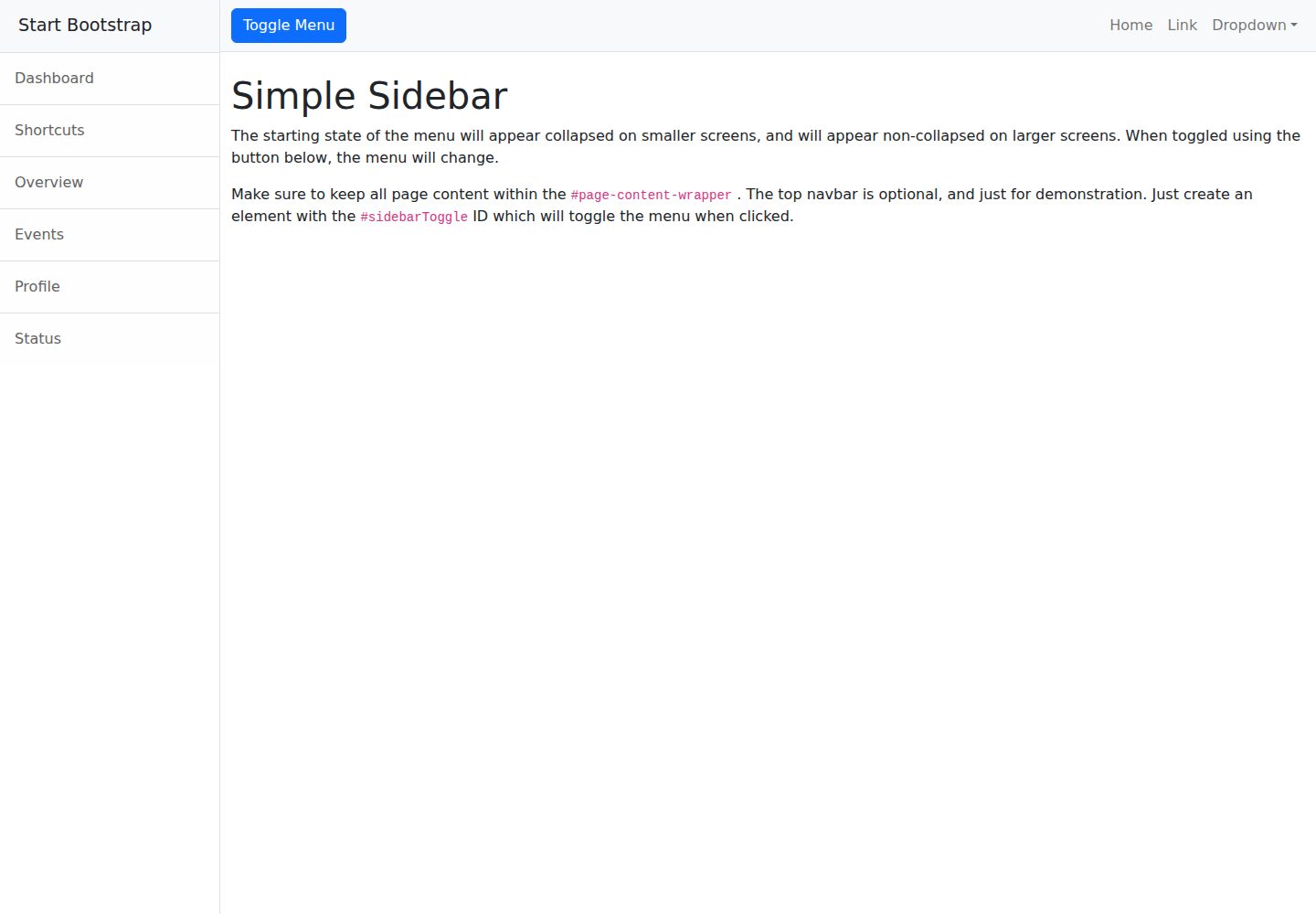
startbootstrap-simple-sidebar
A Bootstrap off-canvas sidebar navigation HTML starter template from Start Bootstrap. It provides directly editable HTML and CSS in the dist directory, while the source uses Pug, SCSS, and JavaScript with npm build scripts for live preview and compilation.
HTML · Starter
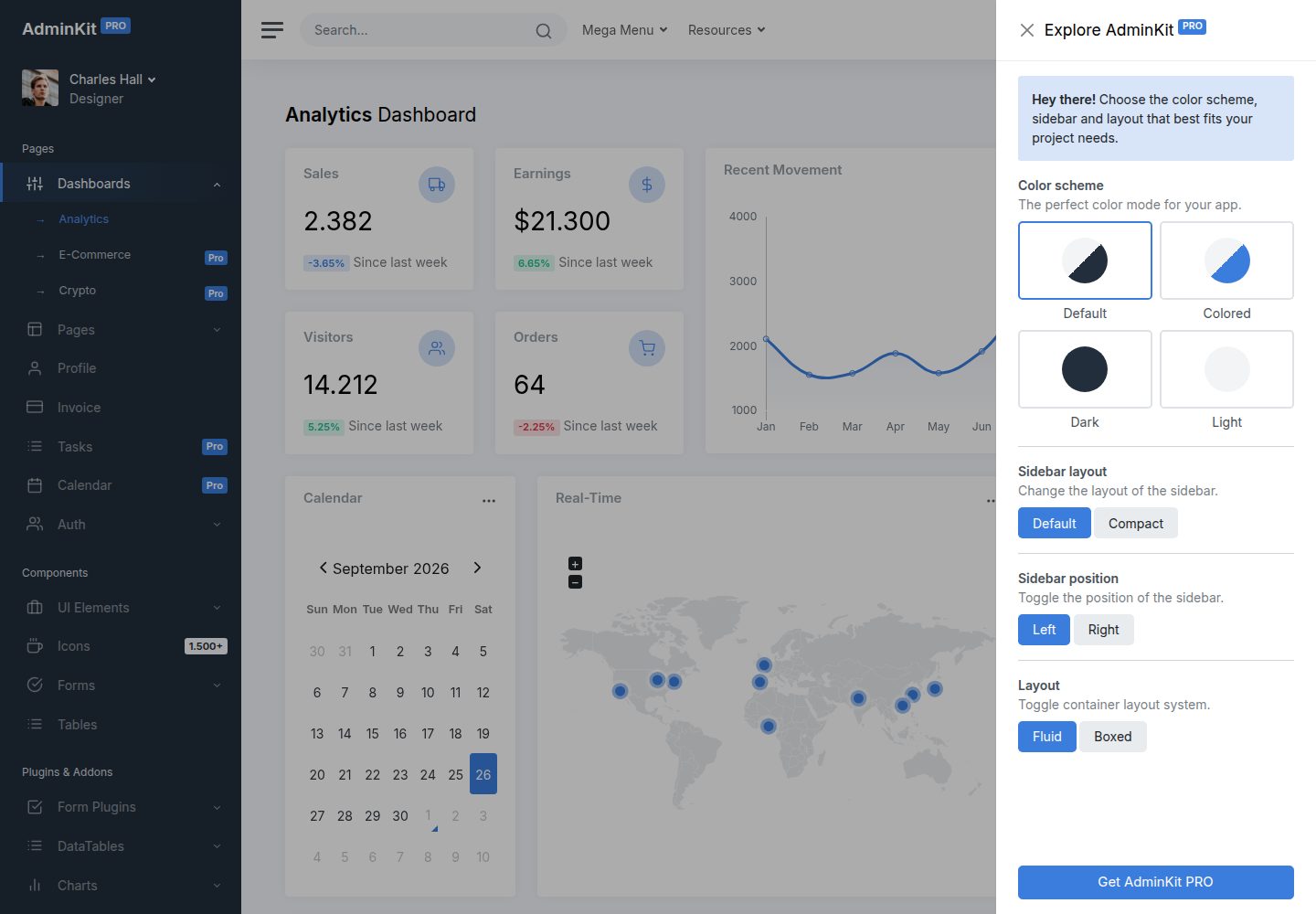
adminkit
AdminKit is a free, MIT-licensed HTML admin and dashboard template built on Bootstrap 5. The free version includes 15 demo pages, 1 plugin, and 1 color scheme, with hundreds of UI components, forms, tables, charts, and icons.
HTML · Admin dashboard
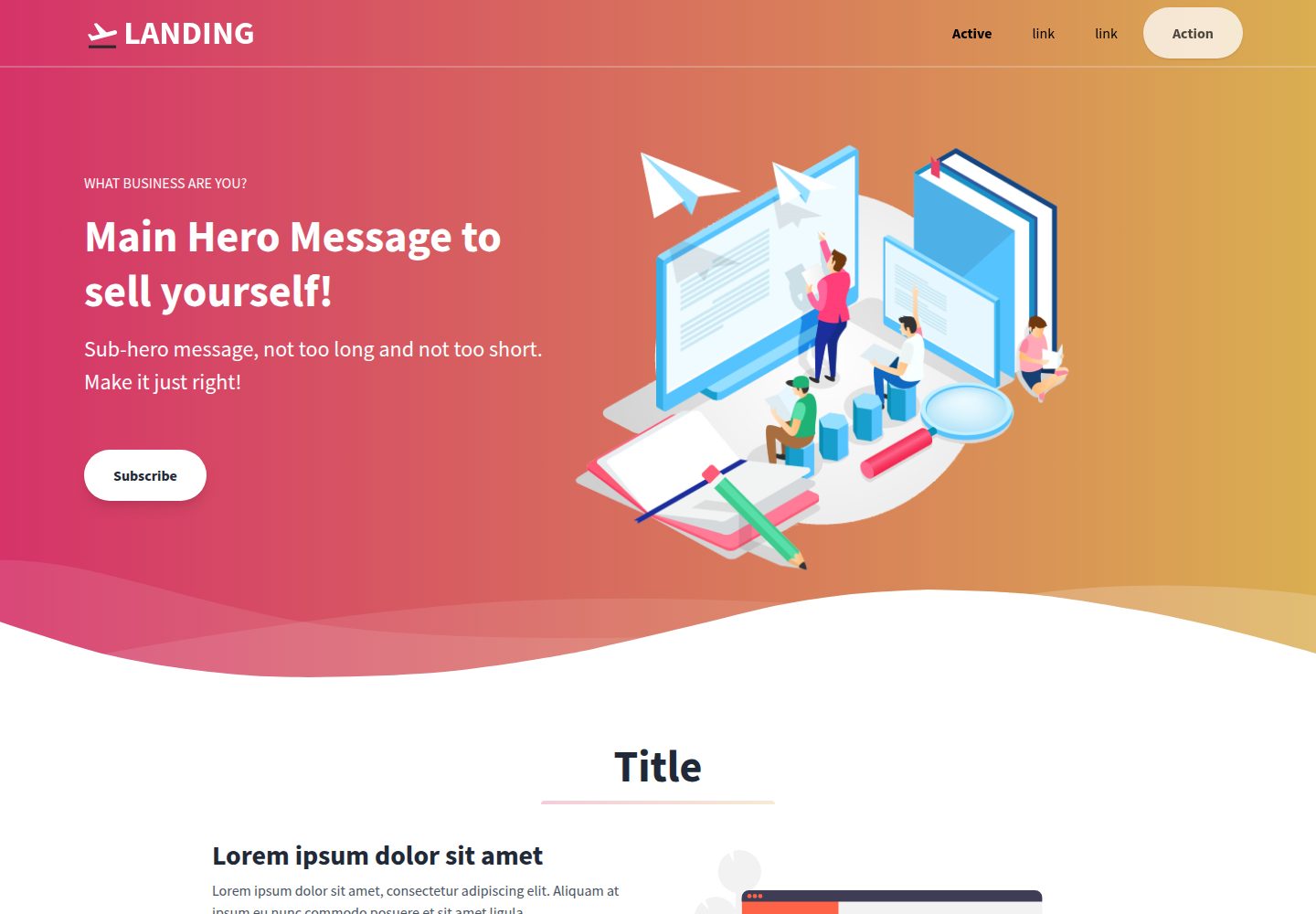
Landing-Page
A general-purpose landing page HTML template maintained by Tailwind Toolbox, written in pure HTML and loading the complete Tailwind CSS via CDN.
HTML · Corporate Website
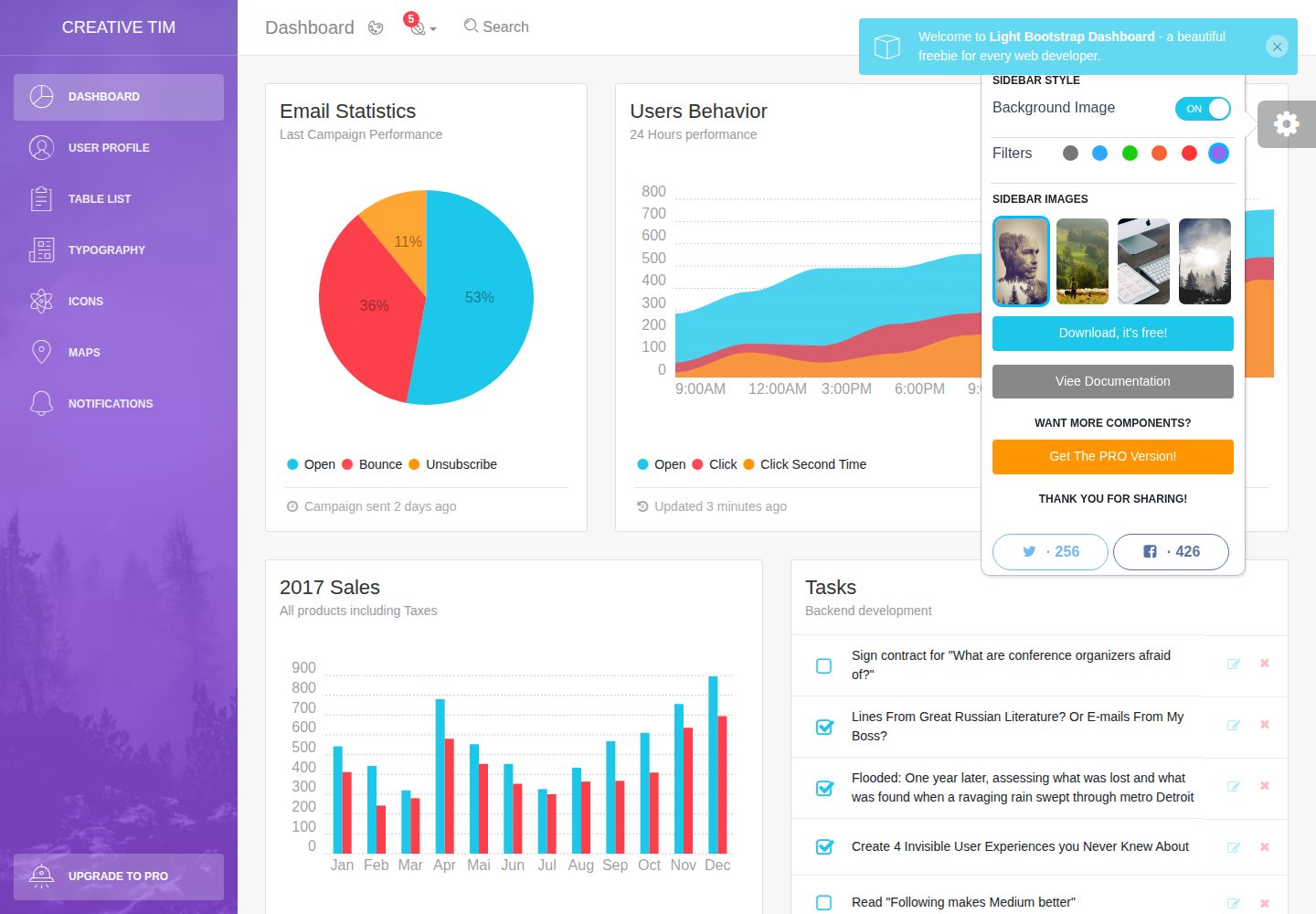
light-bootstrap-dashboard
Light Bootstrap Dashboard is a free, MIT-licensed admin dashboard template from Creative Tim, built on Bootstrap with a responsive static HTML structure.
HTML · Admin dashboard
sing-app
Sing App Lite is a free, open-source admin dashboard template from Flatlogic, built with Bootstrap 4.5 and SCSS. It provides a responsive layout, dashboard examples, typography, tables, notifications, basic charts, icons, maps, and a hover sidebar, along with styled Bootstrap components.
HTML · Admin dashboard
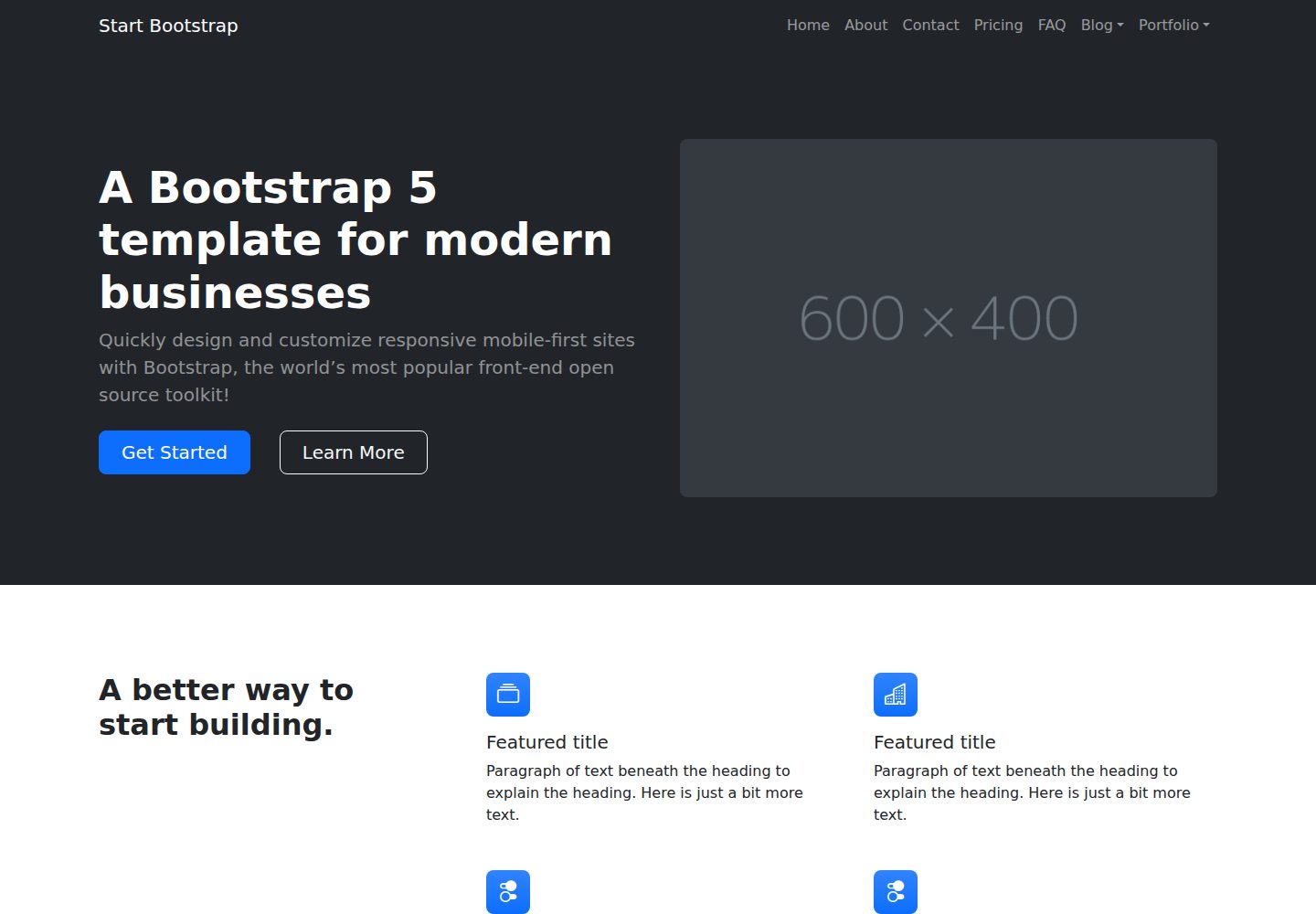
startbootstrap-modern-business
Modern Business is a multipurpose Bootstrap full-site HTML template from Start Bootstrap with 17 standalone pages covering home, about, services, portfolio, pricing, blog, FAQ, and contact.
HTML · Starter