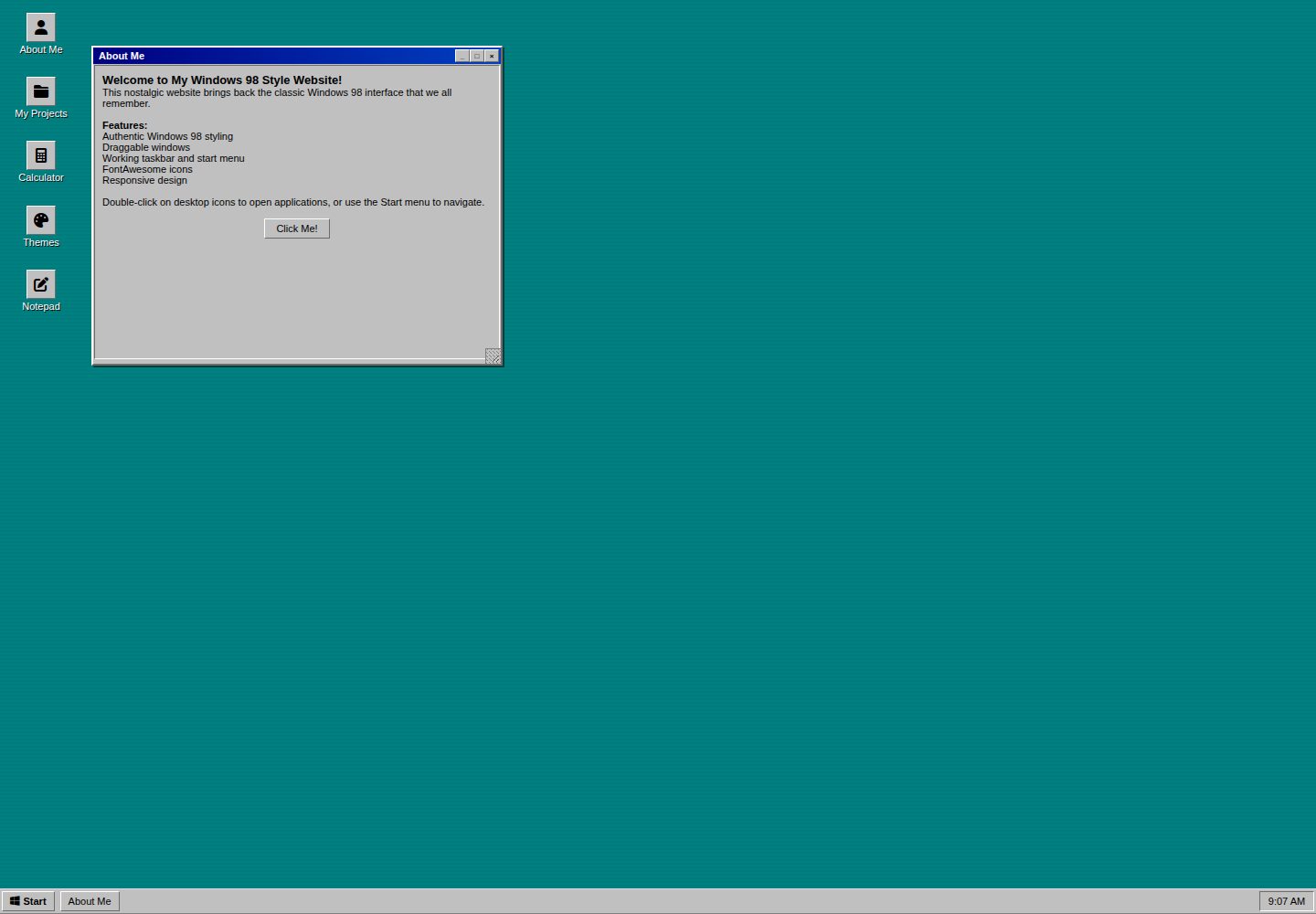
还原 Windows 98 桌面:青色背景、可拖拽缩放窗口、任务栏、开始菜单与桌面图标
HTML启动器
WIN98-template — HTML 启动器模板
作者 pollygon-dev
用 HTML、CSS 和 JavaScript 在浏览器中还原 Windows 98 桌面的网站模板,包含可拖拽窗口、任务栏、开始菜单和内置小应用。
看看你的网站会是什么样
浏览真实页面截图,比较内容排版与手机效果。点击下方缩略图切换,放大查看整页细节。
全部页面与视图 2
截图用于了解视觉与布局,交互效果请以实际项目为准。
采集于 2026-10-02查看来源
值得关注的模板亮点
从已有项目资料中,快速了解它的特点。
内置 About Me、My Projects、Calculator、Themes、Notepad 五个窗口应用
五套内置主题(Windows Standard、Pastel Pink、Cyberpunk、Lilac、Forest Green),支持应用前实时预览
主题基于 CSS 自定义属性,README 提供新增主题需同时修改 CSS、HTML、JavaScript 三处的步骤
HTML、CSS、JavaScript 分离为三个文件,README 含添加图标、窗口和开始菜单项的完整示例
模板详细介绍
这是一个纯 HTML 前端模板,把浏览器页面做成 Windows 98 风格的桌面:青色桌面背景、可拖拽和缩放的窗口、带开始按钮与系统时钟的任务栏、开始菜单以及带选中状态的桌面图标。内置窗口包括 About Me(个人介绍)、My Projects(用 iframe 嵌入作品集)、Calculator(可用的计算器)、Themes(显示属性主题切换)和 Notepad(文本编辑)。主题系统提供 Windows Standard、Pastel Pink、Cyberpunk、Lilac、Forest Green 五套配色,应用前可实时预览,主题通过 CSS 自定义属性定义。代码分为 index.html、style.css、script.js 三个文件,README 给出了添加桌面图标、窗口、开始菜单项和自定义主题的分步说明。图标使用 FontAwesome,字体来自 Google Fonts,README 说明其在桌面和平板可拖拽缩放窗口,在移动端窗口自动适配屏幕。模板基于 HTML5-Templates.com 的原始 Windows 模板改写,采用 Unlicense 许可。
HTML启动器
适合你的项目吗?
适用场景
- 制作 90 年代复古风格的个人主页或作品集
- 把 My Projects 窗口的 iframe 指向自己的作品集地址做展示
- 作为前端练习,学习窗口拖拽、任务栏和主题切换的实现方式
- 在 About Me、Notepad 等窗口中替换成自己的文字内容
适合人群
- 想要复古桌面外观个人网站的开发者
- 需要现成 HTML/CSS/JS 结构做二次修改的前端学习者
- 接受以 iframe 方式嵌入作品集页面的使用者
上手与定制指南
结合仓库当前版本的说明,按下面的资料检查内容、配置与运行要求。
- 1
把 index.html、style.css、script.js 放在同一文件夹,用浏览器打开 index.html 即可查看
- 2
新增窗口需同步修改 index.html 中的窗口结构、开始菜单项以及 script.js 的 getWindowTitle 函数
- 3
新增主题需在 style.css 定义 CSS 变量、在 index.html 的主题窗口加选项、在 script.js 的 themes 对象中登记
- 4
图标使用 FontAwesome 类名,字体来自 Google Fonts,需保证这些外部资源可访问
- 5
README 建议保留对原始模板来源 HTML5-Templates.com 的署名
授权与来源资料
使用条件与限制
免费使用 · 保留许可声明本次收录的是公开仓库中采用 Unlicense 许可的免费版本;免费范围为该版本代码,不代表外部服务或第三方素材免费。
使用时需要遵守
- 允许免费复制、修改、发布、使用、编译、销售和分发该版本代码,包括商业用途。
- 作者通过公有领域贡献声明放弃相关版权;该声明的法律效果取决于适用司法辖区。
- 代码按现状提供;担保与责任限制以原许可证及适用法律为准。
额外费用与待核对事项
- README 要求在使用本模板时保留对原始模板来源 HTML5-Templates.com 的署名,并给出示例署名文本;这是使用该模板时的署名请求。
- 图标依赖 FontAwesome 外部图标库,字体来自 Google Fonts,使用前需确认这些外部资源可访问并遵守其各自的许可条款。
- My Projects 窗口默认通过 iframe 嵌入外部网址,需替换为自己的作品集地址,且目标站点需允许被 iframe 嵌入。
- 演示图片、字体、图标及其他第三方素材需按各自许可核对,不能仅凭代码的 Unlicense 许可判断。
- 域名、托管、数据库、支付或 AI 等外部服务可能另外收费。
查看原文依据
for any purpose, commercial or non-commercial, and by any means
许可证原文
please remember to credit HTML5-Templates.com
README 原文
FontAwesome icons
README 原文
https://github.com/pollygon-dev/WIN98-template/blob/main/LICENSEhttps://github.com/pollygon-dev/WIN98-template/blob/main/README.md<iframe src="https://example.com"
README 原文
DeepSeek 根据仓库许可证和 README 整理 ·2026-10-02。结果仅覆盖已读取资料,依赖、图片、字体及后续条款变更以各自原文为准。
项目核对记录与介绍依据
模板资料
- 来源平台
- GitHub
- 资料与维护参考分
- 资料较完整 · 81 / 100
- 技术栈
- HTML
- 网站类型
- 启动器
这个分数如何计算
本站按许可资料(最高30分)、演示链接(12分)、预览图(10分)、Star数(15分)、记录的维护时间(15分)、描述完整度(8分)、功能记录(5分)和分类资料(5分)计算。它不是代码、安全或性能测试,也不是 Google 评分;有链接不代表已实测可用。
这个项目需要核对什么
- 记录的仓库更新时间
- 2025-06-16
- 截图检查日期
- 2026-10-02
已收录演示链接。请用你的内容与屏幕尺寸检查;有演示不代表表单、认证或支付已经可用。
目录记录的主要技术栈是 HTML。请通过依赖清单和锁文件核对实际版本与托管要求。这些说明基于收录资料,不代表代码审计或部署实测。
查看具体选型方法 →介绍的制作与核对状态
介绍由 AI 辅助整理目录与仓库资料。仓库作者不等于这篇介绍的审核者。
已完成服务器许可规则与 AI 来源核对;未经过人工编辑审核。
查看当时使用的来源资料
SHA-256: 770915b10696e9a4c829ee23419b4dfb3726e504ae897fc7629a8961340dbb21
2026-10-02T09:09:16.788Z
来源文件 / 仓库# WIN98 template
A fully functional website template that recreates the classic Windows 98 desktop experience in your browser. Perfect for retro-themed portfolios, personal websites, or anyone who wants to bring back the 90s computing aesthetic.
## Features
### Authentic Windows 98 Experience
- **Desktop interface** with WIN98's teal background
- **Draggable and resizable windows** with title bars
- **Working taskbar** with Start button and system clock
- **Start menu** with program shortcuts
- **Desktop icons** with proper selection states
### Built-in Applications
- **About Me** - Personal introduction window
- **My Projects** - Portfolio showcase with iframe support
- **Calculator** - Fully functional calculator app
- **Themes** - Display Properties for customizing appearance
- **Notepad** - Text editor for quick notes
### Theme System
- **5 Built-in themes**: Windows Standard, Pastel Pink, Cyberpunk, Lilac, Forest Green
- **Live preview** before applying themes
- **CSS custom properties** for easy theme creation
- **Authentic Display Properties window**
### Modern Features
- **Responsive design** - works on desktop, tablet, and mobile
- **FontAwesome icons** for crisp, scalable graphics
- **Clean separation** of HTML, CSS, and JavaScript
- **Easy customization** with helper functions
## Quick Start
### 1. Download Files
```
windows98-template/
├── index.html
├── style.css
└── script.js
```
### 2. Basic Setup
1. Save all three files in the same folder
2. Open `index.html` in your web browser
3. Enjoy the nostalgic Windows 98 experience!
## Complete Beginner's Guide
### Step 1: Understanding the Files
#### **index.html** - The Structure
This file contains all the windows, icons, and layout. Think of it as the blueprint of your desktop.
#### **style.css** - The Appearance
This file makes everything look like Windows 98. It controls colors, fonts, and spacing.
#### **script.js** - The Behavior
This file makes windows draggable, buttons clickable, and themes work.
### Step 2: Your First Customization
#### **Change the About Me Content**
1. Open `index.html` in a text editor (like Notepad++)
2. Find this section (around line 67):
```html
<!-- About Window -->
<div class="window" id="about-window" style="top: 50px; left: 100px; width: 450px; height: 350px;">
```
3. Look for the content inside `<div class="window-content">`:
```html
<h3>Welcome to My Windows 98 Style Website!</h3>
<p>This nostalgic website brings back the classic Windows 98 interface that we all remember.</p>
```
4. Replace with your own text:
```html
<h3>Hi, I'm [Your Name]!</h3>
<p>I'm a [your profession] who loves [your interests].</p>
```
#### **Change Your Projects**
1. Find the Projects window (around line 95):
```html
<!-- Projects Window -->
<div class="window" id="projects-window"...>
```
2. Look for the iframe:
```html
<iframe src="https://example.com" width="100%" height="100%"...>
```
3. Replace `https://example.com` with your portfolio URL:
```html
<iframe src="https://yourportfolio.com" width="100%" height="100%"...>
```
### Step 3: Adding Your Own Desktop Icon
#### **Step 3a: Add the Icon**
1. Find the desktop icons section (around line 15):
```html
<!-- DESKTOP ICONS -->
<div class="desktop-icons">
```
2. Add a new icon after the existing ones:
```html
<!-- Icon 6: Your New App -->
<div class="icon" onclick="openWindow('myapp')">
<div class="icon-image">
<i class="fas fa-heart"></i>
</div>
<span class="icon-text">My App</span>
</div>
```
#### **Step 3b: Create the Window**
1. Find the windows section (around line 54):
```html
<!-- WINDOWS -->
```
2. Add your new window after the existing ones:
```html
<!-- My App Window -->
<div class="window" id="myapp-window" style="top: 120px; left: 280px; width: 400px; height: 300px;">
<div class="window-header">
<span class="window-title">My Awesome App</span>
<div class="window-controls">
<a href="#" class="window-button minimize-btn" onclick="minimizeWindow('myapp')">_</a>
<a href="#" class="window-button maximize-btn" onclick="maximizeWindow('myapp')">□</a>
<a href="#" class="window-button close-btn" onclick="closeWindow('myapp')">×</a>
</div>
</div>
<div class="window-content">
<h3>Welcome to My App!</h3>
<p>Put whatever content you want here!</p>
<ul>
<li>Lists work great</li>
<li>You can add links: <a href="https://google.com">Google</a></li>
<li>Or images: <img src="your-image.jpg" style="max-width: 100%;"></li>
</ul>
<button onclick="alert('Button clicked!')">Try This Button</button>
</div>
</div>
```
#### **Step 3c: Add to Start Menu**
1. Find the start menu section (around line 278):
```html
<div class="start-menu-items">
```
2. Add your app to the menu:
```html
<div class="start-menu-item" onclick="openWindow('myapp')">
<i class="fas fa-heart"></i>
My App
</div>
```
#### **Step 3d: Tell JavaScript About Your Window**
1. Open `script.js`
2. Find the `getWindowTitle` function (around line 151):
```javascript
function getWindowTitle(windowId) {
const titles = {
'about': 'About Me',
'projects': 'My Projects',
'calculator': 'Calculator',
'themes': 'Display Properties',
'notepad': 'Notepad'
};
return titles[windowId] || windowId;
}
```
3. Add your window:
```javascript
function getWindowTitle(windowId) {
const titles = {
'about': 'About Me',
'projects': 'My Projects',
'calculator': 'Calculator',
'themes': 'Display Properties',
'notepad': 'Notepad',
'myapp': 'My Awesome App' // Add this line
};
return titles[windowId] || windowId;
}
```
### Step 4: Changing Colors and Themes
#### **Method 1: Pick an Existing Theme**
1. Open the website in your browser
2. Click the "Themes" icon
3. Try different themes and click "Apply"
#### **Method 2: Create Your Own Theme**
1. Open `style.css`
2. Find the themes section (around line 8)
3. Add your custom theme:
```css
/* My Custom Theme */
:root[data-theme="mycustom"] {
--desktop-bg: #ff69b4; /* Pink desktop */
--window-bg: #ffffff; /* White windows */
--active-titlebar-start: #ff1493; /* Pink title bars */
--active-titlebar-end: #ff69b4;
--text-color: #000000; /* Black text */
--button-bg: #f0f0f0; /* Light gray buttons */
--button-hover: #e0e0e0; /* Darker when hovering */
--button-active: #d0d0d0; /* Darker when clicked */
}
```
4. Add it to the themes window in `index.html`:
```html
<div style="margin: 8px 0;">
<input type="radio" id="mycustom-theme" name="theme" value="mycustom" onchange="previewTheme('mycustom')">
<label for="mycustom-theme">My Custom Theme</label>
</div>
```
5. Add it to the JavaScript in `script.js` (around line 470):
```javascript
const themes = {
// ... existing themes ...
mycustom: {
desktop: '#ff69b4',
window: '#ffffff',
titlebar: 'linear-gradient(90deg, #ff1493 0%, #ff69b4 100%)',
text: '#000000',
button: '#f0f0f0'
}
};
```
### Step 5: Common Customizations
#### **Change Desktop Icons**
Find any icon section and modify:
```html
<div class="icon" onclick="openWindow('about')">
<div class="icon-image">
<i class="fas fa-user"></i> <!-- Change this icon -->
</div>
<span class="icon-text">About Me</span> <!-- Change this text -->
</div>
```
**Popular FontAwesome icons:**
- `fas fa-home` - House
- `fas fa-envelope` - Email
- `fas fa-phone` - Phone
- `fas fa-camera` - Camera
- `fas fa-music` - Music note
- `fas fa-gamepad` - Game controller
- Find more at: [fontawesome.com/icons](https://fontawesome.com/icons)
#### **Add Your Social Media Links**
Add to any window content:
```html
<div style="margin: 20px 0;">
<h4>Find Me Online:</h4>
<p><a href="https://twitter.com/yourhandle" target="_blank">
<i class="fab fa-twitter"></i> Twitter
</a></p>
<p><a href="https://github.com/yourusername" target="_blank">
<i class="fab fa-github"></i> GitHub
</a></p>
<p><a href="mailto:[email protected]">
<i class="fas fa-envelope"></i> Email
</a></p>
</div>
```
#### **Change Window Sizes and Positions**
Each window has these properties you can modify:
```html
<div class="window" id="about-window" style="top: 50px; left: 100px; width: 450px; height: 350px;">
```
- `top: 50px` - Distance from top of screen
- `left: 100px` - Distance from left of screen
- `width: 450px` - How wide the window is
- `height: 350px` - How tall the window is
**Note:** Users can resize windows by dragging the corners/edges on desktop and tablet devices. On mobile, windows automatically fit the screen for better usability.
#### **Add Images**
To add images to any window:
```html
<img src="your-photo.jpg" alt="Description" style="max-width: 100%; height: auto;">
```
#### **Create Lists**
```html
<ul>
<li>First item</li>
<li>Second item</li>
<li>Third item</li>
</ul>
```
#### **Add Buttons**
```html
<button onclick="alert('Hello!')">Click Me</button>
<button onclick="window.open('https://google.com')">Visit Google</button>
```
## Troubleshooting
### **Common Issues:**
#### **My changes don't show up**
- Save your files and refresh the browser (Ctrl+F5 for hard refresh)
- Check for typos in your HTML tags
#### **Window won't open**
- Make sure the `onclick="openWindow('windowid')"` matches your window's ID
- Check that you added the window to the `getWindowTitle` function
#### **Theme doesn't work**
- Verify you added it to all three places: CSS, HTML, and JavaScript
- Make sure the theme name is exactly the same in all files
#### **Icon doesn't show**
- Check the FontAwesome icon name at [fontawesome.com](https://fontawesome.com/icons)
- Make sure you include the correct prefix (`fas`, `fab`, etc.)
### **Testing Your Changes:**
1. Save all files
2. Open `index.html` in your browser
3. Try clicking your new icons
4. Test that windows open, close, and resize properly
5. Check that themes work in the Themes window
## Available Themes
| Theme | Description |
|-------|-------------|
| **Windows Standard** | Classic teal and gray Windows 98 colors |
| **Pastel Pink** | Soft pink theme with modern appeal |
| **Cyberpunk** | Futuristic dark theme with neon pink and cyan glows |
| **Lilac** | Purple and lavender color scheme |
| **Forest Green** | Nature-inspired green theme |
## Browser Support
- Chrome (recommended)
- Firefox
- Safari
- Edge
- Internet Explorer (limited support)
## License
This project is released under the [Unlicense](https://unlicense.org) - you can do whatever you want with it, no strings attached!
**However, please remember to credit HTML5-Templates.com** for the original template that this is based on, as they deserve recognition for their foundational work. You don't need to credit this version or the author, but giving a shout-out to HTML5-Templates.com is the right thing to do.
Example attribution:
```
Based on the original Windows template from HTML5-Templates.com
Original: https://html5-templates.com/preview/windows.html
```
## Acknowledgments
- **HTML5-Templates.com** - Original Windows template inspiration from [windows.html](https://html5-templates.com/preview/windows.html)
- **Microsoft** - For the original Windows 98 design and interface
- **FontAwesome** - For the beautiful icon library
- **Google Fonts** - For web font support
## Support
If you encounter any issues or have questions:
Chat with me on Bluesky: **[@pollygon.dev](https://bsky.app/profile/pollygon.dev)**
看看同类模板
对比同技术栈与用途的模板,找到更适合的视觉与内容结构。
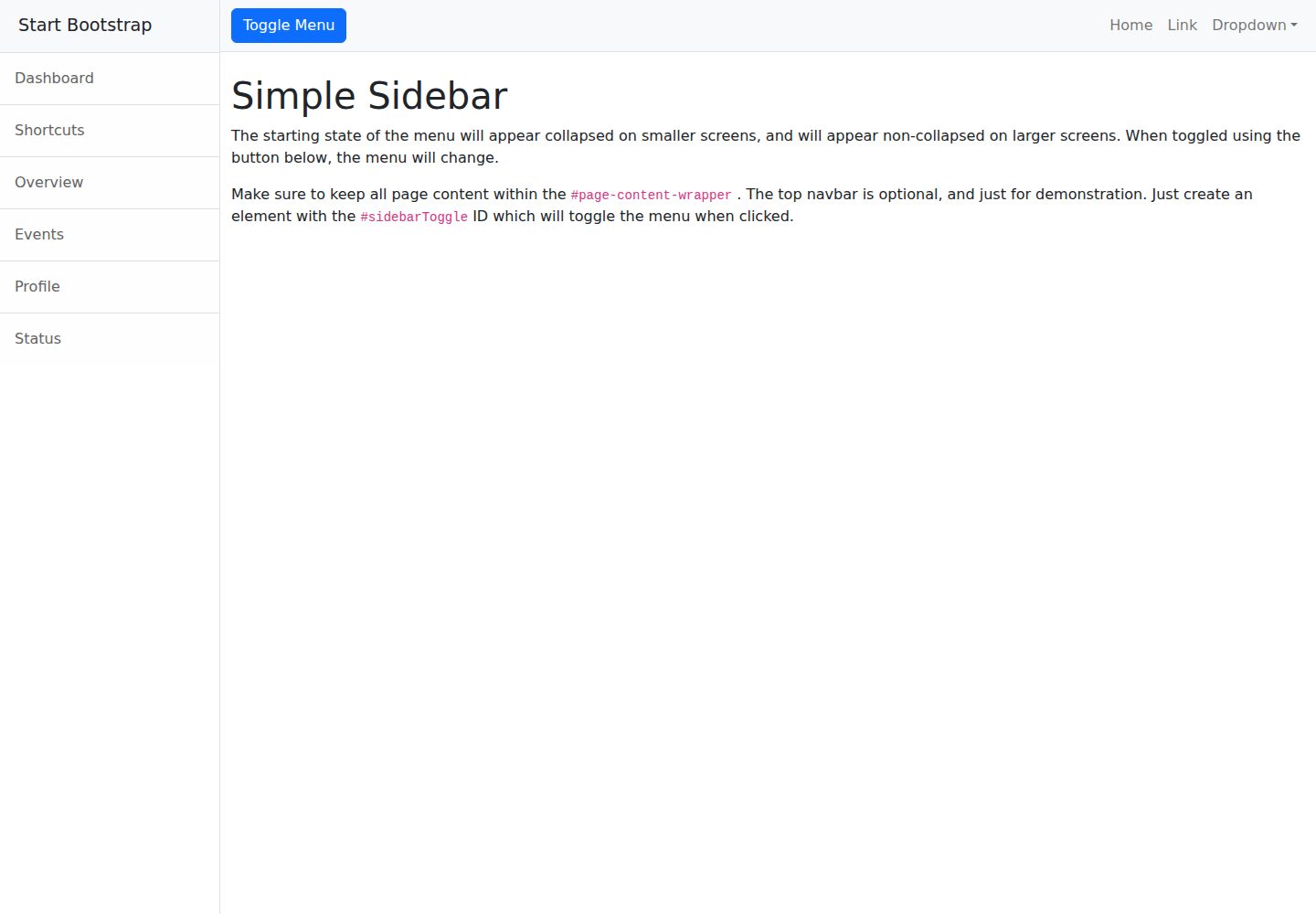
startbootstrap-simple-sidebar
An off canvas sidebar navigation Bootstrap HTML template created by Start Bootstrap
HTML · 启动器
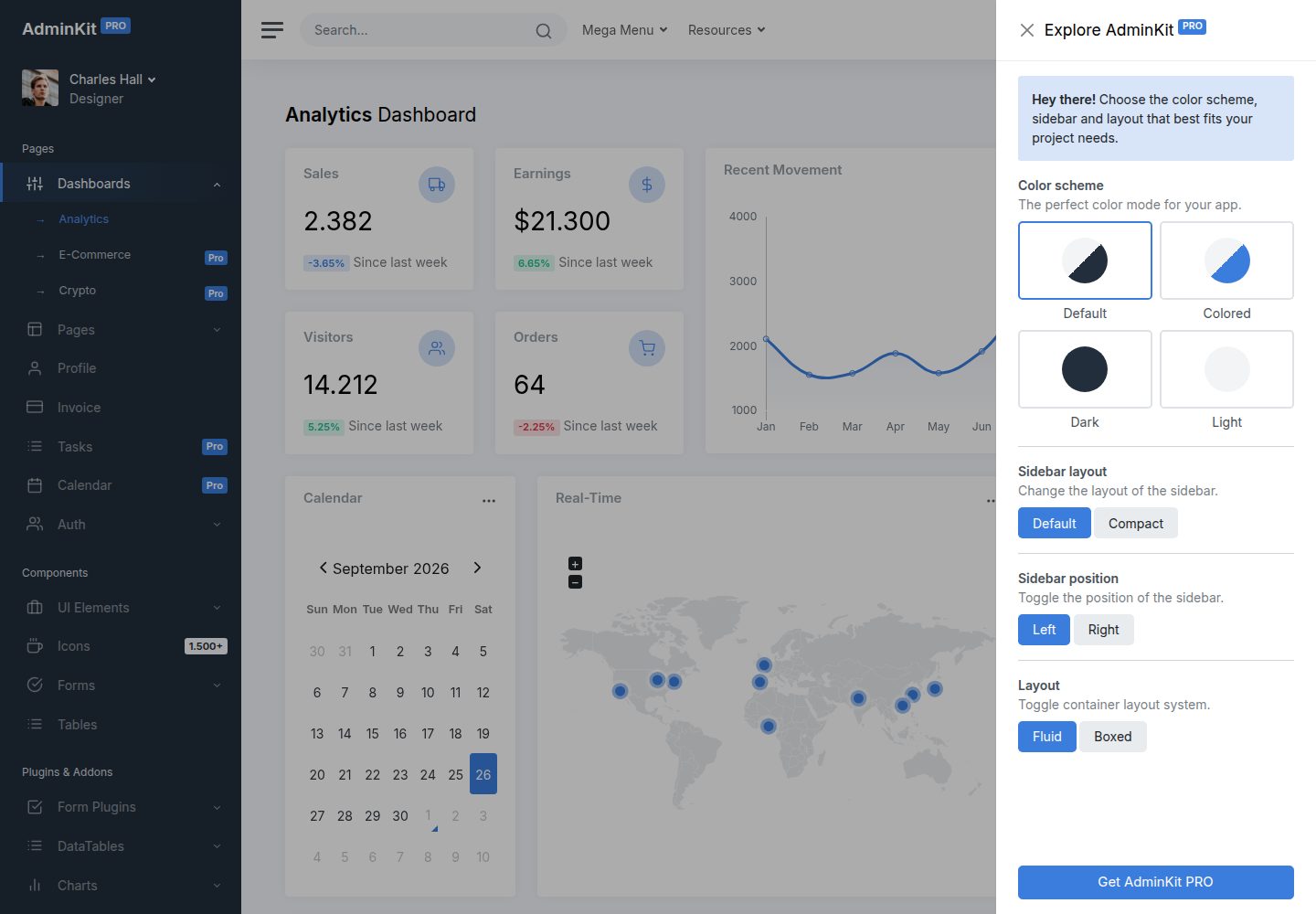
adminkit
AdminKit is a free & open-source HTML dashboard & admin template based on Bootstrap 5
HTML · 后台
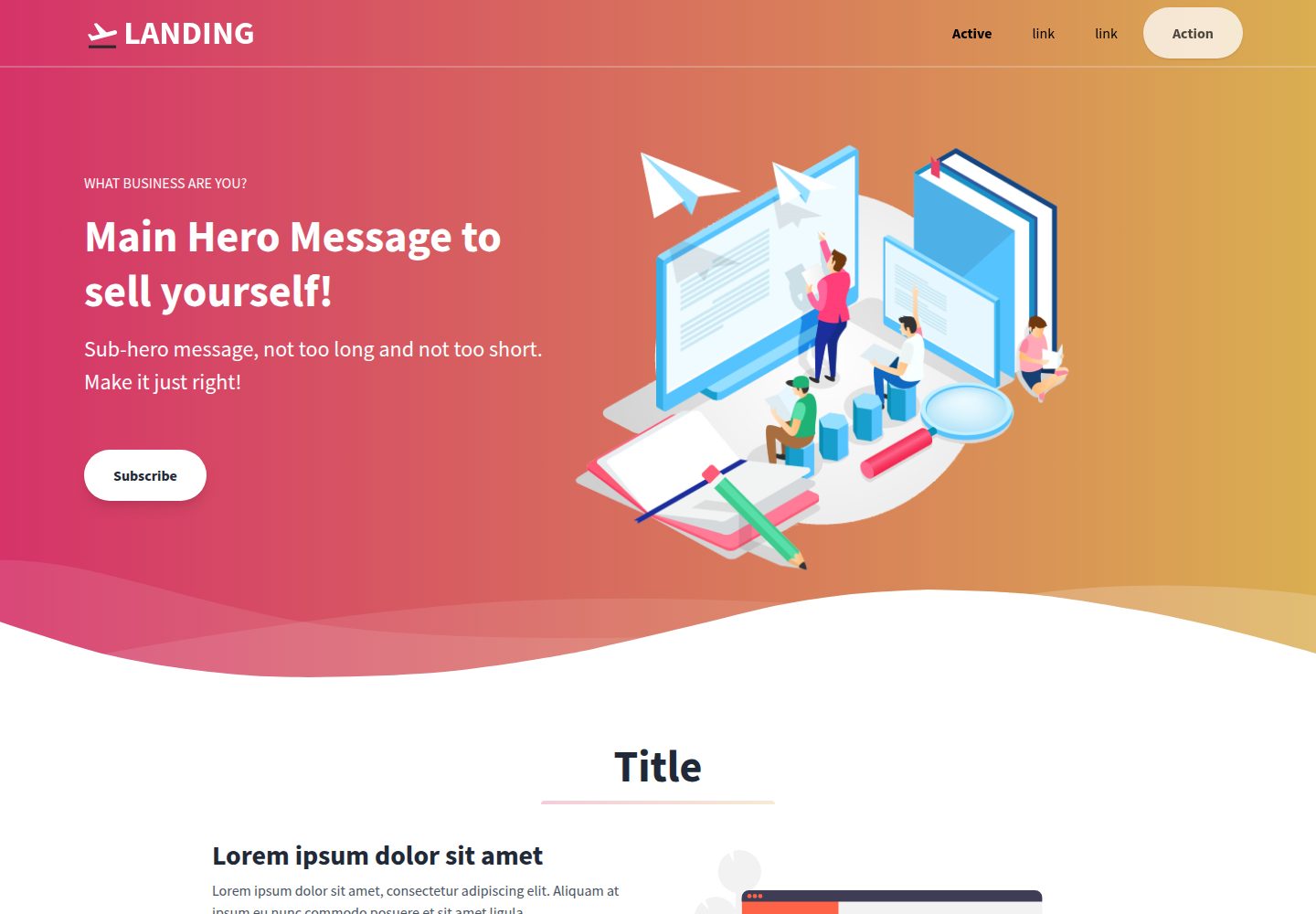
Landing-Page
Tailwind CSS Starter Template - Landing Page
HTML · 企业官网
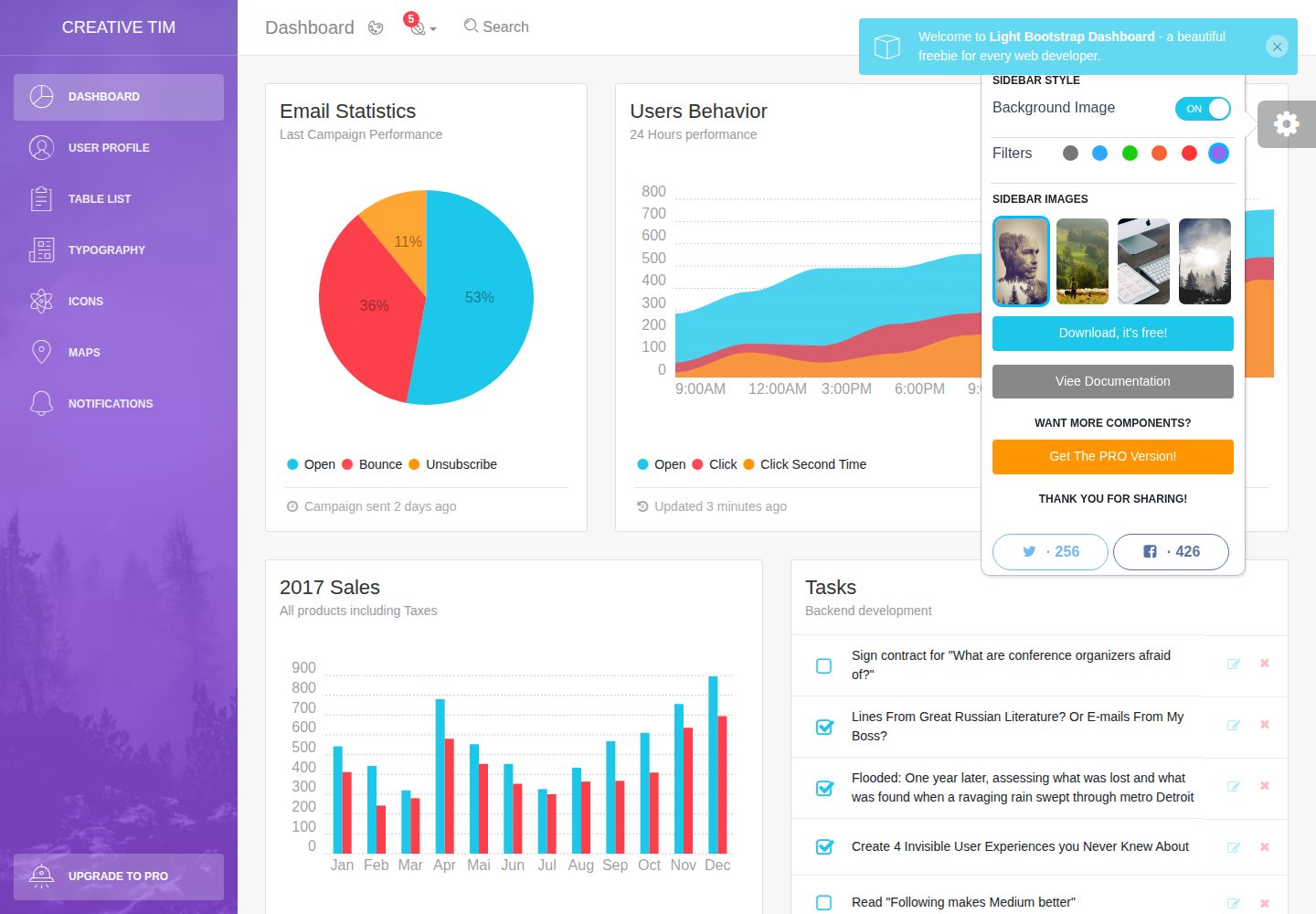
light-bootstrap-dashboard
Light Bootstrap Dashboard is an admin dashboard template designed to be beautiful and simple.
HTML · 后台
sing-app
💥Free and open-source admin dashboard template built with Bootstrap 4.5 💥
HTML · 后台
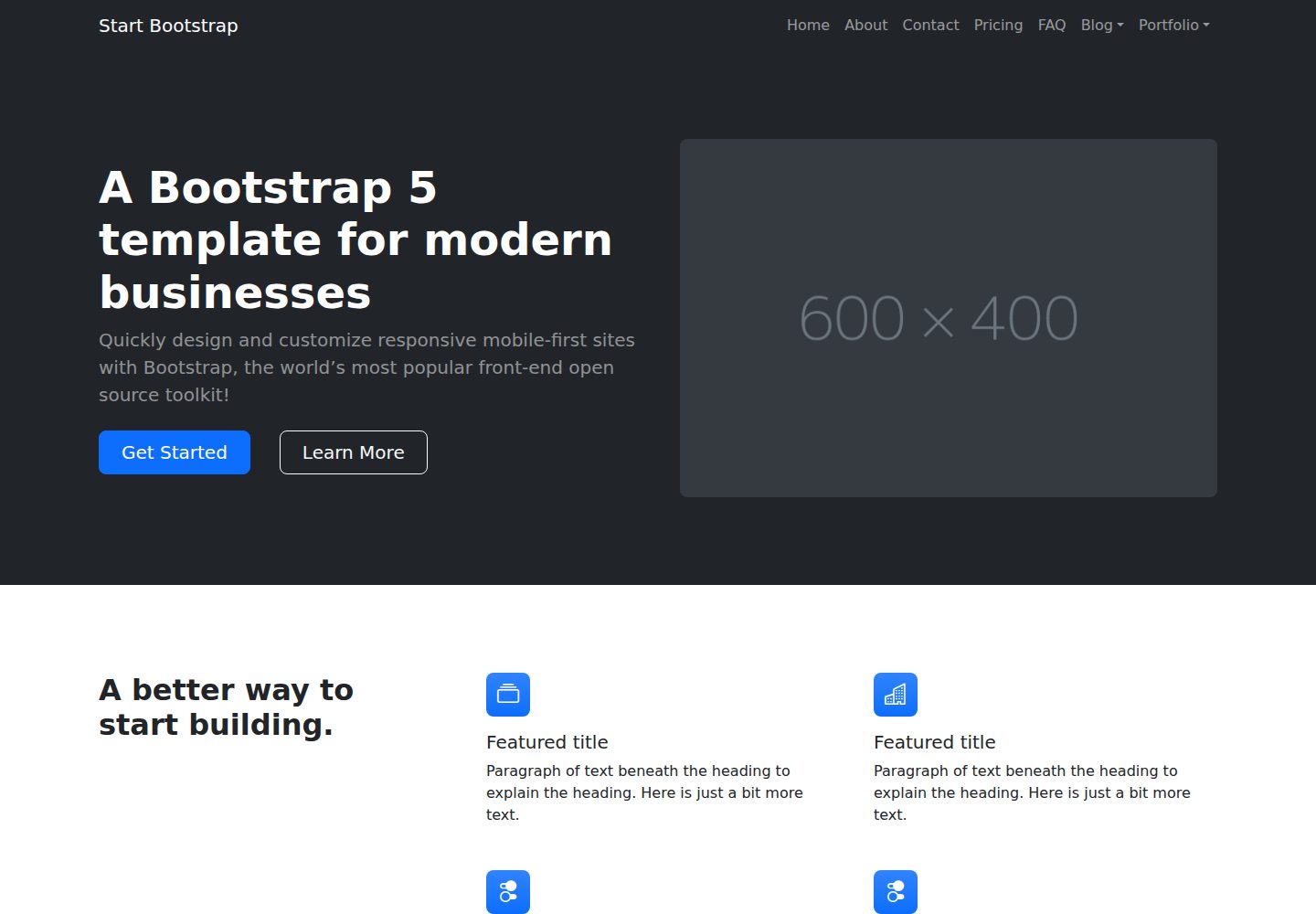
startbootstrap-modern-business
A multipurpose Bootstrap full website template created by Start Bootstrap
HTML · 启动器