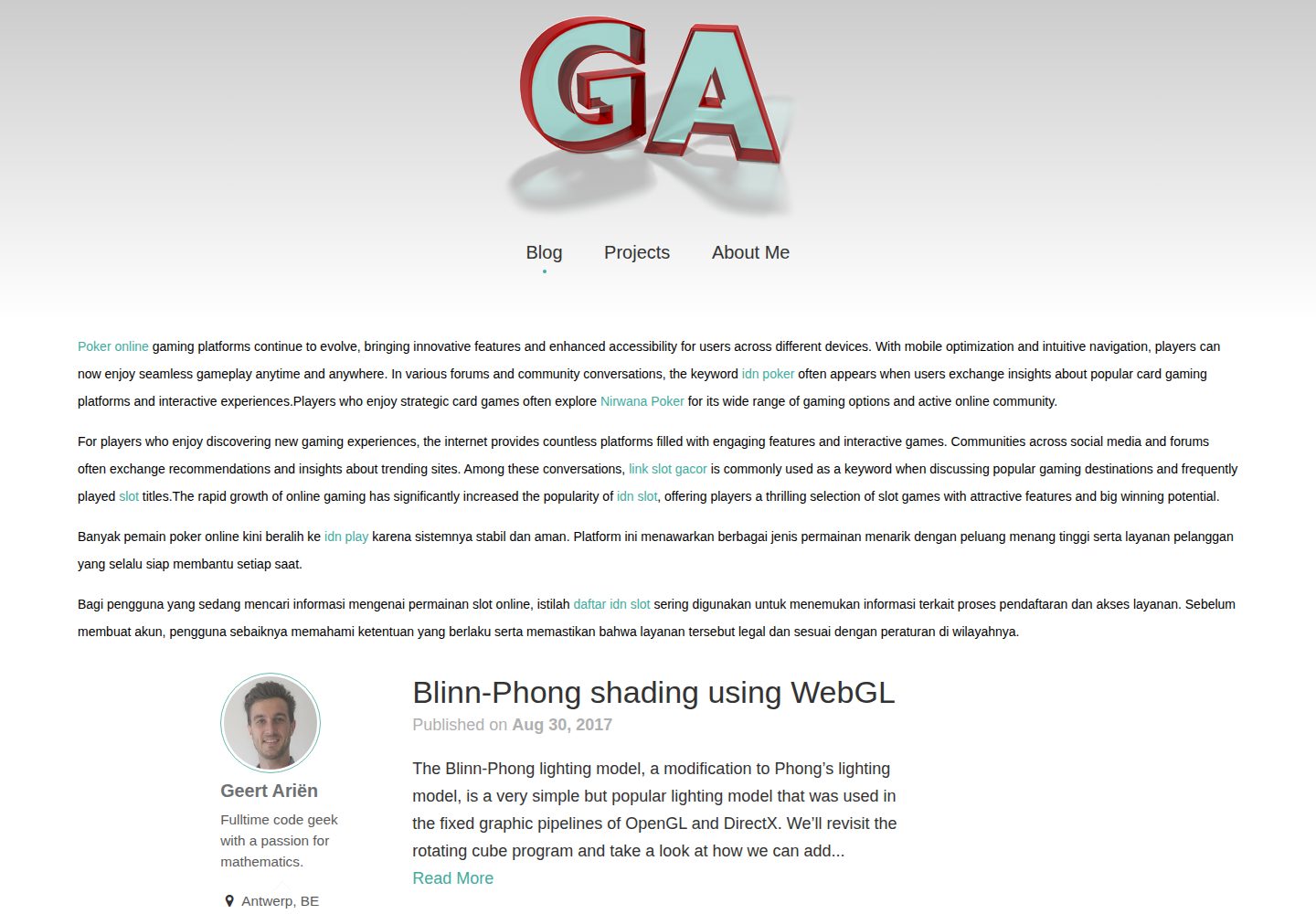
包含博客、项目、摄影画廊和关于页面四类内容布局
Jekyll作品集博客
jekyll-theme-munky — Jekyll 作品集模板
作者 GeertArien
Munky 是一个基于 Jekyll 的作品集主题,包含博客、项目、摄影画廊和关于页面,采用 MIT 许可。
看看你的网站会是什么样
浏览真实页面截图,比较内容排版与手机效果。点击下方缩略图切换,放大查看整页细节。
全部页面与视图 3
截图用于了解视觉与布局,交互效果请以实际项目为准。
采集于 2026-10-02查看来源
值得关注的模板亮点
从已有项目资料中,快速了解它的特点。
项目条目可链接 GitHub 仓库或下载文件
摄影画廊通过目录中的图片与缩略图自动生成
内置 jekyll-seo-tag 集成,FrontMatter 变量与插件共用
可选启用 Disqus 评论和 Google Analytics
采用 MIT 许可,允许免费使用、修改、商用和分发
模板详细介绍
Munky 是一个面向作品集网站的 Jekyll 主题,提供博客、项目展示、摄影画廊和关于页面四类内容结构。主题以 gem 或 fork 方式使用,通过 _config.yml 配置集合(posts 与 projects)和默认 FrontMatter,并内置与 jekyll-seo-tag 的集成。
主题包含 home、projects、photography、about 四个主要页面布局,以及 default、page、post 等基础布局。项目条目支持链接 GitHub 仓库或下载文件,摄影页面通过 assets/images/photography 目录下的图片与缩略图自动生成画廊。侧边栏、页脚和关于页面可展示作者信息、邮箱与社交账号链接。
主题支持通过覆盖 _includes、_sass 和 assets 目录下的文件进行定制,可选启用 Disqus 评论和 Google Analytics(仅在 JEKYLL_ENV=production 时生效)。README 未提供性能、浏览器兼容性或生产就绪程度的说明,演示图片、字体、图标等第三方素材需单独核对许可。
Jekyll作品集博客
适合你的项目吗?
适用场景
- 搭建个人作品集网站,同时展示项目与摄影作品
- 为设计师或开发者建立带博客的个人站点
- 用 Jekyll 构建以图片画廊为主的静态网站
- 在已有 Jekyll 站点中引入 Munky 主题并定制样式
适合人群
- 熟悉 Jekyll 与 Markdown 的用户
- 需要项目展示与摄影画廊的个人创作者
- 希望以 MIT 许可使用和修改主题代码的开发者
上手与定制指南
结合仓库当前版本的说明,按下面的资料检查内容、配置与运行要求。
- 1
在 Gemfile 中添加 gem "jekyll-theme-munky",并在 _config.yml 中设置 theme: jekyll-theme-munky
- 2
在 _config.yml 中配置 posts 与 projects 集合及对应的 defaults
- 3
可从 demo 文件夹复制内容到站点根目录以获取示例数据与设置
- 4
如需 SEO 标签,安装 jekyll-seo-tag 并在 _config.yml 的 gems 中启用
- 5
使用 image.html 包含文件需将其复制到本地 _includes 目录(gem 方式下)
授权与来源资料
使用条件与限制
免费使用 · 保留许可声明本次收录的是公开仓库中采用 MIT 许可的免费版本;免费范围为该版本代码,不代表外部服务或第三方素材免费。
使用时需要遵守
- 允许免费使用、修改、商用和分发该版本代码。
- 分发代码副本或实质性部分时,保留原作者版权声明和完整 MIT 许可声明。
- 代码按现状提供;担保与责任限制以原许可证及适用法律为准。
额外费用与待核对事项
- Disqus 评论为可选功能,需自行拥有 Disqus 账号并配置 shortname 才能启用。
- Google Analytics 为可选功能,需自行提供 GA 跟踪 ID 才能启用。
- markdown 图片带标题功能仅在以 fork 方式使用时直接支持;以 gem 方式使用需手动复制 image.html 到本地 _includes 目录。
- 项目条目链接 GitHub 仓库需在 _config.yml 中配置 GitHub 用户名。
- 演示图片、字体、图标及其他第三方素材需按各自许可核对,不能仅凭代码的 MIT 许可判断。
- 域名、托管、数据库、支付或 AI 等外部服务可能另外收费。
查看原文依据
Permission is hereby granted, free of charge
许可证原文
Optionally, if you have a Disqus account, you can tell Jekyll to use it to show a comments section below each post.
README 原文
To enable Google Anaytics, add the following lines to your Jekyll site's `_config.yml`:
README 原文
This feature is currently only supported if you use munky as a fork. If you're using munky as a theme gem you need to copy the [`_includes/image.html `](_includes/image.html) file to your local includes folder `<yoursite>/_includes/` if you want to use this feature.
README 原文
https://github.com/GeertArien/jekyll-theme-munky/blob/master/LICENSE.txthttps://github.com/GeertArien/jekyll-theme-munky/blob/master/README.md**Don't forget to set up your github username if you're gonna link to repositories in your projects.**
README 原文
DeepSeek 根据仓库许可证和 README 整理 ·2026-10-02。结果仅覆盖已读取资料,依赖、图片、字体及后续条款变更以各自原文为准。
项目核对记录与介绍依据
模板资料
- 来源平台
- GitHub
- 资料与维护参考分
- 资料一般 · 73 / 100
- 技术栈
- Jekyll
- 网站类型
- 作品集 · 博客
这个分数如何计算
本站按许可资料(最高30分)、演示链接(12分)、预览图(10分)、Star数(15分)、记录的维护时间(15分)、描述完整度(8分)、功能记录(5分)和分类资料(5分)计算。它不是代码、安全或性能测试,也不是 Google 评分;有链接不代表已实测可用。
这个项目需要核对什么
- 记录的仓库更新时间
- 2017-04-17
- 截图检查日期
- 2026-10-02
已收录演示链接。请用你的内容与屏幕尺寸检查;有演示不代表表单、认证或支付已经可用。
目录记录的主要技术栈是 Jekyll。请通过依赖清单和锁文件核对实际版本与托管要求。这些说明基于收录资料,不代表代码审计或部署实测。
查看具体选型方法 →介绍的制作与核对状态
介绍由 AI 辅助整理目录与仓库资料。仓库作者不等于这篇介绍的审核者。
已完成服务器许可规则与 AI 来源核对;未经过人工编辑审核。
查看当时使用的来源资料
SHA-256: b1e19d8ea91c5150497de21afb1e6761e273e2d9785e1d5fcd07def11598eade
2026-10-02T17:41:59.204Z
来源文件 / 仓库# munky
*Munky is a jekyll theme for portfolio websites*. It features a blog, project, photography and about page.
[Theme preview](http://www.geertarien.com)

## Table of contents
* [Installation](#installation)
* [Getting started](#getting-started)
* [jekyll-seo-tag plugin](#jekyll-seo-tag-plugin)
* [Usage](#usage)
* [General](#general)
* [Pages](#pages)
* [Blogposts](#blogposts)
* [Projects](#projects)
* [Photography gallery](#photography-gallery)
* [About me page](#about-me-page)
* [Customization](#customization)
* [Enabling comments (via Disqus)](#enabling-comments-via-disqus)
* [Enabling Google Analytics](#enabling-google-analytics)
* [Contents At-A-Glance](#contents-at-a-glance)
* [Layouts](#layouts)
* [Includes](#includes)
* [Sass](#sass)
* [Assets](#assets)
* [Contributing](#contributing)
* [License](#license)
## Installation
Add this line to your Jekyll site's Gemfile:
```ruby
gem "jekyll-theme-munky"
```
And add this line to your Jekyll site's `_config.yml`:
```yaml
theme: jekyll-theme-munky
```
And then execute:
$ bundle
## Getting started
Wether you're using munky as a theme gem or as a fork, the easiest way to
get started is to copy the content from the [`demo`](demo) folder to your jekyll
website's root folder. It adds all the required files and settings
to get the most of out of the theme and adds some example data to get started.
As a bare minimum for the theme to work properly you will need to add the
following configuration data to the `_config.yml` file:
```yaml
collections:
posts:
output: true
permalink: /blog/:year/:month/:day/:title/
type: post
projects:
output: true
permalink: /projects/:title/
type: project
defaults:
-
scope:
path: ""
type: "posts"
values:
type: "post"
-
scope:
path: ""
type: "projects"
values:
type: "project"
```
## jekyll-seo-tag plugin
Although not a requirement to run the theme, Munky is build with
[jekyll-seo-tag](https://github.com/jekyll/jekyll-seo-tag) integration in mind.
What this means is that many of the FrontMatter variables used by the theme are
the same ones jekyll-seo-tag uses to build it's metadata tags.
To install the plugin add this line to your Jekyll site's Gemfile:
```ruby
gem 'jekyll-seo-tag'
```
And add this line to your Jekyll site's `_config.yml`:
```yaml
gems:
- jekyll-seo-tag
```
And then execute:
$ bundle
Munky theme will detect the plugin and place the requird `{% seo %}` tag in your
website's `<head></head>` section.
For a more general overview of the plugin, please refer to the
[jekyll-seo-tag documentation](https://github.com/jekyll/jekyll-seo-tag).
## Usage
### General
#### Logo
To change the header logo replace the `/assets/images/logo-transparent.png`
image:
```
assets
└───images
└───profile-transparent.png
```
For maximum compatibility use an image with a height of 236 pixels and a
transparent background.
#### Email
A link to your email address is provided in the _footer_, _sidebar_ and _about page_.
For this to work your email address needs to be configured in your `_config.yml` file:
```yaml
email: [email protected]
```
The link to your email is set using javascript to mislead basic web crawlers. It
is still advised to use an email service with a strong spam filter.
#### Social media links
Your social media links are displayed in the _footer_, _sidebar_ and _about page_.
They need to be configured in your `_config.yml` file:
```yaml
twitter:
username: accountname
linkedin:
username: accountname
github:
username: accountname
flickr:
username: accountname
```
**Don't forget to set up your github username if you're gonna link to
repositories in your projects.**
#### Sidebar
Change the following data in your `_config.yml` file to change the information
in the sidebar:
```yaml
author:
name: Virtual Munky
bio: Jekyll theme for portfolio websites
location: Antwerp, BE
```
To change the rounded profile picture replace the `/assets/images/profile-small.jpg`
image:
```
assets
└───images
└───profile-small.jpg
```
#### Images
In markdown files you can use the following syntax to render images with
(or without) captions:
```markdown
{% include image.html
name="example.jpg"
caption="Est orci, gravida pede vestibulum sodales pellentesque neque condimentum, occaecat luctus fermentum."
alt="example"
%}
```
This feature is currently only supported if you use munky as a fork. If you're
using munky as a theme gem you need to copy the
[`_includes/image.html `](_includes/image.html) file to your local includes
folder `<yoursite>/_includes/` if you want to use this feature.
### Pages
On top of the default FrontMatter variables, munky theme also uses
the following variables:
```yaml
order: 2 # Used for ordering page links in navigation menu's.
sidebar: true # Enable or disable the author info sidebar.
text: true # Set true to change the main content width to a more readable format.
custom_css: # Add custom css to a page.
- simplelightbox
custom_js: # Add custom javascript to a page.
- simple-lightbox.min
- gallery
```
The following markdown files make up the 4 main sections of the theme. Only
`index.md` is required:
- `index.md` — Layout: *home*
- `projects.md` — Layout: *projects*
- `photography.md` — Layout: *photography*
- `about.md` — Layout: *about*
### Blogposts
Blogposts follow the default jekyll standard. Exclusive to posts is the
`last_modified_at` FrontMatter variable. This variable, that is also
used by the jekyll-seo-tag plugin, shows the date the post was last changed
below the title.
```yaml
last_modified_at: 2017-04-07
```
Images that are used in blogposts should be placed inside a separate directory,
with the same name as the post's filename, inside the `/assets/images/posts/`
directory:
```
assets
└───images
└───posts
└───2017-04-01-example-post
│ image01.jpg
│ ...
```
### Projects
Projects use the *post* layout but add some extra features through the following
FrontMatter variables:
```yaml
# The description shown on the project overview page.
description: Ultrices dapibus felis dolor sed, augue scelerisque, ante ligula
aenean aliquam feugiat eget.
# Link to the github repository of the project. To use this feature you need
# to set the name of your github account in _config.yml .
repo: example
# Only in case the repo is not set, you can use the download variable to link
# to a file in the /assets/download directory.
download: example.zip
# Link to the image shown on the project overview page.
image: /assets/images/projects/example.jpg
```
Images that are used in projects should be placed inside a separate directory,
with the same name as the project's filename, inside the
`/assets/images/projects/` directory:
```
assets
└───images
└───projects
└───example-project
│ image01.jpg
│ ...
```
### Photography gallery
To add images to the photography page, simply add the images to the
`/assets/images/photography/` directory along with a thumbnail version named
`<filename>_thumb.<extension>`:
```
assets
└───images
└───photography
│ 01_thumb.jpg
│ 01.jpg
│ 02_thumb.jpg
│ 02.jpg
│ ...
```
### About me page
A caption below the title can be set using FrontMatter:
```yaml
caption: Super awesome caption.
```
To change the profile picture replace the `/assets/images/profile.jpg` image:
```
assets
└───images
└───profile.jpg
```
### Customization
#### General
To override the default structure and style of munky, simply create the
concerned directory at the root of your site, copy the file you wish to
customize to that directory, and then edit the file.
e.g., to override the [`_includes/head.html `](_includes/head.html) file to
specify a custom style path, create an `_includes` directory, copy
`_includes/head.html` from munky gem folder to `<yoursite>/_includes` and start
editing that file.
#### CSS
To **configure the munky SCSS variables**, the `munky.scss` file has to exist at your site source:
- Create a new file `munky.scss` at `<your-site>/_sass/`
- Copy the contents at [_sass/munky.scss](_sass/munky.scss) onto the `munky.scss` you just created, and edit away!
To **override the default CSS**, the `main.scss` file has to exist at your site source:
- Create a new file `main.scss` at `<your-site>/assets/css/`
- Copy the contents at [assets/css/main.scss](assets/css/main.scss) onto the `main.scss` you just created, and edit away!
### Enabling comments (via Disqus)
Optionally, if you have a Disqus account, you can tell Jekyll to use it to show
a comments section below each post.
To enable it, add the following lines to your Jekyll site's `_config.yml`:
```yaml
disqus:
shortname: my_disqus_shortname
```
You can find out more about Disqus' shortnames [here](https://help.disqus.com/customer/portal/articles/466208).
Comments are enabled by default and will only appear in production, i.e., `JEKYLL_ENV=production`
### Enabling Google Analytics
To enable Google Anaytics, add the following lines to your Jekyll site's `_config.yml`:
```yaml
google_analytics: UA-NNNNNNNN-N
```
Google Analytics will only appear in production, i.e., `JEKYLL_ENV=production`
## Contents At-A-Glance
### Layouts
Refers to files within the `_layouts` directory, that define the markup for your theme.
- `default.html` — The base layout that lays the foundation for subsequent layouts. The derived layouts inject their contents into this file at the line that says ` {{ content }} ` and are linked to this file via [FrontMatter](https://jekyllrb.com/docs/frontmatter/) declaration `layout: default`.
- `home.html` — The layout for your landing-page / home-page / index-page.
- `page.html` — The layout for your documents that contain FrontMatter, but are not posts.
- `post.html` — The layout for your posts and projects.
- `about.html` — The layout for your about-page.
- `photography.html` — The layout for your photography-page.
- `projects.html` — The layout for your projects-page.
### Includes
Refers to snippets of code within the `_includes` directory that can be inserted in multiple layouts (and another include-file as well) within the same theme-gem.
- `disqus_comments.html` — Code to markup disqus comment box.
- `footer.html` — Defines the site's footer section.
- `google-analytics.html` — Inserts Google Analytics module (active only in production environment).
- `head.html` — Code-block that defines the `<head></head>` in *default* layout.
- `header.html` — Defines the site's main header section.
- `sidebar.html` — Defines the site's sidebar section.
- `github-buttons.html` — Inserts github repository buttons for projects.
- `share-buttons.html` — Inserts social media share buttons for projects and posts.
- `image.html` — Defines how images defined in markdown are generated.
### Sass
Refers to `.scss` files within the `_sass` directory that define the theme's styles.
- `munky.scss` — The core file imported by preprocessed `main.scss`, it defines the variable defaults for the theme and also further imports sass partials to supplement itself.
- `munky/*.scss` — Sass partials that are imported by `munky.scss`.
- `font-awesome/font-awesome.scss` — Imports sass partials for font-awesome icons.
### Assets
Refers to various asset files within the `assets` directory.
Contains the `main.scss` that imports sass files from within the `_sass`
directory. This `main.scss` is what gets processed into the theme's main
stylesheet `main.css` called by `_layouts/default.html` via `_includes/head.html`.
This directory can include sub-directories to manage assets of similar type,
and will be copied over as is, to the final transformed site directory.
The following sub-directories are required:
- `css` — Contains the main `.scss` file as well as the `simplelightbox.scss` file for the configuration of the photo gallery.
- `downloads` — Place downloadable content for projects in this directory.
- `fonts` — Contains font-awesome font files for icons.
- `javascripts` — Directory with jquery, simple-lightbox and custom javascript files.
- `images` — The root directory contains side wide images such as logos and profile pictures.
- `photography` — Place photographs with their thumbnails in this directory.
- `posts` — Images for posts, each post has his own sub-directory corresponding with its filename.
- `projects` — Images for projects, each project has his own sub-directory corresponding with its filename.
## Contributing
Bug reports and pull requests are welcome on GitHub at https://github.com/GeertArien/jekyll-theme-munky.
## License
The theme is available as open source under the terms of the [MIT License](http://opensource.org/licenses/MIT).
看看同类模板
对比同技术栈与用途的模板,找到更适合的视觉与内容结构。
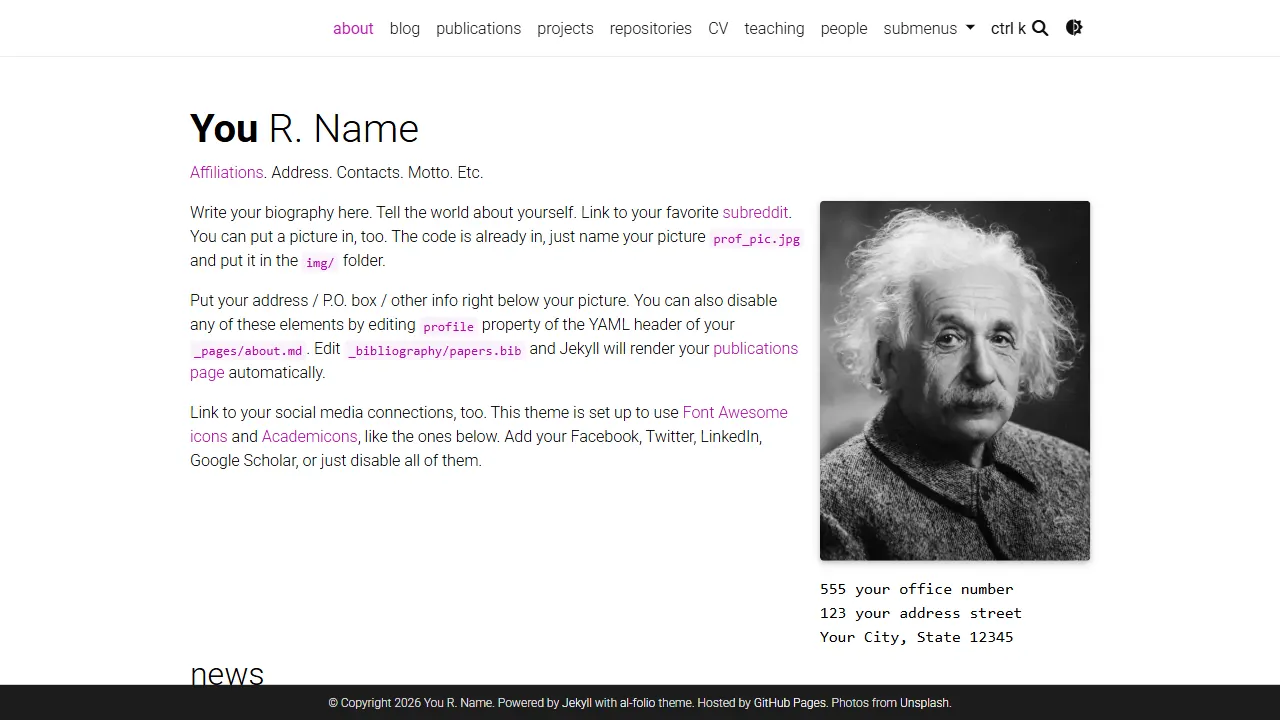
al-folio
al-folio 是一个面向学者与研究人员的 Jekyll 作品集主题,设计简洁、响应式,适合搭建个人学术主页。
Jekyll · 作品集
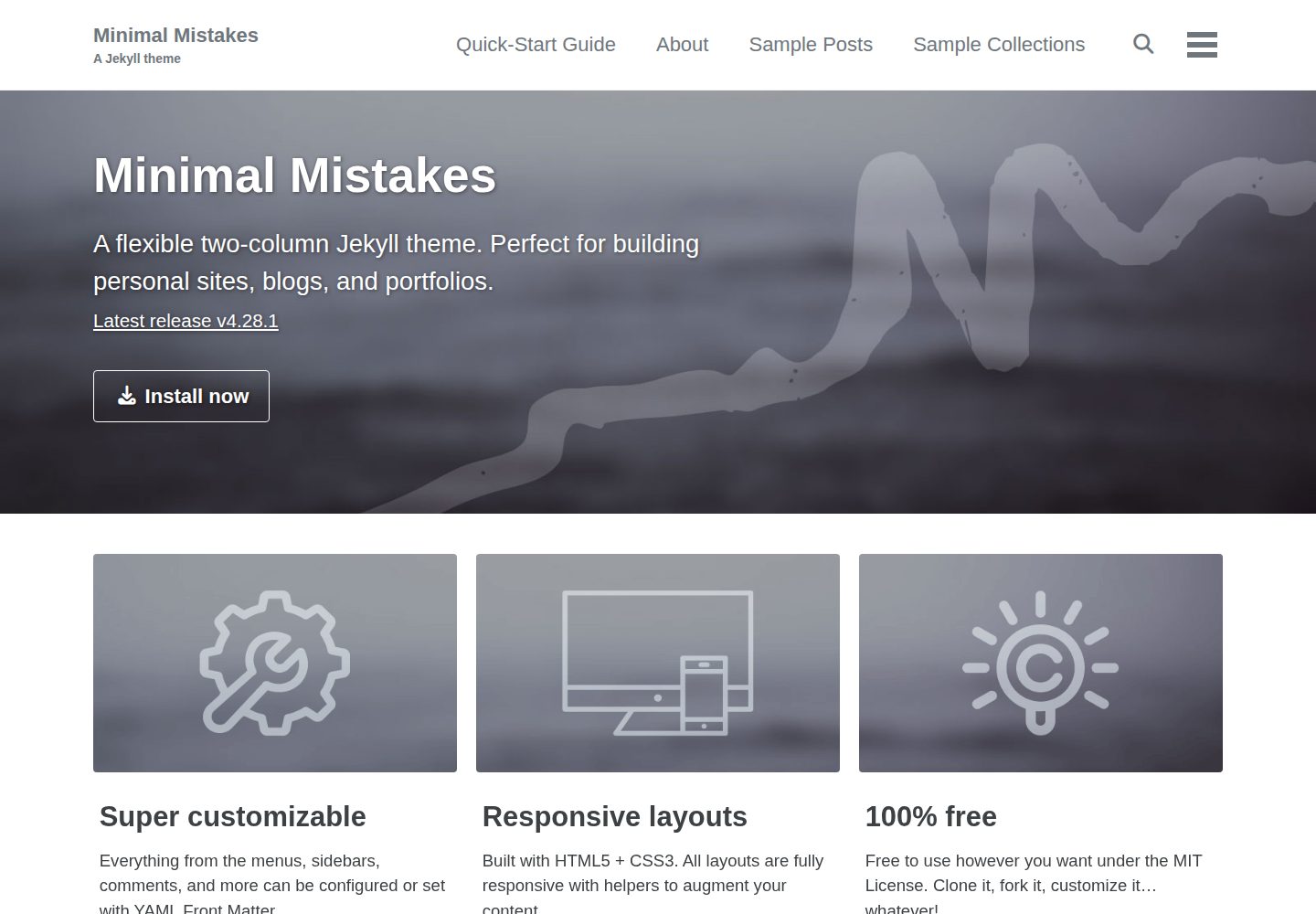
minimal-mistakes
:triangular_ruler: Jekyll theme for building a personal site, blog, project documentation, or portfolio.
Jekyll · 作品集
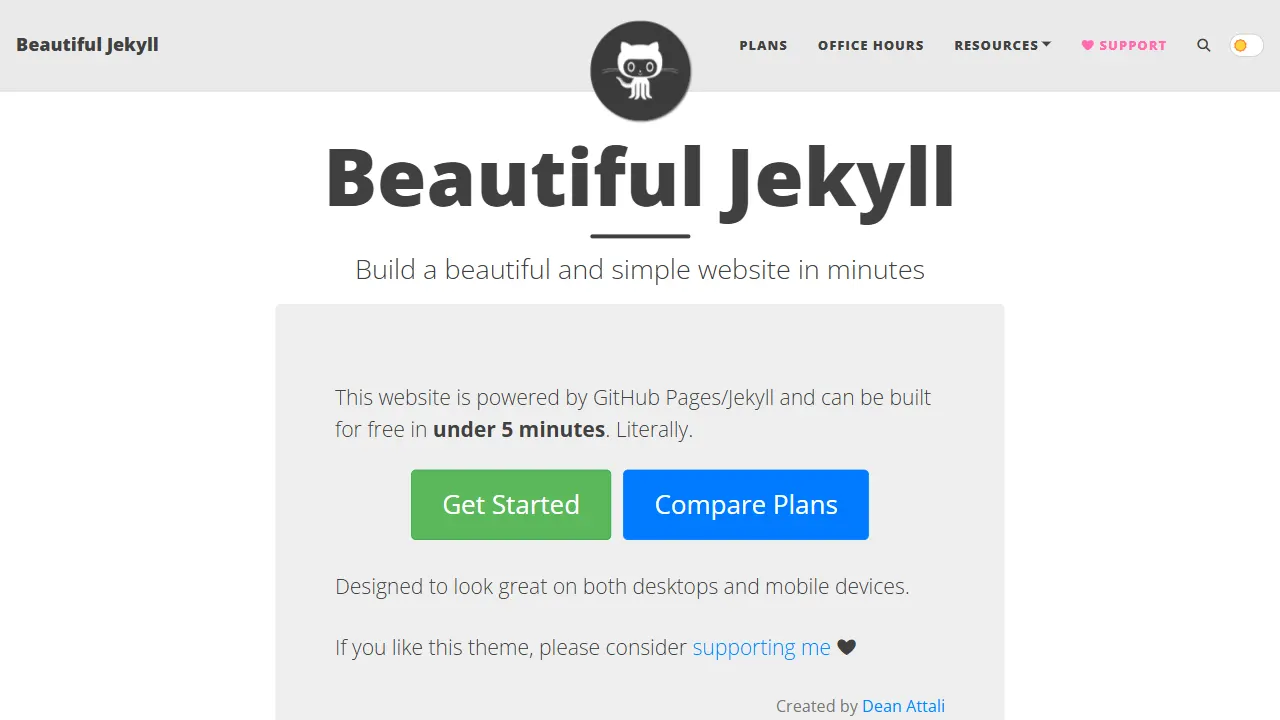
Beautiful Jekyll
Beautiful Jekyll 是一个在 Jekyll 生态中经过长期打磨的博客主题,由 Dean Attali 维护,自 2015 年起积累了超过 5 万用户。
Jekyll · 博客
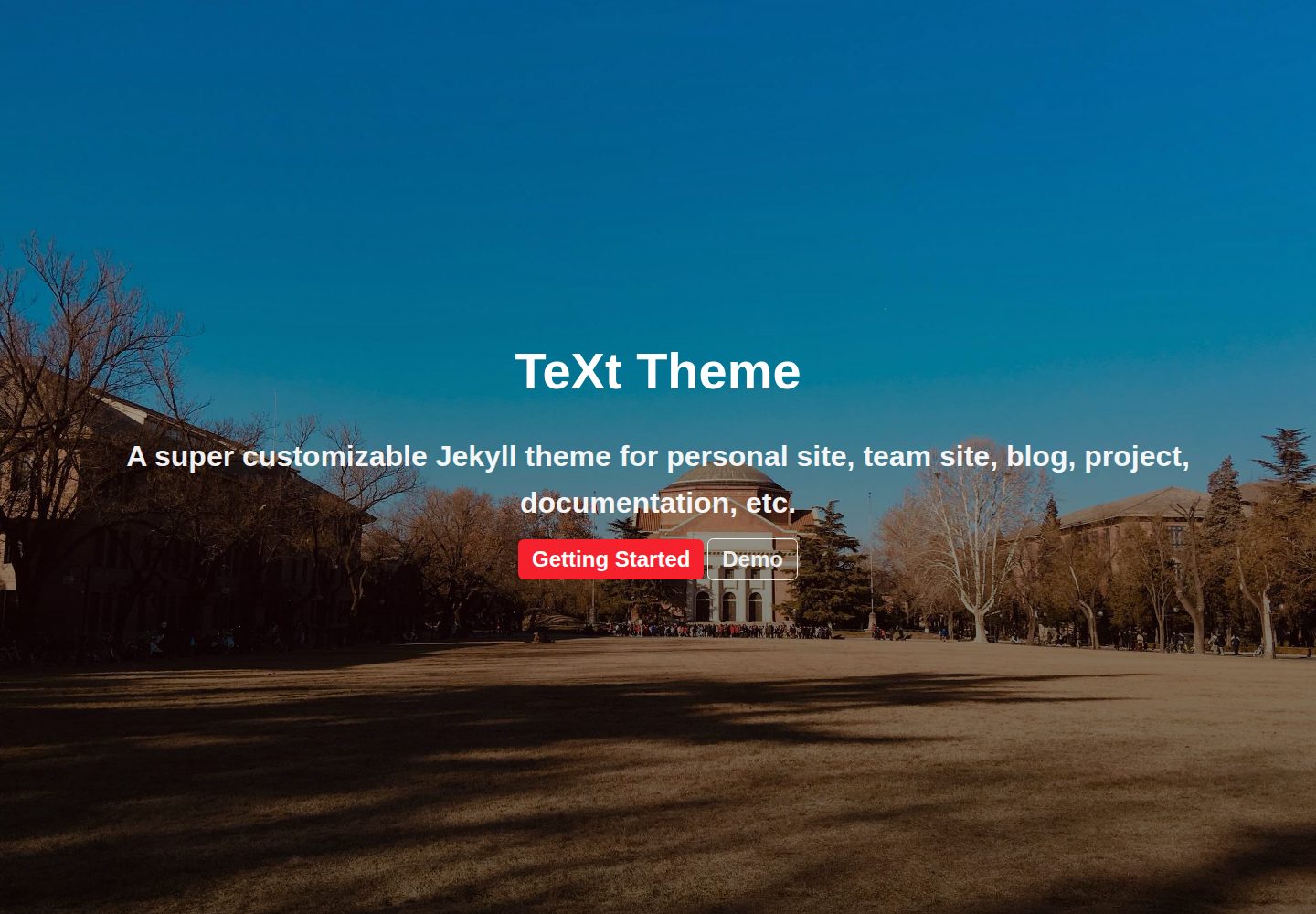
jekyll-TeXt-theme
💎 🐳 A super customizable Jekyll theme for personal site, team site, blog, project, documentation, etc.
Jekyll · 博客
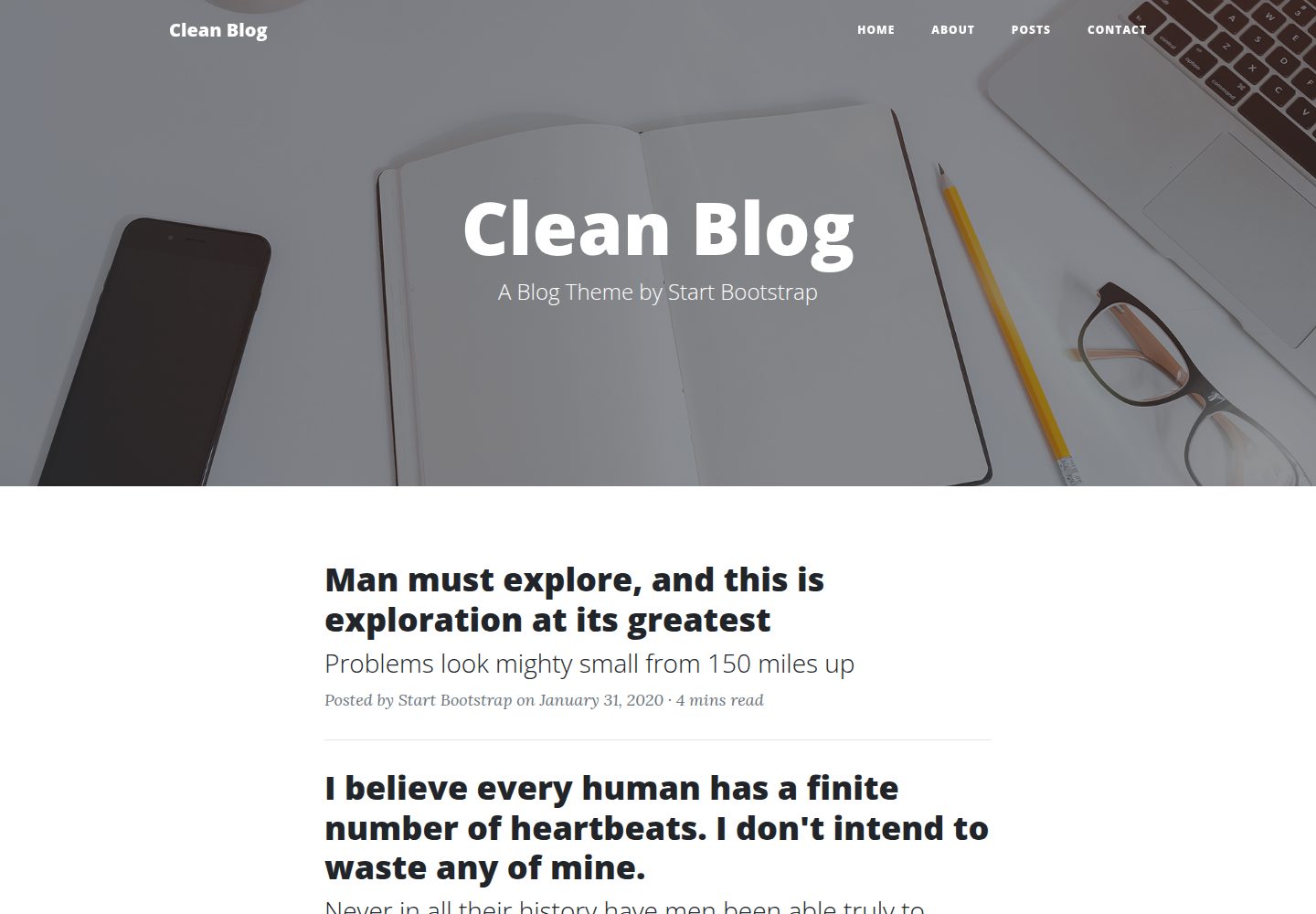
startbootstrap-clean-blog-jekyll
A Jekyll version of the Clean Blog theme by Start Bootstrap
Jekyll · 博客
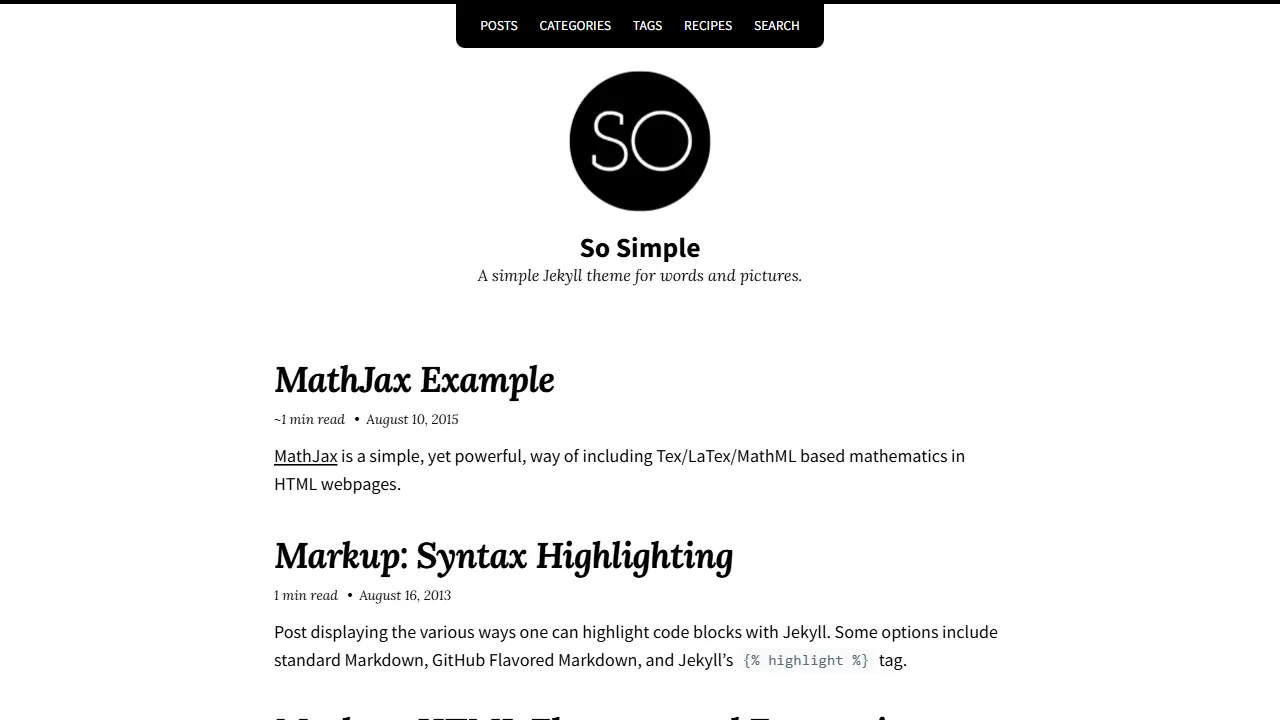
So Simple
So Simple 是 Michael Rose 开发的 Jekyll 主题,定位清晰:为文字和图片提供一个干净、可读性强的展示框架。
Jekyll · 博客