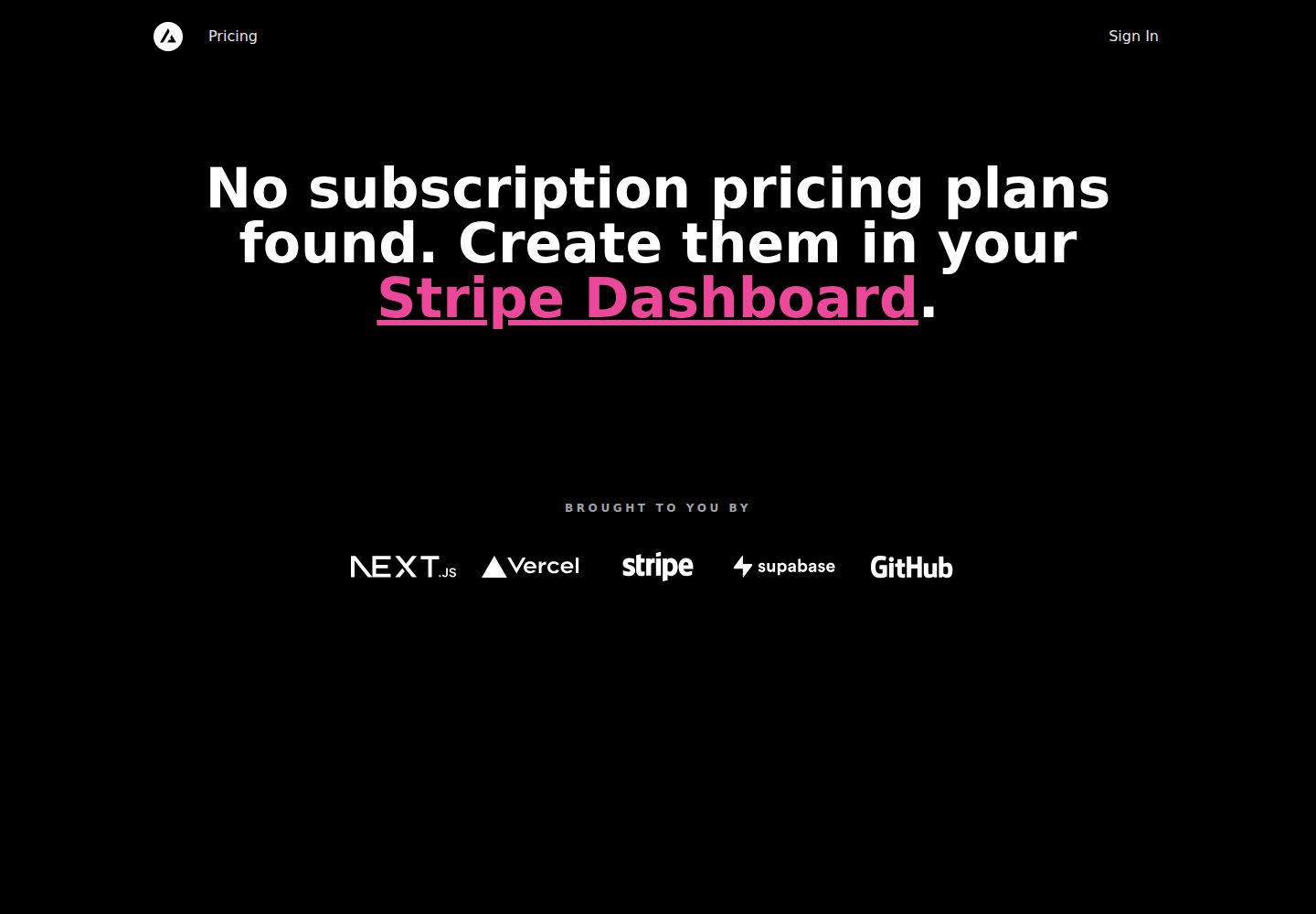
使用 Supabase 进行安全的用户管理与认证,并支持 GitHub OAuth 登录配置
Next.jsReact启动器
nextjs-template-subscription-starter — Next.js 启动器模板
作者 humanitiesclinic
基于 Next.js 的订阅支付启动模板,集成 Supabase 认证与数据库、Stripe Checkout 和客户门户,通过 Stripe webhook 自动同步定价方案与订阅状态,README 提供从部署到本地开发的完整步骤。
看看你的网站会是什么样
浏览真实页面截图,比较内容排版与手机效果。点击下方缩略图切换,放大查看整页细节。
全部页面与视图 2
截图用于了解视觉与布局,交互效果请以实际项目为准。
采集于 2026-10-14查看来源
值得关注的模板亮点
从已有项目资料中,快速了解它的特点。
基于 PostgreSQL 的数据访问与管理,通过 Supabase SQL 迁移初始化数据库结构
集成 Stripe Checkout 和 Stripe 客户门户,处理订阅支付与客户自助管理
通过 Stripe webhook 自动同步定价方案和订阅状态到 Supabase 数据库
提供 Vercel 部署按钮和分步设置指南,覆盖认证、支付和数据库配置
包含本地开发流程,支持使用本地 Supabase 实例和 pnpm 脚本
模板详细介绍
这是一个面向 SaaS 订阅场景的 Next.js 启动模板,README 将其定位为高性能 SaaS 应用的一体化启动套件。模板使用 Supabase 处理用户管理与认证,并在 PostgreSQL 之上提供数据访问和管理工具;支付侧集成 Stripe Checkout 与 Stripe 客户门户,并通过 Stripe webhook 自动同步定价方案和订阅状态。
资料中给出了从 Vercel 部署按钮开始的完整设置流程:部署时创建 Supabase 项目并运行 SQL 迁移,配置 GitHub OAuth 认证与生产环境 URL,设置 Stripe webhook、环境变量并重新部署,然后在 Stripe 仪表盘创建产品与价格,最后配置客户门户。README 还包含本地开发说明,建议使用本地 Supabase 实例,并提供了 pnpm 脚本用于启动、链接和查看 Supabase 状态。
限制方面,README 明确指出 Stripe Checkout 目前仅支持按固定周期计费的定价,更复杂的方案(如不同定价层级或按席位计费)尚不支持。模板未在 README 中说明生产环境下的性能表现或安全审计情况,也未提供除 Supabase、Stripe 和 Vercel 之外的其他集成说明。
Next.js启动器
适合你的项目吗?
适用场景
- 需要快速搭建带订阅付费功能的 SaaS 应用原型或启动项目
- 希望使用 Supabase 管理用户认证和 PostgreSQL 数据,同时用 Stripe 处理订阅计费
- 需要将 Stripe 产品与价格自动同步到自有数据库,并支持客户自助管理订阅
- 在 Vercel 上部署并配置生产环境 URL、OAuth 认证和 Stripe webhook 的订阅类项目
适合人群
- 熟悉 Next.js 和 Vercel 部署流程的开发者
- 计划使用 Supabase 作为认证与数据库后端的团队
- 需要 Stripe 订阅支付和客户门户功能的产品开发者
- 希望参考完整订阅支付配置步骤来搭建 SaaS 启动项目的人员
上手与定制指南
结合仓库当前版本的说明,按下面的资料检查内容、配置与运行要求。
- 1
推荐通过 Vercel Deploy Button 部署,该流程会创建 GitHub 仓库、引导创建 Supabase 项目并自动运行 SQL 迁移
- 2
需在 Supabase 中配置 GitHub OAuth 认证,并将生产 URL 设置为站点 URL,同时在 Vercel 添加 NEXT_PUBLIC_SITE_URL 生产环境变量
- 3
需在 Stripe 创建 webhook 端点(生产 URL + /api/webhooks),选择所有事件,并将签名密钥设为 STRIPE_WEBHOOK_SECRET 环境变量
- 4
设置完环境变量后需在 Vercel 重新部署(不要启用 Use existing Build Cache),然后在 Stripe 仪表盘创建产品与价格
- 5
本地开发建议使用本地 Supabase 实例,需安装 Docker、pnpm,并复制 .env.local.example 和 .env.example 文件
授权与来源资料
使用条件与限制
免费使用 · 保留许可声明本次收录的是公开仓库中采用 MIT 许可的免费版本;免费范围为该版本代码,不代表外部服务或第三方素材免费。
使用时需要遵守
- 允许免费使用、修改、商用和分发该版本代码。
- 分发代码副本或实质性部分时,保留原作者版权声明和完整 MIT 许可声明。
- 代码按现状提供;担保与责任限制以原许可证及适用法律为准。
额外费用与待核对事项
- 演示图片、字体、图标及其他第三方素材需按各自许可核对,不能仅凭代码的 MIT 许可判断。
- 域名、托管、数据库、支付或 AI 等外部服务可能另外收费。
- Stripe Checkout 目前仅支持按固定周期计费的定价,更复杂的方案(如不同定价层级或按席位计费)尚不支持。
- 需要配置 Stripe 账户来处理测试支付;若尚无 Stripe 账户需先创建。
- 若自动设置失败,需要自行创建 Supabase 账户并新建项目。
- 本地开发使用 Supabase 实例需要安装 Docker。
- 本地开发需要安装 pnpm。
- 本地开发需使用 Vercel CLI 链接项目。
- 测试 webhook 需使用 Stripe CLI 并登录 Stripe 账户。
- webhook 转发与开发服务器必须同时在两个独立终端中运行,应用才能正常工作。
- 将本地开发实例链接到生产项目存在风险,有客户数据后建议使用 Branching 或单独的 preview/staging 环境。
- 从生产数据库播种数据存在风险,有真实客户数据后建议使用 Branching 或单独的 preview/staging 环境。
查看原文依据
Permission is hereby granted, free of charge
许可证原文
Stripe Checkout currently supports pricing that bills a predefined amount at a specific interval. More complex plans (e.g., different pricing tiers or seats) are not yet supported.
README 原文
Next, we'll need to configure [Stripe](https://stripe.com/) to handle test payments. If you don't already have a Stripe account, create one now.
README 原文
Should the automatic setup fail, please [create a Supabase account](https://app.supabase.com/projects), and a new project if needed. In your project, navigate to the [SQL editor](https://app.supabase.com/project/_/sql) and select the "Stripe Subscriptions" starter template from the Quick start section.
README 原文
First, you will need to install [Docker](https://www.docker.com/get-started/). You should also copy or rename:
README 原文
Ensure you have [pnpm](https://pnpm.io/installation) installed and run:
README 原文
Next, use the [Vercel CLI](https://vercel.com/docs/cli) to link your project:
README 原文
Use the [Stripe CLI](https://stripe.com/docs/stripe-cli) to [login to your Stripe account](https://stripe.com/docs/stripe-cli#login-account):
README 原文
Note that webhook forwarding and the development server must be running concurrently in two separate terminals for the application to work correctly.
README 原文
🚧 Warning: This links our Local Development instance to the project we are using for `production`. Currently, it only has test records, but once it has customer data, we recommend using [Branching](https://supabase.com/docs/guides/platform/branching) or manually creating a separate `preview` or `staging` environment, to ensure your customer's data is not used locally, and schema changes/migrations can be thoroughly tested before shipping to `production`.
README 原文
https://github.com/humanitiesclinic/nextjs-template-subscription-starter/blob/main/LICENSEhttps://github.com/humanitiesclinic/nextjs-template-subscription-starter/blob/main/README.md🚧 Warning: this is seeding data from the `production` database. Currently, this only contains test data, but we recommend using [Branching](https://supabase.com/docs/guides/platform/branching) or manually setting up a `preview` or `staging` environment once this contains real customer data.
README 原文
DeepSeek 根据仓库许可证和 README 整理 ·2026-10-14。结果仅覆盖已读取资料,依赖、图片、字体及后续条款变更以各自原文为准。
项目核对记录与介绍依据
模板资料
- 来源平台
- GitHub
- 资料与维护参考分
- 资料一般 · 65 / 100
- 技术栈
- Next.js · React
- 网站类型
- 启动器
这个分数如何计算
本站按许可资料(最高30分)、演示链接(12分)、预览图(10分)、Star数(15分)、记录的维护时间(15分)、描述完整度(8分)、功能记录(5分)和分类资料(5分)计算。它不是代码、安全或性能测试,也不是 Google 评分;有链接不代表已实测可用。
这个项目需要核对什么
- 记录的仓库更新时间
- 2024-05-25
- 截图检查日期
- 2026-10-14
已收录演示链接。请用你的内容与屏幕尺寸检查;有演示不代表表单、认证或支付已经可用。
目录记录的主要技术栈是 Next.js。请通过依赖清单和锁文件核对实际版本与托管要求。这些说明基于收录资料,不代表代码审计或部署实测。
查看具体选型方法 →介绍的制作与核对状态
介绍由 AI 辅助整理目录与仓库资料。仓库作者不等于这篇介绍的审核者。
审核声明: codex-user-requested-batch-review-20261017 · 2026-10-16
查看当时使用的来源资料
SHA-256: 9163ac9548c1dbcddeb156892c6939c5214f28ee32da7446b6c94d1181a46da3
2026-10-14T00:57:09.257Z
来源文件 / 仓库# Next.js Subscription Payments Starter The all-in-one starter kit for high-performance SaaS applications. ## Features - Secure user management and authentication with [Supabase](https://supabase.io/docs/guides/auth) - Powerful data access & management tooling on top of PostgreSQL with [Supabase](https://supabase.io/docs/guides/database) - Integration with [Stripe Checkout](https://stripe.com/docs/payments/checkout) and the [Stripe customer portal](https://stripe.com/docs/billing/subscriptions/customer-portal) - Automatic syncing of pricing plans and subscription statuses via [Stripe webhooks](https://stripe.com/docs/webhooks) ## Demo - https://subscription-payments.vercel.app/ [](https://subscription-payments.vercel.app/) ## Architecture  ## Step-by-step setup When deploying this template, the sequence of steps is important. Follow the steps below in order to get up and running. ### Initiate Deployment #### Vercel Deploy Button [](https://vercel.com/new/clone?repository-url=https%3A%2F%2Fgithub.com%2Fvercel%2Fnextjs-subscription-payments&env=NEXT_PUBLIC_STRIPE_PUBLISHABLE_KEY,STRIPE_SECRET_KEY&envDescription=Enter%20your%20Stripe%20API%20keys.&envLink=https%3A%2F%2Fdashboard.stripe.com%2Fapikeys&project-name=nextjs-subscription-payments&repository-name=nextjs-subscription-payments&integration-ids=oac_VqOgBHqhEoFTPzGkPd7L0iH6&external-id=https%3A%2F%2Fgithub.com%2Fvercel%2Fnextjs-subscription-payments%2Ftree%2Fmain) The Vercel Deployment will create a new repository with this template on your GitHub account and guide you through a new Supabase project creation. The [Supabase Vercel Deploy Integration](https://vercel.com/integrations/supabase) will set up the necessary Supabase environment variables and run the [SQL migrations](./supabase/migrations/20230530034630_init.sql) to set up the Database schema on your account. You can inspect the created tables in your project's [Table editor](https://app.supabase.com/project/_/editor). Should the automatic setup fail, please [create a Supabase account](https://app.supabase.com/projects), and a new project if needed. In your project, navigate to the [SQL editor](https://app.supabase.com/project/_/sql) and select the "Stripe Subscriptions" starter template from the Quick start section. ### Configure Auth Follow [this guide](https://supabase.com/docs/guides/auth/social-login/auth-github) to set up an OAuth app with GitHub and configure Supabase to use it as an auth provider. In your Supabase project, navigate to [auth > URL configuration](https://app.supabase.com/project/_/auth/url-configuration) and set your main production URL (e.g. https://your-deployment-url.vercel.app) as the site url. Next, in your Vercel deployment settings, add a new **Production** environment variable called `NEXT_PUBLIC_SITE_URL` and set it to the same URL. Make sure to deselect preview and development environments to make sure that preview branches and local development work correctly. #### [Optional] - Set up redirect wildcards for deploy previews (not needed if you installed via the Deploy Button) If you've deployed this template via the "Deploy to Vercel" button above, you can skip this step. The Supabase Vercel Integration will have set redirect wildcards for you. You can check this by going to your Supabase [auth settings](https://app.supabase.com/project/_/auth/url-configuration) and you should see a list of redirects under "Redirect URLs". Otherwise, for auth redirects (email confirmations, magic links, OAuth providers) to work correctly in deploy previews, navigate to the [auth settings](https://app.supabase.com/project/_/auth/url-configuration) and add the following wildcard URL to "Redirect URLs": `https://*-username.vercel.app/**`. You can read more about redirect wildcard patterns in the [docs](https://supabase.com/docs/guides/auth#redirect-urls-and-wildcards). If you've deployed this template via the "Deploy to Vercel" button above, you can skip this step. The Supabase Vercel Integration will have run database migrations for you. You can check this by going to [the Table Editor for your Supabase project](https://supabase.com/dashboard/project/_/editor), and confirming there are tables with seed data. Otherwise, navigate to the [SQL Editor](https://supabase.com/dashboard/project/_/sql/new), paste the contents of [the Supabase `schema.sql` file](./schema.sql), and click RUN to initialize the database. #### [Maybe Optional] - Set up Supabase environment variables (not needed if you installed via the Deploy Button) If you've deployed this template via the "Deploy to Vercel" button above, you can skip this step. The Supabase Vercel Integration will have set your environment variables for you. You can check this by going to your Vercel project settings, and clicking on 'Environment variables', there will be a list of environment variables with the Supabase icon displayed next to them. Otherwise navigate to the [API settings](https://app.supabase.com/project/_/settings/api) and paste them into the Vercel deployment interface. Copy project API keys and paste into the `NEXT_PUBLIC_SUPABASE_ANON_KEY` and `SUPABASE_SERVICE_ROLE_KEY` fields, and copy the project URL and paste to Vercel as `NEXT_PUBLIC_SUPABASE_URL`. Congrats, this completes the Supabase setup, almost there! ### Configure Stripe Next, we'll need to configure [Stripe](https://stripe.com/) to handle test payments. If you don't already have a Stripe account, create one now. For the following steps, make sure you have the ["Test Mode" toggle](https://stripe.com/docs/testing) switched on. #### Create a Webhook We need to create a webhook in the `Developers` section of Stripe. Pictured in the architecture diagram above, this webhook is the piece that connects Stripe to your Vercel Serverless Functions. 1. Click the "Add Endpoint" button on the [test Endpoints page](https://dashboard.stripe.com/test/webhooks). 1. Enter your production deployment URL followed by `/api/webhooks` for the endpoint URL. (e.g. `https://your-deployment-url.vercel.app/api/webhooks`) 1. Click `Select events` under the `Select events to listen to` heading. 1. Click `Select all events` in the `Select events to send` section. 1. Copy `Signing secret` as we'll need that in the next step (e.g `whsec_xxx`) (/!\ be careful no to copy the webook id we_xxxx). 1. In addition to the `NEXT_PUBLIC_STRIPE_PUBLISHABLE_KEY` and the `STRIPE_SECRET_KEY` we've set earlier during deployment, we need to add the webhook secret as `STRIPE_WEBHOOK_SECRET` env var. #### Redeploy with new env vars For the newly set environment variables to take effect and everything to work together correctly, we need to redeploy our app in Vercel. In your Vercel Dashboard, navigate to deployments, click the overflow menu button and select "Redeploy" (do NOT enable the "Use existing Build Cache" option). Once Vercel has rebuilt and redeployed your app, you're ready to set up your products and prices. #### Create product and pricing information Your application's webhook listens for product updates on Stripe and automatically propagates them to your Supabase database. So with your webhook listener running, you can now create your product and pricing information in the [Stripe Dashboard](https://dashboard.stripe.com/test/products). Stripe Checkout currently supports pricing that bills a predefined amount at a specific interval. More complex plans (e.g., different pricing tiers or seats) are not yet supported. For example, you can create business models with different pricing tiers, e.g.: - Product 1: Hobby - Price 1: 10 USD per month - Price 2: 100 USD per year - Product 2: Freelancer - Price 1: 20 USD per month - Price 2: 200 USD per year Optionally, to speed up the setup, we have added a [fixtures file](fixtures/stripe-fixtures.json) to bootstrap test product and pricing data in your Stripe account. The [Stripe CLI](https://stripe.com/docs/stripe-cli#install) `fixtures` command executes a series of API requests defined in this JSON file. Simply run `stripe fixtures fixtures/stripe-fixtures.json`. **Important:** Make sure that you've configured your Stripe webhook correctly and redeployed with all needed environment variables. #### Configure the Stripe customer portal 1. Set your custom branding in the [settings](https://dashboard.stripe.com/settings/branding) 1. Configure the Customer Portal [settings](https://dashboard.stripe.com/test/settings/billing/portal) 1. Toggle on "Allow customers to update their payment methods" 1. Toggle on "Allow customers to update subscriptions" 1. Toggle on "Allow customers to cancel subscriptions" 1. Add the products and prices that you want 1. Set up the required business information and links ### That's it I know, that was quite a lot to get through, but it's worth it. You're now ready to earn recurring revenue from your customers. 🥳 ## Develop locally If you haven't already done so, clone your Github repository to your local machine. ### Install dependencies Ensure you have [pnpm](https://pnpm.io/installation) installed and run: ```bash pnpm install ``` Next, use the [Vercel CLI](https://vercel.com/docs/cli) to link your project: ```bash pnpm dlx vercel login pnpm dlx vercel link ``` `pnpm dlx` runs a package from the registry, without installing it as a dependency. Alternatively, you can install these packages globally, and drop the `pnpm dlx` part. If you don't intend to use a local Supabase instance for development and testing, you can use the Vercel CLI to download the development env vars: ```bash pnpm dlx vercel env pull .env.local ``` Running this command will create a new `.env.local` file in your project folder. For security purposes, you will need to set the `SUPABASE_SERVICE_ROLE_KEY` manually from your [Supabase dashboard](https://app.supabase.io/) (`Settings > API`). If you are not using a local Supabase instance, you should also change the `--local` flag to `--remote` in the `supabase:generate-types` script in `package.json`. ### Local development with Supabase It's highly recommended to use a local Supabase instance for development and testing. We have provided a set of custom commands for this in `package.json`. First, you will need to install [Docker](https://www.docker.com/get-started/). You should also copy or rename: - `.env.local.example` -> `.env.local` - `.env.example` -> `.env` Next, run the following command to start a local Supabase instance and run the migrations to set up the database schema: ```bash pnpm supabase:start ``` The terminal output will provide you with URLs to access the different services within the Supabase stack. The Supabase Studio is where you can make changes to your local database instance. Copy the value for the `service_role_key` and paste it as the value for the `SUPABASE_SERVICE_ROLE_KEY` in your `.env.local` file. You can print out these URLs at any time with the following command: ```bash pnpm supabase:status ``` To link your local Supabase instance to your project, run the following command, navigate to the Supabase project you created above, and enter your database password. ```bash pnpm supabase:link ``` If you need to reset your database password, head over to [your database settings](https://supabase.com/dashboard/project/_/settings/database) and click "Reset database password", and this time copy it across to a password manager! 😄 🚧 Warning: This links our Local Development instance to the project we are using for `production`. Currently, it only has test records, but once it has customer data, we recommend using [Branching](https://supabase.com/docs/guides/platform/branching) or manually creating a separate `preview` or `staging` environment, to ensure your customer's data is not used locally, and schema changes/migrations can be thoroughly tested before shipping to `production`. Once you've linked your project, you can pull down any schema changes you made in your remote database with: ```bash pnpm supabase:pull ``` You can seed your local database with any data you added in your remote database with: ```bash pnpm supabase:generate-seed pnpm supabase:reset ``` 🚧 Warning: this is seeding data from the `production` database. Currently, this only contains test data, but we recommend using [Branching](https://supabase.com/docs/guides/platform/branching) or manually setting up a `preview` or `staging` environment once this contains real customer data. You can make changes to the database schema in your local Supabase Studio and run the following command to generate TypeScript types to match your schema: ```bash pnpm supabase:generate-types ``` You can also automatically generate a migration file with all the changes you've made to your local database schema with the following command: ```bash pnpm supabase:generate-migration ``` And push those changes to your remote database with: ```bash pnpm supabase:push ``` Remember to test your changes thoroughly in your `local` and `staging` or `preview` environments before deploying them to `production`! ### Use the Stripe CLI to test webhooks Use the [Stripe CLI](https://stripe.com/docs/stripe-cli) to [login to your Stripe account](https://stripe.com/docs/stripe-cli#login-account): ```bash pnpm stripe:login ``` This will print a URL to navigate to in your browser and provide access to your Stripe account. Next, start local webhook forwarding: ```bash pnpm stripe:listen ``` Running this Stripe command will print a webhook secret (such as, `whsec_***`) to the console. Set `STRIPE_WEBHOOK_SECRET` to this value in your `.env.local` file. If you haven't already, you should also set `NEXT_PUBLIC_STRIPE_PUBLISHABLE_KEY` and `STRIPE_SECRET_KEY` in your `.env.local` file using the **test mode**(!) keys from your Stripe dashboard. ### Run the Next.js client In a separate terminal, run the following command to start the development server: ```bash pnpm dev ``` Note that webhook forwarding and the development server must be running concurrently in two separate terminals for the application to work correctly. Finally, navigate to [http://localhost:3000](http://localhost:3000) in your browser to see the application rendered. ## Going live ### Archive testing products Archive all test mode Stripe products before going live. Before creating your live mode products, make sure to follow the steps below to set up your live mode env vars and webhooks. ### Configure production environment variables To run the project in live mode and process payments with Stripe, switch Stripe from "test mode" to "production mode." Your Stripe API keys will be different in production mode, and you will have to create a separate production mode webhook. Copy these values and paste them into Vercel, replacing the test mode values. ### Redeploy Afterward, you will need to rebuild your production deployment for the changes to take effect. Within your project Dashboard, navigate to the "Deployments" tab, select the most recent deployment, click the overflow menu button (next to the "Visit" button) and select "Redeploy" (do NOT enable the "Use existing Build Cache" option). To verify you are running in production mode, test checking out with the [Stripe test card](https://stripe.com/docs/testing). The test card should not work.
看看同类模板
对比同技术栈与用途的模板,找到更适合的视觉与内容结构。
ai-website-cloner-template
Clone any website with one command using AI coding agents
Next.js · 启动器
Next.js SaaS Starter
Next.js SaaS Starter 是 Next.js 官方维护的 SaaS 起点模板,定位介于学习资源和可直接部署的脚手架之间。
Next.js · SaaS
Next.js Commerce
Next.js Commerce 是 Vercel 团队维护的电商启动模板,基于 Next.js App Router 构建,采用服务端渲染、React Server Components、Server Actions …
Next.js · 电商
Next-js-Boilerplate
Next-js-Boilerplate 是一个面向 Next.js 16、Tailwind CSS 4 和 TypeScript 的启动器,核心定位是开发者体验优先。
Next.js · 启动器

tailwind-nextjs-starter-blog
tailwind-nextjs-starter-blog 是一个面向个人技术博客的 Next.js 与 Tailwind CSS 启动模板,其 v2 版本基于 App Router 与 React Server Comp…
Next.js · 博客
next-forge
Production-grade Turborepo template for Next.js apps.
Next.js · 启动器