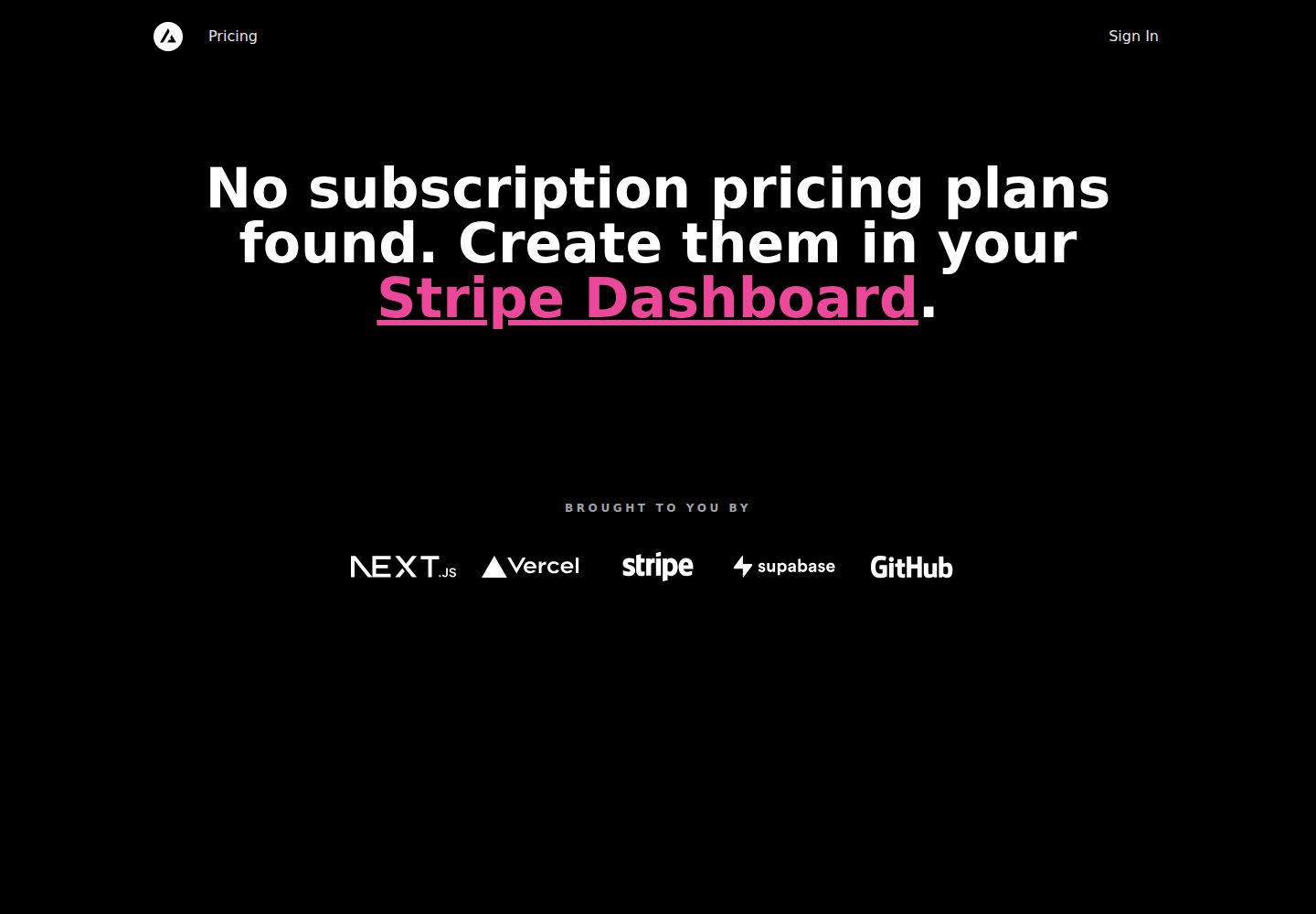
Uses Supabase for secure user management and authentication, and supports GitHub OAuth login configuration
Next.jsReactStarter
nextjs-template-subscription-starter — Next.js Starter Template
By humanitiesclinic
A Next.js-based subscription payment starter template that integrates Supabase authentication and database, Stripe Checkout and customer portal, automatically syncs pricing plans and subscription status via Stripe webhooks, and provides complete steps from deployment to local development in the README.
Explore the design
Compare the page layouts and mobile experience. Open any screenshot for a closer look.
Desktop homepage1 / 2
Desktop captureTop of page
Actual screenshot captured by the server browser.
All pages & views 2
Screenshots show visual appearance; interactive behavior may differ.
Recorded 2026-10-14View source
What stands out
A quick read of the recorded project description.
PostgreSQL-based data access and management, initializing the database structure via Supabase SQL migrations
Integrates Stripe Checkout and the Stripe customer portal to handle subscription payments and customer self-service management
Automatically syncs pricing plans and subscription status to the Supabase database via Stripe webhooks
Provides a Vercel deploy button and step-by-step setup guide covering authentication, payment and database configuration
Includes a local development workflow, supporting the use of a local Supabase instance and pnpm scripts
Template Details
This is a Next.js starter template for SaaS subscription scenarios, positioned in the README as an all-in-one starter kit for high-performance SaaS applications. The template uses Supabase for user management and authentication, and provides data access and management tools on top of PostgreSQL; on the payment side, it integrates Stripe Checkout and the Stripe customer portal, and automatically syncs pricing plans and subscription status via Stripe webhooks.
The materials provide a complete setup flow starting from the Vercel deploy button: during deployment, create a Supabase project and run SQL migrations, configure GitHub OAuth authentication and the production URL, set up Stripe webhooks, environment variables and redeploy, then create products and prices in the Stripe dashboard, and finally configure the customer portal. The README also includes local development instructions, recommending the use of a local Supabase instance, and provides pnpm scripts for starting, linking and viewing Supabase status.
Regarding limitations, the README explicitly states that Stripe Checkout currently only supports pricing billed at fixed intervals, and more complex schemes (such as different pricing tiers or per-seat billing) are not yet supported. The template does not describe production performance or security audit status in the README, nor does it provide integration instructions beyond Supabase, Stripe and Vercel.
Next.jsStarter
Is it right for your project?
Use Cases
- Need to quickly build a SaaS application prototype or starter project with subscription payment functionality
- Want to use Supabase to manage user authentication and PostgreSQL data, while using Stripe to handle subscription billing
- Need to automatically sync Stripe products and prices to your own database, and support customer self-service subscription management
- Subscription-based projects deployed on Vercel with production URL, OAuth authentication and Stripe webhook configuration
Suitable For
- Developers familiar with Next.js and the Vercel deployment process
- Teams planning to use Supabase as the authentication and database backend
- Product developers who need Stripe subscription payments and customer portal functionality
- Those who want to reference the complete subscription payment configuration steps to build a SaaS starter project
Getting started & customization
Use these recorded setup notes alongside the repository instructions for your chosen version.
- 1
Deployment via the Vercel Deploy Button is recommended; this flow creates a GitHub repository, guides you through creating a Supabase project and automatically runs SQL migrations
- 2
GitHub OAuth authentication must be configured in Supabase, and the production URL must be set as the site URL, while adding the NEXT_PUBLIC_SITE_URL production environment variable in Vercel
- 3
A Stripe webhook endpoint (production URL + /api/webhooks) must be created in Stripe, selecting all events, and the signing secret must be set as the STRIPE_WEBHOOK_SECRET environment variable
- 4
After setting the environment variables, redeploy on Vercel (do not enable Use existing Build Cache), then create products and prices in the Stripe dashboard
- 5
For local development, using a local Supabase instance is recommended; Docker and pnpm must be installed, and the .env.local.example and .env.example files must be copied
License & source material
Usage conditions & limitations
Free to use · keep license noticeThis entry covers the free version under the MIT license in a public repository; the free scope is the code of this version and does not mean that external services or third-party materials are free.
Must comply with when using
- Free use, modification, commercial use and distribution of this version's code are permitted.
- When distributing copies or substantial portions of the code, retain the original author's copyright notice and the full MIT license notice.
- The code is provided as is; warranties and limitations of liability are governed by the original license and applicable law.
Additional costs & items to verify
- Demo images, fonts, icons and other third-party materials must be checked against their respective licenses and cannot be judged solely by the code's MIT license.
- External services such as domains, hosting, databases, payments or AI may incur additional charges.
- Stripe Checkout currently only supports pricing billed at fixed intervals; more complex schemes (such as different pricing tiers or per-seat billing) are not yet supported.
- A Stripe account is required to process test payments; if you do not have one, you need to create it first.
- If automatic setup fails, you need to create a Supabase account and a new project yourself.
- Using a Supabase instance for local development requires Docker to be installed.
- Local development requires pnpm to be installed.
- Local development requires using the Vercel CLI to link the project.
- Testing webhooks requires using the Stripe CLI and logging into a Stripe account.
- Webhook forwarding and the development server must run simultaneously in two separate terminals for the application to work properly.
- Linking a local development instance to a production project carries risks; once there is customer data, it is recommended to use Branching or a separate preview/staging environment.
- Seeding data from a production database carries risks; once there is real customer data, it is recommended to use Branching or a separate preview/staging environment.
View Original Text Basis
Permission is hereby granted, free of charge
Original License Text
Stripe Checkout currently supports pricing that bills a predefined amount at a specific interval. More complex plans (e.g., different pricing tiers or seats) are not yet supported.
Original README
Next, we'll need to configure [Stripe](https://stripe.com/) to handle test payments. If you don't already have a Stripe account, create one now.
Original README
Should the automatic setup fail, please [create a Supabase account](https://app.supabase.com/projects), and a new project if needed. In your project, navigate to the [SQL editor](https://app.supabase.com/project/_/sql) and select the "Stripe Subscriptions" starter template from the Quick start section.
Original README
First, you will need to install [Docker](https://www.docker.com/get-started/). You should also copy or rename:
Original README
Ensure you have [pnpm](https://pnpm.io/installation) installed and run:
Original README
Next, use the [Vercel CLI](https://vercel.com/docs/cli) to link your project:
Original README
Use the [Stripe CLI](https://stripe.com/docs/stripe-cli) to [login to your Stripe account](https://stripe.com/docs/stripe-cli#login-account):
Original README
Note that webhook forwarding and the development server must be running concurrently in two separate terminals for the application to work correctly.
Original README
🚧 Warning: This links our Local Development instance to the project we are using for `production`. Currently, it only has test records, but once it has customer data, we recommend using [Branching](https://supabase.com/docs/guides/platform/branching) or manually creating a separate `preview` or `staging` environment, to ensure your customer's data is not used locally, and schema changes/migrations can be thoroughly tested before shipping to `production`.
Original README
https://github.com/humanitiesclinic/nextjs-template-subscription-starter/blob/main/LICENSEhttps://github.com/humanitiesclinic/nextjs-template-subscription-starter/blob/main/README.md🚧 Warning: this is seeding data from the `production` database. Currently, this only contains test data, but we recommend using [Branching](https://supabase.com/docs/guides/platform/branching) or manually setting up a `preview` or `staging` environment once this contains real customer data.
Original README
Compiled by DeepSeek based on repository license and README ·2026-10-14. Results only cover the materials read; dependencies, images, fonts, and subsequent term changes are subject to their respective original texts.
Project checks & description sources
Template Information
- Source platforms
- GitHub
- Documentation and maintenance reference score
- Partly documented · 65 / 100
- Technologies
- Next.js · React
- Website type
- Starter
How this score is calculated
Our heuristic uses license records (up to 30), a demo link (12), a preview (10), stars (15), recorded maintenance (15), description completeness (8), feature records (5) and classification data (5). It is not a code, security or performance test, or a Google score. A link does not establish tested functionality.
What to verify for this project
- Repository update recorded
- 2024-05-25
- Screenshot last checked
- 2026-10-14
A demo link is listed. Check it with your own content and viewport sizes; its presence does not confirm that forms, authentication or payments work.
The catalog identifies Next.js as the primary stack. Check the actual dependency manifest and lockfile for versions and hosting requirements. These notes use recorded metadata, not a code audit or a deployment test.
Use a selection guide →How this description was prepared
AI-assisted description based on catalog records and repository material. Repository authors are not automatically the reviewers of this description.
Review declaration: codex-user-requested-batch-review-20261017 · 2026-10-16
Inspect the recorded source material
SHA-256: 9163ac9548c1dbcddeb156892c6939c5214f28ee32da7446b6c94d1181a46da3
2026-10-14T00:57:09.257Z
Source file / repository# Next.js Subscription Payments Starter The all-in-one starter kit for high-performance SaaS applications. ## Features - Secure user management and authentication with [Supabase](https://supabase.io/docs/guides/auth) - Powerful data access & management tooling on top of PostgreSQL with [Supabase](https://supabase.io/docs/guides/database) - Integration with [Stripe Checkout](https://stripe.com/docs/payments/checkout) and the [Stripe customer portal](https://stripe.com/docs/billing/subscriptions/customer-portal) - Automatic syncing of pricing plans and subscription statuses via [Stripe webhooks](https://stripe.com/docs/webhooks) ## Demo - https://subscription-payments.vercel.app/ [](https://subscription-payments.vercel.app/) ## Architecture  ## Step-by-step setup When deploying this template, the sequence of steps is important. Follow the steps below in order to get up and running. ### Initiate Deployment #### Vercel Deploy Button [](https://vercel.com/new/clone?repository-url=https%3A%2F%2Fgithub.com%2Fvercel%2Fnextjs-subscription-payments&env=NEXT_PUBLIC_STRIPE_PUBLISHABLE_KEY,STRIPE_SECRET_KEY&envDescription=Enter%20your%20Stripe%20API%20keys.&envLink=https%3A%2F%2Fdashboard.stripe.com%2Fapikeys&project-name=nextjs-subscription-payments&repository-name=nextjs-subscription-payments&integration-ids=oac_VqOgBHqhEoFTPzGkPd7L0iH6&external-id=https%3A%2F%2Fgithub.com%2Fvercel%2Fnextjs-subscription-payments%2Ftree%2Fmain) The Vercel Deployment will create a new repository with this template on your GitHub account and guide you through a new Supabase project creation. The [Supabase Vercel Deploy Integration](https://vercel.com/integrations/supabase) will set up the necessary Supabase environment variables and run the [SQL migrations](./supabase/migrations/20230530034630_init.sql) to set up the Database schema on your account. You can inspect the created tables in your project's [Table editor](https://app.supabase.com/project/_/editor). Should the automatic setup fail, please [create a Supabase account](https://app.supabase.com/projects), and a new project if needed. In your project, navigate to the [SQL editor](https://app.supabase.com/project/_/sql) and select the "Stripe Subscriptions" starter template from the Quick start section. ### Configure Auth Follow [this guide](https://supabase.com/docs/guides/auth/social-login/auth-github) to set up an OAuth app with GitHub and configure Supabase to use it as an auth provider. In your Supabase project, navigate to [auth > URL configuration](https://app.supabase.com/project/_/auth/url-configuration) and set your main production URL (e.g. https://your-deployment-url.vercel.app) as the site url. Next, in your Vercel deployment settings, add a new **Production** environment variable called `NEXT_PUBLIC_SITE_URL` and set it to the same URL. Make sure to deselect preview and development environments to make sure that preview branches and local development work correctly. #### [Optional] - Set up redirect wildcards for deploy previews (not needed if you installed via the Deploy Button) If you've deployed this template via the "Deploy to Vercel" button above, you can skip this step. The Supabase Vercel Integration will have set redirect wildcards for you. You can check this by going to your Supabase [auth settings](https://app.supabase.com/project/_/auth/url-configuration) and you should see a list of redirects under "Redirect URLs". Otherwise, for auth redirects (email confirmations, magic links, OAuth providers) to work correctly in deploy previews, navigate to the [auth settings](https://app.supabase.com/project/_/auth/url-configuration) and add the following wildcard URL to "Redirect URLs": `https://*-username.vercel.app/**`. You can read more about redirect wildcard patterns in the [docs](https://supabase.com/docs/guides/auth#redirect-urls-and-wildcards). If you've deployed this template via the "Deploy to Vercel" button above, you can skip this step. The Supabase Vercel Integration will have run database migrations for you. You can check this by going to [the Table Editor for your Supabase project](https://supabase.com/dashboard/project/_/editor), and confirming there are tables with seed data. Otherwise, navigate to the [SQL Editor](https://supabase.com/dashboard/project/_/sql/new), paste the contents of [the Supabase `schema.sql` file](./schema.sql), and click RUN to initialize the database. #### [Maybe Optional] - Set up Supabase environment variables (not needed if you installed via the Deploy Button) If you've deployed this template via the "Deploy to Vercel" button above, you can skip this step. The Supabase Vercel Integration will have set your environment variables for you. You can check this by going to your Vercel project settings, and clicking on 'Environment variables', there will be a list of environment variables with the Supabase icon displayed next to them. Otherwise navigate to the [API settings](https://app.supabase.com/project/_/settings/api) and paste them into the Vercel deployment interface. Copy project API keys and paste into the `NEXT_PUBLIC_SUPABASE_ANON_KEY` and `SUPABASE_SERVICE_ROLE_KEY` fields, and copy the project URL and paste to Vercel as `NEXT_PUBLIC_SUPABASE_URL`. Congrats, this completes the Supabase setup, almost there! ### Configure Stripe Next, we'll need to configure [Stripe](https://stripe.com/) to handle test payments. If you don't already have a Stripe account, create one now. For the following steps, make sure you have the ["Test Mode" toggle](https://stripe.com/docs/testing) switched on. #### Create a Webhook We need to create a webhook in the `Developers` section of Stripe. Pictured in the architecture diagram above, this webhook is the piece that connects Stripe to your Vercel Serverless Functions. 1. Click the "Add Endpoint" button on the [test Endpoints page](https://dashboard.stripe.com/test/webhooks). 1. Enter your production deployment URL followed by `/api/webhooks` for the endpoint URL. (e.g. `https://your-deployment-url.vercel.app/api/webhooks`) 1. Click `Select events` under the `Select events to listen to` heading. 1. Click `Select all events` in the `Select events to send` section. 1. Copy `Signing secret` as we'll need that in the next step (e.g `whsec_xxx`) (/!\ be careful no to copy the webook id we_xxxx). 1. In addition to the `NEXT_PUBLIC_STRIPE_PUBLISHABLE_KEY` and the `STRIPE_SECRET_KEY` we've set earlier during deployment, we need to add the webhook secret as `STRIPE_WEBHOOK_SECRET` env var. #### Redeploy with new env vars For the newly set environment variables to take effect and everything to work together correctly, we need to redeploy our app in Vercel. In your Vercel Dashboard, navigate to deployments, click the overflow menu button and select "Redeploy" (do NOT enable the "Use existing Build Cache" option). Once Vercel has rebuilt and redeployed your app, you're ready to set up your products and prices. #### Create product and pricing information Your application's webhook listens for product updates on Stripe and automatically propagates them to your Supabase database. So with your webhook listener running, you can now create your product and pricing information in the [Stripe Dashboard](https://dashboard.stripe.com/test/products). Stripe Checkout currently supports pricing that bills a predefined amount at a specific interval. More complex plans (e.g., different pricing tiers or seats) are not yet supported. For example, you can create business models with different pricing tiers, e.g.: - Product 1: Hobby - Price 1: 10 USD per month - Price 2: 100 USD per year - Product 2: Freelancer - Price 1: 20 USD per month - Price 2: 200 USD per year Optionally, to speed up the setup, we have added a [fixtures file](fixtures/stripe-fixtures.json) to bootstrap test product and pricing data in your Stripe account. The [Stripe CLI](https://stripe.com/docs/stripe-cli#install) `fixtures` command executes a series of API requests defined in this JSON file. Simply run `stripe fixtures fixtures/stripe-fixtures.json`. **Important:** Make sure that you've configured your Stripe webhook correctly and redeployed with all needed environment variables. #### Configure the Stripe customer portal 1. Set your custom branding in the [settings](https://dashboard.stripe.com/settings/branding) 1. Configure the Customer Portal [settings](https://dashboard.stripe.com/test/settings/billing/portal) 1. Toggle on "Allow customers to update their payment methods" 1. Toggle on "Allow customers to update subscriptions" 1. Toggle on "Allow customers to cancel subscriptions" 1. Add the products and prices that you want 1. Set up the required business information and links ### That's it I know, that was quite a lot to get through, but it's worth it. You're now ready to earn recurring revenue from your customers. 🥳 ## Develop locally If you haven't already done so, clone your Github repository to your local machine. ### Install dependencies Ensure you have [pnpm](https://pnpm.io/installation) installed and run: ```bash pnpm install ``` Next, use the [Vercel CLI](https://vercel.com/docs/cli) to link your project: ```bash pnpm dlx vercel login pnpm dlx vercel link ``` `pnpm dlx` runs a package from the registry, without installing it as a dependency. Alternatively, you can install these packages globally, and drop the `pnpm dlx` part. If you don't intend to use a local Supabase instance for development and testing, you can use the Vercel CLI to download the development env vars: ```bash pnpm dlx vercel env pull .env.local ``` Running this command will create a new `.env.local` file in your project folder. For security purposes, you will need to set the `SUPABASE_SERVICE_ROLE_KEY` manually from your [Supabase dashboard](https://app.supabase.io/) (`Settings > API`). If you are not using a local Supabase instance, you should also change the `--local` flag to `--remote` in the `supabase:generate-types` script in `package.json`. ### Local development with Supabase It's highly recommended to use a local Supabase instance for development and testing. We have provided a set of custom commands for this in `package.json`. First, you will need to install [Docker](https://www.docker.com/get-started/). You should also copy or rename: - `.env.local.example` -> `.env.local` - `.env.example` -> `.env` Next, run the following command to start a local Supabase instance and run the migrations to set up the database schema: ```bash pnpm supabase:start ``` The terminal output will provide you with URLs to access the different services within the Supabase stack. The Supabase Studio is where you can make changes to your local database instance. Copy the value for the `service_role_key` and paste it as the value for the `SUPABASE_SERVICE_ROLE_KEY` in your `.env.local` file. You can print out these URLs at any time with the following command: ```bash pnpm supabase:status ``` To link your local Supabase instance to your project, run the following command, navigate to the Supabase project you created above, and enter your database password. ```bash pnpm supabase:link ``` If you need to reset your database password, head over to [your database settings](https://supabase.com/dashboard/project/_/settings/database) and click "Reset database password", and this time copy it across to a password manager! 😄 🚧 Warning: This links our Local Development instance to the project we are using for `production`. Currently, it only has test records, but once it has customer data, we recommend using [Branching](https://supabase.com/docs/guides/platform/branching) or manually creating a separate `preview` or `staging` environment, to ensure your customer's data is not used locally, and schema changes/migrations can be thoroughly tested before shipping to `production`. Once you've linked your project, you can pull down any schema changes you made in your remote database with: ```bash pnpm supabase:pull ``` You can seed your local database with any data you added in your remote database with: ```bash pnpm supabase:generate-seed pnpm supabase:reset ``` 🚧 Warning: this is seeding data from the `production` database. Currently, this only contains test data, but we recommend using [Branching](https://supabase.com/docs/guides/platform/branching) or manually setting up a `preview` or `staging` environment once this contains real customer data. You can make changes to the database schema in your local Supabase Studio and run the following command to generate TypeScript types to match your schema: ```bash pnpm supabase:generate-types ``` You can also automatically generate a migration file with all the changes you've made to your local database schema with the following command: ```bash pnpm supabase:generate-migration ``` And push those changes to your remote database with: ```bash pnpm supabase:push ``` Remember to test your changes thoroughly in your `local` and `staging` or `preview` environments before deploying them to `production`! ### Use the Stripe CLI to test webhooks Use the [Stripe CLI](https://stripe.com/docs/stripe-cli) to [login to your Stripe account](https://stripe.com/docs/stripe-cli#login-account): ```bash pnpm stripe:login ``` This will print a URL to navigate to in your browser and provide access to your Stripe account. Next, start local webhook forwarding: ```bash pnpm stripe:listen ``` Running this Stripe command will print a webhook secret (such as, `whsec_***`) to the console. Set `STRIPE_WEBHOOK_SECRET` to this value in your `.env.local` file. If you haven't already, you should also set `NEXT_PUBLIC_STRIPE_PUBLISHABLE_KEY` and `STRIPE_SECRET_KEY` in your `.env.local` file using the **test mode**(!) keys from your Stripe dashboard. ### Run the Next.js client In a separate terminal, run the following command to start the development server: ```bash pnpm dev ``` Note that webhook forwarding and the development server must be running concurrently in two separate terminals for the application to work correctly. Finally, navigate to [http://localhost:3000](http://localhost:3000) in your browser to see the application rendered. ## Going live ### Archive testing products Archive all test mode Stripe products before going live. Before creating your live mode products, make sure to follow the steps below to set up your live mode env vars and webhooks. ### Configure production environment variables To run the project in live mode and process payments with Stripe, switch Stripe from "test mode" to "production mode." Your Stripe API keys will be different in production mode, and you will have to create a separate production mode webhook. Copy these values and paste them into Vercel, replacing the test mode values. ### Redeploy Afterward, you will need to rebuild your production deployment for the changes to take effect. Within your project Dashboard, navigate to the "Deployments" tab, select the most recent deployment, click the overflow menu button (next to the "Visit" button) and select "Redeploy" (do NOT enable the "Use existing Build Cache" option). To verify you are running in production mode, test checking out with the [Stripe test card](https://stripe.com/docs/testing). The test card should not work.
Explore similar templates
Compare previews and descriptions within the same stack and category.
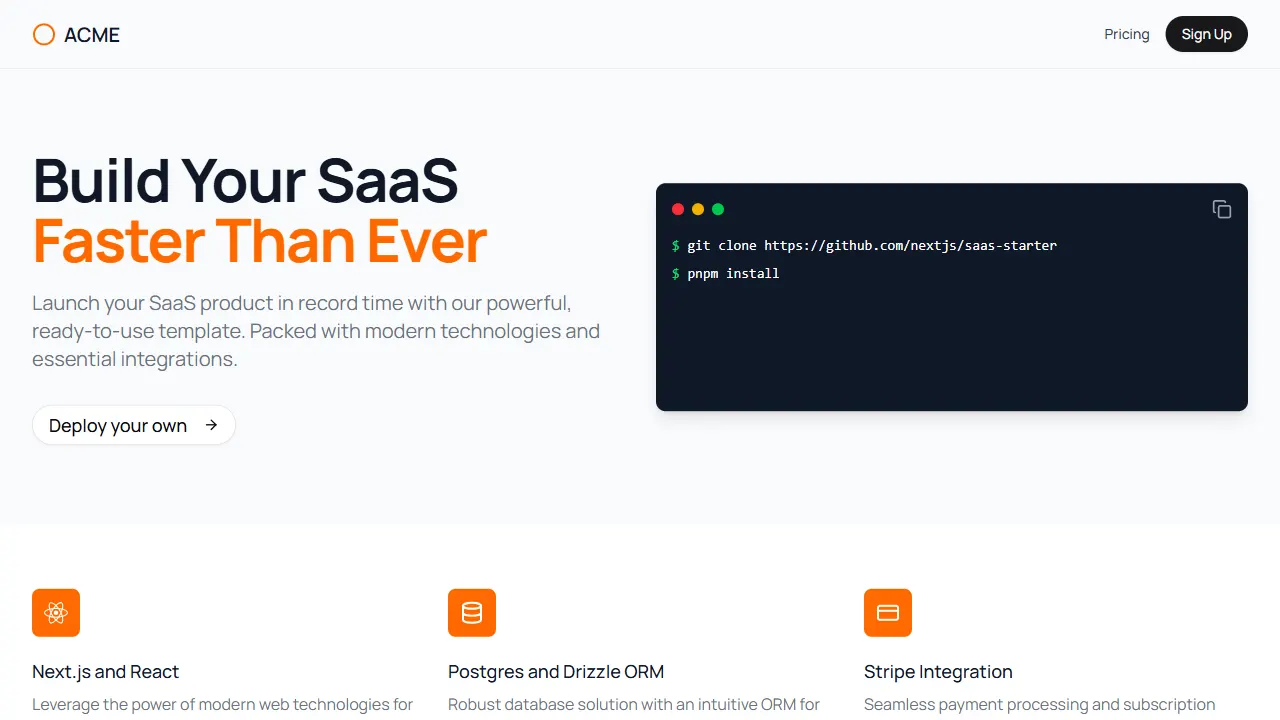
Next.js SaaS Starter
The official Next.js SaaS starter template, integrating email/password authentication, Stripe Checkout subscriptions, a dashboard with user/team CRUD, basic Owner/Member RBAC, and activity logging.
Next.js · SaaS
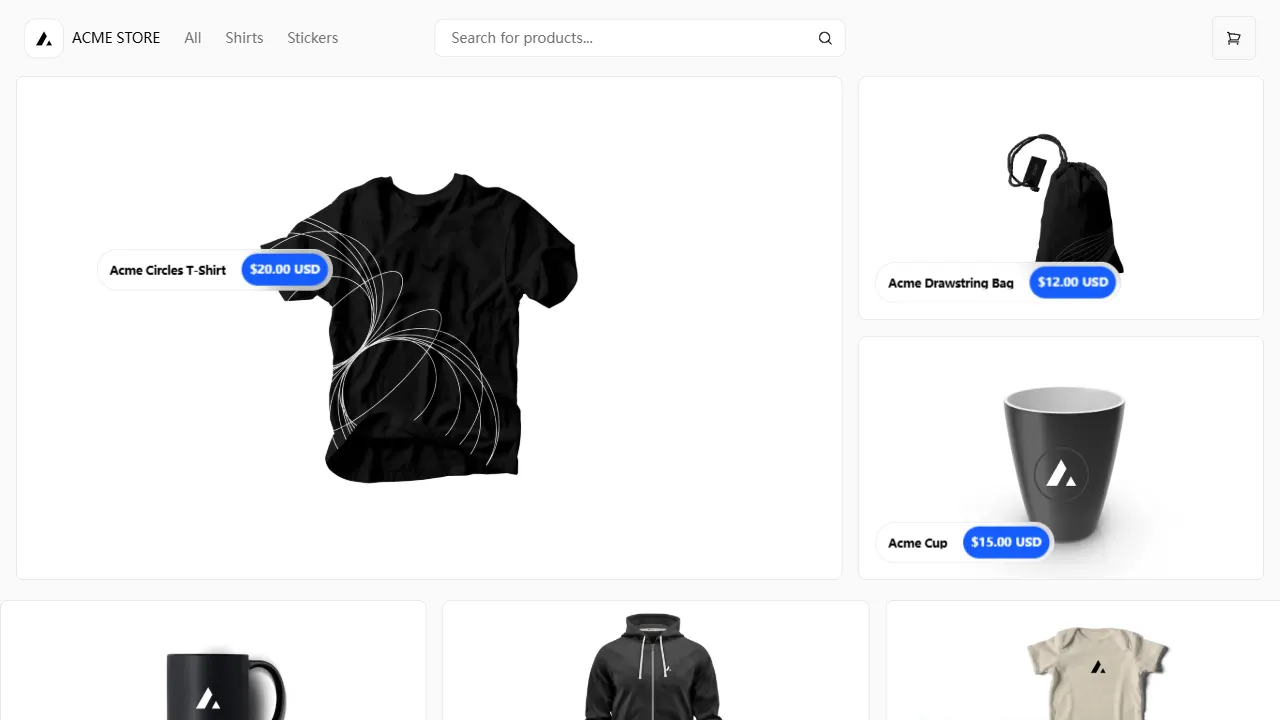
Next.js Commerce
Vercel's officially maintained Next.js App Router ecommerce starter with deep Shopify integration, offering a complete product catalog, cart, and checkout flow. Core logic is modular for swapping backends, and community provider versions exist for BigCommerce, Medusa, and Saleor.
Next.js · E-commerce
Next-js-Boilerplate
A developer-first Next.js 16 starter with Tailwind CSS 4 and TypeScript, supporting both App Router and Page Router.
Next.js · Starter

tailwind-nextjs-starter-blog
A Next.js and Tailwind CSS blog starter template using Contentlayer for Markdown/MDX, with built-in SEO, code highlighting, and tags. It targets personal technical blogs and migration from Jekyll/Hugo to React, and supports one-click Vercel deployment.
Next.js · Blog
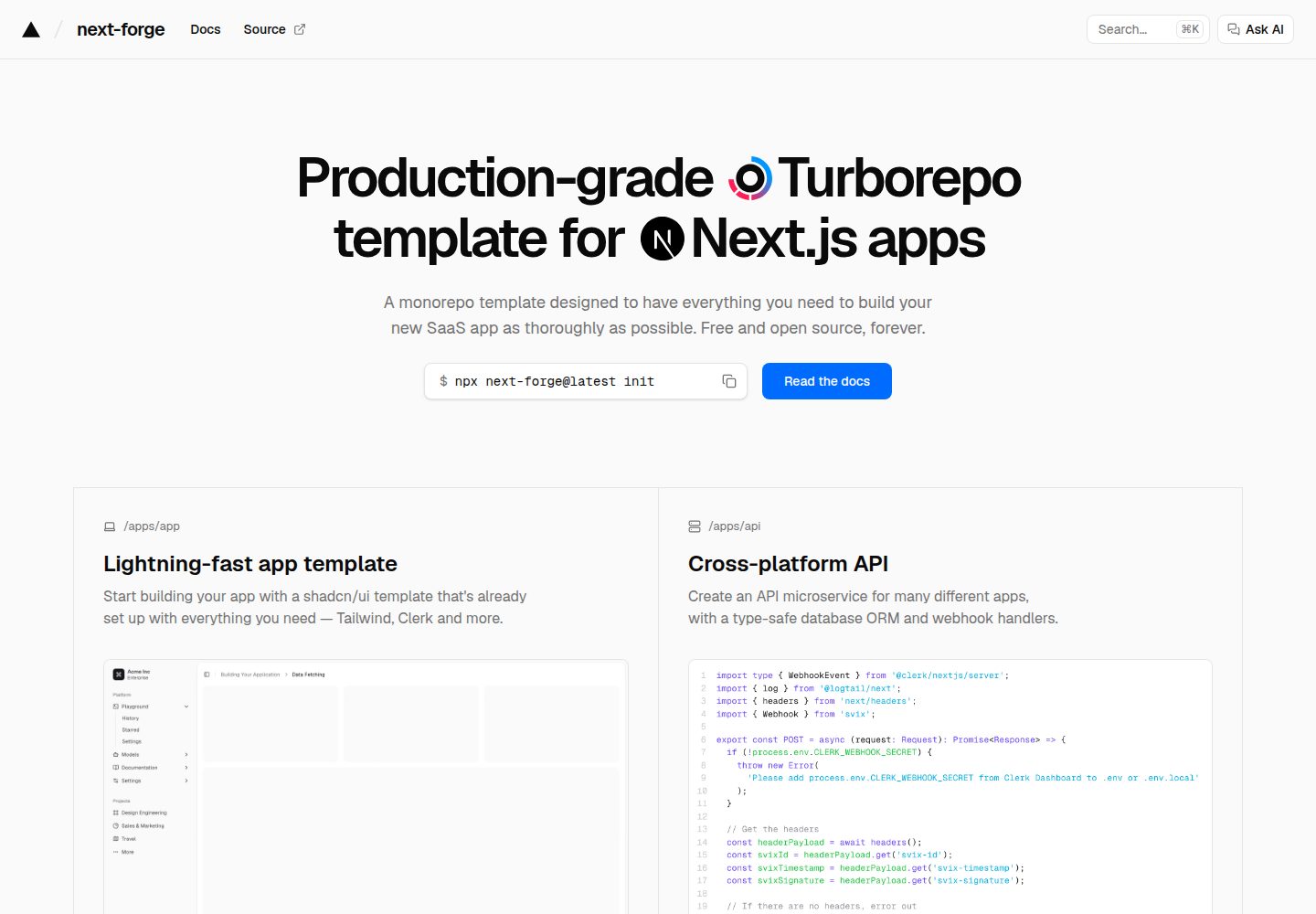
next-forge
next-forge is a Turborepo-based Next.js template maintained by Vercel, positioned as a starting point for SaaS products.
Next.js · Starter
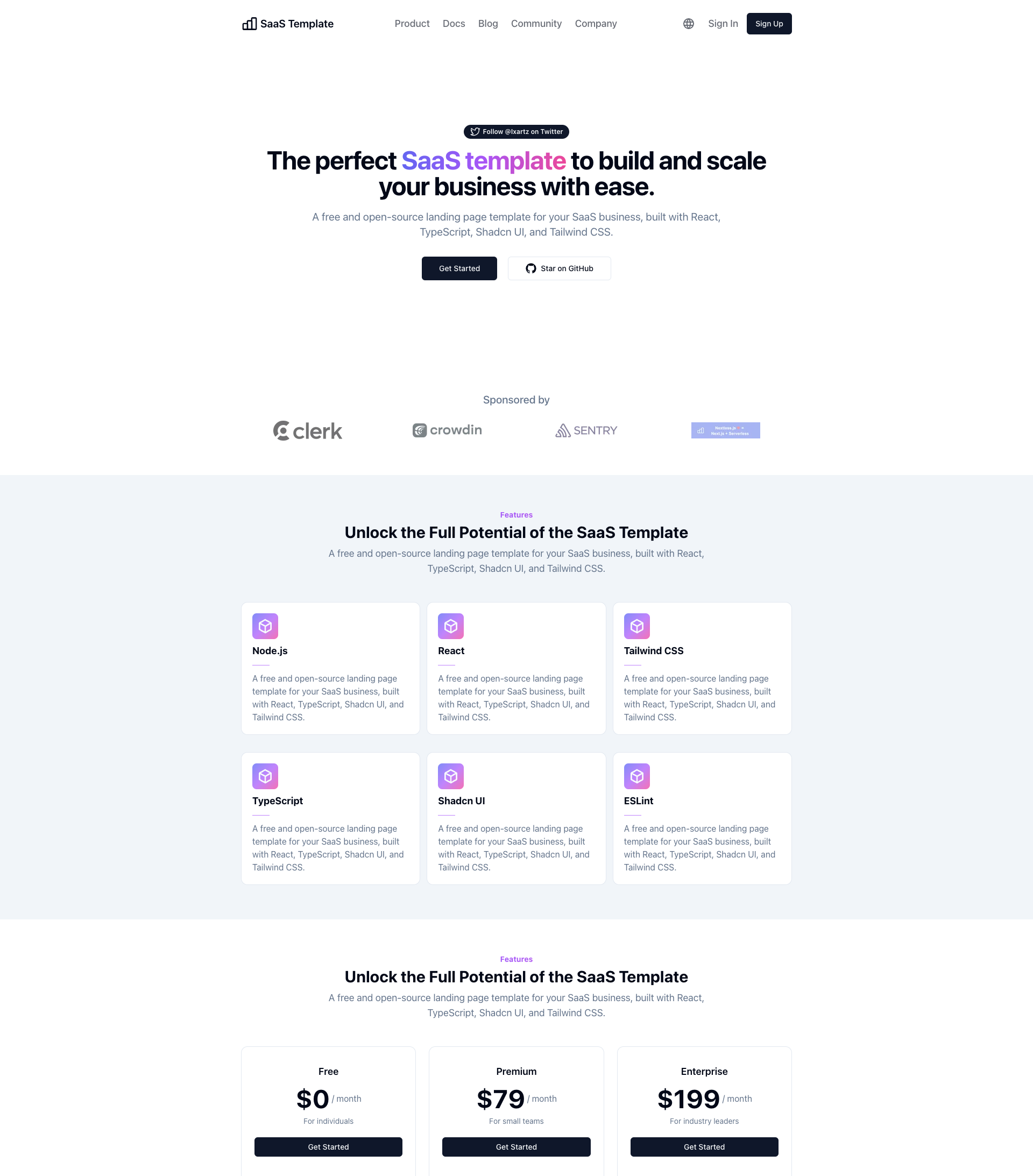
SaaS-Boilerplate
SaaS-Boilerplate is an open-source SaaS starter template built with Next.js App Router, React 19, TypeScript, Tailwind CSS, and Shadcn UI.
Next.js · SaaS