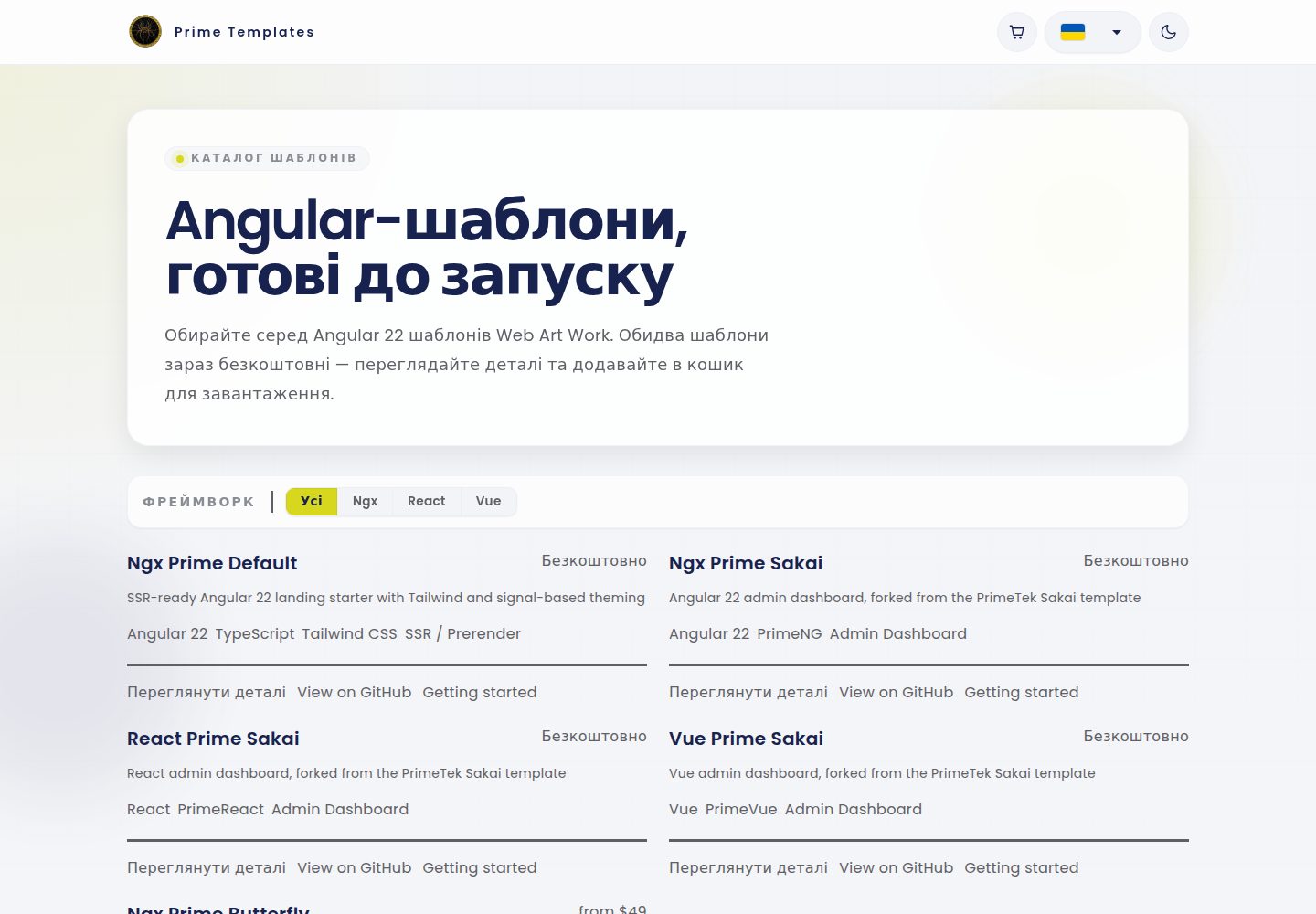
构建时通过 Angular SSR 预渲染所有路由,生成静态 HTML
Angular后台
prime.webart.work — Angular 后台模板
作者 WebArtWork
基于 Angular 的落地页模板,构建时通过 SSR 预渲染生成静态 HTML,使用 TailwindCSS 与 GitHub Pages 部署。
看看你的网站会是什么样
浏览真实页面截图,比较内容排版与手机效果。点击下方缩略图切换,放大查看整页细节。
全部页面与视图 2
截图用于了解视觉与布局,交互效果请以实际项目为准。
采集于 2026-10-15查看来源
值得关注的模板亮点
从已有项目资料中,快速了解它的特点。
使用 TailwindCSS v4,通过 .postcssrc.json 配置
Zoneless Angular,状态在 HTML 类绑定中以 signals 暴露
包含公司资料 bootstrap 数据流,支持接口获取与本地 JSON 回退
通过 GitHub Actions 将 dist/app/browser 部署到 gh-pages 分支
使用 @wawjs/ngx-translate 翻译栈,乌克兰语为默认源语言
模板详细介绍
该模板是面向静态落地页的 Angular 起始项目,README 说明其核心机制是在构建阶段通过 Angular SSR 预渲染为每个路由生成静态 HTML,从而适合静态托管。项目包含 SSR 配置(app.config.server.ts、app.routes.server.ts),默认所有路由使用 RenderMode.Prerender。开发时以普通 Angular SPA 运行,构建输出 dist/app/browser 与 dist/app/server,但部署使用浏览器端预渲染产物。
模板还包含一套公司资料的 bootstrap 数据流:应用启动时由 APP_INITIALIZER 调用 BootstrapService.initialize(),在服务端从环境变量 apiUrl 与 companyId 对应的接口获取数据,存入 TransferState,浏览器端先应用再后台刷新;接口不可用时回退到 src/data/company/company.json 本地数据。
README 同时给出 TailwindCSS 配置方式、Material Symbols Outlined 图标用法、基于 @wawjs/ngx-translate 的翻译流程(乌克兰语为默认源语言)、SCSS 约定、环境文件用途、GitHub Actions 部署步骤与自定义域名 CNAME 设置。README 未提供页面数量、具体业务场景或性能数据。
Angular后台
适合你的项目吗?
适用场景
- 构建以静态托管为主的 SEO 友好落地页
- 需要构建时预渲染而非运行时服务端渲染的 Angular 项目
- 使用 TailwindCSS 与 Material Symbols Outlined 的界面开发
- 需要多语言界面并维护按索引对齐的翻译数组
- 通过 GitHub Pages 发布并配置自定义域名
适合人群
- 熟悉 Angular 并需要静态落地页起始结构的开发者
- 希望使用构建时预渲染而非运行时 SSR 的项目
- 需要 GitHub Pages 自动部署流程的团队
- 接受以乌克兰语为默认翻译源语言的多语言项目
上手与定制指南
结合仓库当前版本的说明,按下面的资料检查内容、配置与运行要求。
- 1
开发运行 npm start 或 ng serve,默认地址 http://localhost:4200
- 2
构建使用 npm run build,输出 dist/app/browser 与 dist/app/server
- 3
可选运行 node dist/app/server/server.mjs 启动 SSR 服务器,但预渲染 HTML 已生成时通常不需要
- 4
部署由 .github/workflows/deploy.yml 自动完成:安装依赖、构建、复制 CNAME、推送至 gh-pages
- 5
自定义域名通过 CNAME 配置,README 示例为 ngx.itkamianets.com,需替换为自己的域名
授权与来源资料
使用条件与限制
免费使用 · 保留许可声明本次收录的是公开仓库中采用 MIT 许可的免费版本;免费范围为该版本代码,不代表外部服务或第三方素材免费。
使用时需要遵守
- 允许免费使用、修改、商用和分发该版本代码。
- 分发代码副本或实质性部分时,保留原作者版权声明和完整 MIT 许可声明。
- 代码按现状提供;担保与责任限制以原许可证及适用法律为准。
额外费用与待核对事项
- 演示图片、字体、图标及其他第三方素材需按各自许可核对,不能仅凭代码的 MIT 许可判断。
- 域名、托管、数据库、支付或 AI 等外部服务可能另外收费。
- 自定义域名需调整为自有域名,README 示例使用 *.itkamianets.com 子域,若沿用示例域名可能无法正常部署。
- 服务端 bootstrap 数据依赖环境变量 apiUrl 与 companyId 指向的外部接口,需自行配置可用的后端服务。
- 将模板适配为真实业务需使用外部 ChatGPT 自定义 GPT 服务,属于第三方外部服务依赖。
- 当前 @wawjs/ngx-translate 包不提供 TranslatePipe,翻译实现需改用指令或 TranslateService。
- 乌克兰语为默认语言与根源文本,其他语言数组须按索引与 ua.json 对齐,多语言维护受此约束。
查看原文依据
Permission is hereby granted, free of charge
许可证原文
Custom domain which you should adjust to your own domain so it works properly, any subdomain of `*.itkamianets.com` in case it's not used before on our github org.
README 原文
- on the server, bootstrap data is fetched from `${environment.apiUrl}/api/regionit/bootstrap/${environment.companyId}`
README 原文
After cloning and installing the project, use the **Angular Default Web Art Work** Custom GPT to
README 原文
- Do not use `TranslatePipe`; it is not available in the current `@wawjs/ngx-translate` package
README 原文
https://github.com/WebArtWork/prime.webart.work/blob/master/LICENSEhttps://github.com/WebArtWork/prime.webart.work/blob/master/README.md- Ukrainian is the default language and root source text
README 原文
DeepSeek 根据仓库许可证和 README 整理 ·2026-10-15。结果仅覆盖已读取资料,依赖、图片、字体及后续条款变更以各自原文为准。
项目核对记录与介绍依据
模板资料
- 来源平台
- GitHub
- 资料与维护参考分
- 资料较完整 · 80 / 100
- 技术栈
- Angular
- 网站类型
- 后台
这个分数如何计算
本站按许可资料(最高30分)、演示链接(12分)、预览图(10分)、Star数(15分)、记录的维护时间(15分)、描述完整度(8分)、功能记录(5分)和分类资料(5分)计算。它不是代码、安全或性能测试,也不是 Google 评分;有链接不代表已实测可用。
这个项目需要核对什么
- 记录的仓库更新时间
- 2026-09-11
- 截图检查日期
- 2026-10-15
已收录演示链接。请用你的内容与屏幕尺寸检查;有演示不代表表单、认证或支付已经可用。
目录记录的主要技术栈是 Angular。请通过依赖清单和锁文件核对实际版本与托管要求。这些说明基于收录资料,不代表代码审计或部署实测。
查看具体选型方法 →介绍的制作与核对状态
介绍由 AI 辅助整理目录与仓库资料。仓库作者不等于这篇介绍的审核者。
审核声明: codex-user-requested-batch-review-20261017 · 2026-10-16
查看当时使用的来源资料
SHA-256: 21010683ecb87650135a876abf919229653cd74bf6a6ce85ccc074d788e2fb52
2026-10-15T13:19:35.154Z
来源文件 / 仓库# Angular Landing Template (SSR + Prerender)
Modern Angular 22 starter template for building fast landing pages with **SSR prerendering**, **TailwindCSS**, and **GitHub Pages deployment**.
This template is optimized for static landing sites where pages are rendered at **build time** for SEO and performance.
---
# Acknowledge
- Angular **22**
- **SSR prerendering** during build
- **Zoneless Angular**
- State used in HTML class bindings should be exposed as **signals**
- Prefer **Angular Signal Forms** as the primary forms approach when building new forms
- **OnPush change detection through Angular 22 defaults**
- **TailwindCSS v4**
- Use shared **theme CSS variables** from `src/styles/_theme.scss` for colors, surfaces, spacing, radius, and motion
- **GitHub Pages deployment**
- **Prettier formatting**
- Clean minimal project structure
The project builds both:
```
dist/app/browser
dist/app/server
```
But deployment uses the **browser prerendered output**, making it perfect for static hosting.
---
# Project Structure
```
src/
app/
app.component.ts
app.config.ts
app.config.server.ts
app.routes.ts
app.routes.server.ts
layouts/
pages/
assets/
environments/
i18n/
styles/
styles.scss
```
SSR configuration lives in:
```
app.config.server.ts
app.routes.server.ts
```
---
# Development
Start the development server:
```
npm start
```
or
```
ng serve
```
Application runs at [http://localhost:4200](http://localhost:4200)
Development mode runs as a normal Angular SPA.
---
# Build
Build the project:
```
npm run build
```
This generates:
```
dist/app/browser
dist/app/server
```
Pages are **prerendered at build time** using Angular SSR.
---
# Running the SSR server (optional)
After `npm run build`, the generated SSR server can be run manually:
```
node dist/app/server/server.mjs
```
For most landing pages this is **not required**, because prerendered HTML is already generated.
---
# Prerender configuration
All routes are prerendered by default:
```
src/app/app.routes.server.ts
```
```
RenderMode.Prerender
```
```ts
export const serverRoutes: ServerRoute[] = [
{
path: '**',
renderMode: RenderMode.Prerender,
},
];
```
This makes Angular generate static HTML for every route during build.
---
# Bootstrap Data
The app includes a small bootstrap data flow for company profile data.
Main files:
```text
src/app/app.config.ts
src/app/feature/bootstrap/bootstrap.service.ts
src/app/feature/bootstrap/bootstrap.interface.ts
src/app/feature/company/company.data.ts
src/app/feature/company/company.service.ts
src/data/company/company.json
src/environments/environment.prod.ts
```
How it works:
- `APP_INITIALIZER` runs `BootstrapService.initialize()` during app startup
- on the server, bootstrap data is fetched from `${environment.apiUrl}/api/regionit/bootstrap/${environment.companyId}`
- fetched data is stored in Angular `TransferState`
- on the browser, transferred data is applied immediately and then refreshed in the background
- if no remote data is available, the app falls back to `src/data/company/company.json`
- local company data is normalized into a `CompanyProfile` with SEO defaults, contact fields, structured data, and page SEO overrides
Bootstrap payload shape:
```ts
export interface BootstrapData {
company?: Partial<Company> | null;
}
```
Environment keys involved:
- `apiUrl` - API host used for bootstrap requests
- `companyId` - company identifier sent to the bootstrap endpoint
Current fallback behavior in code:
- when the API is unavailable, the app keeps rendering with local fallback company data
- when the API returns a partial company object, it updates identity fields without discarding local SEO/contact defaults
This keeps SSR and prerender safe while still allowing the app to hydrate with API data when it exists.
For future component or page-level async reads, prefer signal-based resources. Use `ngxResource()`
from `@wawjs/ngx-core` for persisted or generic async reads, especially when `StoreService` caching
is useful. Keep bootstrap initialization, migrations, and startup fallback flows as direct
imperative async code when a resource state object would make the flow less clear.
For theme preferences, keep mode, density, radius, and persistence centralized in `ThemeService`
from `@wawjs/ngx-ui`. Do not add duplicate `localStorage` or document attribute logic for theme
state in app components.
---
# TailwindCSS
Tailwind is configured via:
```
.postcssrc.json
```
Tailwind should be used as much as possible for everyday UI work.
Prefer Tailwind utilities for:
- layout
- spacing
- typography
- colors
- borders
- sizing
- responsive behavior
Use SCSS only when Tailwind is not the right tool, for example:
- component-specific complex styling
- shared design tokens and mixins
- advanced states or selectors
- small amounts of global styling
Global styles live in:
```
src/styles.scss
```
---
# Icons
This template includes **Material Symbols Outlined** and those should be used as the default icon set across the project.
Loaded in:
```
src/index.html
```
Use icons directly in HTML like this:
```html
<span class="material-symbols-outlined" aria-hidden="true">arrow_forward</span>
```
For accessible buttons, keep the icon decorative and provide a text label or `aria-label` on the button itself:
```html
<button type="button" aria-label="Open menu">
<span class="material-symbols-outlined" aria-hidden="true">menu</span>
</button>
```
---
# Translations And Languages
UI translations live in:
```text
src/i18n/<code>.json
```
Language metadata lives in:
```text
src/environments/environment.prod.ts
```
Translation bootstrap starts in:
```text
src/app/app.config.ts
```
The app uses the `@wawjs/ngx-translate` translation stack:
- `provideTranslate(...)` registers the default interface bundle from `/i18n/`
- `TranslateDirective` and `TranslateService` are the default translation primitives
- Ukrainian is the default language and root source text
- `src/i18n/ua.json` is the root source array; every other language file is an array in the same order
When adding or updating translations:
- add or update the matching `src/i18n/<code>.json` array
- update `environment.languages` when adding or renaming a supported language
- keep Ukrainian source text identical across templates, components, and `src/i18n/ua.json`
- keep every translated language array aligned by index with `src/i18n/ua.json`
- store translation text and language labels as real UTF-8 characters, not escaped or re-encoded mojibake
- remove unused source strings from every language array when they are no longer referenced anywhere in the app
Supported usage patterns:
- Use the `translate` directive for plain element text content
- Use `TranslateDirective` for text and translated attributes
- Use `[translate]="{ placeholder: 'Default source text' }"` for directive-managed translated attributes
- Use `TranslateService.translate('Default source text')()` in TypeScript when the translated value is needed inside `computed()` or composed strings
- Do not use `TranslatePipe`; it is not available in the current `@wawjs/ngx-translate` package
Examples:
```html
<span translate>Default source text</span>
<button translate [translate]="{ ariaLabel: 'Default aria label' }" type="button"></button>
```
```ts
private readonly _translateService = inject(TranslateService);
protected readonly toggleLabel = computed(() =>
this._translateService.translate('Default source text')(),
);
```
---
# SCSS Conventions
Use SCSS in a way that matches modern Angular defaults:
- Keep most styles inside the component `.scss` file.
- Use `src/styles.scss` only for truly global styles like resets, tokens, typography, and utility layers.
- Prefer CSS variables for colors, spacing, and theming that may change at runtime.
- Use SCSS features like `@use`, mixins, and partials for authoring convenience and shared design tokens.
- Avoid deep selector nesting. Keep selectors simple and local to the component.
- Avoid `::ng-deep` and `ViewEncapsulation.None` unless there is a clear integration reason.
- Prefer class bindings in templates over heavy inline style bindings.
Recommended split:
```text
src/styles.scss -> global entry point
src/app/**/**/*.scss -> component-local styles
src/styles/_theme.scss -> shared theme CSS variables
```
---
# Environments
This template includes Angular environment files and they can be used for different runtime setups such as local development and production builds.
Available files:
```text
src/environments/environment.ts
src/environments/environment.prod.ts
```
Typical use cases:
- API base URLs
- feature flags
- analytics toggles
- external service configuration
Production builds replace `environment.ts` with `environment.prod.ts` through Angular file replacements.
Keep environment files limited to public front-end configuration. Do not store secrets in them.
---
# Deployment
Deployment is handled automatically via **GitHub Actions**.
Workflow:
```
.github/workflows/deploy.yml
```
Steps:
1. Install dependencies
2. Build Angular app
3. Copy `CNAME`
4. Push build output to `gh-pages`
The deployed folder is:
```
dist/app/browser
```
---
# Domain
Custom domain which you should adjust to your own domain so it works properly, any subdomain of `*.itkamianets.com` in case it's not used before on our github org.
```
ngx.itkamianets.com
```
Configured via:
```
CNAME
```
---
# Code Style
Formatting is handled by:
- `.editorconfig`
- `.prettierrc`
Key conventions:
- **tabs**
- **single quotes**
- **100 character line width**
---
# AI Usage
If you use AI outside the IDE and it does not automatically read repository instructions, copy the
contents of `AGENTS.md` into the AI prompt/context first.
This ensures the AI follows the same project-specific rules that Codex uses inside the IDE.
---
# MCP Servers For Codex, Copilot, And Gemini
This project uses these MCP servers:
```toml
[mcp_servers.angular-cli]
command = "npx"
args = ["-y", "@angular/cli", "mcp"]
[mcp_servers.context7]
command = "npx"
args = ["-y", "@upstash/context7-mcp"]
[mcp_servers.typescript-lsp]
command = "npx"
args = ["-y", "ts-lsp-mcp", "serve", "--stdio"]
```
Use the following setup depending on the client.
## Codex
Codex supports both user-level config and repo-level config through TOML files:
- global: `~/.codex/config.toml`
- project-local: `.codex/config.toml`
Codex CLI and the Codex IDE extension share the same MCP configuration.
### Codex global config
Add this to `~/.codex/config.toml`:
```toml
[mcp_servers.angular-cli]
command = "npx"
args = ["-y", "@angular/cli", "mcp"]
[mcp_servers.context7]
command = "npx"
args = ["-y", "@upstash/context7-mcp"]
[mcp_servers.typescript-lsp]
command = "npx"
args = ["-y", "ts-lsp-mcp", "serve", "--stdio"]
```
### Codex project-local config
Create `.codex/config.toml` in the repository root and add the same block:
```toml
[mcp_servers.angular-cli]
command = "npx"
args = ["-y", "@angular/cli", "mcp"]
[mcp_servers.context7]
command = "npx"
args = ["-y", "@upstash/context7-mcp"]
[mcp_servers.typescript-lsp]
command = "npx"
args = ["-y", "ts-lsp-mcp", "serve", "--stdio"]
```
If Codex does not load project-local MCP config, mark the repo as trusted in your user config:
```toml
[projects.'\\?\C:\Users\YOUR_USER\work\itkp.ngx-default']
trust_level = "trusted"
```
### Codex CLI commands
You can add the same servers with the CLI instead of editing TOML manually:
```bash
codex mcp add angular-cli -- npx -y @angular/cli mcp
codex mcp add context7 -- npx -y @upstash/context7-mcp
codex mcp add typescript-lsp -- npx -y ts-lsp-mcp serve --stdio
```
Useful checks:
```bash
codex mcp --help
codex mcp list
```
## GitHub Copilot
For GitHub Copilot in VS Code, MCP servers are configured with `mcp.json`:
- global: your VS Code user MCP config
- project-local: `.vscode/mcp.json`
The project-local file is the easiest way to share MCP setup with everyone working in the repo.
### Copilot project-local config
Create `.vscode/mcp.json`:
```json
{
"servers": {
"angular-cli": {
"command": "npx",
"args": ["-y", "@angular/cli", "mcp"]
},
"context7": {
"command": "npx",
"args": ["-y", "@upstash/context7-mcp"]
},
"typescript-lsp": {
"command": "npx",
"args": ["-y", "ts-lsp-mcp", "serve", "--stdio"]
}
}
}
```
### Copilot global config
Open the Command Palette in VS Code and run:
```text
MCP: Open User Configuration
```
Then add the same JSON shown above.
You can also use:
```text
MCP: Add Server
```
and choose either `Workspace` or `Global`.
### Copilot notes
- On Windows, these MCP servers run as local processes through `npx`.
- After saving `mcp.json`, use `MCP: List Servers` to verify they started.
- If your team uses Copilot CLI separately, its MCP config is different and lives in `~/.copilot/mcp-config.json`.
## Gemini CLI
Gemini CLI supports both user and project scope through `settings.json`:
- global: `~/.gemini/settings.json`
- project-local: `.gemini/settings.json`
### Gemini global config
Add this to `~/.gemini/settings.json`:
```json
{
"mcpServers": {
"angular-cli": {
"command": "npx",
"args": ["-y", "@angular/cli", "mcp"]
},
"context7": {
"command": "npx",
"args": ["-y", "@upstash/context7-mcp"]
},
"typescript-lsp": {
"command": "npx",
"args": ["-y", "ts-lsp-mcp", "serve", "--stdio"]
}
}
}
```
### Gemini project-local config
Create `.gemini/settings.json` in the repo root and add the same JSON:
```json
{
"mcpServers": {
"angular-cli": {
"command": "npx",
"args": ["-y", "@angular/cli", "mcp"]
},
"context7": {
"command": "npx",
"args": ["-y", "@upstash/context7-mcp"]
},
"typescript-lsp": {
"command": "npx",
"args": ["-y", "ts-lsp-mcp", "serve", "--stdio"]
}
}
}
```
### Gemini CLI commands
Gemini CLI can write either scope directly:
```bash
gemini mcp add -s user angular-cli npx -y @angular/cli mcp
gemini mcp add -s user context7 npx -y @upstash/context7-mcp
gemini mcp add -s user typescript-lsp npx -y ts-lsp-mcp serve --stdio
```
```bash
gemini mcp add -s project angular-cli npx -y @angular/cli mcp
gemini mcp add -s project context7 npx -y @upstash/context7-mcp
gemini mcp add -s project typescript-lsp npx -y ts-lsp-mcp serve --stdio
```
Useful checks:
```bash
gemini mcp list
```
## Recommendation
For this repository:
- use `.codex/config.toml` if your team uses Codex
- use `.vscode/mcp.json` if your team uses Copilot in VS Code
- use `.gemini/settings.json` if your team uses Gemini CLI
Use global config only when you want the same MCP servers in every project.
## References
- Codex config basics: <https://developers.openai.com/codex/config-basic>
- Codex MCP docs: <https://developers.openai.com/codex/mcp>
- VS Code MCP setup: <https://code.visualstudio.com/docs/copilot/customization/mcp-servers>
- GitHub Copilot MCP overview: <https://docs.github.com/copilot/concepts/context/mcp>
- Gemini CLI MCP docs: <https://google-gemini.github.io/gemini-cli/docs/tools/mcp-server.html>
---
# NPM Scripts
Start development:
```
npm start
```
Build project:
```
npm run build
```
# Requirements
Recommended environment:
```
Node.js 20+
npm 11+
```
---
# Code structure guide
## Pages
Application pages should be created inside:
```text
src/app/pages/
```
Each page should have its own folder and its own component file.
Example:
```text
src/app/pages/home/home.component.ts
src/app/pages/about/about.component.ts
```
Generate a page component with Angular CLI:
```bash
ng generate component pages/home
```
or shorter:
```bash
ng g c pages/home
```
Pages should be lazy loaded from `src/app/app.routes.ts`.
Example route config:
```ts
import { Routes } from '@angular/router';
export const routes: Routes = [
{
path: '',
loadComponent: () => import('./pages/home/home.component').then((m) => m.HomeComponent),
},
{
path: 'about',
loadComponent: () => import('./pages/about/about.component').then((m) => m.AboutComponent),
},
];
```
---
## Feature structure for back-end connected modules
If a part of the app needs its own business logic and back-end integration, create a dedicated feature folder inside:
```text
src/app/feature/
```
Each feature should keep its own internal structure.
Example:
```text
src/app/feature/user/
src/app/feature/user/components/
src/app/feature/user/directives/
src/app/feature/user/interfaces/
src/app/feature/user/pages/
src/app/feature/user/pipes/
src/app/feature/user/services/
```
Example service location:
```text
src/app/feature/user/services/user.service.ts
```
Suggested CLI commands:
Create feature page:
```bash
ng g c feature/user/pages/user-profile
```
Create feature component:
```bash
ng g c feature/user/components/user-card
```
Create feature directive:
```bash
ng g d feature/user/directives/user-focus
```
Create feature pipe:
```bash
ng g p feature/user/pipes/user-name
```
Create feature service:
```bash
ng g s feature/user/services/user
```
Interfaces are usually created manually:
```text
src/app/feature/user/interfaces/user.interface.ts
src/app/feature/user/interfaces/user-response.interface.ts
```
For small focused features, colocated files like `feature/language/language.type.ts`,
`language.interface.ts`, `language.const.ts`, and `language.service.ts` are also valid when that
structure keeps the feature simpler.
---
## Generic shared code
Generic reusable code that is not tied to one specific feature can live directly under `src/app`.
Example shared folders:
```text
src/app/components/
src/app/directives/
src/app/interfaces/
src/app/pipes/
src/app/services/
```
Example shared pipe location:
```text
src/app/pipes/phone.pipe.ts
```
Suggested CLI commands:
Create shared component:
```bash
ng g c components/page-header
```
Create shared directive:
```bash
ng g d directives/autofocus
```
Create shared pipe:
```bash
ng g p pipes/phone
```
Create shared service:
```bash
ng g s services/api
```
Interfaces are usually created manually:
```text
src/app/interfaces/api-response.interface.ts
src/app/interfaces/select-option.interface.ts
```
---
## Development summary
Use these locations by default:
- `src/app/pages` - app-level lazy loaded pages
- `src/app/feature/<name>` - feature-specific code with back-end/business logic
- `src/app/components`, `directives`, `pipes`, `services`, `interfaces` - generic shared code
# Create a new project from this template
Clone the default repository into a new folder with your project name (replace `PROJECT_NAME` with your project name):
```bash
git clone https://github.com/WebArtWork/ngx-default.git PROJECT_NAME
cd PROJECT_NAME
npm i
npm run start
```
### What these commands do
- `git clone https://github.com/WebArtWork/ngx-default.git PROJECT_NAME`
Downloads the template repository and creates a local folder named `PROJECT_NAME`.
- `cd PROJECT_NAME`
Opens the newly created project folder.
- `npm i`
Installs all project dependencies from `package.json`.
- `npm run start`
Starts the local development server.
After that, open the local URL shown in the terminal, usually [http://localhost:4200](http://localhost:4200)
## Initialize your own git repository
If you want to start fresh instead of keeping the template git history, remove the existing `.git` folder, initialize a new repository, and create the first commit.
Example:
```bash
rm -rf .git
git init
git remote add origin https://github.com/WebArtWork/PROJECT_NAME.git
git add .
git commit -m "chore(init): bootstrap project from ngx-default template"
```
`git remote add origin ...` connects your local repository to the remote GitHub repository so future `git push` and `git pull` commands know where your main project lives.
Use a Conventional Commit message for the first commit as well. A good default is:
```text
chore(init): bootstrap project from ngx-default template
```
# Adapting The Template To A Real Business
After cloning and installing the project, use the **Angular Default Web Art Work** Custom GPT to
adapt the template to a real business:
**[Angular Default Web Art Work on ChatGPT](https://chatgpt.com/g/g-6a205f0f0f14819185cd7707523d3816-angular-default-web-art-work)**
The GPT operates in two phases:
**Phase 1 — Implementation prompt**
Provide a Google Maps place URL and the new domain. The GPT researches the business from public
sources (Maps, website, socials, reviews, directories), gathers confirmed facts, and outputs one
compact ready-to-run prompt for a coding agent. The coding agent applies branding, content, SEO,
theme, company data, and environment config in a single pass.
**Phase 2 — Page cleanup**
After Phase 1 is applied, trigger cleanup with phrases like "cleanup" or "remove unused pages".
The GPT reviews each page one at a time, suggests keep or remove based on the business type,
collects your decision, and generates a targeted removal prompt.
---
# License
MIT
看看同类模板
对比同技术栈与用途的模板,找到更适合的视觉与内容结构。
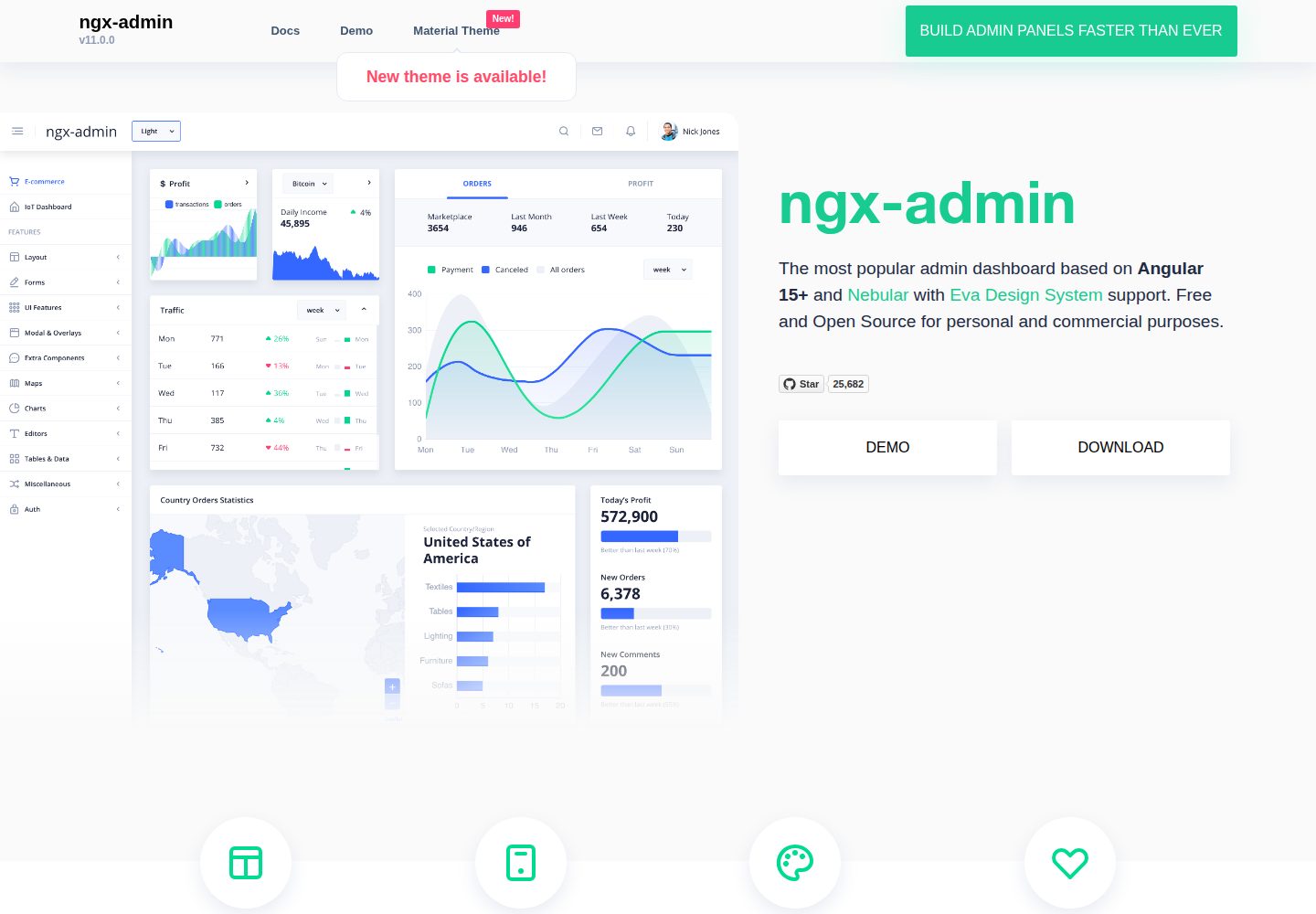
ngx-admin
Customizable admin dashboard template based on Angular 10+
Angular · 后台
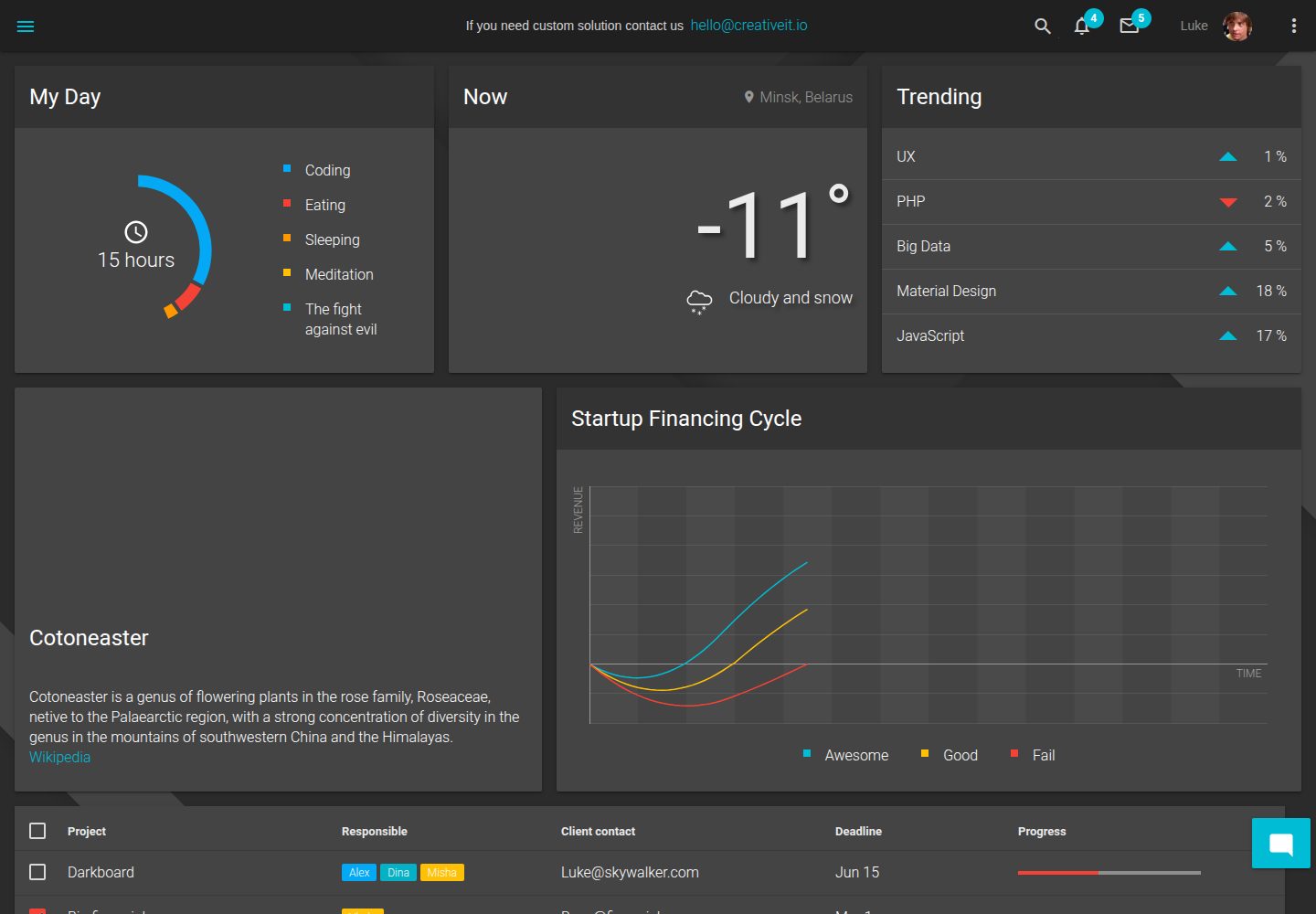
material-angular-dashboard
Material Angular Admin Template
Angular · 后台
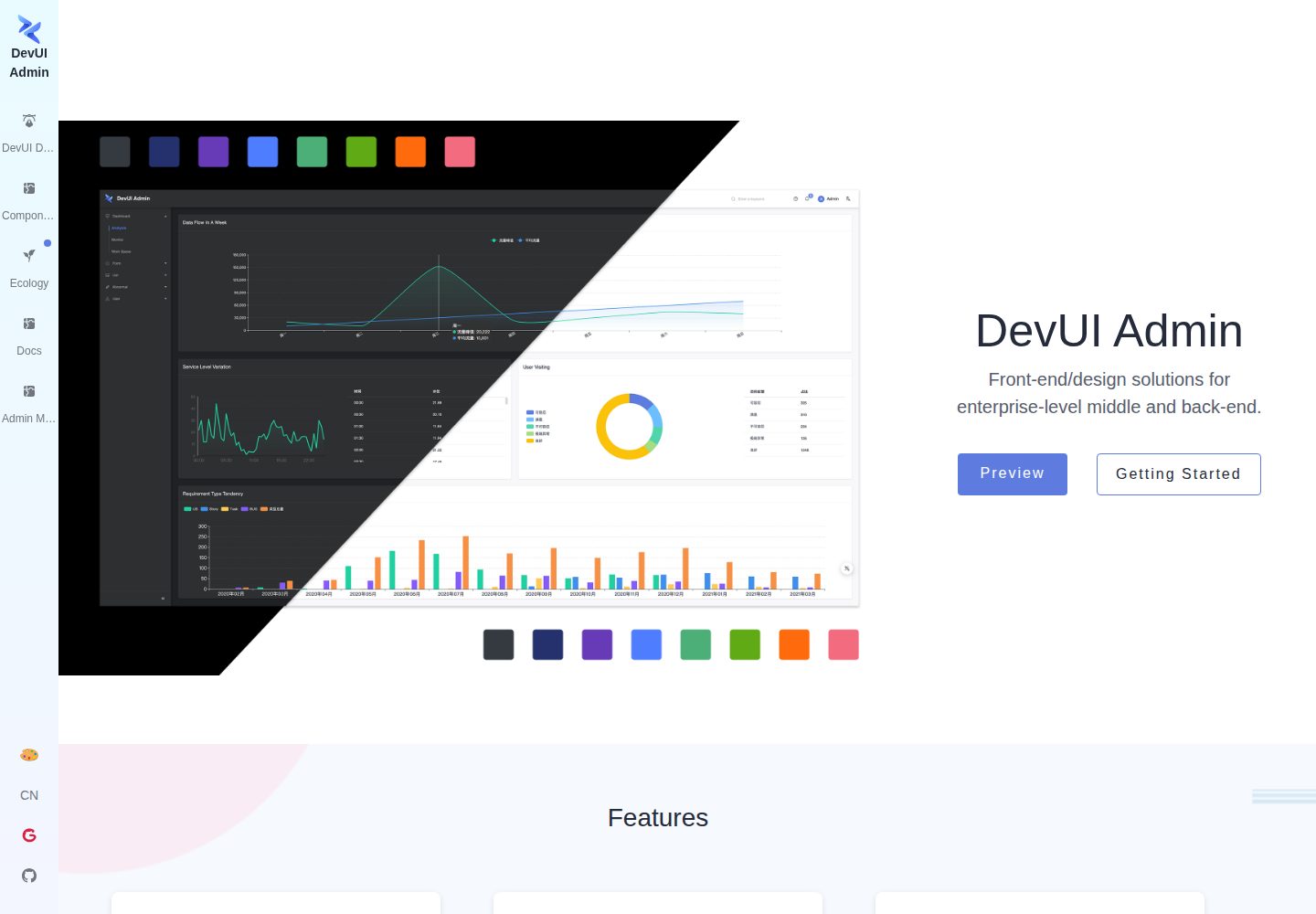
ng-devui-admin
Customizable admin dashboard template based on Angular and DevUI
Angular · 后台
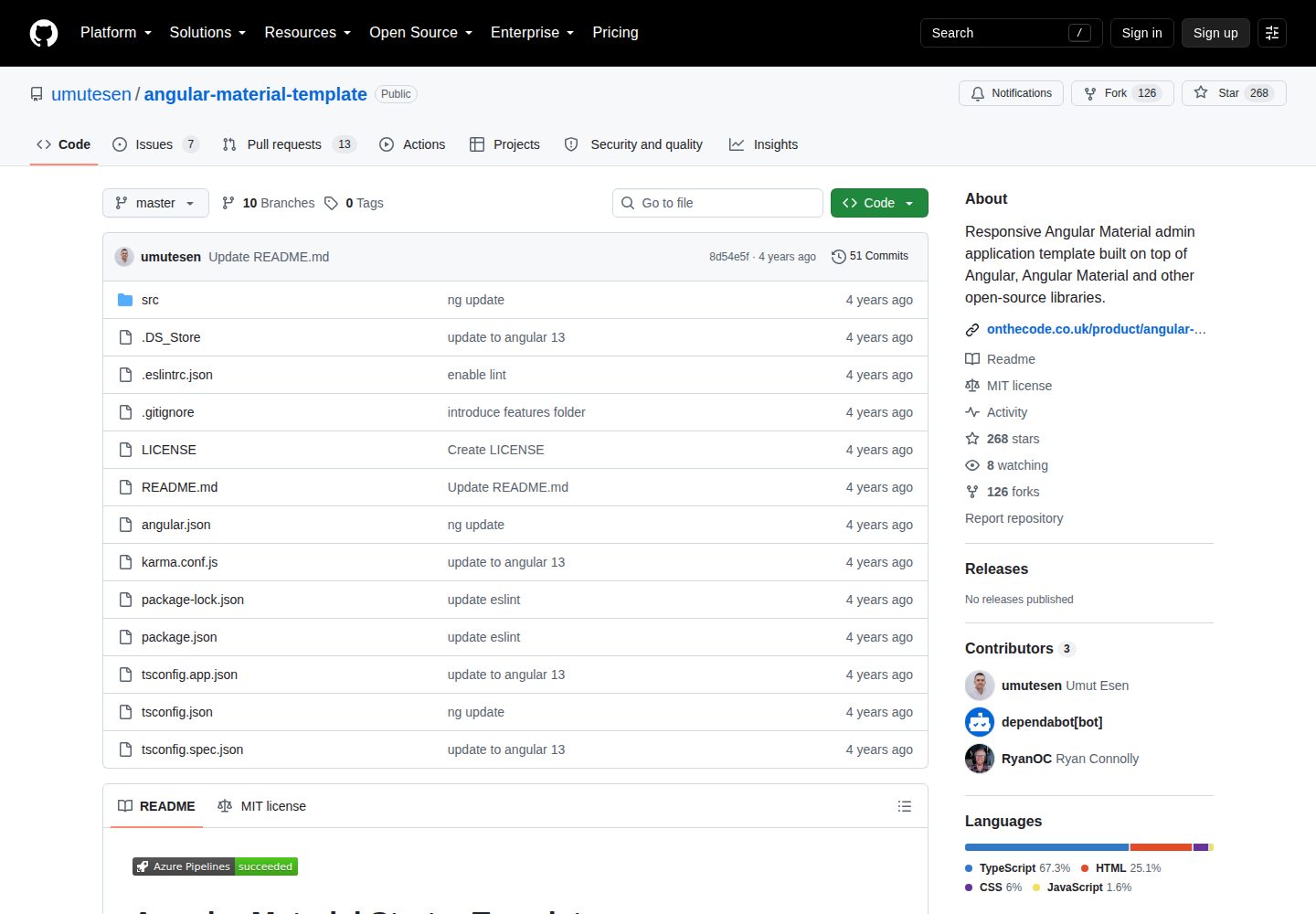
angular-material-template
Responsive Angular Material admin application template built on top of Angular, Angular Material and other ope…
Angular · 后台
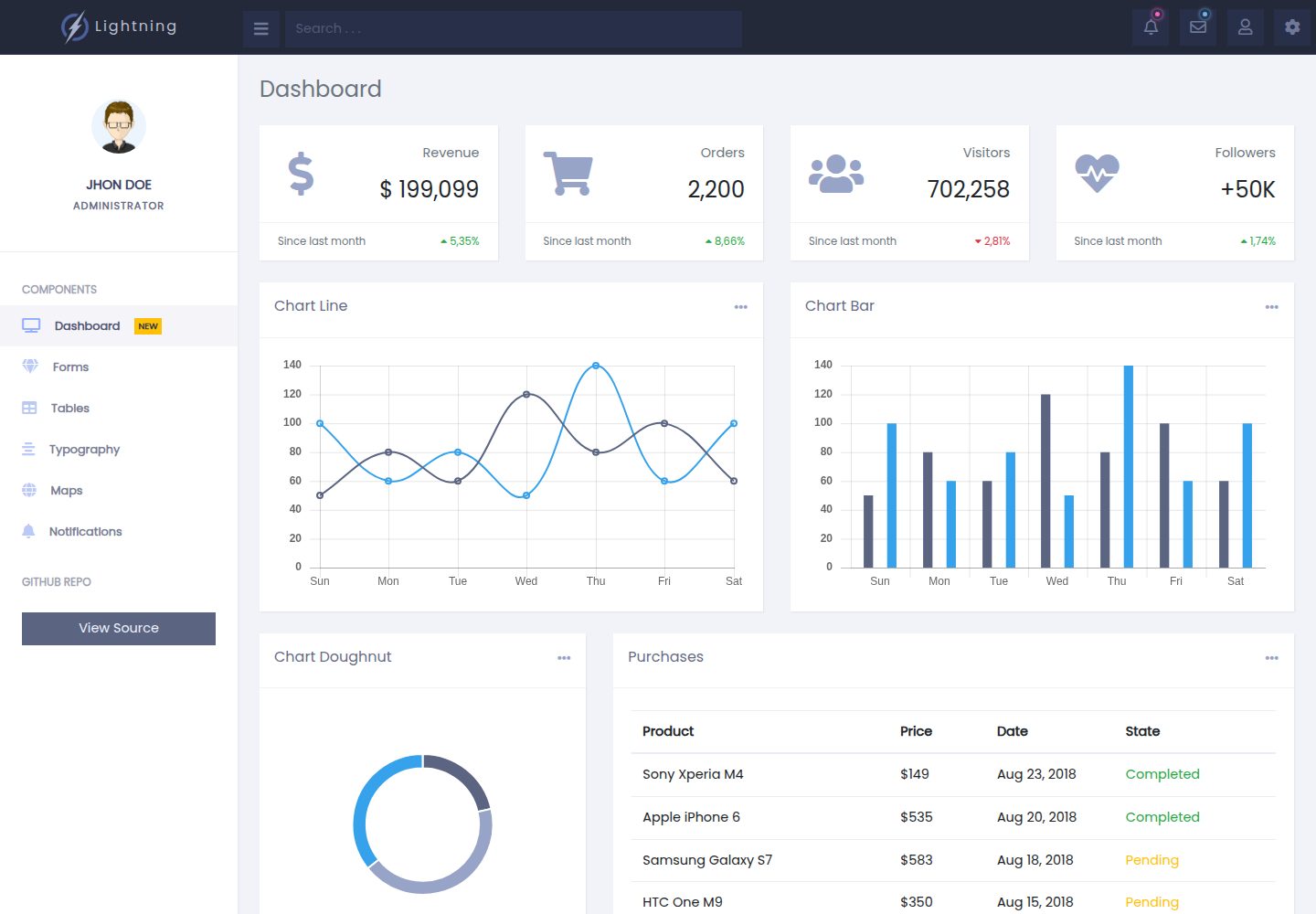
lightning-admin-angular
A mobile first design of a responsive admin template built with angular and bootstrap
Angular · 后台
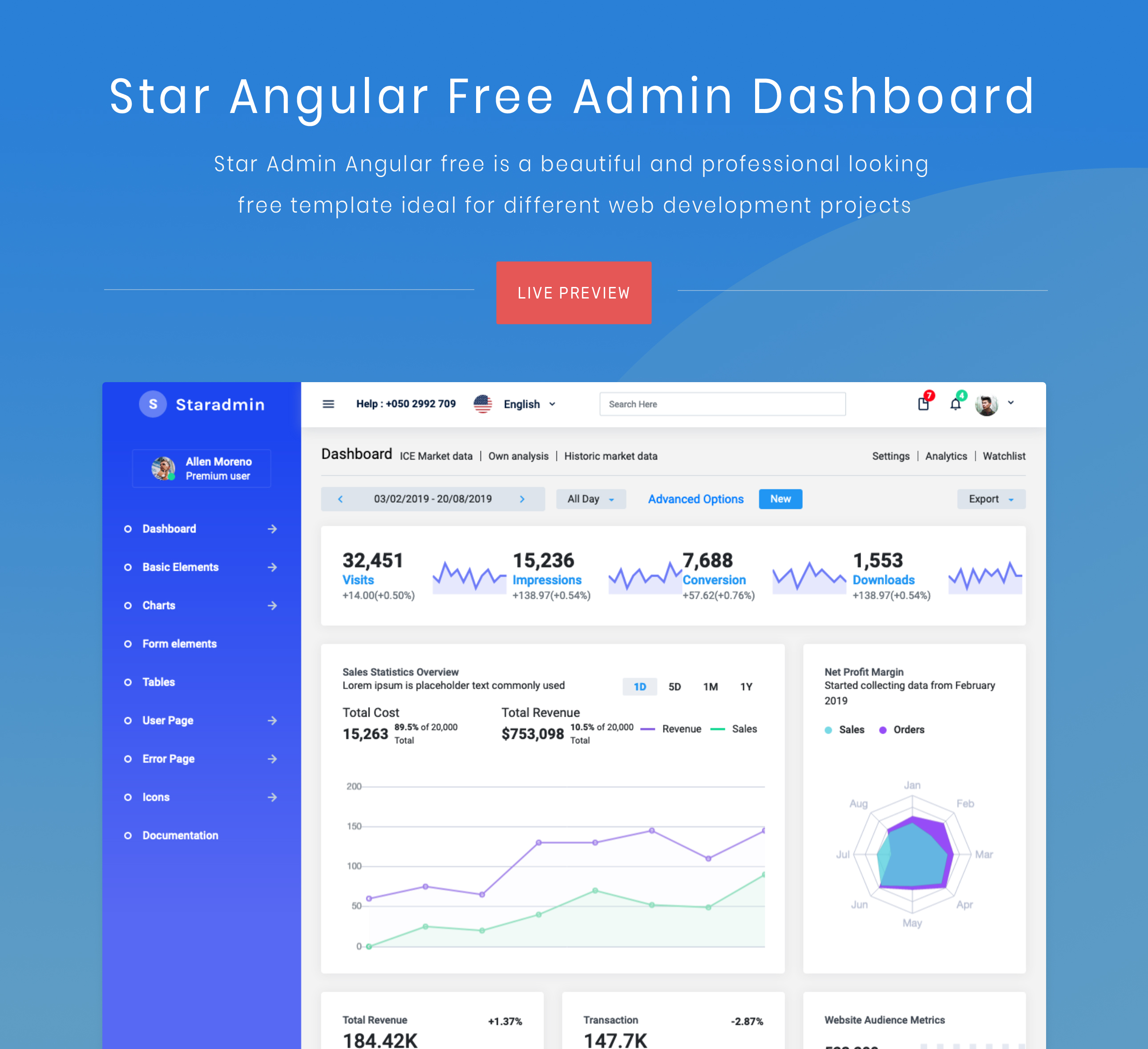
StarAdmin-Free-Angular-Admin-Template
StarAdmin Free Angular Admin Template 是一个基于 Angular 7 和 Bootstrap 4 的免费后台管理模板,由 BootstrapDash 团队维护。
Angular · 后台