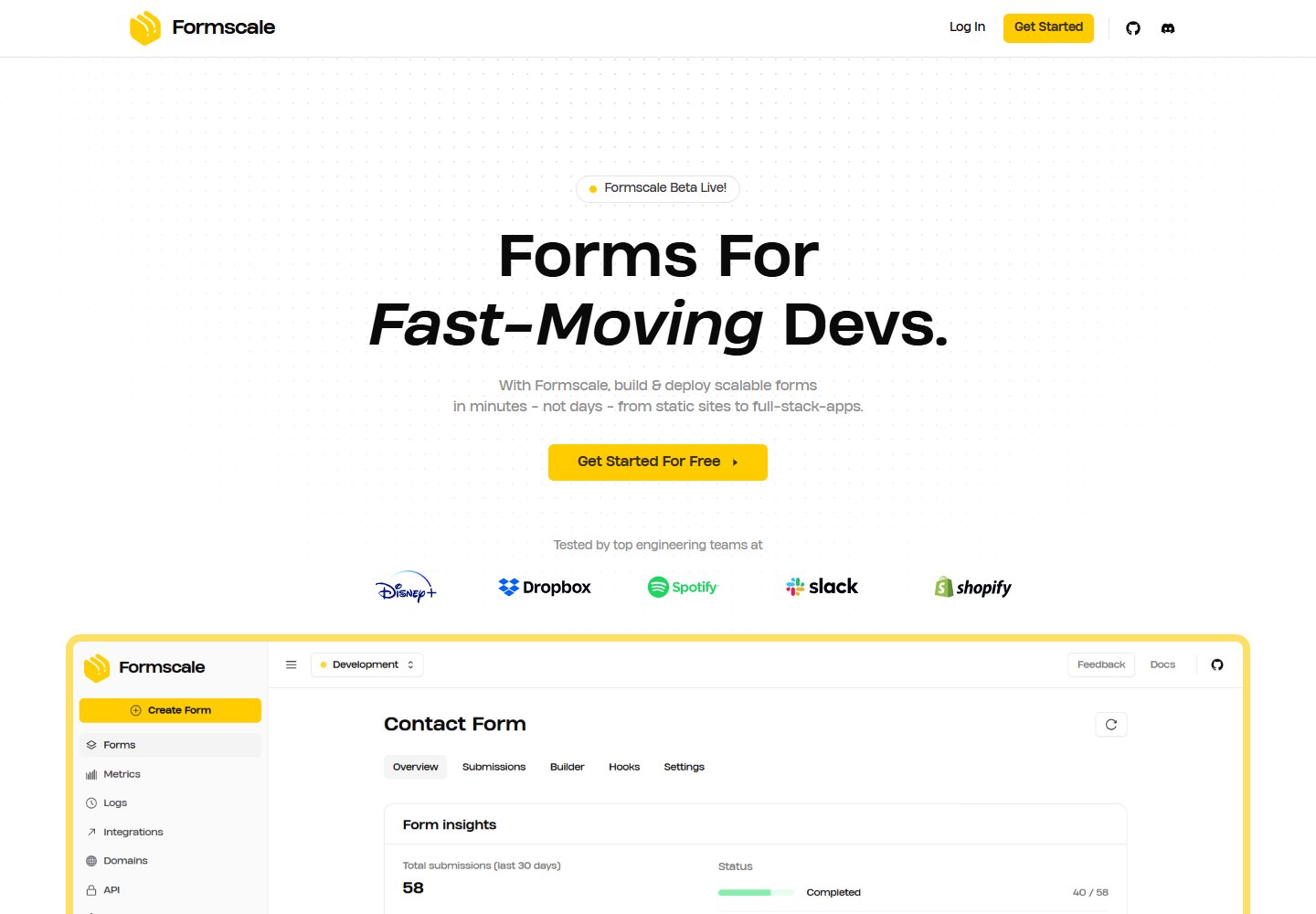
Integrates Cloudflare D1 database and R2 object storage, with bindings configured in wrangler.jsonc
Next.jsReactStarter
cloudflare-nextjs-template — Next.js Starter Template
By Formscale
A starter template based on Next.js and Cloudflare Pages, integrating D1 database, R2 storage, Prisma, Tailwind CSS, Shadcn, Zod, TypeScript, ESLint and Prettier; the README marks it as WIP.
Explore the design
Compare the page layouts and mobile experience. Open any screenshot for a closer look.
Desktop homepage1 / 2
Desktop captureTop of page
Actual browser screenshot from the verified demo.
All pages & views 2
Screenshots show visual appearance; interactive behavior may differ.
Recorded 2026-10-16View source
What stands out
A quick read of the recorded project description.
Uses Prisma to manage database schema and migrations, providing local and remote migration commands
The tech stack includes Next.js, TypeScript, ESLint, Prettier, Shadcn, Tailwind CSS and Zod
The README provides steps to modify custom colors, Google fonts and local fonts, favicon, OG image and metadata
The README marks it as WIP and notes some commands may be incompatible with Windows
Template Details
This template is used to build Next.js apps on Cloudflare Pages. The README marks it as WIP (work in progress), and some commands may be incompatible with Windows. The tech stack includes Next.js, TypeScript, ESLint, Prettier, Shadcn, Prisma, Tailwind CSS and Zod, and integrates Cloudflare D1 and R2.
Usage flow: after cloning the repository, run pnpm install, set SITE_NAME, NAME and MAIN_BRANCH in src/constants/config.ts, run pnpm run types to generate types and pnpm run generate to generate the Prisma client, then start the dev server with pnpm run dev and visit localhost:3000.
The database part is based on D1: create a database with pnpm run create:db, and fill the database name and ID into the d1_databases binding in wrangler.jsonc; if starting from scratch, first run pnpm run migrate:clear to clear the migrations directory, then use pnpm run migrate:initial to add the first migration, and pnpm run apply to apply it locally. After subsequently modifying prisma/schema.prisma, use pnpm run migrate to create a migration, and manually delete the DropTable statement for _cf_METADATA in the migration file; use migrate:apply and migrate:apply:remote for local and production respectively, list/list:remote to view migrations, and apply/apply:remote to apply pending migrations.
The storage part is based on R2: create a bucket with pnpm run create:bucket, and write the bucket name into the r2_buckets binding in wrangler.jsonc; in code, obtain env.BUCKET via getRequestContext from @cloudflare/next-on-pages, and call put, get, delete and list to operate on files.
Other customization items include: add custom colors in globals.css via @theme inline and :root; use next/font/google or next/font/local to import Google fonts or local ttf fonts under public/assets/fonts, and register the variables in layout.tsx and globals.css; put favicon.ico into src/app, name a 1200x630 PNG as og-image.png and put it into public/assets, and edit metadata.ts to modify the title, description, keywords, robots and metadataBase; add Shadcn components with pnpm dlx shadcn@latest add; finally deploy to Cloudflare with pnpm run deploy.
The README does not document the template's completeness, performance, test coverage or production readiness, nor does it provide deployment configuration details beyond the steps above.
Next.jsStarter
Is it right for your project?
Use Cases
- Building a Next.js app with a D1 database from scratch on Cloudflare Pages
- Connecting an R2 bucket to a Next.js project and implementing file upload, read, delete and list
- Defining data models with Prisma and managing D1 migrations locally and in production
- Replacing the site name, fonts, colors, favicon, OG image and metadata following the README steps
Suitable For
- Developers who need to use Next.js on Cloudflare Pages
- Teams that want to use D1 and R2 together and accept the Prisma migration workflow
- Developers familiar with pnpm commands and Cloudflare console operations
Getting started & customization
Use these recorded setup notes alongside the repository instructions for your chosen version.
- 1
After cloning the repository, run pnpm install, and set SITE_NAME, NAME and MAIN_BRANCH in src/constants/config.ts
- 2
Run pnpm run types to generate types and pnpm run generate to generate the Prisma client, then start the dev server with pnpm run dev
- 3
After creating a D1 database, fill the database name and ID into wrangler.jsonc; when starting from scratch, first run pnpm run migrate:clear to clear the migrations directory
- 4
After creating an R2 bucket, write the bucket name into the r2_buckets binding in wrangler.jsonc
- 5
The README notes some commands may be incompatible with Windows, and the template is marked as WIP
License & source material
Usage conditions & limitations
Free to use · keep license noticeThis entry covers the free version under the MIT license in a public repository; the free scope is the code of that version and does not mean external services or third-party assets are free.
Must comply with when using
- Free use, modification, commercial use and distribution of that version's code are allowed.
- When distributing copies or substantial portions of the code, retain the original author's copyright notice and the full MIT license notice.
- The code is provided as is; warranties and liability limitations are governed by the original license and applicable law.
Additional costs & items to verify
- Demo images, fonts, icons and other third-party assets must be checked against their respective licenses and cannot be judged solely by the code's MIT license.
- External services such as domains, hosting, databases, payments or AI may incur additional charges.
- The README marks it as WIP (work in progress); verify completeness before use.
- Some commands may be incompatible with Windows machines.
- You may be asked to log in to a Cloudflare account when creating a D1 database.
- The D1 database name and ID must be manually filled into the d1_databases binding in wrangler.jsonc.
- If starting from scratch, the migrations folder must be cleared first.
- The DropTable statement for _cf_METADATA must be manually deleted from the migration file.
- Production migrations must use the migrate:apply:remote command, which differs from the local command.
- The R2 bucket name must be manually written into the r2_buckets binding in wrangler.jsonc.
- R2 operations rely on getRequestContext from @cloudflare/next-on-pages to obtain environment bindings.
- The favicon must be converted to ico format and placed in the src/app directory.
- The OG image must be prepared as a 1200x630 pixel PNG named og-image.png and placed in public/assets.
- metadata.ts must be manually edited to modify the title, description, keywords, robots and metadataBase.
- Deployment depends on the Cloudflare platform, using the pnpm run deploy command.
View Original Text Basis
Permission is hereby granted, free of charge
Original License Text
# Cloudflare Next.js Template ### WIP! A starter template for building a Next.js app with Cloudflare Pages.
Original README
Note: Some commands may be incompatible with Windows machines.
Original README
You may be prompted to sign in to Cloudflare.
Original README
Copy your database name & ID to the `wrangler.jsonc` file.
Original README
Note: If starting fresh, clear the migrations folder:
Original README
If present, remove these lines from the migration file:
Original README
pnpm run migrate:apply:remote add_name_field # production
Original README
Copy your bucket name to the `wrangler.jsonc` file.
Original README
import { getRequestContext } from "@cloudflare/next-on-pages";
Original README
Convert your favicon to a ico format and add it to the `src/app` folder. (Use [this tool](https://svg-to-png-jpeg-favicon.vercel.app/) to generate an ico file.)
Original README
Add an OG image to the `public/assets` folder in 1200x630px size, PNG format, and named `og-image.png`.
Original README
Edit the `metadata.ts` file.
Original README
https://github.com/Formscale/cloudflare-nextjs-template/blob/main/LICENSE.mdhttps://github.com/Formscale/cloudflare-nextjs-template/blob/main/README.md## Deploy on Cloudflare
Original README
Compiled by DeepSeek based on repository license and README ·2026-10-14. Results only cover the materials read; dependencies, images, fonts, and subsequent term changes are subject to their respective original texts.
Project checks & description sources
Template Information
- Source platforms
- GitHub
- Documentation and maintenance reference score
- More documented · 77 / 100
- Technologies
- Next.js · React
- Website type
- Starter
How this score is calculated
Our heuristic uses license records (up to 30), a demo link (12), a preview (10), stars (15), recorded maintenance (15), description completeness (8), feature records (5) and classification data (5). It is not a code, security or performance test, or a Google score. A link does not establish tested functionality.
What to verify for this project
- Repository update recorded
- 2025-04-09
- Screenshot last checked
- 2026-10-16
A demo link is listed. Check it with your own content and viewport sizes; its presence does not confirm that forms, authentication or payments work.
The catalog identifies Next.js as the primary stack. Check the actual dependency manifest and lockfile for versions and hosting requirements. These notes use recorded metadata, not a code audit or a deployment test.
Use a selection guide →How this description was prepared
AI-assisted description based on catalog records and repository material. Repository authors are not automatically the reviewers of this description.
Review declaration: codex-user-requested-batch-review-20261017 · 2026-10-16
Inspect the recorded source material
SHA-256: 520aeac07fd3775b95a6ecd71ab2c482a04dac91d6588c1d46803fcd0baf6563
2026-10-14T14:24:56.722Z
Source file / repository# Cloudflare Next.js Template
### WIP!
A starter template for building a Next.js app with Cloudflare Pages.
Sponsored by [Formscale](https://formscale.com).
Note: Some commands may be incompatible with Windows machines.
## Included
- Cloudflare D1/R2
- Next.js
- TypeScript
- ESLint
- Prettier
- Shadcn
- Prisma
- Tailwind CSS
- Zod
## Getting Started
Clone the repository:
```bash
git clone https://github.com/Formscale/cloudflare-nextjs-template.git
```
Install dependencies:
```bash
pnpm install
```
Set a site name, name, and branch name in the `src/constants/config.ts` file.
```ts
const config = {
SITE_NAME: "Cloudflare Next.js Template",
NAME: "nextjs-template",
MAIN_BRANCH: "master",
} as const;
export default config;
```
Generate types:
```bash
pnpm run types
```
Generate Prisma client (if not starting fresh):
```bash
pnpm run generate
```
Then, run the development server:
```bash
pnpm run dev
```
Open [http://localhost:3000](http://localhost:3000) in your browser to see the page.
## Database (D1)
### Initial Setup
Create a new database:
```bash
pnpm run create:db
```
You may be prompted to sign in to Cloudflare.
Copy your database name & ID to the `wrangler.jsonc` file.
```json
"d1_databases": [
{
"binding": "DB",
"database_name": "nextjs-template-db",
"database_id": "__YOUR_D1_DATABASE_ID__"
}
]
```
Note: If starting fresh, clear the migrations folder:
```bash
pnpm run migrate:clear
```
Add your first migration (e.g., "add_users_table"):
```bash
pnpm run migrate:initial add_users_table
```
Apply the migration to generate D1 locally:
```bash
pnpm run apply
```
### Subsequent changes
Edit the prisma schema file:
```prisma
// prisma/schema.prisma
model User {
id String @id @default(cuid())
email String @unique
name String? // new field
createdAt DateTime @default(now())
updatedAt DateTime @updatedAt
}
```
Create a new migration (replace "add_name_field" with your migration name):
```bash
pnpm run migrate add_name_field
```
If present, remove these lines from the migration file:
```sql
-- DropTable
PRAGMA foreign_keys=off;
DROP TABLE "_cf_METADATA";
PRAGMA foreign_keys=on;
```
To create and immediately apply the migration:
```bash
pnpm run migrate:apply add_name_field # local
pnpm run migrate:apply:remote add_name_field # production
```
### Managing migrations
List all migrations:
```bash
pnpm run list # local
pnpm run list:remote # production
```
Apply pending migrations:
```bash
pnpm run apply # local
pnpm run apply:remote # production
```
Generate Prisma client:
```bash
pnpm run generate
```
## Storage (R2)
### Initial Setup
Create a new bucket:
```bash
pnpm run create:bucket
```
Copy your bucket name to the `wrangler.jsonc` file.
```json
"r2_buckets": [
{
"binding": "BUCKET",
"bucket_name": "nextjs-template-bucket"
}
]
```
Adding files to your bucket:
```tsx
import { getRequestContext } from "@cloudflare/next-on-pages";
const { env } = getRequestContext();
const key = "file.txt"; // unique identifier for the file
const file = new TextEncoder().encode("Hello, world!"); // file content
await env.BUCKET.put(key, file); // add file
await env.BUCKET.get(key); // retrieve file
await env.BUCKET.delete(key); // delete file
await env.BUCKET.list(); // list all files
```
## Add Custom Color
Add a custom color to the `globals.css` file.
```css
@theme inline {
--color-custom: var(--color-custom); /* Change "custom" to your desired color name */
}
:root {
--color-custom: #ffce00; /* Custom color */
}
```
Use the custom color in your components.
```tsx
<h1 className="text-custom-color">Custom Color</h1>
```
## Add Custom Font
### Using Google Fonts
Import any font from Google Fonts using the `next/font/google` package in the `layout.tsx` file.
```tsx
import { Geist, Geist_Mono } from "next/font/google";
const geistSans = Geist({
variable: "--font-geist-sans",
subsets: ["latin"],
});
const geistMono = Geist_Mono({
variable: "--font-geist-mono",
subsets: ["latin"],
});
```
Add the font variables to the `html` tag.
```tsx
<html lang="en" className={`${geistSans.variable} ${geistMono.variable} antialiased`}>
{/* ... */}
</html>
```
Update the `globals.css` file to include the font variables.
```css
@theme inline {
--font-sans: var(--font-geist-sans);
--font-mono: var(--font-geist-mono);
}
```
Use the font variables in your components.
```tsx
<h1 className="font-sans">Custom Font</h1>
```
### Using Local Fonts
Add a font and its variants (in ttf format) to the `public/assets/fonts` folder.
Example:
```
/public/assets/fonts/
InstrumentSerif/
/InstrumentSerif-Italic.ttf
/InstrumentSerif-Regular.ttf
```
Add the font to the "layout.tsx" file.
```tsx
import localFont from "next/font/local";
const instrumentSerif = localFont({
src: [
{
path: "../../public/assets/fonts/InstrumentSerif/InstrumentSerif-Regular.ttf",
weight: "400",
style: "normal",
},
{
path: "../../public/assets/fonts/InstrumentSerif/InstrumentSerif-Italic.ttf",
weight: "400",
style: "italic",
},
],
variable: "--font-instrument-serif",
});
```
Add the font variable to the `html` tag.
```tsx
<html lang="en" className={`${instrumentSerif.variable} antialiased`}>
{/* ... */}
</html>
```
Update the `globals.css` file to include the font variable.
```css
@theme inline {
--font-serif: var(--font-instrument-serif);
}
```
Use the font variable in your components.
```tsx
<h1 className="font-serif">Custom Font</h1>
```
## Adding Metadata
### Changing favicon
Convert your favicon to a ico format and add it to the `src/app` folder. (Use [this tool](https://svg-to-png-jpeg-favicon.vercel.app/) to generate an ico file.)
```
/src/app/
favicon.ico
```
### Adding OG Image
Add an OG image to the `public/assets` folder in 1200x630px size, PNG format, and named `og-image.png`.
```
/public/assets/
og-image.png
```
### Changing metadata
Edit the `metadata.ts` file.
```ts
export const metadata: Metadata = {
// Edit with your own metadata
title: "Cloudflare Next.js Template",
description: "A template for building a website with Cloudflare Next.js",
keywords: ["cloudflare", "next.js", "template"],
robots: "index, follow",
metadataBase: new URL("https://cloudflare-nextjs-template.com"),
// ...
};
```
## Add Shadcn Components
```bash
pnpm dlx shadcn@latest add
```
Select the components you'd like to add by pressing "Space" to select/deselect or "a" to select all.
## Deploy on Cloudflare
```bash
pnpm run deploy
```
Explore similar templates
Compare previews and descriptions within the same stack and category.
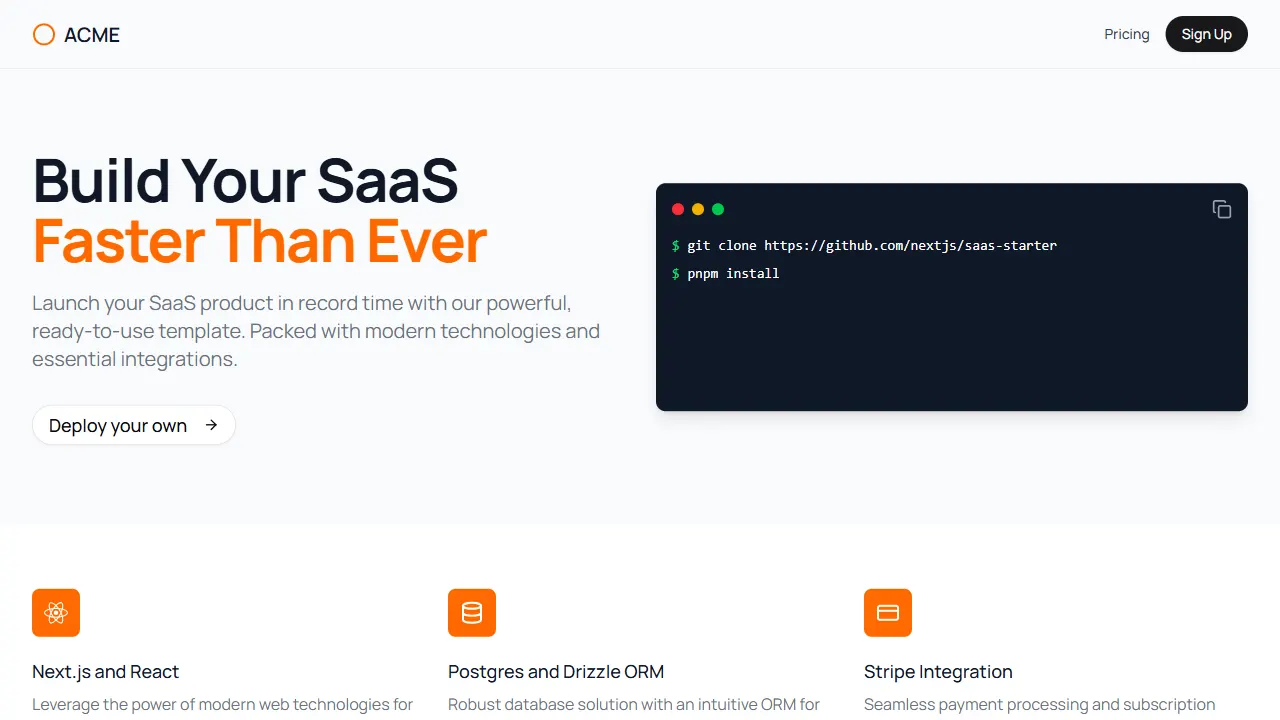
Next.js SaaS Starter
The official Next.js SaaS starter template, integrating email/password authentication, Stripe Checkout subscriptions, a dashboard with user/team CRUD, basic Owner/Member RBAC, and activity logging.
Next.js · SaaS
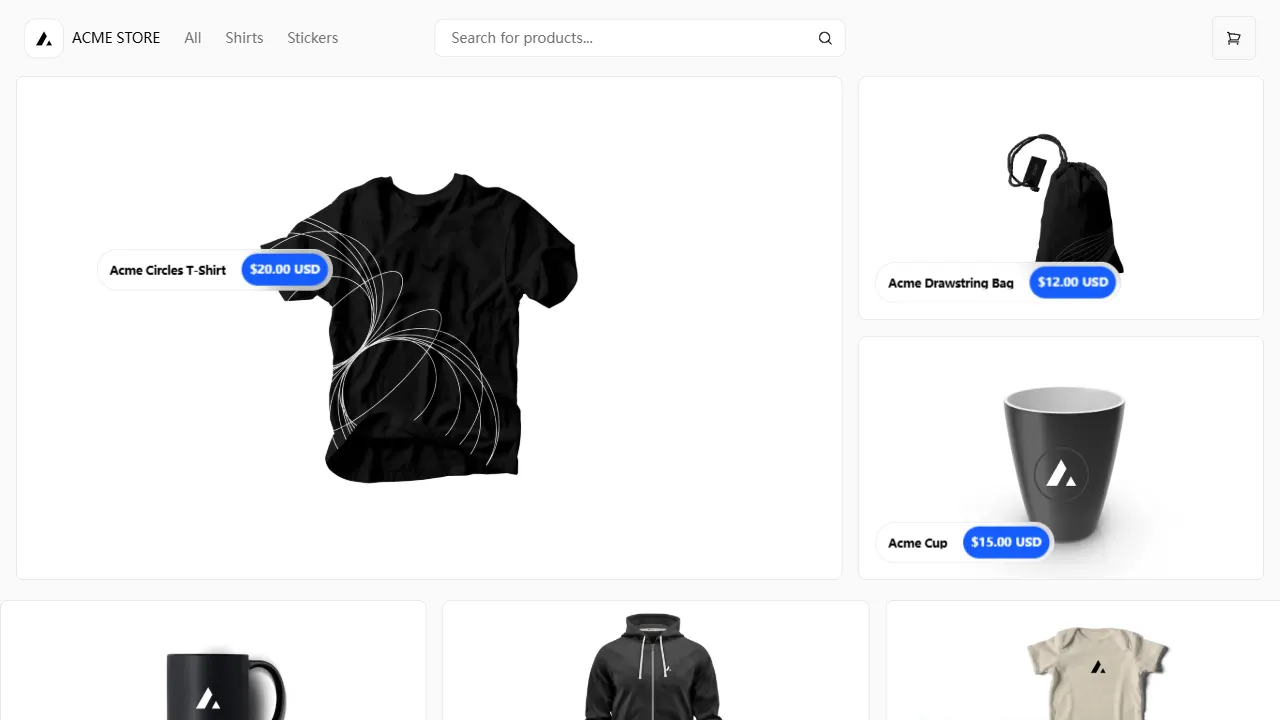
Next.js Commerce
Vercel's officially maintained Next.js App Router ecommerce starter with deep Shopify integration, offering a complete product catalog, cart, and checkout flow. Core logic is modular for swapping backends, and community provider versions exist for BigCommerce, Medusa, and Saleor.
Next.js · E-commerce
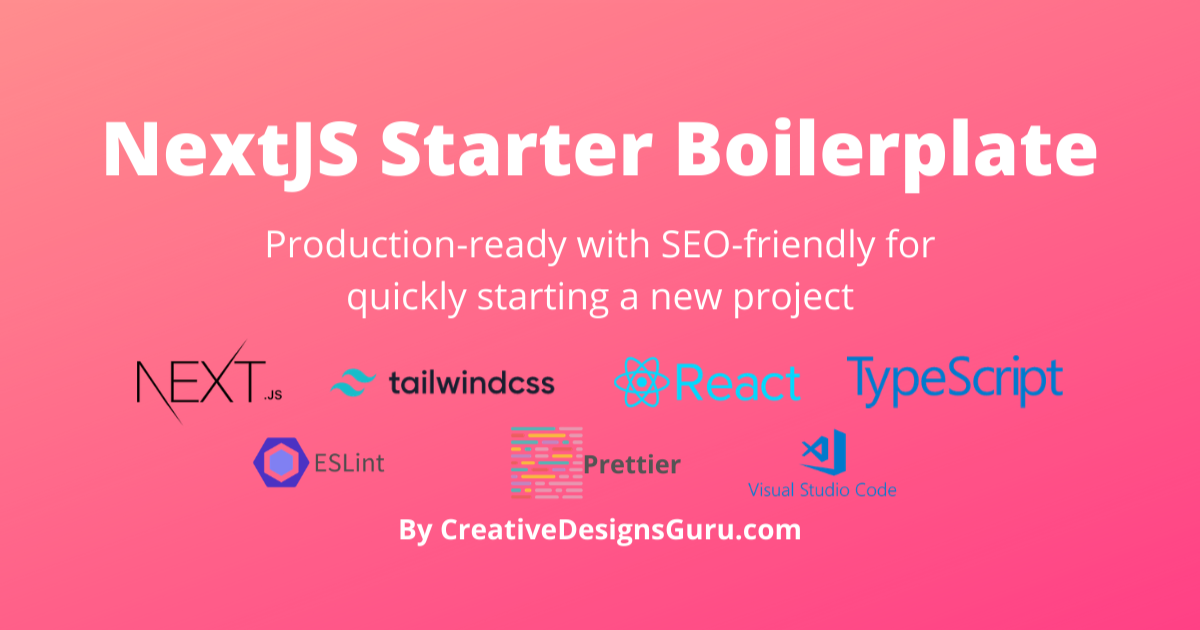
Next-js-Boilerplate
A developer-first Next.js 16 starter with Tailwind CSS 4 and TypeScript, supporting both App Router and Page Router.
Next.js · Starter

tailwind-nextjs-starter-blog
A Next.js and Tailwind CSS blog starter template using Contentlayer for Markdown/MDX, with built-in SEO, code highlighting, and tags. It targets personal technical blogs and migration from Jekyll/Hugo to React, and supports one-click Vercel deployment.
Next.js · Blog
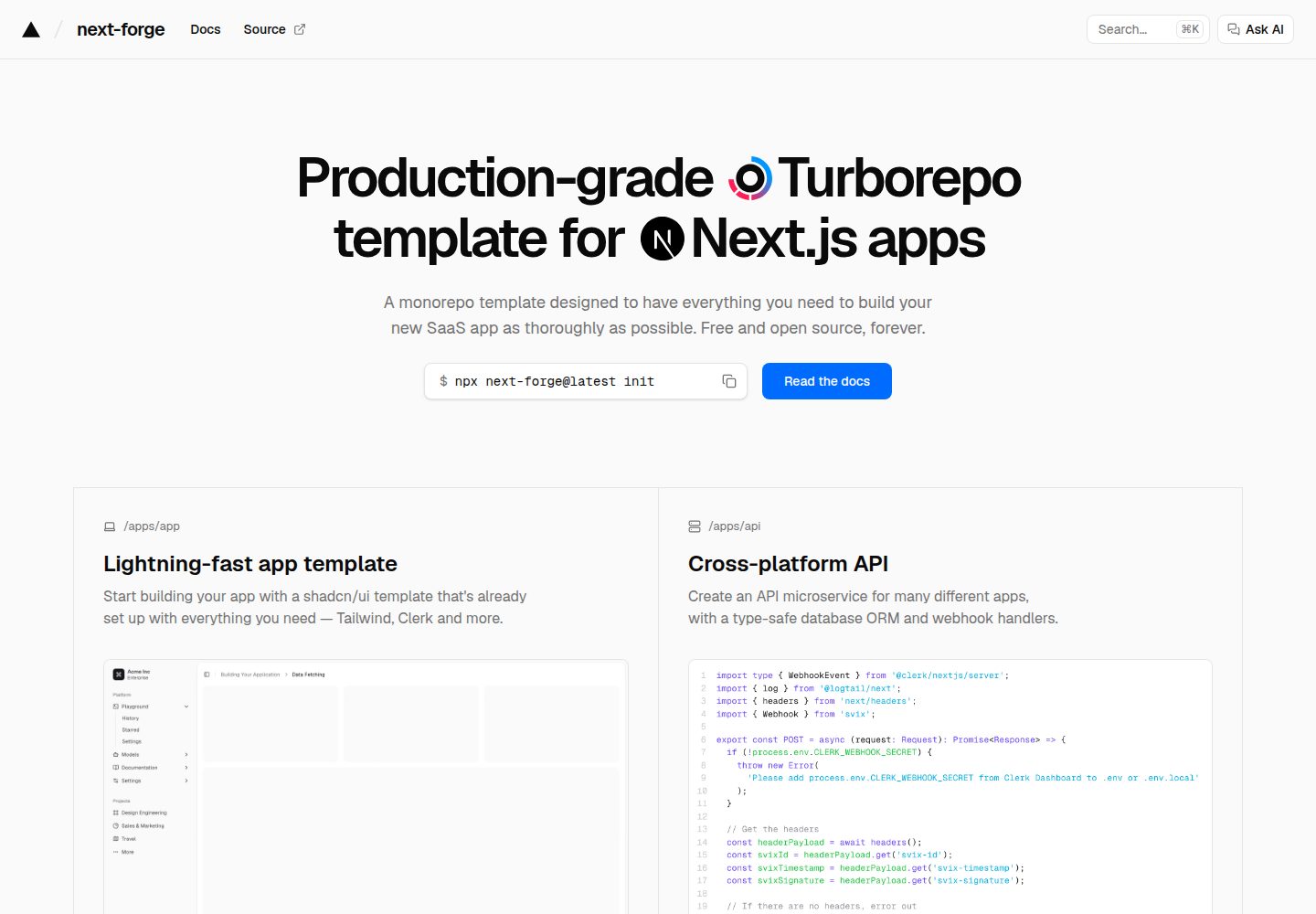
next-forge
next-forge is a Turborepo-based Next.js template maintained by Vercel, positioned as a starting point for SaaS products.
Next.js · Starter
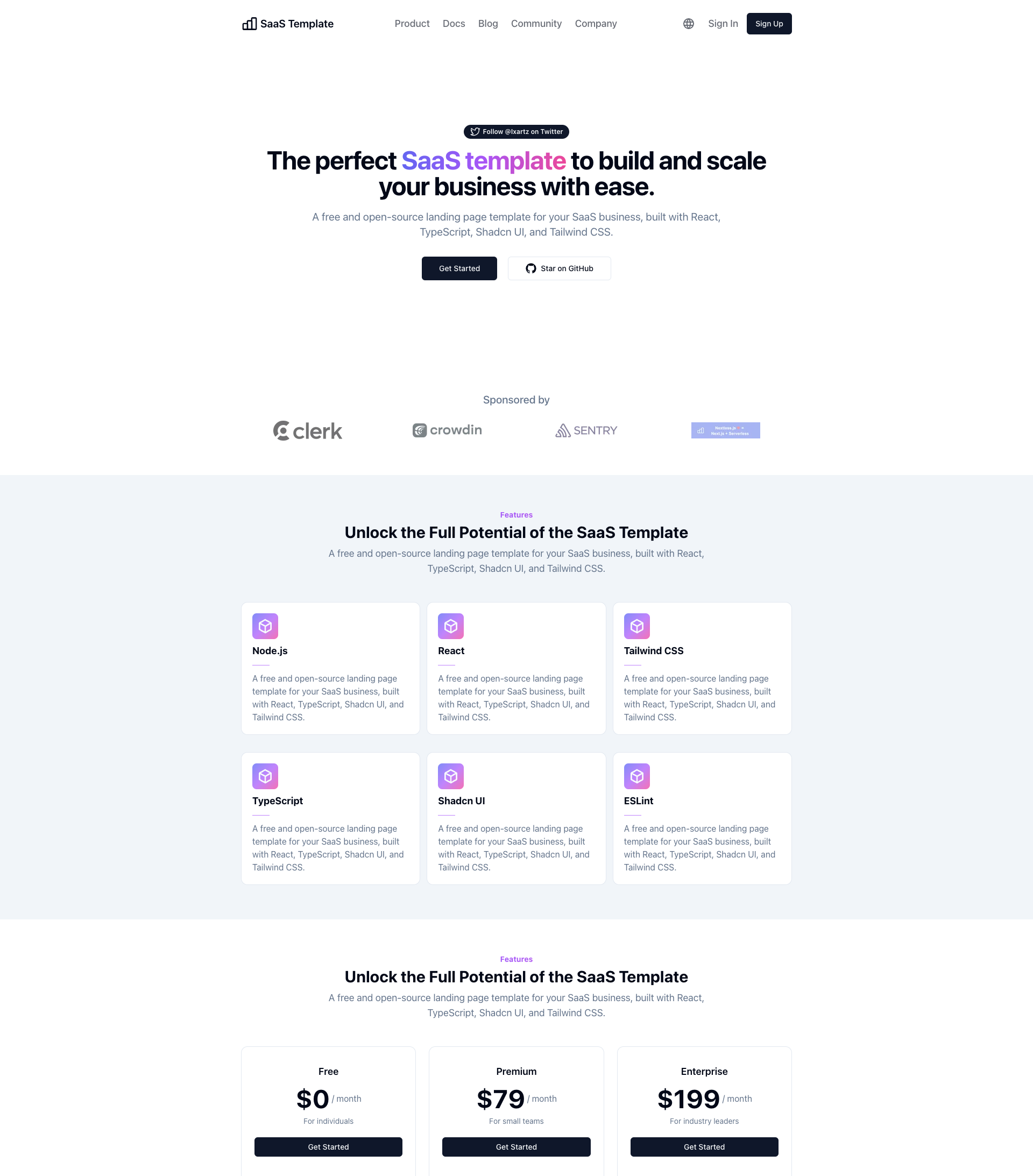
SaaS-Boilerplate
SaaS-Boilerplate is an open-source SaaS starter template built with Next.js App Router, React 19, TypeScript, Tailwind CSS, and Shadcn UI.
Next.js · SaaS