内置标签、作者、分页等标准博客功能
Next.jsReact博客
nextjs-netlify-blog-template — Next.js 博客模板
作者 bluesake
基于 Next.js、TypeScript、MDX 与 Netlify CMS 的博客模板,内置标签、作者、分页、SEO 元数据与短代码等标准博客功能。
看看你的网站会是什么样
浏览真实页面截图,比较内容排版与手机效果。点击下方缩略图切换,放大查看整页细节。
全部页面与视图 2
截图用于了解视觉与布局,交互效果请以实际项目为准。
采集于 2026-10-13查看来源
值得关注的模板亮点
从已有项目资料中,快速了解它的特点。
使用 MDX 编写文章,作者与标签等元数据由 YAML 文件管理
集成 Netlify CMS,可在后台修改内容
内置 JSON-LD 等 SEO 元数据
支持类似 WordPress 短代码的 React 组件扩展写作
组件与页面结构清晰,样式可替换为其他方案
模板详细介绍
该模板面向只用 Next.js 与 Netlify 技术栈搭建博客的场景。README 说明,GitHub 上已有的 Next.js + Netlify 示例或教程往往过于简单,缺少标签等标准博客能力,因此本模板预先实现了这些功能。
功能方面,模板提供标签分类、作者署名、分页、CMS 内容编辑、基于 JSON-LD 的 SEO 元数据,以及类似 WordPress 短代码的 React 组件扩展写作方式。依赖清单列出 TypeScript、Next.js、Netlify 与 MDX;内容以 MDX 文件形式存放在 src/content 下,作者、标签等元数据由 meta 目录中的 YAML 文件定义。
使用方式为通过 create-next-app 的 --example 参数拉取该仓库,再按 Netlify 的部署指引上线。模板定位为可自由改造的样板:组件与页面分别位于 src/components 和 src/pages,样式使用 styled-jsx 与 css-modules,但可替换为其他样式方案。README 还以作者元数据为例,给出新增分类元数据的四步流程,并说明如何修改 public/admin 下的 config.yml 与 index.html 来设置 Netlify CMS 的语言。
Next.js博客
适合你的项目吗?
适用场景
- 用 Next.js 与 Netlify 搭建带标签和作者信息的个人博客
- 需要非技术人员通过 CMS 后台编辑文章的内容站点
- 希望以 MDX 写作并在文中嵌入 React 组件的技术博客
- 作为样板项目改造为自己的博客主题与内容结构
适合人群
- 熟悉 Next.js 与 TypeScript 的开发者
- 计划将博客部署在 Netlify 上的个人或团队
- 需要标签、作者、分页等标准博客功能的项目
- 希望用 CMS 管理内容而非直接改代码的编辑者
上手与定制指南
结合仓库当前版本的说明,按下面的资料检查内容、配置与运行要求。
- 1
使用 npx create-next-app your-blog --example "https://github.com/wutali/nextjs-netlify-blog-template" 创建项目
- 2
按 Netlify 官方部署指引完成站点配置与上线
- 3
文章放在 src/content,作者等元数据放在 meta 目录的 YAML 文件中
- 4
新增分类元数据需依次修改 Netlify CMS 配置、新建 categories.yml、编写获取模块并在组件中展示
- 5
Netlify CMS 的语言设置需修改 public/admin 下的 config.yml 与 index.html
授权与来源资料
使用条件与限制
免费使用 · 保留许可声明本次收录的是公开仓库中采用 MIT 许可的免费版本;免费范围为该版本代码,不代表外部服务或第三方素材免费。
使用时需要遵守
- 允许免费使用、修改、商用和分发该版本代码。
- 分发代码副本或实质性部分时,保留原作者版权声明和完整 MIT 许可声明。
- 代码按现状提供;担保与责任限制以原许可证及适用法律为准。
额外费用与待核对事项
- 演示图片、字体、图标及其他第三方素材需按各自许可核对,不能仅凭代码的 MIT 许可判断。
- 域名、托管、数据库、支付或 AI 等外部服务可能另外收费。
- 该模板专为 Netlify 技术栈设计,博客构建与部署依赖 Netlify 平台服务,使用其他托管平台需自行改造。
- 使用前需按 Netlify 官方部署指引完成站点配置,涉及 Netlify 账号与平台服务。
- 内容编辑依赖内置的 Netlify CMS 后台,需通过该 CMS 管理内容而非仅改代码。
- 调整 Netlify CMS 语言等设置需修改 public/admin 下的 config.yml 与 index.html 文件。
查看原文依据
Permission is hereby granted, free of charge
许可证原文
Next.js blogging template for Netlify is a boilerplate for building blogs with only Netlify stacks.
README 原文
After that, set up your project as following the Netlify blog:
README 原文
- **CMS**: built with CMS to allow editors modifying content with the quickest way
README 原文
https://github.com/bluesake/nextjs-netlify-blog-template/blob/master/LICENSEhttps://github.com/bluesake/nextjs-netlify-blog-template/blob/master/README.mdModify [config.yml](/public/admin/config.yml) and [index.html](/public/admin/index.html) under [public/admin](/public/admin/) directory
README 原文
DeepSeek 根据仓库许可证和 README 整理 ·2026-10-13。结果仅覆盖已读取资料,依赖、图片、字体及后续条款变更以各自原文为准。
项目核对记录与介绍依据
模板资料
- 来源平台
- GitHub
- 资料与维护参考分
- 资料一般 · 57 / 100
- 技术栈
- Next.js · React
- 网站类型
- 博客
这个分数如何计算
本站按许可资料(最高30分)、演示链接(12分)、预览图(10分)、Star数(15分)、记录的维护时间(15分)、描述完整度(8分)、功能记录(5分)和分类资料(5分)计算。它不是代码、安全或性能测试,也不是 Google 评分;有链接不代表已实测可用。
这个项目需要核对什么
- 记录的仓库更新时间
- 2021-07-04
- 截图检查日期
- 2026-10-13
已收录演示链接。请用你的内容与屏幕尺寸检查;有演示不代表表单、认证或支付已经可用。
目录记录的主要技术栈是 Next.js。请通过依赖清单和锁文件核对实际版本与托管要求。这些说明基于收录资料,不代表代码审计或部署实测。
查看具体选型方法 →介绍的制作与核对状态
介绍由 AI 辅助整理目录与仓库资料。仓库作者不等于这篇介绍的审核者。
审核声明: [email protected] · 2026-10-13
查看当时使用的来源资料
SHA-256: 967d7f94be4386ea6d8cfbbf3cdce3b65ccafe194fef8b78a95f71e691d2c49f
2026-10-13T10:51:57.544Z
来源文件 / 仓库 [](https://app.netlify.com/sites/nextjs-netlify-blog-template/deploys) [](https://nextjs.org/) Next.js blogging template for Netlify is a boilerplate for building blogs with only Netlify stacks. There are some boilerplate or tutorials for the combination of Next.js and Netlify on GitHub. These resources have documentation and good tutorial to get started Next.js and Netlify quickly, but they are too simple to build blogs with standard features like tagging. Next.js blogging template for Netlify has already implemented these standard features for building blogs with only using Next.js and Netlify stacks. ## Demo Deploy on your environment by clicking here: [](https://app.netlify.com/start/deploy?repository=https://github.com/wutali/nextjs-netlify-blog-template&stack=cms) Or access the following demo site: [Next.js blog template for Netlify](https://nextjs-netlify-blog-template.netlify.app/) ## Features - **Tagging**: organizes content by tags - **Author**: displays author names who write a post - **Pagination**: limits the number of posts per page - **CMS**: built with CMS to allow editors modifying content with the quickest way - **SEO optimized**: built-in metadata like JSON-LD - **Shortcode**: extends content writing with React component like WordPress shortcodes ## Dependencies - [TypeScript](https://www.typescriptlang.org/) - [Next.js](https://nextjs.org/) - [Netlify](https://www.netlify.com/) - [MDX](https://mdxjs.com/) ## Getting started To create your blog using the template, open your terminal, `cd` into the directory you'd like to create the app in, and run the following command: ``` npx create-next-app your-blog --example "https://github.com/wutali/nextjs-netlify-blog-template" ``` After that, set up your project as following the Netlify blog: [A Step-by-Step Guide: Deploying on Netlify](https://www.netlify.com/blog/2016/09/29/a-step-by-step-guide-deploying-on-netlify/) ## Customization This template is just a template and a boilerplate in which users can customize anything after the project was cloned and started. The following instructions introduce common customization points like adding new metadata or applying a new design theme. ### Styling pages by a customized theme All source codes related to the blog are under [components](/src/components) and [pages](/src/pages) directory. You can modify it freely if you want to apply your design theme. All components use [styled-jsx](https://github.com/vercel/styled-jsx) and [css-modules](https://github.com/css-modules/css-modules) to define their styles, but you can choose any styling libraries for designing your theme. The directory tree containing the blog source code are described below: ``` meta: yaml files defining metadata like authors or tags public: images, favicons and other static assets src ├── assets: other assets using inside of components ├── components: pieces of components consisting of pages ├── content: mdx files for each post page ├── lib: project libraries like data fetching or pagination └── pages: page components managing by Next.js ``` ### Organizing content by categories The category metadata that associates with content have the same relationship with the authors' one. Then reference these implementations for adding new metadata: - [public/admin/config.yml](/public/admin/config.yml#L51): author metadata definition for Netlify CMS - [src/lib/authors.tsx](/src/lib/authors.ts): fetches metadata and defines utility functions for components - [meta/authors.yml](/src/meta/authors.yml): author content managed by Netlify CMS - [src/components/PostLayout.tsx](/src/components/PostLayout.tsx): displays author content for each page You understood they have four steps to add the category metadata on your project after you read the above source codes: 1. Define the category metadata on the above Netlify config file 2. Create an empty file named with `categories.yml` under [meta](/src/meta/) directory 3. Create a new module for fetching category metadata 4. Display the category metadata on [src/components/PostLayout.tsx](/src/components/PostLayout.tsx#L75) or other components you want It is all you have to do. After that, you can access Netlify CMS and create new categories at any time. ### Locale settings for Netlify CMS Modify [config.yml](/public/admin/config.yml) and [index.html](/public/admin/index.html) under [public/admin](/public/admin/) directory as following instructions: [Netlify CMS - Configuration Options #Locale](https://www.netlifycms.org/docs/configuration-options/#locale) ## References - [Netlify CMS Documentation](https://www.netlifycms.org/docs/intro/) - [Building a Markdown blog with Next 9.4 and Netlify](https://www.netlify.com/blog/2020/05/04/building-a-markdown-blog-with-next-9.4-and-netlify/) - [Hugo Theme - Codex](https://github.com/jakewies/hugo-theme-codex) - [Next.js Starter Template for TypeScript](https://github.com/vercel/next-learn-starter/tree/master/typescript-final) - [Building Blog with NextJS and Netlify CMS](https://dev.to/mefaba/building-blog-with-nextjs-and-netlify-cms-fom) - [Unicons](https://github.com/Iconscout/unicons) ## License MIT
看看同类模板
对比同技术栈与用途的模板,找到更适合的视觉与内容结构。

tailwind-nextjs-starter-blog
tailwind-nextjs-starter-blog 是一个面向个人技术博客的 Next.js 与 Tailwind CSS 启动模板,其 v2 版本基于 App Router 与 React Server Comp…
Next.js · 博客
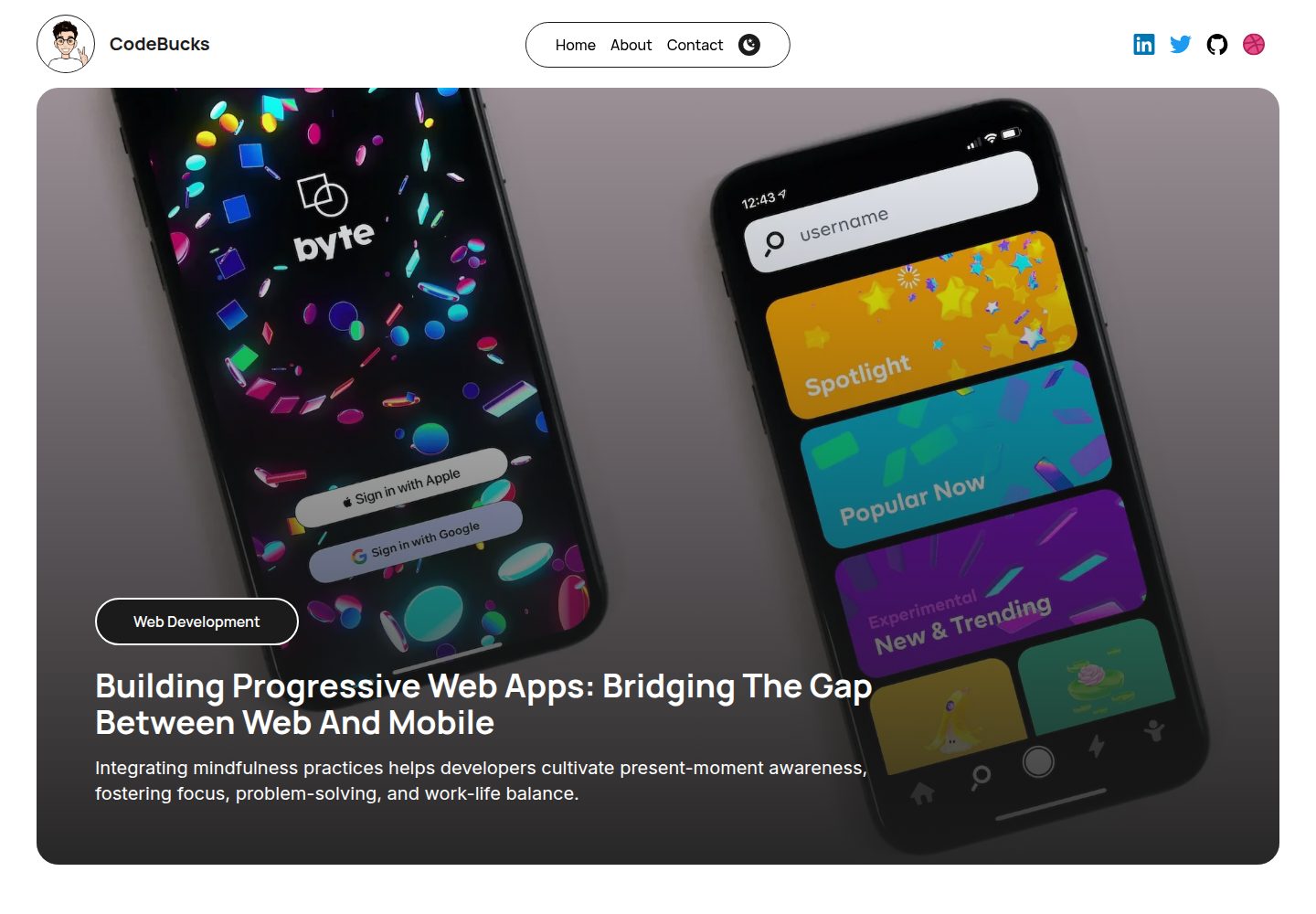
Nextjs-tailwindcss-blog-template
使用 Tailwind CSS 的 Next.js 博客。当前分支通过 Velite 处理 Markdown,早期 Contentlayer 实现保留在单独的历史分支中。
Next.js · 博客
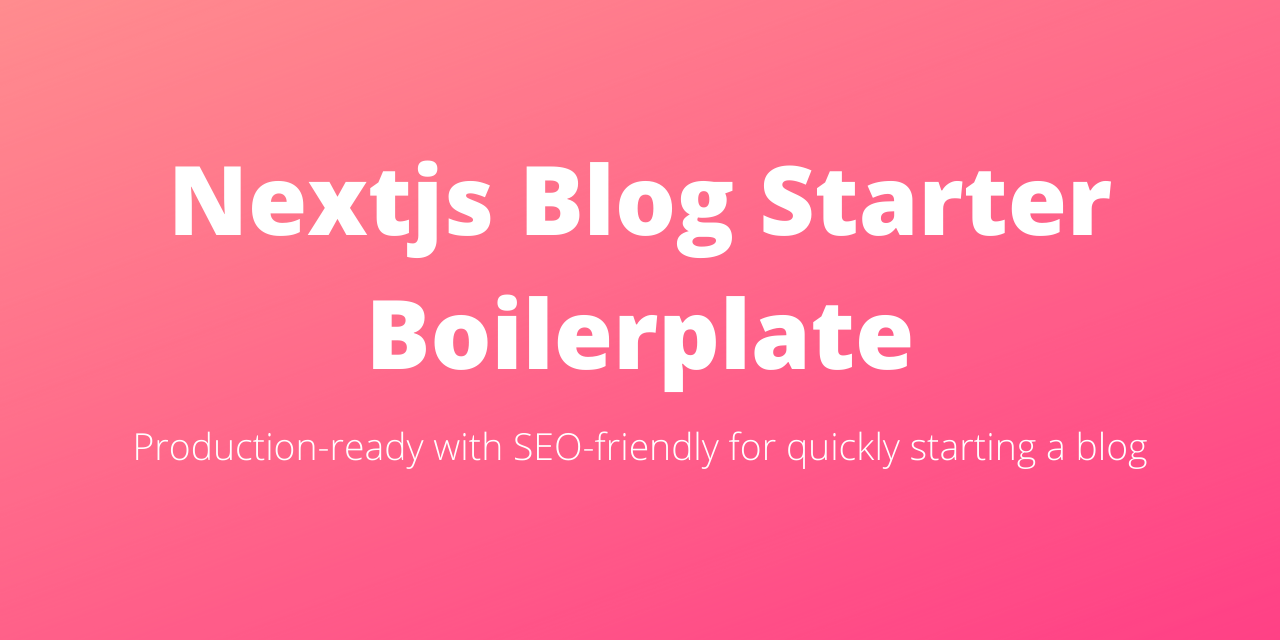
Next-js-Blog-Boilerplate
Next-js-Blog-Boilerplate 是一套面向个人与技术博客的启动代码,基于 Next.js 12 与 Tailwind CSS 3 构建,同时集成了 TypeScript、ESLint、Prettier …
Next.js · 博客
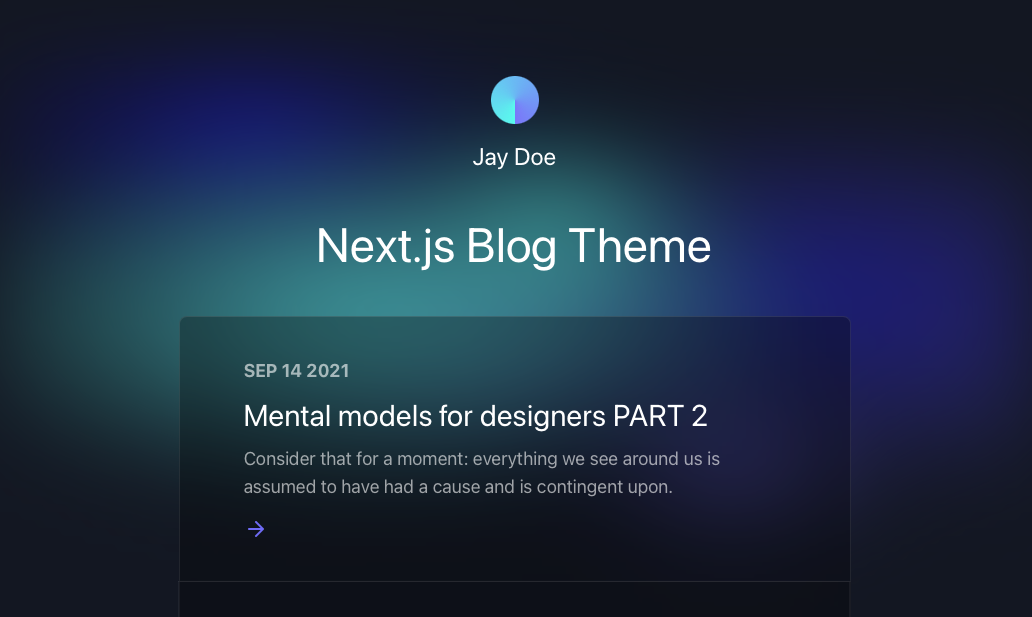
nextjs-blog-theme
nextjs-blog-theme 是 Netlify 团队维护的一个博客启动模板,基于 Next.js 15(Pages Router)和 Tailwind CSS 4.x 构建,设计由 Bejamas 机构完成。
Next.js · 博客
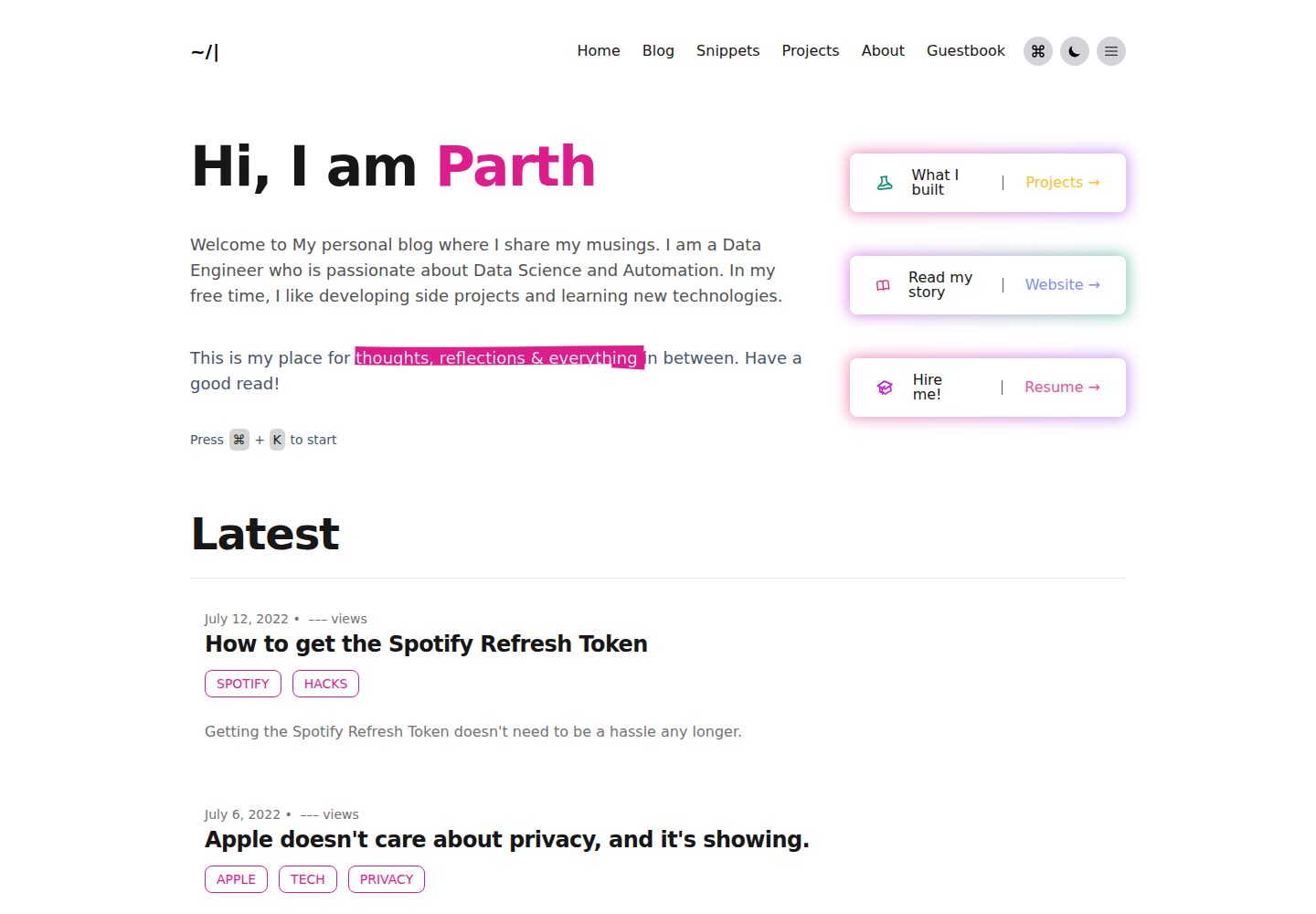
blog
🚀 My personal blog made with Tailwind CSS and NextJS. Template from Timlrx. Feel free to fork, follow and use…
Next.js · 博客
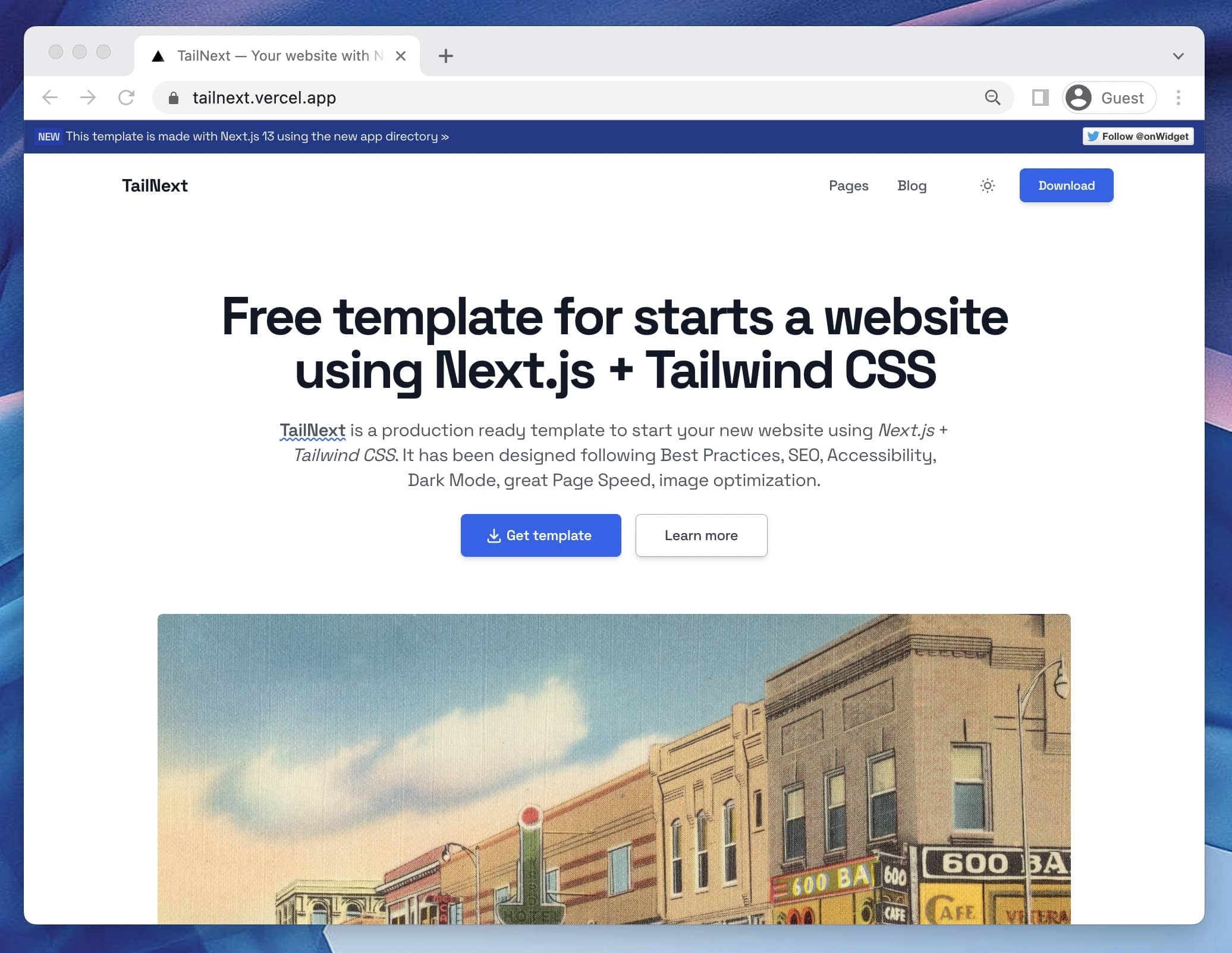
tailnext
Tailnext 是一个基于 Next.js 14 App Router 和 Tailwind CSS 的免费开源模板,由 onWidget 团队创建并维护。
Next.js · 博客