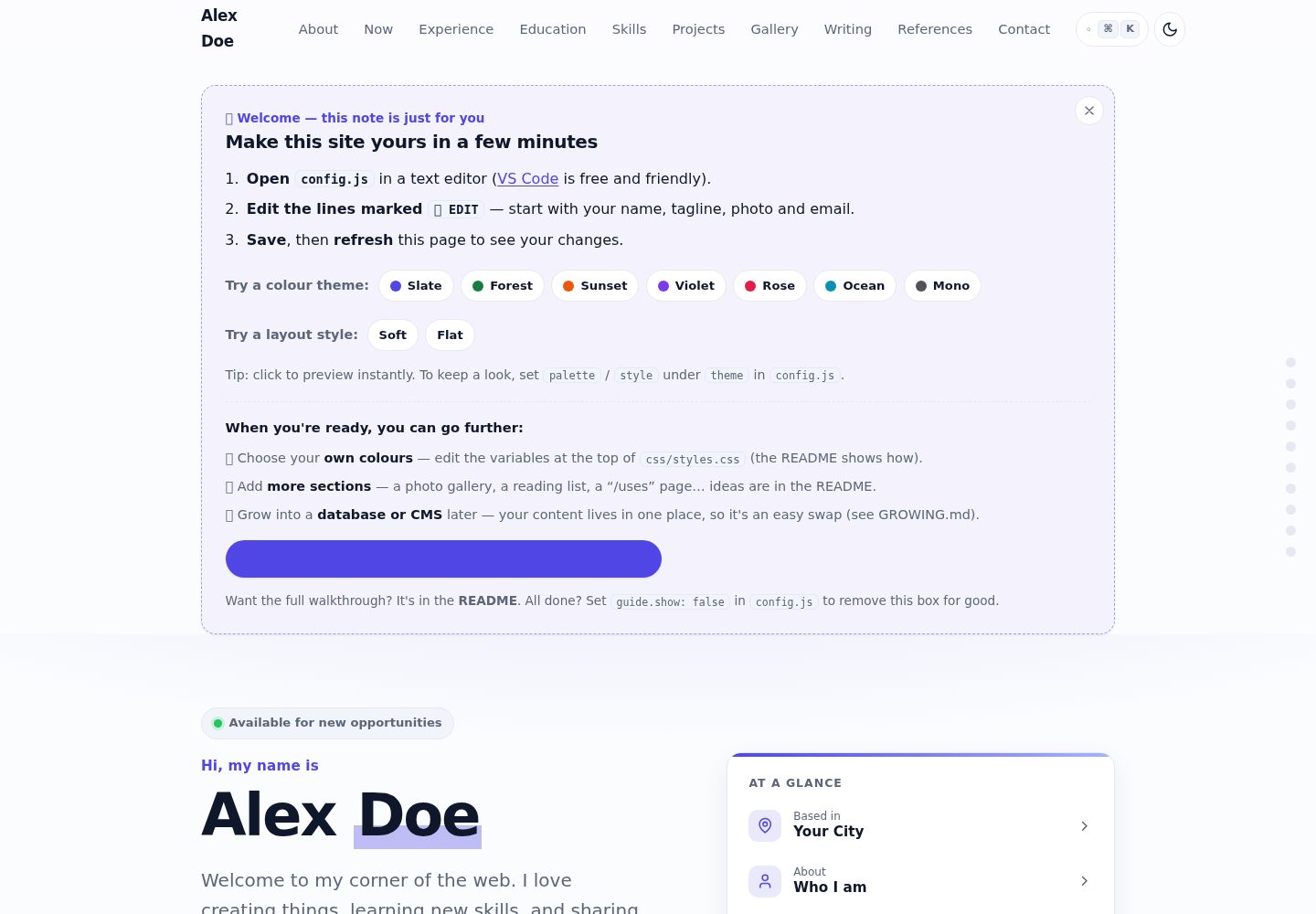
所有内容集中在 config.js 一个文件中编辑,修改后刷新页面即可更新
HTML作品集启动器
portfolio-starter-kit — HTML 作品集模板
作者 Christian-Y-Wu
一个基于纯 HTML/CSS/JavaScript 的个人作品集静态网站模板,所有内容集中在 config.js 中编辑,无需构建工具,可部署到 GitHub Pages。
看看你的网站会是什么样
浏览真实页面截图,比较内容排版与手机效果。点击下方缩略图切换,放大查看整页细节。
全部页面与视图 2
截图用于了解视觉与布局,交互效果请以实际项目为准。
采集于 2026-10-13查看来源
值得关注的模板亮点
从已有项目资料中,快速了解它的特点。
纯 HTML/CSS/JavaScript,无构建步骤,无需安装依赖
提供 7 套配色(slate、forest、sunset、violet、rose、ocean、mono)和 2 种布局样式(soft、flat)
内置命令面板,支持 Ctrl/⌘+K 或 / 快捷键跳转区块、切换明暗模式、更换强调色等
项目标签自动生成可点击的筛选芯片
包含 hero、about、now、experience、education、skills、projects、writing、references、contact 等区块
模板详细介绍
该模板面向需要展示项目、经历和简历的个人用户。README 说明它无需编码经验、无需构建工具,所有可编辑内容集中在 config.js 一个文件中,修改后刷新页面即可看到更新。模板包含 hero、about、now、experience、education、skills、projects、writing、references 和 contact 等区块,并提供 7 套配色和 2 种布局样式,可通过修改一个词切换。项目标签可自动生成筛选芯片,命令面板(Ctrl/⌘+K 或 /)可跳转区块、切换明暗模式、更换强调色、获取 CV 或复制邮箱。README 还提到可选的图片画廊、Highlights 计数器以及自定义嵌入内容。模板自带“Start here”引导框,完成后可用一行代码移除。
运行方面,README 给出三种本地预览方式:直接双击 index.html、使用本地服务器(VS Code Live Server、npx serve 或 python -m http.server),或让 AI 助手启动预览。部署方面,README 详细说明通过 GitHub Desktop 将仓库推送到 GitHub,并在仓库 Settings → Pages 中选择 main 分支和 / (root) 目录来启用 GitHub Pages。README 也提供了自定义域名的可选步骤,涉及购买域名、配置 CNAME 和 DNS 记录。
README 未提供具体框架版本号,也未说明后端、数据库或服务端功能;模板被描述为静态站点。README 提到 GROWING.md 作为进阶升级的参考,但未在本次资料中展开其内容。
HTML作品集启动器
适合你的项目吗?
适用场景
- 个人开发者或设计师搭建作品集网站,展示项目与经历
- 学生或转行者制作在线简历,包含教育、技能和项目经历
- 写作者或创作者展示文章、写作样本和个人简介
- 希望使用 GitHub Pages 免费托管静态个人网站的用户
适合人群
- 没有编程经验、希望通过编辑一个配置文件来定制网站的人
- 需要快速搭建个人作品集或简历页面的用户
- 偏好静态站点、不想引入构建工具或后端服务的开发者
- 希望将网站免费部署在 GitHub Pages 上的个人用户
上手与定制指南
结合仓库当前版本的说明,按下面的资料检查内容、配置与运行要求。
- 1
从 GitHub 页面点击“Use this template”或“Download ZIP”获取文件
- 2
用文本编辑器打开 config.js,按 README 的 5 分钟清单修改姓名、标语、照片、项目、邮箱和配色
- 3
本地预览可双击 index.html,或使用 VS Code Live Server、npx serve、python -m http.server 等本地服务器
- 4
部署到 GitHub Pages:将仓库推送到 GitHub 后,在 Settings → Pages 中选择 main 分支和 / (root) 目录
- 5
上线后需更新 config.js 中的 site.url、robots.txt 和 sitemap.xml 中的网址
授权与来源资料
使用条件与限制
免费使用 · 保留许可声明本次收录的是公开仓库中采用 MIT 许可的免费版本;免费范围为该版本代码,不代表外部服务或第三方素材免费。
使用时需要遵守
- 允许免费使用、修改、商用和分发该版本代码。
- 分发代码副本或实质性部分时,保留原作者版权声明和完整 MIT 许可声明。
- 代码按现状提供;担保与责任限制以原许可证及适用法律为准。
额外费用与待核对事项
- README 提及 Formspree 表单服务;真实提交需配置服务端点,其使用额度与费用需单独核对。
- README 提及 Firebase 集成;启用相关动态功能前需自行配置,并核对 Firebase 的额度与收费。
- 演示图片、字体、图标及其他第三方素材需按各自许可核对,不能仅凭代码的 MIT 许可判断。
- 域名、托管、数据库、支付或 AI 等外部服务可能另外收费。
- 联系表单默认关闭,因为它需要一个免费服务(如 Formspree 或 Netlify Forms)来接收消息;启用时需注册该服务并配置 endpoint。
- 使用 Google Font 名称会自动加载该字体,需要互联网连接。
- 使用自定义域名是可选的,但需要从注册商购买域名,通常每年约 10–15 美元。
- 不要将密码、API 密钥或任何私密信息粘贴到聊天或任何文件中,因为这是公开网站。
查看原文依据
Permission is hereby granted, free of charge
许可证原文
The contact form is off by default because it needs a free service to receive messages.
README 原文
Using a Google Font name auto-loads it (needs an internet connection). For full control, set the `--font` variable in `css/styles.css` instead.
README 原文
1. **Buy a domain** from a registrar like [Namecheap](https://www.namecheap.com/), [Cloudflare](https://www.cloudflare.com/products/registrar/), or [Porkbun](https://porkbun.com/). Usually ~$10–15/year.
README 原文
https://github.com/Christian-Y-Wu/portfolio-starter-kit/blob/main/LICENSEhttps://github.com/Christian-Y-Wu/portfolio-starter-kit/blob/main/README.md- **Never paste passwords, API keys, or anything private** into a chat or into any file — this is a public website (see [GROWING.md](GROWING.md)).
README 原文
DeepSeek 根据仓库许可证和 README 整理 ·2026-10-13。结果仅覆盖已读取资料,依赖、图片、字体及后续条款变更以各自原文为准。
项目核对记录与介绍依据
模板资料
- 来源平台
- GitHub
- 资料与维护参考分
- 资料较完整 · 85 / 100
- 技术栈
- HTML
- 网站类型
- 作品集 · 启动器
这个分数如何计算
本站按许可资料(最高30分)、演示链接(12分)、预览图(10分)、Star数(15分)、记录的维护时间(15分)、描述完整度(8分)、功能记录(5分)和分类资料(5分)计算。它不是代码、安全或性能测试,也不是 Google 评分;有链接不代表已实测可用。
这个项目需要核对什么
- 记录的仓库更新时间
- 2026-07-24
- 截图检查日期
- 2026-10-13
已收录演示链接。请用你的内容与屏幕尺寸检查;有演示不代表表单、认证或支付已经可用。
目录记录的主要技术栈是 HTML。请通过依赖清单和锁文件核对实际版本与托管要求。这些说明基于收录资料,不代表代码审计或部署实测。
查看具体选型方法 →介绍的制作与核对状态
介绍由 AI 辅助整理目录与仓库资料。仓库作者不等于这篇介绍的审核者。
审核声明: codex-user-requested-batch-review-20261015 · 2026-10-15
查看当时使用的来源资料
SHA-256: 41ca183b2bb8c5cd1ab34761c09a11436e650e0cb9650f4a70488976f09896fb
2026-10-13T16:26:36.586Z
来源文件 / 仓库# Starter — a free personal portfolio template
A clean, modern, **one-file-to-edit** personal website for your projects, experience, and CV.
No coding experience needed. No build tools. No accounts required to try it.
You change one file — **`config.js`** — and the whole site updates.

> **🔴 Live demo:** https://christian-y-wu.github.io/portfolio-starter-kit/
>
> **🌟 Part of the Portfolio Community** — a friendly place to find more templates, ask for help, and share the site you build. Come say hi → https://example.com/portfolio-community *(link coming soon)*
---
## ✅ Edit these first (a 5-minute checklist)
Open **`config.js`** in any text editor and change these six things. Everything else already looks finished — you can come back to it later.
1. **Your name** — `HERO → name`
2. **Your tagline** — `HERO → tagline`
3. **Your photo** — `ABOUT → photo` (drop an image into `assets/img/`)
4. **One project** — the first item under `PROJECTS`
5. **Your email** — `CONTACT → email` (and the `mail` entry under `SOCIAL`)
6. **The colour** — `THEME → palette` (`"slate"`, `"forest"`, `"sunset"`, or `"violet"`)
Save the file, then refresh the page in your browser. That's it.
> 🔎 Tip: every editable line in `config.js` has a `👉 EDIT` note next to it telling you what it is.
---
## What you get
- 📱 **Looks great on phones and laptops** (360px → 1440px), with light & dark mode.
- 🎨 **7 ready-made colour palettes + 2 layout styles** — switch by changing one word.
- ⌨️ **A command palette** (press <kbd>Ctrl/⌘ + K</kbd> or <kbd>/</kbd>, or tap the search button) — jump to any section, flip light/dark, change the accent colour, grab your CV, or copy your email, all from the keyboard. Built automatically from your content.
- 🏷️ **Filterable projects** — clickable tag chips appear on their own, built from the tags you already write.
- 🧭 **A built-in “Start here” helper** right on the page that walks you through your first edits (with one-click colour previews) — and disappears in one line when you're done.
- 📍 **A reading-progress bar and a side rail** so visitors always see which section they're in and how far down the page they are.
- 🖼️ **Optional extras** — a **photo gallery** (click to enlarge) and a **“Highlights” counters** section, both ready to use and one line to remove. Plus a way to drop in your own embed (a map, video, or small tool).
- 🙂 **Generic, anyone-can-use example content** — student, designer, writer, maker, career-changer. It's not tied to any one job, so it's easy to make it *yours*.
- 🧩 **Every section a portfolio needs**: hero, about, "now", experience, education, skills, projects, writing, references, and contact.
- ♿ **Accessible & fast** — keyboard-friendly, screen-reader labels, respects "reduce motion", prints as a tidy résumé.
- 🔍 **Ready for Google & social sharing** — title, description, preview image, sitemap.
- 🛠️ **Plain HTML/CSS/JavaScript** — no build step, nothing to install, easy for you (or an AI assistant) to read.
---
## Quick start (5 minutes)
1. **Get the files** — click the green **“Use this template”** button at the top of the GitHub page (or **“Download ZIP”** and unzip it).
2. **Open the folder** in a text editor. [VS Code](https://code.visualstudio.com/) is free and great, but any editor works.
3. **Edit `config.js`** — do the [✅ checklist](#-edit-these-first-a-5-minute-checklist) above.
4. **Preview it** — see [Run it on your own computer](#run-it-on-your-own-computer) below.
5. **Put it online** — see [Put it online with GitHub Pages](#put-it-online-with-github-pages).
---
## Run it on your own computer
You want to *see* your changes before putting the site online. Here are three ways, easiest first.
### Option A — just double-click `index.html` (easiest)
Double-click `index.html` and it opens in your web browser. Done.
This works for almost everything. The only catch: a couple of browser features behave slightly differently when opening a file directly (the address bar says `file:///…`). If anything looks off, use Option B.
### Option B — a tiny local web server (recommended)
This runs the site exactly like a real website. Pick whichever you have:
- **VS Code “Live Server” extension** (no command line):
1. Install the **Live Server** extension from the Extensions panel.
2. Right-click `index.html` → **“Open with Live Server”**.
3. Your browser opens at `http://localhost:5500` and **auto-refreshes** when you save.
- **Node.js** (one command):
```bash
npx serve
```
Then open the address it prints (usually `http://localhost:3000`).
- **Python** (already installed on most Macs/Linux):
```bash
python -m http.server 8000
```
Then open `http://localhost:8000`.
> **What does “localhost” mean?** It’s your *own computer* pretending to be a web server, just for you. Nobody else can see `localhost` — it’s a private preview. The address `http://localhost:8000` simply means “the website running on my machine, on door number 8000”.
### Option C — let an AI assistant run it for you
If you’re using an AI coding assistant (next section), you can literally ask: *“start a local preview server so I can see the site.”*
---
## Edit it with an AI coding assistant (great for beginners)
You do **not** need to know how to code. An AI assistant can make changes for you while you describe them in plain English. This is often the fastest way to customise your site.
### Pick one (all have free options)
- **[Claude Code](https://www.anthropic.com/claude-code)** — Anthropic’s assistant in your terminal or VS Code. It can read and edit the whole project. Great for “just make these changes for me.”
- **[Cursor](https://cursor.com/)** — an AI-first code editor (a VS Code clone) with chat and inline edits.
- **[GitHub Copilot](https://github.com/features/copilot) in VS Code** — inline suggestions plus a chat panel.
- **[OpenAI Codex / ChatGPT](https://chatgpt.com/)** — paste a file in and ask for edits, or use the Codex CLI.
- No-install option: **[Claude.ai](https://claude.ai)** or the Claude desktop app — paste `config.js` in, describe your change, and copy the result back.
### The basic loop (in plain words)
1. **Open the project folder** in the tool.
2. **Describe what you want** in the chat.
3. **Review** the change it suggests.
4. **Save**, then **preview** locally (above).
5. **Commit & push** with GitHub Desktop (below) to update your live site.
### Copy-paste starter prompts
> “Open `config.js`. Change my name to **Sam Patel**, my tagline to **“Data analyst who loves clear charts.”**, and the accent colour palette to **forest**. Show me what you changed.”
> “Add a new project card titled **Budget Buddy** with this description: _‘A simple monthly budgeting app.’_, tech tags **React, Firebase**, and a live link to `https://example.com`.”
> “Add a new **Volunteering** section after Experience, following the same pattern as the Education section.”
> “Make the hero headline larger on mobile and turn on the typewriter animation for my name.”
> “Hide the Testimonials and Writing sections for now.”
### A few safety tips
- Keep all your content in **`config.js`** so changes are easy to read and review.
- **Commit before** asking for a big change, so you can undo if you don’t like it.
- **Never paste passwords, API keys, or anything private** into a chat or into any file — this is a public website (see [GROWING.md](GROWING.md)).
- The site is **static** on purpose. If an assistant suggests adding a “backend”, that’s an advanced upgrade — see [GROWING.md](GROWING.md).
This is all optional — you can edit `config.js` by hand with any text editor.
---
## Put it online with GitHub Pages
GitHub Pages hosts your site **for free**. These steps use **GitHub Desktop** so you never touch the command line.
### One-time setup
1. Create a **free** account at [github.com](https://github.com/).
2. Install **[GitHub Desktop](https://desktop.github.com/)**.
### Get the project into your account
1. On the template’s GitHub page, click **“Use this template” → “Create a new repository”** (or **Fork**).
2. Give it a name. Two choices for the web address you’ll get:
- **Normal name** (e.g. `portfolio`) → your site will live at `https://<username>.github.io/portfolio/`.
- **Special name** `‹username›.github.io` (using *your own* username) → your site lives at the shorter `https://<username>.github.io/` with no repo name on the end. ✨
3. In GitHub Desktop: **File → Clone repository →** pick your new repo **→** choose a local folder.
### Make a change and publish it
1. Edit `config.js` in your editor and **save**.
2. In GitHub Desktop you’ll see your change. At the bottom-left, write a short **Summary** (e.g. “Update name and colours”), then click **Commit to main**.
3. Click **Push origin** (top bar). Your code is now on GitHub.
### Turn on GitHub Pages
1. On github.com, open your repository → **Settings** → **Pages** (left sidebar).
2. Under **Build and deployment → Source**, choose **“Deploy from a branch”**.
3. Set the branch to **`main`** and the folder to **`/ (root)`**, then **Save**.
4. Wait ~1 minute, refresh the Settings → Pages screen, and you’ll see your live link:
`https://<username>.github.io/<repo>/`
🎉 That link is your live website. Share it!
> **“I edited but nothing changed.”** Three usual causes:
> 1. You didn’t **Commit** *and* **Push** in GitHub Desktop.
> 2. The Pages build takes a minute — wait, then refresh.
> 3. Your browser cached the old page — do a **hard refresh** (`Ctrl/Cmd + Shift + R`).
> **Important once you’re live:** update the web address in three small places so Google and share-previews work:
> `config.js → site.url`, `robots.txt`, and `sitemap.xml`.
---
## Use your own custom domain (optional, costs a little)
Want `yourname.com` instead of `github.io`? Totally optional.
1. **Buy a domain** from a registrar like [Namecheap](https://www.namecheap.com/), [Cloudflare](https://www.cloudflare.com/products/registrar/), or [Porkbun](https://porkbun.com/). Usually ~$10–15/year.
2. In your repo: **Settings → Pages → Custom domain** → type your domain → **Save**. (This creates a `CNAME` file in your repo.)
3. At your registrar’s **DNS** settings, add the records GitHub asks for:
- For a bare domain like `yourname.com` (the “apex”), add GitHub’s four **A records** and four **AAAA records**.
- For `www.yourname.com`, add a **CNAME** record pointing to `‹username›.github.io`.
- The exact values are in GitHub’s guide: **[Managing a custom domain for GitHub Pages](https://docs.github.com/en/pages/configuring-a-custom-domain-for-your-github-pages-site)**.
4. Back in **Settings → Pages**, tick **Enforce HTTPS** (it may be greyed out until DNS finishes — that can take a few minutes to a day).
---
## Customising (the cookbook)
Small, copy-pasteable recipes. All edits are in **`config.js`** unless noted.
### Change the colours
Easiest of all: on the live site, click the colour buttons in the **“Start here”** box (or open the **⌘K** search and type a colour name) to preview each theme instantly. When you find one you like, set it in `config.js`:
```js
theme: { palette: "forest" }, // "slate" | "forest" | "sunset" | "violet" | "rose" | "ocean" | "mono"
```
Want **custom** colours? Open `css/styles.css` and edit the variables at the very top (section **1. THEME VARIABLES**) — e.g. `--accent`, `--bg`, `--text`. Change one value, refresh, repeat.
### Change the whole look (layout style)
The palette changes the *colour*; the **style** changes the *shape & feel* — a different “view” of the same content. Preview it from the **“Start here”** box or the **⌘K** palette, then set it in `config.js`:
```js
theme: { style: "flat" }, // "soft" (rounded, default) | "flat" (squared, hairline borders, no shadows)
```
Adding your own look is a small copy-paste job — see `css/styles.css` section **3b. LAYOUT STYLE** and the [ROADMAP](ROADMAP.md).
### Change the font
In `config.js`:
```js
theme: { font: "Inter" }, // any Google Font name, or "system" for the default
```
Using a Google Font name auto-loads it (needs an internet connection). For full control, set the `--font` variable in `css/styles.css` instead.
### Add or remove a project
In `config.js`, find `PROJECTS`. To add one, copy a whole `{ … }` block (from `{` to `},`) and paste it in the list, then edit the text. To remove one, delete its block. Set `featured: true` on your best project to make its card big.
**Before / after example —** adding a project:
```js
// BEFORE: the projects list ends like this
],
},
],
},
// AFTER: paste a new block as the last item
],
},
{
featured: false,
title: "Budget Buddy",
description: "A simple monthly budgeting app with friendly charts.",
image: "assets/img/placeholder.svg",
tags: ["React", "Firebase"],
links: [
{ type: "demo", label: "Live demo", url: "https://example.com" },
{ type: "source", label: "Source", url: "" },
],
},
],
},
```
### Filter projects by tag
Above your projects, visitors get **clickable filter chips** (`All`, plus one per tag). You don't maintain a list — the chips are built automatically from the `tags` you already write on each project, and they only appear once you've used a couple of different tags. To turn them off, set `filters: false` under `PROJECTS` in `config.js`.
### Add or remove a job / school
Same idea: under `EXPERIENCE` or `EDUCATION`, copy a `{ … }` block to add an entry, or delete one to remove it.
### Reorder or hide a whole section
Find the `sections` list (the “section registry”) in `config.js`:
```js
sections: [
{ id: "about", nav: "About", show: true },
{ id: "projects", nav: "Work", show: true }, // renamed the nav link to "Work"
{ id: "now", nav: "Now", show: false }, // hidden
...
]
```
- **Hide** a section → set `show: false`.
- **Reorder** → move a whole line up or down.
- **Rename** the nav link → change the `nav` text. (Leave `id` alone.)
### Add a new social icon
Under `SOCIAL`, add a line. Available icons: `github`, `linkedin`, `x`, `instagram`, `dribbble`, `mastodon`, `bluesky`, `youtube`, `codepen`, `globe`, `mail`.
```js
{ icon: "youtube", label: "YouTube", url: "https://youtube.com/@you" },
```
### Replace the images
Your images live in **`assets/img/`**. Replace the placeholder files (keep the same names, or point `config.js` at your new file names). Recommended sizes:
- **Portrait:** square, ~600×600.
- **Project images:** ~1200×750.
- **OG / share image:** 1200×630.
💡 **Keep images small** so the site loads fast: aim for under ~300 KB each. Free tools like [Squoosh](https://squoosh.app/) compress images and can export the modern **WebP** (`.webp`) format, which is smaller.
### Swap the favicon and share image
- **Favicon** (the little tab icon): replace `assets/img/favicon.svg`.
- **Share image** (shown when your link is posted): replace `assets/img/og-image.svg` with a 1200×630 image. For the most reliable previews on social media, export a **PNG or JPG** and update the path in `config.js → site.ogImage` and in `index.html`’s `<head>`.
### Turn on the contact form
The contact form is off by default because it needs a free service to receive messages.
1. Create a free form at **[Formspree](https://formspree.io/)** (or use Netlify Forms).
2. They give you an endpoint like `https://formspree.io/f/abcwxyz`.
3. In `config.js → CONTACT`, set `form: true` and paste your endpoint into `formAction`. **That `formAction` line is the one thing you must change.**
Once your real endpoint is in place, the form **submits without reloading the page**: visitors see an inline “Thank you!” (or a friendly error), and a hidden spam **honeypot** quietly drops bots. If JavaScript is off, it still works the normal way. Prefer no form at all? Your **email** button and the **“Copy email”** button next to it are always there.
### The command palette (⌘K search)
Press <kbd>Ctrl/⌘ + K</kbd> or <kbd>/</kbd> — or tap the search button in the navbar — to open a quick search of everything on your site: jump to a section, toggle light/dark, switch the accent colour, download your CV, copy your email, or open a social link. It's **built automatically from `config.js`**, so there's nothing to fill in. To turn it off, set `commandPalette: false` under `NAV`.
### Add your CV
Replace `assets/cv.pdf` with your real PDF (keep the file name). The hero “Download CV” button already points to it. To hide the button, set `hero.cv.show: false`.
### Use (or remove) the photo gallery
A **Gallery** section is already included and turned on. Put your images in `assets/img/` and list them under `GALLERY` in `config.js`; visitors can **click any photo to enlarge it**. To remove the gallery completely, find its line in the `sections` list and set `show: false` (or delete the line):
```js
{ id: "gallery", nav: "Gallery", show: false }, // hidden
```
### Show the “Highlights” numbers
There's a **Highlights** section — big numbers that gently count up as you scroll. It's **off by default**. Turn it on in the `sections` list, then edit the numbers under `STATS`:
```js
{ id: "stats", nav: "Highlights", show: true }, // now visible
```
### Add your own custom section (a small tool, map, or video)
Want something the template doesn't include — an embedded map, a YouTube video, a booking widget, a CodePen, a tiny tool? You can add one **without touching any code**, straight from `config.js`:
1. Add a line to the `sections` list:
```js
{ id: "tools", nav: "Tools", show: true },
```
2. Add a matching block anywhere in `config.js` with an `html` field — paste in the embed code the service gives you:
```js
tools: {
intro: "A little tool I made",
html: '<iframe src="https://www.google.com/maps/embed?pb=..." height="360" loading="lazy"></iframe>',
},
```
That's it — the section appears with your embedded content. (Most maps, videos, and widgets give you an `<iframe>` to paste.) For anything more advanced, or a real backend tool, see [GROWING.md](GROWING.md).
### Hide the “Start here” helper box
That friendly box at the top of the page is just for you while you set up. When you're done, remove it for everyone by setting:
```js
guide: { show: false },
```
(Visitors can also click the **✕** to hide it in their own browser.)
### Add or change the GitHub link in the footer
There's a small footer link you can point at your repo (so visitors can see the code or give it a ⭐). In `config.js → FOOTER`:
```js
repo: {
label: "View the code on GitHub",
url: "https://github.com/your-username/your-repo", // set to "" to hide it
},
```
---
## Ideas for more sections (when you're ready)
Your portfolio can grow with you. A **photo gallery** and a **“Highlights” numbers** section are already built in (just toggle them in the `sections` list). Here are more that people love to add — all using the **same pattern** (one entry in the `sections` list + a matching block of content). Start simple; come back for these later.
- **🏆 Awards & recognition** — things you're proud of.
- **📚 Reading list / bookshelf** — what you're reading or recommend.
- **🧰 A “/uses” page** — the gear, apps, and setup you use every day.
- **🗺️ Travel map** — places you've been or want to go.
- **🎵 Playlists** — what you listen to while you work.
- **💬 Favourite quotes** — words that have stuck with you.
- **🙌 Volunteering** — causes you care about.
- **📰 A real blog** — turn the Writing section into full posts (see [GROWING.md](GROWING.md)).
- **📣 “What I'm open to”** — a clear call-to-action for opportunities.
> Not sure how? Ask an AI assistant: *“Add a new ‘Volunteering’ section after Experience, following the same pattern as the Education section.”*
## Your next steps — a simple roadmap
No rush — do these in order, whenever you like:
1. ✏️ **Make it yours** — edit the 6 quick-start fields, then work through the rest of `config.js`.
2. 🎨 **Pick your look** — try the seven palettes and two layout styles, or set your own colours in `css/styles.css`.
3. 🖼️ **Add real images** — your photo, project pictures, a share image, and your CV.
4. 🌐 **Go live** — deploy to GitHub Pages (steps above).
5. 🧩 **Add a section or two** — from the ideas just above.
6. 🚀 **Grow (optional)** — a contact form, a CMS, or a database later (see [GROWING.md](GROWING.md)).
7. 🌟 **Share it** — post your new site in the **[Portfolio Community](https://example.com/portfolio-community)** and help the next beginner get started.
## Keeping your copy up to date
Your personal content lives only in `config.js` and `assets/` — so if this template gets improvements later, updating rarely causes conflicts.
- If you used **“Use this template”**, you can re-download the latest files and copy over everything **except** your `config.js` and `assets/`.
- If you **forked**, GitHub’s **“Sync fork”** button pulls in updates.
When in doubt, **commit your work first** so you can always go back.
---
## Going further — databases, frameworks, and more
This template is static on purpose — simple, free, fast, and all most portfolios ever need. But it’s built so you can grow **without starting over**. When you’re ready, **[GROWING.md](GROWING.md)** walks you through each step in plain language:
- **A contact-form backend** — Formspree, Netlify Forms, or your own.
- **Live data** — pull your projects straight from GitHub, or your content from a CMS.
- **A database** — load your content from a real database or headless CMS instead of `config.js`. The page renders exactly the same; you just change *where the content comes from*.
- **A framework like React, Vue, Astro, or Next.js** — if you later want lots of interactivity or many pages, you can rebuild the same sections as components. Because your content already lives in one tidy object, it maps neatly onto props/components.
- **A real blog, private/gated content, analytics, and an installable app (PWA).**
It also explains — in plain words — **how to handle passwords and secrets safely**. Important before anything “dynamic”: a static site is public, so never put secrets in it.
**Want to improve the template itself** (or have an AI do it)? The **[ROADMAP](ROADMAP.md)** lists concrete next features — extra layout styles, presets, a testimonials carousel, and more — with pointers to exactly where each one lives.
---
## FAQ / troubleshooting
**The page is blank.**
Usually a small typo in `config.js` (a missing comma, quote, or `}`). Undo your last edit. To see the exact error, open the browser’s developer console (`F12` → **Console**).
**My images don’t show up.**
Check the file path and spelling in `config.js` (it’s case-sensitive online), and make sure the file is really inside `assets/img/`. Confirm you committed and pushed the image file too.
**GitHub Pages shows a 404.**
Give it a minute after enabling Pages. Double-check **Settings → Pages** is set to branch `main`, folder `/ (root)`. Make sure your repo isn’t empty.
**My changes aren’t appearing online.**
Did you **Commit** *and* **Push** in GitHub Desktop? Wait for the Pages build, then **hard refresh** (`Ctrl/Cmd + Shift + R`).
**Dark mode seems “stuck”.**
The site remembers your last choice. Click the sun/moon toggle to switch, or clear the site’s storage in your browser to reset to your device default.
**My custom domain isn’t working yet.**
DNS changes can take minutes to a day to spread. Re-check the records match GitHub’s exactly, then try again later.
---
## Credits & licence
- Built with the **Starter** portfolio template.
- Licensed under the **[MIT License](LICENSE)** — free to use, change, and share.
**Removing the footer credit:** in `config.js`, set `footer.showCredit: false`. (It’s genuinely fine to remove — but a link back is always appreciated. 💛)
看看同类模板
对比同技术栈与用途的模板,找到更适合的视觉与内容结构。
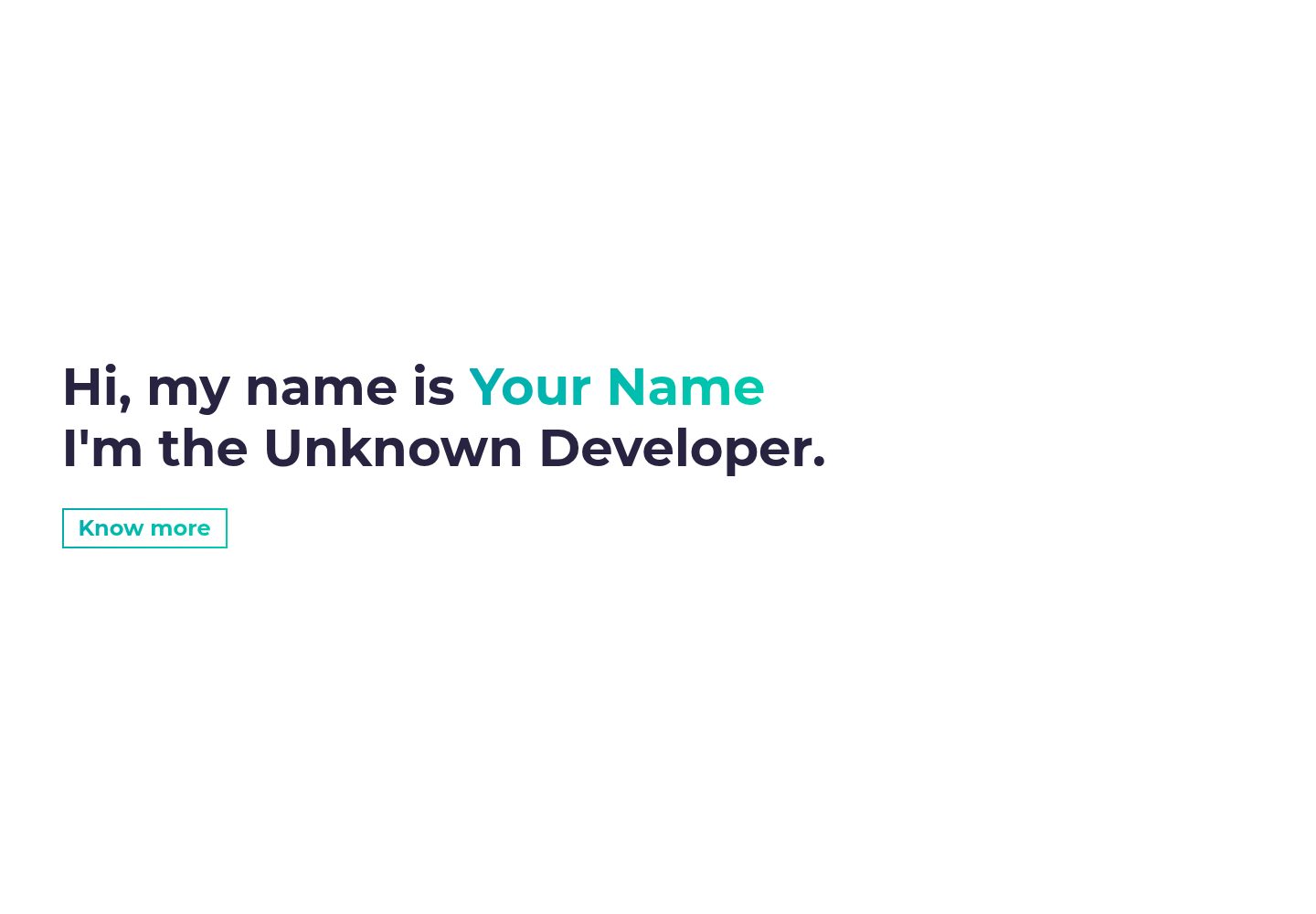
simplefolio
⚡️ A minimal portfolio template for Developers
HTML · 作品集
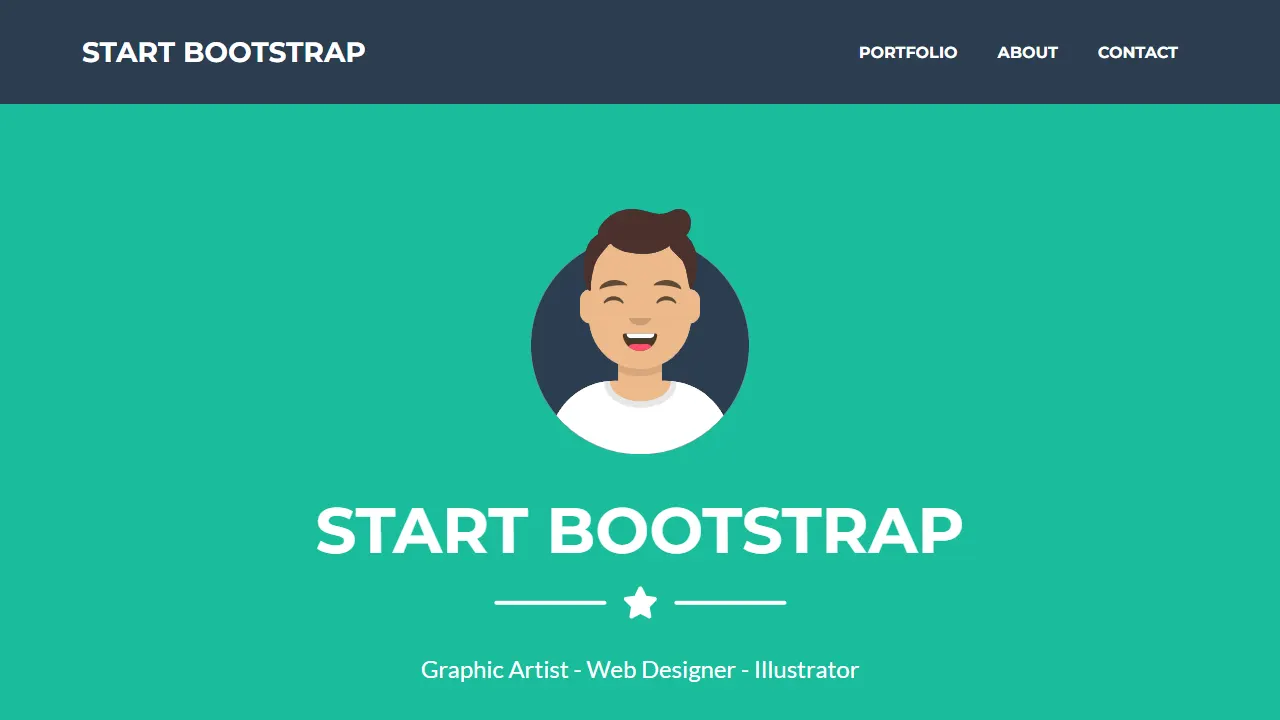
Freelancer
Freelancer 是 Start Bootstrap 出品的单页作品集模板,专为自由职业者、设计师和小型工作室设计。 页面结构清晰,包含多个内容区块、响应式作品集网格,每个作品项目配有模态窗口展示详情。
HTML · 作品集
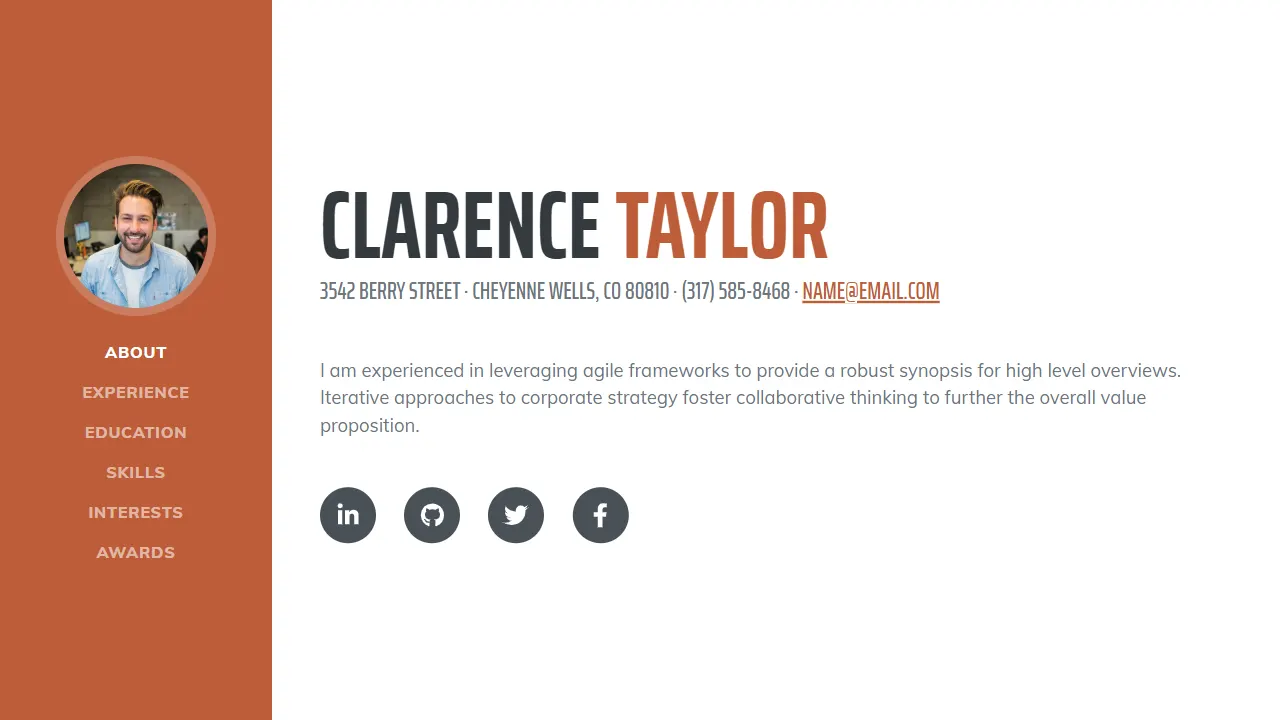
Resume
Resume 是 Start Bootstrap 推出的简历与 CV 主题,基于 Bootstrap 构建,采用固定侧边栏加内容区块的结构。
HTML · 作品集
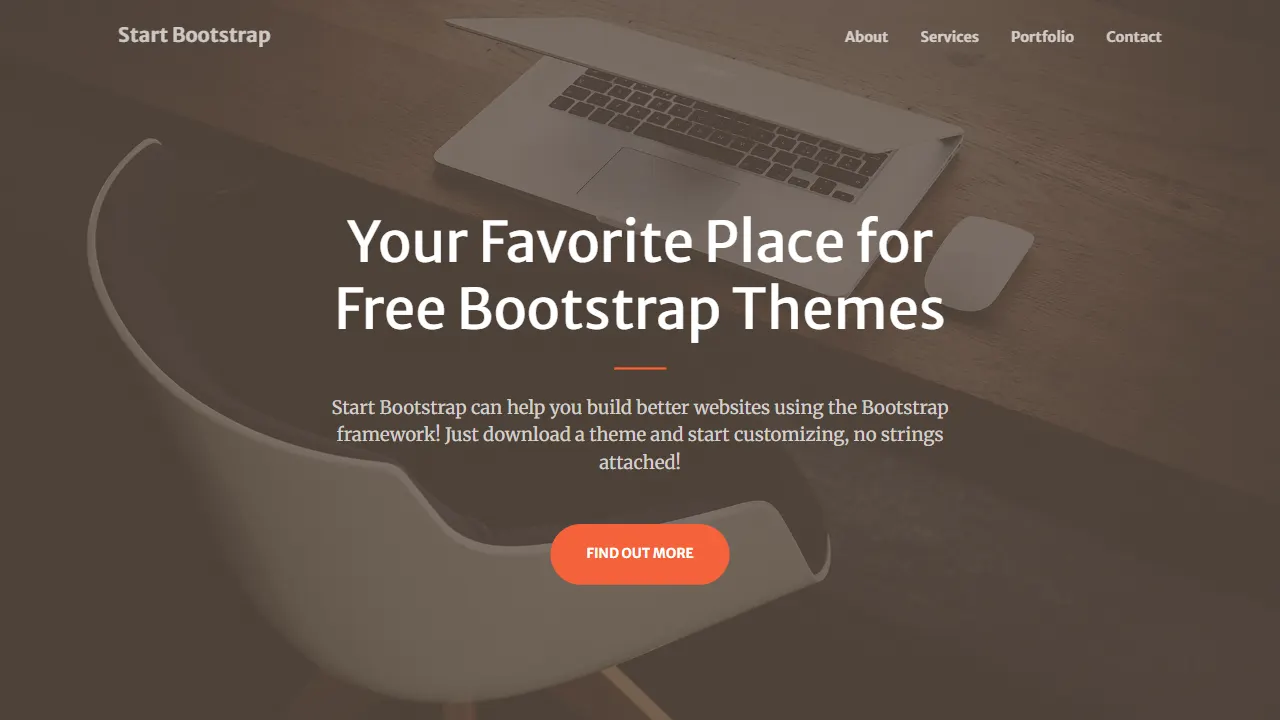
Creative
Creative 是 Start Bootstrap 团队维护的一款单页营销模板,定位明确:为创意机构或产品服务提供一个以作品展示和行动号召为核心的落地页。
HTML · 企业官网
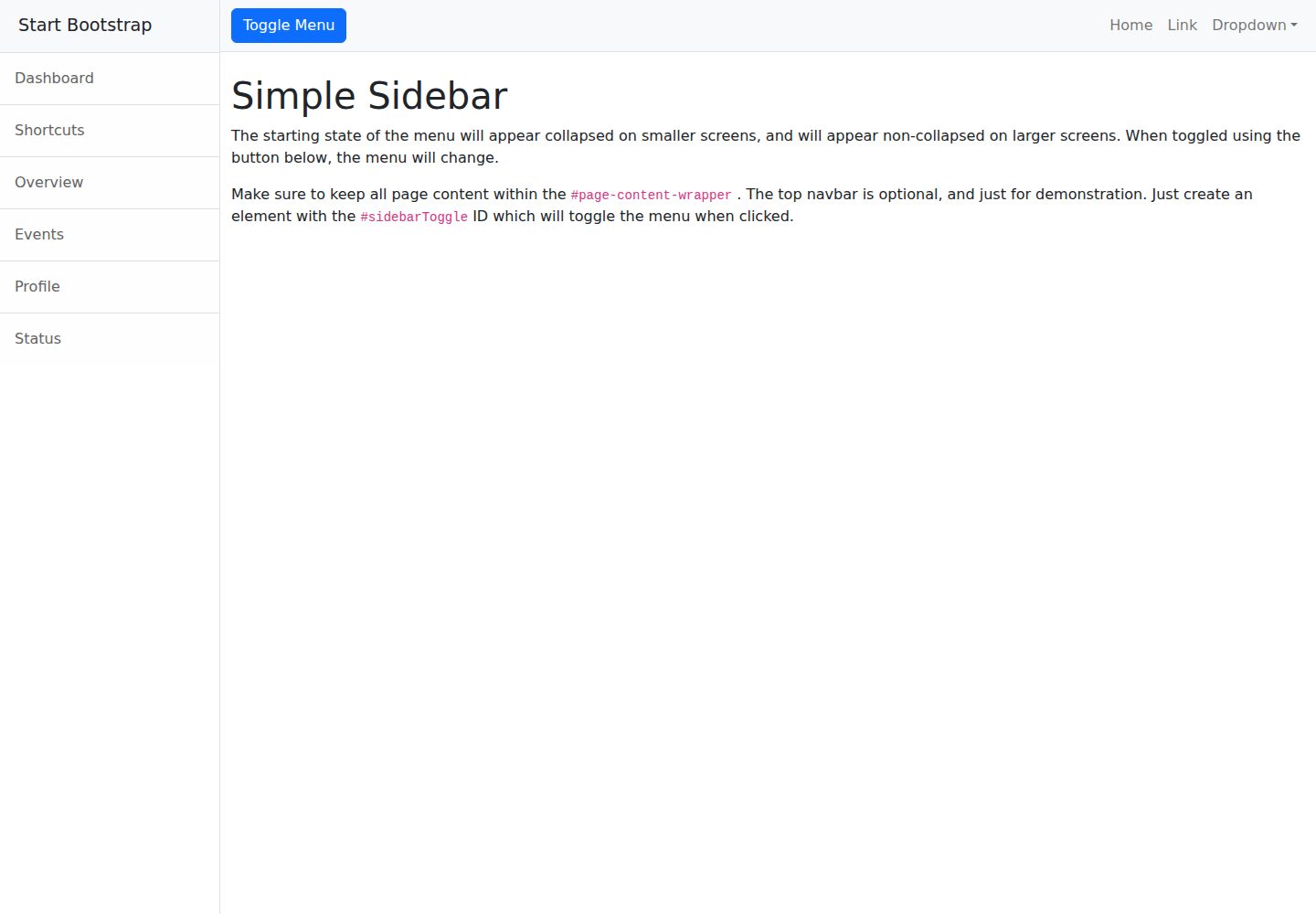
startbootstrap-simple-sidebar
An off canvas sidebar navigation Bootstrap HTML template created by Start Bootstrap
HTML · 启动器
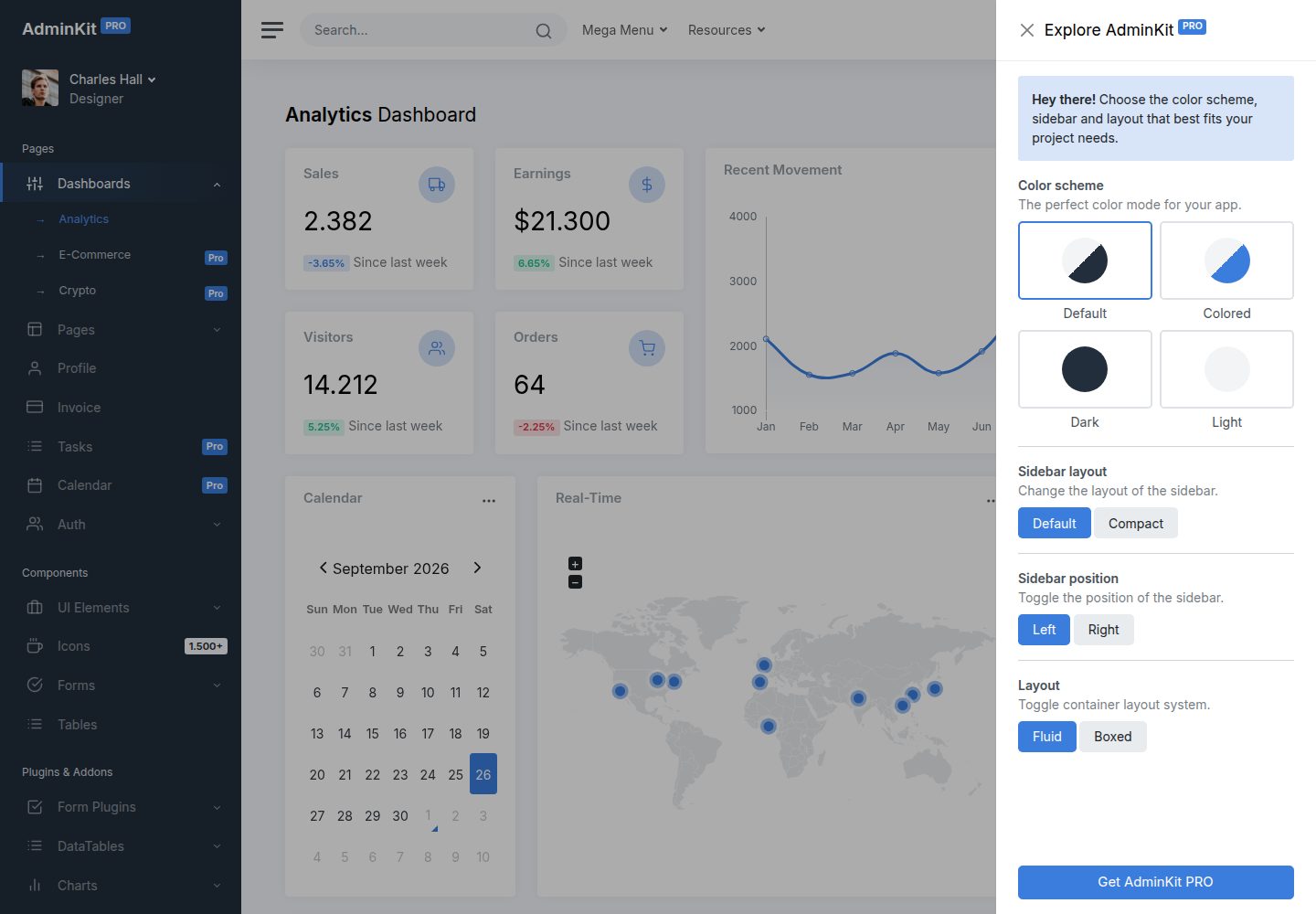
adminkit
AdminKit is a free & open-source HTML dashboard & admin template based on Bootstrap 5
HTML · 后台