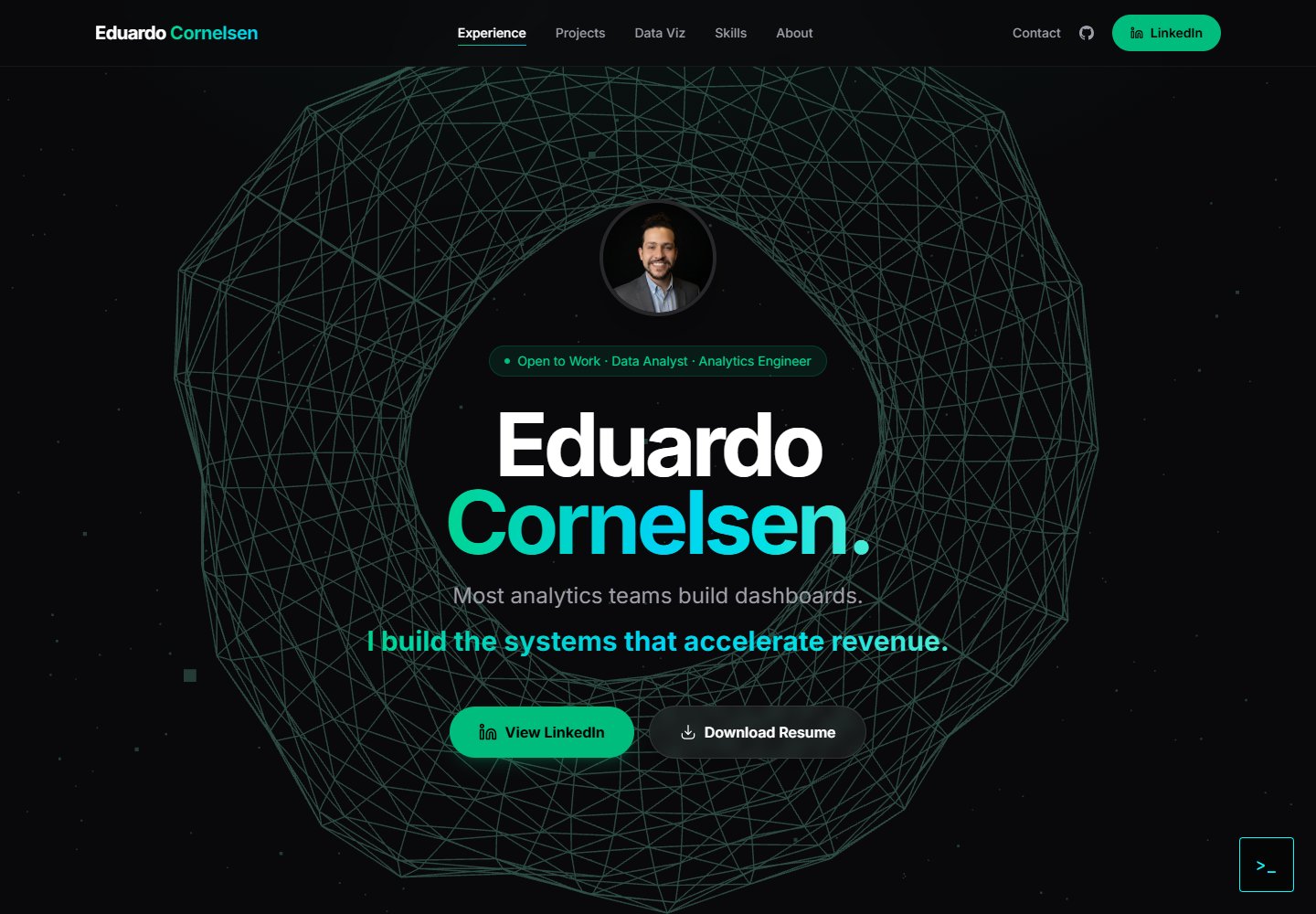
React + TypeScript + Vite 构建的前端作品集,包含经历、项目、技能、可视化、关于等区块
ViteReact作品集
cv-educornelsen — Vite 作品集模板
作者 eduardocornelsen
一个基于 React + TypeScript 的个人作品集网站模板,内置由 Google Gemini 驱动的流式 AI 聊天机器人,通过 Express 后端代理保护 API 密钥,并包含 Docker 容器化与 GitHub Actions 自动部署到 Google Cloud Run 的完整配置。
看看你的网站会是什么样
浏览真实页面截图,比较内容排版与手机效果。点击下方缩略图切换,放大查看整页细节。
全部页面与视图 2
截图用于了解视觉与布局,交互效果请以实际项目为准。
采集于 2026-10-18查看来源
值得关注的模板亮点
从已有项目资料中,快速了解它的特点。
内置流式 AI 聊天机器人,后端 Express 代理调用 Google Gemini API,API 密钥不暴露给浏览器
后端实现速率限制、IP 节流、金丝雀令牌注入与 LangFuse 追踪
使用 Three.js 的 3D 圆环可视化
多阶段 Docker 构建,GitHub Actions 自动部署到 Google Cloud Run
README 提供从零开始的交互式设置指南,面向非程序员
模板详细介绍
该模板是一个个人作品集网站,前端使用 React + TypeScript 与 Vite 构建,包含经历、项目、技能、可视化、关于等作品集区块,以及一个 Three.js 3D 圆环可视化。聊天机器人界面通过 SSE 流式接收回复,后端由 Express 代理请求 Google Gemini API,使 API 密钥保留在服务端。后端还包含速率限制、IP 节流、金丝雀令牌注入(用于提示泄漏检测)以及 LangFuse 追踪(记录成本、延迟与安全事件)。部署流程为:推送代码到 GitHub 后,GitHub Actions 构建多阶段 Docker 镜像,推送到 Google Artifact Registry,再部署到 Google Cloud Run(us-central1)。README 提供了面向非程序员的逐步设置指南,涵盖环境变量、Gemini API 密钥、LangFuse、Google Analytics、本地运行、GCP 项目配置与 GitHub CI/CD 密钥设置。README 未说明该模板是否可直接替换为其他用户的内容,也未提供除 Eduardo Cornelsen 之外的定制化说明;聊天机器人知识库位于 src/utils/chatbot.ts,需手动编辑系统提示词。
ViteReact作品集
适合你的项目吗?
适用场景
- 个人开发者希望搭建一个包含 AI 聊天机器人的作品集网站
- 需要学习如何将 React 前端与 Express 后端代理、Gemini API 和 LangFuse 可观测性结合
- 希望通过 GitHub Actions 和 Docker 将应用自动部署到 Google Cloud Run
- 非程序员在 Claude Code 或 Antigravity IDE 辅助下按步骤复现完整部署流程
适合人群
- 具备基本命令行操作能力、希望拥有个人作品集网站并集成 AI 聊天机器人的开发者
- 想参考前后端分离、API 密钥保护与云原生部署实践的学习者
- 愿意使用 Google Cloud、Gemini、LangFuse 和 Google Analytics 免费层服务的个人用户
上手与定制指南
结合仓库当前版本的说明,按下面的资料检查内容、配置与运行要求。
- 1
需要准备 GitHub、Google Cloud Platform、Google AI Studio(Gemini API 密钥)、LangFuse、Google Analytics 账户,以及 Node.js 20+ 和 Docker Desktop
- 2
复制 .env.example 为 .env,填入 GEMINI_API_KEY、LANGFUSE_SECRET_KEY、LANGFUSE_PUBLIC_KEY、LANGFUSE_BASE_URL、VITE_APP_URL 和 PORT
- 3
在 src/main.tsx 中将 initGA('G-XXXXXXXXXX') 替换为实际的 Google Analytics Measurement ID
- 4
在 src/utils/chatbot.ts 中编辑系统提示词以自定义聊天机器人知识库
- 5
部署前需在 GCP 启用 Cloud Run 和 Artifact Registry API,创建 Artifact Registry 仓库与服务账号,并在 GitHub 仓库中添加 GCP_PROJECT_ID、GCP_SA_KEY、GEMINI_API_KEY 等 Secrets,同时更新 deploy.yml 中的项目信息
授权与来源资料
使用条件与限制
免费使用 · 保留许可声明本次收录的是公开仓库中采用 MIT 许可的免费版本;免费范围为该版本代码,不代表外部服务或第三方素材免费。
使用时需要遵守
- 允许免费使用、修改、商用和分发该版本代码。
- 分发代码副本或实质性部分时,保留原作者版权声明和完整 MIT 许可声明。
- 代码按现状提供;担保与责任限制以原许可证及适用法律为准。
额外费用与待核对事项
- 演示图片、字体、图标及其他第三方素材需按各自许可核对,不能仅凭代码的 MIT 许可判断。
- 域名、托管、数据库、支付或 AI 等外部服务可能另外收费。
- 运行需要 GitHub、Google Cloud Platform、Google AI Studio(Gemini API 密钥)、LangFuse、Google Analytics 等平台账户;README 称这些平台均有足够个人作品集使用的免费层。
- GCP 的 Cloud Run 与 Artifact Registry 依赖 Google Cloud 账户,README 标注为 300 美元免费额度,而非永久免费。
- 聊天机器人需要自行申请 Google Gemini API 密钥并填入环境变量,否则聊天功能无法工作。
- LangFuse 可观测性为可选但推荐;跳过该步骤聊天机器人仍可运行,只是不产生追踪数据。
- 需在 src/main.tsx 中把 initGA('G-XXXXXXXXXX') 替换为实际的 Google Analytics Measurement ID 才能启用统计。
- 聊天机器人知识库位于 src/utils/chatbot.ts,需手动编辑系统提示词以描述自己的经历、项目与背景。
- API 密钥不写入 Docker 镜像,需在 Cloud Run 运行时通过环境变量或 Secret Manager 注入。
- 自动部署需在 GitHub 仓库添加 GCP_PROJECT_ID、GCP_SA_KEY、GEMINI_API_KEY 等 Secrets。
- 需修改 .github/workflows/deploy.yml 中的区域、服务名、仓库名及 VITE_APP_URL 以匹配自己的部署配置。
- 自定义域名需自备域名并在域名注册商处配置 DNS 记录,属于可选步骤。
- 作品集内容(经历、项目卡片)位于 src/components/PortfolioEduardo.tsx 及 src/content/projects/ 下的 Markdown 文件,需自行编辑替换。
- 公开部署前必须确保 .env 未被提交,README 建议用 git status 核实。
查看原文依据
Permission is hereby granted, free of charge
许可证原文
Before starting, you need accounts on these platforms. All have free tiers sufficient for a personal portfolio.
README 原文
| [Google Cloud Platform (GCP)](https://cloud.google.com) | Cloud Run + Artifact Registry | $300 free credit |
README 原文
The chatbot uses Google's Gemini AI model. You need a free API key.
README 原文
LangFuse lets you see every chatbot conversation, how much it cost, and whether anyone tried to jailbreak it. Optional but highly recommended.
README 原文
5. Open `src/main.tsx` and find:
README 原文
The chatbot's "knowledge" — what it says about you — is in `src/utils/chatbot.ts`. Open that file and edit the system prompt to describe your own experience, projects, and personality.
README 原文
Your API keys don't go in the Docker image — they're injected at runtime by Cloud Run.
README 原文
Add these secrets:
README 原文
Open `.github/workflows/deploy.yml` and update these lines to match your setup:
README 原文
If you have a domain (e.g. from Google Domains, Namecheap, Cloudflare):
README 原文
A: The portfolio sections are in `src/components/PortfolioEduardo.tsx`. Each project card has a `title`, `desc`, `tags`, and `readme` (pointing to a `.md` file in `src/content/projects/`). Edit those files to reflect your own work.
README 原文
https://github.com/eduardocornelsen/cv-educornelsen/blob/main/LICENSEhttps://github.com/eduardocornelsen/cv-educornelsen/blob/main/README.mdA: Yes, as long as `.env` is never committed. Double-check with `git status` — `.env` should never appear as a file to be committed. The `.gitignore` file prevents this, but always verify.
README 原文
DeepSeek 根据仓库许可证和 README 整理 ·2026-10-17。结果仅覆盖已读取资料,依赖、图片、字体及后续条款变更以各自原文为准。
项目核对记录与介绍依据
模板资料
- 来源平台
- GitHub
- 资料与维护参考分
- 资料较完整 · 88 / 100
- 技术栈
- Vite · React
- 网站类型
- 作品集
这个分数如何计算
本站按许可资料(最高30分)、演示链接(12分)、预览图(10分)、Star数(15分)、记录的维护时间(15分)、描述完整度(8分)、功能记录(5分)和分类资料(5分)计算。它不是代码、安全或性能测试,也不是 Google 评分;有链接不代表已实测可用。
这个项目需要核对什么
- 记录的仓库更新时间
- 2026-10-17
- 截图检查日期
- 2026-10-18
已收录演示链接。请用你的内容与屏幕尺寸检查;有演示不代表表单、认证或支付已经可用。
目录记录的主要技术栈是 Vite。请通过依赖清单和锁文件核对实际版本与托管要求。这些说明基于收录资料,不代表代码审计或部署实测。
查看具体选型方法 →介绍的制作与核对状态
介绍由 AI 辅助整理目录与仓库资料。仓库作者不等于这篇介绍的审核者。
审核声明: codex-user-requested-batch-review-20261018 · 2026-10-18
查看当时使用的来源资料
SHA-256: 4fdaa494283f983aba43844ae30554695eb555bad421dbbda2262d7e68099c7d
2026-10-17T11:28:12.434Z
来源文件 / 仓库<div align="center">
<img src="src/assets/projects/portfolio-infra/lp.webp" alt="Eduardo Cornelsen Portfolio" width="100%" />
</div>
# Eduardo Cornelsen — Portfolio + AI Chatbot
[](https://github.com/eduardocornelsen/cv-educornelsen/actions/workflows/vitest.yml)
[](https://github.com/eduardocornelsen/cv-educornelsen/actions/workflows/health-check.yml)
> Engineered a production-grade personal portfolio with a streaming AI chatbot, containerized via Docker, and deployed through a zero-touch CI/CD pipeline on Google Cloud Run — demonstrating full-stack ownership, LLMOps observability, and 4-layer prompt-injection security at $0/month infrastructure cost.
**Live site:** [eduardocornelsen.com](https://eduardocornelsen.com)
---
## Start Here — One Prompt to Set Up Everything
> **You do not need to be a programmer.** Open this project in **Claude Code** or **Google Antigravity IDE**, paste the prompt below, and the AI will walk you through every step interactively — reading your files, running commands, asking for your API keys when needed, and setting up your live site from scratch.
### How to open the project in your AI IDE
**Claude Code (terminal):**
```bash
# 1. Clone the repository
git clone https://github.com/eduardocornelsen/cv-educornelsen.git
cd cv-educornelsen
# 2. Install Claude Code if you haven't already
npm install -g @anthropic-ai/claude-code
# 3. Open the project
claude
```
**Google Antigravity IDE:**
Open Antigravity → File → Open Folder → select the `cv-educornelsen` folder.
---
### The prompt — copy and paste this exactly
```
Read the README.md file in this project carefully. Then act as my personal setup guide and execute the full setup from start to finish, step by step.
Here is what I need you to do:
1. Read README.md and build a clear step-by-step plan before doing anything.
2. Walk me through each step interactively:
- Before running any command, explain what it does in plain English.
- When you need a secret or API key from me (Gemini, LangFuse, Google Analytics, GCP), pause and ask me for it clearly — tell me exactly where to get it and what to paste.
- Run the command or make the change, then confirm it worked before moving on.
3. Set up the full environment:
- Clone/install dependencies
- Create the .env file from .env.example and fill it with my values
- Configure Google Analytics (ask me for my Measurement ID)
- Configure Gemini API key (ask me for it)
- Configure LangFuse (ask me for the keys)
- Run the site locally to confirm it works
4. Set up Google Cloud Platform:
- Help me create a GCP project
- Enable Cloud Run and Artifact Registry APIs
- Create the Artifact Registry repository
- Create a service account and download the JSON key
5. Set up GitHub CI/CD:
- Help me create a GitHub repository (if I don't have one yet)
- Add all required GitHub Secrets (GCP_PROJECT_ID, GCP_SA_KEY, GEMINI_API_KEY)
- Update the deploy.yml workflow file with my project details
- Push the code and watch the first deployment succeed
6. Verify the live deployment:
- Confirm the site is accessible on the Cloud Run URL
- Test the chatbot is responding
- Show me where to find my LangFuse traces
If anything fails, diagnose the error and fix it before moving on. Never skip a step. Ask me one thing at a time — do not overwhelm me with multiple questions at once.
Start now by reading README.md and telling me the plan.
```
---
## What This Is
A personal portfolio website built from scratch with React + TypeScript. It includes an AI chatbot (powered by Google Gemini) that answers questions about Eduardo's experience, projects, and background. The site is fully containerized with Docker and deploys automatically to Google Cloud Run whenever you push to the `main` branch.
This repository is structured so a **non-programmer using Claude Code or Antigravity IDE** can follow along and replicate the entire setup — from a blank laptop to a live website with a working AI chatbot.
---
## Architecture Overview
```
Browser
│
├── React 19 + Vite (Frontend)
│ ├── Portfolio sections (experience, projects, skills, viz, about)
│ ├── 3D torus visualization (Three.js)
│ └── Chatbot UI (SSE streaming)
│
└── Express.js (Backend proxy — keeps API keys server-side)
├── POST /api/chat → Google Gemini API (streaming)
├── Rate limiting + IP throttling
├── Canary token injection (prompt-leak detection)
└── LangFuse tracing (cost, latency, safety per conversation)
Deployment:
GitHub push → GitHub Actions
→ Docker build (multi-stage: Vite build + Express runtime)
→ Push to Google Artifact Registry
→ Deploy to Google Cloud Run (us-central1)
```
---
## Prerequisites
Before starting, you need accounts on these platforms. All have free tiers sufficient for a personal portfolio.
| Service | Purpose | Free? |
|---|---|---|
| [GitHub](https://github.com) | Code hosting + CI/CD | Yes |
| [Google Cloud Platform (GCP)](https://cloud.google.com) | Cloud Run + Artifact Registry | $300 free credit |
| [Google AI Studio](https://aistudio.google.com) | Gemini API key (chatbot) | Yes |
| [LangFuse](https://langfuse.com) | Chatbot observability | Yes |
| [Google Analytics](https://analytics.google.com) | Website traffic analytics | Yes |
| [Node.js 20+](https://nodejs.org) | Local development runtime | Yes |
| [Docker Desktop](https://www.docker.com/products/docker-desktop/) | Container building | Yes |
You also need an IDE. This guide assumes you're using **Claude Code** (terminal) or **Antigravity IDE** (visual, recommended for non-programmers).
---
## Step 0 — Understanding the Project Structure
Before touching anything, spend 5 minutes reading this map:
```
portfolio-eduardo/
│
├── src/ ← All frontend React code
│ ├── components/ ← UI pieces (portfolio, chatbot, torus, etc.)
│ ├── hooks/useChat.ts ← Chatbot state: messages, streaming, rate limit
│ ├── utils/analytics.ts ← Google Analytics event tracking
│ ├── utils/chatbot.ts ← Chatbot system prompt (what the AI "knows")
│ └── content/projects/ ← Markdown files for each project card
│
├── server/ ← Express backend (runs in production + Docker)
│ ├── index.js ← Server entry point, /api/chat route
│ ├── chatHandler.js ← Calls Gemini API, streams response, tracks cost
│ ├── instrumentation.js ← LangFuse + OpenTelemetry setup
│ └── security.js ← Rate limiting, canary tokens, jailbreak detection
│
├── .github/workflows/
│ └── deploy.yml ← CI/CD: build Docker image → push → deploy
│
├── Dockerfile ← Multi-stage container definition
├── .env.example ← Template for your environment variables
├── .env ← Your actual secrets (NEVER commit this file)
├── vite.config.ts ← Vite build config (includes dev chat plugin)
└── package.json ← All scripts and dependencies
```
> **Tip for non-programmers:** Think of `src/` as the "what users see", `server/` as the "hidden engine", `.github/` as the "auto-deploy robot", and `.env` as your "password notebook" that never leaves your machine.
---
## Step 1 — Clone the Repository
Open your terminal (or the terminal inside Antigravity/Claude Code) and run:
```bash
git clone https://github.com/eduardocornelsen/cv-educornelsen.git
cd cv-educornelsen
```
This downloads a copy of the project to your machine.
---
## Step 2 — Install Dependencies
```bash
npm install
```
This reads `package.json` and downloads all the libraries the project needs into a folder called `node_modules`. It may take 1–2 minutes the first time.
---
## Step 3 — Set Up Environment Variables
Environment variables are secret values your app reads at runtime. They are **never** stored in the code itself.
1. Copy the example file:
```bash
cp .env.example .env
```
2. Open `.env` in your editor. It looks like this:
```
GEMINI_API_KEY=your-gemini-api-key-here
LANGFUSE_SECRET_KEY=sk-lf-...
LANGFUSE_PUBLIC_KEY=pk-lf-...
LANGFUSE_BASE_URL=https://us.cloud.langfuse.com
VITE_APP_URL=http://localhost:5173
PORT=8080
```
3. Fill in each value following the sections below. Do not add quotes around values unless explicitly shown.
> **Important:** The `.gitignore` file already lists `.env` — this means git will never accidentally upload your secrets to GitHub.
---
## Step 4 — Get Your Gemini API Key (AI Chatbot)
The chatbot uses Google's Gemini AI model. You need a free API key.
1. Go to [aistudio.google.com/app/apikey](https://aistudio.google.com/app/apikey)
2. Sign in with your Google account
3. Click **"Create API Key"** → choose **"Create API key in new project"**
4. Copy the key (it starts with `AIza...`)
5. Paste it into `.env`:
```
GEMINI_API_KEY=AIzaSy...your-actual-key
```
> **What this does:** The backend Express server sends your chatbot messages to Google's Gemini model and streams the reply back. The API key is what authenticates your requests. It never appears in the browser.
**Customizing the chatbot persona:**
The chatbot's "knowledge" — what it says about you — is in `src/utils/chatbot.ts`. Open that file and edit the system prompt to describe your own experience, projects, and personality.
---
## Step 5 — Set Up LangFuse (Chatbot Observability)
LangFuse lets you see every chatbot conversation, how much it cost, and whether anyone tried to jailbreak it. Optional but highly recommended.
1. Go to [langfuse.com](https://langfuse.com) → **Sign Up** (free)
2. Create a new **Project** (name it anything, e.g. "my-portfolio")
3. Go to **Settings → API Keys**
4. Copy **Secret Key** (starts with `sk-lf-`) and **Public Key** (starts with `pk-lf-`)
5. Update `.env`:
```
LANGFUSE_SECRET_KEY=sk-lf-xxxxxxxx-xxxx-xxxx-xxxx-xxxxxxxxxxxx
LANGFUSE_PUBLIC_KEY=pk-lf-xxxxxxxx-xxxx-xxxx-xxxx-xxxxxxxxxxxx
LANGFUSE_BASE_URL=https://us.cloud.langfuse.com
```
> **What this does:** Every time someone sends a message to your chatbot, a "trace" is sent to LangFuse showing the full conversation, tokens used, estimated cost, and whether a jailbreak was detected. You can view this dashboard at [cloud.langfuse.com](https://cloud.langfuse.com).
If you skip this step, the chatbot still works — tracing just won't be active.
---
## Step 6 — Set Up Google Analytics
Google Analytics tracks who visits your site, which sections they scroll to, and how they interact with the chatbot.
1. Go to [analytics.google.com](https://analytics.google.com)
2. Click **"Start measuring"** → fill in your account and property name
3. Choose **Web** → enter your site URL (e.g. `https://yourdomain.com`)
4. Copy your **Measurement ID** (format: `G-XXXXXXXXXX`)
5. Open `src/main.tsx` and find:
```ts
initGA('G-XXXXXXXXXX');
```
Replace `G-XXXXXXXXXX` with your actual Measurement ID.
> **What this does:** The `initGA()` call initializes GA4 on page load. Custom events like scroll depth (25/50/75%) and chatbot interactions are already wired in `src/utils/analytics.ts` — they'll appear automatically in your GA4 dashboard under **Events**.
---
## Step 7 — Run the Site Locally
With your `.env` filled in, start the development server:
```bash
npm run dev
```
Open your browser at [http://localhost:5173](http://localhost:5173). You should see your portfolio.
The chatbot is fully functional in development mode — Vite includes a special plugin (`devChatPlugin` in `vite.config.ts`) that handles the `/api/chat` route without needing to run a separate Express server.
Other useful scripts:
```bash
npm run dev:server # Run only the Express backend (port 8080)
npm run build # Compile TypeScript + build production assets
npm run test # Run unit tests
npm run test:contract # Run chatbot API contract tests
```
---
## Step 8 — Set Up Google Cloud Platform
GCP is where your website lives in production. You need three things: a project, the Cloud Run service, and the Artifact Registry (Docker image storage).
### 8.1 — Create a GCP Project
1. Go to [console.cloud.google.com](https://console.cloud.google.com)
2. Click the project dropdown (top-left) → **"New Project"**
3. Name it (e.g. `portfolio-eduardo`) → **Create**
4. Copy the **Project ID** (e.g. `portfolio-eduardo-123456`) — you'll need it later
### 8.2 — Enable Required APIs
In the GCP console, search for and enable these APIs:
- **Cloud Run API**
- **Artifact Registry API**
- **Cloud Build API** (optional, used if building on GCP)
Or run via Google Cloud Shell (the `>_` icon in the console):
```bash
gcloud services enable run.googleapis.com artifactregistry.googleapis.com
```
### 8.3 — Create an Artifact Registry Repository
This is where Docker images are stored before deployment.
1. In the console, go to **Artifact Registry** → **"Create Repository"**
2. Name: `portfolio-repo`
3. Format: **Docker**
4. Region: `us-central1`
5. Click **Create**
### 8.4 — Create a Service Account for GitHub Actions
GitHub Actions needs permission to push images and deploy to Cloud Run.
1. Go to **IAM & Admin → Service Accounts** → **"Create Service Account"**
2. Name: `github-deployer`
3. Grant these roles:
- `Artifact Registry Writer`
- `Cloud Run Admin`
- `Service Account User`
4. Click **Done**
5. Click on the new service account → **Keys** → **Add Key** → **JSON**
6. Download the JSON file — this is your `GCP_SA_KEY` secret
### 8.5 — Set Cloud Run Environment Variables
Your API keys don't go in the Docker image — they're injected at runtime by Cloud Run.
1. Go to **Cloud Run** → find your service (after first deploy) → **Edit & Deploy New Revision**
2. Under **Variables & Secrets**, add:
```
GEMINI_API_KEY = your-gemini-key
LANGFUSE_SECRET_KEY = sk-lf-...
LANGFUSE_PUBLIC_KEY = pk-lf-...
LANGFUSE_BASE_URL = https://us.cloud.langfuse.com
PORT = 8080
```
> **Alternatively**, use GCP Secret Manager for more security. Store each secret there and reference it by name in the Cloud Run config.
---
## Step 9 — Set Up GitHub Actions (Auto-Deploy)
GitHub Actions is the "robot" that automatically builds and deploys your site every time you push code.
### 9.1 — Push Your Code to GitHub
1. Create a new repository on [github.com](https://github.com) (name it `cv-educornelsen` or anything you like)
2. Follow the instructions to push your local code:
```bash
git remote add origin https://github.com/YOUR-USERNAME/YOUR-REPO.git
git branch -M main
git push -u origin main
```
### 9.2 — Add GitHub Secrets
GitHub Secrets store sensitive values that the Actions workflow can read.
Go to your repository → **Settings → Secrets and variables → Actions → New repository secret**
Add these secrets:
| Secret Name | Value |
|---|---|
| `GCP_PROJECT_ID` | Your GCP project ID (e.g. `portfolio-eduardo-123456`) |
| `GCP_SA_KEY` | The full contents of the JSON key file you downloaded in Step 8.4 |
| `GEMINI_API_KEY` | Your Gemini API key |
### 9.3 — Update the Workflow File
Open `.github/workflows/deploy.yml` and update these lines to match your setup:
```yaml
env:
PROJECT_ID: ${{ secrets.GCP_PROJECT_ID }} # ← already uses your secret
REGION: us-central1 # ← change if you used a different region
SERVICE_NAME: portfolio-eduardo # ← change to your preferred service name
REPOSITORY: portfolio-repo # ← must match what you created in step 8.3
```
Also update the `VITE_APP_URL` in the build step to your domain:
```yaml
--build-arg VITE_APP_URL="https://your-domain.com" \
```
### 9.4 — Trigger Your First Deploy
Push any change to `main`:
```bash
git add .
git commit -m "chore: trigger first deploy"
git push
```
Go to your GitHub repository → **Actions** tab. You'll see the workflow running. After ~3 minutes, your site will be live on Cloud Run.
> **Finding your Cloud Run URL:** Go to GCP console → **Cloud Run** → click your service → the URL is at the top (e.g. `https://portfolio-eduardo-xxxxx-uc.a.run.app`). You can map a custom domain under **Manage Custom Domains**.
---
## Step 10 — Connect a Custom Domain (Optional)
If you have a domain (e.g. from Google Domains, Namecheap, Cloudflare):
1. In Cloud Run, go to your service → **Manage Custom Domains** → **Add Mapping**
2. Enter your domain, click **Continue**
3. GCP gives you DNS records to add (usually `A` and `CNAME` records)
4. Add those records at your domain registrar
5. SSL is provisioned automatically (free, managed by Google)
---
## How the Chatbot Works
Here's a simplified trace of what happens when a user sends a message:
```
User types a message in the browser
↓
useChat.ts: validates input (max 500 chars, rate limit 10/min)
↓
POST /api/chat { message, history, sessionId }
↓
server/index.js: IP rate limit check (20 msg/min)
↓
server/chatHandler.js:
1. Builds system prompt with injected canary UUID
2. Intent classification (jailbreak regex check)
3. Calls Gemini API with streaming enabled
4. Streams response tokens back as SSE events
5. Checks response for canary leak / prompt fingerprints
6. Sends trace to LangFuse (cost, latency, safety flag)
↓
Browser: SSE listener parses events, appends tokens to chat UI
↓
sessionStorage: conversation history persisted for the session
```
**SSE (Server-Sent Events)** is what makes the chatbot stream word-by-word instead of waiting for the full response. The browser opens a long-lived HTTP connection and the server pushes each token as it arrives from Gemini.
---
## Customizing the Chatbot for Your Portfolio
All the chatbot's "knowledge" about you is in one file: `src/utils/chatbot.ts`
Find the `SYSTEM_PROMPT` constant and rewrite it to describe yourself:
```typescript
const SYSTEM_PROMPT = `
You are [YOUR NAME]'s AI assistant. Answer questions about [YOUR NAME]'s
background, projects, and experience.
About [YOUR NAME]:
- Current role: ...
- Key skills: ...
- Notable projects: ...
- Education: ...
Rules:
- Stay in character. Only discuss [YOUR NAME]'s background.
- If asked something unrelated, politely redirect.
- Be concise and professional.
`;
```
---
## Frequently Asked Questions
**Q: Do I need to know how to code?**
A: Not to run the site. With Claude Code or Antigravity, you can describe what you want to change in plain English and the AI will write the code. Reading this README is enough to understand the structure.
**Q: How much does this cost to run?**
A: Effectively $0/month for a personal portfolio. Cloud Run charges only when your site is receiving traffic, and the free tier covers millions of requests. Gemini API has a free tier. LangFuse has a free tier.
**Q: My deploy failed. What do I do?**
A: Go to GitHub → Actions → click the failed run → expand the failed step. The error message will tell you exactly what went wrong. Common issues: wrong GCP project ID, missing secret, API not enabled.
**Q: Can I use a different AI model instead of Gemini?**
A: Yes. Open `server/chatHandler.js` and look for the model name. The Google GenAI SDK supports all Gemini variants. To use a completely different provider (OpenAI, Anthropic), you'd replace the SDK import and API call — Claude Code can do this for you if you describe what you want.
**Q: How do I update the content (experience, projects)?**
A: The portfolio sections are in `src/components/PortfolioEduardo.tsx`. Each project card has a `title`, `desc`, `tags`, and `readme` (pointing to a `.md` file in `src/content/projects/`). Edit those files to reflect your own work.
**Q: Is this safe to make public?**
A: Yes, as long as `.env` is never committed. Double-check with `git status` — `.env` should never appear as a file to be committed. The `.gitignore` file prevents this, but always verify.
---
## Testing
This project maintains a multi-layer testing strategy across unit, E2E, and synthetic monitoring.
### Unit / Component Tests — Vitest (`vitest.yml`)
Runs on every push and PR to `main`.
- Tests pure utility functions, hooks, and component logic in isolation using **jsdom**
- Covers `src/__tests__/` — chatbot contract tests, analytics helpers, and component snapshots
- Run locally: `npm test` (watch mode) or `npm test -- --run` (single pass)
### E2E Tests — Playwright (`playwright.yml`)
Runs on every push and PR to `main`, against a production build.
| Spec | What it covers |
|---|---|
| `layout_links.spec.ts` | Hero visibility, nav scroll anchors, external link attributes, footer render |
| `chatbot.spec.ts` | Chatbot open/close, message send, streaming response, rate-limit UI |
| `dashboard.spec.ts` | Data viz section render, Plotly CDN load, tab navigation |
| `dataviz.spec.ts` | D3 / Recharts chart render, tooltip interactions, responsive layout |
| `csp.spec.ts` | Content Security Policy headers, no blocked inline scripts |
Run locally: `npm run test:e2e` (headless) or `npm run test:e2e:ui` (interactive)
### Daily Health Check — Synthetic Monitoring (`health-check.yml`)
Runs every day at **09:00 UTC** (and can be triggered manually via `workflow_dispatch`).
- Runs the full Playwright E2E suite against the **live production URL** (`https://eduardocornelsen.com`)
- Catches regressions caused by Cloud Run cold starts, upstream API changes, or broken deployments **before users notice**
- Reports are uploaded as GitHub Actions artifacts and retained for 14 days
- The workflow fails fast — any broken test page triggers a workflow failure and GitHub notification
### GA4 Test Traffic Filtering
All Google Analytics 4 network requests are **blocked during every Playwright test run**.
Implemented via `e2e/global.setup.ts` — a Playwright base fixture with `auto: true` that calls `page.route()` to abort the following patterns before any test interaction:
```
**/*.google-analytics.com/**
**/analytics.google.com/**
**/gtag/js**
**/gtag**
```
**Why this matters:**
- Prevents test sessions from appearing in production GA4 as real user traffic
- Eliminates false bounce rates and skewed conversion data from CI runs
- Removes external beacon latency from test execution (especially relevant on the daily health-check cron)
- Ensures GA4 data in the dashboard reflects only genuine user behaviour
---
## Stack Reference
| Layer | Technology |
|---|---|
| Frontend framework | React 19 + TypeScript |
| Build tool | Vite 6 (SWC compiler) |
| Styling | TailwindCSS 4 |
| 3D visualization | Three.js + React Three Fiber |
| Animation | Motion (Framer Motion successor) |
| Backend | Express.js (Node.js 20) |
| AI model | Google Gemini 2.5 Flash |
| Streaming | Server-Sent Events (SSE) |
| Observability | LangFuse v5 + OpenTelemetry |
| Analytics | Google Analytics 4 (react-ga4) |
| Containerization | Docker (multi-stage, Alpine) |
| Container registry | Google Artifact Registry |
| Hosting | Google Cloud Run |
| CI/CD | GitHub Actions |
| IDE (recommended) | Claude Code / Antigravity |
---
## License
MIT — use freely, attribution appreciated.
看看同类模板
对比同技术栈与用途的模板,找到更适合的视觉与内容结构。
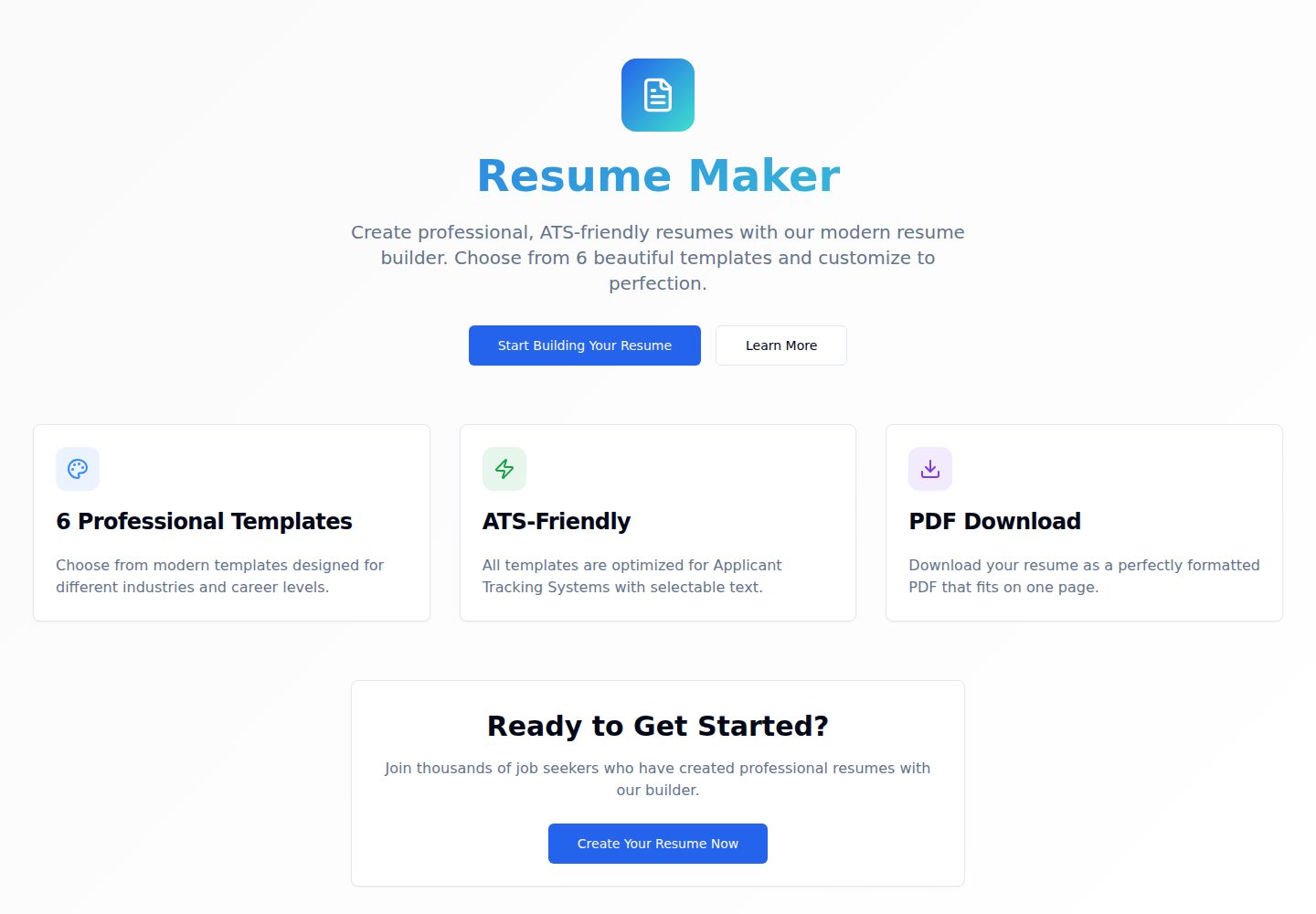
Resumify
Free, privacy-first resume builder — 6 ATS-friendly templates, full customization, JSON import/export. No sign…
Vite · 作品集
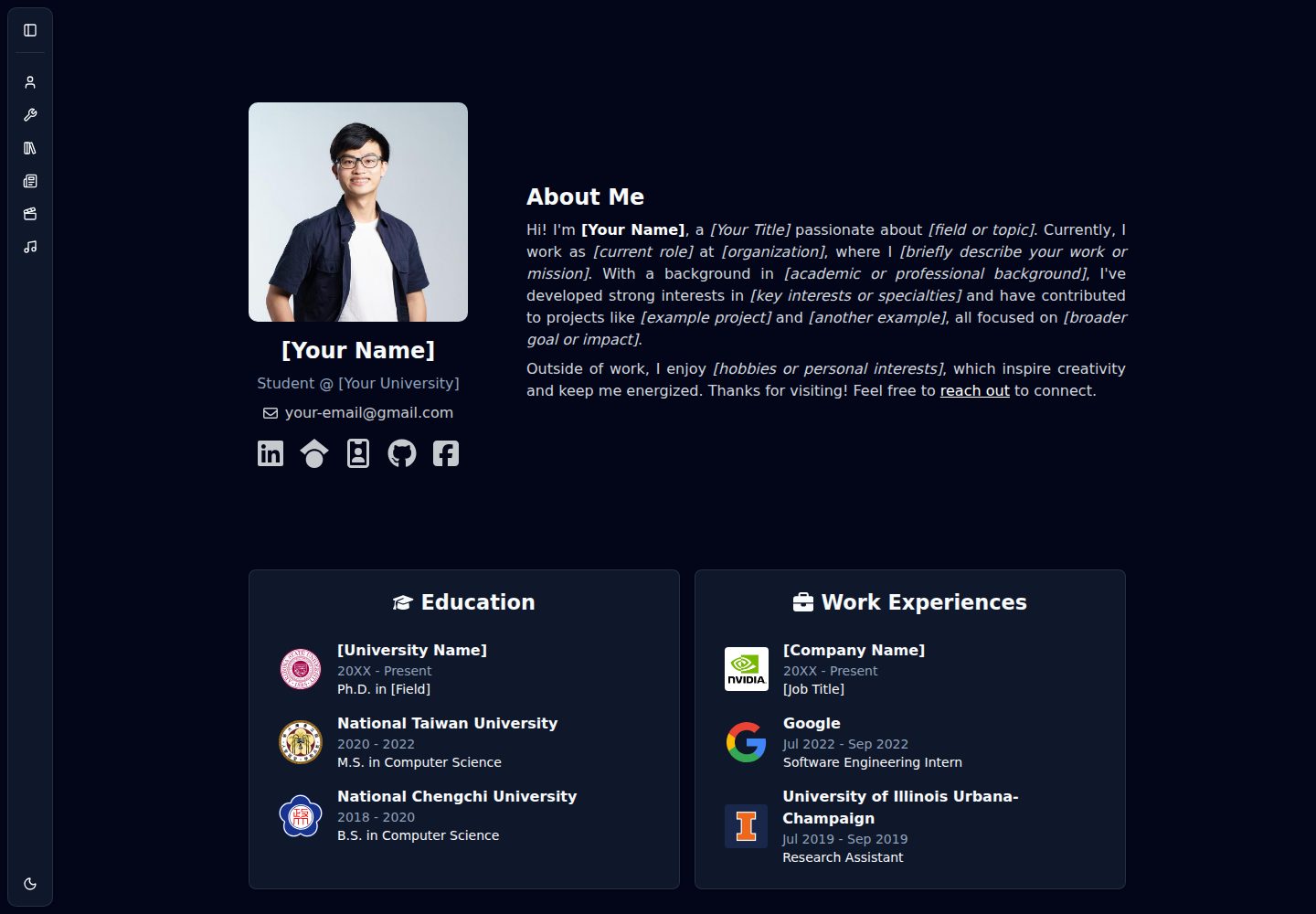
showlit
✨ Showlit - A modern and clean template for creating a personal website
Vite · 作品集
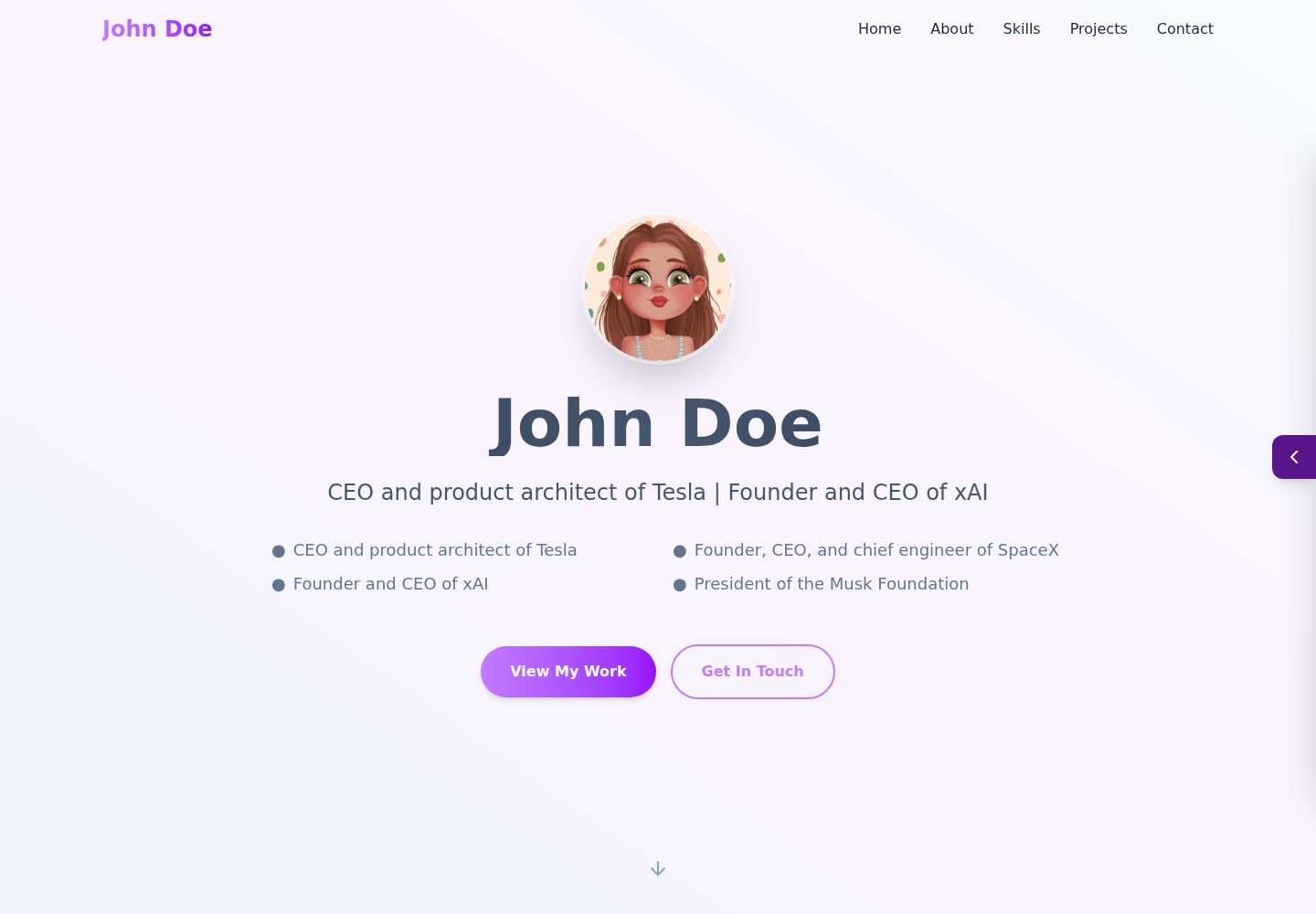
folium
Professional developer portfolio boilerplate (React • TypeScript • Tailwind • Vite) with simple content custom…
Vite · 作品集
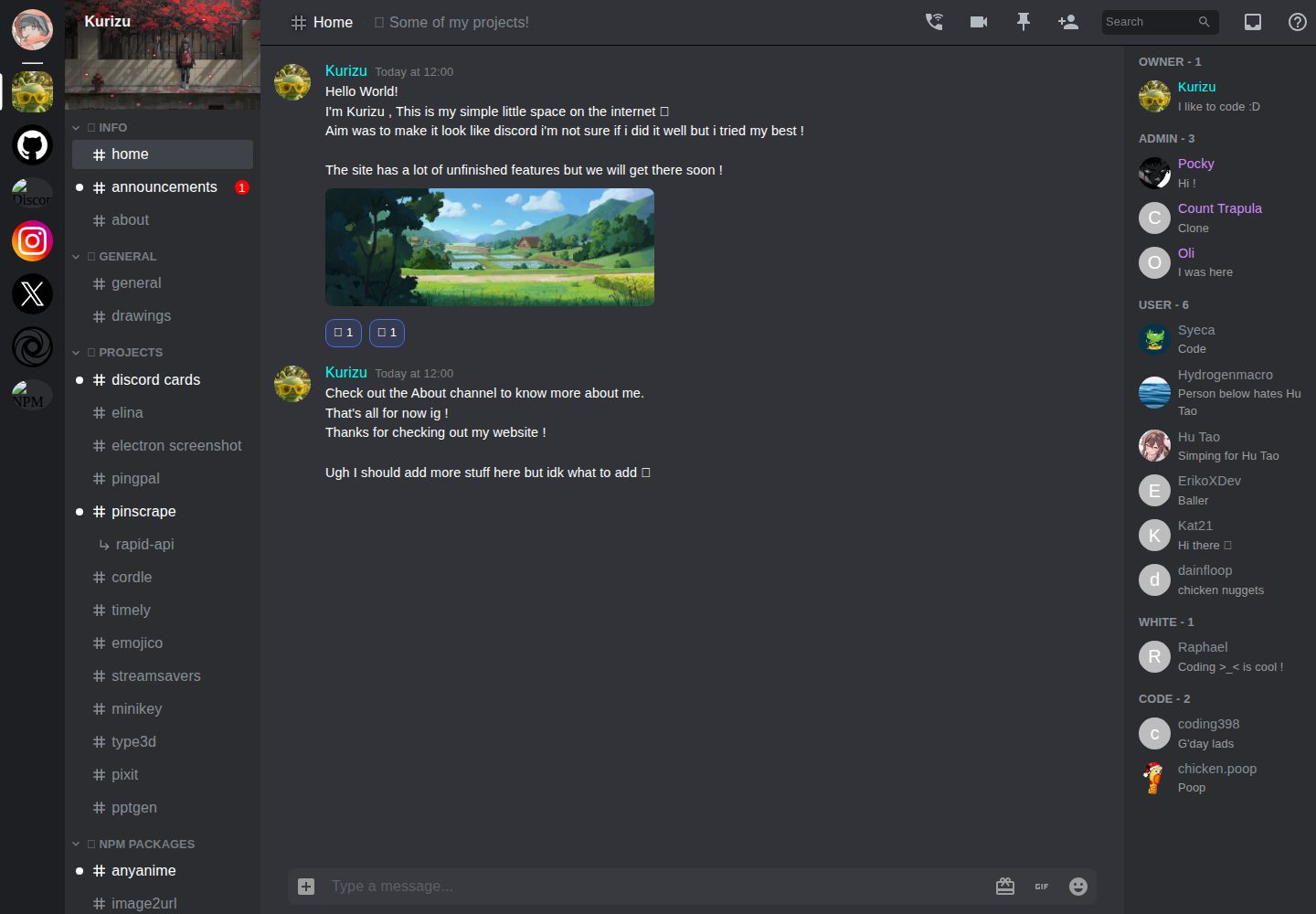
kurizu-discord
A Discord themed website built using React & Vite
Vite · 作品集
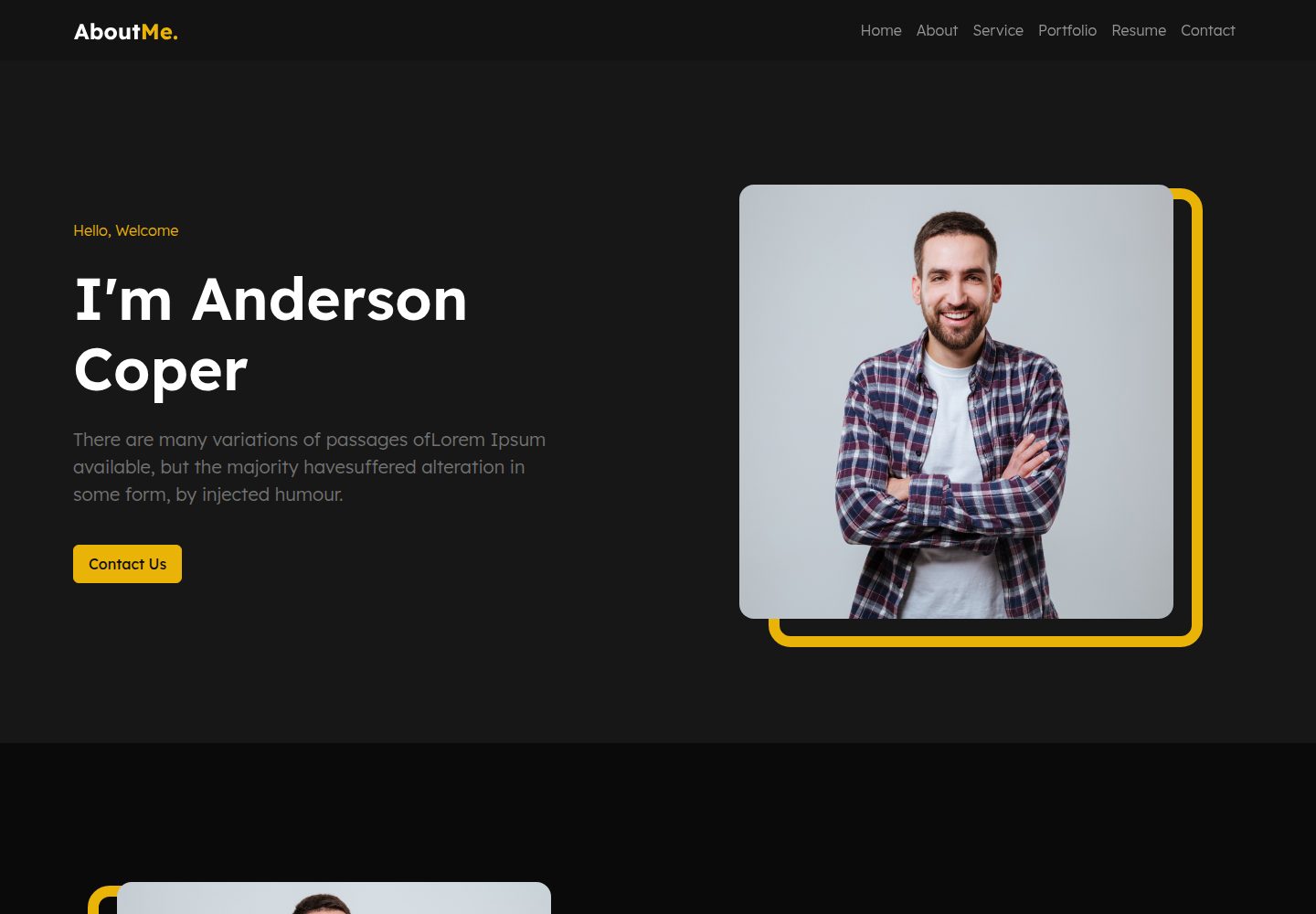
about-me-personal-portfolio-website-template
Simple Personal Website Template, built with bootstrap and vite js project.
Vite · 作品集
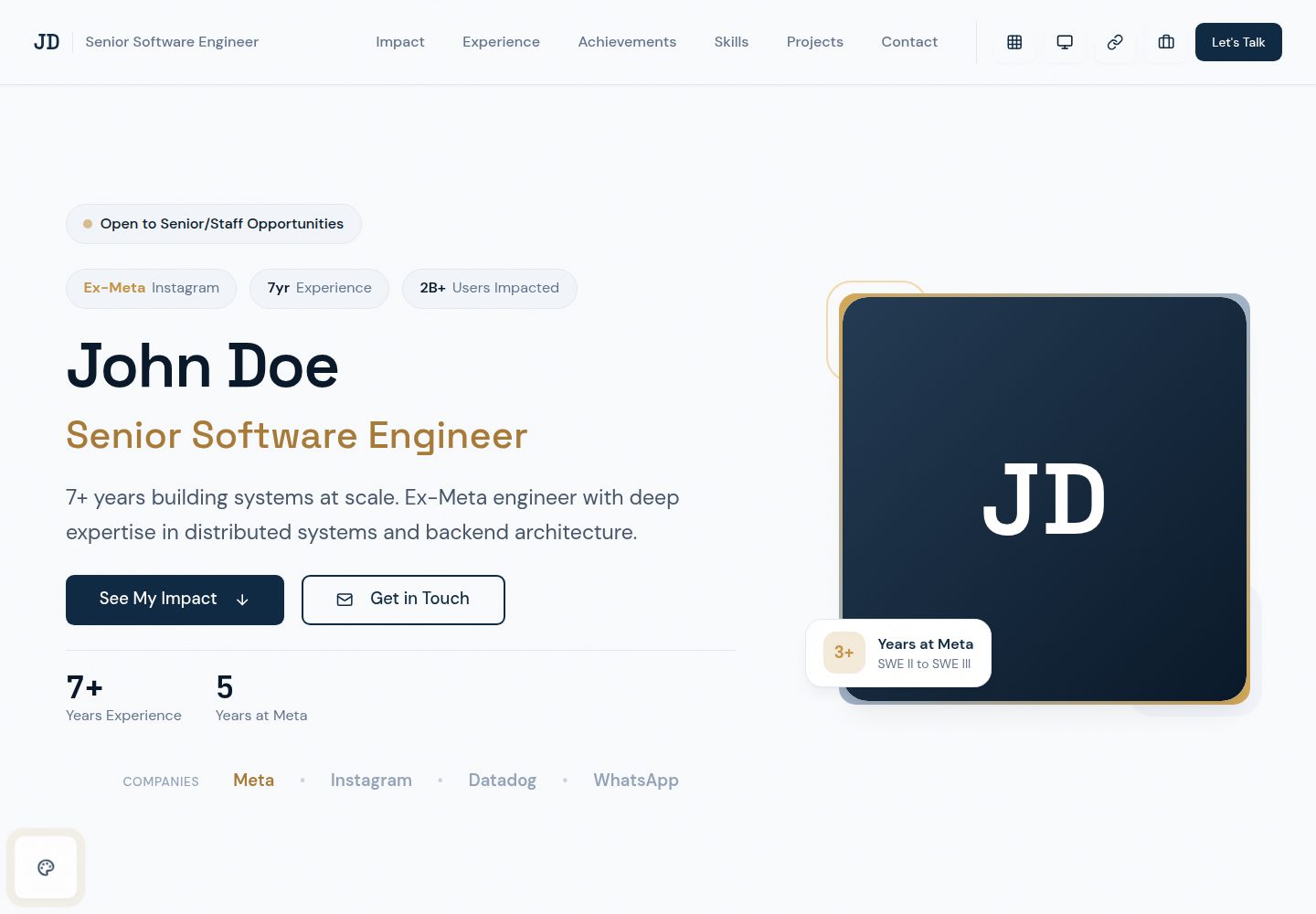
portfolio-template
JSON-driven portfolio with multiple design systems. React, TypeScript, Tailwind CSS v4.
Vite · 作品集