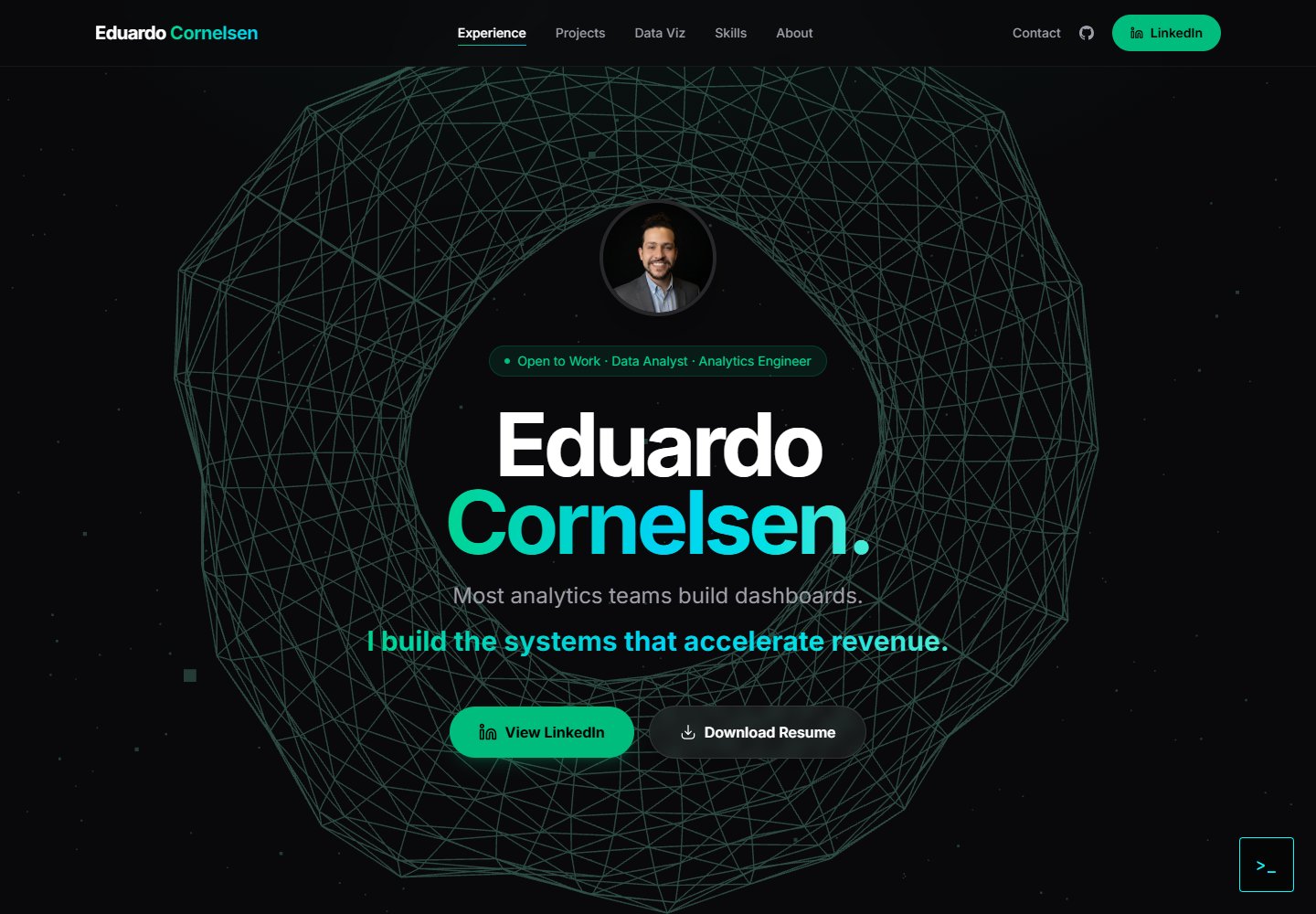
Frontend portfolio built with React + TypeScript + Vite, including sections for experience, projects, skills, visualization, and about
ViteReactPortfolio
cv-educornelsen — Vite Portfolio Template
By eduardocornelsen
A React + TypeScript personal portfolio website template with a built-in streaming AI chatbot powered by Google Gemini, an Express backend proxy to protect API keys, and complete configuration for Docker containerization and automatic deployment to Google Cloud Run via GitHub Actions.
Explore the design
Compare the page layouts and mobile experience. Open any screenshot for a closer look.
Desktop homepage1 / 2
Desktop captureTop of page
Actual browser screenshot from the verified demo.
All pages & views 2
Screenshots show visual appearance; interactive behavior may differ.
Recorded 2026-10-18View source
What stands out
A quick read of the recorded project description.
Built-in streaming AI chatbot; the backend Express proxy calls the Google Gemini API, and the API key is not exposed to the browser
Backend implements rate limiting, IP throttling, canary token injection, and LangFuse tracing
3D ring visualization using Three.js
Multi-stage Docker build, with GitHub Actions automatically deploying to Google Cloud Run
README provides an interactive setup guide from scratch, aimed at non-programmers
Template Details
This template is a personal portfolio website. The frontend is built with React + TypeScript and Vite, and includes portfolio sections such as experience, projects, skills, visualization, and about, as well as a Three.js 3D ring visualization. The chatbot interface receives replies via SSE streaming, and the backend uses an Express proxy to request the Google Gemini API, keeping the API key on the server side. The backend also includes rate limiting, IP throttling, canary token injection (for prompt leak detection), and LangFuse tracing (recording cost, latency, and security events). The deployment flow is: after pushing code to GitHub, GitHub Actions builds a multi-stage Docker image, pushes it to Google Artifact Registry, and then deploys to Google Cloud Run (us-central1). The README provides a step-by-step setup guide for non-programmers, covering environment variables, Gemini API keys, LangFuse, Google Analytics, local running, GCP project configuration, and GitHub CI/CD secret setup. The README does not document whether the template can be directly replaced with other users' content, nor does it provide customization instructions beyond Eduardo Cornelsen; the chatbot knowledge base is located in src/utils/chatbot.ts and requires manually editing the system prompt.
ViteReactPortfolio
Is it right for your project?
Use Cases
- Individual developers who want to build a portfolio website that includes an AI chatbot
- Those who need to learn how to combine a React frontend with an Express backend proxy, the Gemini API, and LangFuse observability
- Those who want to automatically deploy the application to Google Cloud Run via GitHub Actions and Docker
- Non-programmers replicating the complete deployment flow step by step with the assistance of Claude Code or Antigravity IDE
Suitable For
- Developers with basic command-line skills who want a personal portfolio website with an integrated AI chatbot
- Learners who want to reference practices for frontend-backend separation, API key protection, and cloud-native deployment
- Individual users willing to use the free tiers of Google Cloud, Gemini, LangFuse, and Google Analytics
Getting started & customization
Use these recorded setup notes alongside the repository instructions for your chosen version.
- 1
Requires GitHub, Google Cloud Platform, Google AI Studio (Gemini API key), LangFuse, and Google Analytics accounts, as well as Node.js 20+ and Docker Desktop
- 2
Copy .env.example to .env and fill in GEMINI_API_KEY, LANGFUSE_SECRET_KEY, LANGFUSE_PUBLIC_KEY, LANGFUSE_BASE_URL, VITE_APP_URL, and PORT
- 3
In src/main.tsx, replace initGA('G-XXXXXXXXXX') with the actual Google Analytics Measurement ID
- 4
Edit the system prompt in src/utils/chatbot.ts to customize the chatbot knowledge base
- 5
Before deployment, enable the Cloud Run and Artifact Registry APIs in GCP, create an Artifact Registry repository and a service account, and add Secrets such as GCP_PROJECT_ID, GCP_SA_KEY, and GEMINI_API_KEY to the GitHub repository, while updating the project information in deploy.yml
License & source material
Usage conditions & limitations
Free to use · keep license noticeThis listing covers the free version under the MIT license in the public repository; the free scope is the code of this version and does not mean that external services or third-party assets are free.
Must comply with when using
- The code of this version may be used, modified, used commercially, and distributed free of charge.
- When distributing copies or substantial portions of the code, the original author's copyright notice and the full MIT license notice must be retained.
- The code is provided as is; warranties and limitations of liability are governed by the original license and applicable law.
Additional costs & items to verify
- Demo images, fonts, icons, and other third-party assets must be checked against their respective licenses and cannot be judged solely by the code's MIT license.
- External services such as domains, hosting, databases, payments, or AI may incur separate charges.
- Running requires platform accounts such as GitHub, Google Cloud Platform, Google AI Studio (Gemini API key), LangFuse, and Google Analytics; the README states that these platforms have free tiers sufficient for a personal portfolio.
- GCP's Cloud Run and Artifact Registry depend on a Google Cloud account; the README notes a $300 free credit rather than permanent free usage.
- The chatbot requires applying for a Google Gemini API key and filling it into environment variables; otherwise the chat feature will not work.
- LangFuse observability is optional but recommended; skipping this step still allows the chatbot to run, but no tracing data will be generated.
- To enable analytics, replace initGA('G-XXXXXXXXXX') in src/main.tsx with the actual Google Analytics Measurement ID.
- The chatbot knowledge base is located in src/utils/chatbot.ts; the system prompt must be manually edited to describe your own experience, projects, and background.
- API keys are not written into the Docker image and must be injected at Cloud Run runtime via environment variables or Secret Manager.
- Automatic deployment requires adding Secrets such as GCP_PROJECT_ID, GCP_SA_KEY, and GEMINI_API_KEY to the GitHub repository.
- The region, service name, repository name, and VITE_APP_URL in .github/workflows/deploy.yml must be modified to match your own deployment configuration.
- A custom domain requires owning a domain and configuring DNS records at the domain registrar; this is an optional step.
- Portfolio content (experience, project cards) is located in src/components/PortfolioEduardo.tsx and Markdown files under src/content/projects/ and must be edited and replaced manually.
- Before public deployment, you must ensure that .env has not been committed; the README recommends verifying with git status.
View Original Text Basis
Permission is hereby granted, free of charge
Original License Text
Before starting, you need accounts on these platforms. All have free tiers sufficient for a personal portfolio.
Original README
| [Google Cloud Platform (GCP)](https://cloud.google.com) | Cloud Run + Artifact Registry | $300 free credit |
Original README
The chatbot uses Google's Gemini AI model. You need a free API key.
Original README
LangFuse lets you see every chatbot conversation, how much it cost, and whether anyone tried to jailbreak it. Optional but highly recommended.
Original README
5. Open `src/main.tsx` and find:
Original README
The chatbot's "knowledge" — what it says about you — is in `src/utils/chatbot.ts`. Open that file and edit the system prompt to describe your own experience, projects, and personality.
Original README
Your API keys don't go in the Docker image — they're injected at runtime by Cloud Run.
Original README
Add these secrets:
Original README
Open `.github/workflows/deploy.yml` and update these lines to match your setup:
Original README
If you have a domain (e.g. from Google Domains, Namecheap, Cloudflare):
Original README
A: The portfolio sections are in `src/components/PortfolioEduardo.tsx`. Each project card has a `title`, `desc`, `tags`, and `readme` (pointing to a `.md` file in `src/content/projects/`). Edit those files to reflect your own work.
Original README
https://github.com/eduardocornelsen/cv-educornelsen/blob/main/LICENSEhttps://github.com/eduardocornelsen/cv-educornelsen/blob/main/README.mdA: Yes, as long as `.env` is never committed. Double-check with `git status` — `.env` should never appear as a file to be committed. The `.gitignore` file prevents this, but always verify.
Original README
Compiled by DeepSeek based on repository license and README ·2026-10-17. Results only cover the materials read; dependencies, images, fonts, and subsequent term changes are subject to their respective original texts.
Project checks & description sources
Template Information
- Source platforms
- GitHub
- Documentation and maintenance reference score
- More documented · 88 / 100
- Technologies
- Vite · React
- Website type
- Portfolio
How this score is calculated
Our heuristic uses license records (up to 30), a demo link (12), a preview (10), stars (15), recorded maintenance (15), description completeness (8), feature records (5) and classification data (5). It is not a code, security or performance test, or a Google score. A link does not establish tested functionality.
What to verify for this project
- Repository update recorded
- 2026-10-17
- Screenshot last checked
- 2026-10-18
A demo link is listed. Check it with your own content and viewport sizes; its presence does not confirm that forms, authentication or payments work.
The catalog identifies Vite as the primary stack. Check the actual dependency manifest and lockfile for versions and hosting requirements. These notes use recorded metadata, not a code audit or a deployment test.
Use a selection guide →How this description was prepared
AI-assisted description based on catalog records and repository material. Repository authors are not automatically the reviewers of this description.
Review declaration: codex-user-requested-batch-review-20261018 · 2026-10-18
Inspect the recorded source material
SHA-256: 4fdaa494283f983aba43844ae30554695eb555bad421dbbda2262d7e68099c7d
2026-10-17T11:28:12.434Z
Source file / repository<div align="center">
<img src="src/assets/projects/portfolio-infra/lp.webp" alt="Eduardo Cornelsen Portfolio" width="100%" />
</div>
# Eduardo Cornelsen — Portfolio + AI Chatbot
[](https://github.com/eduardocornelsen/cv-educornelsen/actions/workflows/vitest.yml)
[](https://github.com/eduardocornelsen/cv-educornelsen/actions/workflows/health-check.yml)
> Engineered a production-grade personal portfolio with a streaming AI chatbot, containerized via Docker, and deployed through a zero-touch CI/CD pipeline on Google Cloud Run — demonstrating full-stack ownership, LLMOps observability, and 4-layer prompt-injection security at $0/month infrastructure cost.
**Live site:** [eduardocornelsen.com](https://eduardocornelsen.com)
---
## Start Here — One Prompt to Set Up Everything
> **You do not need to be a programmer.** Open this project in **Claude Code** or **Google Antigravity IDE**, paste the prompt below, and the AI will walk you through every step interactively — reading your files, running commands, asking for your API keys when needed, and setting up your live site from scratch.
### How to open the project in your AI IDE
**Claude Code (terminal):**
```bash
# 1. Clone the repository
git clone https://github.com/eduardocornelsen/cv-educornelsen.git
cd cv-educornelsen
# 2. Install Claude Code if you haven't already
npm install -g @anthropic-ai/claude-code
# 3. Open the project
claude
```
**Google Antigravity IDE:**
Open Antigravity → File → Open Folder → select the `cv-educornelsen` folder.
---
### The prompt — copy and paste this exactly
```
Read the README.md file in this project carefully. Then act as my personal setup guide and execute the full setup from start to finish, step by step.
Here is what I need you to do:
1. Read README.md and build a clear step-by-step plan before doing anything.
2. Walk me through each step interactively:
- Before running any command, explain what it does in plain English.
- When you need a secret or API key from me (Gemini, LangFuse, Google Analytics, GCP), pause and ask me for it clearly — tell me exactly where to get it and what to paste.
- Run the command or make the change, then confirm it worked before moving on.
3. Set up the full environment:
- Clone/install dependencies
- Create the .env file from .env.example and fill it with my values
- Configure Google Analytics (ask me for my Measurement ID)
- Configure Gemini API key (ask me for it)
- Configure LangFuse (ask me for the keys)
- Run the site locally to confirm it works
4. Set up Google Cloud Platform:
- Help me create a GCP project
- Enable Cloud Run and Artifact Registry APIs
- Create the Artifact Registry repository
- Create a service account and download the JSON key
5. Set up GitHub CI/CD:
- Help me create a GitHub repository (if I don't have one yet)
- Add all required GitHub Secrets (GCP_PROJECT_ID, GCP_SA_KEY, GEMINI_API_KEY)
- Update the deploy.yml workflow file with my project details
- Push the code and watch the first deployment succeed
6. Verify the live deployment:
- Confirm the site is accessible on the Cloud Run URL
- Test the chatbot is responding
- Show me where to find my LangFuse traces
If anything fails, diagnose the error and fix it before moving on. Never skip a step. Ask me one thing at a time — do not overwhelm me with multiple questions at once.
Start now by reading README.md and telling me the plan.
```
---
## What This Is
A personal portfolio website built from scratch with React + TypeScript. It includes an AI chatbot (powered by Google Gemini) that answers questions about Eduardo's experience, projects, and background. The site is fully containerized with Docker and deploys automatically to Google Cloud Run whenever you push to the `main` branch.
This repository is structured so a **non-programmer using Claude Code or Antigravity IDE** can follow along and replicate the entire setup — from a blank laptop to a live website with a working AI chatbot.
---
## Architecture Overview
```
Browser
│
├── React 19 + Vite (Frontend)
│ ├── Portfolio sections (experience, projects, skills, viz, about)
│ ├── 3D torus visualization (Three.js)
│ └── Chatbot UI (SSE streaming)
│
└── Express.js (Backend proxy — keeps API keys server-side)
├── POST /api/chat → Google Gemini API (streaming)
├── Rate limiting + IP throttling
├── Canary token injection (prompt-leak detection)
└── LangFuse tracing (cost, latency, safety per conversation)
Deployment:
GitHub push → GitHub Actions
→ Docker build (multi-stage: Vite build + Express runtime)
→ Push to Google Artifact Registry
→ Deploy to Google Cloud Run (us-central1)
```
---
## Prerequisites
Before starting, you need accounts on these platforms. All have free tiers sufficient for a personal portfolio.
| Service | Purpose | Free? |
|---|---|---|
| [GitHub](https://github.com) | Code hosting + CI/CD | Yes |
| [Google Cloud Platform (GCP)](https://cloud.google.com) | Cloud Run + Artifact Registry | $300 free credit |
| [Google AI Studio](https://aistudio.google.com) | Gemini API key (chatbot) | Yes |
| [LangFuse](https://langfuse.com) | Chatbot observability | Yes |
| [Google Analytics](https://analytics.google.com) | Website traffic analytics | Yes |
| [Node.js 20+](https://nodejs.org) | Local development runtime | Yes |
| [Docker Desktop](https://www.docker.com/products/docker-desktop/) | Container building | Yes |
You also need an IDE. This guide assumes you're using **Claude Code** (terminal) or **Antigravity IDE** (visual, recommended for non-programmers).
---
## Step 0 — Understanding the Project Structure
Before touching anything, spend 5 minutes reading this map:
```
portfolio-eduardo/
│
├── src/ ← All frontend React code
│ ├── components/ ← UI pieces (portfolio, chatbot, torus, etc.)
│ ├── hooks/useChat.ts ← Chatbot state: messages, streaming, rate limit
│ ├── utils/analytics.ts ← Google Analytics event tracking
│ ├── utils/chatbot.ts ← Chatbot system prompt (what the AI "knows")
│ └── content/projects/ ← Markdown files for each project card
│
├── server/ ← Express backend (runs in production + Docker)
│ ├── index.js ← Server entry point, /api/chat route
│ ├── chatHandler.js ← Calls Gemini API, streams response, tracks cost
│ ├── instrumentation.js ← LangFuse + OpenTelemetry setup
│ └── security.js ← Rate limiting, canary tokens, jailbreak detection
│
├── .github/workflows/
│ └── deploy.yml ← CI/CD: build Docker image → push → deploy
│
├── Dockerfile ← Multi-stage container definition
├── .env.example ← Template for your environment variables
├── .env ← Your actual secrets (NEVER commit this file)
├── vite.config.ts ← Vite build config (includes dev chat plugin)
└── package.json ← All scripts and dependencies
```
> **Tip for non-programmers:** Think of `src/` as the "what users see", `server/` as the "hidden engine", `.github/` as the "auto-deploy robot", and `.env` as your "password notebook" that never leaves your machine.
---
## Step 1 — Clone the Repository
Open your terminal (or the terminal inside Antigravity/Claude Code) and run:
```bash
git clone https://github.com/eduardocornelsen/cv-educornelsen.git
cd cv-educornelsen
```
This downloads a copy of the project to your machine.
---
## Step 2 — Install Dependencies
```bash
npm install
```
This reads `package.json` and downloads all the libraries the project needs into a folder called `node_modules`. It may take 1–2 minutes the first time.
---
## Step 3 — Set Up Environment Variables
Environment variables are secret values your app reads at runtime. They are **never** stored in the code itself.
1. Copy the example file:
```bash
cp .env.example .env
```
2. Open `.env` in your editor. It looks like this:
```
GEMINI_API_KEY=your-gemini-api-key-here
LANGFUSE_SECRET_KEY=sk-lf-...
LANGFUSE_PUBLIC_KEY=pk-lf-...
LANGFUSE_BASE_URL=https://us.cloud.langfuse.com
VITE_APP_URL=http://localhost:5173
PORT=8080
```
3. Fill in each value following the sections below. Do not add quotes around values unless explicitly shown.
> **Important:** The `.gitignore` file already lists `.env` — this means git will never accidentally upload your secrets to GitHub.
---
## Step 4 — Get Your Gemini API Key (AI Chatbot)
The chatbot uses Google's Gemini AI model. You need a free API key.
1. Go to [aistudio.google.com/app/apikey](https://aistudio.google.com/app/apikey)
2. Sign in with your Google account
3. Click **"Create API Key"** → choose **"Create API key in new project"**
4. Copy the key (it starts with `AIza...`)
5. Paste it into `.env`:
```
GEMINI_API_KEY=AIzaSy...your-actual-key
```
> **What this does:** The backend Express server sends your chatbot messages to Google's Gemini model and streams the reply back. The API key is what authenticates your requests. It never appears in the browser.
**Customizing the chatbot persona:**
The chatbot's "knowledge" — what it says about you — is in `src/utils/chatbot.ts`. Open that file and edit the system prompt to describe your own experience, projects, and personality.
---
## Step 5 — Set Up LangFuse (Chatbot Observability)
LangFuse lets you see every chatbot conversation, how much it cost, and whether anyone tried to jailbreak it. Optional but highly recommended.
1. Go to [langfuse.com](https://langfuse.com) → **Sign Up** (free)
2. Create a new **Project** (name it anything, e.g. "my-portfolio")
3. Go to **Settings → API Keys**
4. Copy **Secret Key** (starts with `sk-lf-`) and **Public Key** (starts with `pk-lf-`)
5. Update `.env`:
```
LANGFUSE_SECRET_KEY=sk-lf-xxxxxxxx-xxxx-xxxx-xxxx-xxxxxxxxxxxx
LANGFUSE_PUBLIC_KEY=pk-lf-xxxxxxxx-xxxx-xxxx-xxxx-xxxxxxxxxxxx
LANGFUSE_BASE_URL=https://us.cloud.langfuse.com
```
> **What this does:** Every time someone sends a message to your chatbot, a "trace" is sent to LangFuse showing the full conversation, tokens used, estimated cost, and whether a jailbreak was detected. You can view this dashboard at [cloud.langfuse.com](https://cloud.langfuse.com).
If you skip this step, the chatbot still works — tracing just won't be active.
---
## Step 6 — Set Up Google Analytics
Google Analytics tracks who visits your site, which sections they scroll to, and how they interact with the chatbot.
1. Go to [analytics.google.com](https://analytics.google.com)
2. Click **"Start measuring"** → fill in your account and property name
3. Choose **Web** → enter your site URL (e.g. `https://yourdomain.com`)
4. Copy your **Measurement ID** (format: `G-XXXXXXXXXX`)
5. Open `src/main.tsx` and find:
```ts
initGA('G-XXXXXXXXXX');
```
Replace `G-XXXXXXXXXX` with your actual Measurement ID.
> **What this does:** The `initGA()` call initializes GA4 on page load. Custom events like scroll depth (25/50/75%) and chatbot interactions are already wired in `src/utils/analytics.ts` — they'll appear automatically in your GA4 dashboard under **Events**.
---
## Step 7 — Run the Site Locally
With your `.env` filled in, start the development server:
```bash
npm run dev
```
Open your browser at [http://localhost:5173](http://localhost:5173). You should see your portfolio.
The chatbot is fully functional in development mode — Vite includes a special plugin (`devChatPlugin` in `vite.config.ts`) that handles the `/api/chat` route without needing to run a separate Express server.
Other useful scripts:
```bash
npm run dev:server # Run only the Express backend (port 8080)
npm run build # Compile TypeScript + build production assets
npm run test # Run unit tests
npm run test:contract # Run chatbot API contract tests
```
---
## Step 8 — Set Up Google Cloud Platform
GCP is where your website lives in production. You need three things: a project, the Cloud Run service, and the Artifact Registry (Docker image storage).
### 8.1 — Create a GCP Project
1. Go to [console.cloud.google.com](https://console.cloud.google.com)
2. Click the project dropdown (top-left) → **"New Project"**
3. Name it (e.g. `portfolio-eduardo`) → **Create**
4. Copy the **Project ID** (e.g. `portfolio-eduardo-123456`) — you'll need it later
### 8.2 — Enable Required APIs
In the GCP console, search for and enable these APIs:
- **Cloud Run API**
- **Artifact Registry API**
- **Cloud Build API** (optional, used if building on GCP)
Or run via Google Cloud Shell (the `>_` icon in the console):
```bash
gcloud services enable run.googleapis.com artifactregistry.googleapis.com
```
### 8.3 — Create an Artifact Registry Repository
This is where Docker images are stored before deployment.
1. In the console, go to **Artifact Registry** → **"Create Repository"**
2. Name: `portfolio-repo`
3. Format: **Docker**
4. Region: `us-central1`
5. Click **Create**
### 8.4 — Create a Service Account for GitHub Actions
GitHub Actions needs permission to push images and deploy to Cloud Run.
1. Go to **IAM & Admin → Service Accounts** → **"Create Service Account"**
2. Name: `github-deployer`
3. Grant these roles:
- `Artifact Registry Writer`
- `Cloud Run Admin`
- `Service Account User`
4. Click **Done**
5. Click on the new service account → **Keys** → **Add Key** → **JSON**
6. Download the JSON file — this is your `GCP_SA_KEY` secret
### 8.5 — Set Cloud Run Environment Variables
Your API keys don't go in the Docker image — they're injected at runtime by Cloud Run.
1. Go to **Cloud Run** → find your service (after first deploy) → **Edit & Deploy New Revision**
2. Under **Variables & Secrets**, add:
```
GEMINI_API_KEY = your-gemini-key
LANGFUSE_SECRET_KEY = sk-lf-...
LANGFUSE_PUBLIC_KEY = pk-lf-...
LANGFUSE_BASE_URL = https://us.cloud.langfuse.com
PORT = 8080
```
> **Alternatively**, use GCP Secret Manager for more security. Store each secret there and reference it by name in the Cloud Run config.
---
## Step 9 — Set Up GitHub Actions (Auto-Deploy)
GitHub Actions is the "robot" that automatically builds and deploys your site every time you push code.
### 9.1 — Push Your Code to GitHub
1. Create a new repository on [github.com](https://github.com) (name it `cv-educornelsen` or anything you like)
2. Follow the instructions to push your local code:
```bash
git remote add origin https://github.com/YOUR-USERNAME/YOUR-REPO.git
git branch -M main
git push -u origin main
```
### 9.2 — Add GitHub Secrets
GitHub Secrets store sensitive values that the Actions workflow can read.
Go to your repository → **Settings → Secrets and variables → Actions → New repository secret**
Add these secrets:
| Secret Name | Value |
|---|---|
| `GCP_PROJECT_ID` | Your GCP project ID (e.g. `portfolio-eduardo-123456`) |
| `GCP_SA_KEY` | The full contents of the JSON key file you downloaded in Step 8.4 |
| `GEMINI_API_KEY` | Your Gemini API key |
### 9.3 — Update the Workflow File
Open `.github/workflows/deploy.yml` and update these lines to match your setup:
```yaml
env:
PROJECT_ID: ${{ secrets.GCP_PROJECT_ID }} # ← already uses your secret
REGION: us-central1 # ← change if you used a different region
SERVICE_NAME: portfolio-eduardo # ← change to your preferred service name
REPOSITORY: portfolio-repo # ← must match what you created in step 8.3
```
Also update the `VITE_APP_URL` in the build step to your domain:
```yaml
--build-arg VITE_APP_URL="https://your-domain.com" \
```
### 9.4 — Trigger Your First Deploy
Push any change to `main`:
```bash
git add .
git commit -m "chore: trigger first deploy"
git push
```
Go to your GitHub repository → **Actions** tab. You'll see the workflow running. After ~3 minutes, your site will be live on Cloud Run.
> **Finding your Cloud Run URL:** Go to GCP console → **Cloud Run** → click your service → the URL is at the top (e.g. `https://portfolio-eduardo-xxxxx-uc.a.run.app`). You can map a custom domain under **Manage Custom Domains**.
---
## Step 10 — Connect a Custom Domain (Optional)
If you have a domain (e.g. from Google Domains, Namecheap, Cloudflare):
1. In Cloud Run, go to your service → **Manage Custom Domains** → **Add Mapping**
2. Enter your domain, click **Continue**
3. GCP gives you DNS records to add (usually `A` and `CNAME` records)
4. Add those records at your domain registrar
5. SSL is provisioned automatically (free, managed by Google)
---
## How the Chatbot Works
Here's a simplified trace of what happens when a user sends a message:
```
User types a message in the browser
↓
useChat.ts: validates input (max 500 chars, rate limit 10/min)
↓
POST /api/chat { message, history, sessionId }
↓
server/index.js: IP rate limit check (20 msg/min)
↓
server/chatHandler.js:
1. Builds system prompt with injected canary UUID
2. Intent classification (jailbreak regex check)
3. Calls Gemini API with streaming enabled
4. Streams response tokens back as SSE events
5. Checks response for canary leak / prompt fingerprints
6. Sends trace to LangFuse (cost, latency, safety flag)
↓
Browser: SSE listener parses events, appends tokens to chat UI
↓
sessionStorage: conversation history persisted for the session
```
**SSE (Server-Sent Events)** is what makes the chatbot stream word-by-word instead of waiting for the full response. The browser opens a long-lived HTTP connection and the server pushes each token as it arrives from Gemini.
---
## Customizing the Chatbot for Your Portfolio
All the chatbot's "knowledge" about you is in one file: `src/utils/chatbot.ts`
Find the `SYSTEM_PROMPT` constant and rewrite it to describe yourself:
```typescript
const SYSTEM_PROMPT = `
You are [YOUR NAME]'s AI assistant. Answer questions about [YOUR NAME]'s
background, projects, and experience.
About [YOUR NAME]:
- Current role: ...
- Key skills: ...
- Notable projects: ...
- Education: ...
Rules:
- Stay in character. Only discuss [YOUR NAME]'s background.
- If asked something unrelated, politely redirect.
- Be concise and professional.
`;
```
---
## Frequently Asked Questions
**Q: Do I need to know how to code?**
A: Not to run the site. With Claude Code or Antigravity, you can describe what you want to change in plain English and the AI will write the code. Reading this README is enough to understand the structure.
**Q: How much does this cost to run?**
A: Effectively $0/month for a personal portfolio. Cloud Run charges only when your site is receiving traffic, and the free tier covers millions of requests. Gemini API has a free tier. LangFuse has a free tier.
**Q: My deploy failed. What do I do?**
A: Go to GitHub → Actions → click the failed run → expand the failed step. The error message will tell you exactly what went wrong. Common issues: wrong GCP project ID, missing secret, API not enabled.
**Q: Can I use a different AI model instead of Gemini?**
A: Yes. Open `server/chatHandler.js` and look for the model name. The Google GenAI SDK supports all Gemini variants. To use a completely different provider (OpenAI, Anthropic), you'd replace the SDK import and API call — Claude Code can do this for you if you describe what you want.
**Q: How do I update the content (experience, projects)?**
A: The portfolio sections are in `src/components/PortfolioEduardo.tsx`. Each project card has a `title`, `desc`, `tags`, and `readme` (pointing to a `.md` file in `src/content/projects/`). Edit those files to reflect your own work.
**Q: Is this safe to make public?**
A: Yes, as long as `.env` is never committed. Double-check with `git status` — `.env` should never appear as a file to be committed. The `.gitignore` file prevents this, but always verify.
---
## Testing
This project maintains a multi-layer testing strategy across unit, E2E, and synthetic monitoring.
### Unit / Component Tests — Vitest (`vitest.yml`)
Runs on every push and PR to `main`.
- Tests pure utility functions, hooks, and component logic in isolation using **jsdom**
- Covers `src/__tests__/` — chatbot contract tests, analytics helpers, and component snapshots
- Run locally: `npm test` (watch mode) or `npm test -- --run` (single pass)
### E2E Tests — Playwright (`playwright.yml`)
Runs on every push and PR to `main`, against a production build.
| Spec | What it covers |
|---|---|
| `layout_links.spec.ts` | Hero visibility, nav scroll anchors, external link attributes, footer render |
| `chatbot.spec.ts` | Chatbot open/close, message send, streaming response, rate-limit UI |
| `dashboard.spec.ts` | Data viz section render, Plotly CDN load, tab navigation |
| `dataviz.spec.ts` | D3 / Recharts chart render, tooltip interactions, responsive layout |
| `csp.spec.ts` | Content Security Policy headers, no blocked inline scripts |
Run locally: `npm run test:e2e` (headless) or `npm run test:e2e:ui` (interactive)
### Daily Health Check — Synthetic Monitoring (`health-check.yml`)
Runs every day at **09:00 UTC** (and can be triggered manually via `workflow_dispatch`).
- Runs the full Playwright E2E suite against the **live production URL** (`https://eduardocornelsen.com`)
- Catches regressions caused by Cloud Run cold starts, upstream API changes, or broken deployments **before users notice**
- Reports are uploaded as GitHub Actions artifacts and retained for 14 days
- The workflow fails fast — any broken test page triggers a workflow failure and GitHub notification
### GA4 Test Traffic Filtering
All Google Analytics 4 network requests are **blocked during every Playwright test run**.
Implemented via `e2e/global.setup.ts` — a Playwright base fixture with `auto: true` that calls `page.route()` to abort the following patterns before any test interaction:
```
**/*.google-analytics.com/**
**/analytics.google.com/**
**/gtag/js**
**/gtag**
```
**Why this matters:**
- Prevents test sessions from appearing in production GA4 as real user traffic
- Eliminates false bounce rates and skewed conversion data from CI runs
- Removes external beacon latency from test execution (especially relevant on the daily health-check cron)
- Ensures GA4 data in the dashboard reflects only genuine user behaviour
---
## Stack Reference
| Layer | Technology |
|---|---|
| Frontend framework | React 19 + TypeScript |
| Build tool | Vite 6 (SWC compiler) |
| Styling | TailwindCSS 4 |
| 3D visualization | Three.js + React Three Fiber |
| Animation | Motion (Framer Motion successor) |
| Backend | Express.js (Node.js 20) |
| AI model | Google Gemini 2.5 Flash |
| Streaming | Server-Sent Events (SSE) |
| Observability | LangFuse v5 + OpenTelemetry |
| Analytics | Google Analytics 4 (react-ga4) |
| Containerization | Docker (multi-stage, Alpine) |
| Container registry | Google Artifact Registry |
| Hosting | Google Cloud Run |
| CI/CD | GitHub Actions |
| IDE (recommended) | Claude Code / Antigravity |
---
## License
MIT — use freely, attribution appreciated.
Explore similar templates
Compare previews and descriptions within the same stack and category.
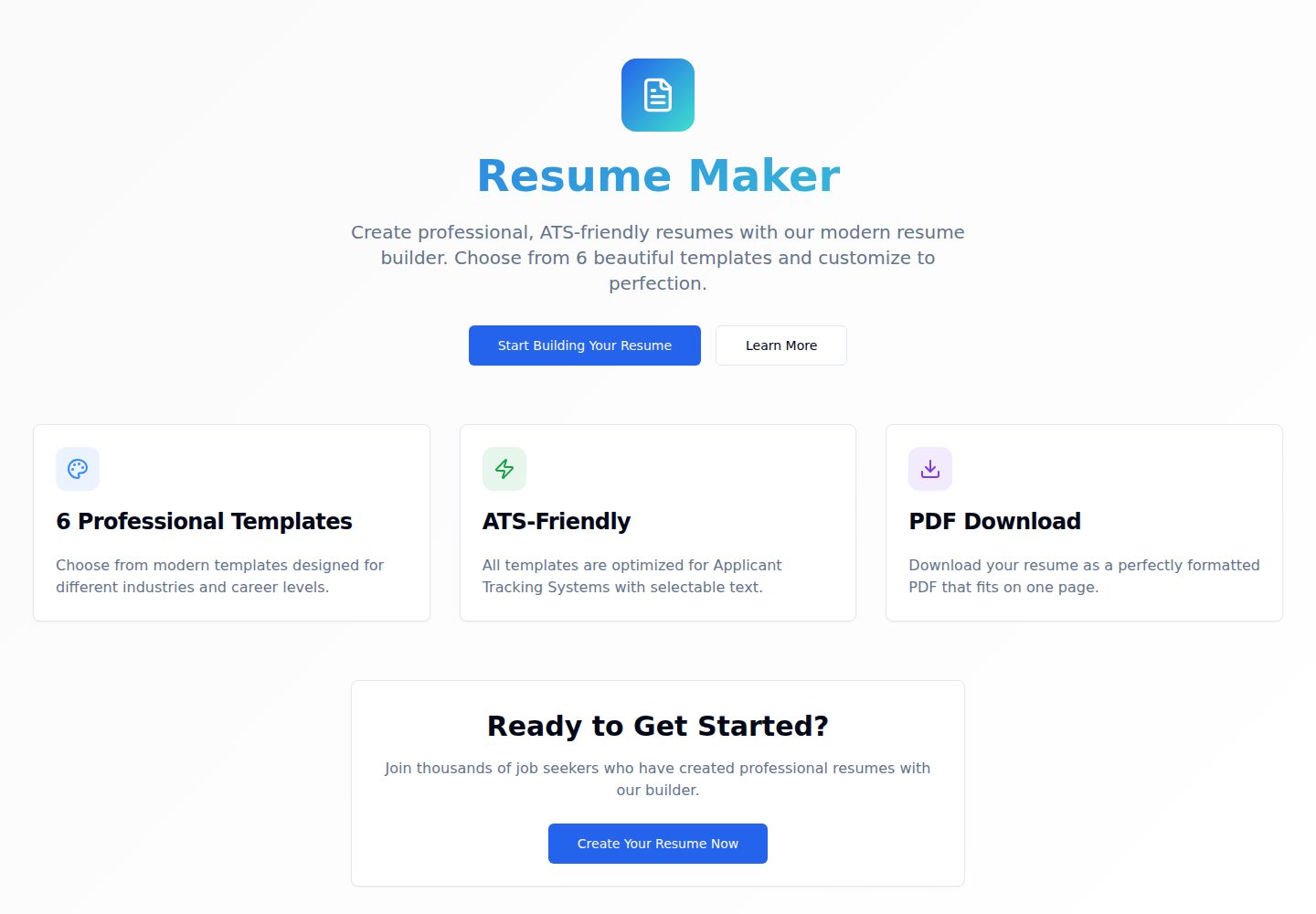
Resumify
Resumify is a browser-based resume builder built with React, TypeScript, and Vite.
Vite · Portfolio
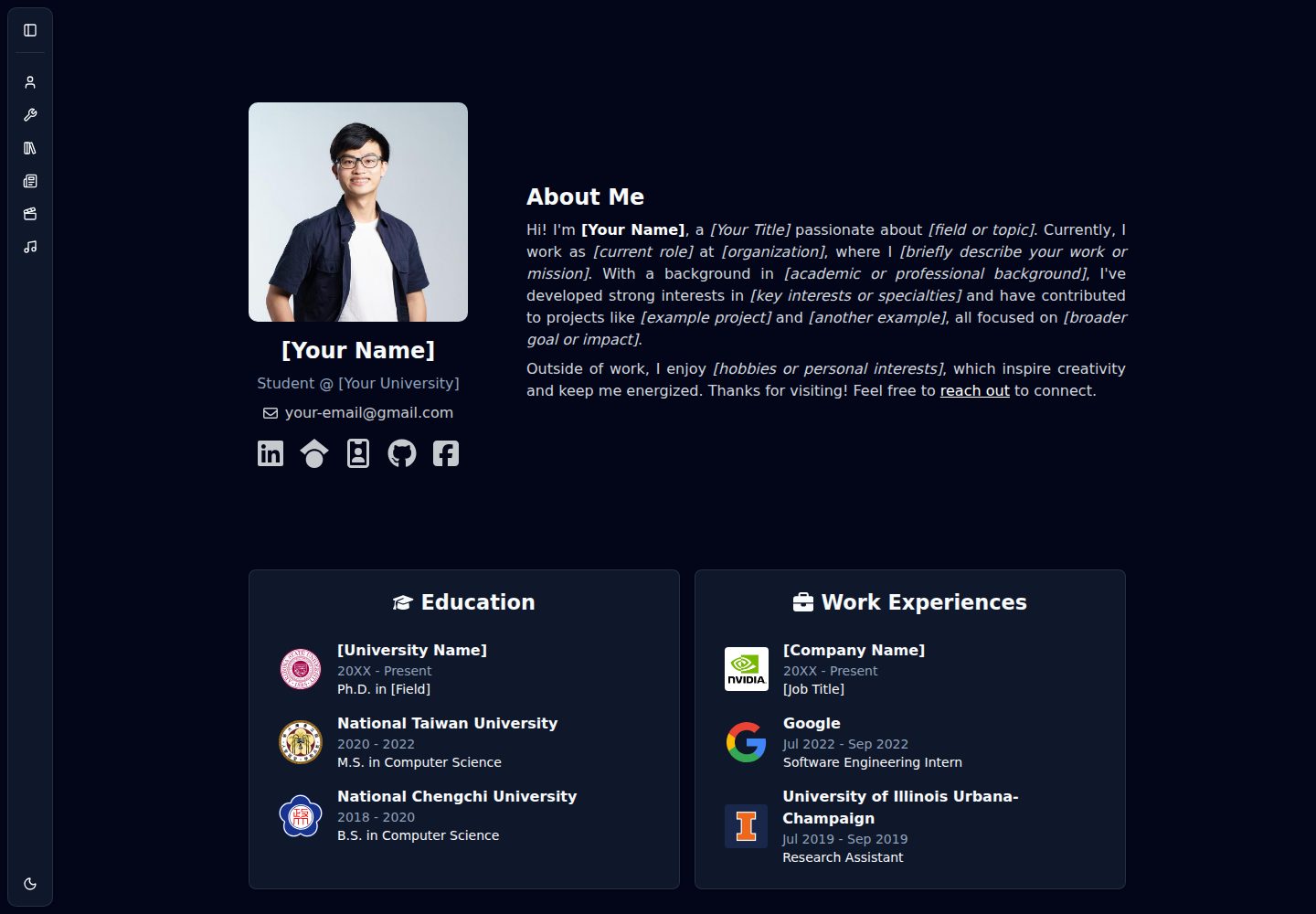
showlit
Showlit is a personal website template built with React, Vite, TypeScript, Tailwind CSS, and shadcn/ui.
Vite · Portfolio
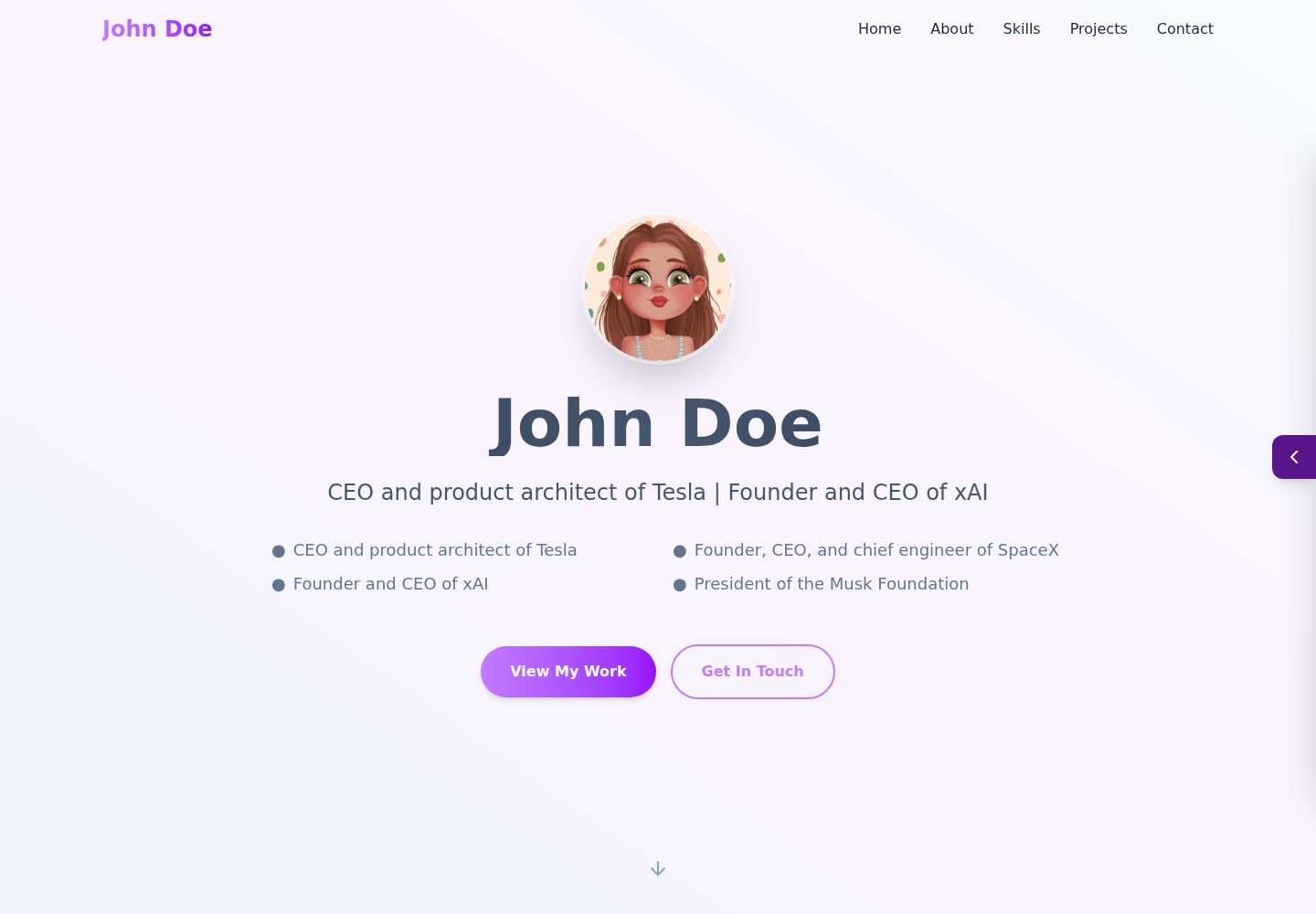
folium
A developer portfolio template built with Vite, React, TypeScript, and Tailwind CSS.
Vite · Portfolio
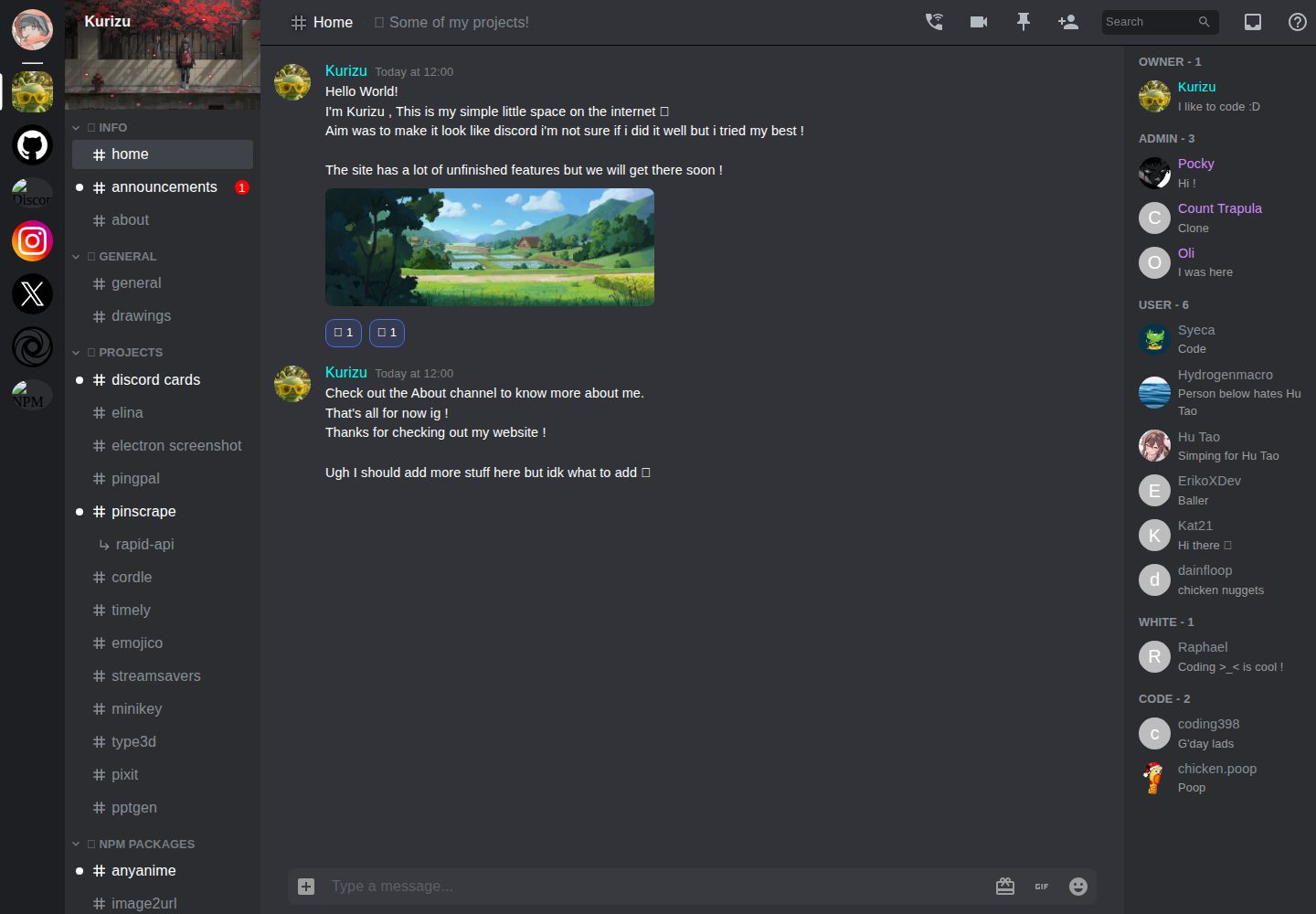
kurizu-discord
A personal portfolio website built with React and Vite that mimics the Discord desktop app, organizing projects, skills, and experience into customizable channels, threads, a member list, and emoji reactions.
Vite · Portfolio
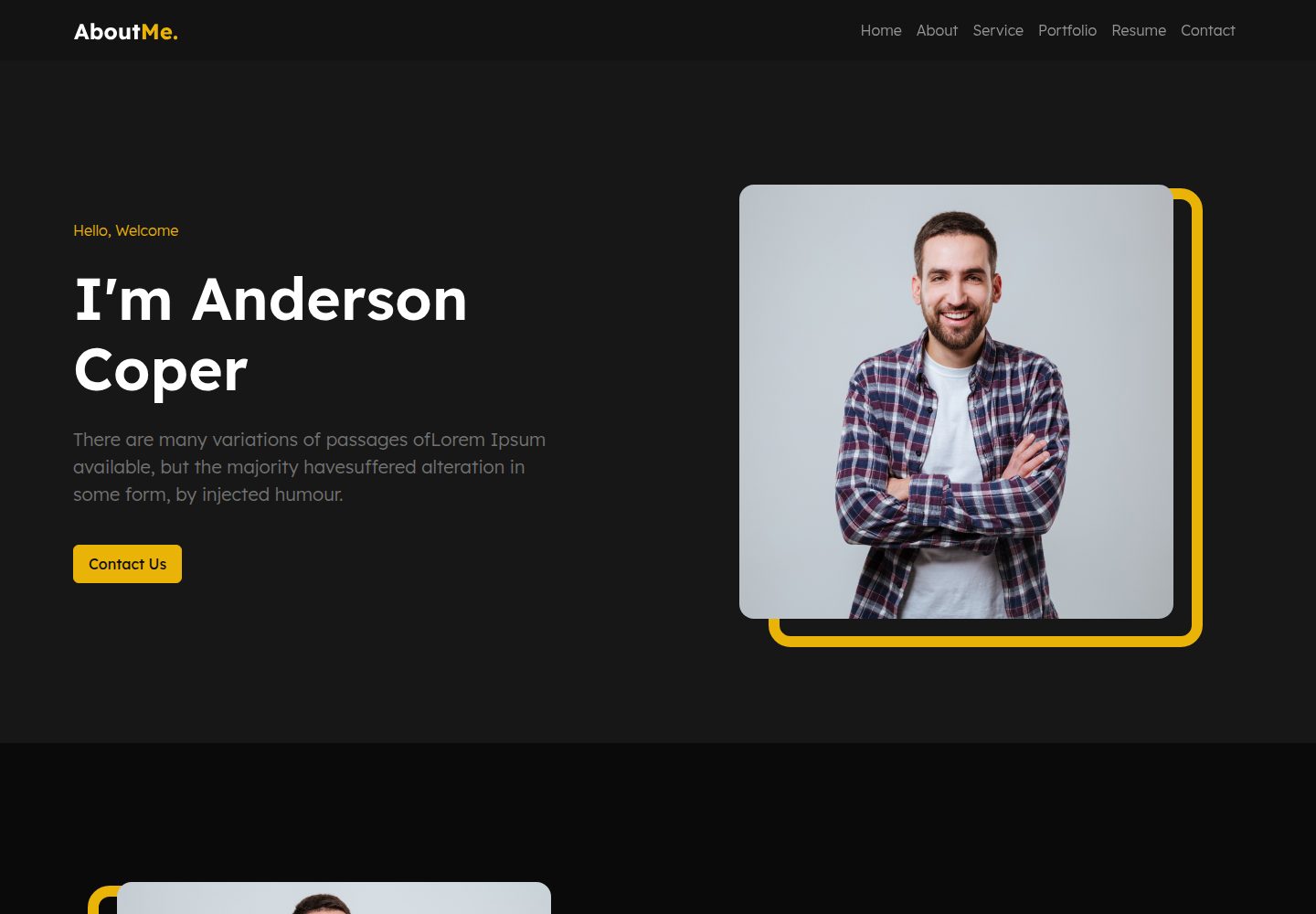
about-me-personal-portfolio-website-template
AboutMe is a free personal website template built with Bootstrap and Vite, released under the MIT license. It provides a single-page index.html with organized src directories for images, JavaScript, and SCSS, along with npm scripts for development and build.
Vite · Portfolio
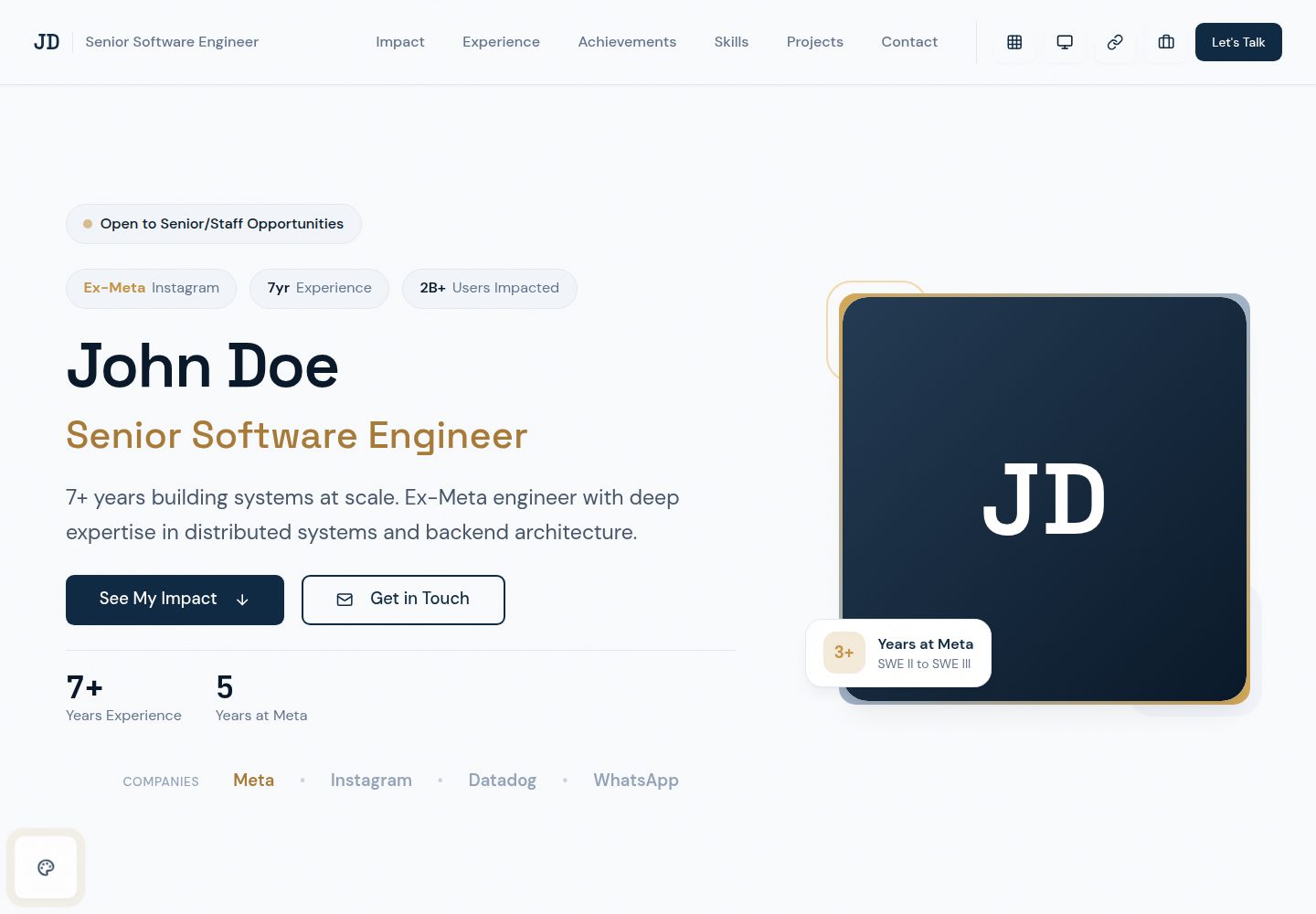
portfolio-template
A JSON-driven personal portfolio template built on React 19, TypeScript, Tailwind CSS v4 and shadcn/ui. Content and site metadata live in src/config/content.json and src/config/site.json, with Zod validation at build time.
Vite · Portfolio