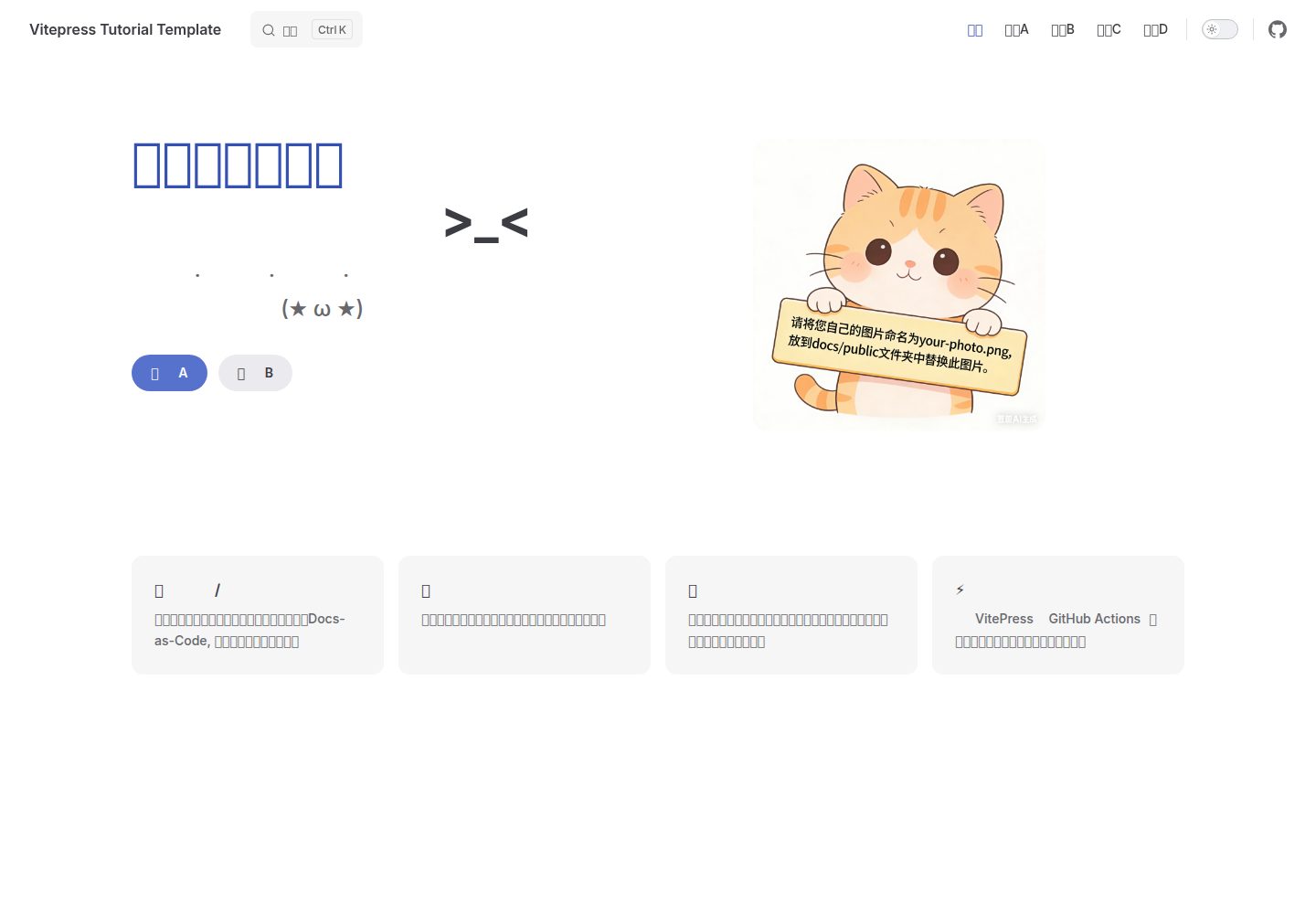
Content is written entirely in Markdown; new articles appear automatically in the sidebar after saving
VitePressDocumentation
vitepress-tutorial-template-cn — VitePress Documentation Template
By lucas-c-lin
A Chinese-language tutorial website template based on VitePress, offering a complete Chinese user manual from installation to deployment, suited to quickly building knowledge-sharing static sites.
Explore the design
Compare the page layouts and mobile experience. Open any screenshot for a closer look.
Desktop homepage1 / 2
Desktop captureTop of page
Actual screenshot captured by the server browser.
All pages & views 2
Screenshots show visual appearance; interactive behavior may differ.
Recorded 2026-10-17View source
What stands out
A quick read of the recorded project description.
Provides a seven-step Chinese operation guide from environment preparation to GitHub Pages deployment
The homepage hero, buttons, and feature areas are modified in a single place, docs/index.md
Presets three content category folders: content_A, content_B, and content_C
The development server supports hot updates, and the browser refreshes automatically after changes
Includes local build and preview commands; build output goes to docs/.vitepress/dist/
Template Details
This template is a Chinese-language tutorial website starter project based on VitePress. The README presents a seven-step tutorial covering the full flow from environment preparation, downloading the template, installing dependencies, customizing the homepage and navigation, adding Markdown articles, and local debugging to building and deploying to GitHub Pages. The template presets three content category folders, content_A, content_B, and content_C; the homepage includes hero, actions, and features areas, which can be modified via docs/index.md. The site configuration file is located at docs/.vitepress/config.mts; the README mentions that the navigation bar, title, and similar items can be modified there, but does not expand on all configuration options. The README does not provide a dependency list, specific framework versions, performance data, or production-readiness details, and does not document deployment methods other than GitHub Pages.
VitePressDocumentation
Is it right for your project?
Use Cases
- Individuals or teams building Chinese-language knowledge-sharing, tutorial, or documentation static sites
- Beginners following the README steps to learn VitePress project setup and deployment from scratch
- Organizing Markdown notes into an online site with navigation and a sidebar
- Quickly creating an independent repository via GitHub Template and publishing it to GitHub Pages
Suitable For
- VitePress beginners who need Chinese-language tutorial guidance
- Writers or knowledge workers who want to maintain knowledge base content in Markdown
- Individuals or small teams planning to host a static site for free on GitHub Pages
Getting started & customization
Use these recorded setup notes alongside the repository instructions for your chosen version.
- 1
Node.js (README recommends version 18+), Git, and a code editor (VS Code recommended) must be installed in advance
- 2
After obtaining the template via GitHub Template or by downloading the ZIP, run npm install in the project folder to install dependencies
- 3
Run npm run docs:dev to start the local development server, accessible by default at http://localhost:5173
- 4
Before deploying to GitHub Pages, set base in docs/.vitepress/config.mts to the repository name path
- 5
Run npm run docs:build to build, and set Source to GitHub Actions in the GitHub repository Settings → Pages
License & source material
Usage conditions & limitations
Free to use · keep license noticeThis listing covers the free version under the MIT license in the public repository; the free scope is the code of this version and does not mean external services or third-party assets are free.
Must comply with when using
- The code of this version may be used, modified, used commercially, and distributed free of charge.
- When distributing copies or substantial portions of the code, the original author's copyright notice and the complete MIT license notice must be retained.
- The code is provided as-is; warranties and limitations of liability are governed by the original license and applicable law.
Additional costs & items to verify
- Demo images, fonts, icons, and other third-party assets must be checked against their respective licenses; the code's MIT license alone cannot be used to judge them.
- External services such as domains, hosting, databases, payments, or AI may incur separate charges.
- Runtime requirements: Node.js must be installed in advance (README recommends version 18+).
- Git must be installed in advance to download and manage the code.
- You must provide your own code editor; the README recommends VS Code.
- Using the GitHub Template method requires a registered GitHub account.
- Deployment relies on GitHub Pages, an external hosting service; the README describes it as a static website hosting service provided free by GitHub.
- Before deploying to GitHub Pages, base must be set to the repository name path in docs/.vitepress/config.mts; otherwise site links will be incorrect.
- Source must be set to GitHub Actions in the GitHub repository Settings → Pages for publishing.
- The README recommends using GitHub for subsequent deployment, so the GitHub Template method is recommended over downloading the ZIP directly.
View Original Text Basis
Permission is hereby granted, free of charge
Original License Text
1. **Node.js** — 这是一个 JavaScript 运行环境
Original README
2. **Git** — 用来下载和管理代码
Original README
3. **编辑器** — 推荐 VS Code(免费好用)
Original README
**第一次操作的用户,先注册 GitHub:**
Original README
GitHub Pages 是 GitHub 免费提供的静态网站托管服务。跟着下面步骤做,你的网站就能上线了。
Original README
base: '/你的仓库名/',
Original README
- 第一个下拉菜单 **Source** 选择 **Github Actions**
Original README
https://github.com/lucas-c-lin/vitepress-tutorial-template-cn/blob/main/LICENSEhttps://github.com/lucas-c-lin/vitepress-tutorial-template-cn/blob/main/README.md> ⚠️ 小建议:后面部署的时候需要用 GitHub,所以推荐还是用方法 A 比较好!
Original README
Compiled by DeepSeek based on repository license and README ·2026-10-17. Results only cover the materials read; dependencies, images, fonts, and subsequent term changes are subject to their respective original texts.
Project checks & description sources
Template Information
- Source platforms
- GitHub
- Documentation and maintenance reference score
- More documented · 83 / 100
- Technologies
- VitePress
- Website type
- Documentation
How this score is calculated
Our heuristic uses license records (up to 30), a demo link (12), a preview (10), stars (15), recorded maintenance (15), description completeness (8), feature records (5) and classification data (5). It is not a code, security or performance test, or a Google score. A link does not establish tested functionality.
What to verify for this project
- Repository update recorded
- 2026-03-25
- Screenshot last checked
- 2026-10-17
A demo link is listed. Check it with your own content and viewport sizes; its presence does not confirm that forms, authentication or payments work.
The catalog identifies VitePress as the primary stack. Check the actual dependency manifest and lockfile for versions and hosting requirements. These notes use recorded metadata, not a code audit or a deployment test.
Use a selection guide →How this description was prepared
AI-assisted description based on catalog records and repository material. Repository authors are not automatically the reviewers of this description.
Review declaration: codex-user-requested-batch-review-20261018 · 2026-10-18
Inspect the recorded source material
SHA-256: e4bc3c035afc9061a12389b77b32c346aa551b81f9a9d47787cac7020126d56d
2026-10-17T10:59:07.358Z
Source file / repository# VitePress 知识分享类网站模板使用手册
这是一个基于 [VitePress](https://vitepress.dev/) 的中文教程网站模板。它以简约风格设计。无论你是程序员、写手还是知识工作者,都可以用它快速搭建一个专业的知识分享网站。
**关键特性:**
- 📝 完全基于 Markdown,自动生成网站
- ⚡ 超快的开发和构建速度
- 🎨 干净美观的风格设计
- 🔄 实时预览,改完立即看到效果
- 📱 自适应手机和电脑屏幕
[模板预览](https://lucas-c-lin.github.io/vitepress-tutorial-template-cn/)
[本教程的飞书文档版](https://my.feishu.cn/docx/W9yed2jjqoB01qxkeBmcLHqUn0e?from=from_copylink)
*一个我与Gemini, Claude共同创作的项目*
## 目录
- [第一步:做好准备](#第一步做好准备)
- [需要什么?](#需要什么)
- [第二步:把模板下载到电脑](#第二步把模板下载到电脑)
- [先规划你的工作文件夹](#先规划你的工作文件夹)
- [方法 A:用 GitHub Template](#方法-a用-github-template推荐)
- [方法 B:直接下载](#方法-b直接下载如果不想用-github)
- [第三步:安装依赖并启动](#第三步安装依赖并启动)
- [第四步:自定义你的网站](#第四步自定义你的网站)
- [改首页](#改首页)
- [改导航按钮](#改导航按钮)
- [改功能特性](#改功能特性)
- [第五步:添加你的内容](#第五步添加你的内容)
- [文件夹结构](#文件夹结构)
- [怎么加文章](#怎么加文章)
- [添加图片](#添加图片)
- [第六步:实时调试和预览](#第六步实时调试和预览)
- [热更新](#热更新)
- [查看实时效果](#查看实时效果)
- [停止开发服务器](#停止开发服务器)
- [第七步:构建和部署准备](#第七步构建和部署准备)
- [本地构建](#本地构建)
- [本地预览构建结果](#本地预览构建结果)
- [部署到 GitHub Pages](#部署到-github-pages)
---
## 第一步:做好准备
### 需要什么?
1. **Node.js** — 这是一个 JavaScript 运行环境
- 去 [nodejs.org](https://nodejs.org/) 下载 LTS 版本(推荐 18+ 版本)
- 安装完了打开命令行,输入 `node --version`,有版本号就说明安装成功了
2. **Git** — 用来下载和管理代码
- 去 [git-scm.com](https://git-scm.com/) 下载安装
- 安装完打开命令行,输入 `git --version`,有版本号就成功了
3. **编辑器** — 推荐 VS Code(免费好用)
- 去 [code.visualstudio.com](https://code.visualstudio.com/) 下载安装
> 如果你是刚接触的新手,以上这些推荐安装时使用默认安装就行了,默认安装至你的C盘。
---
## 第二步:把模板下载到电脑
### 🎯 先规划你的工作文件夹
在开始之前,建议先给项目选个合适的存放位置。这样方便管理,后面也不容易找不到。
**文件夹位置建议:**
- **推荐** — 在某个固定的工作文件夹里,比如 `D:\My-Projects\`(Windows)或 `~/Documents/Projects/`(Mac)
- **避免** — 放在 `Desktop`(容易乱)或 `Documents` 的根目录(容易丢失)
**命名原则(新手必看):**
- 用英文或数字,不要用中文(避免路径问题)
- 用 `-` 或 `_` 分隔词语,不要用空格
- 名字要有意义,比如 `my-learning-hub` 比 `abc123` 好
- 例如:`my-blog`、`python-tutorial`、`markdown-docs`
### 方法 A:用 GitHub Template(最推荐!😊)
这是最简单的方法,一键生成,强烈推荐新手用。
**第一次操作的用户,先注册 GitHub:**
1. 点击右上角 **Sign up**
2. 填邮箱、密码、用户名,按提示完成注册(中国大陆邮箱也可以)
**创建你的项目仓库:**
1. 打开这个模板项目的 GitHub 页面 *(就是现在这个页面)*
2. 点击页面右上方绿色的 **Use this template** 按钮
3. 选择 **Create a new repository**
4. 填写信息:
- **Repository name** — 填你想要的项目名,比如 `my-learning-hub`(必填)
- **Description** — 可选,简单描述一下,比如"我的学习笔记网站"
- **Public/Private** — 选 **Public**(如果想公开分享)或 **Private**(仅自己看)
5. 点击 **Create repository from template**
6. 等个 2-3 秒,你的仓库就创建好了!
现在你在 GitHub 上有了自己的项目仓库。下面要把它下载到本地电脑。
**把仓库下载到电脑:**
1. 打开你新建的仓库(网页上会自动跳转)
2. 点击绿色的 **Code** 按钮
3. 选择 **HTTPS** 标签页(通常是默认)
4. 复制那个网址(看起来像 `https://github.com/你的用户名/项目名.git`)
5. 打开电脑上的命令行:
- **Windows** — 按 Win + R,输入 `cmd`,回车
- **Mac** — 打开 Terminal(按 Command + Space,输入 terminal)
6. 进入你想放代码的工作文件夹:
```bash
cd D:\My-Projects
#注意斜杠方向:\
```
把 `D:\My-Projects` 换成你实际的路径。
7. 现在下载仓库:
```bash
git clone 你复制的网址
```
把 `你复制的网址` 换成刚才复制的链接。整个会是这样:
```bash
git clone https://github.com/your-username/my-learning-hub.git
```
8. 下载完了,进入项目文件夹:
```bash
cd my-learning-hub
```
把 `my-learning-hub` 换成你的仓库名。
完成!你现在有了自己的项目副本。
>总结:
```bash
# 进入你的工作文件夹
cd D:\My-Projects
# 克隆这个模板(替换成实际的仓库链接)
git clone https://github.com/你的用户名/你的仓库名.git
```
### 方法 B:直接下载(如果不想用 GitHub)
如果你暂时不想用 GitHub 功能,也可以直接下载:
1. 打开这个模板的 GitHub 页面
2. 点击绿色的 **Code** 按钮
3. 选择 **Download ZIP**
4. 等下载完了,解压到你的工作文件夹
5. 用 VS Code 打开这个文件夹
> ⚠️ 小建议:后面部署的时候需要用 GitHub,所以推荐还是用方法 A 比较好!
---
## 第三步:安装依赖并启动
1. 在项目文件夹里打开命令行
- 用 VS Code 打开项目文件夹(**直接拖进去**或用 **"打开文件夹"选项**)*也就是上一步克隆的文件夹*
- 按 Ctrl + ~(波浪号)打开终端,或点菜单 **Terminal** → **New Terminal**
- ⚠️ **重要** — 看一下终端右下角显示的是什么。如果是 `pwsh` 或 `PowerShell`,点右下角的下拉箭头,选择 **Command Prompt** 或 **cmd.exe**
- 新手建议就用 Command Prompt(cmd),不要用 PowerShell,更稳定
2. 安装所需的包:
```bash
npm install
```
这会下载项目需要的所有代码库,可能需要几分钟。等完了继续。
3. 启动本地网站:
```bash
npm run docs:dev
```
看到类似 `Local: http://localhost:5173` 的信息,就说明成功了!
4. 用浏览器打开 `http://localhost:5173`,就能看到你的网站了。
---
## 第四步:自定义你的网站
### 改首页
打开 `docs/index.md` 这个文件,修改这些地方:
```markdown
hero:
name: "改成你的项目名"
text: "一句话说明你的网站是干什么的"
tagline: "可选:放一些副标题或愿景描述"
image:
src: /your-photo.png
alt: Logo 描述
```
**小贴士:** 图片放在 `docs/public/` 文件夹下,然后在 Markdown 里用 `/文件名` 引用。*本模板默认了`your-photo.png`
### 改导航按钮
首页上那两个大按钮("内容A" 和 "内容B"),也在 `docs/index.md` 里改:
```markdown
actions:
- theme: brand
text: 🚀 你的按钮名字
link: /content_A/A1
- theme: alt
text: 📊 另一个按钮
link: /content_B/B1
```
### 改功能特性
首页下面那块 features 区域,展示你网站的特色。也是在 `docs/index.md`:
```markdown
features:
- title: 📖 你的特性1
details: 简单描述一下
- title: 📊 你的特性2
details: 简单描述一下
```
---
## 第五步:添加你的内容
### 文件夹结构
项目预设了三个内容分类:
- `docs/content_A/` — 放第一类内容(比如教程)
- `docs/content_B/` — 放第二类内容(比如案例)
- `docs/content_C/` — 放第三类内容(比如资源)
### 怎么加文章
假设你想在 "内容A" 里加一篇文章:
1. 打开 `docs/content_A/` 文件夹
2. 新建一个 `.md` 文件(Markdown 格式),比如 `A2.md`
3. 写你的内容。最上面记得加标题:
```markdown
# 这是文章标题
## 第一部分
你的内容...
## 第二部分
继续写...
```
4. 保存后回到浏览器刷新,侧边栏会自动显示你的新文章!
### 添加图片
1. 把图片放在 `docs/public/` 文件夹
2. 在 Markdown 里用这样的方式引用:
```markdown

```
---
## 第六步:实时调试和预览
### 热更新
当你在 VS Code 里改了任何内容,保存后浏览器会**自动刷新**,立即显示最新效果。这就是开发的快乐!
### 查看实时效果
- 本地命令行运行着 `npm run docs:dev`
- 浏览器打开 `http://localhost:5173`
- 改代码 → 保存 → 自动刷新
就这么简单。
### 停止开发服务器
在命令行里按 `Ctrl + C`(Mac 上是 `Command + C`),网站就停了。要重新启动,再输入 `npm run docs:dev` 就行。
---
## 第七步:构建和部署准备
### 本地构建
当你觉得网站差不多了,想看看构建后的样子:
```bash
npm run docs:build
```
这会在 `docs/.vitepress/dist/` 里生成纯 HTML 文件,是最终要上线的东西。
### 本地预览构建结果
```bash
npm run docs:preview
```
这会让你在本地看看最终网站的样子,对标上线的真实效果。
### 部署到 GitHub Pages (十分推荐😺)
GitHub Pages 是 GitHub 免费提供的静态网站托管服务。跟着下面步骤做,你的网站就能上线了。
#### 第一步:修改 VitePress 配置
在部署之前,你需要改一个配置文件,这样网站链接才是对的。
1. 在 VS Code 左边文件树里,找到 `docs/.vitepress/config.mts`
2. 双击打开它
3. 找到最开头这一块:
```javascript
export default defineConfig({
title: "你的网站名",
description: "网站描述",
})
```
4. 在 `description` 下面加一行 `base` 配置:
```javascript
export default defineConfig({
title: "你的网站名",
description: "网站描述",
base: '/你的仓库名/',
// ... 其他配置
})
```
把 `你的仓库名` 替换成实际的仓库名。比如你的仓库叫 `my-learning-hub`,就写成:
```javascript
base: '/my-learning-hub/',
```
5. 按 Ctrl + S 保存文件
#### 第二步:本地构建
现在构建你的网站为最终的 HTML 文件。
1. 打开 VS Code 的终端(Ctrl + ~)
2. 输入命令:
```bash
npm run docs:build
```
3. 等构建完成。完成后你会看到绿色的 `✓` 符号和 `done` 的提示
4. 这时在左边文件树里,会多出一个文件夹 `docs/.vitepress/dist/`,这就是最终的网站文件
#### 第三步:提交代码到 GitHub
现在要把改动(包括配置文件和构建文件)上传到 GitHub。用 VS Code 的 Source Control 面板最方便:
**方法 A:用 VS Code 界面(推荐!)**
1. 点左边边栏的 **Source Control** 图标(长得像分叉的树,或者按 Ctrl + Shift + G)
2. 你会看到一个列表,里面显示了你改动过的文件
3. 在 **Message** 输入框里输入提交信息`必填!!!`,比如:`部署到 GitHub Pages`
4. 点上方的 **✓ Commit** 按钮(就是打勾的那个)
5. 然后点 **Sync Changes** 按钮(或者菜单里的 Push)
> 💡 第一次 sync 时可能会问你认证方式,按照提示用你的 GitHub 账号登录就行。
**方法 B:用命令行(如果界面不习惯)**
1. 打开 VS Code 的终端(Ctrl + ~)
2. 依次运行这些命令:
```bash
# 暂存所有改动
git add .
# 创建一个提交
git commit -m "部署到 GitHub Pages"
# 上传到 GitHub
git push
```
#### 第四步:在 GitHub 上启用 GitHub Pages
1. 用浏览器打开你的 GitHub 仓库网页
2. 点仓库名下方的 **Settings**(设置)
3. 左边菜单里找 **Pages**,点它
4. 在 **Build and deployment** 区域:
- 第一个下拉菜单 **Source** 选择 **Github Actions**
选择好以后,你去仓库名下方的顶部菜单栏里面选择**Actions**。你会看到一条提示,带着一个绿色圈圈,等绿色圈圈打勾之后,就说明你的网站发布在某个地址了。
你的网站链接就会是`https://你的用户名.github.io/你的项目库名`
#### 第五步:验证网站
1. 可以在浏览器地址栏输入上面所说的网址(注意替换成你自己的内容)
2. 可以在首页(**code**页的右边看到一个**deployment**,从那里点进去)
3. 可以回到刚刚**Settings**的**Pages**界面,会写着**Your site was last deployed to the `github-pages` environment by the Deploy VitePress site to Pages workflow.**。github-pages这几个字会带着一个链接,点开它试试!!!
> 📌 如果打不开,可能是 GitHub 还在部署,等个 1-2 分钟再试。或者按 F5 刷新试试。(注意去**Actions**区观察)
---
### 更新网站的步骤
以后只要想更新网站,就这样做:
1. 在 VS Code 里改代码、写文章
2. 打开 Source Control 面板(Ctrl + Shift + G)
3. 输入提交信息,点 Commit
4. 点 Sync Changes 或 Push
就这么简单!你的网站会自动更新。
---
## 一些常见问题
### Q: 改了东西但浏览器不更新?
A: 试试按 F5 或 Ctrl + R 强制刷新。如果还不行,检查一下命令行有没有报错。
### Q: 怎么改网站的导航栏、标题等?
A: 这些配置在 `docs/.vitepress/config.ts` 里。这个文件稍微复杂一点,但注释写得很清楚,配合 VitePress 官方文档看就行了。
### Q: 侧边栏的文章顺序怎么改?
A: VitePress 默认按字母顺序排列。要自定义顺序,需要在 `config.ts` 里手动配置侧边栏。
### Q: 可以用 markdown 写复杂的东西吗(比如代码高亮、表格)?
A: 完全可以!Markdown 支持代码块、表格、任务列表等,VitePress 还额外支持 Vue 组件。具体看[官方文档](https://vitepress.dev/guide/markdown)。
### Q: 项目文件夹可以删除或改名吗?
A: 慎重。`docs/` 里的 `.vitepress/` 文件夹和 `public/` 文件夹最好别动,其他的可以自由改。
---
## 项目结构速查
```
项目文件夹/
├── docs/ # 网站内容(这是重点!)
│ ├── index.md # 首页
│ ├── content_A/ # 内容分类 A
│ │ ├── A1.md
│ │ └── A2.md
│ ├── content_B/ # 内容分类 B
│ │ ├── B1.md
│ │ └── B2.md
│ ├── content_C/ # 内容分类 C
│ │ └── C1.md
│ ├── public/ # 静态文件(图片、logo 等)
│ └── .vitepress/ # VitePress 配置(重要!)
│ └── config.mts # 站点配置文件
├── package.json # 项目依赖和脚本
└── README.md # 这个文件!
```
---
## 快速命令速查
| 命令 | 作用 |
|------|------|
| `npm install` | 安装依赖 |
| `npm run docs:dev` | 启动本地开发服务器 |
| `npm run docs:build` | 构建生产版本 |
| `npm run docs:preview` | 预览构建结果 |
---
## 遇到问题?
- 多试试 F5 刷新
- 多问你的AI好朋友
---
**祝你创作愉快!** 🚀
Explore similar templates
Compare previews and descriptions within the same stack and category.
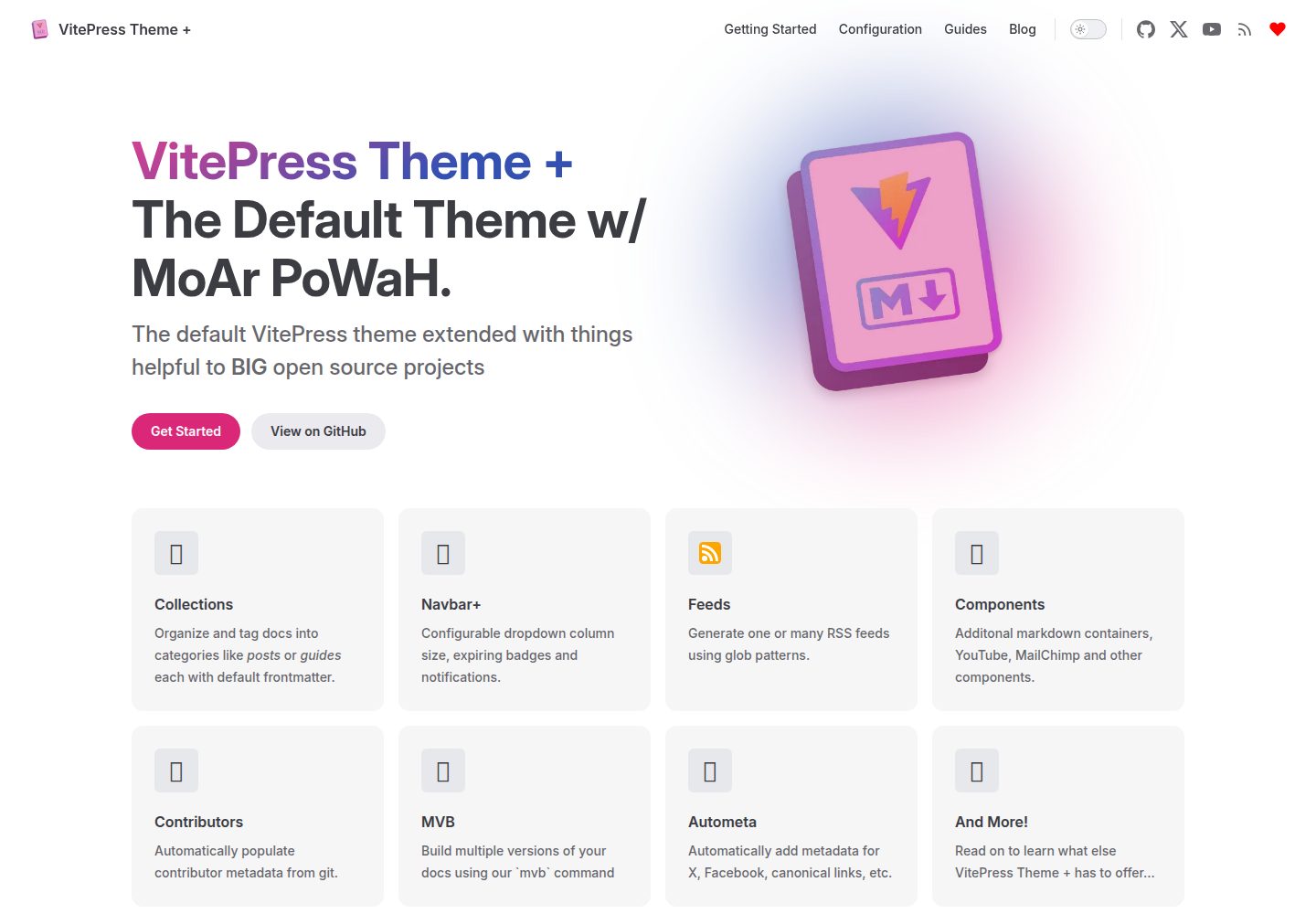
vitepress-theme-default-plus
A VitePress theme maintained by the Lando team that extends the default theme with extra power and features.
VitePress · Documentation
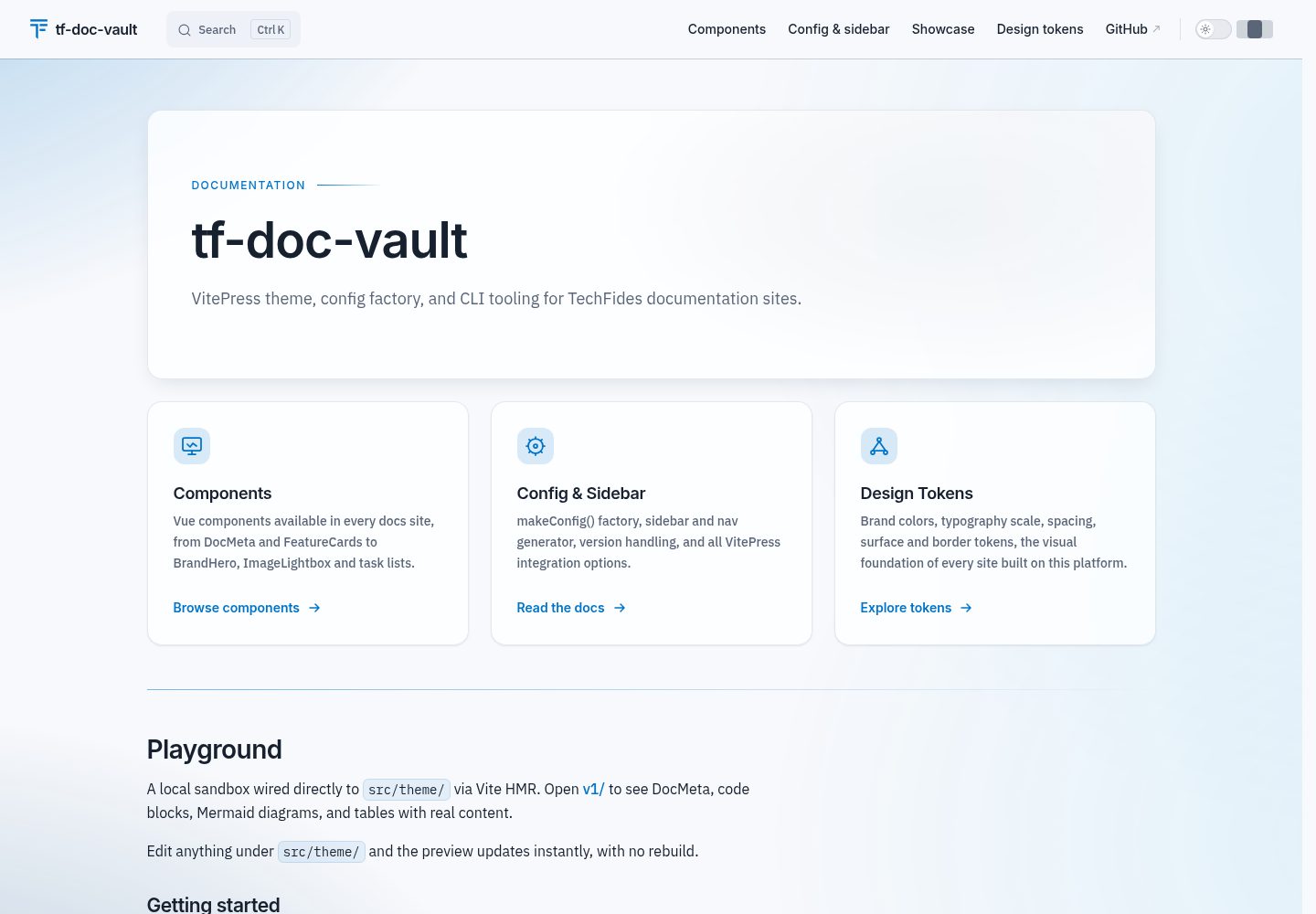
tf-doc-vault
tf-doc-vault is TechFides' open-source VitePress toolkit for technical and analytical documentation sites.
VitePress · Documentation
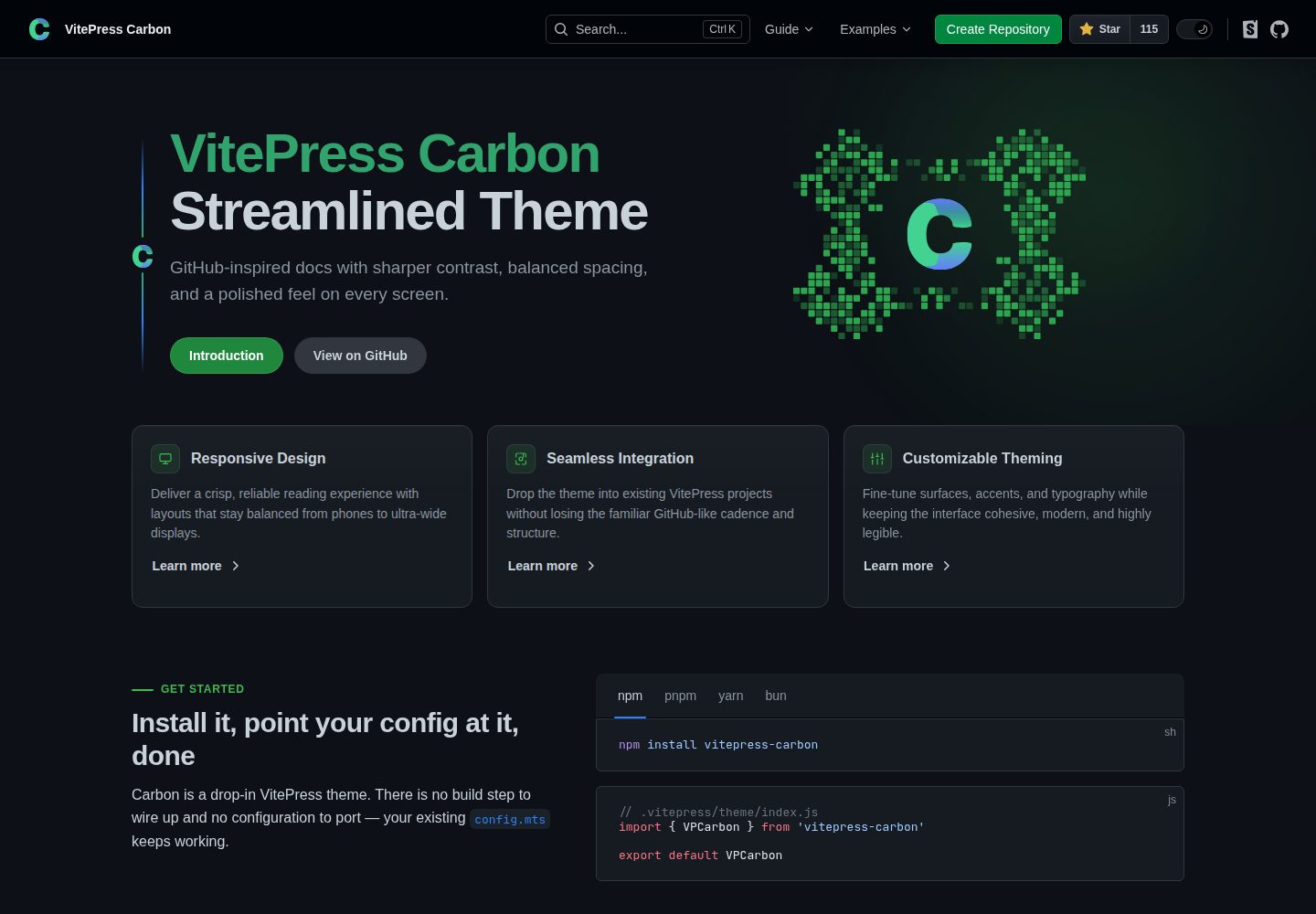
carbon-starter
A VitePress documentation site starter template paired with the VitePress Carbon theme and Carbon Design System styling. It provides docs:dev, docs:build, and docs:preview scripts, is created via GitHub's Use this template, and is released under the MIT license.
VitePress · Documentation
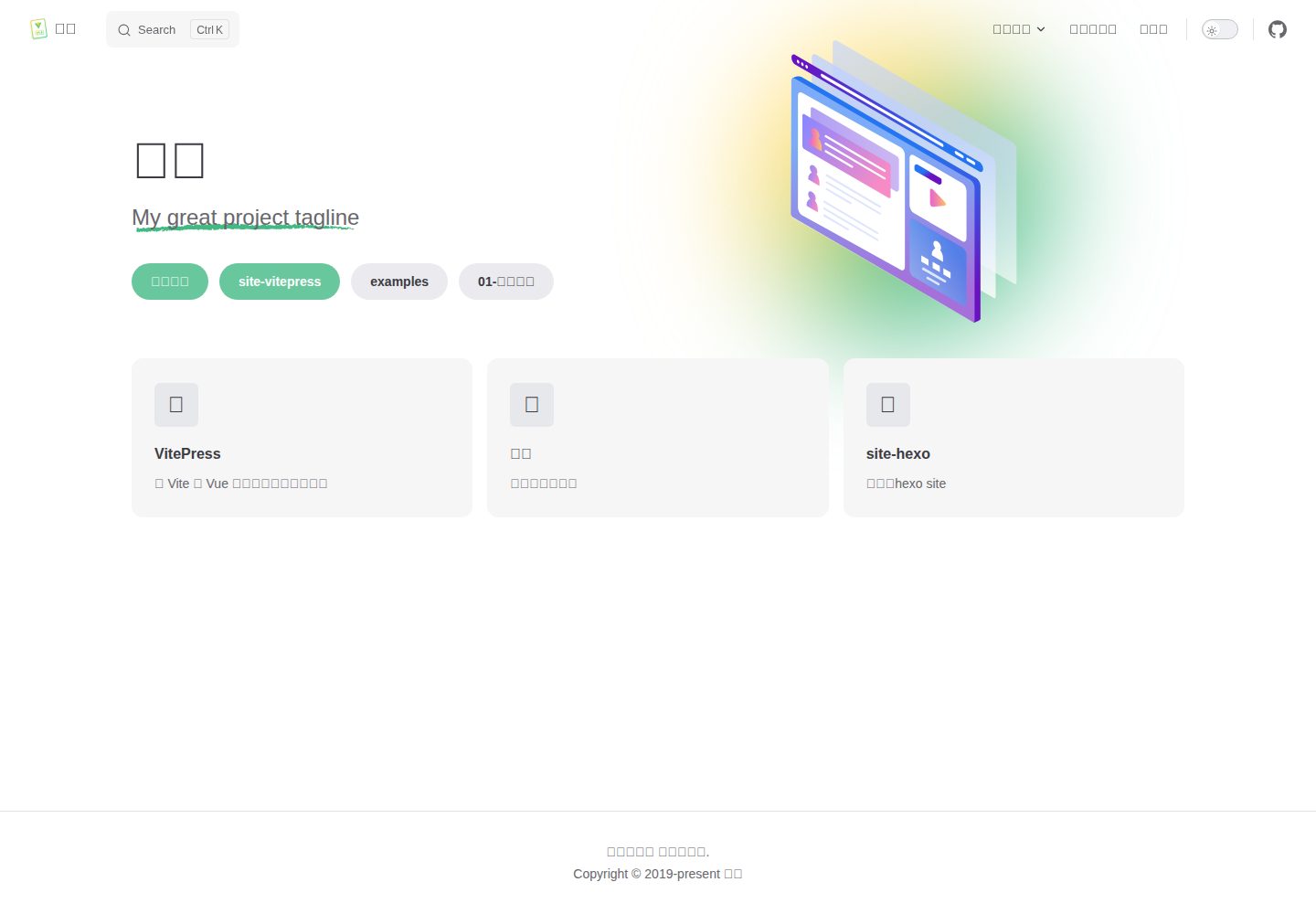
vitepress-theme-mist-docs
A VitePress theme test and demo site with dual CNB and GitHub Actions pipelines that deploy to gh-pages by repository role, under MIT license.
VitePress · Documentation
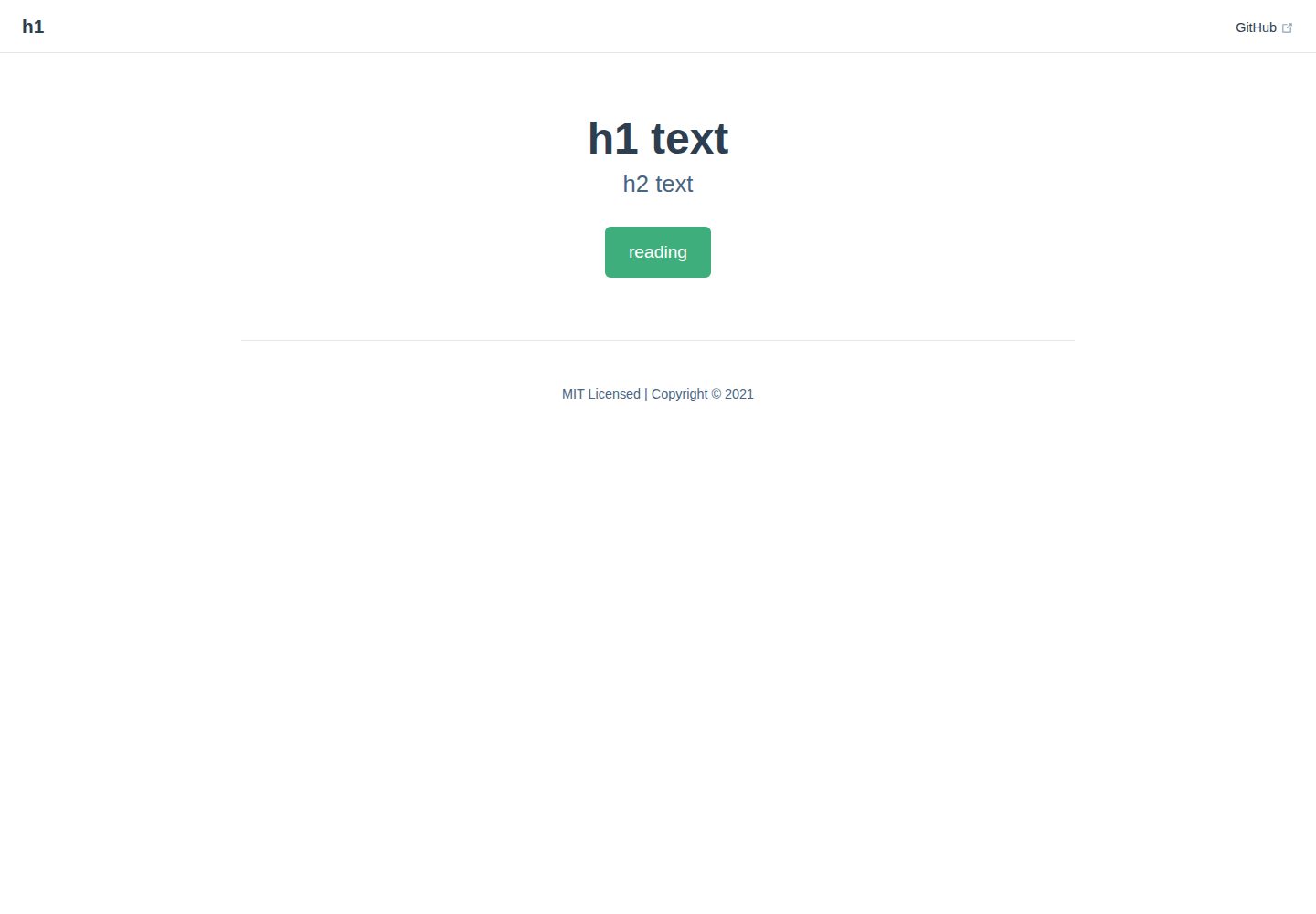
vitepress-docs-site-template
A VitePress documentation site template that builds Markdown in docs/ into a static site and deploys it to GitHub Pages via GitHub Actions.
VitePress · Documentation
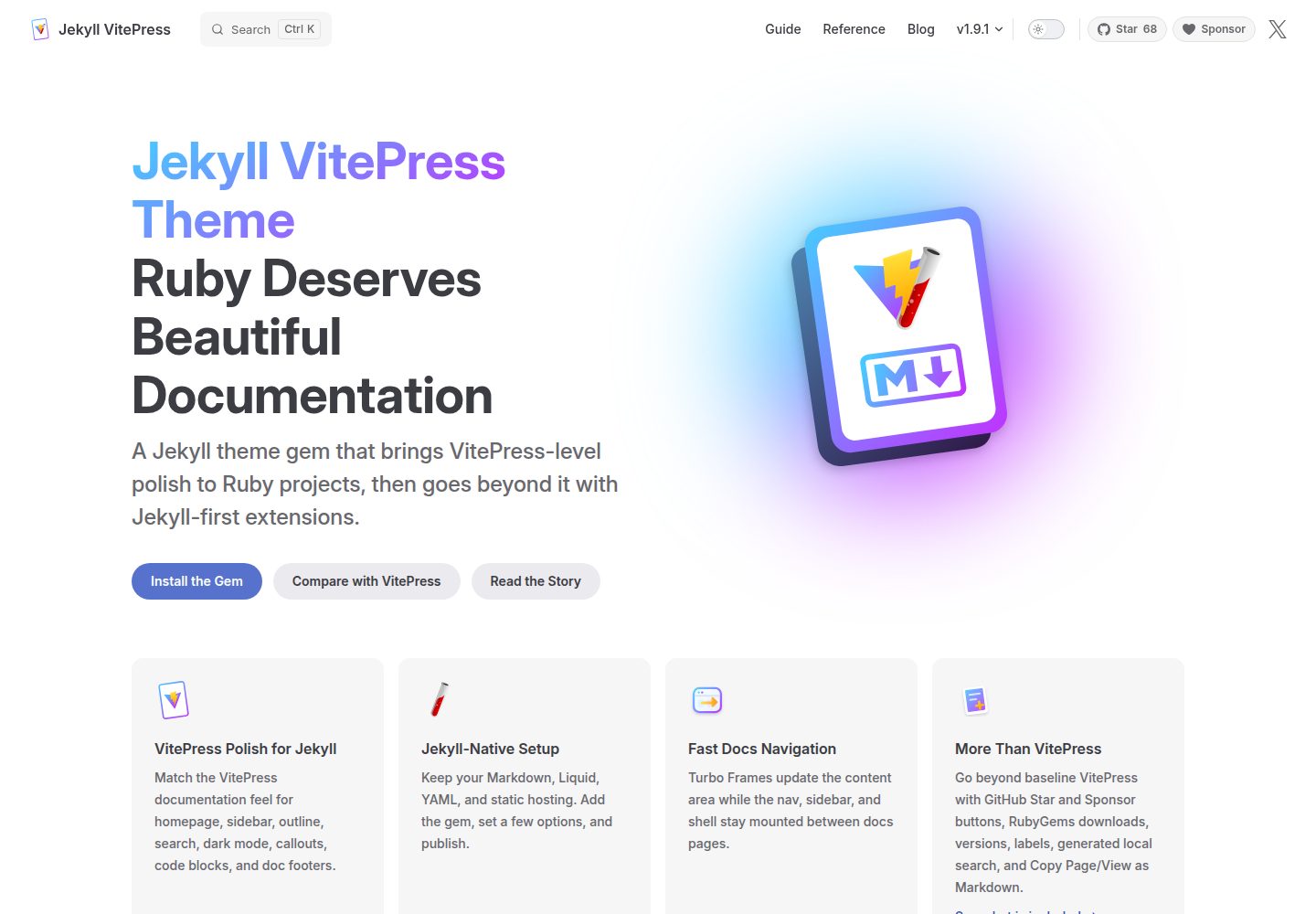
jekyll-vitepress-theme
A Jekyll documentation theme released as a Ruby gem that brings a VitePress-like interface and reading experience to Jekyll while preserving its Markdown, Liquid, YAML, and static hosting workflow.
Jekyll · Documentation