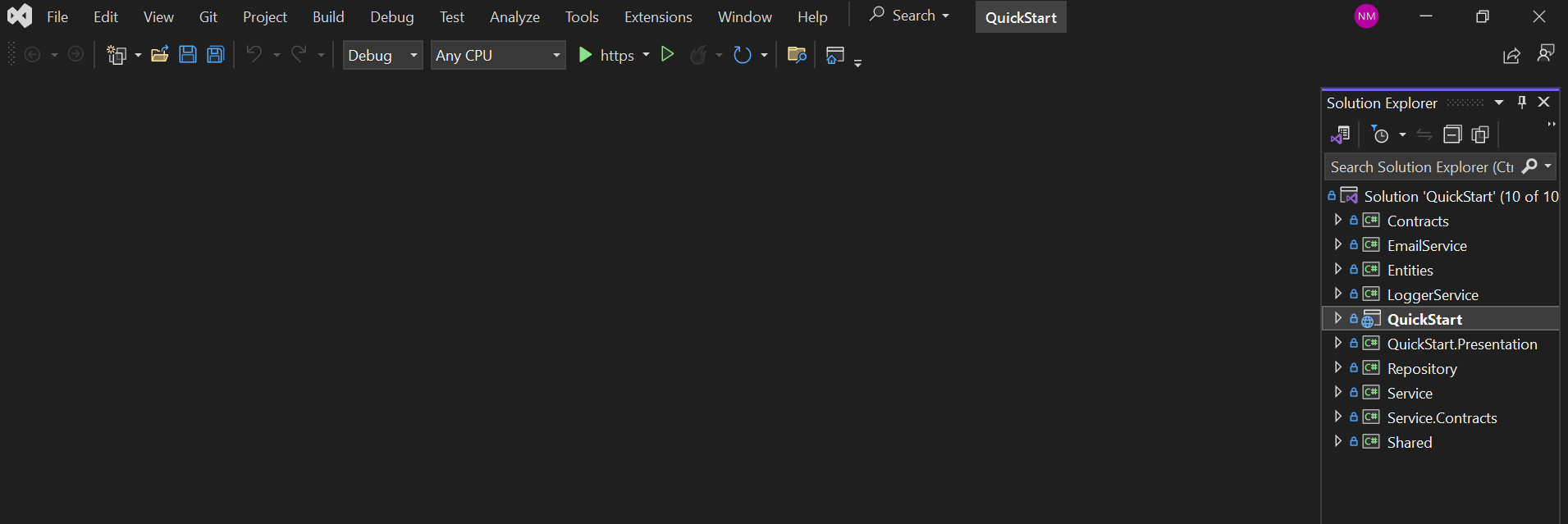
Backend is ASP.NET Core Web API; frontend is Angular with Angular Material, using TypeScript
AngularSolidJSAdmin dashboardStarter
QuickStart — Angular Admin dashboard Template
By Njabulo240
Matech QuickStart is a starter project based on ASP.NET Core, Angular, and an admin backend. It uses onion architecture and includes built-in authentication and authorization, user and role management, and several basic services for quickly building management applications.
Explore the design
Compare the page layouts and mobile experience. Open any screenshot for a closer look.
Author preview
Author-provided preview
Preview provided in the project README.
One original preview is available. Open the full image to inspect the design.
Screenshots show visual appearance; interactive behavior may differ.
Recorded 2026-10-02View source
What stands out
A quick read of the recorded project description.
Code is organized with onion architecture; data access is based on Entity Framework Core Code First migrations
Built-in authentication and authorization, user and role management, and real-time push notifications based on SignalR
Swagger integration for viewing and debugging APIs
Supports running client and server separately, as well as merging Angular build output into ASP.NET Core for deployment
Licensed under MIT, allowing free use, modification, commercial use, and distribution of this version's code
Template Details
Matech QuickStart is a starter project for admin management systems. The backend uses ASP.NET Core Web API, and the frontend uses Angular with Angular Material and TypeScript. The project is organized with onion architecture, and data access is based on Entity Framework Core using Code First migrations to create the database.
Functionally, the project includes a fairly complete authentication and authorization mechanism, user and role management, real-time push notifications via SignalR, and Swagger integration for API debugging. The repository also tags SolidJS, but the README describes the stack as ASP.NET Core 8 and Angular 17; the README and dependency manifest should be treated as authoritative.
In terms of usage, the client and server run separately by default: the server solution is in the QuickStart folder, opened with Visual Studio and applying migrations via Update-Database; the frontend is in the QuickStartUI folder, where dependencies are installed with npm install and started with ng serve. The default frontend URL is http://localhost:4200, and the API URL is https://localhost:5001. The README also provides a way to place the Angular build output into ASP.NET Core's wwwroot and configure fallback routing to merge them into a single deployment.
Regarding limitations, the project provides default admin and regular accounts for login demos, which must be replaced before production use; the database connection string must be modified per environment; the licenses for third-party assets such as demo images, fonts, and icons must be checked separately; and external services such as domains, hosting, and databases may incur additional costs.
AngularSolidJSAdmin backendStarter
Is it right for your project?
Use Cases
- Quickly building an admin management system with login and permission control
- Projects that need separate ASP.NET Core and Angular development with later merged deployment
- Internal management platforms that need basic capabilities such as user and role management and real-time notifications
- Example projects for learning onion architecture, EF Core migrations, and Angular Material admin interfaces
Suitable For
- Developers familiar with or willing to use ASP.NET Core and Angular
- Teams that need an admin management starter template and will customize it themselves
- Projects that want to reference implementations of user-role management and authentication/authorization
- Environments that need to run frontend and backend separately locally and configure the database connection themselves
Getting started & customization
Use these recorded setup notes alongside the repository instructions for your chosen version.
- 1
The server is in the QuickStart folder. Open the solution with Visual Studio and modify the sqlConnection connection string in appsettings.json as needed.
- 2
In Package Manager Console, set QuickStart as the default project and run Update-Database to apply EF Core migrations and create database tables.
- 3
The frontend is in the QuickStartUI folder. First run npm install to install dependencies, then start with ng serve. By default, access http://localhost:4200.
- 4
For merged deployment, first run ng build in the frontend, copy the dist contents to QuickStart/QuickStart/wwwroot, and configure static files and fallback routing in Program.cs.
- 5
The default admin account is admin001 / AdminPassword123, and the regular account is user002 / UserPassword123. These should be replaced before production use.
License & source material
Usage conditions & limitations
Free to use · keep license noticeThis entry covers the free version in the public repository under the MIT license; the free scope is the code of this version and does not mean external services or third-party assets are free.
Must comply with when using
- Allows free use, modification, commercial use, and distribution of this version's code.
- When distributing copies or substantial portions of the code, retain the original author's copyright notice and the full MIT license notice.
- Code is provided as is; warranties and liability limitations are governed by the original license and applicable law.
Additional costs & items to verify
- The README provides default admin account admin001 / AdminPassword123 and regular account user002 / UserPassword123 for demo login only; these default credentials must be replaced or removed before production deployment.
- Before use, modify the sqlConnection connection string in appsettings.json per environment to point to your own SQL Server database instance.
- The server API listens on https://localhost:5001 by default, and the frontend on http://localhost:4200 by default; ports and addresses must be adjusted for the actual deployment environment.
- The database must be created via EF Core Code First migrations (run Update-Database in Package Manager Console) and depends on a local SQL Server environment.
- Demo images, fonts, icons, and other third-party assets must be checked against their respective licenses and cannot be judged solely by the code's MIT license.
- External services such as domains, hosting, databases, payments, or AI may incur additional charges.
View Original Text Basis
Permission is hereby granted, free of charge
Original License Text
Default Administrator Account
Original README
Modify the default connection string if necessary
Original README
The API is running on [https://localhost:5001]
Original README
https://github.com/Njabulo240/QuickStart/blob/master/LICENSEhttps://github.com/Njabulo240/QuickStart/blob/master/README.mdUpdate-Database
Original README
Compiled by DeepSeek based on repository license and README ·2026-10-02. Results only cover the materials read; dependencies, images, fonts, and subsequent term changes are subject to their respective original texts.
Project checks & description sources
Template Information
- Source platforms
- GitHub
- Documentation and maintenance reference score
- More documented · 77 / 100
- Technologies
- Angular · SolidJS
- Website type
- Admin dashboard · Starter
How this score is calculated
Our heuristic uses license records (up to 30), a demo link (12), a preview (10), stars (15), recorded maintenance (15), description completeness (8), feature records (5) and classification data (5). It is not a code, security or performance test, or a Google score. A link does not establish tested functionality.
What to verify for this project
- Repository update recorded
- 2024-07-08
- Screenshot last checked
- 2026-10-02
A demo link is listed. Check it with your own content and viewport sizes; its presence does not confirm that forms, authentication or payments work.
The catalog identifies Angular as the primary stack. Check the actual dependency manifest and lockfile for versions and hosting requirements. These notes use recorded metadata, not a code audit or a deployment test.
Use a selection guide →How this description was prepared
AI-assisted description based on catalog records and repository material. Repository authors are not automatically the reviewers of this description.
Automatically checked against source and license rules; no manual editorial review.
Inspect the recorded source material
SHA-256: 2366ec046966cd7e7263e4cd6cfd3b64232c01e24e2b3c769620970196827694
2026-10-02T11:06:45.370Z
Source file / repository# **Matech QuickStart** - ASPNET Core 8 & Angular 17
Matech QuickStart is a cutting-edge **ASP.NET Core / Angular / Admin** Starter Project designed for **Quick Application Development**. It features a robust SOLID architecture, advanced authentication and authorization, comprehensive user and role management, and a suite of essential services. This powerful tool is engineered to accelerate your development process and elevate your projects to new heights.
🚀 The mission of developing our **ASP.NET & Angular Admin Template** is to empower developers with a comprehensive, efficient, and user-friendly foundation for building robust web applications. This template aims to streamline the development process, boost productivity, and ensure adherence to best practices from the outset. Our commitment is to facilitate rapid development while maintaining high standards of code quality, security, and performance.
[LIVE DEMO](https://matechdemo.azurewebsites.net)
___
## This application consists of:
* Onion Architecture
* RESTful API Backend using ASP.NET Core 8 Web API
* Database using Entity Framework Core
* Advanced Authentication/Authorization
* Real-time push notification system (with SignalR integration)
* Swagger integration
* Angular Material and TypeScript
## Installation
* [OPTION 1] Clone the [Git Repository](https://github.com/njabulo240/QuickStart.git) and edit with your favorite editor. e.g. Visual Studio, Visual Studio Code.
* [OPTION 2] Download the Zip folder from github
When you open the downloaded zip file, you will see two folders
<img src="/img/14.png"/>
- **QuickStart** folder contains the server side ASP.NET Core solution and configured to work with Visual Studio.
- **QuickStartUI** folder contains the Angular UI application which is configured to work with the angular-cli.
### Merging Client and Server Solutions
Client and Server solutions are designed to work separately by default.
## Deploy Database
To deploy the database, follow these steps:
## Open the Solution
1. Navigate to the **QuickStart** folder.
2. Locate the solution file.
3. Open the solution file, which will automatically launch Visual Studio.
<img src="/img/18.png" />
### Configure Connection String
1. In the **QuickStart** project, open `appsettings.json`.
2. Modify the default connection string if necessary:
```json
{
"ConnectionStrings": {
"sqlConnection": "server=.; database=QuickStartDb; Integrated Security=true;TrustServerCertificate=true"
},
}
```
### Apply Migrations
The application uses the Code First approach of Entity Framework Core. All migration code is located in the **QuickStart/Migrations** folder.
1. Open the **Package Manager Console** in Visual Studio.
2. Set **QuickStart** as the default project.
3. Run the following command to update the database:
```powershell
Update-Database
```
<img src="/img/16.png" />
This will apply the migrations and set up your database.
After running the migrations, your database tables will be created as shown below:
<img src="/img/11.png" />
### Run API Host
Once you've configured the application, you can run the server-side application. The server-side application contains only APIs. The API is running on [https://localhost:5001](https://localhost:5001). Paste this URL into your browser to access the application and you will see the login page below:
<img src="/img/17.png" />
## Login
LOGIN WITH USERNAME OR EMAIL ADDRESS
> * **Default Administrator Account**
> * Username: admin001
> * Email: [email protected]
> * Password: AdminPassword123
> * **Default Standard Account**
> * Username: user002
> * Email: [email protected]
> * Password: UserPassword123
* For bug reports open an [issue on github](https://github.com/njabulo240/QuickStart/issues)
### Angular Application
Drag and drop **QuickStartUI** folder into VS code IDE
### NPM Packages Install
```bash
npm install
```
it will install the packages. Make sure that there is no error.
### How to Run?
After install process now you can run local server- local server port is 'http://localhost:4200' For development start use this commend ng serve
```bash
ng serve
```
## Hosting Angular App Inside ASP.NET API
To merge and host the Angular application inside the ASP.NET Core API, follow these steps:
1. **Build the Angular Application**:
- Navigate to the `QuickStartUI` folder.
- Run `ng build` to build the Angular application. This will create a `dist` folder containing the compiled Angular files.
2. **Move Built Files to ASP.NET Core Project**:
- Copy the contents of the `dist` folder.
- Paste these contents into a new folder named `wwwroot` inside the `QuickStart/QuickStart/wwwroot` folder. The `wwwroot` folder is the default location for static files in an ASP.NET Core application.
3. **Configure ASP.NET Core to Serve Angular App**:
- Open the `Program.cs` file in the `QuickStart` folder.
- Ensure that the `Configure` method is set up to serve static files and handle fallback routing for the Angular application:
```csharp
var builder = WebApplication.CreateBuilder(args);
app.UseRouting();
app.MapFallbackToController("Index", "Fallback");
```
4. **Run the Combined Solution**:
- Open the `QuickStart` solution in Visual Studio.
- Run the solution. The ASP.NET Core API should now serve the Angular application.
By following these steps, you will successfully host the Angular application inside the ASP.NET Core API, creating a unified solution.
## Documentation
* [Overview of Matech QuickStart](https://www.matechcoding.com)
* [Conceptual overview of what is ASP.NET Core](https://go.microsoft.com/fwlink/?LinkId=518008)
* [Working with Data](https://docs.microsoft.com/en-us/ef/#pivot=efcore)
* [Angular 17 documentation overview](https://angular.io/guide/quickstart)
* [Getting started with Angular CLI](https://cli.angular.io)
* [Angular Material](https://material.angular.io)
## Contribution
Matech QuickStart is actively maintained on [GitHub](https://github.com/njabulo240/QuickStart). You can support it by
* Encouraging the developers by [starring it](https://github.com/njabulo240/QuickStart)
* Submitting your changes/improvements/features using pull requests
* Suggesting ideas or areas of improvements
* Linking to it and recommending it to others
## License
Released under the [MIT License](https://github.com/Njabulo240/QuickStart/blob/master/LICENSE).
Explore similar templates
Compare previews and descriptions within the same stack and category.
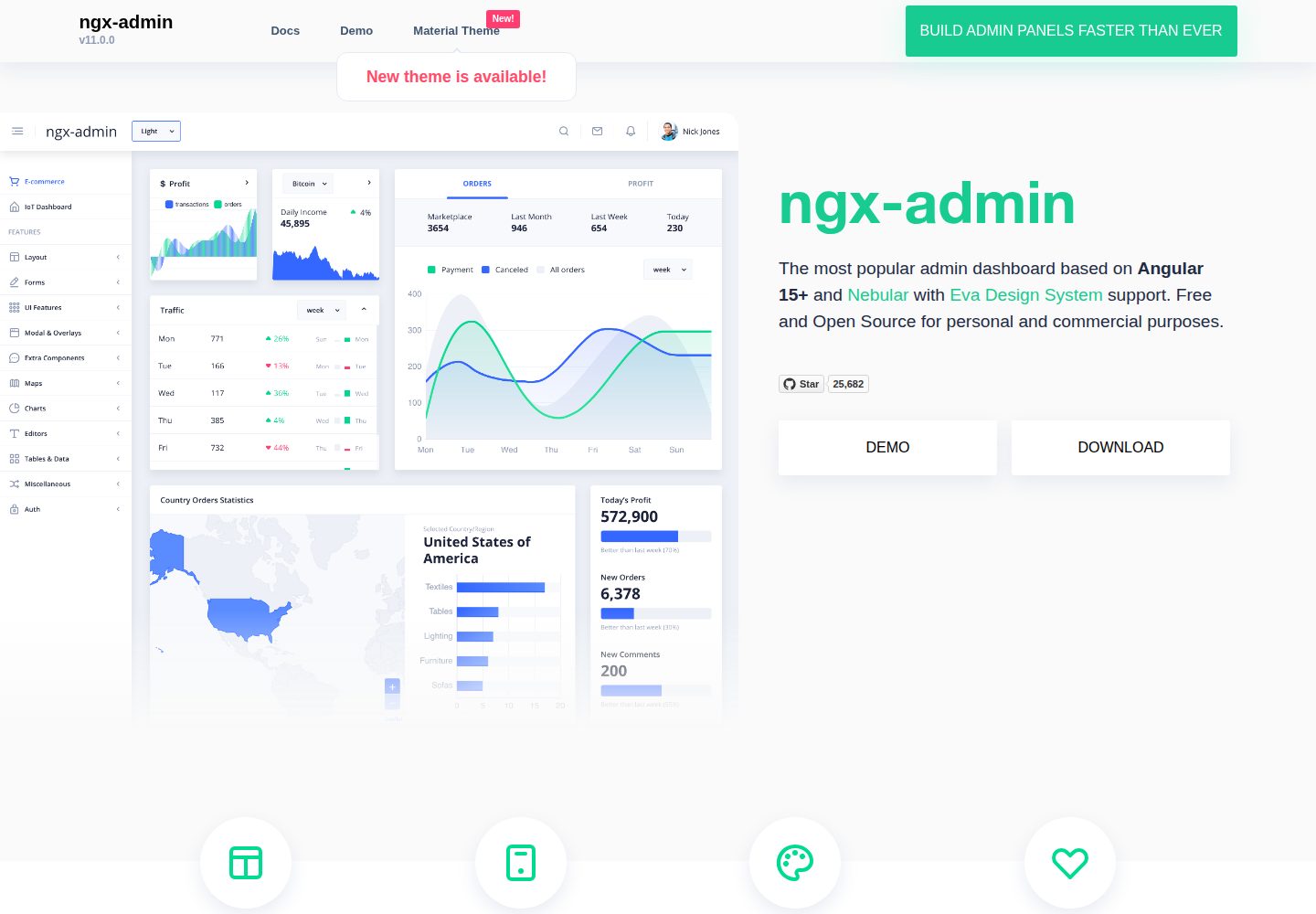
ngx-admin
ngx-admin is an Angular admin dashboard template maintained by Akveo, built on the Nebular component library and released under the MIT license.
Angular · Admin dashboard
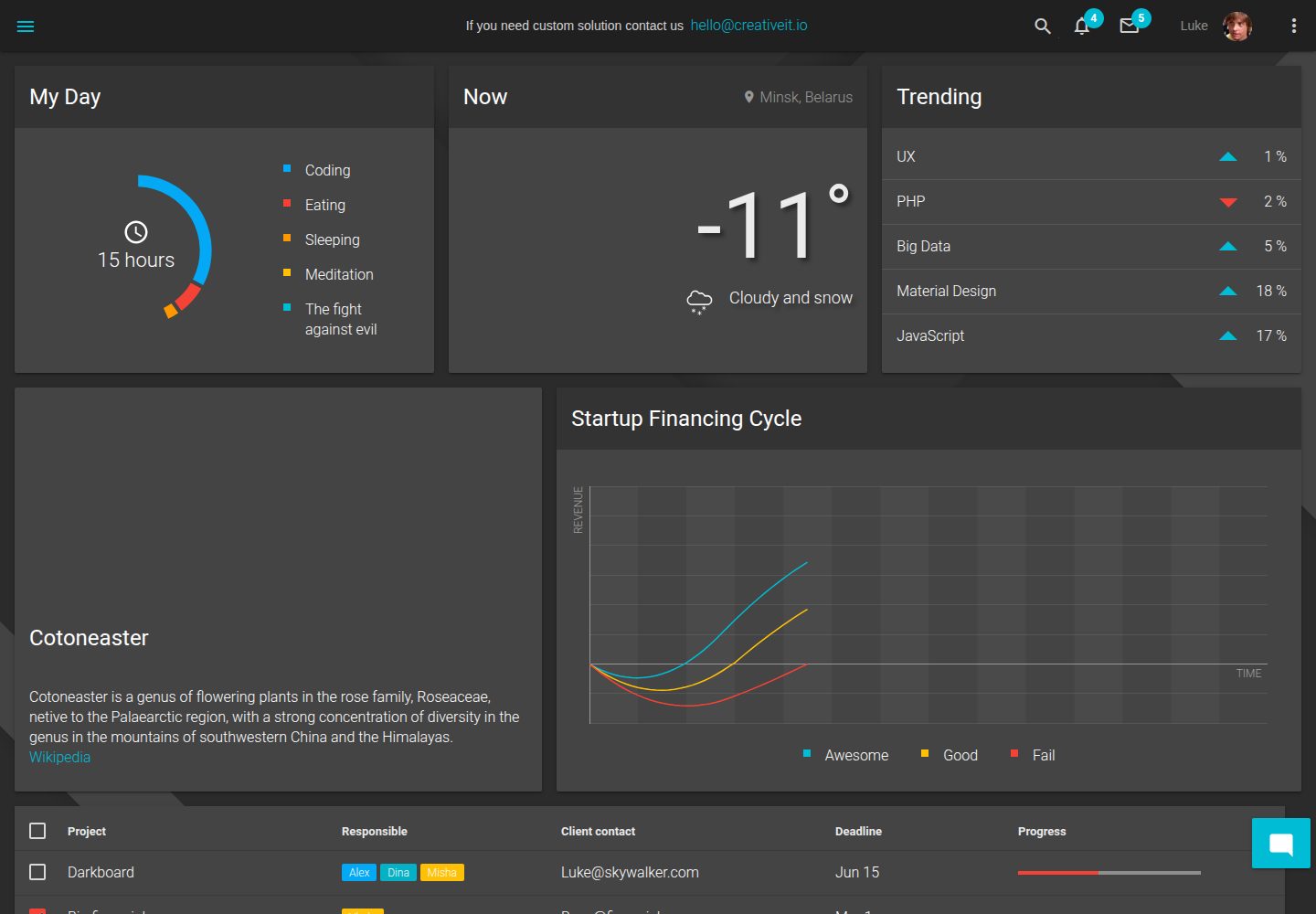
material-angular-dashboard
A dark-themed Angular admin template following Google Material Design, with dashboard pages, D3/NVD3 charts, ag-Grid tables, and a Sass/BEM theme. Released under the MIT license, it offers starter-kit, feature/backend, and feature/serverless branches.
Angular · Admin dashboard
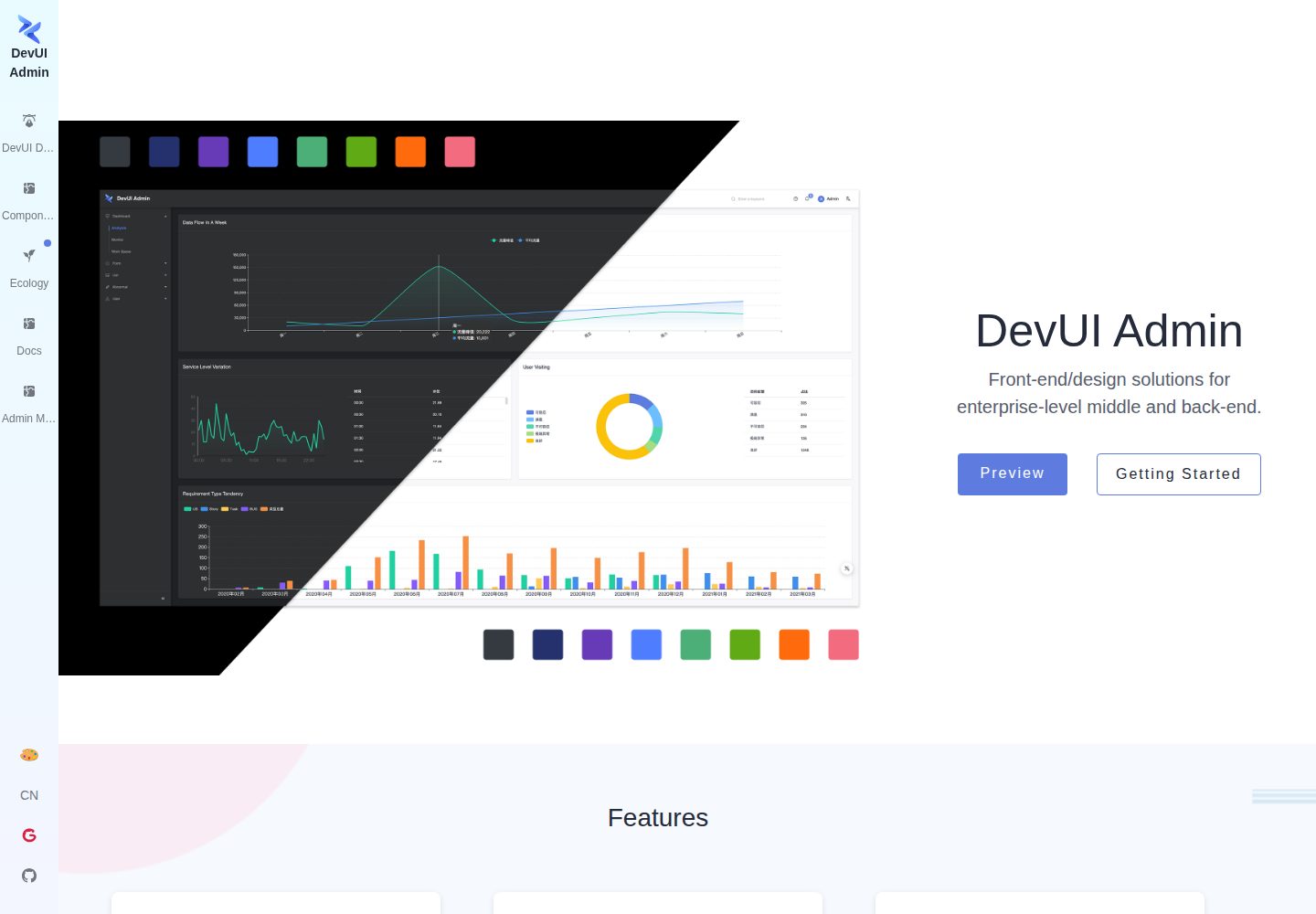
ng-devui-admin
A customizable mid-to-back-office admin template built with Angular and DevUI, featuring configurable layouts, multi-theme switching, internationalization, and local mock data debugging.
Angular · Admin dashboard
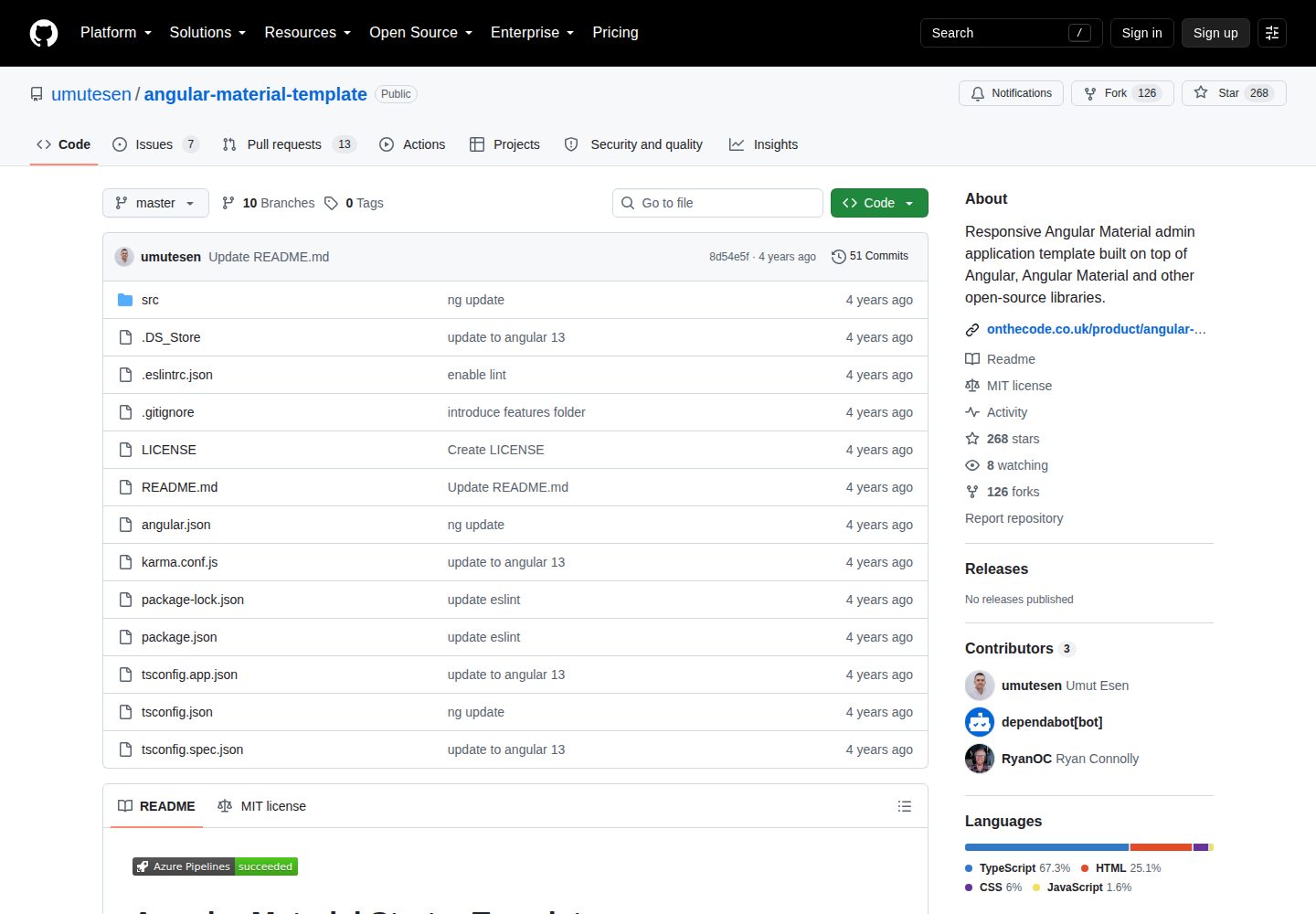
angular-material-template
A responsive Angular Material admin template with authentication, sidebar dashboard, account area, role guards, JWT interceptor, and lazy-loaded modules, under the MIT license.
Angular · Admin dashboard
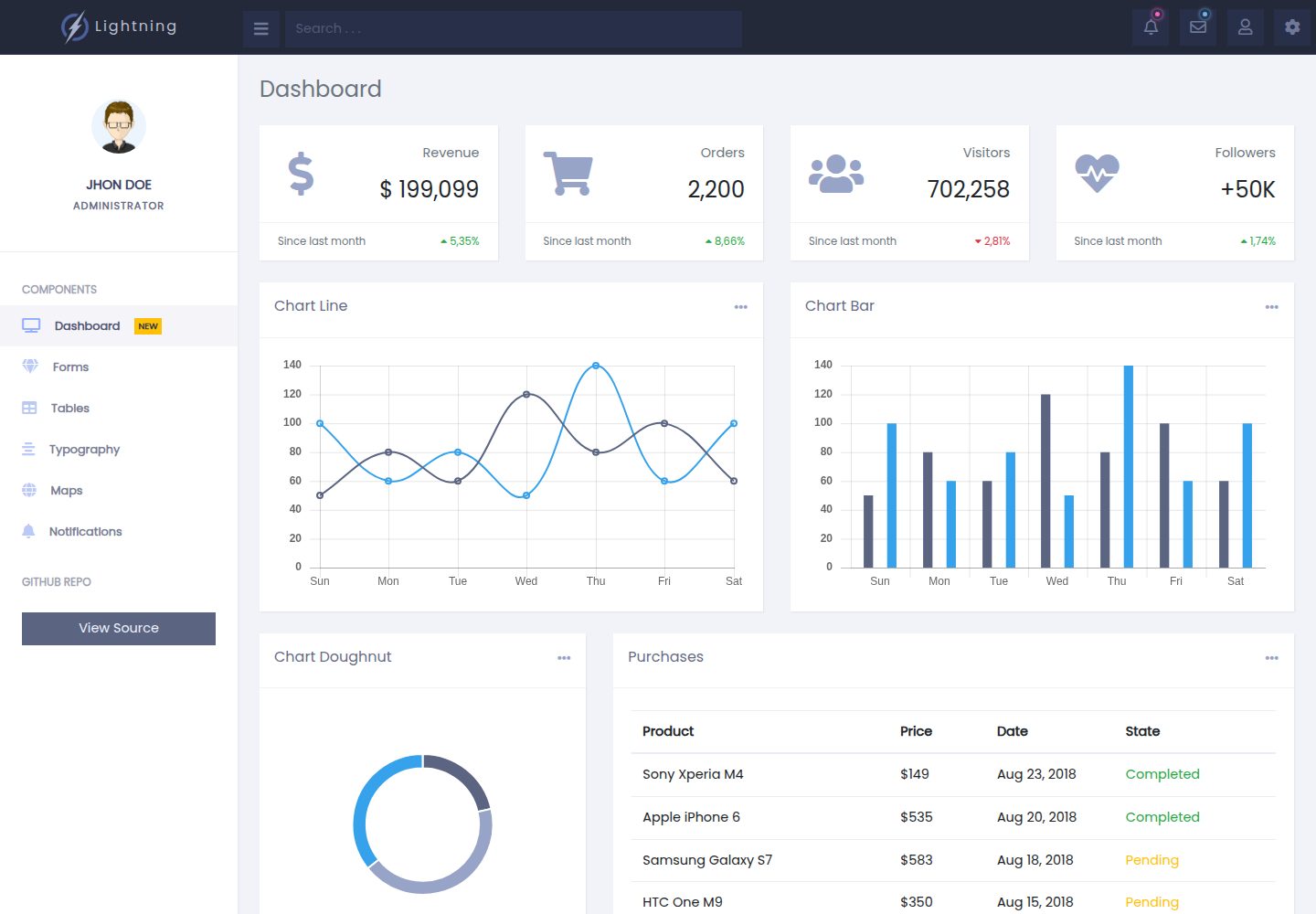
lightning-admin-angular
A mobile-first responsive admin template built with Angular and Bootstrap, offering data interface layouts such as dashboards.
Angular · Admin dashboard
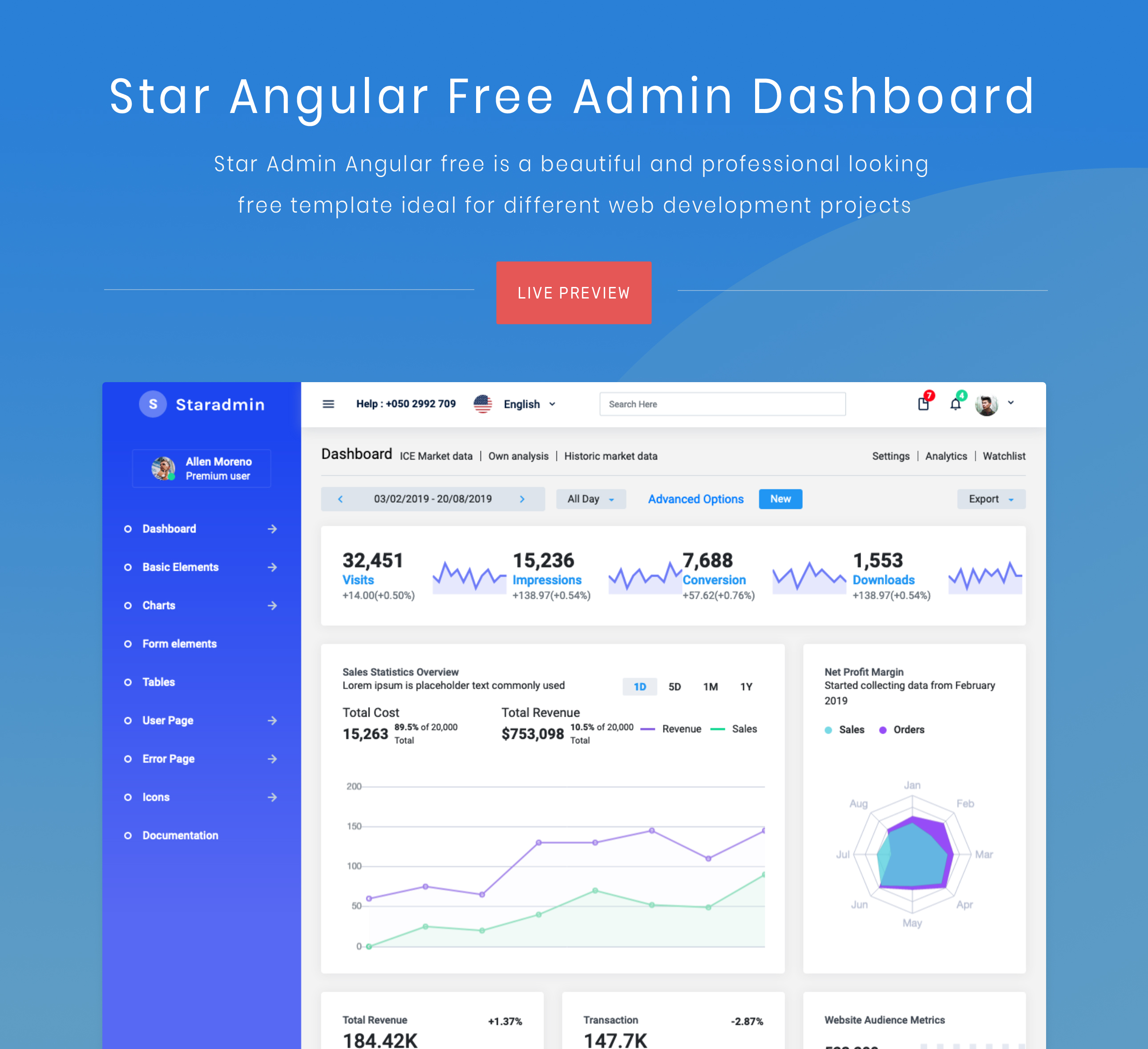
StarAdmin-Free-Angular-Admin-Template
A free admin template based on Angular 7 and Bootstrap 4, maintained by BootstrapDash.
Angular · Admin dashboard