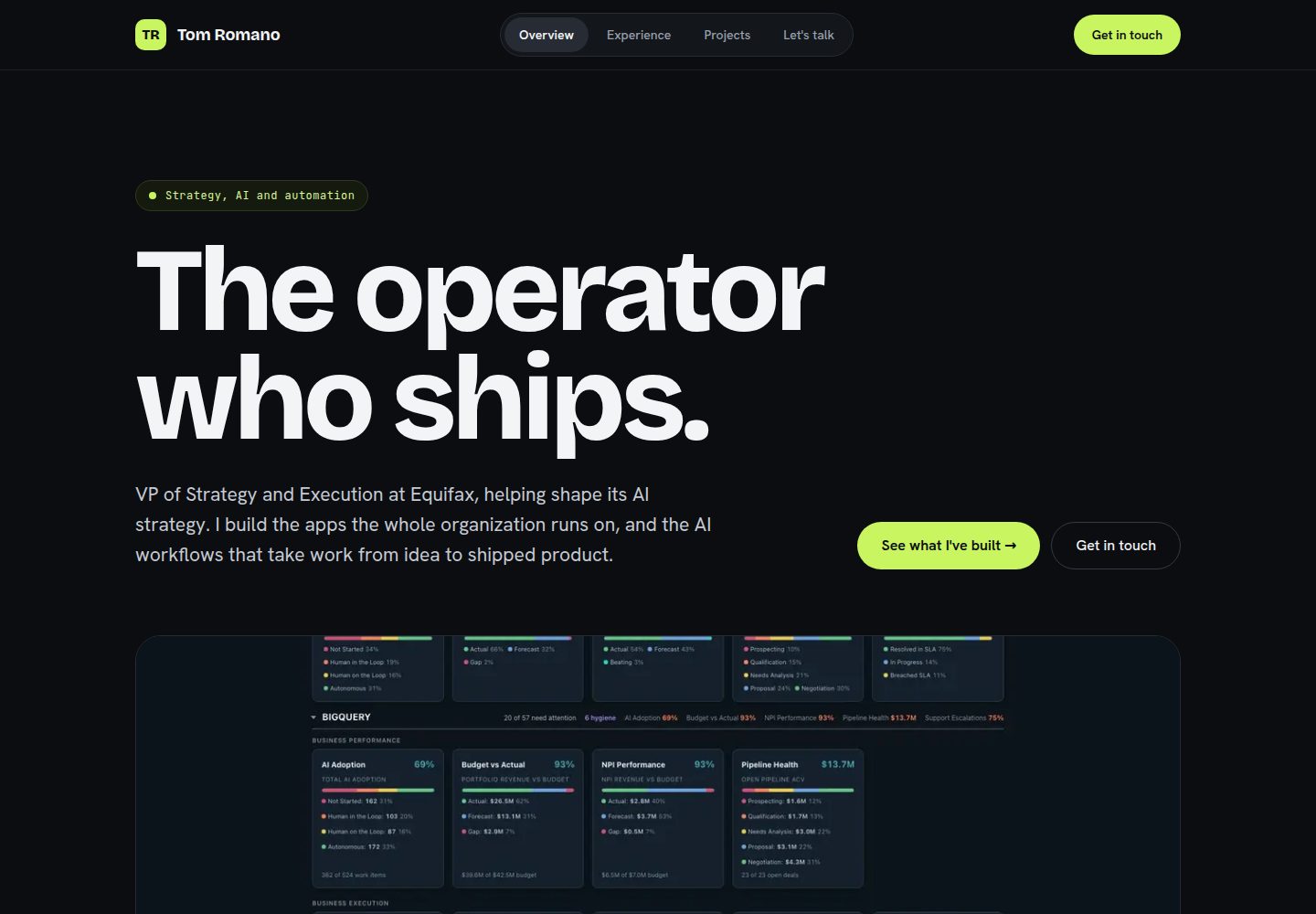
基于 Next.js 构建,包含首页、作品集页和服务页三个页面
Next.jsReact作品集
Website_Template — Next.js 作品集模板
作者 Automating-my-Job
这是一个基于 Next.js 的个人网站与作品集模板,包含首页、作品页和服务页三个页面,内置联系表单、SEO 基础文件,并提供了从本地运行到 Vercel 部署的完整步骤。
看看你的网站会是什么样
浏览真实页面截图,比较内容排版与手机效果。点击下方缩略图切换,放大查看整页细节。
全部页面与视图 3
截图用于了解视觉与布局,交互效果请以实际项目为准。
采集于 2026-10-14查看来源
值得关注的模板亮点
从已有项目资料中,快速了解它的特点。
内置联系表单,通过 Resend 发送邮件,需要配置 RESEND_API_KEY 环境变量
包含 sitemap、社交分享预览图和结构化数据等 SEO 基础文件
所有文字内容集中在 lib/content.ts 中,便于统一修改
提供从本地运行到 Vercel 部署的完整步骤说明
模板详细介绍
该模板是一个可直接部署的个人网站与作品集,使用 Next.js 构建。README 说明其开箱即用包含三个页面:首页(`/`)提供两个入口,作品集页(`/work`)和服务页(`/services`)。模板内置可用的联系表单,通过 Resend 发送邮件,并包含 sitemap、社交分享预览图和结构化数据等搜索引擎基础项。
使用流程为:Fork 仓库、克隆到本地、安装依赖并运行开发服务器,然后编辑 `lib/content.ts` 等文件替换文字与图片,配置 Resend 环境变量以启用联系表单,最后通过 Vercel 部署。README 提供了详细的步骤和检查点,并说明无需 Next.js 专家经验即可完成。
README 未提供关于性能、生产就绪程度或除 Resend 之外其他集成的说明。模板的部署依赖 GitHub 和 Vercel,联系表单依赖 Resend 账户和已验证的发送域名。
Next.js作品集
适合你的项目吗?
适用场景
- 个人或自由职业者快速搭建作品集网站
- 需要包含联系表单并希望邮件发送到指定邮箱的静态网站
- 希望通过 Vercel 免费部署并绑定自定义域名的项目
- 作为学习 Next.js 项目结构和部署流程的示例
适合人群
- 希望拥有个人网站但不想从零构建的用户
- 能按照编号步骤操作并复制粘贴命令的初学者
- 需要作品集和服务介绍页面的自由职业者
- 使用 GitHub 和 Vercel 进行部署的开发者
上手与定制指南
结合仓库当前版本的说明,按下面的资料检查内容、配置与运行要求。
- 1
需要 Node.js 20 或更高版本,以及 GitHub、Vercel 账户
- 2
联系表单需要 Resend 账户,并验证发送域名后配置 RESEND_API_KEY 环境变量
- 3
需替换 public/ 目录下的图片文件,部分图标有特定尺寸要求
- 4
需修改 app/api/contact/route.ts 中的发件地址、收件地址和 ALLOWED_ORIGINS
- 5
部署前需将更改推送到 GitHub,Vercel 会自动重新部署
授权与来源资料
使用条件与限制
免费使用 · 保留许可声明本次收录的是公开仓库中采用 MIT 许可的免费版本;免费范围为该版本代码,不代表外部服务或第三方素材免费。
使用时需要遵守
- 允许免费使用、修改、商用和分发该版本代码。
- 分发代码副本或实质性部分时,保留原作者版权声明和完整 MIT 许可声明。
- 代码按现状提供;担保与责任限制以原许可证及适用法律为准。
额外费用与待核对事项
- 演示图片、字体、图标及其他第三方素材需按各自许可核对,不能仅凭代码的 MIT 许可判断。
- 域名、托管、数据库、支付或 AI 等外部服务可能另外收费。
- 联系表单必须使用 Resend 账户(免费)才能发送邮件;未配置时网站可运行但表单无法发送。
- 部署上线需要 Vercel 账户(免费 Hobby 计划),并需用 GitHub 登录关联。
- 需要 GitHub 账户来存放代码副本并作为部署来源。
- 本地运行需要 Node.js 20 或更高版本。
- 需在 Resend 中添加并验证发送域名;验证完成前发送会失败,免费层可能仅允许发送到账户邮箱。
- 必须将 Resend API 密钥存为名为 RESEND_API_KEY 的环境变量,这是项目唯一使用的环境变量。
- 需将 app/api/contact/route.ts 中的发件地址改为自己已验证发送域下的地址。
- 需将 ALLOWED_ORIGINS 改为自己的域名,否则联系表单的跨域请求会被拒绝。
- 需更新或删除 next.config.ts 中针对原站点 opsgs.vercel.app 到 www.opsgs.com 的重定向规则。
- 如需更持久的防滥用保护,可选在 Vercel 仪表板 Firewall 中为 /api/contact 添加 WAF 速率限制规则。
- 自定义域名是可选步骤;可先使用免费的 *.vercel.app 地址,之后再添加域名。
查看原文依据
Permission is hereby granted, free of charge
许可证原文
| [Resend](https://resend.com) account (free) | Required for the contact form | Sends the emails from your contact form. The site works without it, but the form will not send until this is done. |
README 原文
| [Vercel](https://vercel.com) account (free Hobby plan) | Required | Hosts your live site. Sign up with GitHub to link them. |
README 原文
| [GitHub](https://github.com) account | Required | Stores your copy of the code. |
README 原文
| [Node.js](https://nodejs.org) version 20 or newer | Required | Runs the site on your computer. |
README 原文
3. Add and verify your **sending domain** in Resend. This means adding a few DNS records to your domain so Resend can prove you own it. Resend shows you the exact records to add. Verification can take a few minutes to a few hours while DNS updates. Until your domain shows as verified, sends will fail, and on the free tier Resend may only let you send to your own account email. Do not be alarmed if a test does not arrive before verification finishes.
README 原文
5. Store your API key as an environment variable (a named secret your code reads at runtime) named exactly `RESEND_API_KEY`. This is the only environment variable this project uses, and it is read only on the server.
README 原文
| `from` address | `OPS GS Website <[email protected]>` | An address at your verified sending domain (see section 4) |
README 原文
| `ALLOWED_ORIGINS` | `["https://www.opsgs.com", "https://opsgs.com"]` | Your own domain(s) |
README 原文
- [ ] Open `next.config.ts` and update or remove the redirect rule that sends traffic from `opsgs.vercel.app` to `www.opsgs.com`. This was specific to the original site. If you do not need it, delete that redirect.
README 原文
- Add a **Vercel WAF** (Web Application Firewall) rate-limit rule on the `/api/contact` path. You set this up in the **Firewall** tab of your Vercel dashboard. It enforces limits at the edge, which the built-in in-memory limit cannot do on its own.
README 原文
https://github.com/Automating-my-Job/Website_Template/blob/main/LICENSEhttps://github.com/Automating-my-Job/Website_Template/blob/main/README.md| A domain name | Optional | Use your own web address (for example, `yourname.com`). You can launch on a free `*.vercel.app` address first and add a domain later. |
README 原文
DeepSeek 根据仓库许可证和 README 整理 ·2026-10-14。结果仅覆盖已读取资料,依赖、图片、字体及后续条款变更以各自原文为准。
项目核对记录与介绍依据
模板资料
- 来源平台
- GitHub
- 资料与维护参考分
- 资料较完整 · 83 / 100
- 技术栈
- Next.js · React
- 网站类型
- 作品集
这个分数如何计算
本站按许可资料(最高30分)、演示链接(12分)、预览图(10分)、Star数(15分)、记录的维护时间(15分)、描述完整度(8分)、功能记录(5分)和分类资料(5分)计算。它不是代码、安全或性能测试,也不是 Google 评分;有链接不代表已实测可用。
这个项目需要核对什么
- 记录的仓库更新时间
- 2026-08-31
- 截图检查日期
- 2026-10-14
已收录演示链接。请用你的内容与屏幕尺寸检查;有演示不代表表单、认证或支付已经可用。
目录记录的主要技术栈是 Next.js。请通过依赖清单和锁文件核对实际版本与托管要求。这些说明基于收录资料,不代表代码审计或部署实测。
查看具体选型方法 →介绍的制作与核对状态
介绍由 AI 辅助整理目录与仓库资料。仓库作者不等于这篇介绍的审核者。
审核声明: codex-user-requested-batch-review-20261015 · 2026-10-15
查看当时使用的来源资料
SHA-256: 4c7f3ed68eb54cd7631c8e5caa35ebbadfd0dbedc95e6db393d87cb0230f76da
2026-10-14T19:18:59.225Z
来源文件 / 仓库# Website Template A clean, fast personal website and portfolio you can deploy for free, with a working contact form built in. Want to see it live? Check out www.OpsGS.com. ## What this is This is a ready-to-launch website template built with Next.js. You fork it, swap in your own words and images, and put it online. When you are done you will have a live, professional three-page site at your own domain, with a contact form that emails you, plus the basics search engines look for (a sitemap, social-share preview images, and structured data). It is for anyone who wants a polished personal or freelance site without building one from scratch. You do not need to be a Next.js expert. If you can follow numbered steps and copy-paste a command, you can do this. If this is your first website ever, that is fine. This guide assumes exactly that. The template has three pages out of the box: - `/` (home): a "fork" page with two doors (for example, hire me vs. contract with me). - `/work`: a portfolio. - `/services`: an offer page (here, an automated-reporting service). **Honest time estimate:** about 1 to 2 hours start to finish. Roughly 20 minutes to get it running on your computer, 30 to 45 minutes to make the words and images yours, and 20 to 30 minutes to deploy and connect the contact form. Adding your own domain and Google Search Console adds another 20 to 30 minutes, plus waiting time for DNS (Domain Name System, the internet's address book that maps your domain name to a server) to update. --- ## 1. What you'll need Set these up first. The free tiers are enough for everything here. | Tool or account | Required? | Why | | --- | --- | --- | | [GitHub](https://github.com) account | Required | Stores your copy of the code. | | [Vercel](https://vercel.com) account (free Hobby plan) | Required | Hosts your live site. Sign up with GitHub to link them. | | [Resend](https://resend.com) account (free) | Required for the contact form | Sends the emails from your contact form. The site works without it, but the form will not send until this is done. | | [Node.js](https://nodejs.org) version 20 or newer | Required | Runs the site on your computer. | | A code editor (for example, [VS Code](https://code.visualstudio.com)) | Required | Edits the text and files. | | A domain name | Optional | Use your own web address (for example, `yourname.com`). You can launch on a free `*.vercel.app` address first and add a domain later. | | [Google Search Console](https://search.google.com/search-console) | Optional | Helps Google find and index your site. | **Check your work:** open a terminal (on Mac, press Cmd+Space, type `Terminal`, and press Enter; on Windows, open PowerShell from the Start menu; or use the terminal built into VS Code under **View > Terminal**) and run this: ```bash node -v ``` You should see a version number like `v20.0.0`. The number right after the `v` should be 20 or greater (for example, `v20`, `v22`, or `v26` are all fine). If you see "command not found" or a number below 20, install or update Node.js from [nodejs.org](https://nodejs.org) and run the command again. --- ## 2. Get it running on your computer You are about to download the code and run it on your own machine, so you can preview every change before anyone else sees it. This matters because you never have to guess: you see exactly what your visitors will see. ### One-time setup: tell git who you are If this is your first time using git on this computer, set your name and email once. Use the email address on your GitHub account. This prevents a deploy error later (covered in Troubleshooting). ```bash git config --global user.email "[email protected]" git config --global user.name "Your Name" ``` ### Get the code 1. Fork the template repository on GitHub. Open [https://github.com/Automating-my-Job/Website_Template](https://github.com/Automating-my-Job/Website_Template) and click the **Fork** button (top right). This makes your own copy under your GitHub account. 2. On your new fork's page, click the green **Code** button and copy the web address it shows (it looks like `https://github.com/YOUR-USERNAME/Website_Template.git`). 3. Clone your fork to your computer. Paste your copied address in place of the one below. ```bash git clone https://github.com/YOUR-USERNAME/Website_Template.git ``` 4. Move into the project folder. Your folder name matches your repository name. ```bash cd Website_Template ``` 5. Install the dependencies (the supporting code packages the site needs). ```bash npm install ``` You may see lines that start with `npm warn`. Warnings are normal and safe to ignore. Only an `npm error` that stops the process is a real problem (see Troubleshooting). 6. Start the local development server (a private preview that runs only on your computer). ```bash npm run dev ``` 7. Open [http://localhost:3000](http://localhost:3000) in your browser. **Check your work:** you should see the home page with its two doors. As you edit files later, this page updates automatically while `npm run dev` is running. If the page does not load, confirm step 6 is still running in your terminal (it stays running, that is normal) and that nothing else is using port 3000. --- ## 3. Make it yours This is where the template becomes your site. Work through the checklist below. The most important file is `lib/content.ts`: nearly all of the words on the site live there, so editing it updates the whole site in one place. Open the project folder in your code editor (in VS Code, **File > Open Folder**, then pick the folder you cloned). You can keep `npm run dev` running in the terminal while you edit. ### Text and links - [ ] Open `lib/content.ts` and edit the copy. Pay special attention to the `SITE` object near the top. Set these three to your own values: - `SITE.url` (currently `"https://www.opsgs.com"`): your canonical site address. Canonical means the one official address for your site (more on choosing this in section 6). - `SITE.email`: your contact email. Capitalization in an email address does not matter, so `[email protected]` and `[email protected]` are treated the same. - `SITE.linkedin`: your LinkedIn profile URL. ### Images (in the `public/` folder) Replace these with your own files, keeping the same file names. The PWA and icon files need specific square sizes. If you only have a regular photo, a free online image resizer or favicon converter can produce the right dimensions and the `.ico` format. You can also skip the icon files for a first launch and come back to them later. - [ ] `public/logo.png` - [ ] `public/headshot.jpg` - [ ] `public/pwa-192.png` (192 by 192 pixels) - [ ] `public/pwa-512.png` (512 by 512 pixels) - [ ] `public/demo/before-spreadsheet.png` - [ ] `public/demo/after-deck.png` - [ ] `public/demo/ops-gs-sample-report.pdf` - [ ] `public/demo/ops-gs-sample-workbook.xlsx` - [ ] `app/apple-icon.png` - [ ] `app/favicon.ico` (an icon file; use a favicon converter to make one from a PNG) ### Contact form addresses - [ ] Open `app/api/contact/route.ts` and change these three hardcoded values: | What | Current value | Change to | | --- | --- | --- | | `from` address | `OPS GS Website <[email protected]>` | An address at your verified sending domain (see section 4) | | `to` address | `[email protected]` | The inbox where you want to receive messages | | `ALLOWED_ORIGINS` | `["https://www.opsgs.com", "https://opsgs.com"]` | Your own domain(s) | Note: `ALLOWED_ORIGINS` already allows Vercel preview URLs (`*.vercel.app`) automatically, so you do not need to add those. ### Social previews and structured data - [ ] Edit the share-preview text in `app/opengraph-image.tsx`, `app/work/opengraph-image.tsx`, and `app/services/opengraph-image.tsx`. These contain some hardcoded name and tagline text. (These images are what show up when someone shares your link on social media or chat.) - [ ] Confirm `components/JsonLd.tsx` looks right. It builds Person and Organization structured data (machine-readable info for search engines) and reads from `SITE.url` and `SITE.linkedin`, so updating `lib/content.ts` usually covers it. ### The old-domain redirect - [ ] Open `next.config.ts` and update or remove the redirect rule that sends traffic from `opsgs.vercel.app` to `www.opsgs.com`. This was specific to the original site. If you do not need it, delete that redirect. **Good to know:** the SEO files `app/robots.ts`, `app/sitemap.ts`, and `app/manifest.ts` mostly read from `SITE` in `lib/content.ts`, so you usually update `content.ts`, not these files directly. **Check your work:** with `npm run dev` running, refresh [http://localhost:3000](http://localhost:3000). Your text, your headshot, and your logo should all appear. ### Save your changes to GitHub Your edits so far live only on your computer. Vercel deploys from GitHub, so you must send your changes there before they can go live. In the same terminal, in your project folder, run: ```bash git add -A git commit -m "Make it mine" git push ``` Vercel redeploys automatically every time you push. If `git push` complains about your identity, see the one-time git setup at the start of section 2. --- ## 4. Turn on the contact form with Resend Your contact form needs a service to actually send the email. That service is Resend. **Important:** the site works fine without this, but the contact form will not send a message until you finish these steps. 1. Create a free account at [resend.com](https://resend.com). 2. In the Resend dashboard, create an **API key** (a secret token that lets your site send mail through Resend). Copy it somewhere safe. You will not be able to see it again. 3. Add and verify your **sending domain** in Resend. This means adding a few DNS records to your domain so Resend can prove you own it. Resend shows you the exact records to add. Verification can take a few minutes to a few hours while DNS updates. Until your domain shows as verified, sends will fail, and on the free tier Resend may only let you send to your own account email. Do not be alarmed if a test does not arrive before verification finishes. 4. Make sure the `from` address in `app/api/contact/route.ts` (from section 3) uses your verified domain. For example, if you verified `yourdomain.com`, a `from` of `[email protected]` works. 5. Store your API key as an environment variable (a named secret your code reads at runtime) named exactly `RESEND_API_KEY`. This is the only environment variable this project uses, and it is read only on the server. For local testing, create a file named `.env.local` in the project root (the folder containing `package.json`, which is the folder you cloned). The easiest way to create it is from your code editor: make a new file, name it `.env.local`, and add this single line: ```bash RESEND_API_KEY=your_key_here ``` Files matching `.env*` are gitignored, so this secret is never committed to GitHub. Good. **Check your work:** in the same terminal window where the dev server is running, stop it (press Ctrl+C), then start it again with `npm run dev` so it picks up the new file. Submit your own contact form on the local site. If your sending domain is verified, you should receive an email at your `to` address. If nothing arrives, confirm the domain is verified and check Troubleshooting before assuming something is broken. --- ## 5. Put it online with Vercel Now you publish the site so anyone can reach it. Make sure you have pushed your changes to GitHub first (the end of section 3). 1. Go to [vercel.com](https://vercel.com) and sign in with GitHub. 2. Click **Add New** then **Project**, and import your forked GitHub repository. 3. Vercel auto-detects the framework as **Next.js**. You do not need to change the build settings. 4. Before deploying, open the **Environment Variables** section and add: - Name: `RESEND_API_KEY` - Value: your Resend API key from section 4 5. Click **Deploy** and wait for the build to finish. **Check your work:** Vercel gives you a live `*.vercel.app` address. Open it. Your site should load, and the contact form should send a real email (Vercel preview and production URLs are already allowed by the contact route). If the deploy is blocked with "Invalid git email address," see Troubleshooting. --- ## 6. Add your own domain A custom domain makes the site yours. Skip this section if you are happy on the `*.vercel.app` address for now. 1. In your Vercel project, go to **Settings** then **Domains** and add your domain. 2. Vercel shows the DNS records to add at your domain registrar (the company you bought the domain from). Add them there. 3. Pick your **canonical** address: either the `www` version (`https://www.yourdomain.com`) or the apex/bare version (`https://yourdomain.com`). Pick one and use it everywhere. Vercel can redirect the other one to it. 4. Update these to match your canonical choice, then commit and push again (as in the end of section 3) so Vercel redeploys: - `SITE.url` in `lib/content.ts` - `ALLOWED_ORIGINS` in `app/api/contact/route.ts` (include both the `www` and apex forms so the form works no matter which a visitor uses) **Check your work:** visit your domain. It should load over `https://` with a padlock. DNS changes can take from minutes to a day to fully propagate, so if it is not live immediately, wait and check again. --- ## 7. Help people find it on Google This tells Google your site exists and where to find every page. 1. Go to [Google Search Console](https://search.google.com/search-console) and add a **domain property** for your domain. 2. Verify ownership with a **DNS TXT record** (a small text record you add at your registrar; Google gives you the exact value). 3. Submit your sitemap. The address is your domain plus `/sitemap.xml`, for example: ```text https://yourdomain.com/sitemap.xml ``` **Check your work:** open `https://yourdomain.com/sitemap.xml` in a browser. You should see a list of your page URLs. If they show the old `opsgs.com` address, recheck `SITE.url` in `lib/content.ts`, then commit and push so Vercel redeploys. --- ## 8. Optional: extra protection The contact route already has layered protection (an origin allowlist, an in-memory rate limit, a hidden honeypot field, input validation, length caps, and an HTML-escaped email body). For more durable protection against abuse: - Add a **Vercel WAF** (Web Application Firewall) rate-limit rule on the `/api/contact` path. You set this up in the **Firewall** tab of your Vercel dashboard. It enforces limits at the edge, which the built-in in-memory limit cannot do on its own. - See `SECURITY.md` for the project's responsible-disclosure policy. --- ## 9. Project map A quick tour of the files you are most likely to touch. | File or folder | What it's for | | --- | --- | | `lib/content.ts` | Single source of truth for nearly all site copy, plus `SITE.url`, `SITE.email`, `SITE.linkedin`. | | `app/layout.tsx` | Shared chrome (Navbar and Footer) wrapping every page. | | `app/api/contact/route.ts` | The only backend: the contact form handler. Holds the `from`/`to` addresses and `ALLOWED_ORIGINS`. | | `public/` | Static images and downloads (logo, headshot, PWA icons, the `demo/` files). | | `app/opengraph-image.tsx` (+ `work/`, `services/`) | Generated social-share preview images. | | `components/JsonLd.tsx` | Person and Organization structured data for SEO. | | `app/robots.ts`, `app/sitemap.ts`, `app/manifest.ts` | SEO files that read from `SITE` in `lib/content.ts`. | | `next.config.ts` | Security headers, Content-Security-Policy, and the old-host redirect to update or remove. | | `.env.local` | Your local secret (`RESEND_API_KEY`). Not committed. | | `SECURITY.md` | Responsible-disclosure policy. | **Useful commands:** ```bash npm install # install dependencies npm run dev # local dev server at http://localhost:3000 npm run build # production build npm run start # serve the production build npm run lint # check the code for problems ``` (The repo also includes an `AGENTS.md` and `CLAUDE.md` aimed at AI coding assistants. You can ignore them for setup.) --- ## 10. Troubleshooting **The contact form returns an error.** Check, in order: 1. `RESEND_API_KEY` is set (in `.env.local` locally, and in Vercel's Environment Variables for the live site). 2. Your sending domain is verified in Resend. 3. The `from` address in `app/api/contact/route.ts` uses your verified domain. **The deployment is blocked with "Invalid git email address."** This happens when the commit author's email is not linked to your Vercel/GitHub account. Set your git identity to the email on your GitHub account, then commit again: ```bash git config --global user.email "[email protected]" git config --global user.name "Your Name" ``` **Something seems broken locally and you are not sure why.** Confirm you are on Node 20 or newer, then reinstall: ```bash node -v npm install ``` Remember that `npm warn` lines during install are normal. Only an `npm error` that stops the process needs your attention. --- ## Credits This template was open-sourced by OPS GS, LLC. You are free to make it your own. Build something good.
看看同类模板
对比同技术栈与用途的模板,找到更适合的视觉与内容结构。
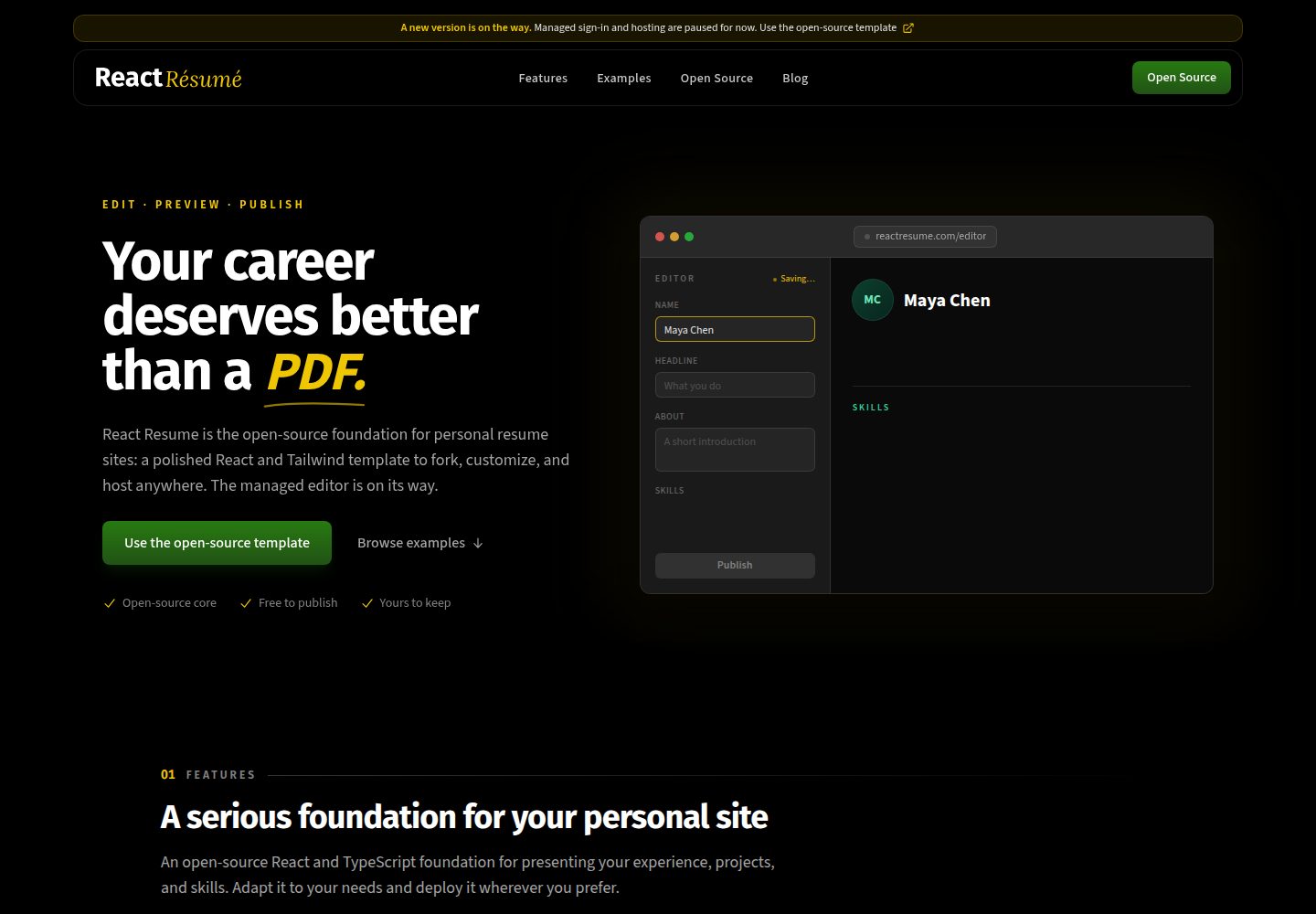
react-resume-template
A personal resume website template built with React.js, Typescript, Next.js, and styled with Tailwind css
Next.js · 作品集
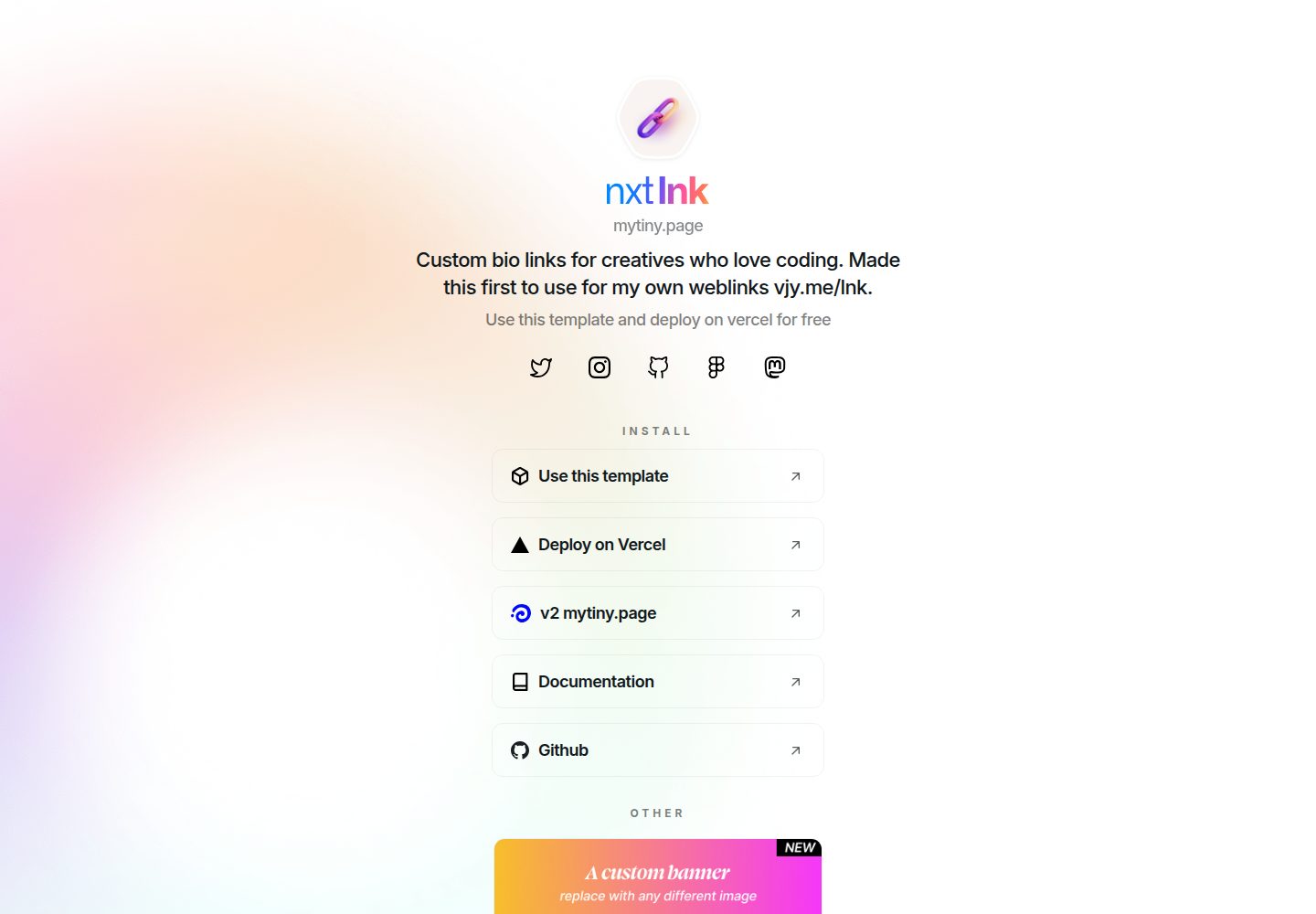
nxt-lnk
Custom bio links for creatives who love coding. A perfect custom alternative for linktree, bio and other short…
Next.js · 作品集
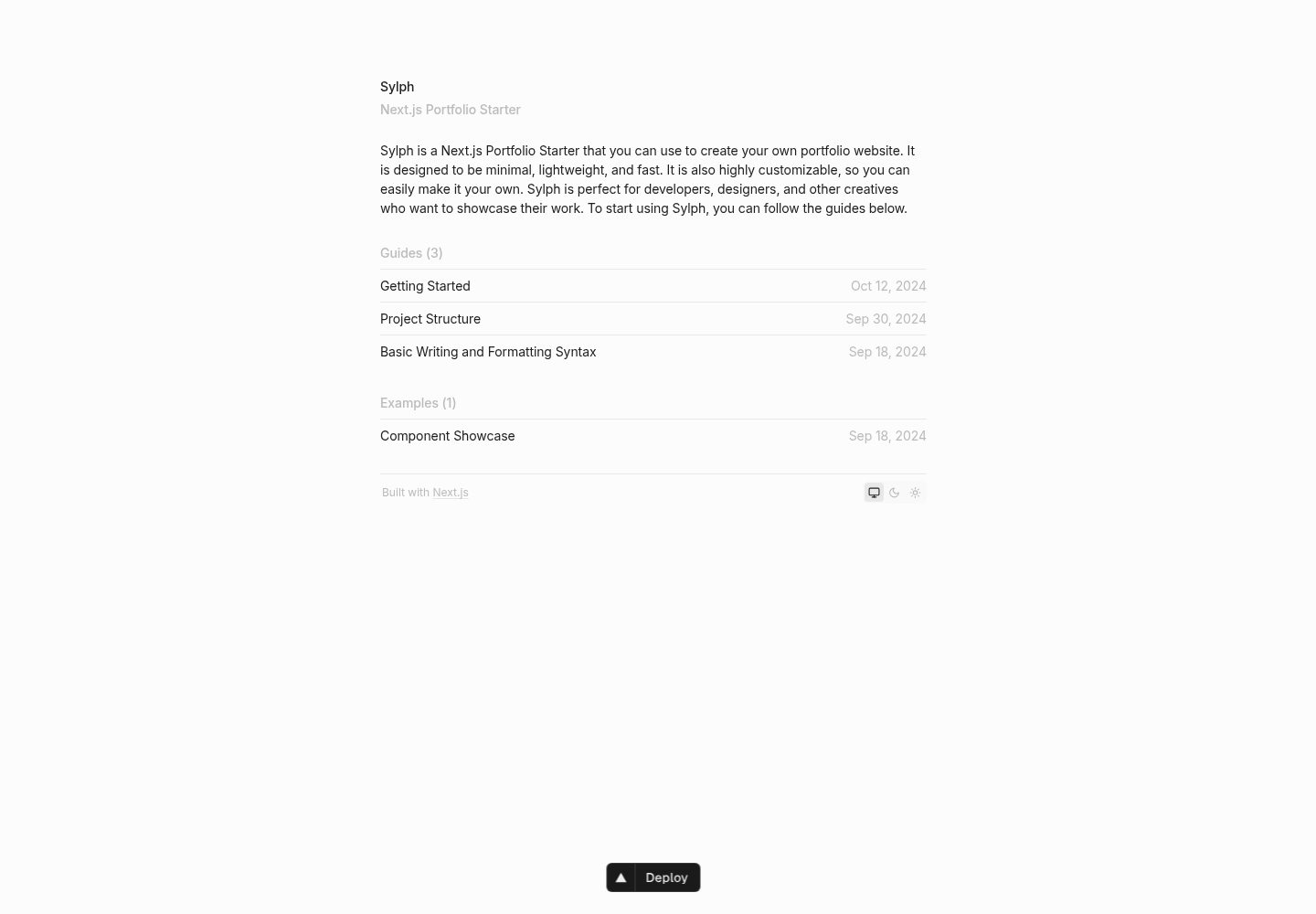
sylph
A minimal portfolio template.
Next.js · 作品集
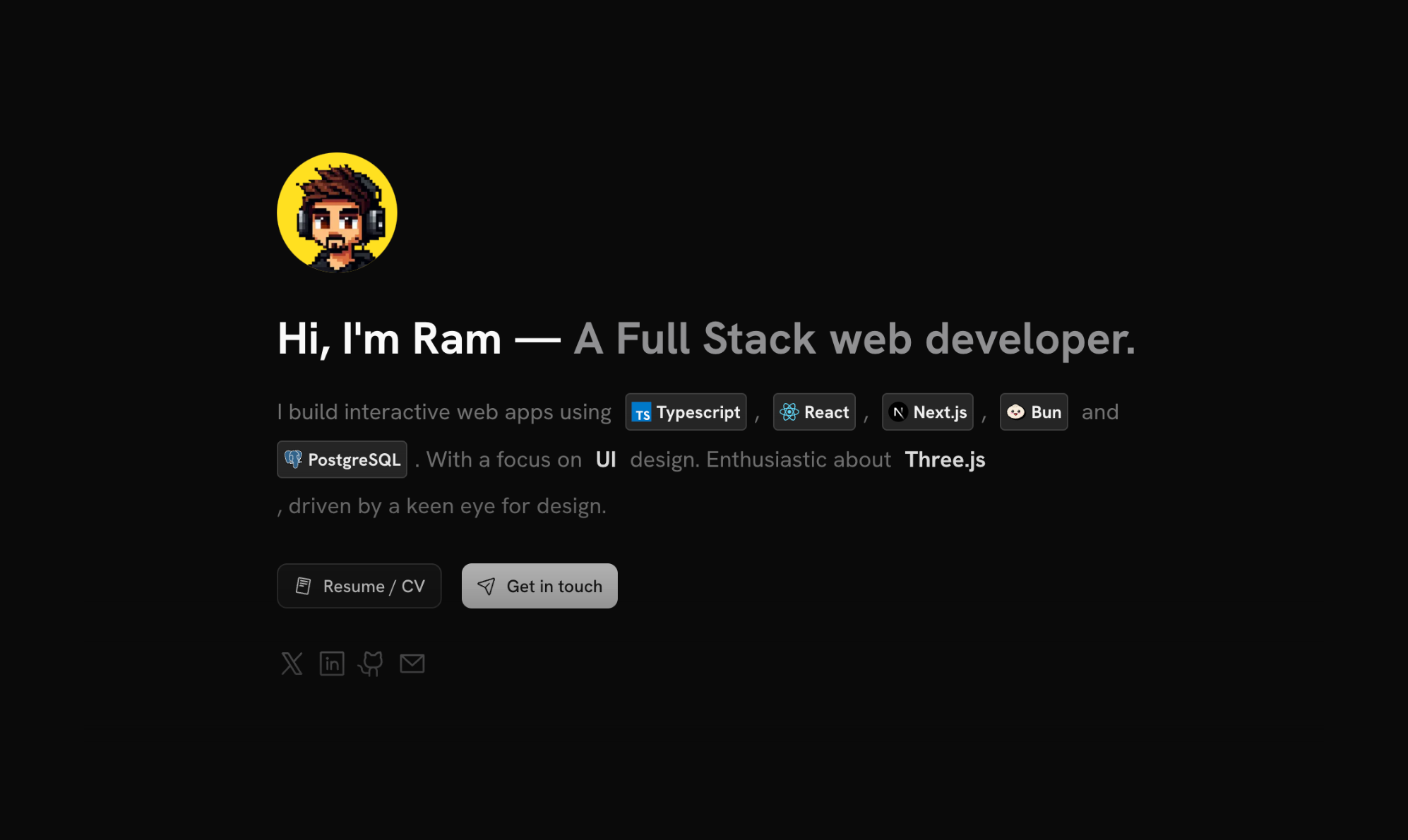
sleek-portfolio
sleek-portfolio 是一个面向开发者个人品牌展示的现代作品集模板,基于 Next.js 15、TypeScript、Tailwind CSS 和 Shadcn UI 构建。
Next.js · 作品集
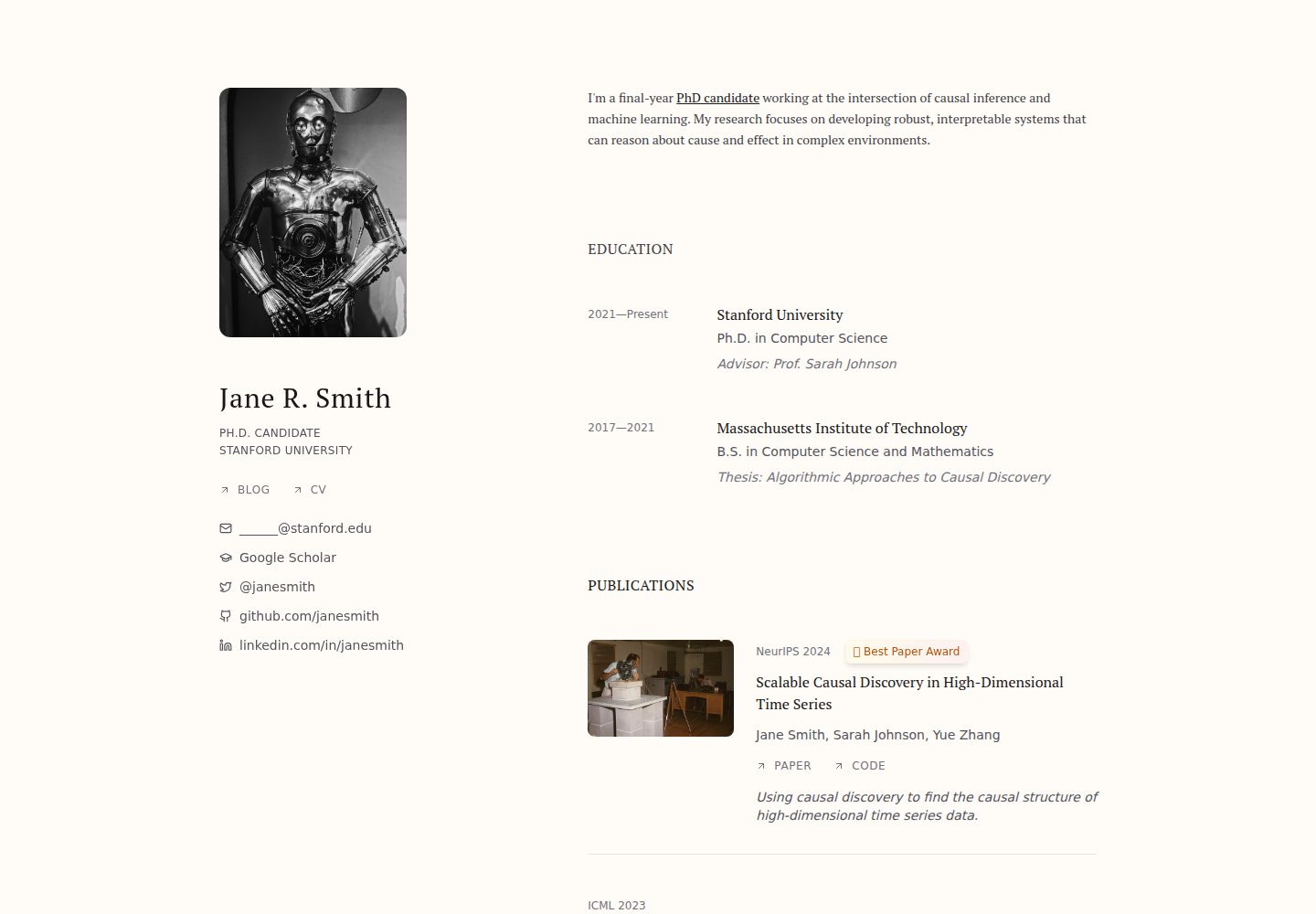
research-website-template
React + Next.js template for research websites (for PhD students, researchers, etc)
Next.js · 作品集
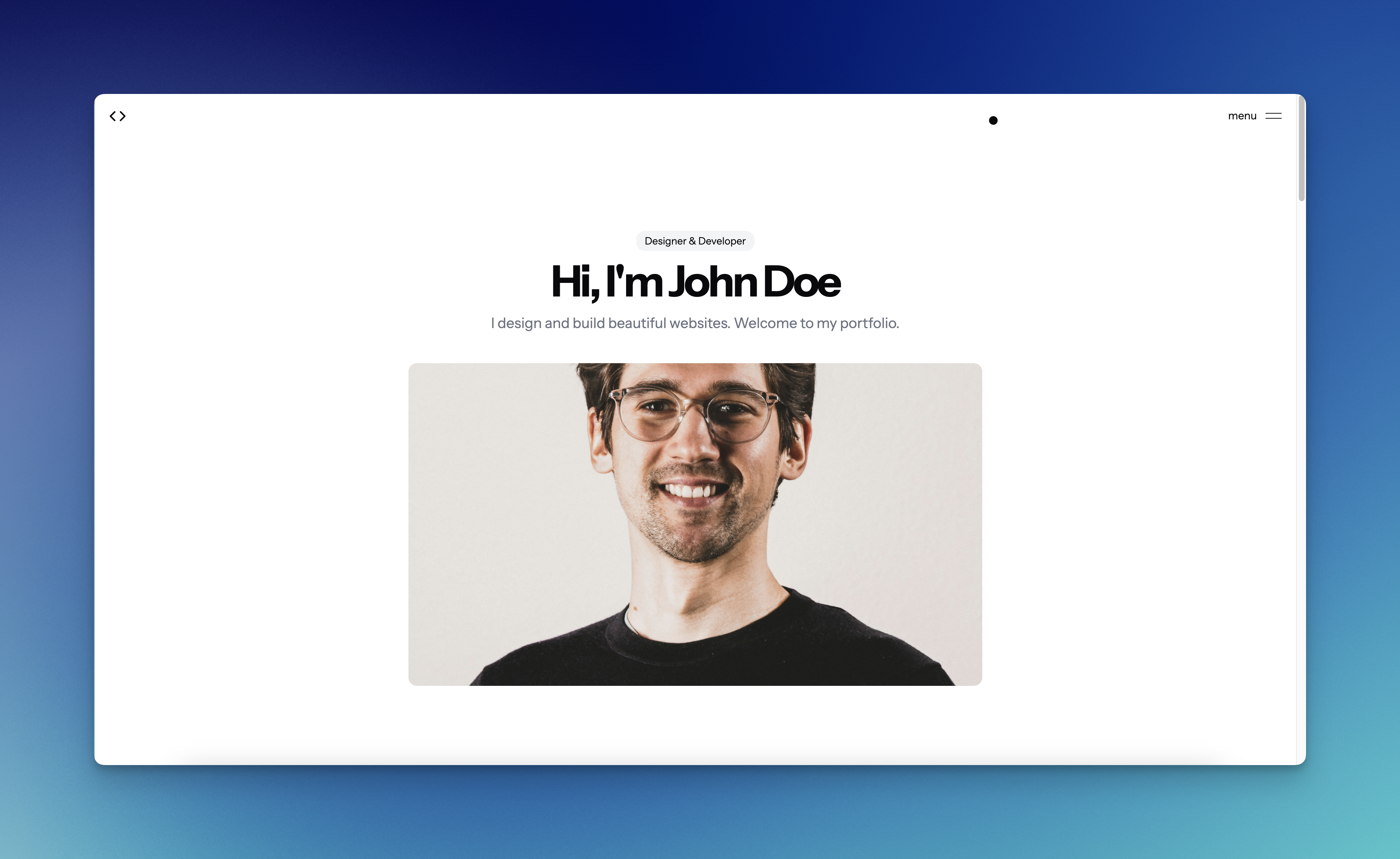
shadcn-portfolio
shadcn-portfolio 是一个面向开发者的作品集模板,技术栈为 Next.js 15、shadcn/ui、Tailwind CSS 和 Framer Motion。
Next.js · 作品集