Markdown 驱动的目录模板,使用 Astro 与 Tailwind CSS 构建
AstroVue目录站
japan-pro-finder — Astro 目录站模板
作者 HumanCronAdmin
基于 Astro 与 Tailwind CSS 的 Markdown 驱动目录网站模板,支持多种数据源导入列表、标签与搜索、深色模式以及赞助内容。
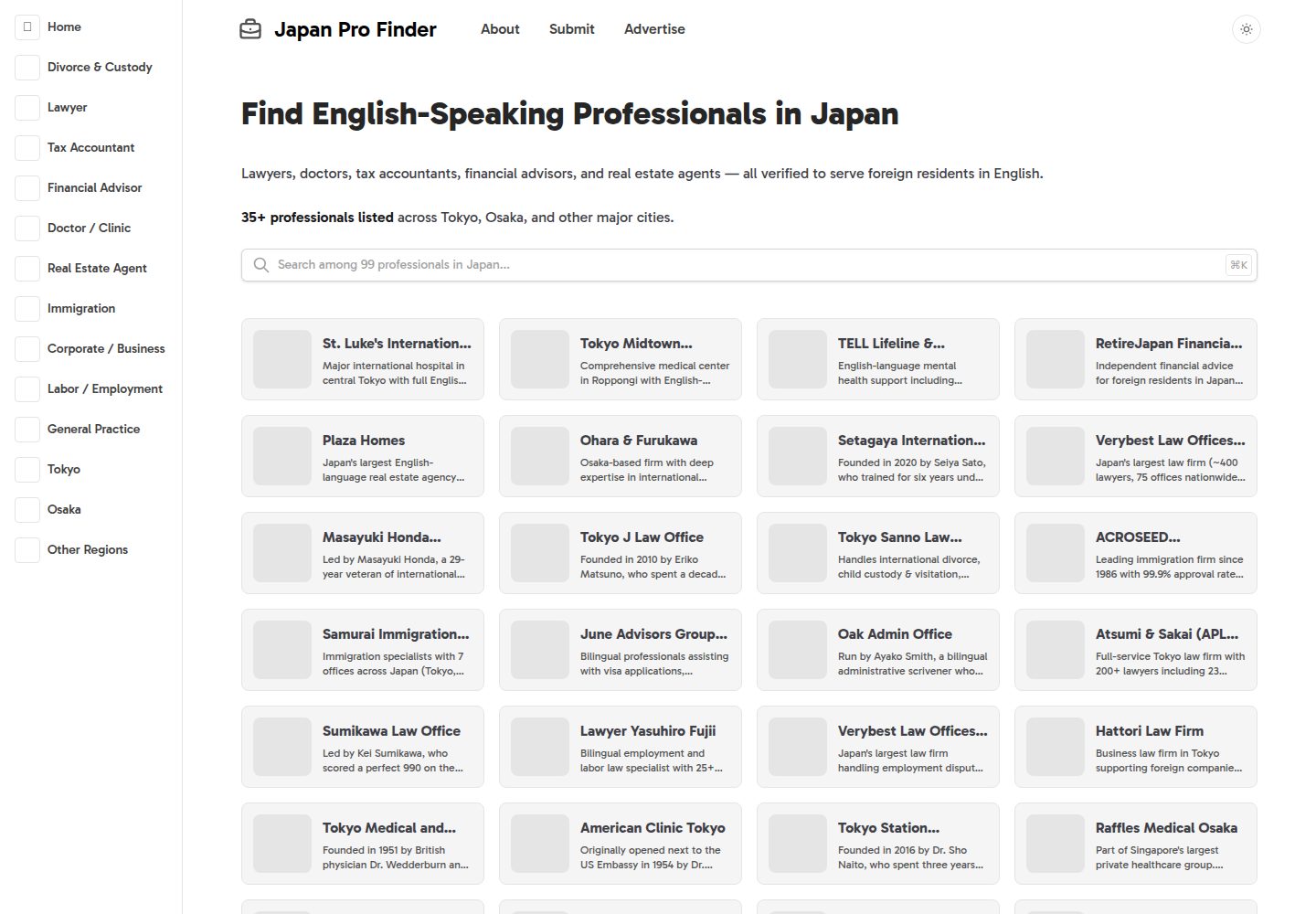
看看你的网站会是什么样
浏览真实页面截图,比较内容排版与手机效果。点击下方缩略图切换,放大查看整页细节。
全部页面与视图 3
截图用于了解视觉与布局,交互效果请以实际项目为准。
采集于 2026-10-13查看来源
值得关注的模板亮点
从已有项目资料中,快速了解它的特点。
列表可从 markdown、csv、json、google sheets、notion、airtable 等格式导入
提供目录场景预置组件、标签与搜索功能
支持深色/浅色模式与可自定义样式,含 spearmint、peppermint 两套预置样式
README 称包含 SEO 优化、程序化 SEO 与赞助内容能力
新增列表需重新构建并部署后才会在线上显示
模板详细介绍
这是一个用于搭建目录型网站的 Astro 模板,README 将其定位为「Markdown 驱动的目录模板」,使用 Astro 和 Tailwind CSS 构建。列表内容可以从 markdown、csv、json、google sheets、notion、airtable 等格式导入,模板提供目录场景的预置组件、可自定义样式以及深色/浅色模式,并包含标签与搜索功能。README 提到模板自带 SEO 优化和程序化 SEO,以及赞助内容(Sponsored Content)能力。
使用方式上,README 说明需要先复制模板并克隆仓库,使用 pnpm 安装依赖后通过 pnpm dev 启动本地开发。内容添加方式按数据源不同而不同:markdown 文件放入 src/data/directory 目录并在 frontmatter 中填写标题、描述等必填属性;json 使用 src/data/directory/directory.json,根元素为数组,每项需包含 id、name、description;csv 使用 src/data/directory/directory.csv,每行同样需要 id、name、description;google sheets 需要创建表格、转换为表格格式并公开分享,然后在 settings.toml 中设置 source=sheets 与 key 为文件 id。README 中 notion 与 airtable 两节标题下没有正文说明,因此这两种数据源的具体接入步骤未在 README 中提供。
README 明确提示,新增列表在网站重新构建并部署之前不会显示在线上,这样做是为了以静态 HTML、CSS 和 JS 提供尽可能快的访问速度。样式自定义方面,可修改 src/styles/global.css 中的 --color-primary-x00 与 --color-gray-x00 变量,更换字体需从 fontsource 安装、在 BaseLayout.astro 中引入并修改 --font-sans 变量,同时可调整 src/data/config/settings.toml。模板提供 spearmint 和 peppermint 两套预置样式。部署部分 README 只给出 pnpm run build 这一静态站点构建命令,未提供具体托管平台或部署流程说明。
AstroVue目录站
适合你的项目吗?
适用场景
- 搭建按分类或标签组织的资源、工具或服务目录网站
- 用 markdown 或表格数据批量维护条目并生成静态页面
- 需要深色模式、标签筛选与站内搜索的列表型站点
- 通过修改 CSS 变量和 settings.toml 定制品牌配色与站点配置
适合人群
- 希望用 Astro 构建静态目录站点的开发者
- 习惯用 markdown、csv 或表格维护内容的数据编辑者
- 需要标签、搜索与深色模式等目录常见功能的项目
- 准备自行完成样式定制与静态部署的团队
上手与定制指南
结合仓库当前版本的说明,按下面的资料检查内容、配置与运行要求。
- 1
复制模板并克隆仓库后,在项目目录执行 pnpm install 安装依赖
- 2
使用 pnpm dev 启动本地开发环境
- 3
markdown 列表放入 src/data/directory,json 使用 directory.json,csv 使用 directory.csv,均需包含 id、name、description 等必填字段
- 4
google sheets 需转换为表格并公开分享,然后在 settings.toml 设置 source=sheets 和 key 为文件 id
- 5
README 未提供 notion 与 airtable 的具体接入步骤,也未说明具体托管平台的部署流程
授权与来源资料
使用条件与限制
免费使用 · 保留许可声明本次收录的是公开仓库中采用 MIT 许可的免费版本;免费范围为该版本代码,不代表外部服务或第三方素材免费。
使用时需要遵守
- 允许免费使用、修改、商用和分发该版本代码。
- 分发代码副本或实质性部分时,保留原作者版权声明和完整 MIT 许可声明。
- 代码按现状提供;担保与责任限制以原许可证及适用法律为准。
额外费用与待核对事项
- 演示图片、字体、图标及其他第三方素材需按各自许可核对,不能仅凭代码的 MIT 许可判断。
- 域名、托管、数据库、支付或 AI 等外部服务可能另外收费。
- 新增列表在网站重新构建并部署之前不会显示在线上,需重新构建部署才能生效。
- 使用 Google Sheets 作为数据源时,需要将表格公开分享,并复制其文件 id。
- 使用 Google Sheets 数据源需在 settings.toml 中设置 source=sheets 并将 key 设为该文件 id。
查看原文依据
Permission is hereby granted, free of charge
许可证原文
Remember that listings will not be shown on the live website until the site is re-built and deployed. This is done to ensure the fastest possible performance by serving static html, css and js.
README 原文
3. Make it publicly shareable. When you share the link. copy the id
README 原文
https://github.com/HumanCronAdmin/japan-pro-finder/blob/main/LICENSEhttps://github.com/HumanCronAdmin/japan-pro-finder/blob/main/README.md4. Go to `settings.toml`, here you need to set the `source=sheets` and `key = ` the copied id of the file
README 原文
DeepSeek 根据仓库许可证和 README 整理 ·2026-10-13。结果仅覆盖已读取资料,依赖、图片、字体及后续条款变更以各自原文为准。
项目核对记录与介绍依据
模板资料
- 来源平台
- GitHub
- 资料与维护参考分
- 资料较完整 · 85 / 100
- 技术栈
- Astro · Vue
- 网站类型
- 目录站
这个分数如何计算
本站按许可资料(最高30分)、演示链接(12分)、预览图(10分)、Star数(15分)、记录的维护时间(15分)、描述完整度(8分)、功能记录(5分)和分类资料(5分)计算。它不是代码、安全或性能测试,也不是 Google 评分;有链接不代表已实测可用。
这个项目需要核对什么
- 记录的仓库更新时间
- 2026-04-12
- 截图检查日期
- 2026-10-13
已收录演示链接。请用你的内容与屏幕尺寸检查;有演示不代表表单、认证或支付已经可用。
目录记录的主要技术栈是 Astro。请通过依赖清单和锁文件核对实际版本与托管要求。这些说明基于收录资料,不代表代码审计或部署实测。
查看具体选型方法 →介绍的制作与核对状态
介绍由 AI 辅助整理目录与仓库资料。仓库作者不等于这篇介绍的审核者。
审核声明: codex-user-requested-batch-review-20261015 · 2026-10-15
查看当时使用的来源资料
SHA-256: 6c869f2053453b93bdf1d3b87c859091a49e67fec6a9c91f9257285483084596
2026-10-13T23:15:44.056Z
来源文件 / 仓库<div align="center"> <h1>Minted Directory Astro</h1> <p>Markdown driven directory template. Built with Astro and Tailwindcss. Optimized for SEO. Beautiful Customizable Style</p> </div> <br/> <div align="center"> <img src="https://github.com/user-attachments/assets/febde860-00be-408b-8a13-41953f7178e1" alt="Minted Directory Screenshot" /> </div> <br/> ## Features: + 🖌️ Add listings from is possible from different formats: `markdown`, `csv`, `json`, `google sheets`, `notion`, `airtable`. + 🔋 SEO optimized and programmatic SEO out of the box + 💻 Pre-built components for directories. + 💅 Customizable styles. + 🌙 Dark/Light mode + 💸 Sponsored Content + 👀 Tags + Search ## Getting Started ### Local Development Duplicate the template then clone the repository. ```sh git clone [email protected]:youraccount/projectname.git my-directory ``` Or use the github cli to create a repository based on the template and clone in one command: ```sh gh repo create my-directory --template masterkram/minted-directory-astro --private --clone ``` Go to the cloned folder: ```sh cd my-directory ``` Install dependencies ```sh pnpm install ``` Run the website: ```sh pnpm dev ``` Congrats :tada: You can start customizing and building your directory. ## Adding Content Adding content to the directory can be done using one of the following formats: + markdown + json + csv + notion + google sheets + airtable Remember that listings will not be shown on the live website until the site is re-built and deployed. This is done to ensure the fastest possible performance by serving static html, css and js. ### Using markdown listings: 1. add markdown files to the `src/data/directory` folder. All markdown files will be automatically loaded as listings. 2. You must specify required properties of a listing such as title and description in the [frontmatter]() of the file ### Using json listings: 1. add a single json file: `src/data/directory/directory.json` 2. in this json file, the root element is an array. This array can contain objects which are the listings of the directory. These require the properties of `id`, `name` and `description`. ### Using csv listings: 1. add a single csv file: `src/data/directory/directory.csv` 2. add rows to this csv file, these require the properties of `id`, `name` and `description`. ### Using google sheets listings: 1. Create a [google sheets](https://docs.google.com/spreadsheets/u/0/) document. 2. You need to select your table and click `Format > Convert to table` 3. Make it publicly shareable. When you share the link. copy the id 4. Go to `settings.toml`, here you need to set the `source=sheets` and `key = ` the copied id of the file Use this spreadsheet as a starting point: [directory google sheet data](https://docs.google.com/spreadsheets/d/1BKVVFysQT8ZuPY8hUp--jwTrN-U20TrtML0idECIWmc/edit?usp=sharing) ### Using notion listings: ### Using airtable listings: ## Customization To customize the directory style: + Change the `--color-primary-x00` variables, `--color-gray-x00` variables in the `src/styles/global.css` + Change the font: + install from [fontsource]() + import font in `BaseLayout.astro` + change the `--font-sans` variable in `global.css` + Customize the `src/data/config/settings.toml` to your preferences. ### Pre-made styles: - spearmint - peppermint ### Adding Content Add listings by adding markdown files to `/src/content/directory` ## Deployment Deploy as a static site for best SEO performance: ```bash pnpm run build ``` ## Community [Join the discord](https://discord.gg/5UbrTNzX7y)
看看同类模板
对比同技术栈与用途的模板,找到更适合的视觉与内容结构。
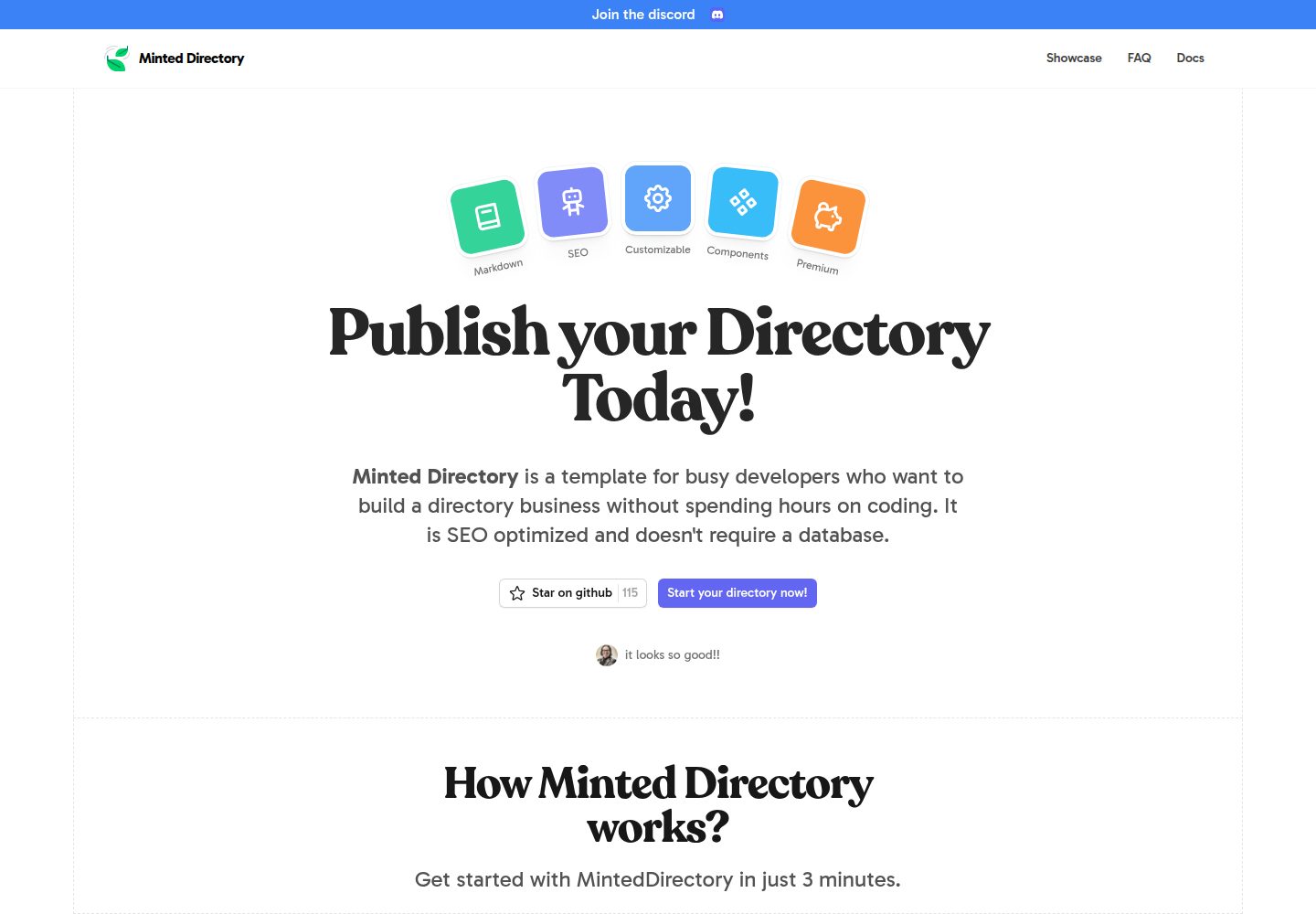
minted-directory-astro
Markdown driven directory template. Built with Astro and Tailwindcss. Optimized for SEO. Beautiful Customizabl…
Astro · 目录站
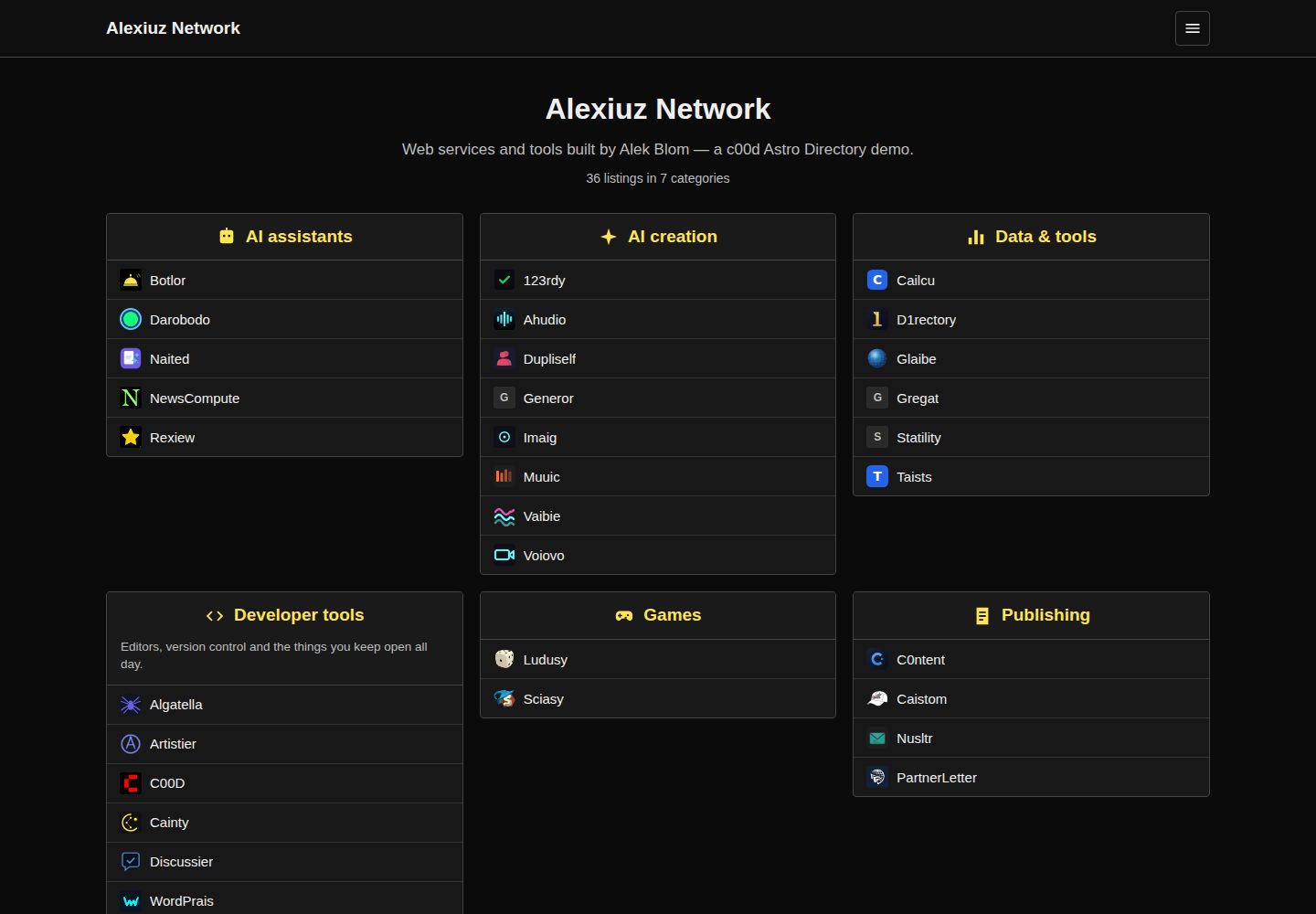
c00d-astro-directory
A ranked link directory as a static Astro site — category boxes, ratings, per-category pages and client-side s…
Astro · 目录站
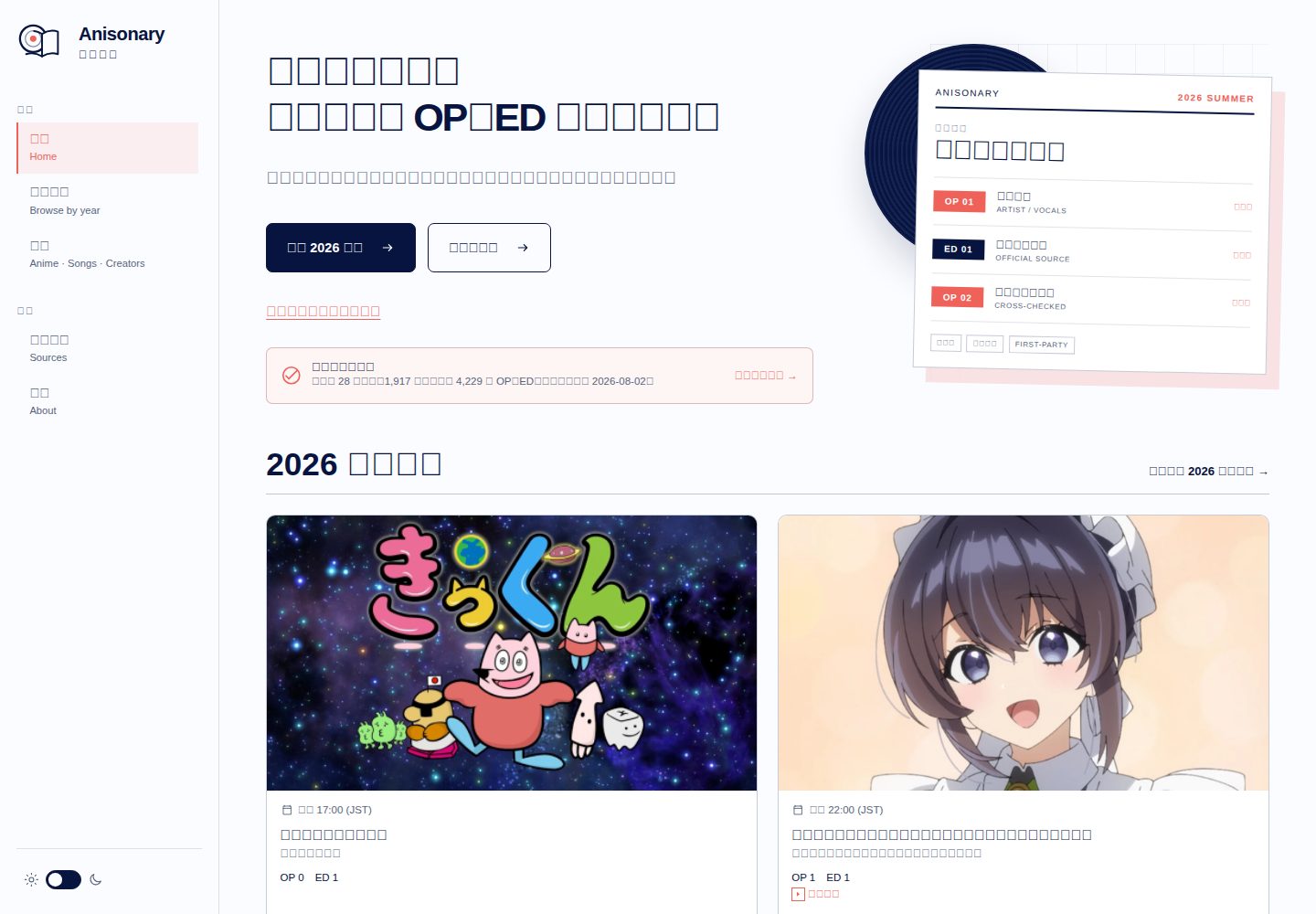
anisonary
具來源記錄的動畫 OP/ED 季度目錄,提供本地搜尋與靜態 API。 / Source-traceable seasonal anime theme directory.
Astro · 目录站
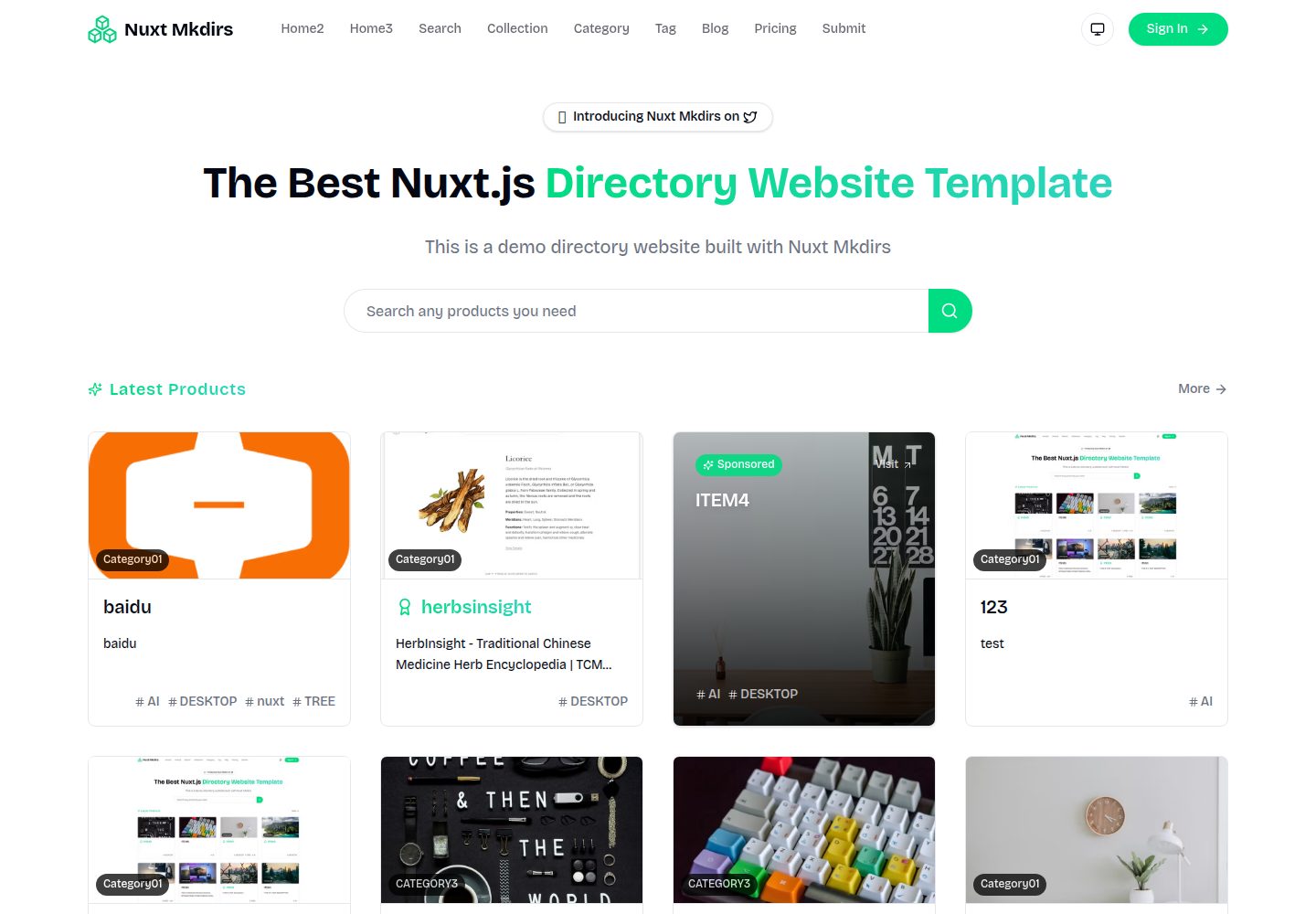
Nuxt_Mkdirs
🚀 Open-source directory website template built with Nuxt 4 + Sanity CMS. 3 layouts, OAuth, payments, blog & m…
Nuxt · 博客
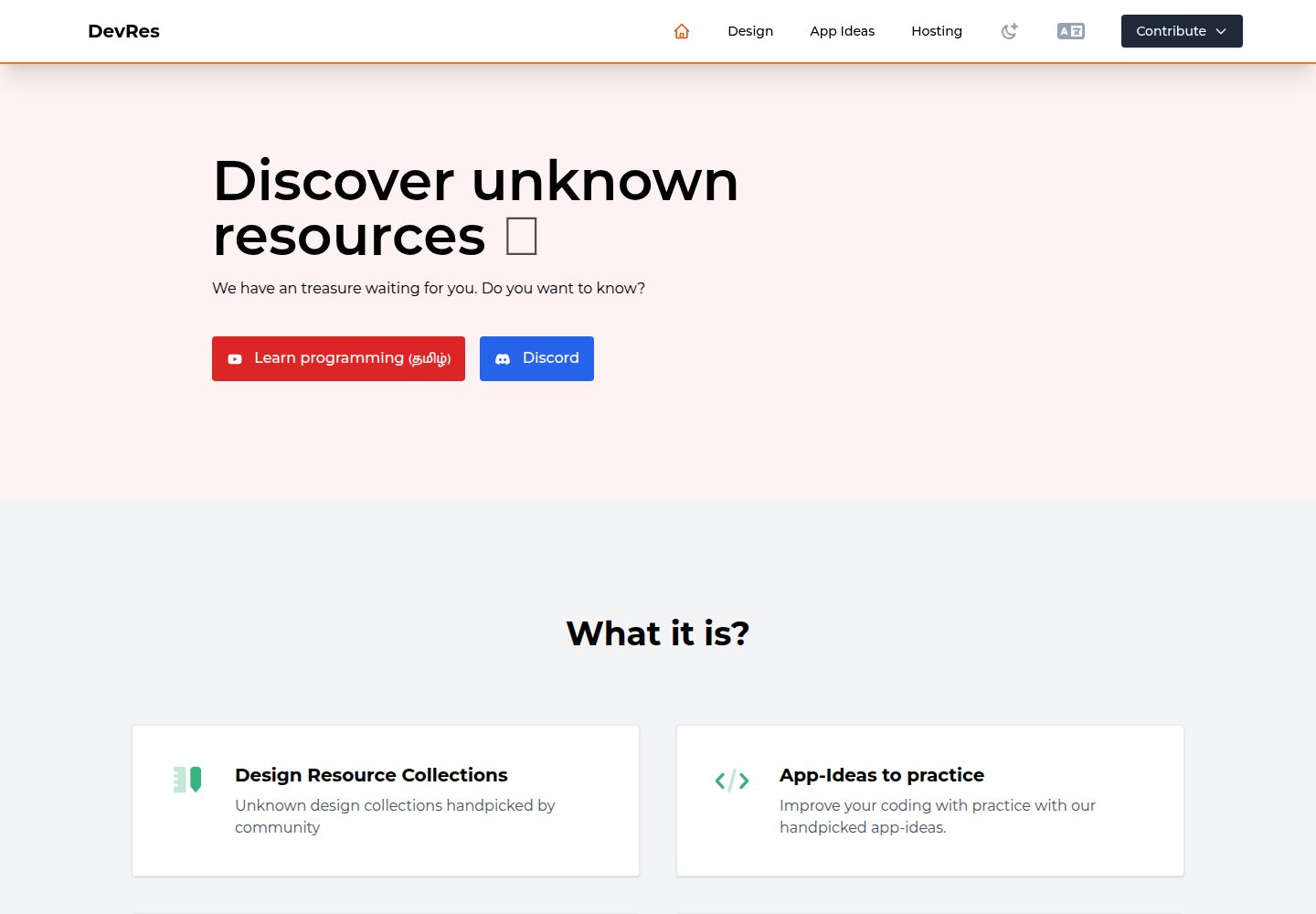
developer-resources
Developer's directory where you will find lots of freemium resources like icons, template ui, illustration, Ap…
Nuxt · 目录站
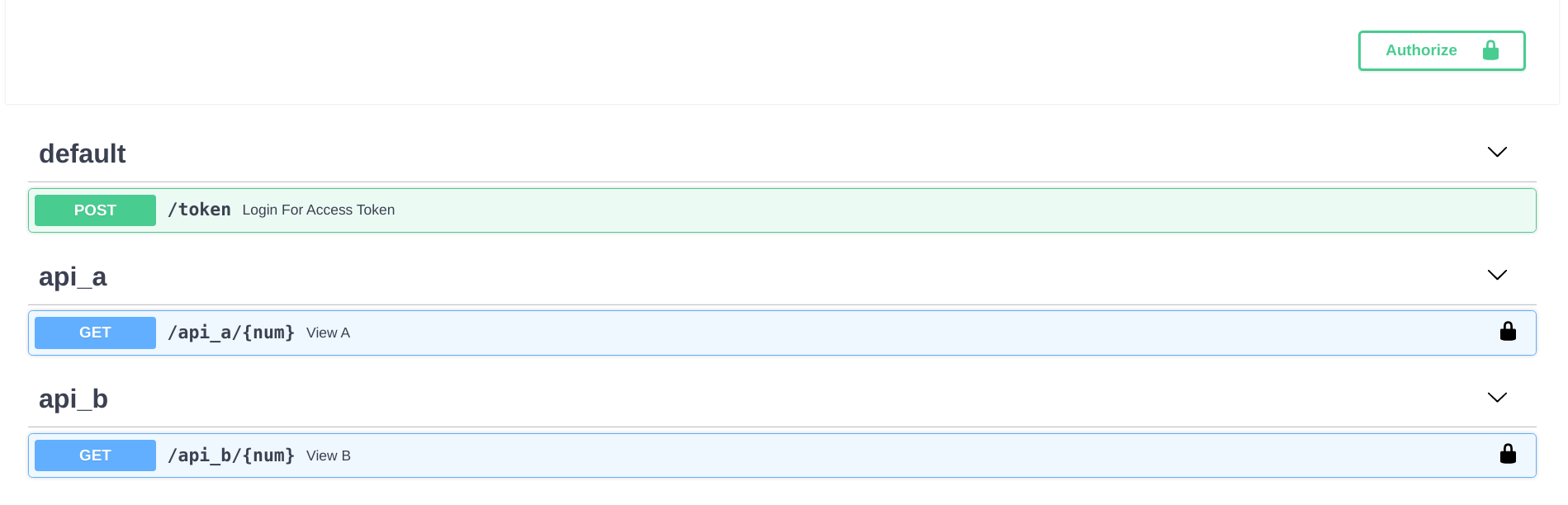
fastapi-nano
🐍 Simple FastAPI template that mimics Flask's blueprint directory structure
Flask · 目录站